USB TOYOTA HILUX 2013 (in English) User Guide
[x] Cancel search | Manufacturer: TOYOTA, Model Year: 2013, Model line: HILUX, Model: TOYOTA HILUX 2013Pages: 644, PDF Size: 34.35 MB
Page 307 of 644
307 3-2. Using the audio system
3
Interior features
HILUX_OM_OM0K189E_(EE)
ID3 and WMA tags
ID3 tags can be added to MP3 files, making it possible to record the track
title, artist name, etc.
The system is compatible with ID3 Ver. 1.0, 1.1, and Ver. 2.2, 2.3, 2.4 ID3
tags. (The number of characters is based on ID3 Ver. 1.0 and 1.1.)
WMA tags can be added to WMA files, making it possible to record the
track title and artist name in the same way as with ID3 tags.
MP3 and WMA playback
• When a device containing MP3 or WMA files is connected, all files in
the USB memory device are checked. Once the file check is finished,
the first MP3 or WMA file is played. To make the file check finish more
quickly, we recommend that you do not include any files other than
MP3 or WMA files or create any unnecessary folders.
• When the USB device is connected and the audio source is changed to
USB memory mode, the USB device will start playing the first file in the
first folder. If the same device is removed and reinserted (and the con-
tents have not been changed), the USB device will resume play from
the same point in which it was last used.
Extensions
If the file extensions .mp3 and .wma are used for files other than MP3 and
WMA files, they will be skipped (not played).
Page 308 of 644
308 3-2. Using the audio system
HILUX_OM_OM0K189E_(EE)
Playback
• To play MP3 files with steady sound quality, we recommend a fixed bit
rate of at least 128 kbps and a sampling frequency of 44.1 kHz.
• There is a wide variety of freeware and other encoding software for
MP3 and WMA files on the market, and depending on the status of the
encoding and the file format, poor sound quality or noise at the start of
playback may result. In some cases, playback may not be possible at
all.
• Microsoft, Windows, and Windows Media are registered trademarks of
Microsoft Corporation in the U.S.A. and other countries.
CAUTION
Caution while driving
Do not connect USB memory or operate the controls.
NOTICE
To prevent damage to USB memory
Do not leave USB memory in the vehicle. The temperature inside the vehi-
cle may become high, resulting in damage to the player.
Do not push down on or apply unnecessary pressure to the USB memory
while it is connected as this may damage the USB memory or its terminal.
Do not insert foreign objects into the port as this may damage the USB
memory or its terminal.
Page 313 of 644
313
3-2. Using the audio system
3
Interior features
HILUX_OM_OM0K189E_(EE)
Using the AUX por t
Operating portable audio devices connected to the audio system
The volume can be adjusted using the vehicle’s audio controls. All the other
adjustments must be made on the portable audio device itself.
When using a portable audio device connected to the power outlet
Noise may occur during playback. Use the power source of the portable
audio device.
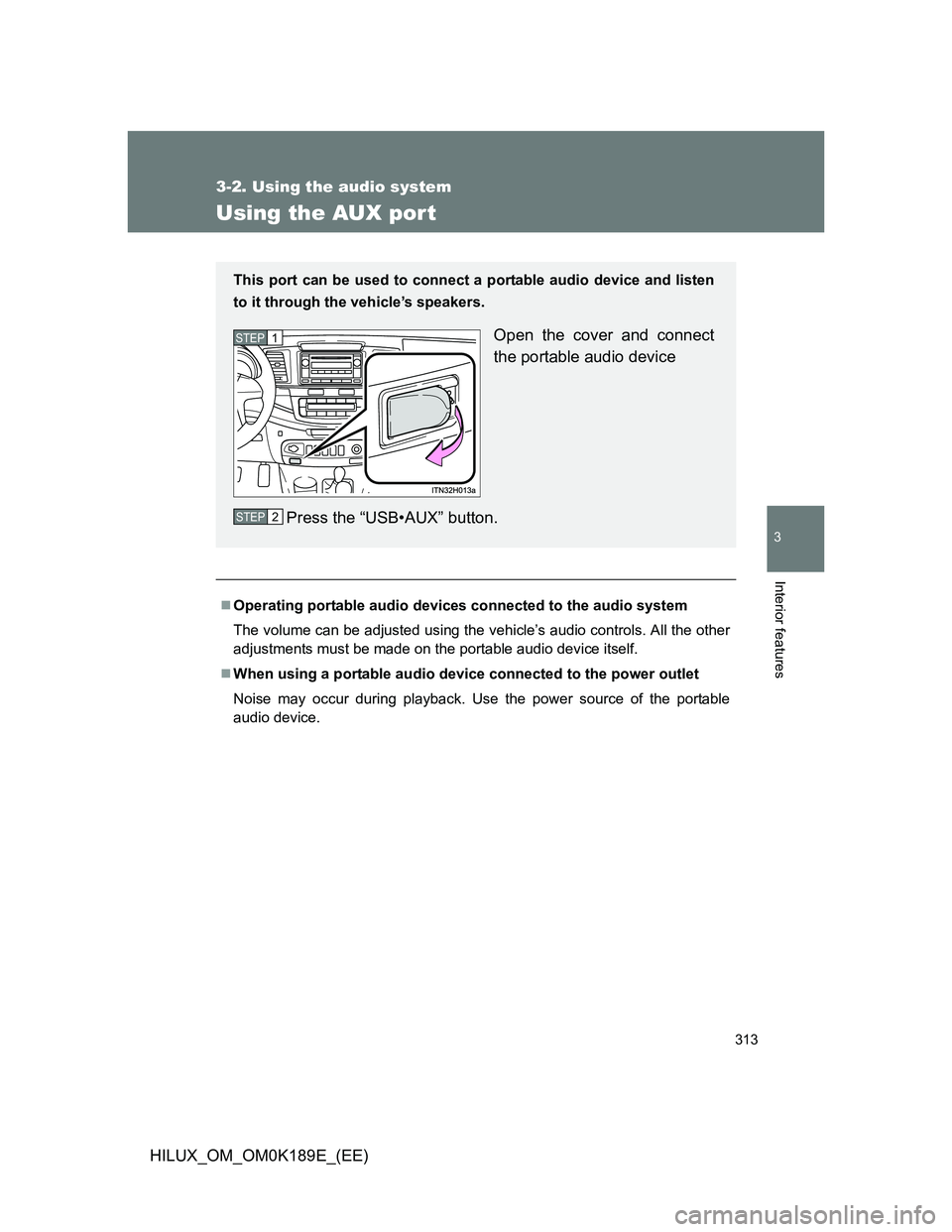
This port can be used to connect a portable audio device and listen
to it through the vehicle’s speakers.
Open the cover and connect
the portable audio device
Press the “USB•AUX” button.STEP1
STEP2
Page 314 of 644
314
3-2. Using the audio system
HILUX_OM_OM0K189E_(EE)
Using the steering wheel audio switches
: If equipped
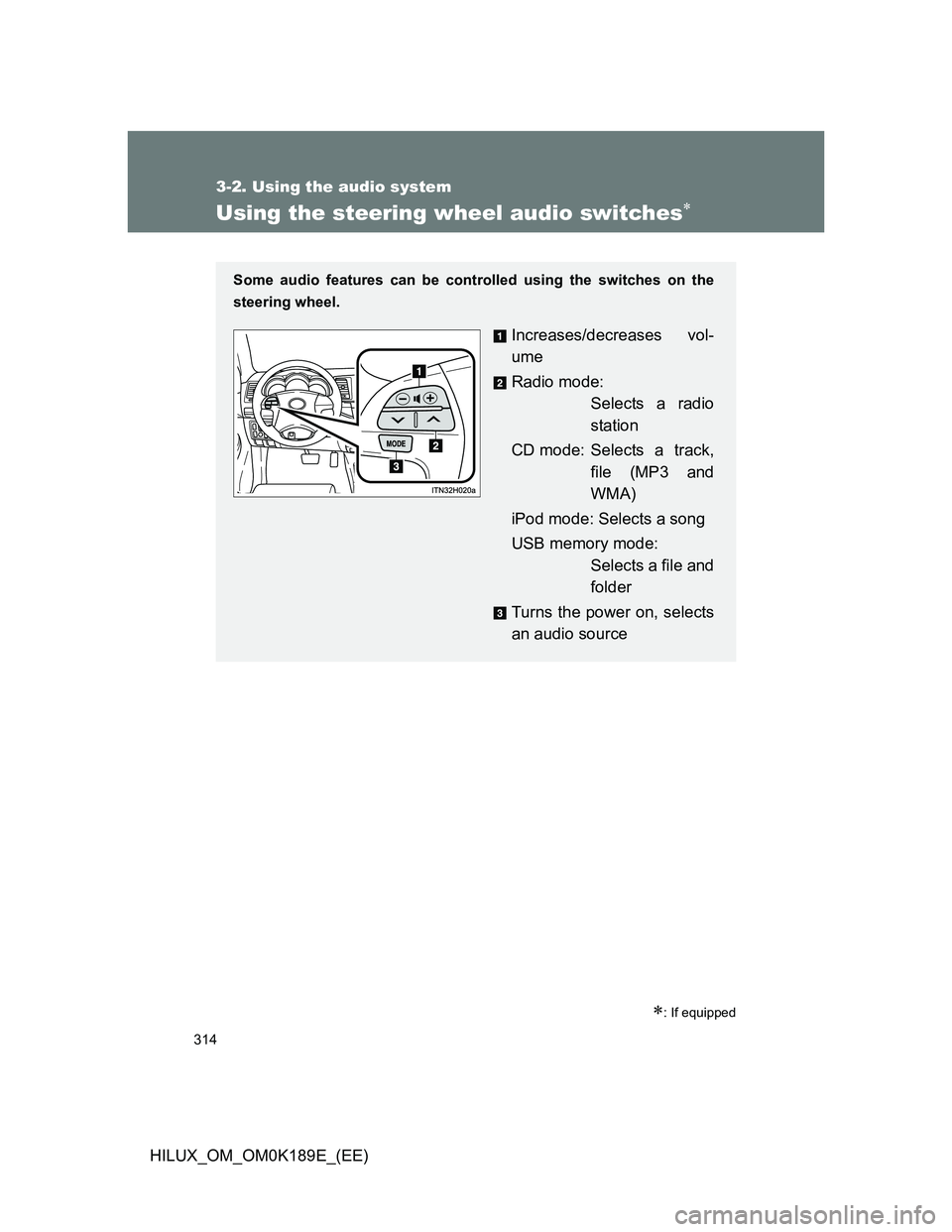
Some audio features can be controlled using the switches on the
steering wheel.
Increases/decreases vol-
ume
Radio mode:
Selects a radio
station
CD mode: Selects a track,
file (MP3 and
WMA)
iPod mode: Selects a song
USB memory mode:
Selects a file and
folder
Turns the power on, selects
an audio source
Page 315 of 644
315 3-2. Using the audio system
3
Interior features
HILUX_OM_OM0K189E_(EE)
Turning the power on
Press the “MODE” button when the audio system is turned off.
Changing the audio source
Press the “MODE” button when the audio system is turned on. The
audio source changes as follows each time the button is pressed.
AM FM1 DAB CD mode
iPod or USB memory mode AUX AM
Adjusting the volume
Press “+” on to increase the volume and “-” to decrease the
volume.
Hold down the button to continue increasing or decreasing the volume.
Silencing a sound
Press and hold the “MODE” button.
To cancel, press and hold the “MODE” button.
Page 316 of 644
316 3-2. Using the audio system
HILUX_OM_OM0K189E_(EE)
Selecting a radio station
Press the “MODE” button to select the radio mode.
Press “” or “” on to select a radio station.
To scan for receivable stations, press and hold “” or “” on the but-
ton until you hear a beep.
Selecting a track/file or song
Press the “MODE” button to select CD, iPod or USB memory
mode.
Press “” or “” on to select the desired track/file or
song.
Selecting a folder
Press the “MODE” button to select CD or USB memory mode.
Press and hold “” or “” on until you hear a beep.
CAUTION
To reduce the risk of an accident
Exercise care when operating the audio switches on the steering wheel.
STEP1
STEP2
STEP1
STEP2
STEP1
STEP2
Page 327 of 644
327
3-3. Using the “touch screen”
3
Interior features
HILUX_OM_OM0K189E_(EE)
Audio system
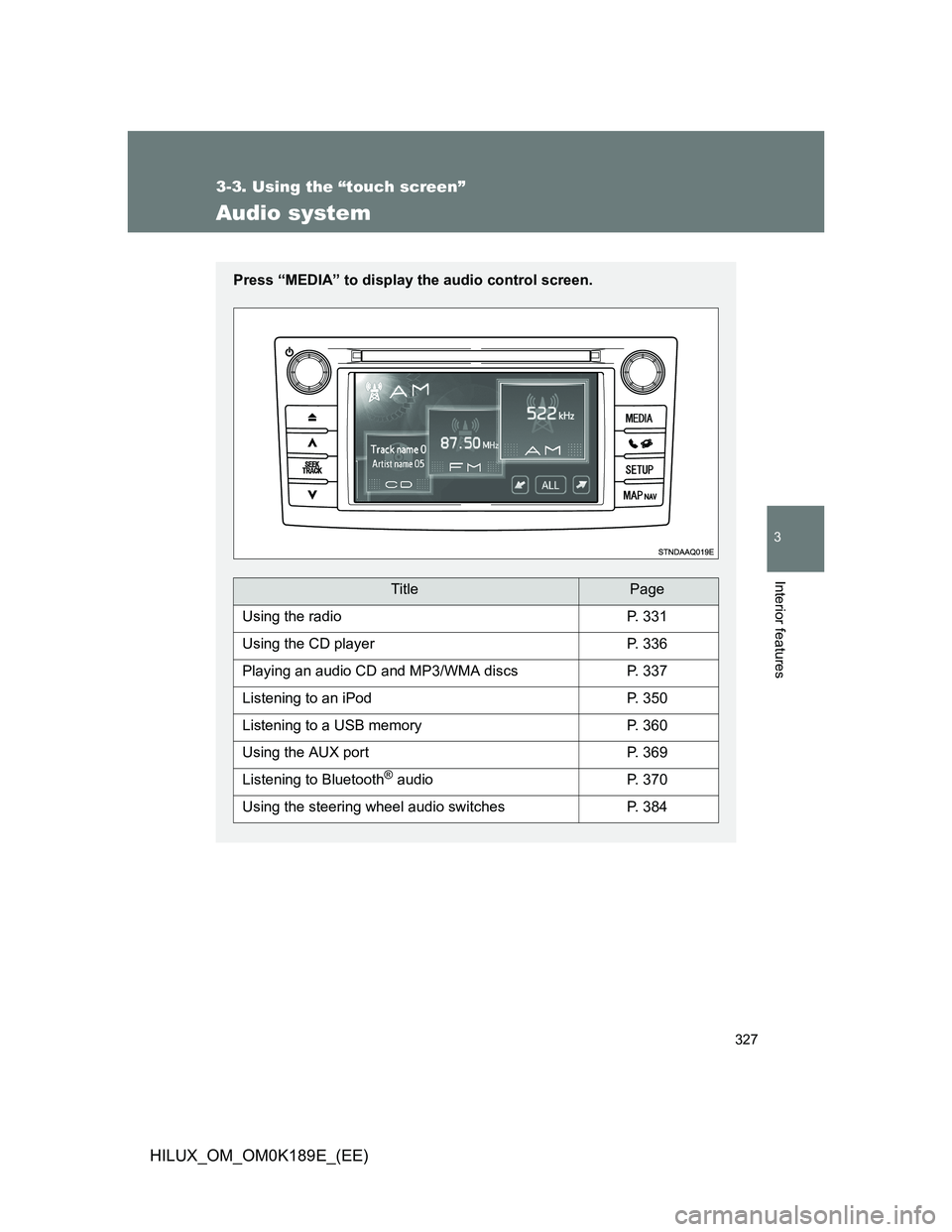
Press “MEDIA” to display the audio control screen.
TitlePage
Using the radioP. 331
Using the CD playerP. 336
Playing an audio CD and MP3/WMA discsP. 337
Listening to an iPodP. 350
Listening to a USB memoryP. 360
Using the AUX portP. 369
Listening to Bluetooth® audioP. 370
Using the steering wheel audio switchesP. 384
Page 360 of 644
360
3-3. Using the “touch screen”
HILUX_OM_OM0K189E_(EE)
Listening to a USB memor y
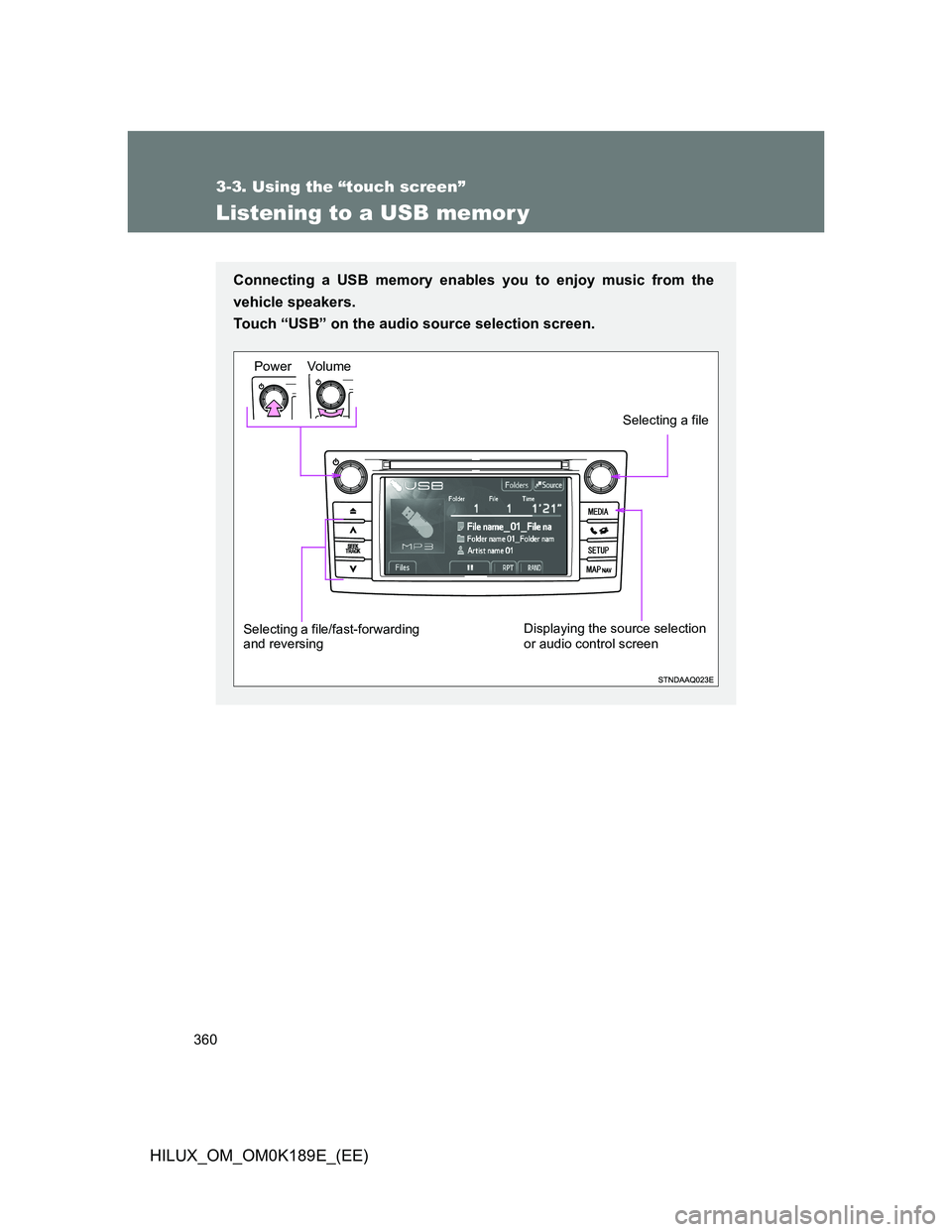
Connecting a USB memory enables you to enjoy music from the
vehicle speakers.
Touch “USB” on the audio source selection screen.
Vo lu m e Power
Selecting a file/fast-forwarding
and reversingDisplaying the source selection
or audio control screen
Selecting a file
Page 362 of 644
362 3-3. Using the “touch screen”
HILUX_OM_OM0K189E_(EE)
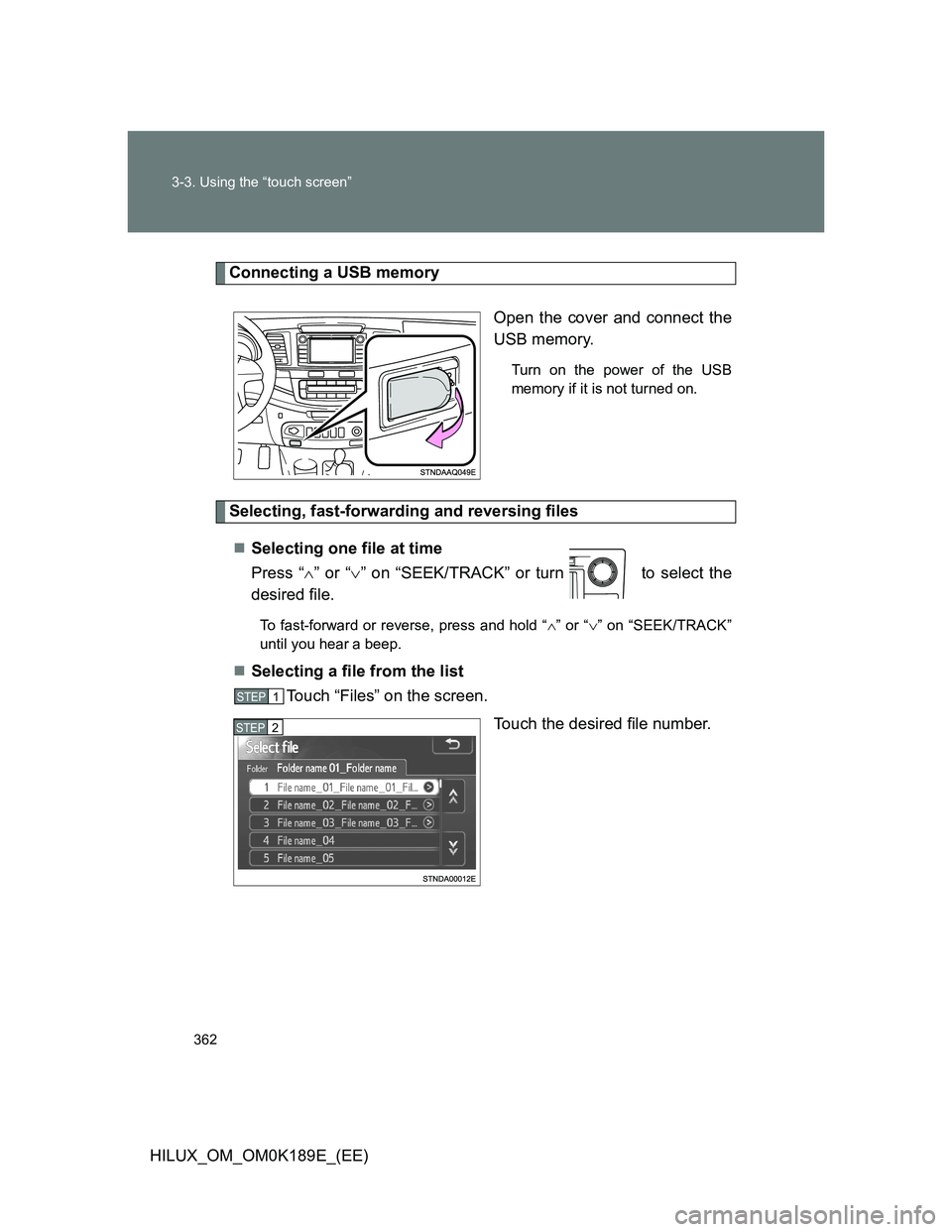
Connecting a USB memory
Open the cover and connect the
USB memory.
Turn on the power of the USB
memory if it is not turned on.
Selecting, fast-forwarding and reversing files
Selecting one file at time
Press “” or “” on “SEEK/TRACK” or turn to select the
desired file.
To fast-forward or reverse, press and hold “” or “” on “SEEK/TRACK”
until you hear a beep.
Selecting a file from the list
Touch “Files” on the screen.
Touch the desired file number.
STEP1
STEP2
Page 365 of 644
365 3-3. Using the “touch screen”
3
Interior features
HILUX_OM_OM0K189E_(EE)
USB memory functions
Depending on the USB memory that is connected to the system, the
device itself may not be operable and certain functions may not be avail-
able. If the device is inoperable or a function is unavailable due to a mal-
function (as opposed to a system specification), disconnecting the device
and reconnecting it once again may resolve the problem.
If the USB memory still does not begin operation after being discon-
nected and reconnected, format the memory.
Error messages for USB memory
“Connection error.”: This indicates a problem in the USB memory or its
connection.
“There are no files available for playback.”:
This indicates that no MP3/WMA files are included in
the USB memory.
USB memory
Compatible devices
USB memory that can be used for MP3 and WMA playback.
Compatible device formats
The following device formats can be used:
• USB communication formats: USB2.0 FS (12 Mbps)
• File formats: FAT16/32 (Windows)
• Correspondence class: Mass storage class
MP3 and WMA files written in any format other than those listed above
may not play correctly, and their file names and folder names may not be
displayed correctly.
Items related to standards and limitations are as follows:
• Maximum directory hierarchy: 8 levels
• Maximum number of folders in a device: 3000 (including the root)
• Maximum number of files in a device: 9999
• Maximum number of files per folder: 255