Disc TOYOTA LAND CRUISER 2014 J200 Navigation Manual
[x] Cancel search | Manufacturer: TOYOTA, Model Year: 2014, Model line: LAND CRUISER, Model: TOYOTA LAND CRUISER 2014 J200Pages: 427, PDF Size: 25.75 MB
Page 218 of 427
218
1. AUDIO/VIDEO SYSTEM OPERATION
L/C200_Navi_OM60L27U_(U)
13.06.03 19:41
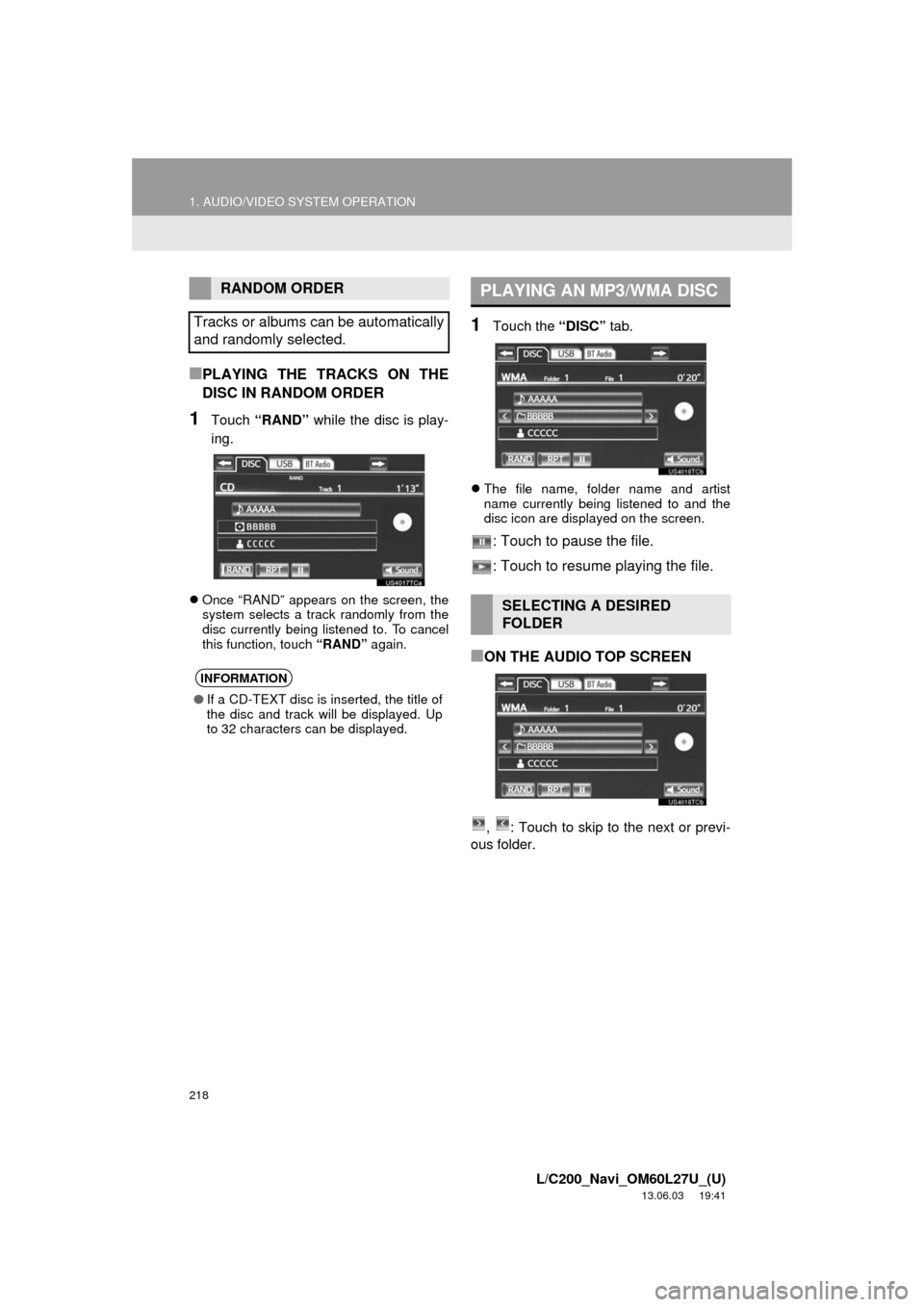
■PLAYING THE TRACKS ON THE
DISC IN RANDOM ORDER
1Touch “RAND” while the disc is play-
ing.
Once “RAND” appears on the screen, the
system selects a track randomly from the
disc currently being listened to. To cancel
this function, touch “RAND” again.
1Touch the “DISC” tab.
The file name, folder name and artist
name currently being listened to and the
disc icon are displayed on the screen.
: Touch to pause the file.
: Touch to resume playing the file.
■ON THE AUDIO TOP SCREEN
, : Touch to skip to the next or previ-
ous folder.
RANDOM ORDER
Tracks or albums can be automatically
and randomly selected.
INFORMATION
●If a CD-TEXT disc is inserted, the title of
the disc and track will be displayed. Up
to 32 characters can be displayed.
PLAYING AN MP3/WMA DISC
SELECTING A DESIRED
FOLDER
Page 221 of 427
221
1. AUDIO/VIDEO SYSTEM OPERATION
5
AUDIO/VIDEO SYSTEM
L/C200_Navi_OM60L27U_(U)
13.06.03 19:41
Each time “RPT” is touched, the mode
changes as follows:
When “RAND” is off
• File Repeat Folder Repeat Off
When “RAND” is on
• File RepeatOff
“RPT” appears on the screen. When the
file is finished, the player will automatically
play it again. To cancel this function, touch
“RPT” repeatedly until the repeat mode
turns off.
■REPEATING A FOLDER
1Touch “RPT” repeatedly until
“FLD.RPT” appears on the screen.
When the folder is finished, the player will
automatically go back to the beginning of
the folder and play it again. To cancel this
function, touch “RPT” again.
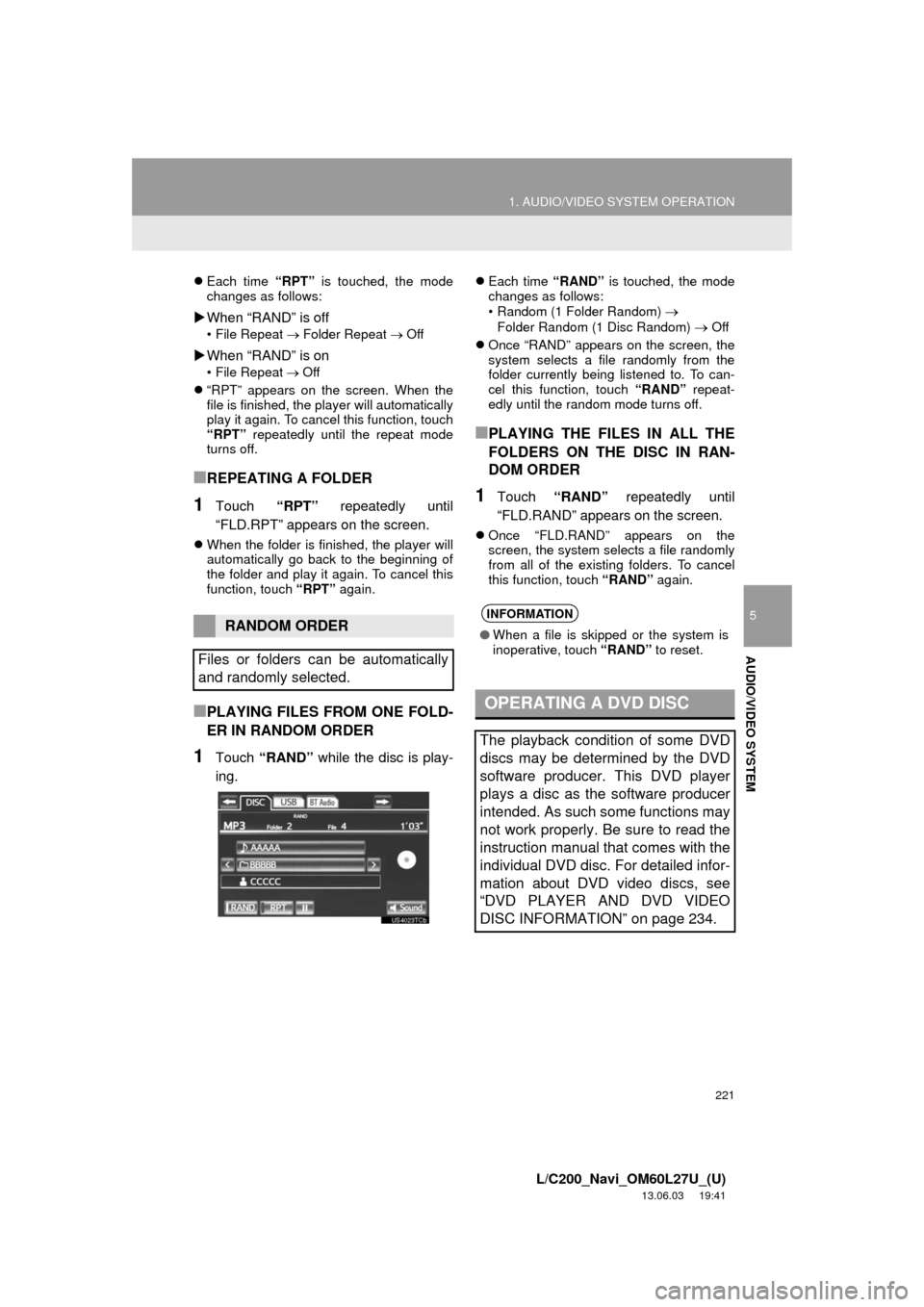
■PLAYING FILES FROM ONE FOLD-
ER IN RANDOM ORDER
1Touch “RAND” while the disc is play-
ing.
Each time “RAND” is touched, the mode
changes as follows:
• Random (1 Folder Random)
Folder Random (1 Disc Random) Off
Once “RAND” appears on the screen, the
system selects a file randomly from the
folder currently being listened to. To can-
cel this function, touch “RAND” repeat-
edly until the random mode turns off.
■PLAYING THE FILES IN ALL THE
FOLDERS ON THE DISC IN RAN-
DOM ORDER
1Touch “RAND” repeatedly until
“FLD.RAND” appears on the screen.
Once “FLD.RAND” appears on the
screen, the system selects a file randomly
from all of the existing folders. To cancel
this function, touch “RAND” again.
RANDOM ORDER
Files or folders can be automatically
and randomly selected.INFORMATION
●When a file is skipped or the system is
inoperative, touch “RAND” to reset.
OPERATING A DVD DISC
The playback condition of some DVD
discs may be determined by the DVD
software producer. This DVD player
plays a disc as the software producer
intended. As such some functions may
not work properly. Be sure to read the
instruction manual that comes with the
individual DVD disc. For detailed infor-
mation about DVD video discs, see
“DVD PLAYER AND DVD VIDEO
DISC INFORMATION” on page 234.
Page 222 of 427
222
1. AUDIO/VIDEO SYSTEM OPERATION
L/C200_Navi_OM60L27U_(U)
13.06.03 19:41
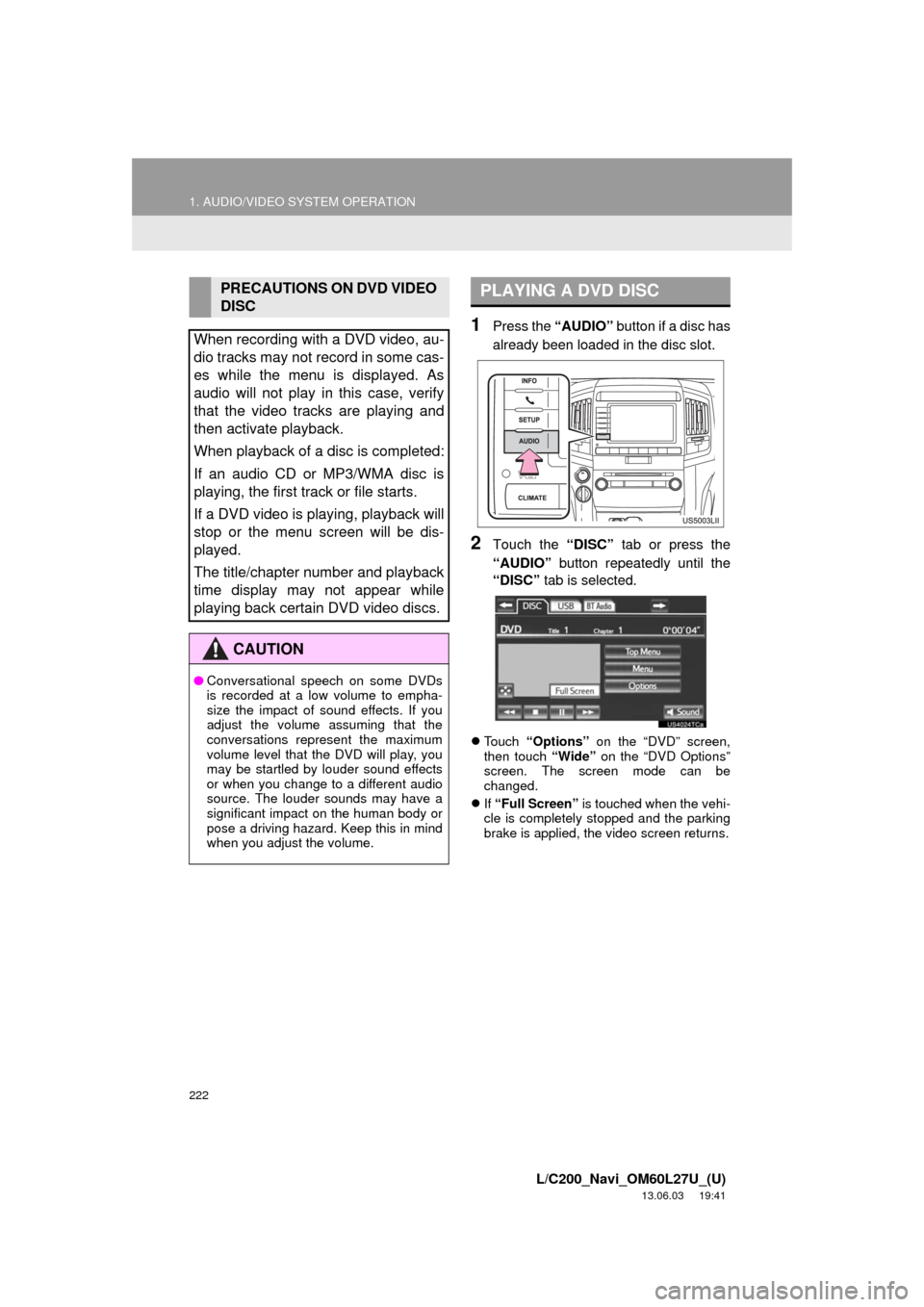
1Press the “AUDIO” button if a disc has
already been loaded in the disc slot.
2Touch the “DISC” tab or press the
“AUDIO” button repeatedly until the
“DISC” tab is selected.
Touch “Options” on the “DVD” screen,
then touch “Wide” on the “DVD Options”
screen. The screen mode can be
changed.
If “Full Screen” is touched when the vehi-
cle is completely stopped and the parking
brake is applied, the video screen returns.
PRECAUTIONS ON DVD VIDEO
DISC
When recording with a DVD video, au-
dio tracks may not record in some cas-
es while the menu is displayed. As
audio will not play in this case, verify
that the video tracks are playing and
then activate playback.
When playback of a disc is completed:
If an audio CD or MP3/WMA disc is
playing, the first track or file starts.
If a DVD video is playing, playback will
stop or the menu screen will be dis-
played.
The title/chapter number and playback
time display may not appear while
playing back certain DVD video discs.
CAUTION
●Conversational speech on some DVDs
is recorded at a low volume to empha-
size the impact of sound effects. If you
adjust the volume assuming that the
conversations represent the maximum
volume level that the DVD will play, you
may be startled by louder sound effects
or when you change to a different audio
source. The louder sounds may have a
significant impact on the human body or
pose a driving hazard. Keep this in mind
when you adjust the volume.
PLAYING A DVD DISC
Page 224 of 427
224
1. AUDIO/VIDEO SYSTEM OPERATION
L/C200_Navi_OM60L27U_(U)
13.06.03 19:41
1Select the menu item using ,
, or and touch
“Enter”. The player starts playing the
disc from the start of the selected item.
When is touched, the previous
screen is displayed.
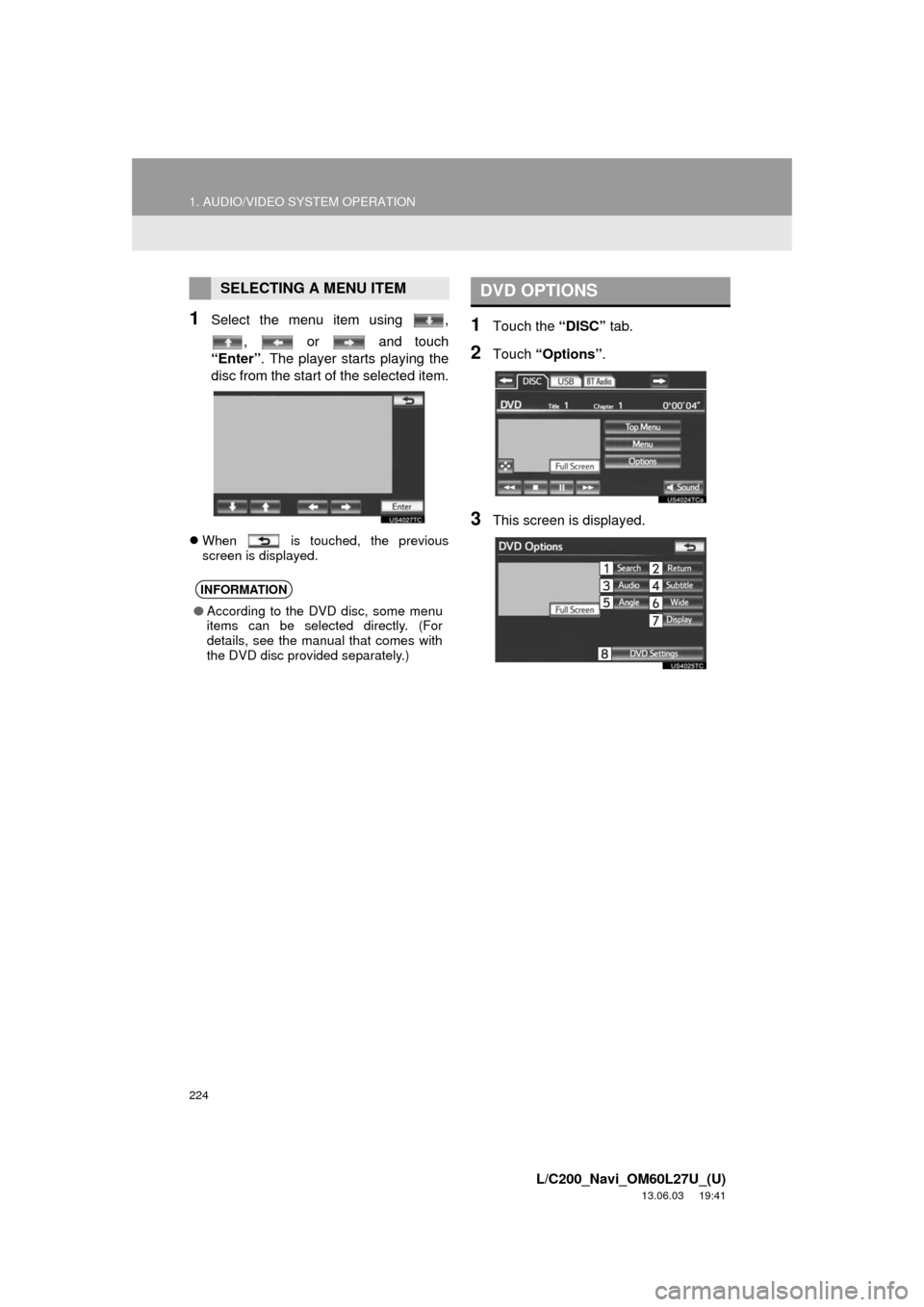
1Touch the “DISC” tab.
2Touch “Options”.
3This screen is displayed.
SELECTING A MENU ITEM
INFORMATION
●According to the DVD disc, some menu
items can be selected directly. (For
details, see the manual that comes with
the DVD disc provided separately.)
DVD OPTIONS
Page 225 of 427
225
1. AUDIO/VIDEO SYSTEM OPERATION
5
AUDIO/VIDEO SYSTEM
L/C200_Navi_OM60L27U_(U)
13.06.03 19:41
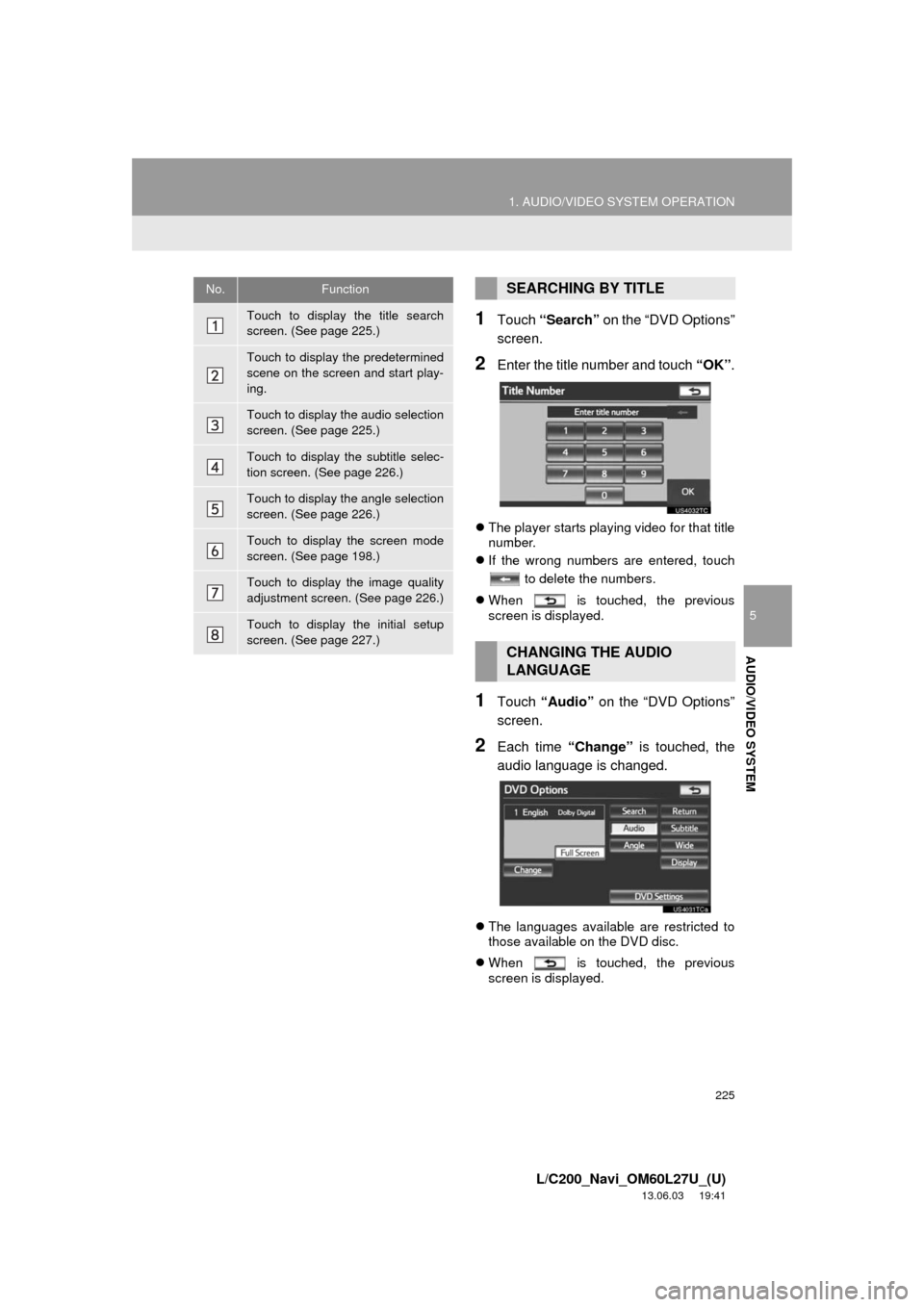
1Touch “Search” on the “DVD Options”
screen.
2Enter the title number and touch “OK”.
The player starts playing video for that title
number.
If the wrong numbers are entered, touch
to delete the numbers.
When is touched, the previous
screen is displayed.
1Touch “Audio” on the “DVD Options”
screen.
2Each time “Change” is touched, the
audio language is changed.
The languages available are restricted to
those available on the DVD disc.
When is touched, the previous
screen is displayed.
No.Function
Touch to display the title search
screen. (See page 225.)
Touch to display the predetermined
scene on the screen and start play-
ing.
Touch to display the audio selection
screen. (See page 225.)
Touch to display the subtitle selec-
tion screen. (See page 226.)
Touch to display the angle selection
screen. (See page 226.)
Touch to display the screen mode
screen. (See page 198.)
Touch to display the image quality
adjustment screen. (See page 226.)
Touch to display the initial setup
screen. (See page 227.)
SEARCHING BY TITLE
CHANGING THE AUDIO
LANGUAGE
Page 226 of 427
226
1. AUDIO/VIDEO SYSTEM OPERATION
L/C200_Navi_OM60L27U_(U)
13.06.03 19:41
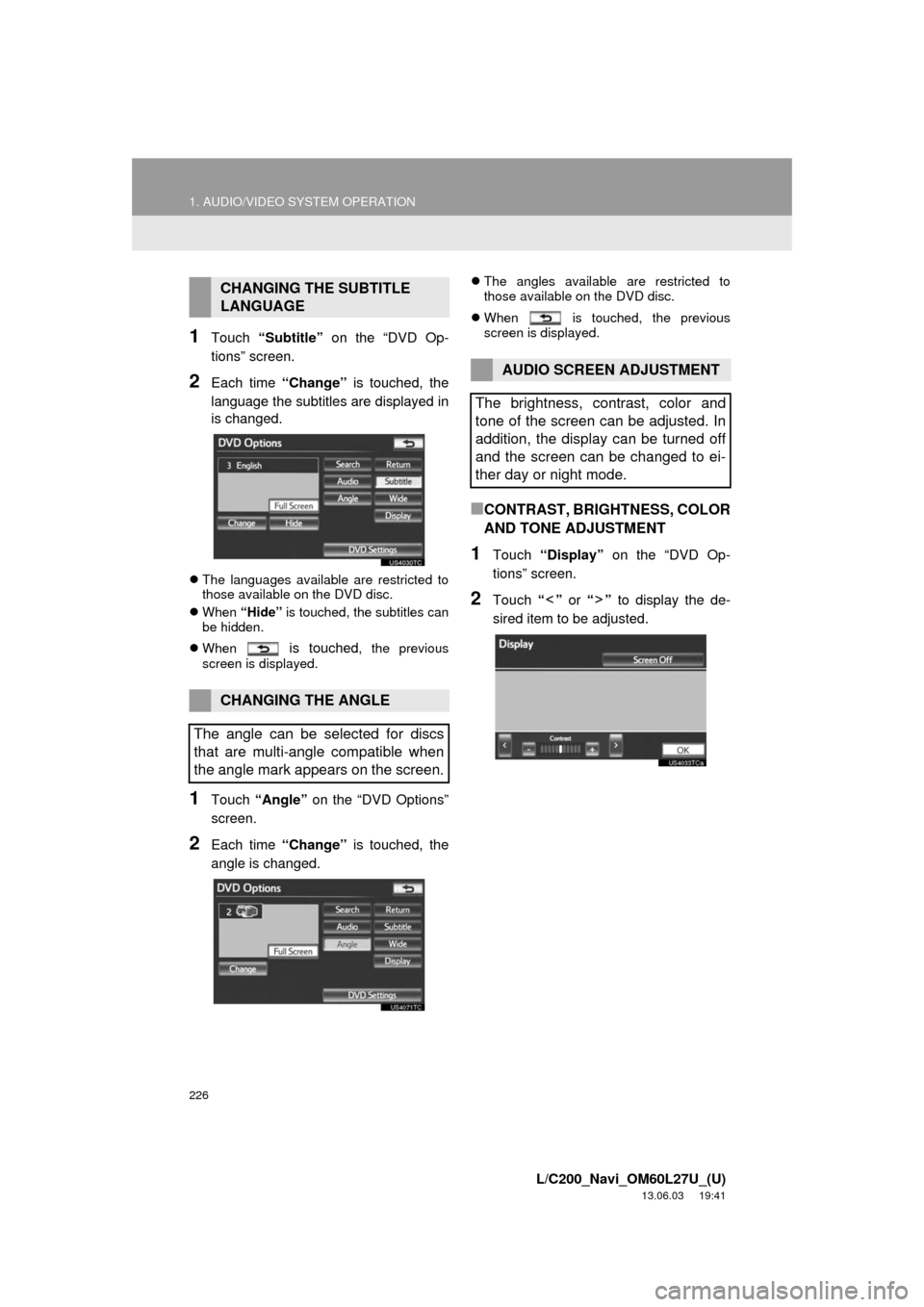
1Touch “Subtitle” on the “DVD Op-
tions” screen.
2Each time “Change” is touched, the
language the subtitles are displayed in
is changed.
The languages available are restricted to
those available on the DVD disc.
When “Hide” is touched, the subtitles can
be hidden.
When
is touched, the previous
screen is displayed.
1Touch “Angle” on the “DVD Options”
screen.
2Each time “Change” is touched, the
angle is changed.
The angles available are restricted to
those available on the DVD disc.
When is touched, the previous
screen is displayed.
■CONTRAST, BRIGHTNESS, COLOR
AND TONE ADJUSTMENT
1Touch “Display” on the “DVD Op-
tions” screen.
2Touch “” or “” to display the de-
sired item to be adjusted.
CHANGING THE SUBTITLE
LANGUAGE
CHANGING THE ANGLE
The angle can be selected for discs
that are multi-angle compatible when
the angle mark appears on the screen.
AUDIO SCREEN ADJUSTMENT
The brightness, contrast, color and
tone of the screen can be adjusted. In
addition, the display can be turned off
and the screen can be changed to ei-
ther day or night mode.
Page 228 of 427
228
1. AUDIO/VIDEO SYSTEM OPERATION
L/C200_Navi_OM60L27U_(U)
13.06.03 19:41
■AUDIO LANGUAGE
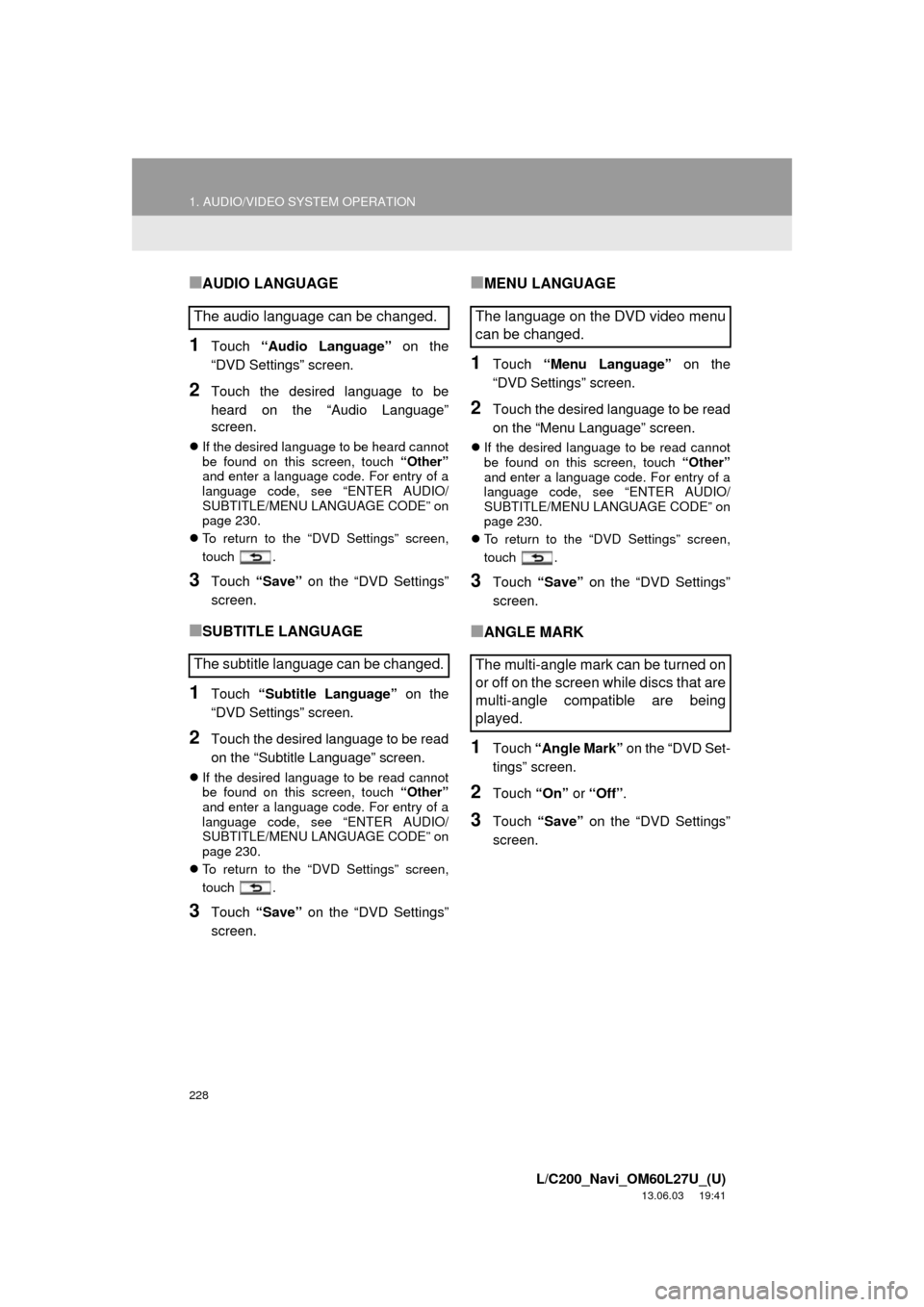
1Touch “Audio Language” on the
“DVD Settings” screen.
2Touch the desired language to be
heard on the “Audio Language”
screen.
If the desired language to be heard cannot
be found on this screen, touch “Other”
and enter a language code. For entry of a
language code, see “ENTER AUDIO/
SUBTITLE/MENU LANGUAGE CODE” on
page 230.
To return to the “DVD Settings” screen,
touch .
3Touch “Save” on the “DVD Settings”
screen.
■SUBTITLE LANGUAGE
1Touch “Subtitle Language” on the
“DVD Settings” screen.
2Touch the desired language to be read
on the “Subtitle Language” screen.
If the desired language to be read cannot
be found on this screen, touch “Other”
and enter a language code. For entry of a
language code, see “ENTER AUDIO/
SUBTITLE/MENU LANGUAGE CODE” on
page 230.
To return to the “DVD Settings” screen,
touch .
3Touch “Save” on the “DVD Settings”
screen.
■MENU LANGUAGE
1Touch “Menu Language” on the
“DVD Settings” screen.
2Touch the desired language to be read
on the “Menu Language” screen.
If the desired language to be read cannot
be found on this screen, touch “Other”
and enter a language code. For entry of a
language code, see “ENTER AUDIO/
SUBTITLE/MENU LANGUAGE CODE” on
page 230.
To return to the “DVD Settings” screen,
touch .
3Touch “Save” on the “DVD Settings”
screen.
■ANGLE MARK
1Touch “Angle Mark” on the “DVD Set-
tings” screen.
2Touch “On” or “Off”.
3Touch “Save” on the “DVD Settings”
screen.
The audio language can be changed.
The subtitle language can be changed.The language on the DVD video menu
can be changed.
The multi-angle mark can be turned on
or off on the screen while discs that are
multi-angle compatible are being
played.
Page 229 of 427
229
1. AUDIO/VIDEO SYSTEM OPERATION
5
AUDIO/VIDEO SYSTEM
L/C200_Navi_OM60L27U_(U)
13.06.03 19:41
■PARENTAL LOCK
1Touch “Parental Lock” on the “DVD
Settings” screen.
2Enter the 4-digit personal code on the
“Key Code” screen.
If the wrong numbers are entered, touch
to delete the numbers.
To return to the “DVD Settings” screen,
touch .
3Touch a parental level (1-8) on the “Se-
lect Restriction Level” screen.
To return to the “DVD Settings” screen,
touch .
4Touch “Save” on the “DVD Settings”
screen.
■AUTO START PLAYBACK
1Touch “Auto Start Playback” on the
“DVD Settings” screen.
2Touch “On” or “Off”.
3Touch “Save” on the “DVD Settings”
screen.
■SOUND DYNAMIC RANGE
1Touch “Sound Dynamic Range” on
the “DVD Settings” screen.
2Touch “MAX”, “STD” or “MIN”.
3Touch “Save” on the “DVD Settings”
screen.
The level of viewer restrictions can be
changed.
Discs that are inserted while the vehi-
cle is in motion will automatically start
playing. Certain discs may not play.The difference between the lowest vol-
ume and the highest volume can be
adjusted.
Page 233 of 427
233
1. AUDIO/VIDEO SYSTEM OPERATION
5
AUDIO/VIDEO SYSTEM
L/C200_Navi_OM60L27U_(U)
13.06.03 19:41
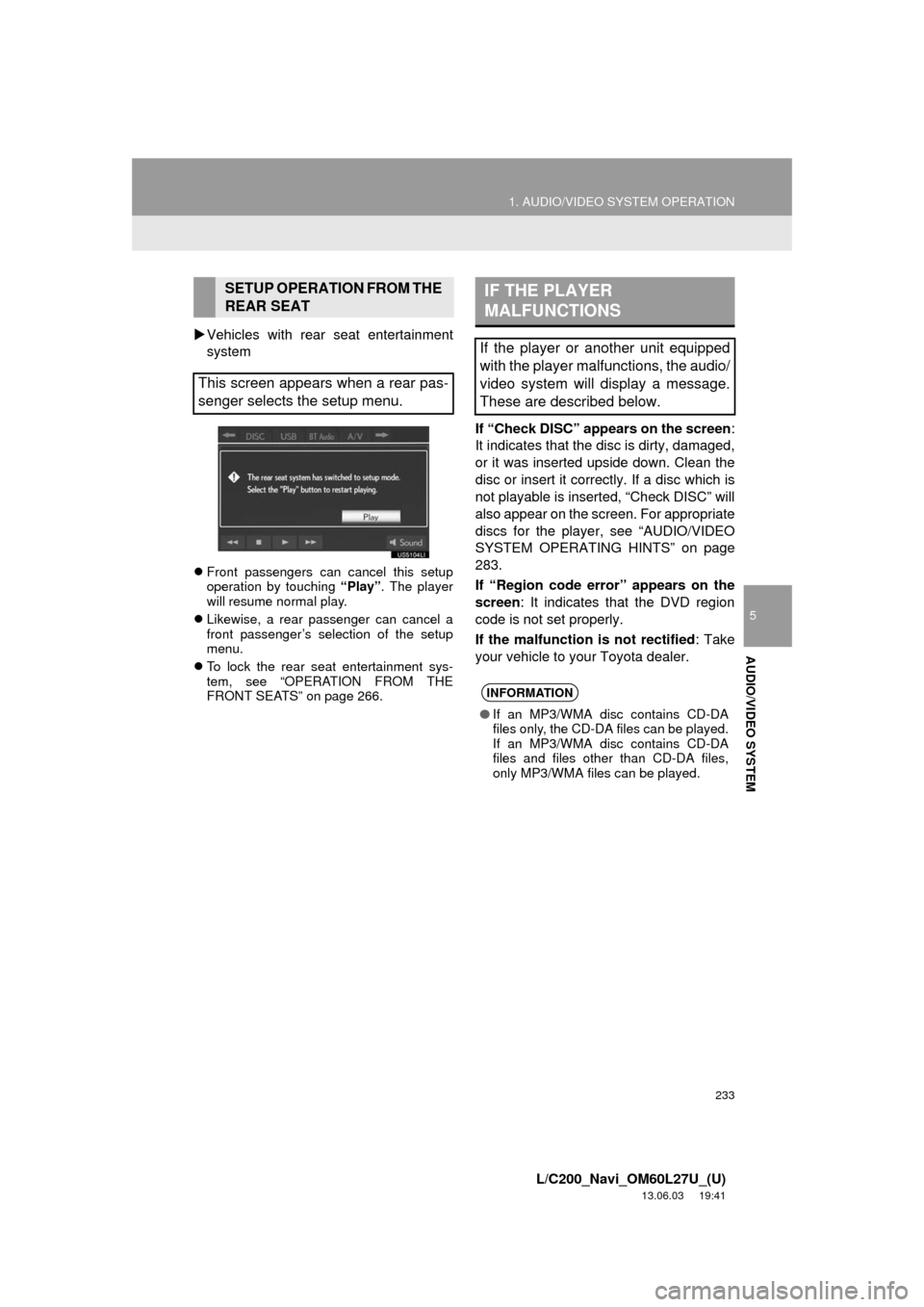
Vehicles with rear seat entertainment
system
Front passengers can cancel this setup
operation by touching “Play”. The player
will resume normal play.
Likewise, a rear passenger can cancel a
front passenger’s selection of the setup
menu.
To lock the rear seat entertainment sys-
tem, see “OPERATION FROM THE
FRONT SEATS” on page 266.
If “Check DISC” appears on the screen:
It indicates that the disc is dirty, damaged,
or it was inserted upside down. Clean the
disc or insert it correctly. If a disc which is
not playable is inserted, “Check DISC” will
also appear on the screen. For appropriate
discs for the player, see “AUDIO/VIDEO
SYSTEM OPERATING HINTS” on page
283.
If “Region code error” appears on the
screen: It indicates that the DVD region
code is not set properly.
If the malfunction is not rectified: Take
your vehicle to your Toyota dealer.
SETUP OPERATION FROM THE
REAR SEAT
This screen appears when a rear pas-
senger selects the setup menu.IF THE PLAYER
MALFUNCTIONS
If the player or another unit equipped
with the player malfunctions, the audio/
video system will display a message.
These are described below.
INFORMATION
●If an MP3/WMA disc contains CD-DA
files only, the CD-DA files can be played.
If an MP3/WMA disc contains CD-DA
files and files other than CD-DA files,
only MP3/WMA files can be played.
Page 234 of 427
234
1. AUDIO/VIDEO SYSTEM OPERATION
L/C200_Navi_OM60L27U_(U)
13.06.03 19:41
Region codes: Some DVD video discs
have a region code indicating which coun-
tries the DVD video disc can be played in
on this DVD player. If the DVD video disc
is not labeled as “ALL” or “1”, you cannot
use it on this DVD player. If you attempt to
play an inappropriate DVD video disc on
this player, “Region code error” appears
on the screen. Even if the DVD video disc
does not have a region code, there are
cases when it cannot be used.
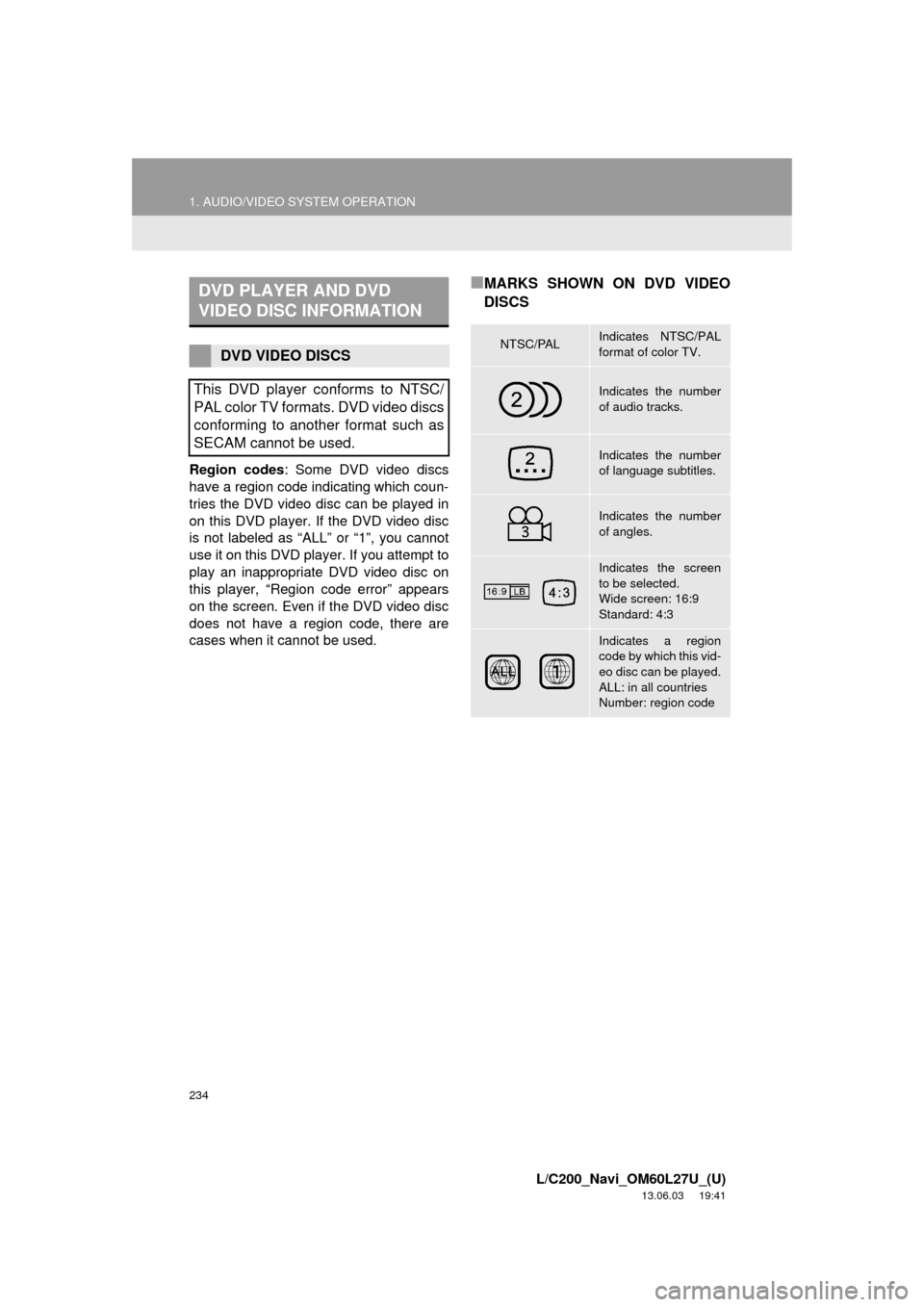
■MARKS SHOWN ON DVD VIDEO
DISCSDVD PLAYER AND DVD
VIDEO DISC INFORMATION
DVD VIDEO DISCS
This DVD player conforms to NTSC/
PAL color TV formats. DVD video discs
conforming to another format such as
SECAM cannot be used.NTSC/PALIndicates NTSC/PAL
format of color TV.
Indicates the number
of audio tracks.
Indicates the number
of language subtitles.
Indicates the number
of angles.
Indicates the screen
to be selected.
Wide screen: 16:9
Standard: 4:3
Indicates a region
code by which this vid-
eo disc can be played.
ALL: in all countries
Number: region code