Disc TOYOTA LAND CRUISER 2014 J200 Navigation Manual
[x] Cancel search | Manufacturer: TOYOTA, Model Year: 2014, Model line: LAND CRUISER, Model: TOYOTA LAND CRUISER 2014 J200Pages: 427, PDF Size: 25.75 MB
Page 300 of 427
300
1. AIR CONDITIONING SYSTEM OPERATION
L/C200_Navi_OM60L27U_(U)
13.06.03 19:43
2. SOME BASICS
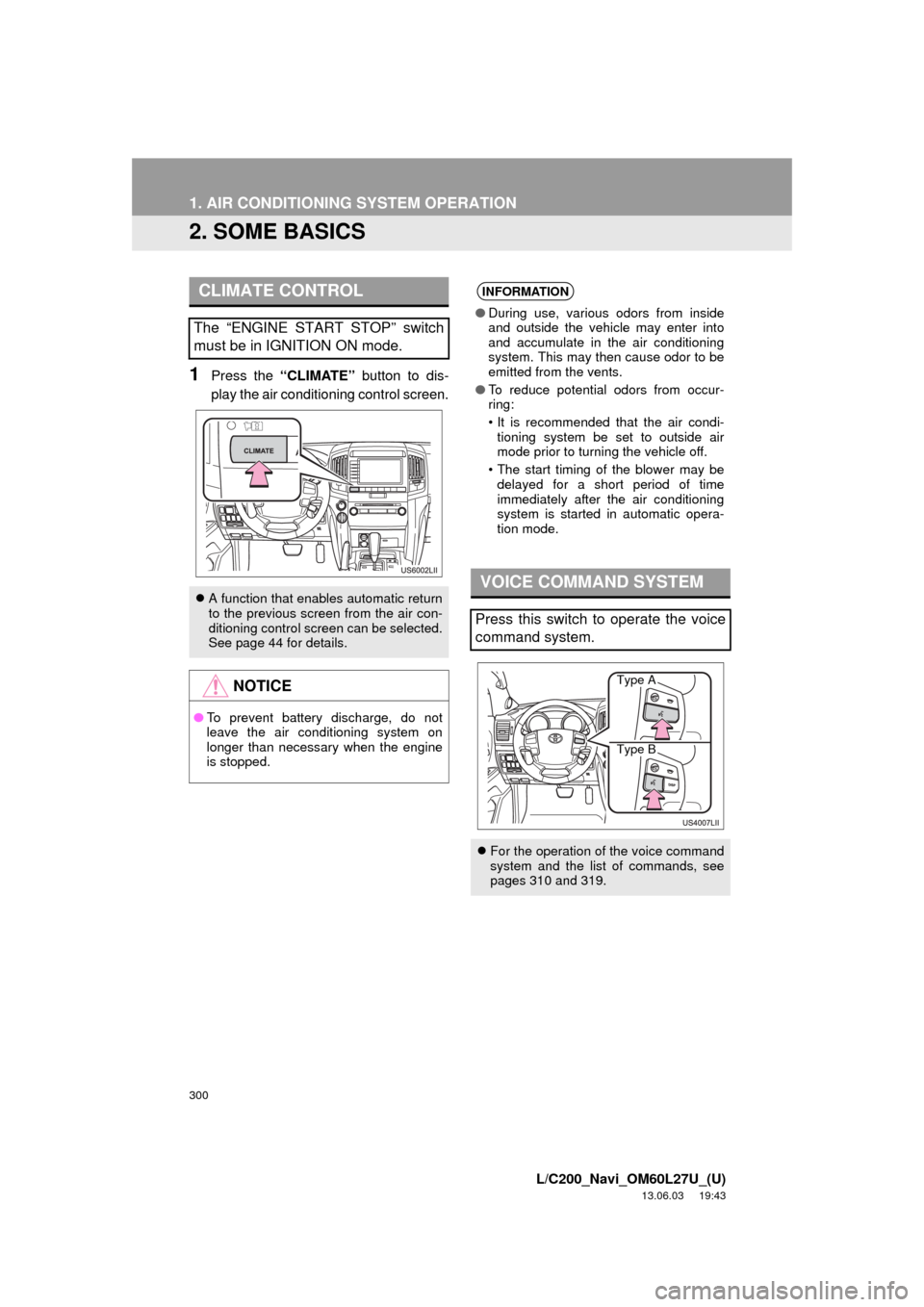
1Press the “CLIMATE” button to dis-
play the air conditioning control screen.
CLIMATE CONTROL
The “ENGINE START STOP” switch
must be in IGNITION ON mode.
A function that enables automatic return
to the previous screen from the air con-
ditioning control screen can be selected.
See page 44 for details.
NOTICE
●To prevent battery discharge, do not
leave the air conditioning system on
longer than necessary when the engine
is stopped.
INFORMATION
●During use, various odors from inside
and outside the vehicle may enter into
and accumulate in the air conditioning
system. This may then cause odor to be
emitted from the vents.
●To reduce potential odors from occur-
ring:
• It is recommended that the air condi-
tioning system be set to outside air
mode prior to turning the vehicle off.
• The start timing of the blower may be
delayed for a short period of time
immediately after the air conditioning
system is started in automatic opera-
tion mode.
VOICE COMMAND SYSTEM
Press this switch to operate the voice
command system.
For the operation of the voice command
system and the list of commands, see
pages 310 and 319.
Type A
Type B
Page 321 of 427
321
1. VOICE COMMAND SYSTEM OPERATION
7
VOICE COMMAND SYSTEM
L/C200_Navi_OM60L27U_(U)
13.06.03 19:43
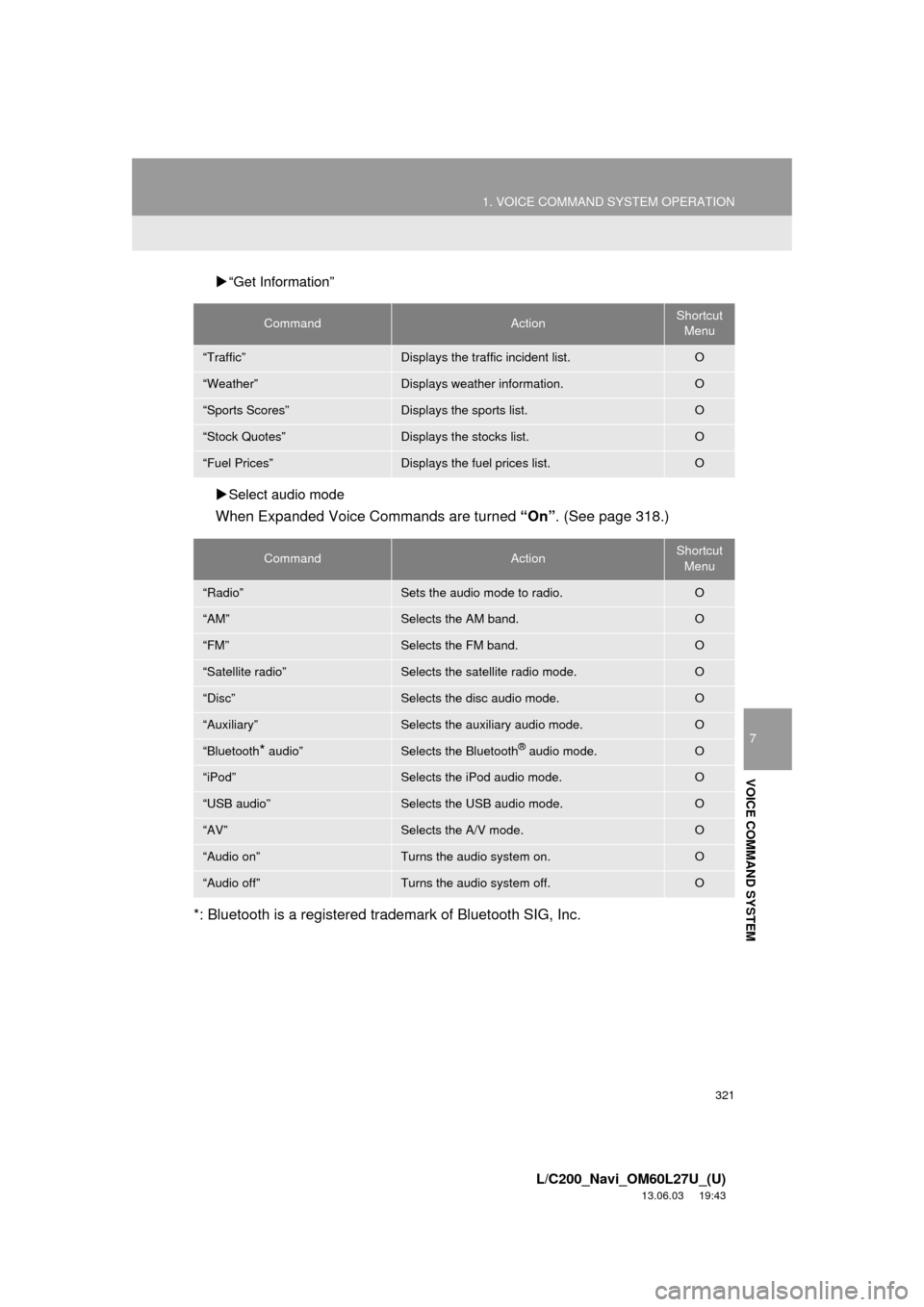
“Get Information”
Select audio mode
When Expanded Voice Commands are turned “On”. (See page 318.)
*: Bluetooth is a registered trademark of Bluetooth SIG, Inc.
CommandActionShortcut
Menu
“Traffic”Displays the traffic incident list.O
“Weather”Displays weather information.O
“Sports Scores”Displays the sports list.O
“Stock Quotes”Displays the stocks list.O
“Fuel Prices”Displays the fuel prices list.O
CommandActionShortcut
Menu
“Radio”Sets the audio mode to radio.O
“AM”Selects the AM band.O
“FM”Selects the FM band.O
“Satellite radio”Selects the satellite radio mode.O
“Disc”Selects the disc audio mode.O
“Auxiliary”Selects the auxiliary audio mode.O
“Bluetooth* audio”Selects the Bluetooth® audio mode.O
“iPod”Selects the iPod audio mode.O
“USB audio”Selects the USB audio mode.O
“AV”Selects the A/V mode. O
“Audio on”Turns the audio system on.O
“Audio off”Turns the audio system off.O
Page 329 of 427
329
2. XM FUNCTION-OVERVIEW
8
INFORMATION
L/C200_Navi_OM60L27U_(U)
13.06.03 19:43
Fees and Taxes — Subscription fee,
taxes, one time activation fee, and other
fees may apply. Subscription fee is con-
sumer only. All fees and programming
subject to change. Subscriptions subject
to Customer Agreement available at
www.siriusxm.com
. XM service only
available in the 48 contiguous United
States.
Explicit Language Notice — Channels
with frequent explicit language are indi-
cated with an “XL” preceding the chan-
nel name. Channel blocking is available
for XM Satellite Radio receivers by noti-
fying XM at;
Visit www.siriusxm.com
or calling 1-800-
967-2346It is prohibited to copy, decompile, dis-
assemble, reverse engineer, hack, ma-
nipulate, or otherwise make available
any technology or software incorporated
in receivers compatible with the XM Sat-
ellite Radio System or that support the
XM website, the Online Service or any of
its content. Furthermore, the AMBE
®
voice compression software included in
this product is protected by intellectual
property rights including patent rights,
copyrights, and trade secrets of Digital
Voice Systems, Inc.
Note: this applies to XM receivers only
and not XM Ready devices.
XM RADIO SERVICES —
LEGAL DISCLAIMERS AND
WARNINGS
Page 354 of 427
354
2. ENTUNE OPERATION
L/C200_Navi_OM60L27U_(U)
13.06.03 19:43
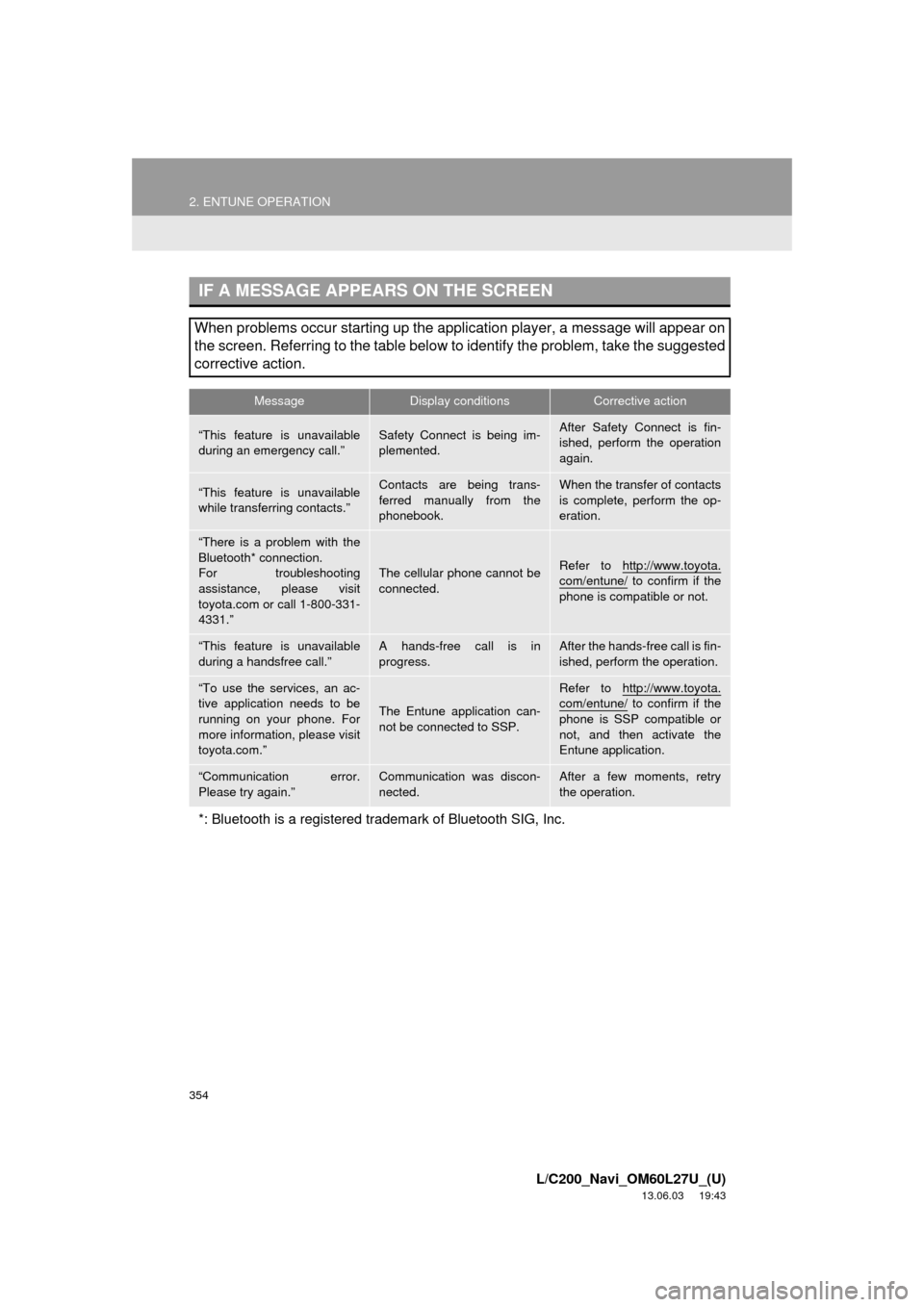
IF A MESSAGE APPEARS ON THE SCREEN
When problems occur starting up the application player, a message will appear on
the screen. Referring to the table below to identify the problem, take the suggested
corrective action.
MessageDisplay conditionsCorrective action
“This feature is unavailable
during an emergency call.”Safety Connect is being im-
plemented.After Safety Connect is fin-
ished, perform the operation
again.
“This feature is unavailable
while transferring contacts.”Contacts are being trans-
ferred manually from the
phonebook.When the transfer of contacts
is complete, perform the op-
eration.
“There is a problem with the
Bluetooth* connection.
For troubleshooting
assistance, please visit
toyota.com or call 1-800-331-
4331.”
The cellular phone cannot be
connected.Refer to http://www.toyota.
com/entune/ to confirm if the
phone is compatible or not.
“This feature is unavailable
during a handsfree call.”A hands-free call is in
progress.After the hands-free call is fin-
ished, perform the operation.
“To use the services, an ac-
tive application needs to be
running on your phone. For
more information, please visit
toyota.com.”
The Entune application can-
not be connected to SSP.
Refer to http://www.toyota.com/entune/ to confirm if the
phone is SSP compatible or
not, and then activate the
Entune application.
“Communication error.
Please try again.”Communication was discon-
nected.After a few moments, retry
the operation.
*: Bluetooth is a registered trademark of Bluetooth SIG, Inc.
Page 380 of 427
380
2. TOYOTA PARKING ASSIST MONITOR
L/C200_Navi_OM60L27U_(U)
13.06.03 20:34
9When the screen changes, keep the
steering wheel in its current position
and back up.
10When the vehicle is parallel with the
road or the shoulder, straighten the
steering wheel.
Check your surroundings visually and
with the mirrors, then back up using the
distance guide lines as a reference,
and stop.
When the vehicle is approximately in the
desired parking location, the parallel park-
ing assist is complete.
1Touch .
If the intuitive parking assist detects an
object while you attempt to park in a park-
ing space on the left, the black and yellow
vertical pole could be obscured by the
intuitive parking assist display. In this
event, turn the intuitive parking assist
switch off (For details, refer to “Owner’s
Manual”.), and operate the vehicle while
checking the safety of the surrounding
area direct visually and with mirror. After
the operation, turn the switch on.
The steering wheel has been turned too
far, and the system cannot function.
Return the steering wheel to its original
position.
If the message is displayed before the out-
line is positioned over the desired parking
space, it is likely that the vehicle is too far
away from the shoulder. Check that there
is a gap of approximately 3 ft. (1 m)
between your vehicle and the parked vehi-
cle.
CAUTION
●When backing up, be careful not to hit
any obstacles with your vehicle. Back
the vehicle up slowly.
INFORMATION
●There is a possibility that parallel parking
guidance may not be given when back-
ing up at a very slow speed.
●If the back door is opened, the parallel
parking assist will be discontinued half-
way.
CANCELING PARALLEL
PARKING ASSIST
VEHICLES EQUIPPED WITH
INTUITIVE PARKING ASSIST
IF THE MESSAGE “Steering
wheel turned too far, please
return.” IS DISPLAYED
Page 390 of 427
390
ALPHABETICAL INDEX
L/C200_Navi_OM60L27U_(U)
13.06.03 19:56
Numerics
4-ZONE switch ........................................ 298
A
A/C switch ............................................... 298
A/V input port .......................................... 200
Adding destinations................................... 87
Address book .......................................... 103
Address book entries .............................. 103
Air conditioning ....................................... 298
Air conditioning system
operating hints ................................. 306
Climate control .................................... 300
Front automatic air conditioning
system ............................................. 301
Rear air conditioning controls .............. 308
Rear automatic air conditioning
system ............................................. 308
Using the air conditioning system........ 301
Air flow control buttons............................ 298
Air intake control button .......................... 298
AM........................................................... 201
Apps ........................................................ 348
Audio ....................................................... 192
AUDIO button.......................................... 192
Audio settings ......................................... 293
HD Radio™ system settings ............... 293
iPod and external video settings ......... 294
Audio/video remote controls
(Steering switches) .............................. 281
Audio/video system ................................. 192Audio/video system operating hints ........283
Caring for your DVD player
and disc............................................285
CD-R and CD-RW discs ......................289
iPod .....................................................284
MP3/WMA files ....................................287
Radio reception ...................................283
Terms ..................................................289
USB memory .......................................285
AUTO button ...........................................298
Automatic Sound Levelizer (ASL) ...........197
AUX port..................................................200
B
Basic function ............................................26
Bluetooth®...............................................132
Bluetooth® audio .....................................249
Connecting a Bluetooth® audio
player ...............................................252
Playing Bluetooth
® audio.....................253
Bluetooth® phone ....................................138
Bluetooth® phone message function.......153
Checking messages ............................153
New message notification....................155
Replying (Quick reply) .........................154
Bluetooth
® settings .................................178
Detailed Bluetooth® settings................185
Registered devices ..............................178
Selecting a Bluetooth
® phone .............182
Selecting portable player .....................184
Brightness .................................31, 226, 279
ALPHABETICAL INDEX
Page 391 of 427
391
L/C200_Navi_OM60L27U_(U)
13.06.03 19:56
C
Call on the Bluetooth® phone ................. 142
By call history ...................................... 144
By dial ................................................. 142
By phonebook ..................................... 142
By POI call .......................................... 148
By speed dial....................................... 144
By voice recognition ............................ 146
Calling using an SMS/MMS
message .......................................... 148
CD........................................................... 215
CLIMATE button ..................................... 298
Clock settings ........................................... 46
Color ......................................... 48, 226, 279
Command list .......................................... 319
Contrast .................................... 31, 226, 279
Current position calibration ..................... 119
Current position display ............................ 33
D
Deleting destinations ................................ 88
Deleting personal data .............................. 53
Deleting previous destinations ................ 112
Deleting set destinations........................... 74
DEST button ............................................. 10
“Destination” screen.................................. 20
Destination search .................................... 58
By “Address” ......................................... 60
By “Address Book” ................................ 70
By “Coordinates” ................................... 74
By “Emergency” .................................... 70
By home ................................................ 59
By “Intersection & Freeway” .................. 71
By “Map”................................................ 73
By “Point of Interest” ............................. 63
By preset destinations ........................... 59
By “Previous Destinations” .................... 69
Selecting the search area ..................... 58Detailed navigation settings .................... 114
Detour setting............................................ 89
Dial .................................................. 142, 146
Disc slot .................................................. 192
Distance and time to destination ............... 86
DSP control ............................................. 197
DVD ........................................................ 215
DVD player.............................................. 215
DVD options ........................................ 224
DVD player and DVD video disc
information ....................................... 234
Ejecting a disc ..................................... 215
If the player malfunctions .................... 233
Inserting a disc .................................... 215
Operating a DVD disc.......................... 221
Playing a disc ...................................... 216
Playing a DVD disc.............................. 222
Playing an audio disc .......................... 216
Playing an MP3/WMA disc .................. 218
E
Eject button ............................................. 192
Emergency ................................................ 70
Entune..................................................... 348
Expanded voice commands .................... 318
F
Fan speed control buttons ...................... 298
FM ........................................................... 201
Fuel consumption.................................... 324
Function index........................................... 18
G
General settings ........................................ 44
GPS (Global Positioning System) ..... 10, 128
Page 393 of 427

393
L/C200_Navi_OM60L27U_(U)
13.06.03 19:56
Q
Quick guide ............................................... 10
Quick reference ................ 20, 132, 192, 298
R
Radio ...................................................... 201
Listening to the radio ........................... 201
Presetting a station ............................. 201
Radio broadcast data system.............. 202
Selecting a station ............................... 202
Traffic announcement ......................... 203
Radio broadcast data system ................. 202
Rear air conditioning control button ........ 298
REAR button ........................................... 298
Rear seat entertainment system
features ............................................... 260
Caution screen .................................... 263
Changing settings ............................... 278
Changing the source ........................... 264
Changing the speaker output .............. 264
Controller............................................. 261
Display ................................................ 261
Headphone jacks ................................ 262
Headphones ........................................ 262
Opening and closing the display ......... 263
Operation from the front seats ............ 266
Playing a USB memory ....................... 269
Playing an audio CD/CD text .............. 270
Playing Bluetooth
® audio .................... 269
Playing DVD video .............................. 271
Playing iPod ........................................ 268
Playing MP3/WMA discs ..................... 271
Tilting the display ................................ 263
Using the radio .................................... 266
Using the radio
(Internet radio broadcast) ................ 267
Using the video mode ......................... 277
Volume ................................................ 262Rear view monitor system....................... 360
Area displayed on screen .................... 362
Camera................................................ 362
Driving precautions.............................. 360
If you notice any symptoms ................. 364
Rear view monitor system
precautions ...................................... 362
Screen display ..................................... 361
Things you should know ...................... 364
Rear window and
outside rear view mirror
defogger button ................................... 298
Receive on the Bluetooth
® phone........... 149
Register a Bluetooth® phone .................. 138
Connecting a Bluetooth® phone .......... 139
Reconnecting the Bluetooth®
phone ............................................... 141
Registering home ...................................... 12
Registering preset destinations................. 14
Reordering destinations ............................ 87
Resuming guidance .................................. 93
Route guidance ......................................... 76
Route guidance screen ............................. 80
Route overview ......................................... 90
Route preference ...................................... 91
Route trace ............................................... 97
Page 397 of 427

397
L/C200_Navi_OM60L27U_(U)
13.02.20 14:56
LIMITATIONS ON USE
The DATABASE is restricted for use in
the specific system for which it was
created. Except to the extent explicitly
permitted by mandatory laws, you may
not extract or reutilize any portion of
the contents of the DATABASE, nor
reproduce, copy, duplicate, modify,
adapt, translate, disassemble,
decompile, or reverse engineer any
portion of the DATABASE.
TRANSFER
You many not transfer the DATABASE
to third parties, except together with
the system for which it was created,
provided that you do not retain any
copy of the DATABASE, and provided
that the transferee agrees to all terms
and conditions of this AGREEMENT.DISCLAIMER OF WARRANTY
THE LICENSED PRODUCTS ARE
PROVIDED ON AN “AS IS” AND “WITH
ALL FAULTS BASIS” AND TOMTOM AND
ITS SUPPLIERS EXPRESSLY DISCLAIM
ALL WARRANTIES, EXPRESS OR
IMPLIED, INCLUDING BUT NOT LIMITED
TO, THE IMPLIED WARRANTIES OF
NON-INFRINGEMENT,
MERCHANTABILITY, SATISFACTORY
QUALITY, ACCURACY, TITLE AND
FITNESS FOR A PARTICULAR
PURPOSE. NO ORAL OR WRITTEN
ADVICE OR INFORMATION PROVIDED
BY TOMTOM OR ANY OF ITS AGENTS,
EMPLOYEES OR THIRD PARTY
PROVIDERS SHALL CREATE A
WARRANTY, AND LICENSEE IS NOT
ENTITLED TO RELY ON ANY SUCH
ADVICE OR INFORMATION. THIS
DISCLAIMER OF WARRANTIES IS AN
ESSENTIAL CONDITION OF THE
AGREEMENT.
Page 399 of 427

399
L/C200_Navi_OM60L27U_(U)
13.02.20 14:56
U.S. GOVERNMENT RIGHTS
U.S. GOVERNMENT RIGHTS. If End
User is an agency, department, or
other entity of the United States
Government, or funded in whole or in
part by the United States Government,
then use, duplication, reproduction,
release, modification, disclosure or
transfer of this commercial product and
accompanying documentation, is
restricted in accordance with the
LIMITED or RESTRICTED rights as
described in any applicable DFARS or
FAR. In case of conflict between any of
the FAR and/or DFARS that may apply
to the Licensed Product, the
construction that provides greater
limitations on the Government’s rights
shall control. Contractor/manufacturer
is TomTom North America, Inc., 11
Lafayette Street, Lebanon, NH 03766-
1445. Phone: 603.643. 0330. The
Licensed Products are © 2006-Present
by TomTom. ALL RIGHTS
RESERVED. For purpose of any public
disclosure provision under any federal,
state or local law, it is agreed that the
Licensed Products are a trade secret
and a proprietary commercial product
and not subject to disclosure.If End User is an agency, department,
or other entity of any State government,
the United States Government or any
other public entity or funded in whole or
in part by the United States
Government, then End User hereby
agrees to protect the Licensed
Products from public disclosure and to
consider the Licensed Products
exempt from any statute, law,
regulation, or code, including any
Sunshine Act, Public Records Act,
Freedom of Information Act, or
equivalent, which permits public
access and/or reproduction or use of
the Licensed Products. In the event
that such exemption is challenged
under any such laws, this EULA shall
be considered breached and any and
all right to retain any copies or to use of
the Licensed Products shall be
terminated and considered
immediately null and void. Any copies
of the Licensed Products held by
Licensee shall immediately be
destroyed.