change time TOYOTA MIRAI 2021 Accessories, Audio & Navigation (in English)
[x] Cancel search | Manufacturer: TOYOTA, Model Year: 2021, Model line: MIRAI, Model: TOYOTA MIRAI 2021Pages: 344, PDF Size: 12.08 MB
Page 145 of 344
1474-3. Media operation
4
Audio/visual system
●Each time is selected, the
mode changes as follows:
When random playback is off
• repeat all track repeat album
repeat off
When random playback is on
• repeat all track repeat off
Tracks or albums can be auto-
matically and randomly
selected.
1Select .
●Each time is selected, the
mode changes as follows:
• random (1 album random)
album random (all album random)
off
●Depending on the Bluetooth®
device that is co nnected to the
system, the music may start play-
ing when selecting while it is
paused. Conversely, the music
may pause when selecting
while it is playing.
●In the following conditions, the
system may not function:
• The Bluetooth
® device is turned
off.
• The Bluetooth
® device is not con-
nected.
• The Bluetooth
® device has a low
battery.
●When using the Bluetooth® audio
and Wi-Fi® hotspot functions at
the same time, the following prob-
lems may occur:
• It may take longer than normal to
connect to the Bluetooth
® device.
• The sound may cut out.
●It may take time to connect the phone when Bluetooth
® audio is
being played.
●For operating the portable player,
see the instruction manual that
comes with it.
●If the Bluetooth® device is discon-
nected due to poor reception from
the Bluetooth
® network when the
power switch is in ACC or ON, the
system automatically reconnects
the portable player.
●If the Bluetooth® device is discon-
nected on purpose, such as it was
turned off, this does not happen.
Reconnect the portable player
manually.
●Bluetooth® device information is
registered when the Bluetooth®
device is connected to the Blue-
tooth
® audio system. When selling
or disposing o f the vehicle,
remove the Bluetooth
® audio
information from the system.
( P. 6 5 )
●In some situations, sound output
via the Bluetooth® audio system
may be out of sync with the con-
nected device or output intermit-
tently.
Random order
WA R N I N G
●Do not operate the player’s con-
trols or connect to the Blue-
tooth
® audio system while
driving.
Page 152 of 344
1544-6. Tips for operating the audio/visual system
4-6.Tips for operating the audio/visual system
●The use of a cellular phone inside
or near the vehicle may cause a
noise from the speakers of the
audio/visual system which you are
listening to. However, this does
not indicate a malfunction.
Usually, a problem with radio
reception does not mean there
is a problem with the radio it
is just the normal result of condi-
tions outside the vehicle.
For example, nearby buildings
and terrain can interfere with FM
reception. Power lines or phone
wires can interfere with AM sig-
nals. And of course, radio sig-
nals have a limited range. The
farther the vehicle is from a sta-
tion, the weaker i ts signal will
be. In addition, reception condi-
tions change constantly as the
vehicle moves.
Here are some common recep-
tion problems that may not indi-
cate a problem with the radio as
described.
■FM
Fading and drifting stations:
Generally, the effective range of FM is about 25 miles (40 km).
Once outside this range, you
may notice fading and drifting,
which increase with the distance
from the radio transmitter. They
are often accompanied by dis-
tortion.
Multi-path: FM signals are
reflective, making it possible for
2 signals to reach the vehicle’s
antenna at the same time. If this
happens, the signals will cancel
each other out, causing a
momentary flutter or loss of
reception.
Static and fluttering: These
occur when signals are blocked
by buildings, trees or other large
objects. Increasing the bass
level may reduce static and flut-
tering.
Station swapping: If the FM sig-
nal being listened to is inter-
rupted or weakened, and there
is another strong station nearby
on the FM band, the radio may
tune in the second station until
the original signal can be picked
up again.
■AM
Fading: AM broadcasts are
reflected by the upper atmo-
sphere especially at night.
These reflected signals can
interfere with those received
directly from the radio station,
causing the radio station to
sound alternately strong and
weak.
Operating infor mation
NOTICE
●To avoid damage to the
audio/visual system:
• Be careful not to spill beverages
over the audio/visual system.
Radio
Page 164 of 344
1685-1. Voice command system operation
say “Pause”. To resume the
voice command operation,
select “Resume” or press the
talk switch.
●If the system does not respond or
the confirmation screen does not
disappear, press the talk switch
and try again.
●If a voice command cannot be rec-
ognized 3 consecutive times,
voice recognition will be canceled.
●Voice recognition prompts can be
changed on the voice settings
screen. ( P. 6 6 )
This function can be used to cancel
voice guidance by turning the voice
prompts off. When you press the
talk switch while using this setting, a
beep sounds, and then you can
immediately say a command.
●Some voice guidance can be can-
celed by setting voice prompts to
off. Use this setting when it is
desirable to say a command
immediately after pressing the talk
switch and hearing a beep.
To increase voice recognition
performance, use the “Tutori-
als” and “Voice Training” func-
tions on the “Getting Started
with Voice” screen. These func-
tions are only available when
the vehicle is not moving.
The “Tutorials” and “Voice Train-
ing” functions can also be
started on the voice settings
screen. ( P. 6 6 )
1 Press the talk switch. 2
Select the desired item to be
set.
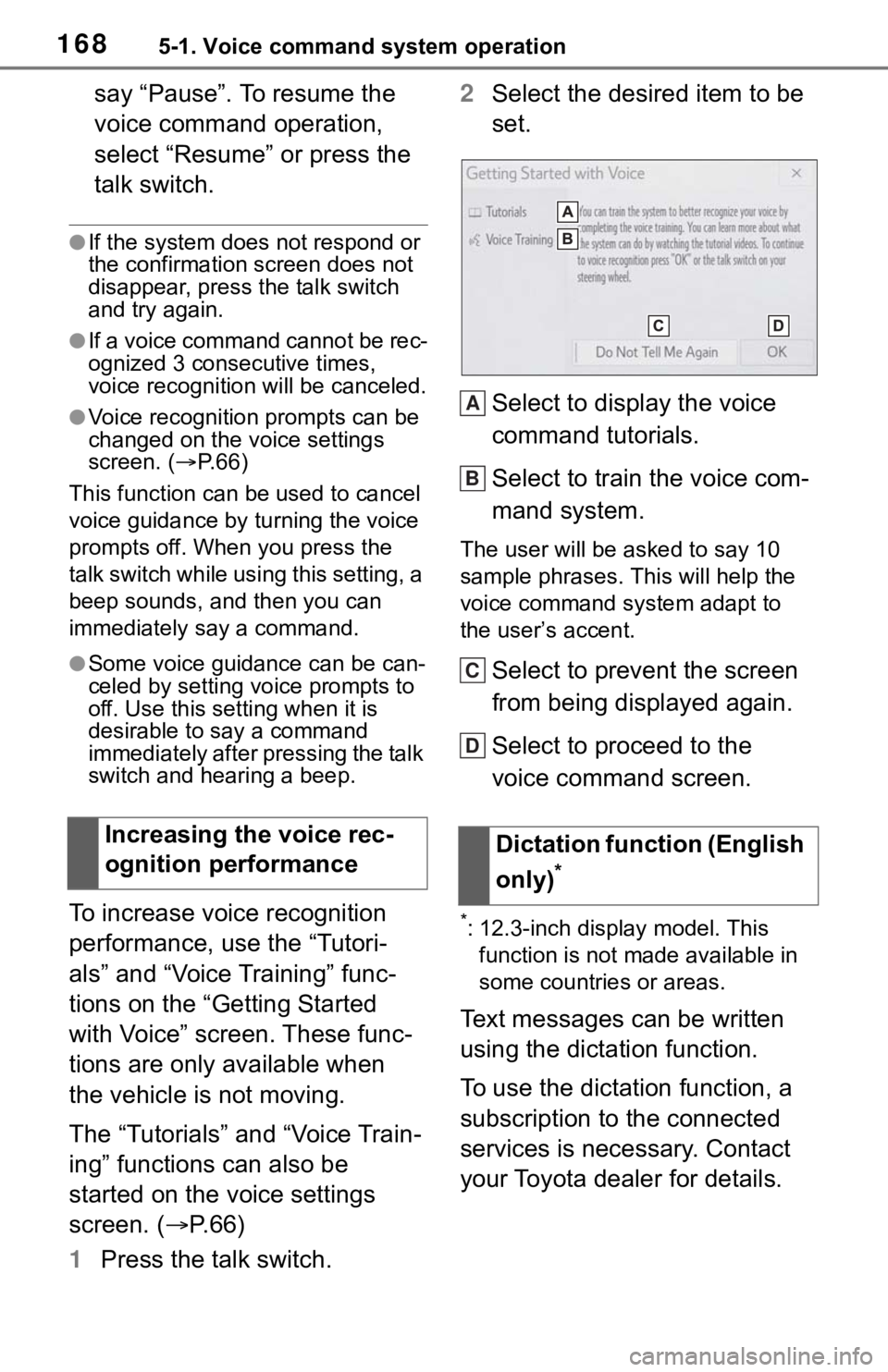
Select to display the voice
command tutorials.
Select to train the voice com-
mand system.
The user will be a sked to say 10
sample phrases. This will help the
voice command system adapt to
the user’s accent.
Select to prevent the screen
from being displayed again.
Select to proceed to the
voice command screen.
*: 12.3-inch display model. This function is not made available in
some countries or areas.
Text messages can be written
using the dictation function.
To use the dictation function, a
subscription to the connected
services is necessary. Contact
your Toyota dealer for details.
Increasing the voice rec-
ognition performance
Dictation function (English
only)
*
A
B
C
D
Page 172 of 344
1766-1. Information display
6-1.Information display
*: 12.3-inch display model
1Press the “MENU” button.
2 Select “Info”.
3 Select “Weather”.
4 Check that the weather
screen is displayed.
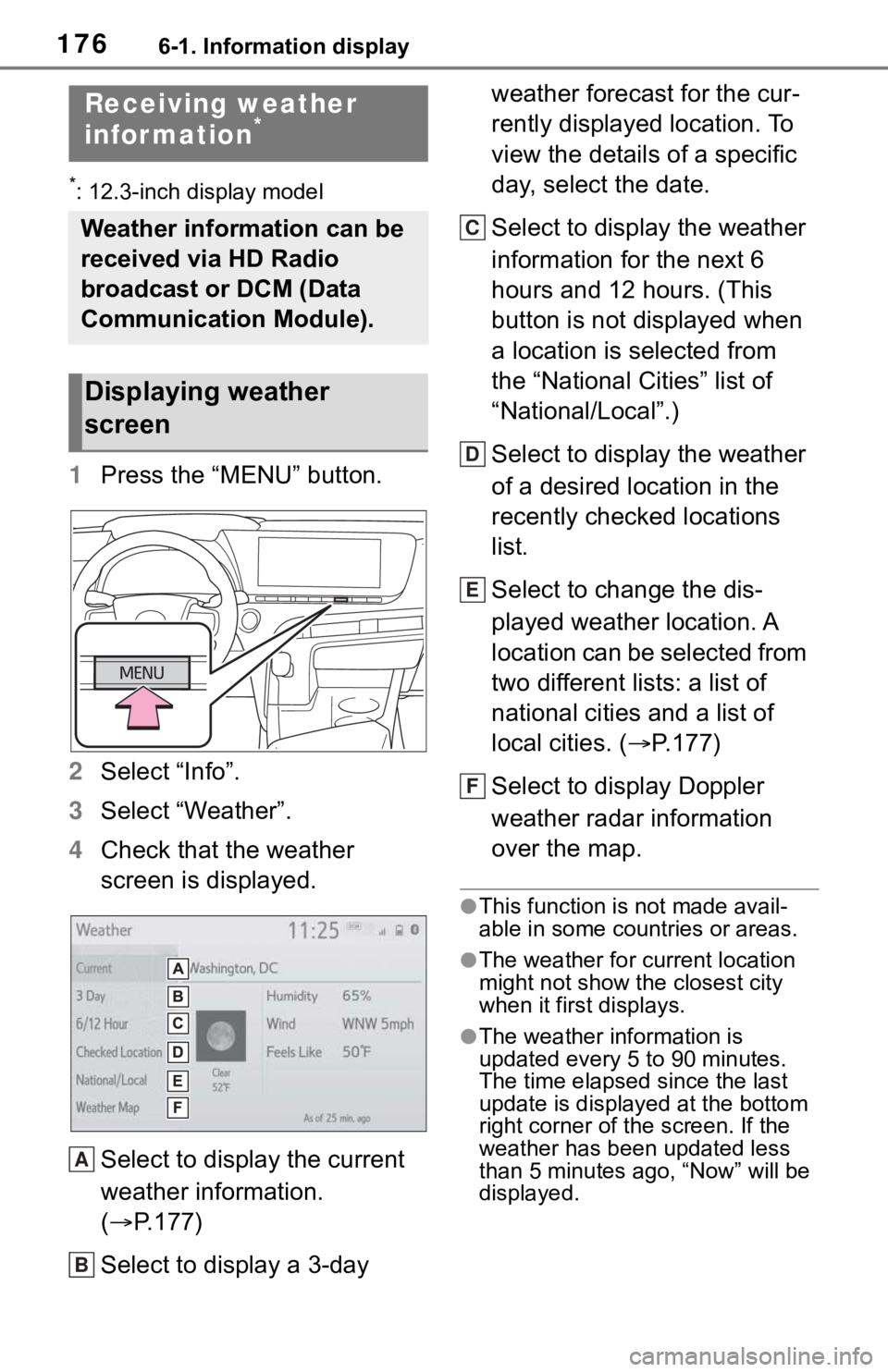
Select to display the current
weather information.
( P.177)
Select to display a 3-day weather forecast for the cur-
rently displayed location. To
view the details of a specific
day, select the date.
Select to display the weather
information for the next 6
hours and 12 hours. (This
button is not displayed when
a location is selected from
the “National Cities” list of
“National/Local”.)
Select to display the weather
of a desired location in the
recently checked locations
list.
Select to change the dis-
played weather location. A
location can be selected from
two different lists: a list of
national cities and a list of
local cities. (
P.177)
Select to display Doppler
weather radar information
over the map.
●This function is not made avail-
able in some countries or areas.
●The weather for current location
might not show the closest city
when it first displays.
●The weather information is
updated every 5 to 90 minutes.
The time elapsed since the last
update is displayed at the bottom
right corner of the screen. If the
weather has been updated less
than 5 minutes a go, “Now” will be
displayed.
Receiving weather
infor mation*
Weather information can be
received via HD Radio
broadcast or DCM (Data
Communication Module).
Displaying weather
screen
A
B
C
D
E
F
Page 187 of 344
1917-2. Toyota parking assist monitor
7
Peripheral monitoring system
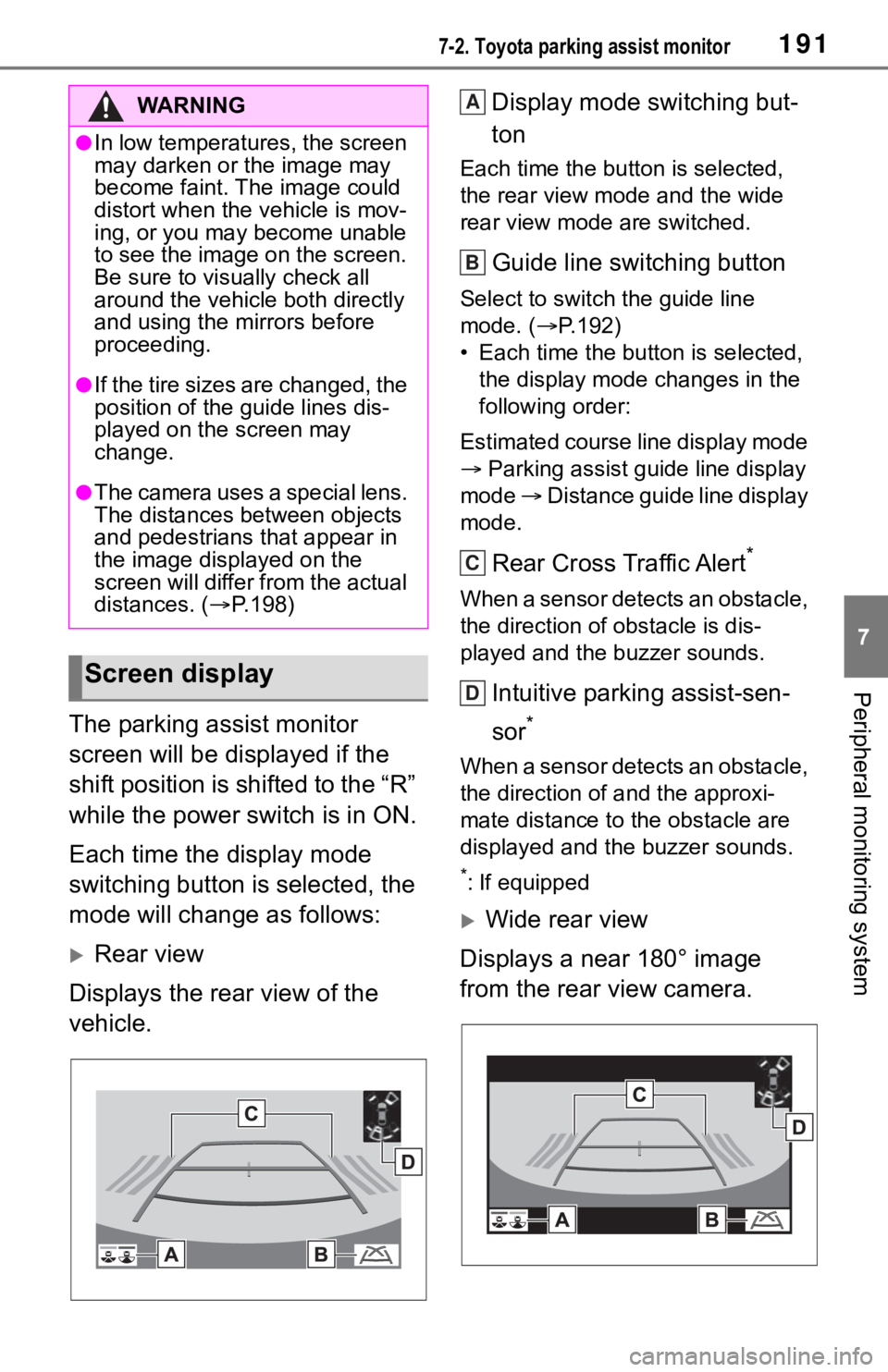
The parking assist monitor
screen will be displayed if the
shift position is shifted to the “R”
while the power switch is in ON.
Each time the display mode
switching button is selected, the
mode will change as follows:
Rear view
Displays the rear view of the
vehicle. Display mode switching but-
ton
Each time the button is selected,
the rear view mode and the wide
rear view mode are switched.
Guide line switching button
Select to switch the guide line
mode. (
P.192)
• Each time the bu tton is selected,
the display mode changes in the
following order:
Estimated course line display mode
Parking assist guide line display
mode Distance guide line display
mode.
Rear Cross Traffic Alert*
When a sensor detects an obstacle,
the direction of obstacle is dis-
played and the buzzer sounds.
Intuitive parking assist-sen-
sor
*
When a sensor detects an obstacle,
the direction of and the approxi-
mate distance to t he obstacle are
displayed and the buzzer sounds.
*: If equipped
Wide rear view
Displays a near 180° image
from the rear view camera.
WA R N I N G
●In low temperatures, the screen
may darken or the image may
become faint. The image could
distort when the vehicle is mov-
ing, or you may become unable
to see the image on the screen.
Be sure to visually check all
around the vehicle both directly
and using the mirrors before
proceeding.
●If the tire sizes are changed, the
position of the guide lines dis-
played on the screen may
change.
●The camera uses a special lens.
The distances between objects
and pedestrians that appear in
the image displayed on the
screen will differ from the actual
distances. ( P.198)
Screen display
A
B
C
D
Page 188 of 344
1927-2. Toyota parking assist monitor
Display mode switching but-
ton
Each time the button is selected,
the rear view mode and the wide
rear view mode are switched.
Guide line switching button
Select to switch the guide line
mode. ( P.192)
• Each time the button is selected, the display mode changes in the
following order:
Estimated course line display mode
Parking assist guide line display
mode Distance guide line display
mode.
Rear Cross Traffic Alert*
When a sensor detects an obstacle,
the direction of obstacle is dis-
played and the buzzer sounds.
Intuitive parking assist-sen-
sor
*
When a sensor detects an obstacle,
the direction of and the approxi-
mate distance to the obstacle are
displayed and the buzzer sounds.
*: If equipped
●For details about the Rear Cross
Traffic Alert function and intuitive
parking assist-sensor, refer to the
“OWNER’S MANUAL”.
The parking assist monitor is
canceled when the shift position
is shifted into any position other
than the “R”.
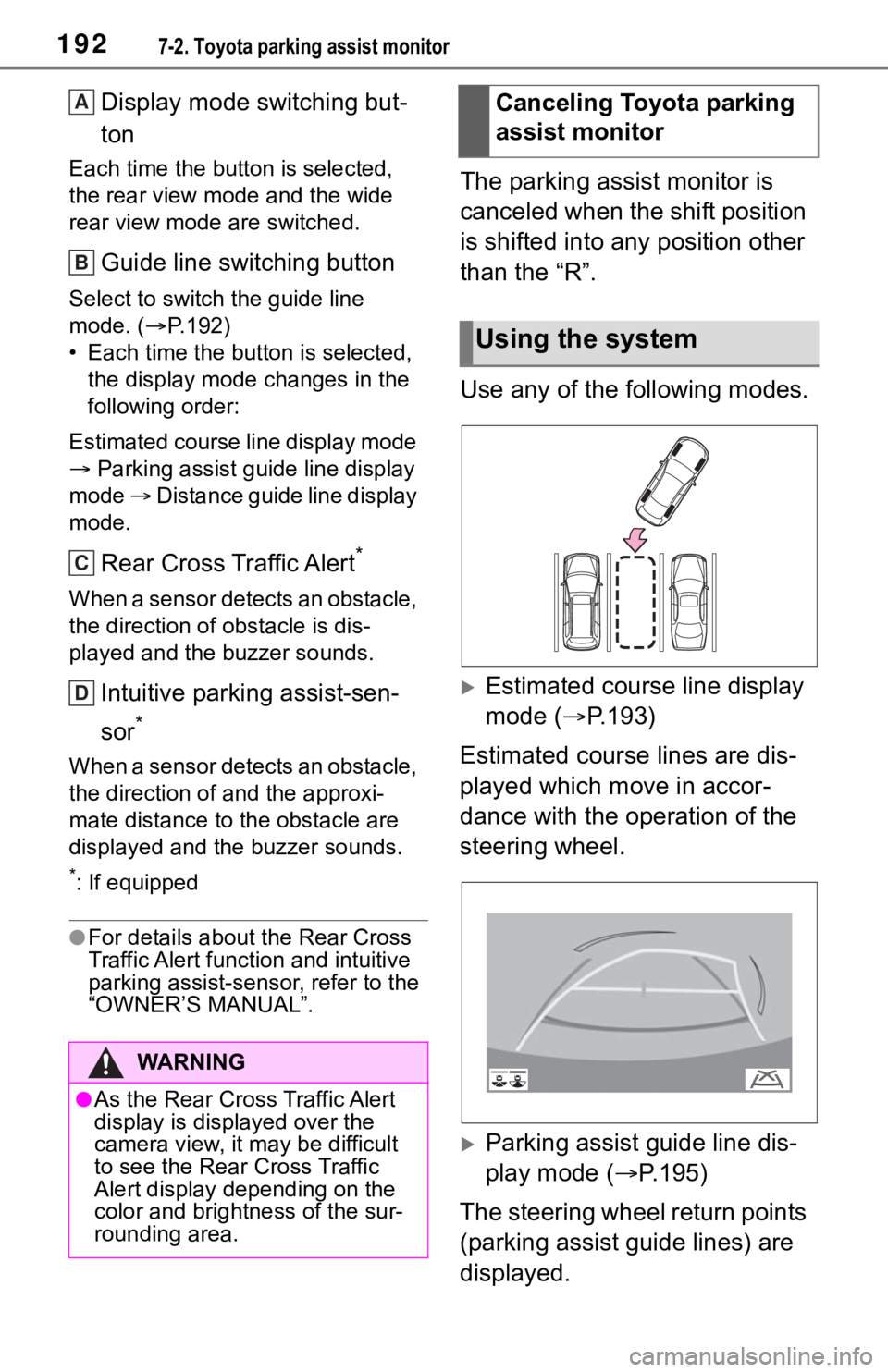
Use any of the following modes.
Estimated course line display
mode ( P.193)
Estimated course lines are dis-
played which move in accor-
dance with the operation of the
steering wheel.
Parking assist guide line dis-
play mode ( P.195)
The steering wheel return points
(parking assist guide lines) are
displayed.
WA R N I N G
●As the Rear Cross Traffic Alert
display is displayed over the
camera view, it may be difficult
to see the Rear Cross Traffic
Alert display depending on the
color and brightness of the sur-
rounding area.
A
B
C
D
Canceling Toyota parking
assist monitor
Using the system
Page 205 of 344
2097-3. Panoramic view monitor
7
Peripheral monitoring system
Estimated course lines
Show an estimated course when the steering wheel is turned.
• These lines will be displayed when the steering wheel is turne d more than
90° from the center.
Intuitive parking assist*
When a sensor detects an obstacle, the direction of and the app roximate
distance to the obsta cle are displayed and the buzzer sounds.
Pre-Collision System & Parking Support Brake*
When the system determines that the possib ility of a frontal collision with a
detected object is high, a warning message is displayed.
*: If equipped
●Pressing the camera switch changes the screen to the side clear ance
view & panoramic view screen or previously displayed screen, such as the
navigation screen.
●For details about the intuitive parking assist, refer to the “O WNER’S MAN-
UAL”.
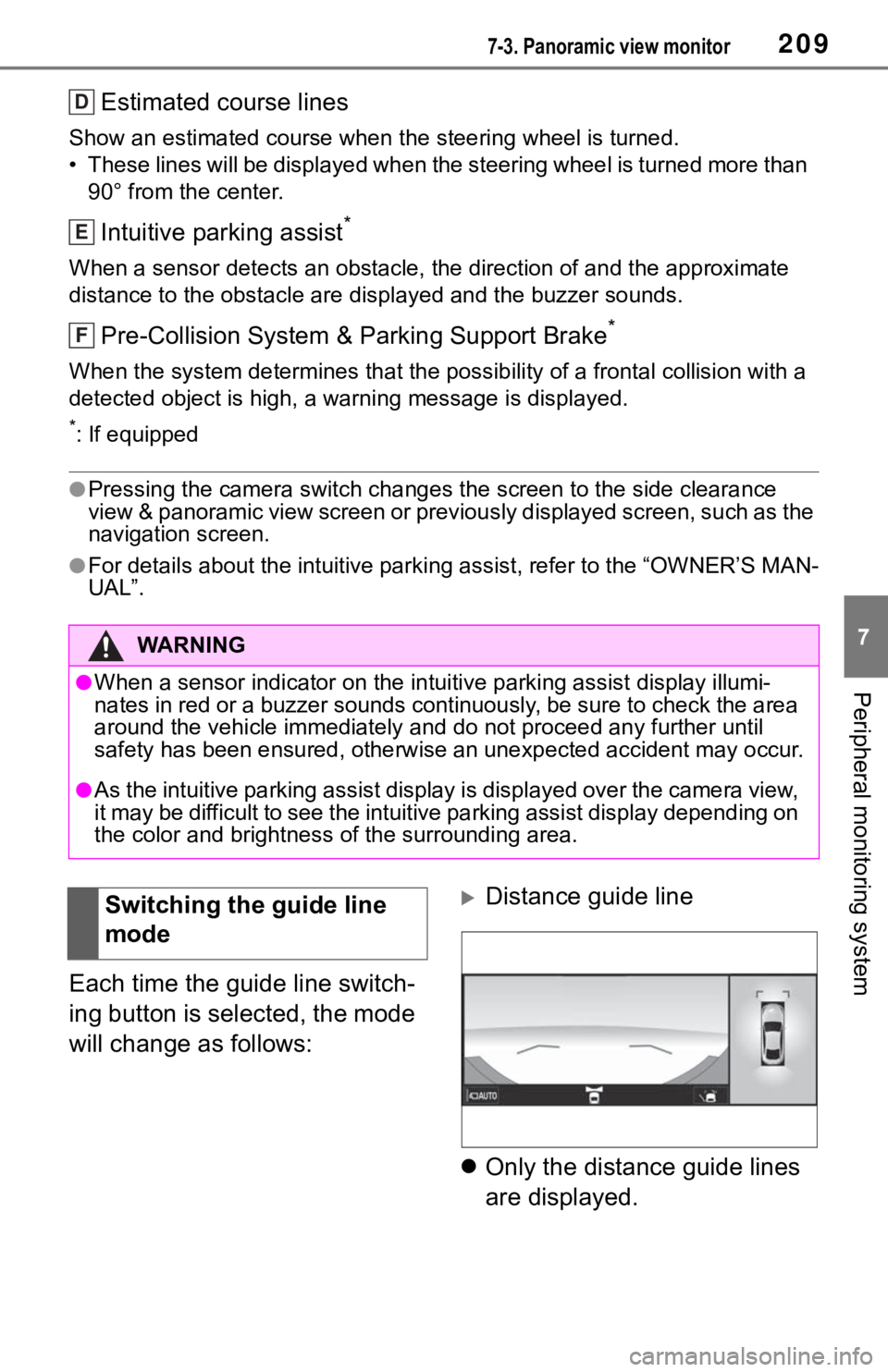
Each time the guide line switch-
ing button is selected, the mode
will change as follows:
Distance guide line
Only the distance guide lines
are displayed.
WA R N I N G
●When a sensor indicator on the intuitive parking assist display illumi-
nates in red or a buzzer sounds continuously, be sure to check the area
around the vehicle immediately a nd do not proceed any further until
safety has been ensured, otherwise an unexpected accident may o ccur.
●As the intuitive parking assist display is displayed over the c amera view,
it may be difficult to see the intuitive parking assist display depending on
the color and brightness of the surrounding area.
D
E
F
Switching the guide line
mode
Page 209 of 344
2137-3. Panoramic view monitor
7
Peripheral monitoring system
When a sensor detects an obstacle, the direction of and the approximate
distance to the obsta cle are displayed and the buzzer sounds.
Pre-Collision System & Parking Support Brake*
When the system determines that the possibility of a collision with a
detected object is high, a warning message is displayed.
*: If equipped
●Pressing the camera switch changes the screen to the wide front view &
panoramic view screen or previousl y displayed screen, such as the navi-
gation screen.
●For details about the intuitive parking assist, refer to the “O WNER’S MAN-
UAL”.
In addition to screen switching
by operating the camera switch,
automatic display mode is avail-
able. In this mode, the screen is
switched automatically in
response to vehicle speed.
Each time “AUTO” is selected,
automatic display mode is
enabled/disabled.
In automatic display mode, the
monitor will automatically dis-
play images in the following situ-
ations:
When the shift position is
shifted to “N” or “D” position.
When vehicle speed is reduced to approximately 6
mph (10 km/h) or less.
When automatic display mode
of the cornering view display is
enabled, the screen will change
automatically between the side
clearance view and cornering
view depending on the turning
angle of the steering wheel.
Each time is selected,
automatic display mode of the
cornering view display is
enabled/disabled.
In automatic display mode of
WA R N I N G
●When a sensor indicator on the intuitive parking assist display illumi-
nates in red or a buzzer sounds continuously, be sure to check the area
around the vehicle immediately a nd do not proceed any further until
safety has been ensured, otherwise an unexpected accident may o ccur.
●As the intuitive parking assist display is displayed over the c amera view,
it may be difficult to see the intuitive parking assist display depending on
the color and brightness of the surrounding area.
I
Automatic display mode
Automatic display mode of
cornering view
Page 212 of 344
2167-3. Panoramic view monitor
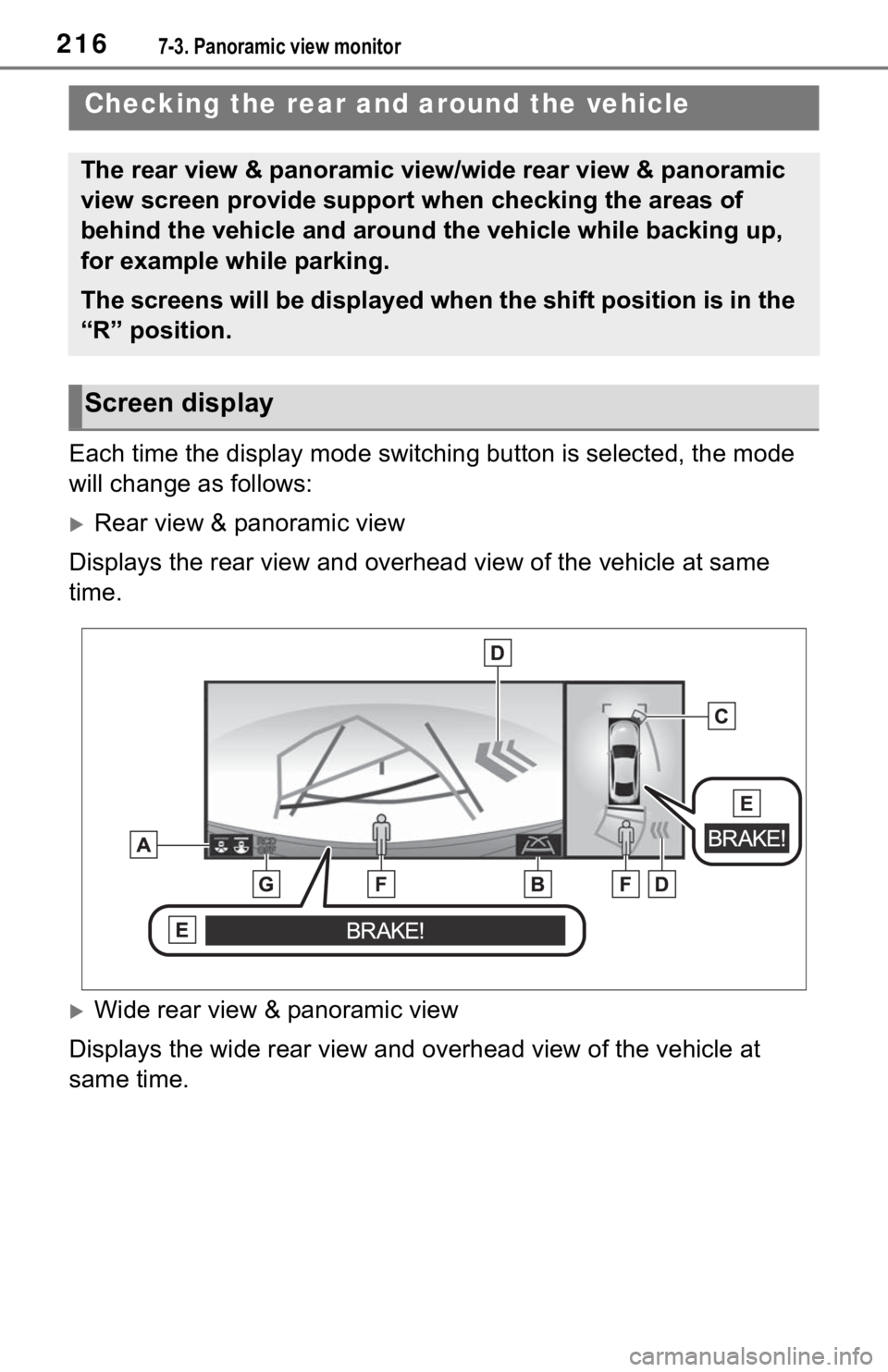
Each time the display mode switching button is selected, the mode
will change as follows:
Rear view & panoramic view
Displays the rear view and overhead view of the vehicle at same
time.
Wide rear view & panoramic view
Displays the wide rear view and overhead view of the vehicle at
same time.
Checking the rear and around the vehicle
The rear view & panoramic view/wide rear view & panoramic
view screen provide support when checking the areas of
behind the vehicle and around the vehicle while backing up,
for example while parking.
The screens will be displayed when the shift position is in the
“R” position.
Screen display
Page 213 of 344
2177-3. Panoramic view monitor
7
Peripheral monitoring system
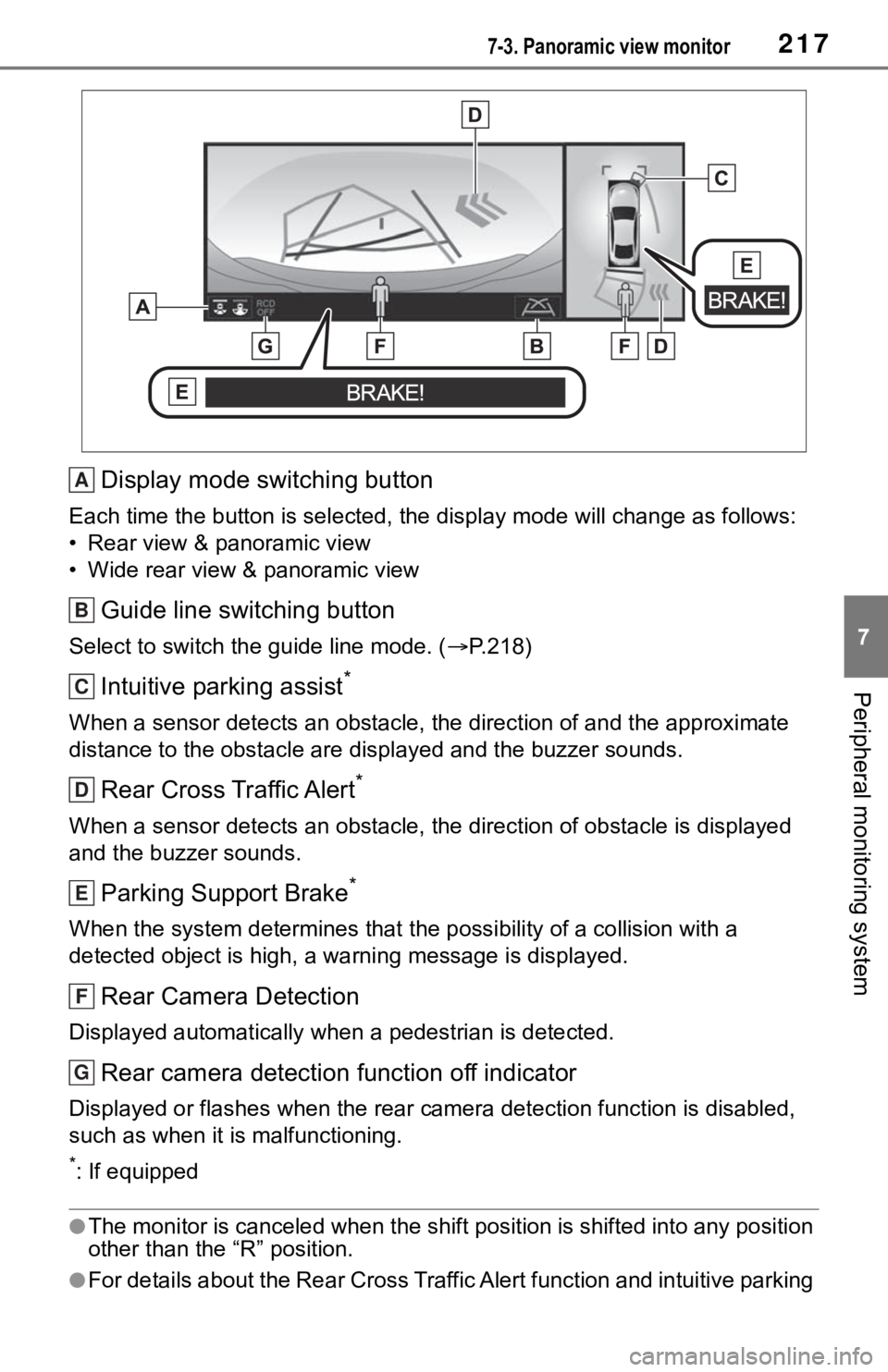
Display mode switching button
Each time the button is selected, the display mode will change as follows:
• Rear view & panoramic view
• Wide rear view & panoramic view
Guide line switching button
Select to switch the guide line mode. ( P.218)
Intuitive parking assist*
When a sensor detects an obstacle, the direction of and the app roximate
distance to the obsta cle are displayed and the buzzer sounds.
Rear Cross Traffic Alert*
When a sensor detects an obstacle, the direction of obstacle is displayed
and the buzzer sounds.
Parking Support Brake*
When the system determines that the possibility of a collision with a
detected object is high, a warning message is displayed.
Rear Camera Detection
Displayed automatically wh en a pedestrian is detected.
Rear camera detection function off indicator
Displayed or flashes when the rear camera detection function is disabled,
such as when it is malfunctioning.
*: If equipped
●The monitor is canceled when the shift position is shifted into any position
other than the “R” position.
●For details about the Rear Cross Traffic Alert function and int uitive parking
A
B
C
D
E
F
G