audio TOYOTA PRIUS 2016 4.G User Guide
[x] Cancel search | Manufacturer: TOYOTA, Model Year: 2016, Model line: PRIUS, Model: TOYOTA PRIUS 2016 4.GPages: 800, PDF Size: 16.69 MB
Page 164 of 800
164
PRIUS_OM_OM47A29U_(U)
3-1. Key information
NOTICE
■To prevent key damage
●Do not drop the keys, subject them to strong shocks or bend them.
● Do not expose the keys to high temperatures for long periods of time.
● Do not get the keys wet or wash them in an ultrasonic washer etc.
● Do not attach metallic or magnetic materials to the keys or place the keys
close to such materials.
● Do not disassemble the keys.
● Do not attach a sticker or anything else to the surface of the electronic key.
● Do not place the keys near objects that produce magnetic fields, such as
TVs, audio systems and induction cooker s, or medical electrical equip-
ment, such as low-frequency therapy equipment.
● Do not place the keys near medical electrical equipment such as low-fre-
quency therapy equipment or microwave therapy equipment, and do not
receive medical attention with the keys on your person.
■ Carrying the electronic key on your person
Carry the electronic key 3.9 in. (10 cm) or more away from electric appli-
ances that are turned on. Radio waves emitted from electric appliances
within 3.9 in. (10 cm) of the electronic key may interfere with the key, caus-
ing the key to not function properly.
■ In case of a smart key system malfunction or other key-related prob-
lems
Take your vehicle with all the electronic keys provided with your vehicle to
your Toyota dealer.
■ When an electronic key is lost
If the electronic key remains lost, the risk of vehicle theft increases signifi-
cantly. Visit your Toyota dealer imm ediately with all remaining electronic
keys that were provided with your vehicle.
Page 178 of 800
178
PRIUS_OM_OM47A29U_(U)
3-2. Opening, closing and locking the doors
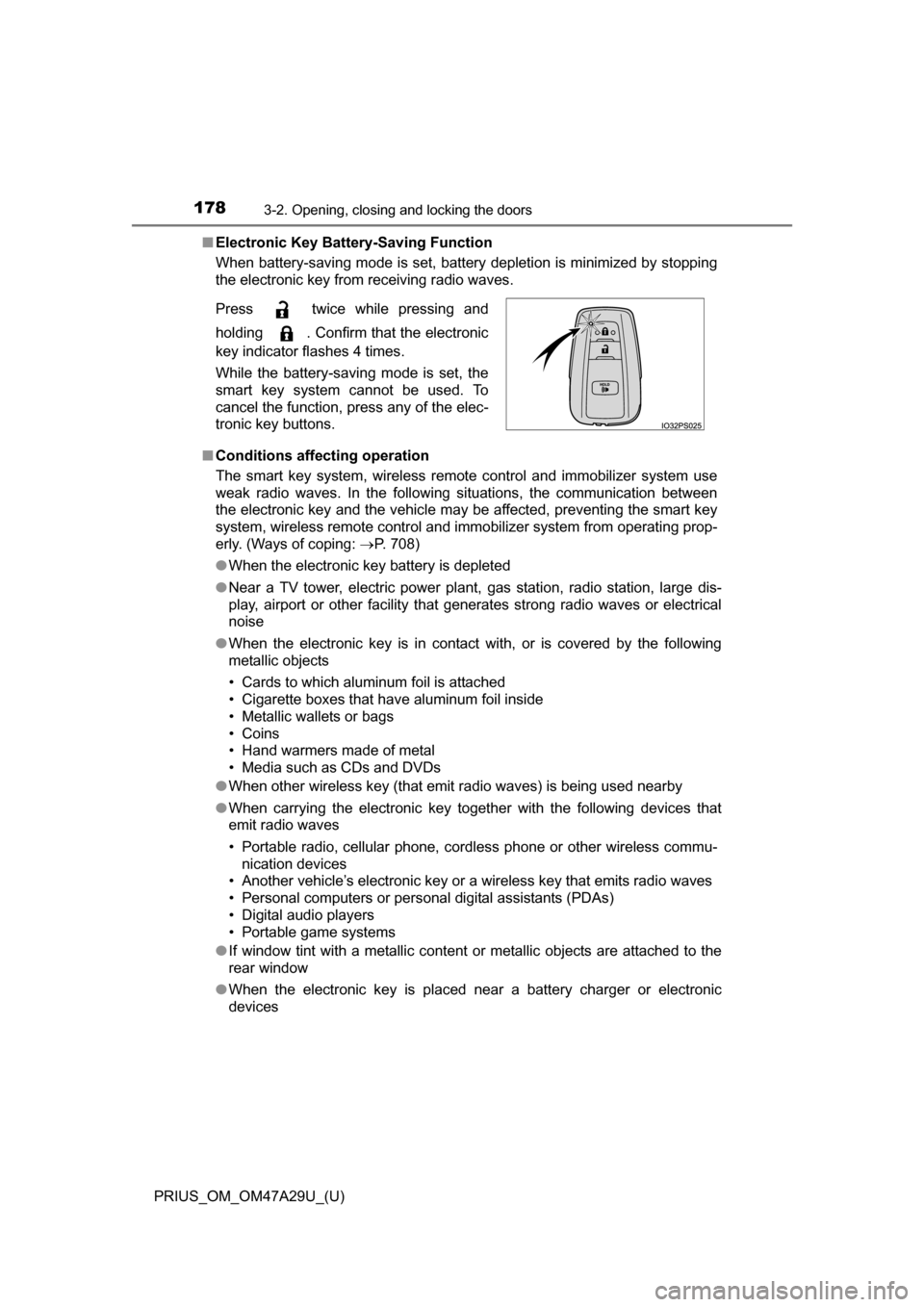
■Electronic Key Battery-Saving Function
When battery-saving mode is set, battery depletion is minimized by stopping
the electronic key from receiving radio waves.
■ Conditions affecting operation
The smart key system, wireless remote control and immobilizer system use
weak radio waves. In the following situations, the communication between\
the electronic key and the vehicle may be affected, preventing the smart key
system, wireless remote control and immobilizer system from operating prop-
erly. (Ways of coping: P. 708)
● When the electronic key battery is depleted
● Near a TV tower, electric power plant, gas station, radio station, large dis-
play, airport or other facility that generates strong radio waves or electrical
noise
● When the electronic key is in contact with, or is covered by the following
metallic objects
• Cards to which aluminum foil is attached
• Cigarette boxes that have aluminum foil inside
• Metallic wallets or bags
• Coins
• Hand warmers made of metal
• Media such as CDs and DVDs
● When other wireless key (that emit radio waves) is being used nearby
● When carrying the electronic key together with the following devices that
emit radio waves
• Portable radio, cellular phone, cordless phone or other wireless commu-
nication devices
• Another vehicle’s electronic key or a wireless key that emits radio waves
• Personal computers or personal digital assistants (PDAs)
• Digital audio players
• Portable game systems
● If window tint with a metallic content or metallic objects are attached to the
rear window
● When the electronic key is placed near a battery charger or electronic
devices
Press twice while pressing and
holding . Confirm that the electronic
key indicator flashes 4 times.
While the battery-saving mode is set, the
smart key system cannot be used. To
cancel the function, press any of the elec-
tronic key buttons.
Page 227 of 800
PRIUS_OM_OM47A29U_(U)
2274-2. Driving procedures
4
Driving
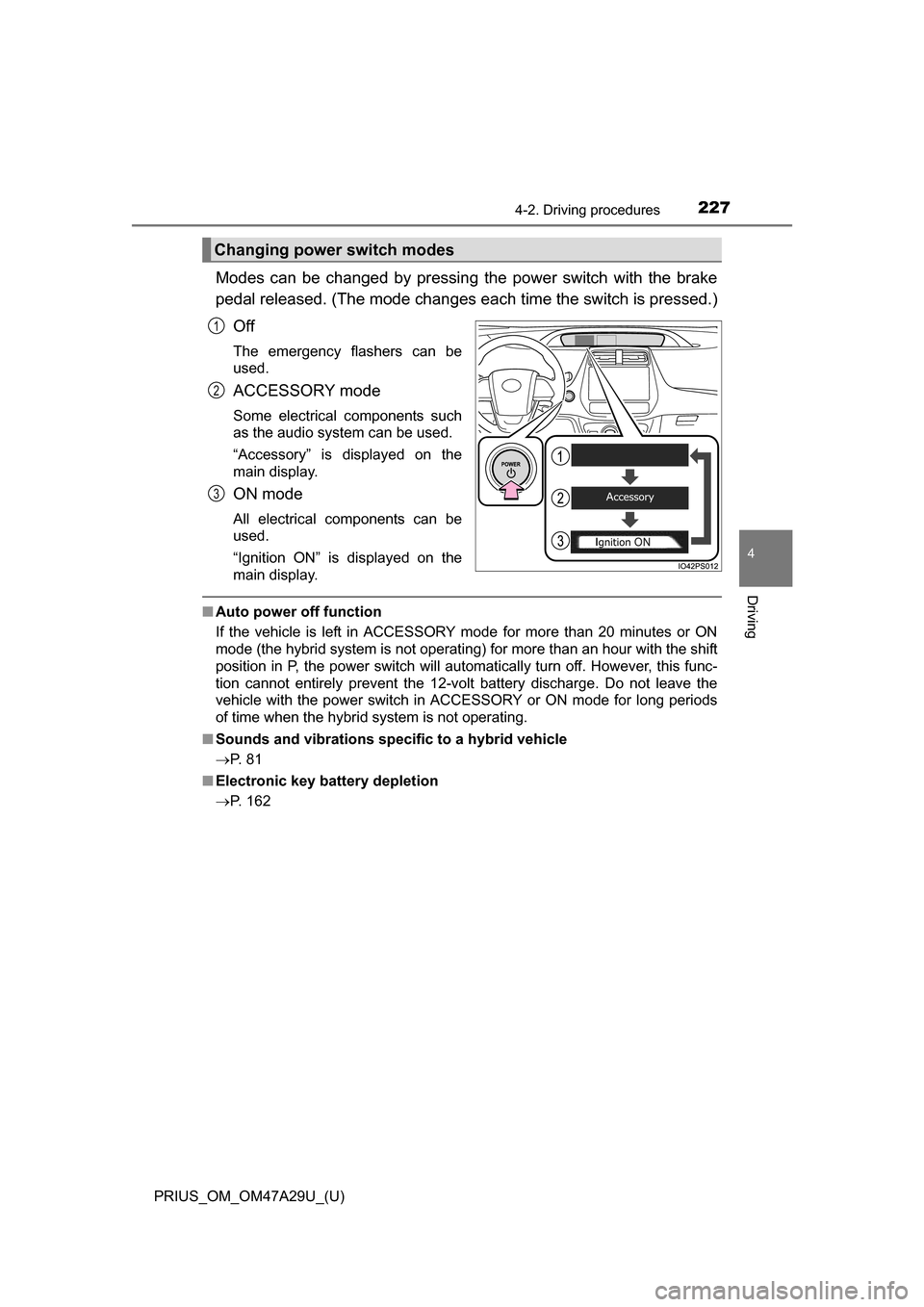
Modes can be changed by pressing the power switch with the brake
pedal released. (The mode changes ea ch time the switch is pressed.)
Off
The emergency flashers can be
used.
ACCESSORY mode
Some electrical components such
as the audio system can be used.
“Accessory” is displayed on the
main display.
ON mode
All electrical components can be
used.
“Ignition ON” is displayed on the
main display.
■ Auto power off function
If the vehicle is left in ACCESSORY mode for more than 20 minutes or ON
mode (the hybrid system is not operating) for more than an hour with the shift
position in P, the power switch will automatically turn off. However, this func-
tion cannot entirely prevent the 12-volt battery discharge. Do not leave the
vehicle with the power switch in ACCESSORY or ON mode for long periods
of time when the hybrid system is not operating.
■ Sounds and vibrations specific to a hybrid vehicle
P. 8 1
■ Electronic key battery depletion
P. 162
Changing power switch modes
1
2
3
Page 296 of 800

4-5. Using the driving support systems
■Temporary cancellation of functions
When operation conditions are no longer met, a function may be temporarily\
canceled. However,")
296
PRIUS_OM_OM47A29U_(U)
4-5. Using the driving support systems
■Temporary cancellation of functions
When operation conditions are no longer met, a function may be temporarily\
canceled. However, when the operation conditions are met again, operation
of the function is automatically restored. (P. 295)
■ Steering control function
Depending on the vehicle speed, lane departure situation, road conditions,
etc., the operation of the functions may not be recognized or the functions
may not operate.
■ Lane departure alert function
The warning buzzer may be difficult to hear due to external noise, audio play-
back, etc.
■ Hands off steering wheel alert
When the system determines that the driver has removed their hands from
the steering wheel while the steering control function is operating, a warning
message is displayed on the multi-information display and the buzzer
sounds.
■ White (yellow) lines are only on one side of road
The LDA system will not operate for the side on which white (yellow) lines
could not be recognized.
Page 324 of 800
324
PRIUS_OM_OM47A29U_(U)
4-5. Using the driving support systems
■The BSM outside rear view mirror indicators visibility
When under strong sunlight, the outside rear view mirror indicator may be dif-
ficult to see.
■ Rear Cross Traffic Alert bu zzer hearing (if equipped)
Rear Cross Traffic Alert function may be difficult to hear over loud noises
such as high audio volume.
■ When “Blind Spot Moni tor Unavailable” is shown on the multi-informa-
tion display
The sensor voltage has become abnormal, water, snow mud, etc., may be
built up in the vicinity of the sensor area of bumper ( P. 326). Removing the
water, snow, mud, etc., from the vicinity of the sensor area bumper should
return it to normal. Also, the sensor may not function normally when used in
extremely hot or cold weather.
Page 340 of 800
340
PRIUS_OM_OM47A29U_(U)
4-5. Using the driving support systems
■Operation conditions
The power switch is turned on.
●Front corner sensors:
• Shift position is not in P
• Vehicle speed is approximately 6 mph (10 km/h) or less
● Front side sensors/rear side sensors:
• Shift position is not in P
• Vehicle speed is approximately 6 mph (10 km/h) or less
• Steering wheel is turned approximately 90 or more
● Front center sensors:
• Shift position is not in P or R
• Vehicle speed is approximately 6 mph (10 km/h) or less
● Rear corner sensors/rear center sensors:
Shift position is in R
■ Clearance sonar pop-up display
P. 364
■ Sensor detection information
●The sensor’s detection areas are limited to the areas around the vehicle’s
bumper.
● Depending on the shape of the obstacle and other factors, the detection dis-
tance may shorten, or detection may be impossible.
● Obstacles may not be detected if they are too close to the sensor.
● There will be a short delay between obstacle detection and display. Even
when traveling at a low speed, if you come too close to an obstacle before
the display and buzzer activate, the display and buzzer may not activate at
all.
● Thin posts or objects lower than the sensor may not be detected when
approached, even if they have been detected once.
● It might be difficult to hear beeps due to the volume of audio system or air
flow noise of the air conditioning system.
Page 418 of 800
418
PRIUS_OM_OM47A29U_(U)
5-1. Basic OperationsAudio system types .......... 420
Audio system .................... 421
Using the steering wheel audio switches ................ 424
AUX Port/USB Port .......... 425
Basic audio operations ..... 426
5-2. Setup Setup menu ...................... 428
General settings ............... 429
Audio settings ................... 431
Display settings ................ 432
Voice settings ................... 433
5-3. Using the Multimedia system
Selecting the audio source............................. 434
List screen operation ........ 435
Optimal use of the audio system ............................ 437
5-4. Using the radio Radio operation ................ 438
5Audio system
Page 419 of 800
419
PRIUS_OM_OM47A29U_(U)
5Audio system
5-5. Playing an audio CD and MP3/WMA/AAC discs
CD player operation.......... 440
5-6. Using an external device iPod player operation........ 446
USB memory device player operation.............. 451
Using the AUX .................. 456
5-7. Connecting Bluetooth
®
Preparations to use wireless
communication ............... 457
Registering a Bluetooth
®
audio player for the
first time .......................... 460
Registering a Bluetooth
®
phone for the first time.... 461
Registering a Bluetooth
® device ........... 462
Connecting a Bluetooth
® device ........... 464
Displaying a Bluetooth®
device details.................. 466
Detailed Bluetooth
®
settings ........................... 467 5-8. Bluetooth
® Audio
Listening to Bluetooth®
Audio .............................. 468
5-9. Bluetooth
® phone
Using a Bluetooth®
Phone ............................. 470
Making a call .................... 473
Receiving a call ................ 476
Speaking on the phone .... 477
Bluetooth
® phone
message function ........... 480
Using the steering wheel switches.......................... 484
Bluetooth
® phone
settings ........................... 485
Contact/Call History Settings .......................... 486
What to do if... (Troubleshooting) ........... 495
5-10. Bluetooth
®
Bluetooth®........................ 499
5-11. Using the voice command system
Voice command system ... 505
Page 420 of 800
420
PRIUS_OM_OM47A29U_(U)
5-1. Basic Operations
Audio system types
Entune Audio
P. 4 2 1
Entune Premium Audio with Navigation
Owners of models equipped with a navigation system should refer to
the “NAVIGATION SYSTEM OWNER’S MANUAL”.
■ Using cellular phones
Interference may be heard through the audio system’s speakers if a cellular
phone is being used inside or close to the vehicle while the audio system is
operating.
NOTICE
■To prevent 12-volt battery discharge
Do not leave the audio system on longer than necessary when the hybrid
system is off.
■ To avoid damaging the audio system
Take care not to spill drinks or other fluids on the audio system.
Page 421 of 800
421
PRIUS_OM_OM47A29U_(U)
5-1. Basic Operations
5
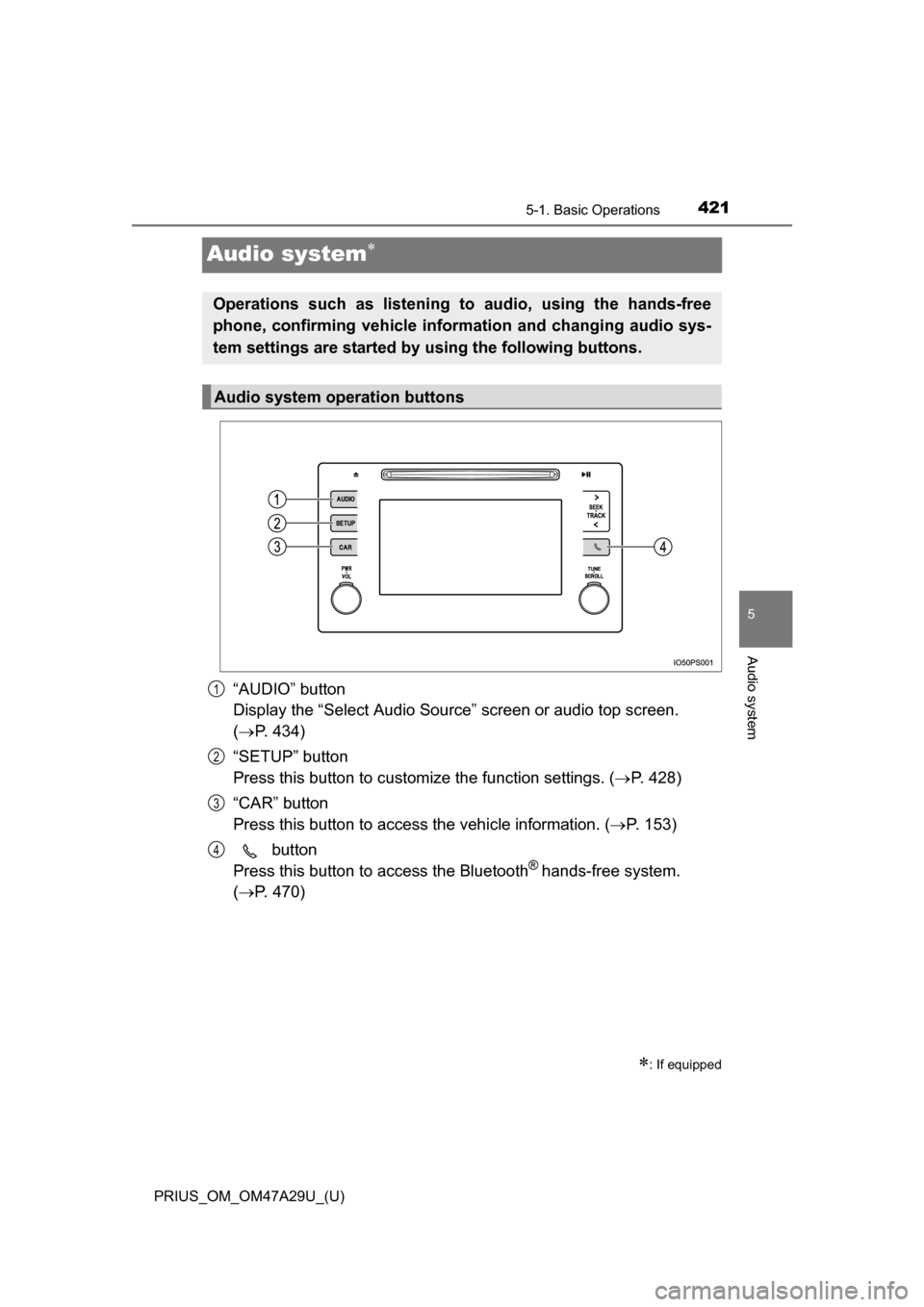
Audio system
Audio system
“AUDIO” button
Display the “Select Audio Source” screen or audio top screen.
( P. 434)
“SETUP” button
Press this button to customize the function settings. ( P. 428)
“CAR” button
Press this button to access the vehicle information. ( P. 153)
button
Press this button to access the Bluetooth
® hands-free system.
( P. 470)
: If equipped
Operations such as listening to audio, using the hands-free
phone, confirming vehicle inform ation and changing audio sys-
tem settings are started by using the following buttons.
Audio system operation buttons
1
2
3
4