check TOYOTA PRIUS 2019 Accessories, Audio & Navigation (in English)
[x] Cancel search | Manufacturer: TOYOTA, Model Year: 2019, Model line: PRIUS, Model: TOYOTA PRIUS 2019Pages: 294, PDF Size: 5.31 MB
Page 273 of 294
273
2. Entune App Suite OPERATION
PRIUS_Navi_OM47C47U_(U)
18.10.10 12:02
Entune App Suite
8
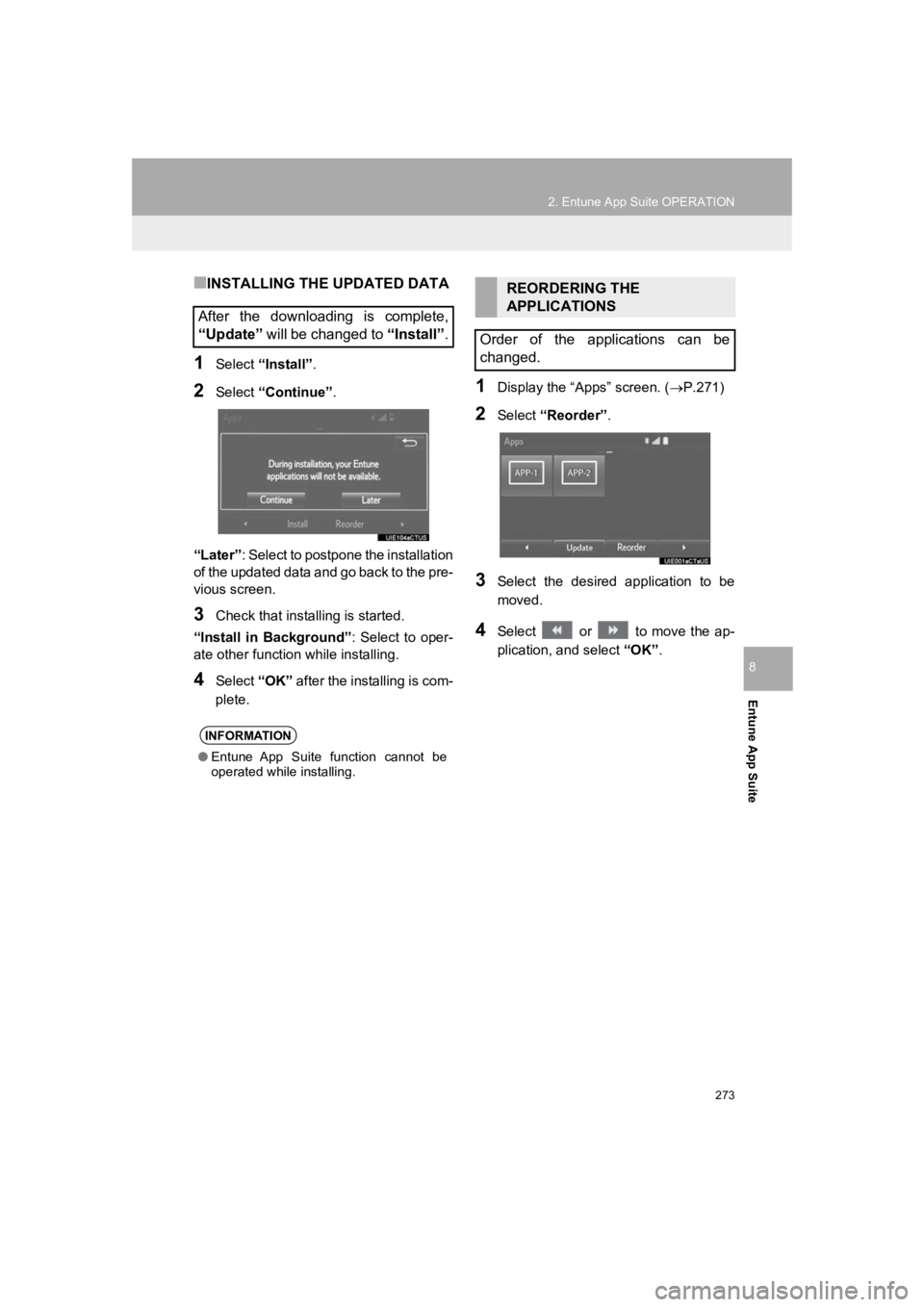
■INSTALLING THE UPDATED DATA
1Select “Install”.
2Select “Continue” .
“Later” : Select to postpone the installation
of the updated data and go back to the pre-
vious screen.
3Check that install ing is started.
“Install in Background” : Select to oper-
ate other function while installing.
4Select “OK” after the installing is com-
plete.
1Display the “Apps” screen. ( P.271)
2Select “Reorder” .
3Select the desired application to be
moved.
4Select or to move the ap-
plication, and select “OK”.
After the downloading is complete,
“Update” will be changed to “Install”.
INFORMATION
●Entune App Suite function cannot be
operated while installing.
REORDERING THE
APPLICATIONS
Order of the applications can be
changed.
Page 275 of 294
275
2. Entune App Suite OPERATION
PRIUS_Navi_OM47C47U_(U)
18.10.10 12:02
Entune App Suite
8
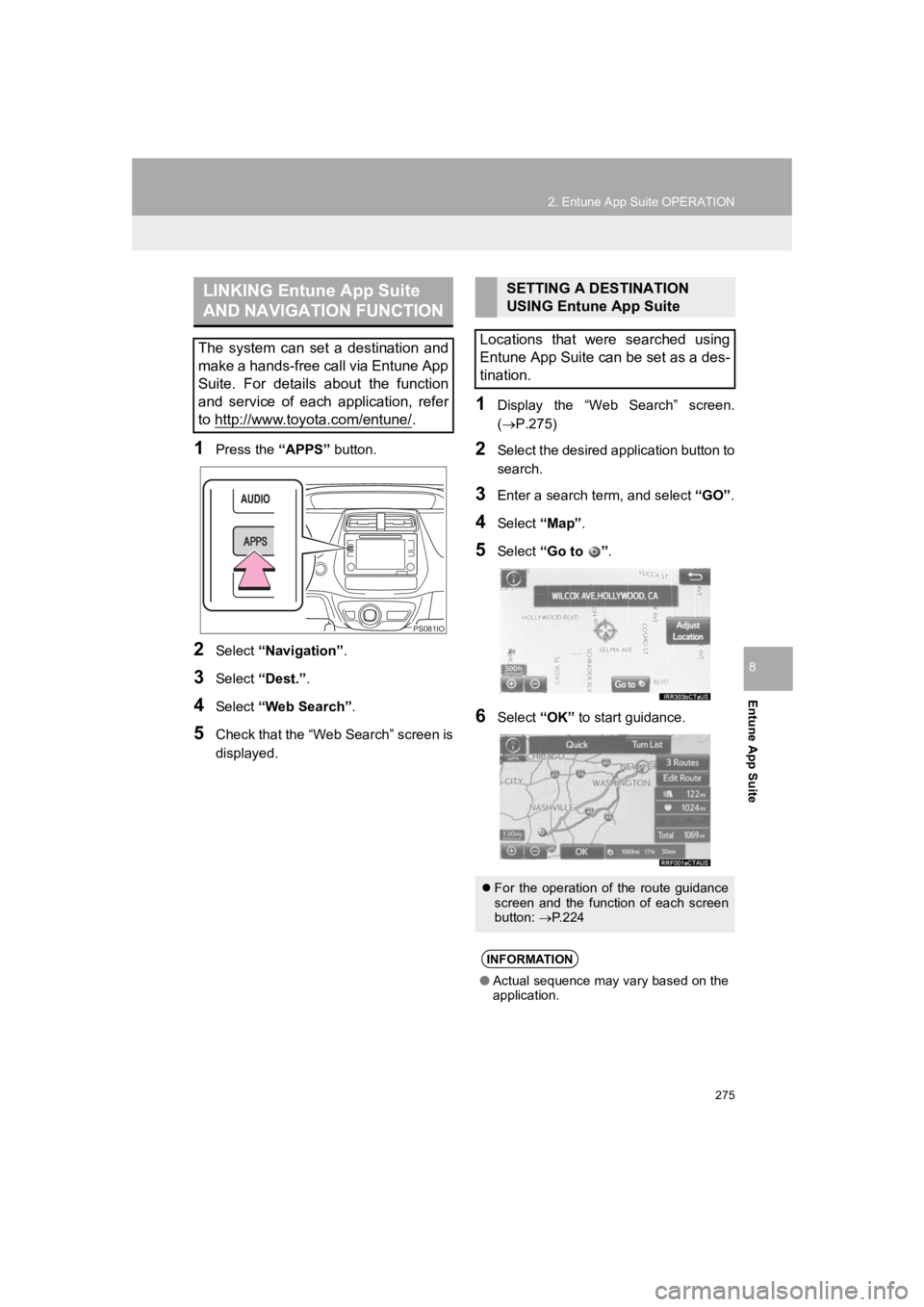
1Press the “APPS” button.
2Select “Navigation” .
3Select “Dest.” .
4Select “Web Search”.
5Check that the “Web Search” screen is
displayed.
1Display the “Web Search” screen.
(P.275)
2Select the desired application button to
search.
3Enter a search term, and select “GO”.
4Select “Map”.
5Select “Go to ” .
6Select “OK” to start guidance.
LINKING Entune App Suite
AND NAVIGATION FUNCTION
The system can set a destination and
make a hands-free call via Entune App
Suite. For details about the function
and service of each application, refer
to http://www.toyota.com/entune/
.
PS081IO
SETTING A DESTINATION
USING Entune App Suite
Locations that were searched using
Entune App Suite can be set as a des-
tination.
For the operation of the route guidance
screen and the function of each screen
button: P.224
INFORMATION
● Actual sequence may vary based on the
application.
Page 276 of 294
276
2. Entune App Suite OPERATION
PRIUS_Navi_OM47C47U_(U)
18.10.10 12:02
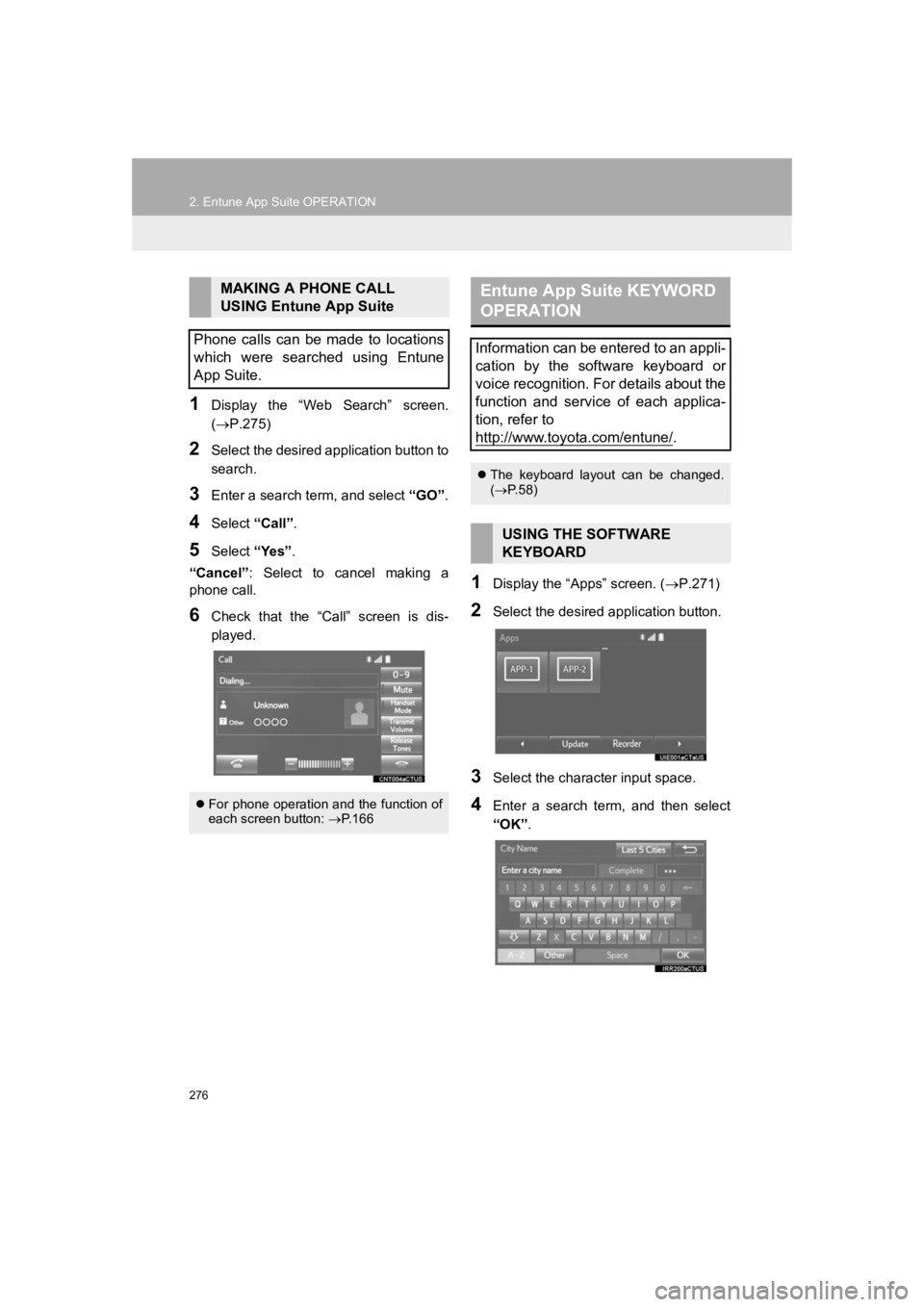
1Display the “Web Search” screen.
(P.275)
2Select the desired application button to
search.
3Enter a search term, and select “GO”.
4Select “Call”.
5Select “Yes”.
“Cancel” : Select to cancel making a
phone call.
6Check that the “Call” screen is dis-
played.
1Display the “Apps” screen. ( P.271)
2Select the desired application button.
3Select the character input space.
4Enter a search term, and then select
“OK”.
MAKING A PHONE CALL
USING Entune App Suite
Phone calls can be made to locations
which were searched using Entune
App Suite.
For phone operation and the function of
each screen button: P.166
Entune App Suite KEYWORD
OPERATION
Information can be entered to an appli-
cation by the software keyboard or
voice recognition. For details about the
function and service of each applica-
tion, refer to
http://www.toyota.com/entune/
.
The keyboard layout can be changed.
( P.58)
USING THE SOFTWARE
KEYBOARD
Page 280 of 294
280
ALPHABETICAL INDEX
PRIUS_Navi_OM47C47U_(U)
18.10.10 12:02
A
AM/FM radio ............................................. 79Available HD radio™ technology........... 87
Caching a radio program ....................... 84
Overview ............................................... 79
Presetting a station................................ 83
Radio broadcast data system ................ 85
Selecting a station from the list ............. 83
Traffic announcement (FM radio) .......... 86
Troubleshooting guide ........................... 89
Using HD radio™ technology ................ 87
“Apps” screen............................................ 14
Audio remote controls ............................. 120
Audio settings ......................................... 122 Audio settings screen .......................... 122
Audio system ....... ..................................... 71
AUX......................................................... 117 Overview ............................................. 117
B
Basic function...................................... 12, 31
Basic information before operation ........... 32
Basic operation ................................. 72, 196
Bluetooth
® audio ..................................... 112
Connecting a Bluetooth® device ......... 116
Listening to Bluetooth® audio .............. 116
Overview ............................................. 112
Bluetooth
® phone message function ...... 169
Calling the message sender ................ 173
Checking messages ............................ 171
Message inbox screen ........................ 169
Receiving a message .......................... 170
Replying to a message (Quick reply) .................................... 172
Bluetooth
® settings ................................... 44
C
Calling on the Bluetooth® phone .............159
By call history ......................................160
By contacts list.....................................161
By dial pad ...........................................163
By favorites list ....................................160
By “Home” screen................................164
By off hook switch................................163
Capacitive touch switches .........................34
Casual speech recognization ..................143
CD ............................................................. 98
Overview................................................98
Playing an audio CD ............................101
Playing an MP3/WMA/AAC disc ..........101
Command list ..........................................144
Controls overview......................................12
D
Data services settings .............................152 Setting download methods ..................152
Destination search ..................................212
Destination search screen.......................212
Detailed navigation settings ....................248 Screens for navigation settings ...........248
Driver settings ...........................................65 Manually select linked settings ..............65
ALPHABETICAL INDEX