navigation system TOYOTA PRIUS 2019 (in English) User Guide
[x] Cancel search | Manufacturer: TOYOTA, Model Year: 2019, Model line: PRIUS, Model: TOYOTA PRIUS 2019Pages: 828, PDF Size: 16.9 MB
Page 159 of 828
PRIUS_OM_OM47C35U_(U)
1592. Instrument cluster
2
Instrument cluster
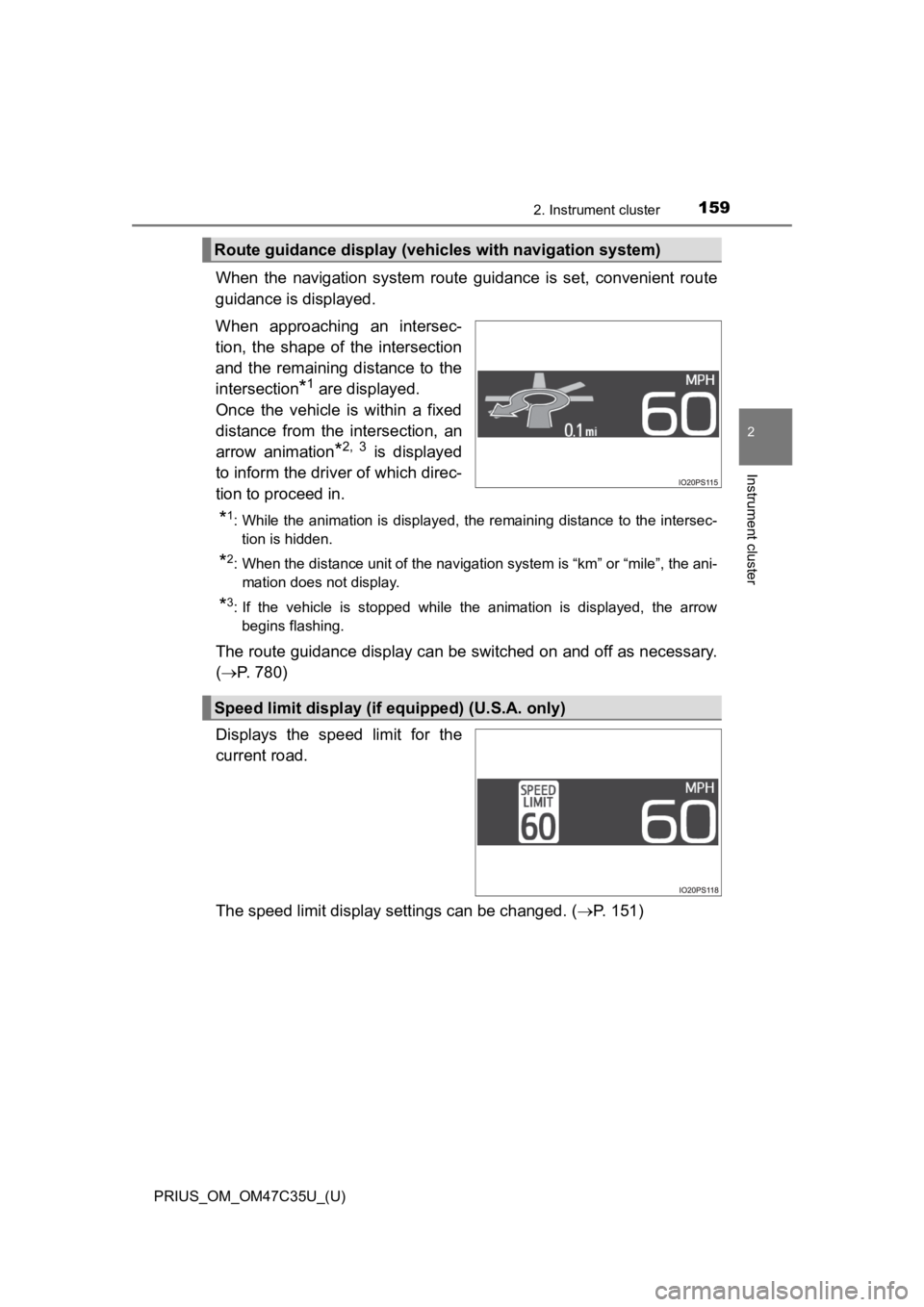
When the navigation system route guidance is set, convenient route
guidance is displayed.
When approaching an intersec-
tion, the shape of the intersection
and the remaining distance to the
intersection
*1 are displayed.
Once the vehicle is within a fixed
distance from the intersection, an
arrow animation
*2, 3 is displayed
to inform the driver of which direc-
tion to proceed in.
*1: While the animation is displayed, the remaining distance to th e intersec-
tion is hidden.
*2: When the distance unit of the navigation system is “km” or “mi le”, the ani-
mation does not display.
*3: If the vehicle is stopped while the animation is displayed, the arrow begins flashing.
The route guidance display can be switched on and off as necess ary.
( P. 780)
Displays the speed limit for the
current road.
The speed limit display settings can be changed. ( P. 151)
Route guidance display (vehic les with navigation system)
Speed limit display (if equipped) (U.S.A. only)
Page 160 of 828

160
PRIUS_OM_OM47C35U_(U)
2. Instrument cluster
■Enabling/disabling of the head-up display
When the head-up display is turned off with the “HUD” switch, it is not dis-
played until the “HUD” switch is used to turn the head-up displ ay on again.
(Operation of the head-up display is not linked with the power switch.)
■ Display brightness
●The brightness of the head-up display is automatically adjusted according to
the operation status of the headlights (on/off) and the brightn ess of the sur-
roundings.
● When the brightness of the head-up display is adjusted to a cer tain level or
higher, the display automatically dims when the vehicle is stopped. Once the
vehicle starts off and the vehicle speed reaches approximately 3.1 mph
(5 km/h) or more, the display automatically returns to its previous bright-
ness.
■ Vehicle speed display
In extremely cold environments, the display of the speedometer and the vehi-
cle speed of the head-up display may slightly differ.
■ Head-up display
The head-up display may seem dark and hard to see when viewed t hrough
sunglasses, especially polarized sunglasses.
■ When the 12-volt battery is disconnected
The customize settings of the head-up display will be reset.
■ Route guidance display (vehicles with navigation system)
The route guidance is not displayed on both the head-up display and multi-
information display simultaneously. When the route guidance is displayed on
the head-up display, the multi-information display does not dis play the route
guidance even if the navigation system-linked display ( P. 143) is selected
on the multi-information display.
Page 162 of 828
162
PRIUS_OM_OM47C35U_(U)
2. Instrument cluster
Energy monitor/consumption screen
(vehicles without 11.6-inch display)
◆Multi-information display
P. 1 2 2
◆Audio system screen
Display the energy monitor, trip information or past record screen.
Vehicles with Entune Audio
Press the “CAR” button.
Vehicles with Entune Premium Audio with Navigation
Press the “APPS” button.
Select “Eco”.
You can view the status of your vehicle on the multi-informatio n
display and the a udio system screen
*.
*: For navigation system or multimedia system
1
2
Page 169 of 828
169
PRIUS_OM_OM47C35U_(U)
2. Instrument cluster
2
Instrument cluster
Energy monitor/consumption screen
(vehicles with 11.6-inch display)
◆Multi-information display
P. 1 2 2
◆Audio system screen
■Display the energy monitor, tri p information or past record
screen
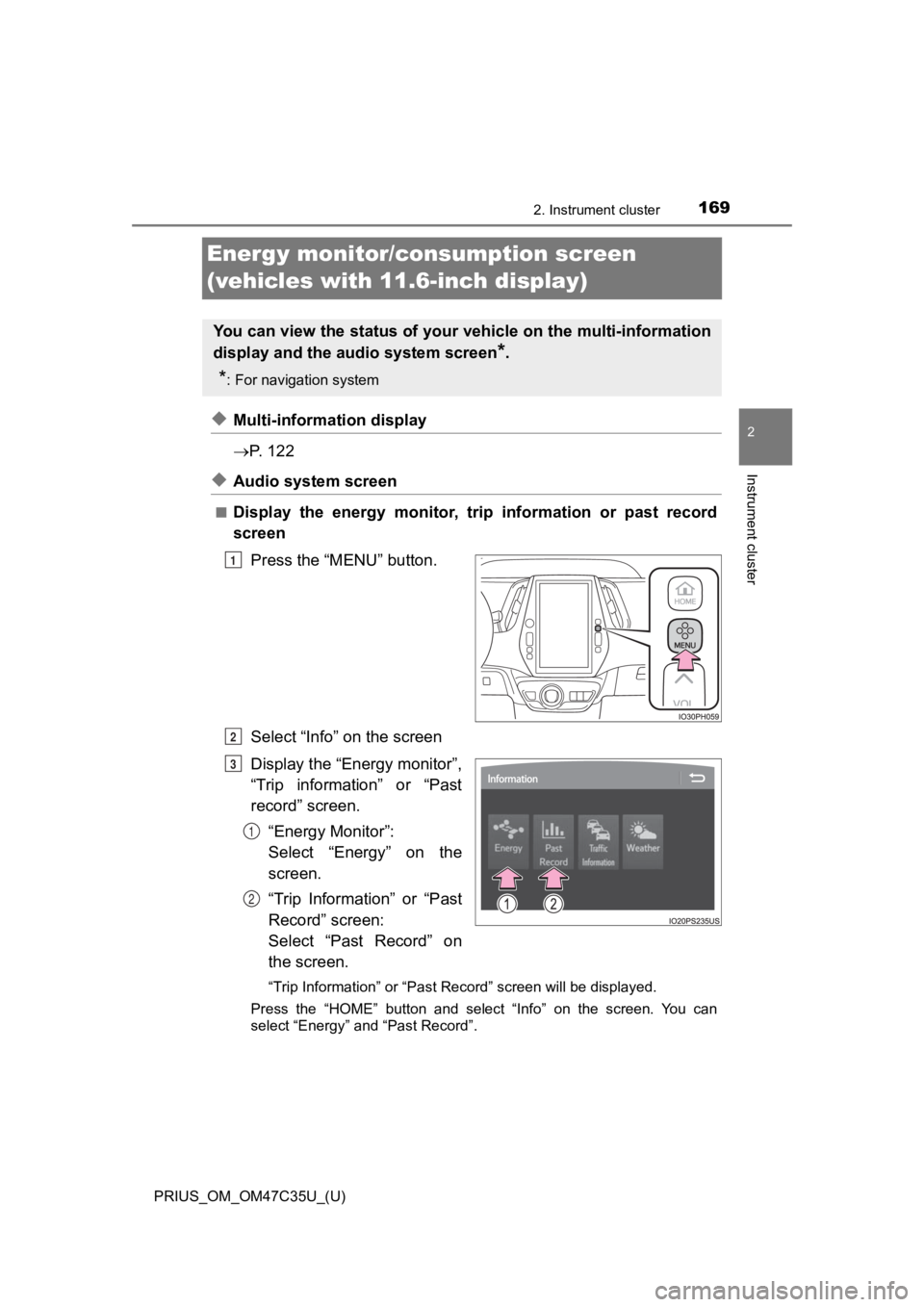
Press the “MENU” button.
Select “Info” on the screen
Display the “Energy monitor”,
“Trip information” or “Past
record” screen.“Energy Monitor”:
Select “Energy” on the
screen.
“Trip Information” or “Past
Record” screen:
Select “Past Record” on
the screen.
“Trip Information” or “Past Record” screen will be displayed.
Press the “HOME” button and select “Info” on the screen. You ca n
select “Energy” and “Past Record”.
You can view the status of your vehicle on the multi-informatio n
display and the a udio system screen
*.
*: For navigation system
1
2
3
1
2
Page 170 of 828
170
PRIUS_OM_OM47C35U_(U)
2. Instrument cluster
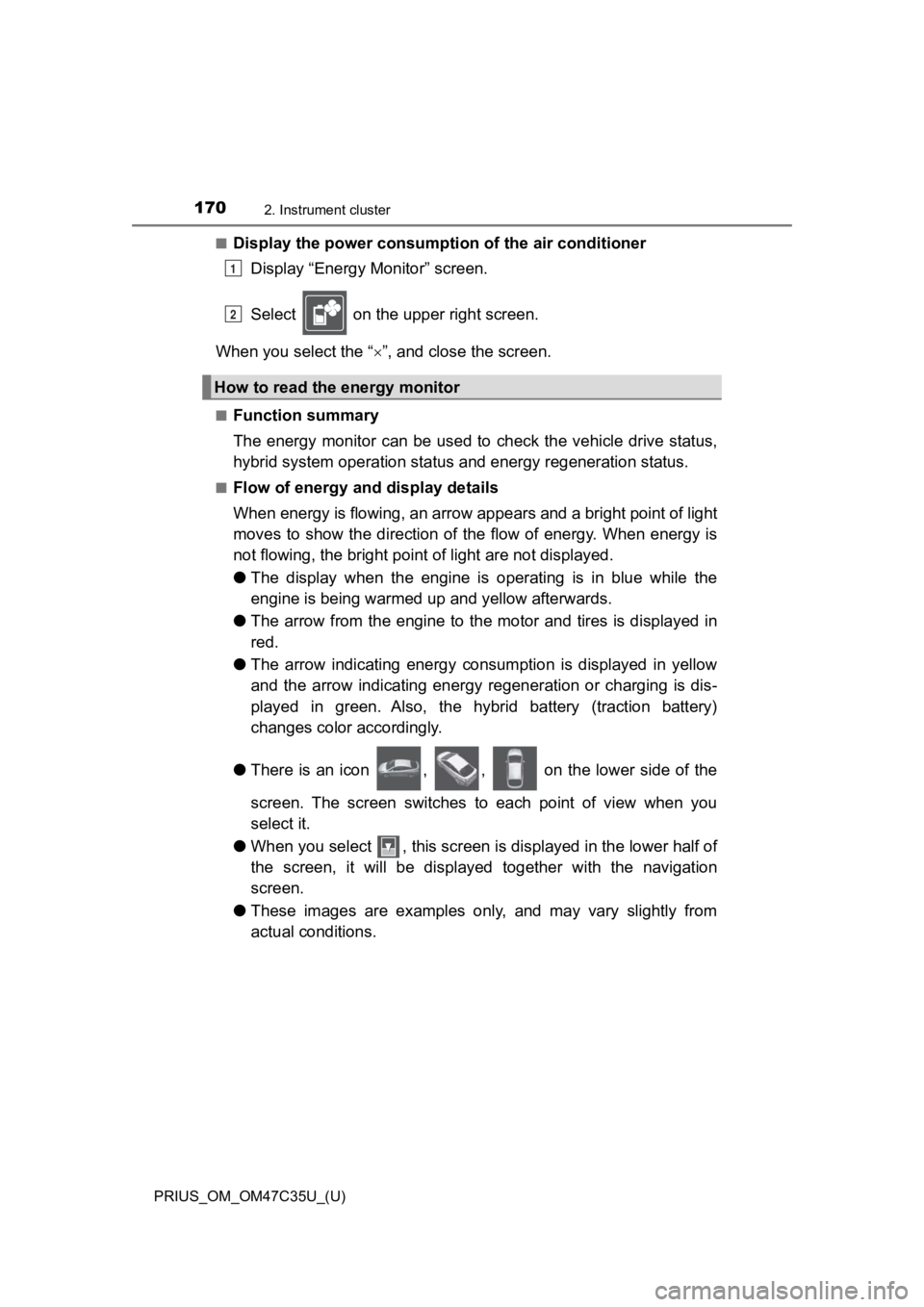
■Display the power consumption of the air conditioner
Display “Energy Monitor” screen.
Select on the upper right screen.
When you select the “ ”, and close the screen.
■Function summary
The energy monitor can be used to check the vehicle drive status,
hybrid system operation status and energy regeneration status.
■Flow of energy and display details
When energy is flowing, an arrow appears and a bright point of light
moves to show the direction of the flow of energy. When energy is
not flowing, the bright poin t of light are not displayed.
● The display when the engine is operating is in blue while the
engine is being warmed up and yellow afterwards.
● The arrow from the engine to the motor and tires is displayed i n
red.
● The arrow indicating energy consumption is displayed in yellow
and the arrow indicating energy regeneration or charging is dis -
played in green. Also, the hybrid battery (traction battery)
changes color accordingly.
● There is an icon , , on the lower side of the
screen. The screen switches to each point of view when you
select it.
● When you select , this screen is displayed in the lower half of
the screen, it will be displayed together with the navigation
screen.
● These images are examples only, and may vary slightly from
actual conditions.
How to read the energy monitor
1
2
Page 434 of 828
434
PRIUS_OM_OM47C35U_(U)
5-1. Basic Operations
Audio system types
Entune Audio
P. 4 3 5
Entune Premium Aud io with Navigation
Owners of models equipped with a navigation system should refer to
the “NAVIGATION SYSTEM OWNER’S MANUAL”.
■ Using cellular phones
Interference may be heard through the audio system’s speakers i f a cellular
phone is being used inside or close to the vehicle while the au dio system is
operating.
NOTICE
■ To prevent 12-volt battery discharge
Do not leave the audio system on longer than necessary when the hybrid
system is off.
■ To avoid damaging the audio system
Take care not to spill drinks or other fluids on the audio syst em.
Page 438 of 828
438
PRIUS_OM_OM47C35U_(U)
5-1. Basic Operations
Using the steering wheel audio switches
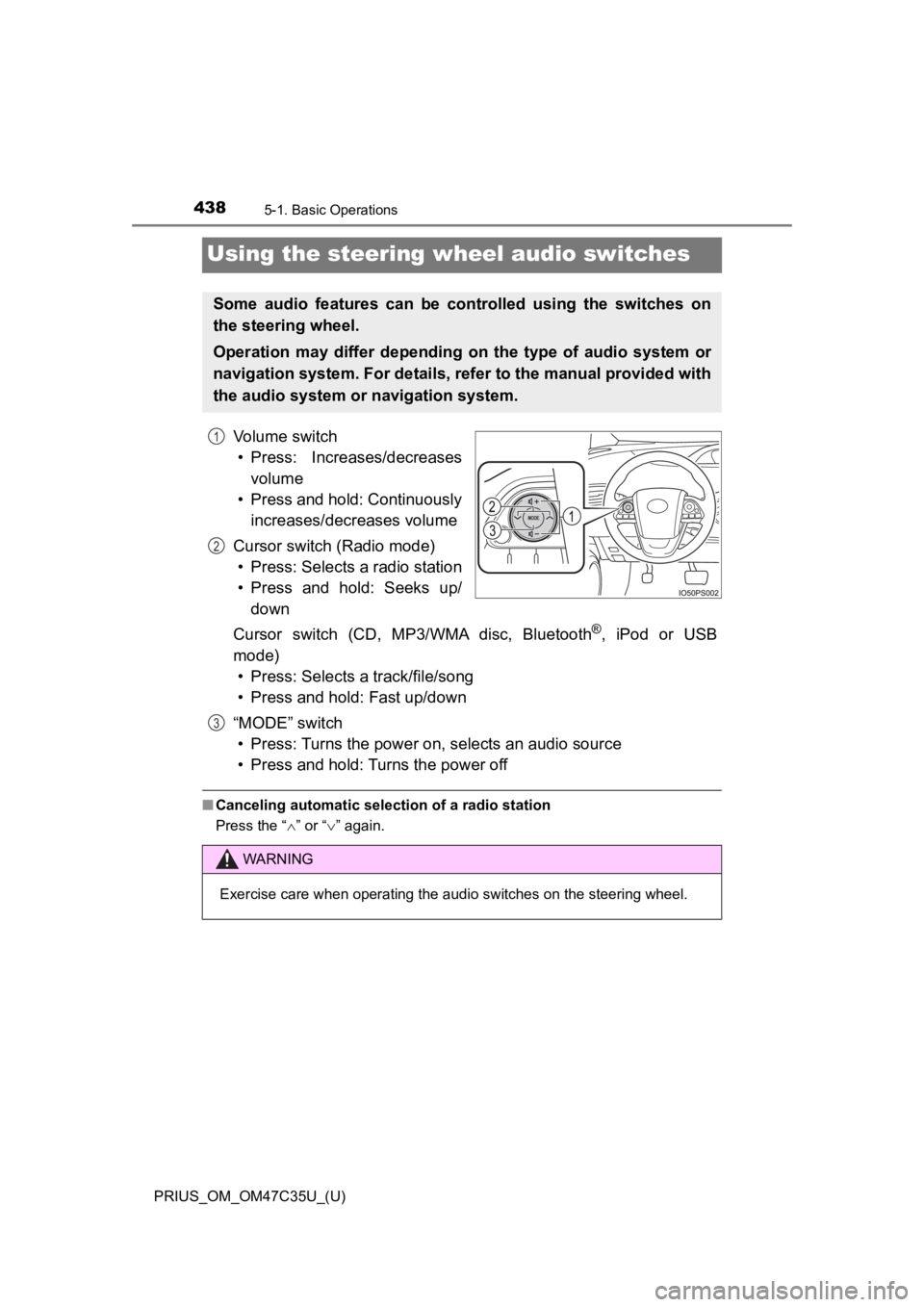
Volume switch• Press: Increases/decreases volume
• Press and hold: Continuously increases/decreases volume
Cursor switch (Radio mode) • Press: Selects a radio station
• Press and hold: Seeks up/ down
Cursor switch (CD, MP3/WMA disc, Bluetooth
®, iPod or USB
mode) • Press: Selects a track/file/song
• Press and hold: Fast up/down
“MODE” switch • Press: Turns the power on, selects an audio source
• Press and hold: Turns the power off
■ Canceling automatic selection of a radio station
Press the “ ” or “ ” again.
Some audio features can be cont rolled using the switches on
the steering wheel.
Operation may differ depending on the type of audio system or
navigation system. For details, refer to the manual provided wi th
the audio system or navigation system.
1
2
WARNING
Exercise care when operating the audio switches on the steering wheel.
3
Page 524 of 828

5245-11. Using the voice command system
PRIUS_OM_OM47C35U_(U)
■Notes about Mobile Assistant
●The available features and functions may vary based on the iOS version
installed on the connected device.
● Some Siri
® features are limited in Eyes Free mode. If you attempt to use an
unavailable function, Siri® will inform you that the function is not available.
● If Siri
® is not enabled on the cellular phone connected via Bluetooth®, an
error message will be displayed on the screen.
● While a phone call is active, the Mobile Assistant cannot be us ed.
● If using the navigation feature of the cellular phone, ensure t he active audio
source is Bluetooth
® audio or iPod in order to hear turn by turn direction
prompts.
Page 536 of 828
536
PRIUS_OM_OM47C35U_(U)
6-1. Using the air conditioning system and defogger
Automatic air conditioning system
(vehicles with 11.6-inch display)
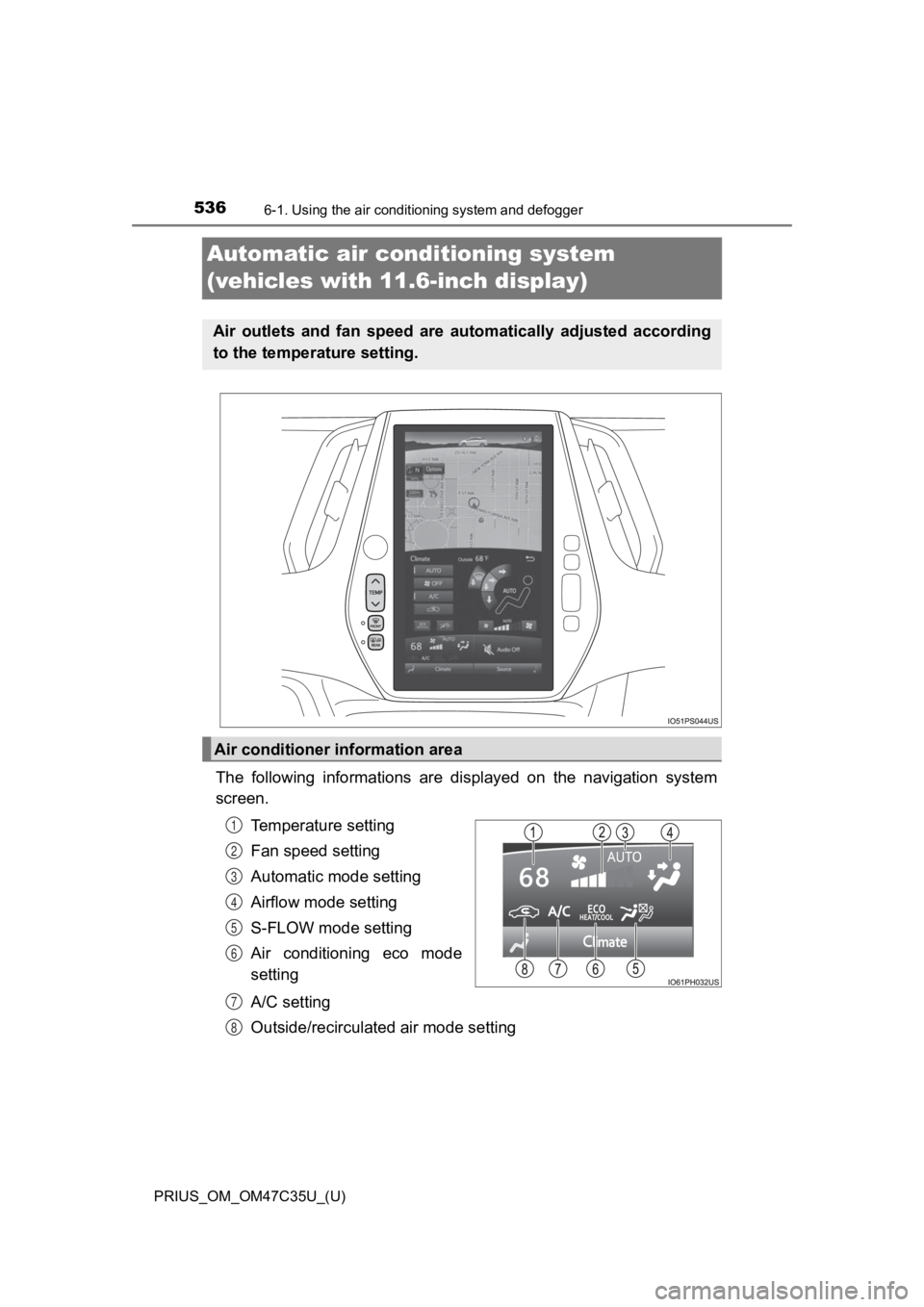
The following informations are displayed on the navigation syst em
screen.
Temperature setting
Fan speed setting
Automatic mode setting
Airflow mode setting
S-FLOW mode setting
Air conditioning eco mode
setting
A/C setting
Outside/recirculated air mode setting
Air outlets and fan speed are automatically adjusted according
to the temperature setting.
Air conditioner information area
1
2
3
4
5
6
7
8
Page 537 of 828
PRIUS_OM_OM47C35U_(U)
5376-1. Using the air conditioning system and defogger
6
Interior features
The air conditioning control
screen can be displayed by touch-
ing the air conditioner information
area on the navigation system
screen.
■Adjusting the temperature setting
Press “ ” on to increase the temperature and “ ” to decrease
the temperature.
If is not pressed, the system will blow ambient temperature
air or heated air.
■
Adjusting the fan speed setting
Select on the air conditioning control screen to increase the
fan speed and to decr ease the fan speed.
The fan speed is shown on the control screen. (7 levels)
Select to turn the fan off.
■
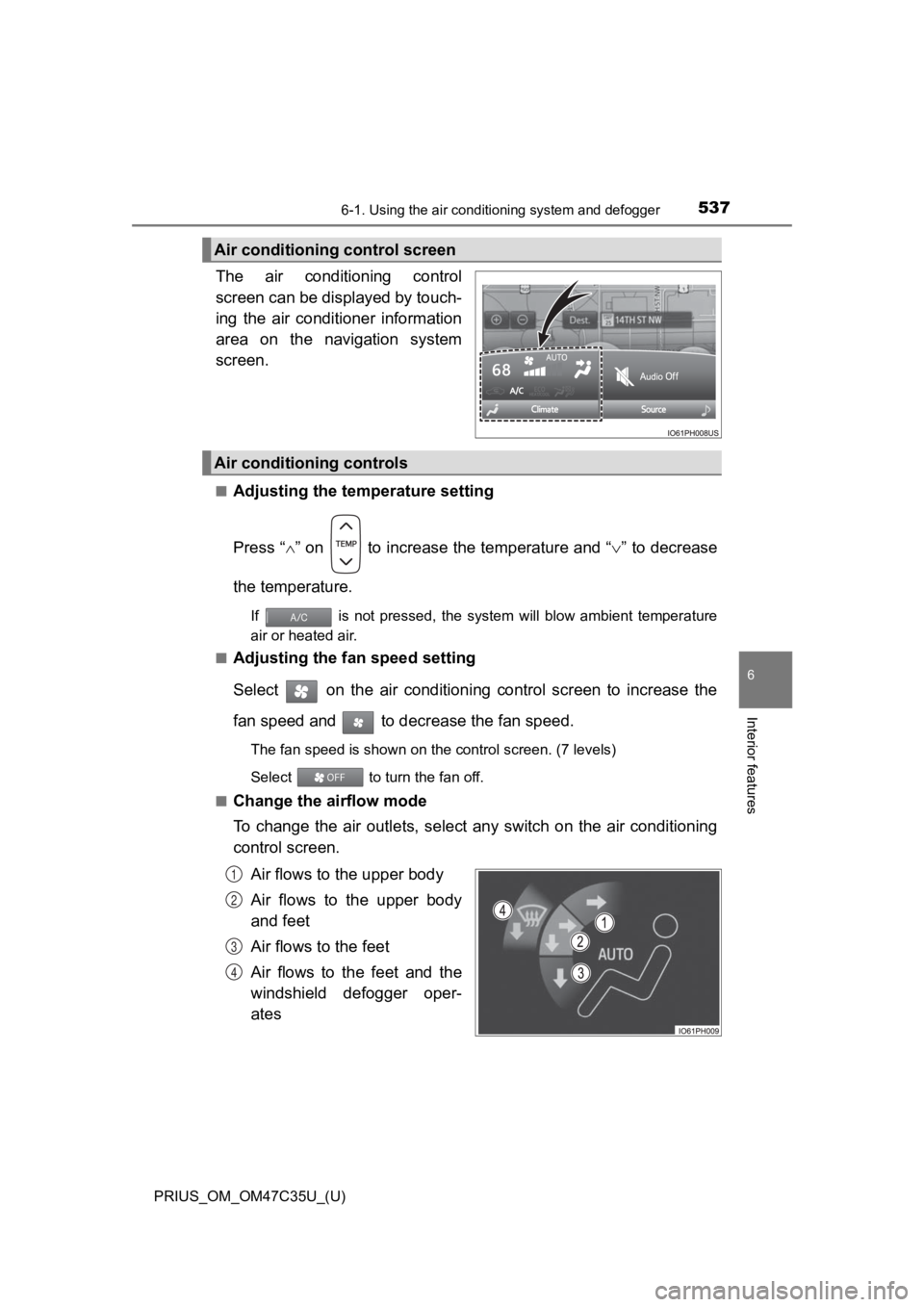
Change the airflow mode
To change the air outlets, select any switch on the air conditi oning
control screen.
Air flows to the upper body
Air flows to the upper body
and feet
Air flows to the feet
Air flows to the feet and the
windshield defogger oper-
ates
Air conditioning control screen
Air conditioning controls
1
2
3
4