change time TOYOTA PRIUS 2023 Owners Manual
[x] Cancel search | Manufacturer: TOYOTA, Model Year: 2023, Model line: PRIUS, Model: TOYOTA PRIUS 2023Pages: 770, PDF Size: 122.55 MB
Page 10 of 770
8
PRIUS_OM_OM47F32E_(EE)
For your infor mation
Please note that this manual applies to all models and explains all equipment,
including options. Therefore, you may find some explanations for equipment
not installed on your vehicle.
All specifications provided in this manual are current at the time of printing.
However, because of the Toyota policy of continual product improvement, we
reserve the right to make changes at any time without notice.
Depending on specifications, the vehicle shown in the illustrations may differ
from your vehicle in terms of color and equipment.
For Eurasian Economic Union: The information on the procedure for the safe
use of the vehicle and its systems, presented on the manufacturer’s labels on
the body in English, is intended only for service workers.
Both genuine Toyota and a wide variety of other spare parts and accessories
for Toyota vehicles are currently available on the market. Should it be deter-
mined that any of the genuine Toyota parts or accessories supplied with the
vehicle need to be replaced, Toyota recommends that genuine Toyota parts
or accessories, be used to replace them. Other parts or accessories of
matching quality can also be used.
Toyota cannot accept any liability or guarantee spare parts and accessories
which are not genuine Toyota products, nor for replacement or installation
involving such parts. In addition, damage or performance problems resulting
from the use of non-genuine Toyota spare parts or accessories may not be
covered under warranty.
Also, remodeling like this will have an effect on advanced safety equipment
such as Toyota Safety Sense and there is a danger that it will not work prop-
erly or the danger that it may work in situations where it should not be work-
ing.
Main Owner’s Manual
Accessories, spare parts and modification of your Toyota
Page 103 of 770
1012. Instrument cluster
2
Instrument cluster
PRIUS_OM_OM47F32E_(EE)
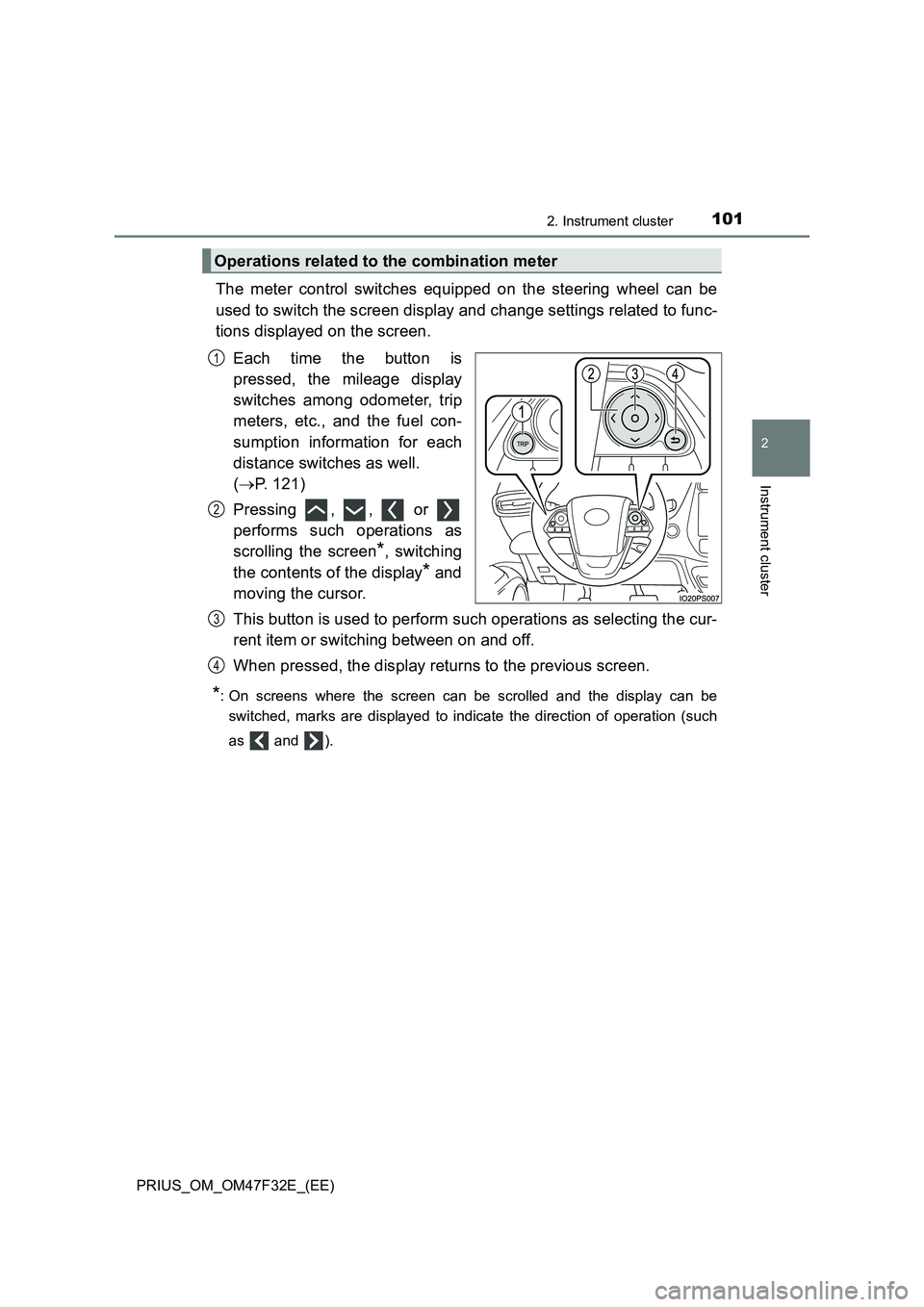
The meter control switches equipped on the steering wheel can be
used to switch the screen display and change settings related to func-
tions displayed on the screen.
Each time the button is
pressed, the mileage display
switches among odometer, trip
meters, etc., and the fuel con-
sumption information for each
distance switches as well.
(P. 121)
Pressing , , or
performs such operations as
scrolling the screen
*, switching
the contents of the display
* and
moving the cursor.
This button is used to perform such operations as selecting the cur-
rent item or switching between on and off.
When pressed, the display returns to the previous screen.
*: On screens where the screen can be scrolled and the display can be
switched, marks are displayed to indicate the direction of operation (such
as and ).
Operations related to the combination meter
1
2
3
4
Page 104 of 770
1022. Instrument cluster
PRIUS_OM_OM47F32E_(EE)
Left-hand drive vehicles
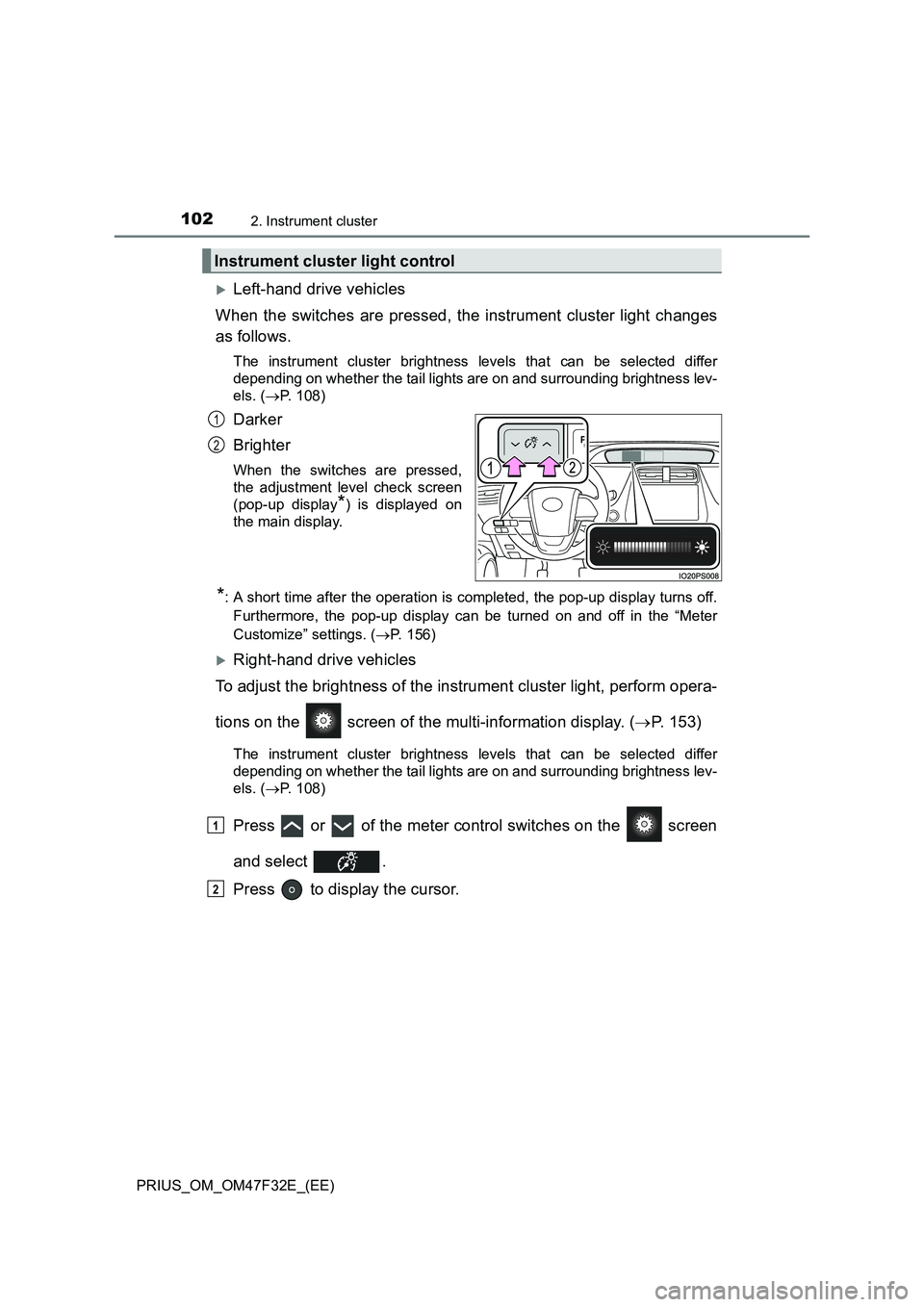
When the switches are pressed, the instrument cluster light changes
as follows.
The instrument cluster brightness levels that can be selected differ
depending on whether the tail lights are on and surrounding brightness lev-
els. (P. 108)
Darker
Brighter
When the switches are pressed,
the adjustment level check screen
(pop-up display
*) is displayed on
the main display.
*: A short time after the operation is completed, the pop-up display turns off.
Furthermore, the pop-up display can be turned on and off in the “Meter
Customize” settings. (P. 156)
Right-hand drive vehicles
To adjust the brightness of the instrument cluster light, perform opera-
tions on the screen of the multi-information display. (P. 153)
The instrument cluster brightness levels that can be selected differ
depending on whether the tail lights are on and surrounding brightness lev-
els. (P. 108)
Press or of the meter control switches on the screen
and select .
Press to display the cursor.
Instrument cluster light control
1
2
1
2
Page 108 of 770
1062. Instrument cluster
PRIUS_OM_OM47F32E_(EE)
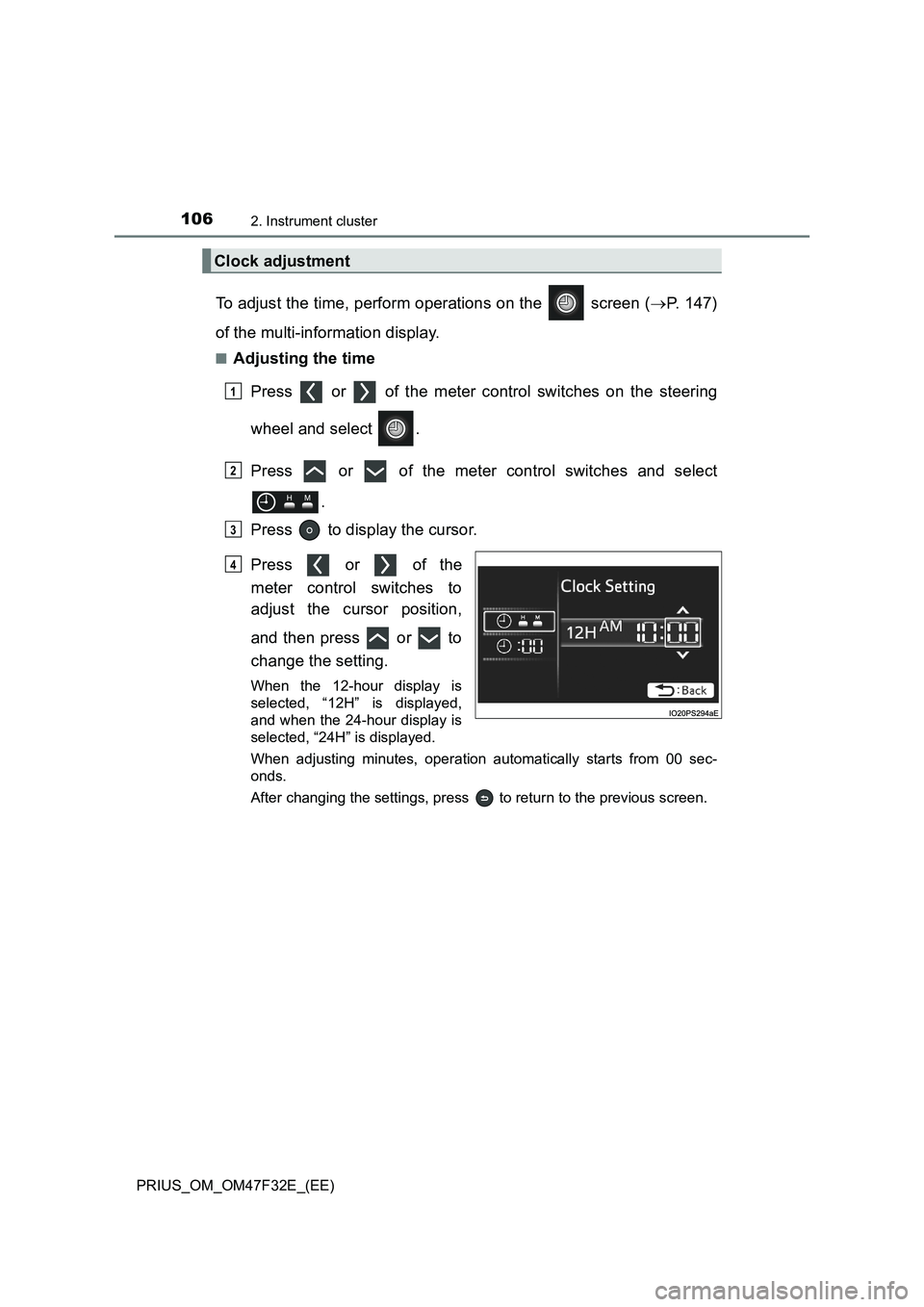
To adjust the time, perform operations on the screen (P. 147)
of the multi-information display.
■Adjusting the time
Press or of the meter control switches on the steering
wheel and select .
Press or of the meter control switches and select
.
Press to display the cursor.
Press or of the
meter control switches to
adjust the cursor position,
and then press or to
change the setting.
When the 12-hour display is
selected, “12H” is displayed,
and when the 24-hour display is
selected, “24H” is displayed.
When adjusting minutes, operation automatically starts from 00 sec-
onds.
After changing the settings, press to return to the previous screen.
Clock adjustment
1
2
3
4
Page 110 of 770
1082. Instrument cluster
PRIUS_OM_OM47F32E_(EE)
■The meters and display illuminate when
The power switch is in ON mode.
■Adjusting the instrument cluster brightness (P. 102)
●The brightness levels that can be selected differ depending on whether the
tail lights are on and surrounding brightness levels, as shown in the table
below.
*: 22 levels of the brightness are displayed on the setting screen. However,
the brightness setting will be the brightest when other than 1st level (the
darkest) is selected. If other than 1st or 22nd level is selected, when the
tail lights are turned on in a dark place, the instrument cluster brightness
setting will be the selected level.
●If the taillights are illuminated in a dark environment, the instrument cluster
light dims. However, when the brightness of the instrument cluster is set to
minimum or maximum (1st or 22nd level of the instrument cluster bright-
ness), even if the taillights are illuminated, the instrument cluster light will
not dim.
■When disconnecting and reconnecting 12-volt battery terminals
The settings of the clock will be reset.
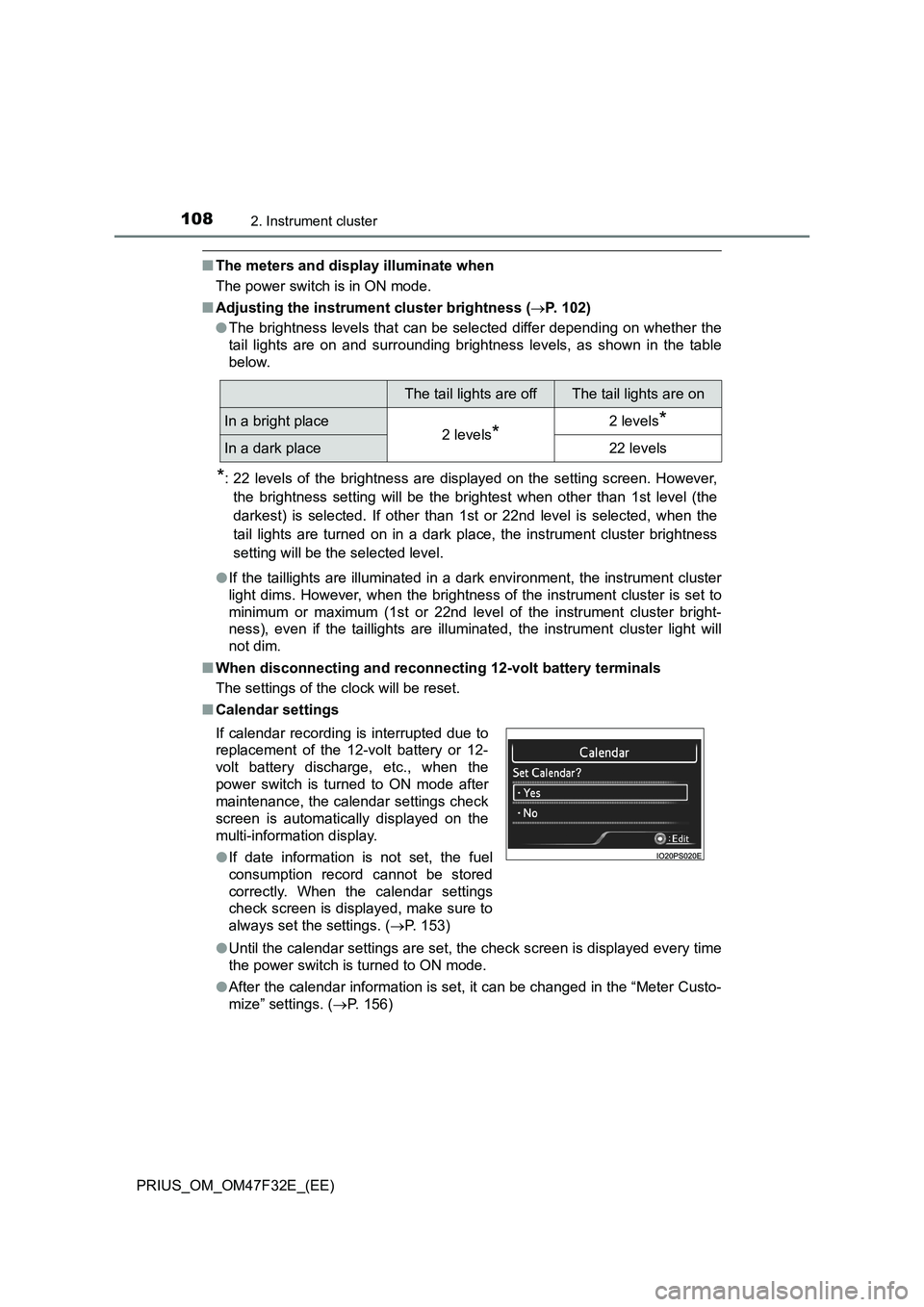
■Calendar settings
●Until the calendar settings are set, the check screen is displayed every time
the power switch is turned to ON mode.
●After the calendar information is set, it can be changed in the “Meter Custo-
mize” settings. (P. 156)
The tail lights are offThe tail lights are on
In a bright place2 levels*2 levels*
In a dark place22 levels
If calendar recording is interrupted due to
replacement of the 12-volt battery or 12-
volt battery discharge, etc., when the
power switch is turned to ON mode after
maintenance, the calendar settings check
screen is automatically displayed on the
multi-information display.
●If date information is not set, the fuel
consumption record cannot be stored
correctly. When the calendar settings
check screen is displayed, make sure to
always set the settings. (P. 153)
Page 123 of 770
1212. Instrument cluster
2
Instrument cluster
PRIUS_OM_OM47F32E_(EE)
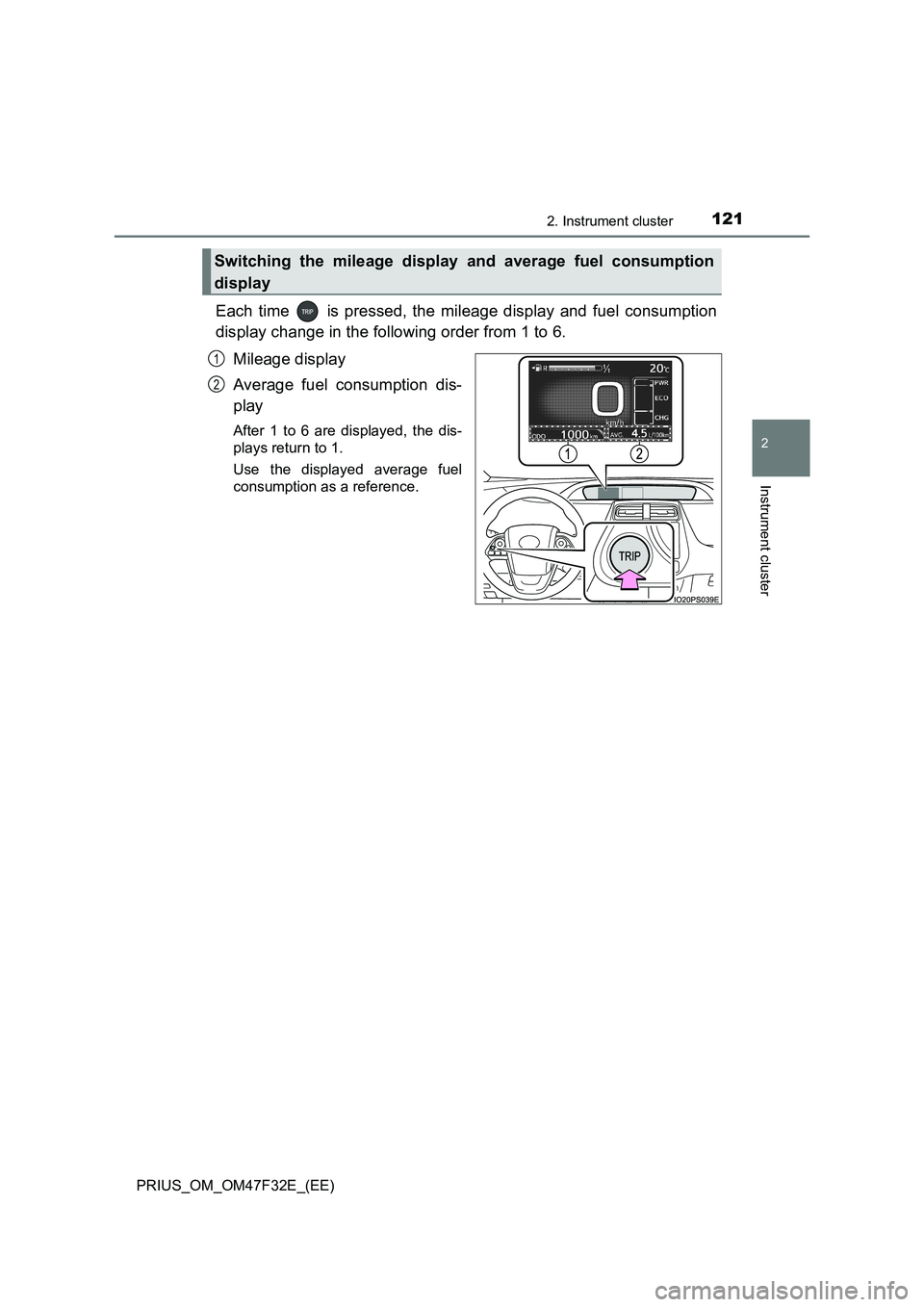
Each time is pressed, the mileage display and fuel consumption
display change in the following order from 1 to 6.
Mileage display
Average fuel consumption dis-
play
After 1 to 6 are displayed, the dis-
plays return to 1.
Use the displayed average fuel
consumption as a reference.
Switching the mileage display and average fuel consumption
display
1
2
Page 142 of 770
1402. Instrument cluster
PRIUS_OM_OM47F32E_(EE)
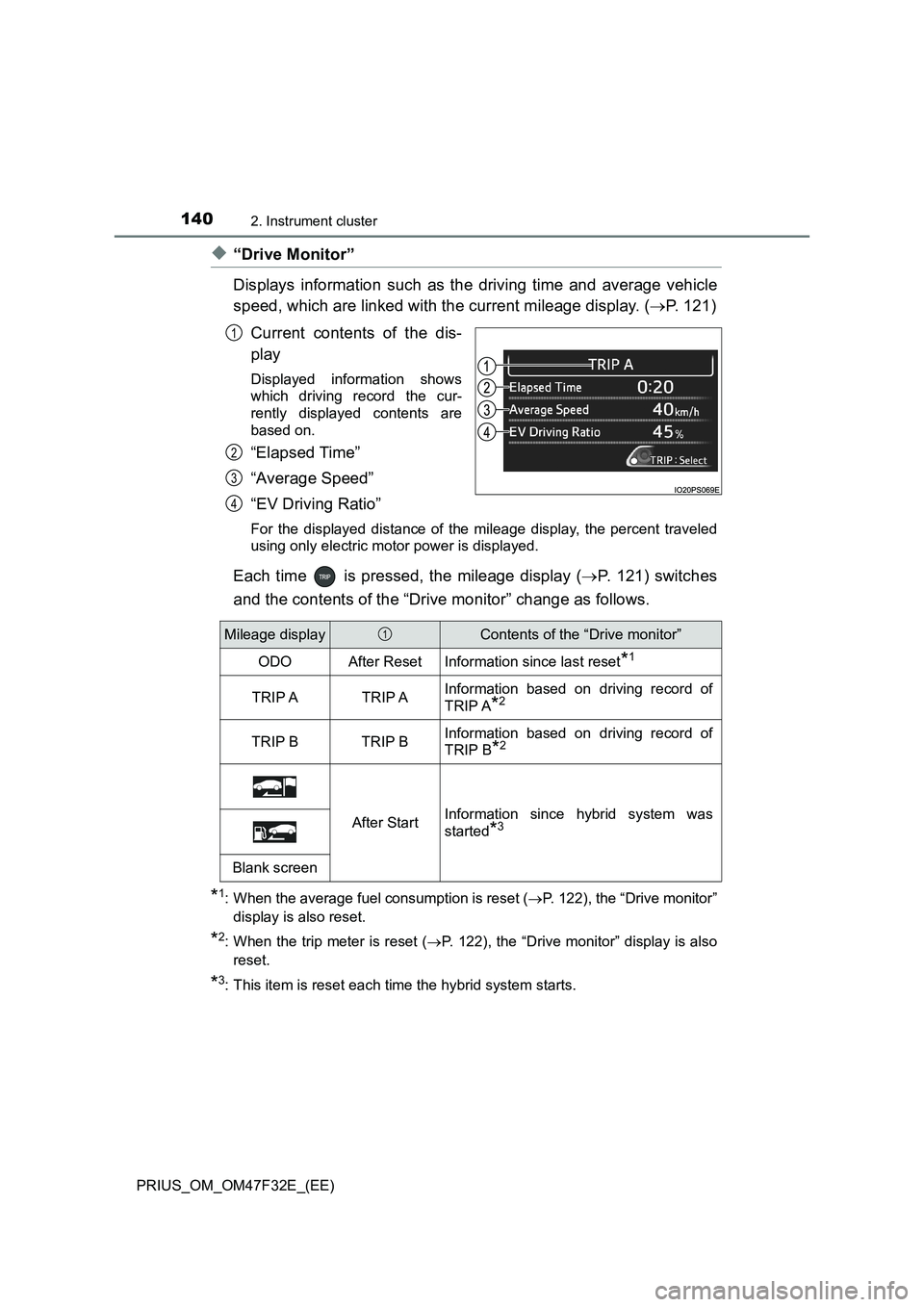
◆“Drive Monitor”
Displays information such as the driving time and average vehicle
speed, which are linked with the current mileage display. (P. 121)
Current contents of the dis-
play
Displayed information shows
which driving record the cur-
rently displayed contents are
based on.
“Elapsed Time”
“Average Speed”
“EV Driving Ratio”
For the displayed distance of the mileage display, the percent traveled
using only electric motor power is displayed.
Each time is pressed, the mileage display (P. 121) switches
and the contents of the “Drive monitor” change as follows.
*1: When the average fuel consumption is reset (P. 122), the “Drive monitor”
display is also reset.
*2: When the trip meter is reset (P. 122), the “Drive monitor” display is also
reset.
*3: This item is reset each time the hybrid system starts.
1
2
3
4
Mileage displayContents of the “Drive monitor”
ODOAfter ResetInformation since last reset*1
TRIP ATRIP AInformation based on driving record of
TRIP A
*2
TRIP BTRIP BInformation based on driving record of
TRIP B
*2
After StartInformation since hybrid system was
started
*3
Blank screen
1
Page 155 of 770
1532. Instrument cluster
2
Instrument cluster
PRIUS_OM_OM47F32E_(EE)
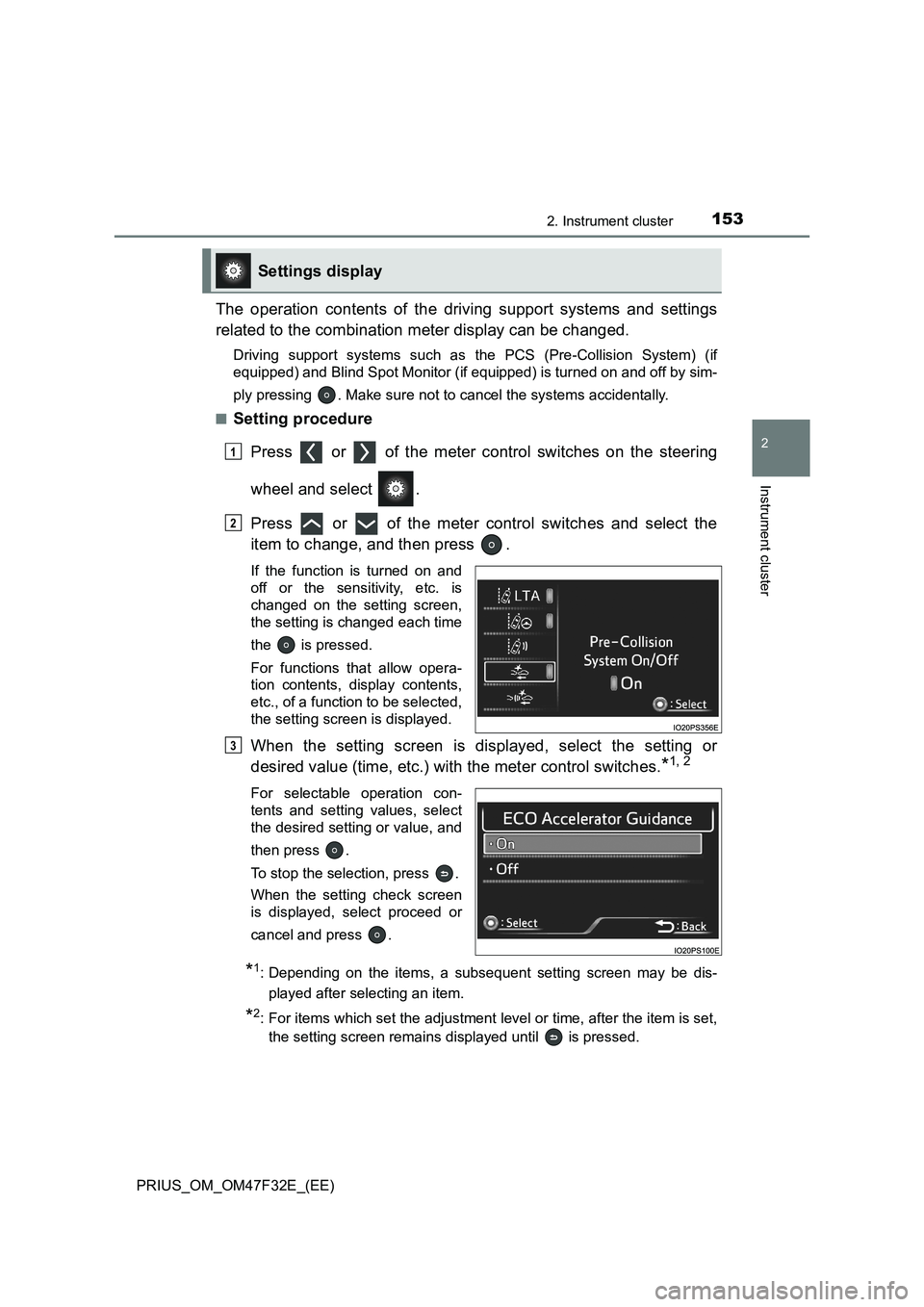
The operation contents of the driving support systems and settings
related to the combination meter display can be changed.
Driving support systems such as the PCS (Pre-Collision System) (if
equipped) and Blind Spot Monitor (if equipped) is turned on and off by sim-
ply pressing . Make sure not to cancel the systems accidentally.
■
Setting procedure
Press or of the meter control switches on the steering
wheel and select .
Press or of the meter control switches and select the
item to change, and then press .
If the function is turned on and
off or the sensitivity, etc. is
changed on the setting screen,
the setting is changed each time
the is pressed.
For functions that allow opera-
tion contents, display contents,
etc., of a function to be selected,
the setting screen is displayed.
When the setting screen is displayed, select the setting or
desired value (time, etc.) with the meter control switches.
*1, 2
For selectable operation con-
tents and setting values, select
the desired setting or value, and
then press .
To stop the selection, press .
When the setting check screen
is displayed, select proceed or
cancel and press .
*1: Depending on the items, a subsequent setting screen may be dis-
played after selecting an item.
*2: For items which set the adjustment level or time, after the item is set,
the setting screen remains displayed until is pressed.
Settings display
1
2
3
Page 169 of 770
1672. Instrument cluster
2
Instrument cluster
PRIUS_OM_OM47F32E_(EE)■
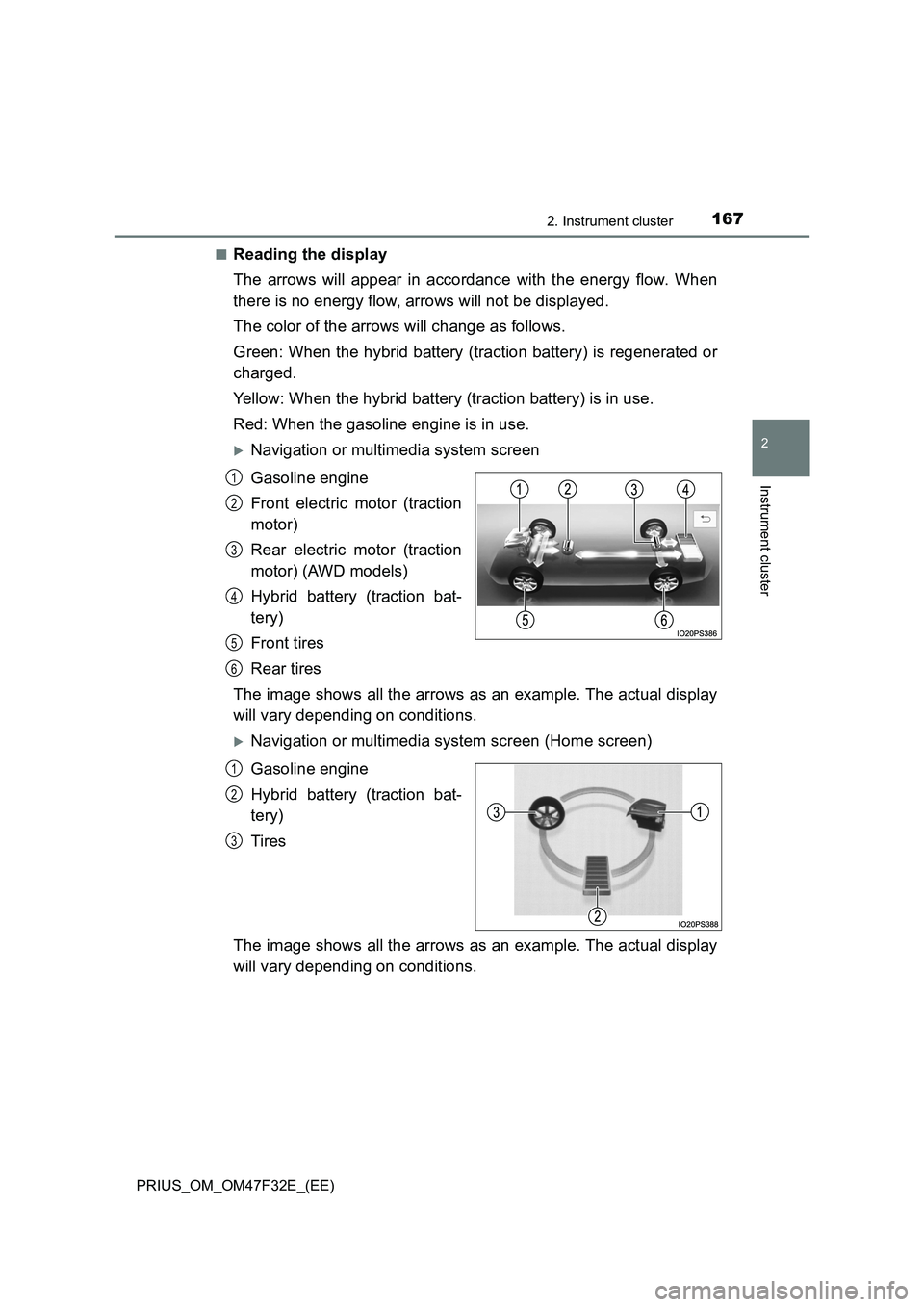
Reading the display
The arrows will appear in accordance with the energy flow. When
there is no energy flow, arrows will not be displayed.
The color of the arrows will change as follows.
Green: When the hybrid battery (traction battery) is regenerated or
charged.
Yellow: When the hybrid battery (traction battery) is in use.
Red: When the gasoline engine is in use.
Navigation or multimedia system screen
Gasoline engine
Front electric motor (traction
motor)
Rear electric motor (traction
motor) (AWD models)
Hybrid battery (traction bat-
tery)
Front tires
Rear tires
The image shows all the arrows as an example. The actual display
will vary depending on conditions.
Navigation or multimedia system screen (Home screen)
Gasoline engine
Hybrid battery (traction bat-
tery)
Tires
The image shows all the arrows as an example. The actual display
will vary depending on conditions.
1
2
3
4
5
6
1
2
3
Page 193 of 770
1913-2. Opening, closing and locking the doors
3
Operation of each component
PRIUS_OM_OM47F32E_(EE)■Note for the entry function
●Even when the electronic key is within the effective range (detection areas),
the system may not operate properly in the following cases:
• The electronic key is too close to the window or outside door handle, near
the ground, or in a high place when the doors are locked or unlocked.
• The electronic key is on the instrument panel, floor, or in the door pockets
or glove box when the hybrid system is started or power switch modes
are changed.
●Do not leave the electronic key on top of the instrument panel or near the
door pockets when exiting the vehicle. Depending on the radio wave recep-
tion conditions, it may be detected by the antenna outside the cabin and the
door will become lockable from the outside, possibly trapping the electronic
key inside the vehicle.
●As long as the electronic key is within the effective range, the doors may be
unlocked or locked by anyone.
●Even if the electronic key is not inside the vehicle, it may be possible to start
the hybrid system if the electronic key is near the window.
●The doors may unlock if a large amount of water splashes on the door han-
dle, such as in the rain or in a car wash when the electronic key is within the
effective range. (The door will automatically be locked after approximately
30 seconds if the doors are not opened and closed.)
●If the wireless remote control is used to lock the doors when the electronic
key is near the vehicle, there is a possibility that the door may not be
unlocked by the entry function. (Use the wireless remote control to unlock
the doors.)
●Touching the door lock sensor while wearing gloves may delay or prevent
lock operation. Remove the gloves and touch the lock sensor again.
●On some models: When the lock operation is performed using the lock sen-
sor, recognition signals will be shown up to two consecutive times. After this,
no recognition signals will be given.
●If the door handle becomes wet while the electronic key is within the effec-
tive range, the door may lock and unlock repeatedly. In this case, follow the
following correction procedures to wash the vehicle.
• Place the electronic key in a location 2 m (6 ft.) or more away from the
vehicle. (Take care to ensure that the key is not stolen.)
• Set electronic key to battery-saving mode to disable the smart entry &
start system. (P. 189)