reset TOYOTA PRIUS PRIME 2017 2.G Navigation Manual
[x] Cancel search | Manufacturer: TOYOTA, Model Year: 2017, Model line: PRIUS PRIME, Model: TOYOTA PRIUS PRIME 2017 2.GPages: 304, PDF Size: 4.56 MB
Page 93 of 304
93
2. RADIO OPERATION
PRIUS PRIME_Navi_OM47A96U_(U)
16.07.05 09:52
AUDIO SYSTEM
3If “Ch 000” is selected using the
“TUNE SCROLL” knob, the ID code,
which is 8 alphanumeric characters, will
be displayed. If another channel is
selected, the ID code will no longer be dis-
played. The channel (000) alternates
between displaying the radio ID and the
specific radio code.
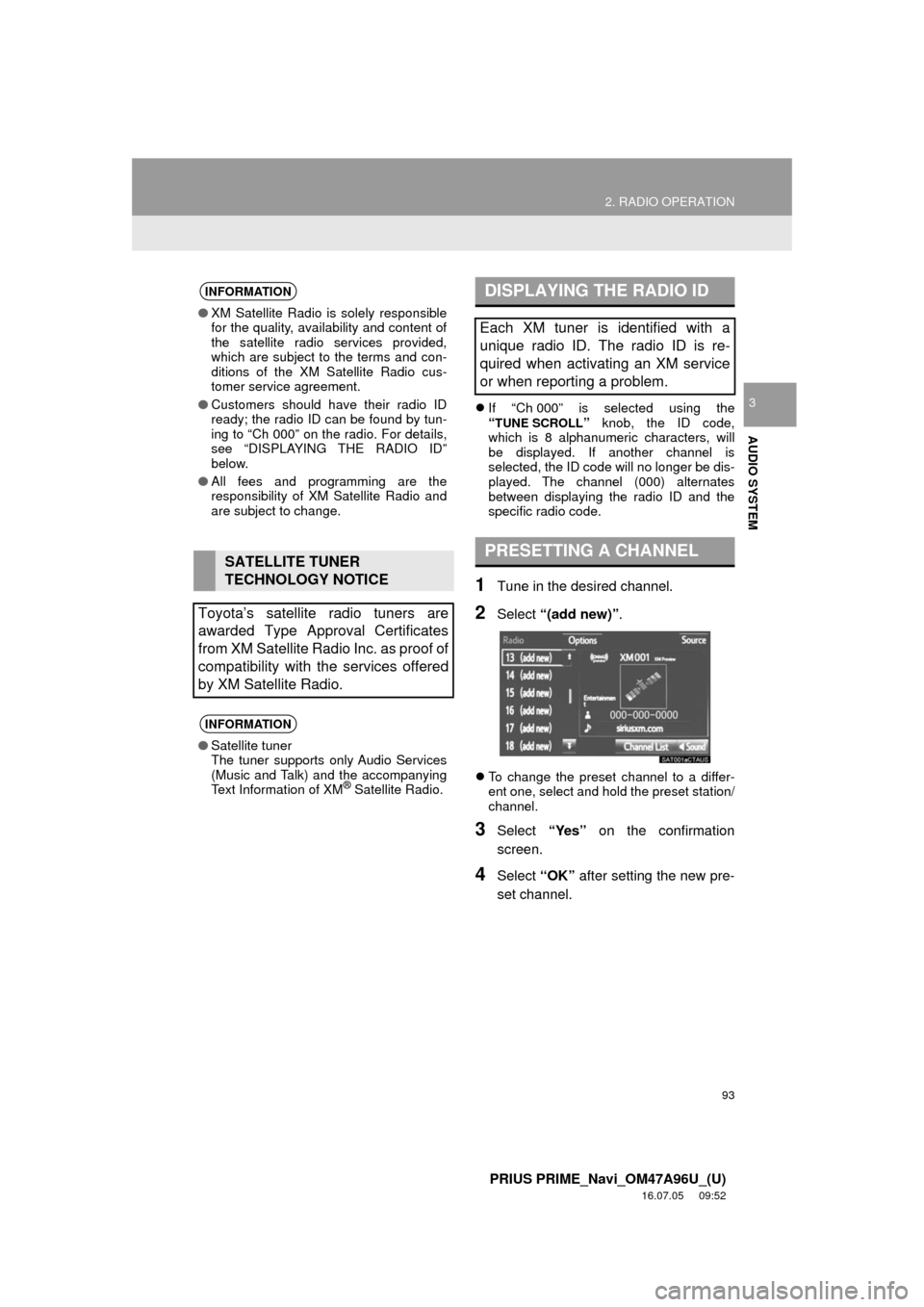
1Tune in the desired channel.
2Select “(add new)” .
To change the preset channel to a differ-
ent one, select and hold the preset station/
channel.
3Select “Yes” on the confirmation
screen.
4Select “OK” after setting the new pre-
set channel.
INFORMATION
● XM Satellite Radio is solely responsible
for the quality, availability and content of
the satellite radio services provided,
which are subject to the terms and con-
ditions of the XM Satellite Radio cus-
tomer service agreement.
● Customers should have their radio ID
ready; the radio ID can be found by tun-
ing to “Ch 000” on the radio. For details,
see “DISPLAYING THE RADIO ID”
below.
● All fees and programming are the
responsibility of XM Satellite Radio and
are subject to change.
SATELLITE TUNER
TECHNOLOGY NOTICE
Toyota’s satellite radio tuners are
awarded Type Approval Certificates
from XM Satellite Radio Inc. as proof of
compatibility with the services offered
by XM Satellite Radio.
INFORMATION
● Satellite tuner
The tuner supports only Audio Services
(Music and Talk) and the accompanying
Text Information of XM
® Satellite Radio.
DISPLAYING THE RADIO ID
Each XM tuner is identified with a
unique radio ID. The radio ID is re-
quired when activating an XM service
or when reporting a problem.
PRESETTING A CHANNEL
Page 120 of 304
120
4. AUDIO REMOTE CONTROLS
PRIUS PRIME_Navi_OM47A96U_(U)
16.07.05 09:52
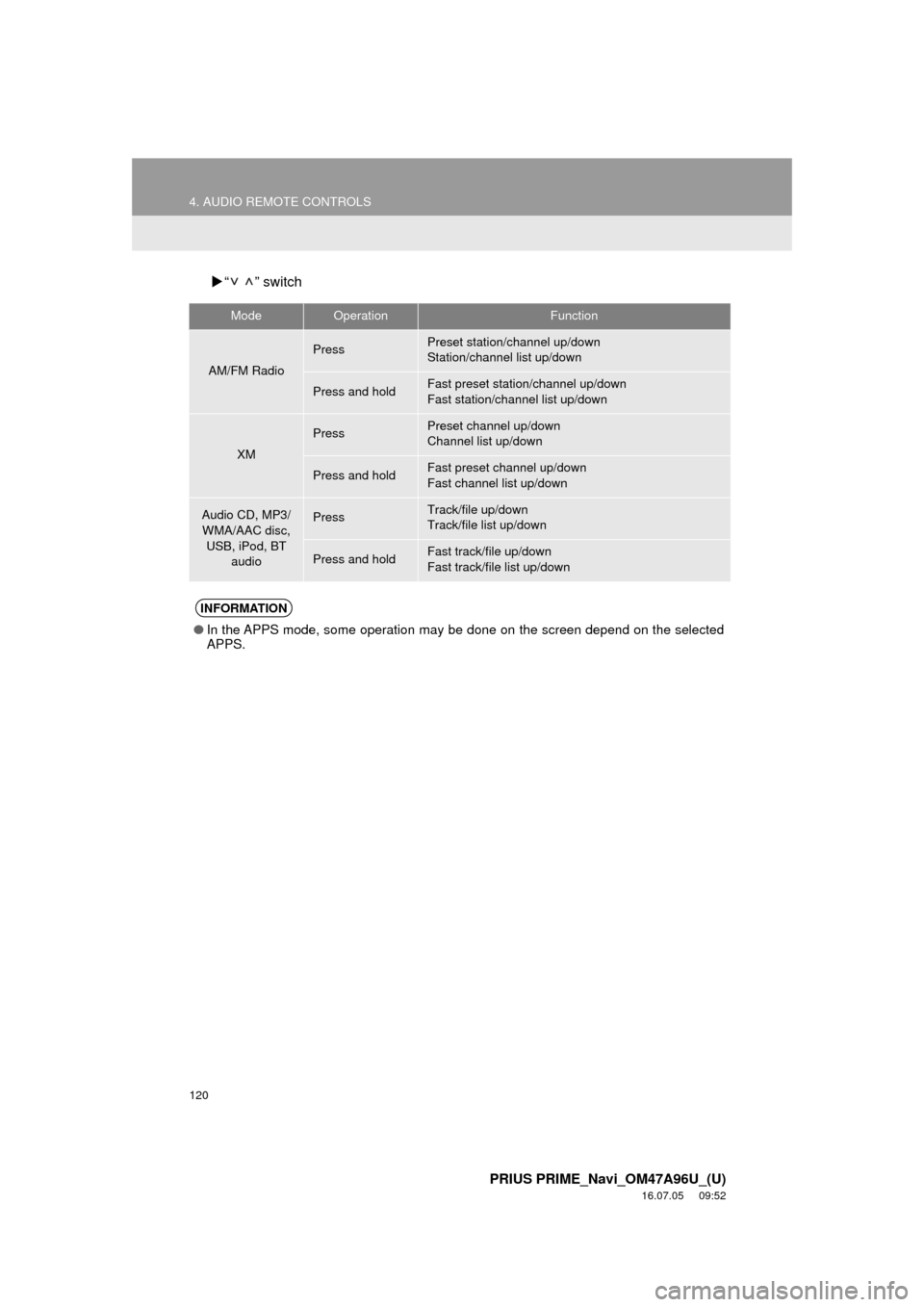
“ ” switch
ModeOperationFunction
AM/FM Radio
PressPreset station/channel up/down
Station/channel list up/down
Press and holdFast preset station/channel up/down
Fast station/channel list up/down
XM
PressPreset channel up/down
Channel list up/down
Press and holdFast preset channel up/down
Fast channel list up/down
Audio CD, MP3/
WMA/AAC disc, USB, iPod, BT audioPressTrack/file up/down
Track/file list up/down
Press and holdFast track/file up/down
Fast track/file list up/down
INFORMATION
●In the APPS mode, some operation may be done on the screen depend on the selected
APPS.
Page 122 of 304
122
5. SETUP
PRIUS PRIME_Navi_OM47A96U_(U)
16.07.28 14:42
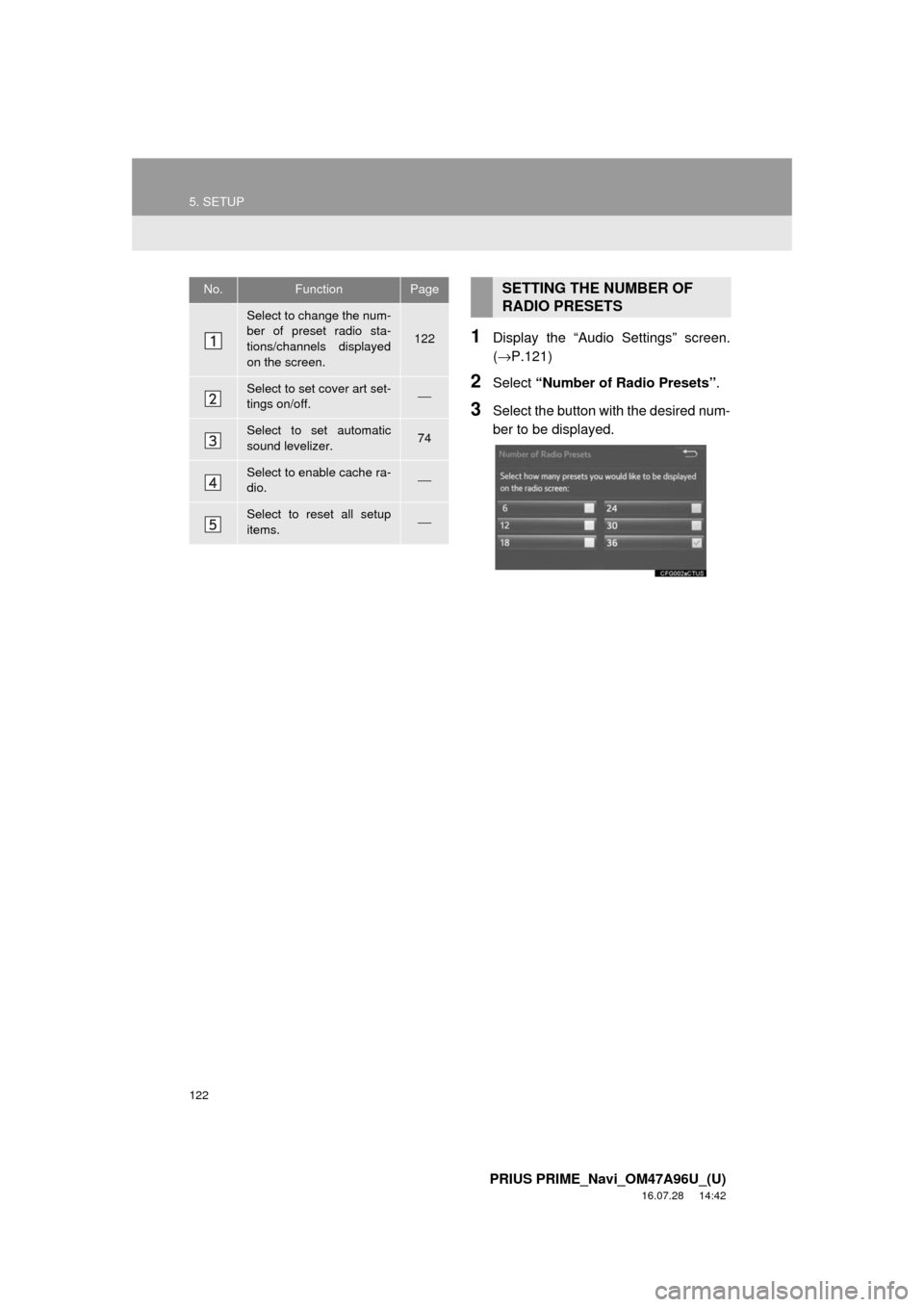
1Display the “Audio Settings” screen.
(→P.121)
2Select “Number of Radio Presets” .
3Select the button with the desired num-
ber to be displayed.
No.FunctionPage
Select to change the num-
ber of preset radio sta-
tions/channels displayed
on the screen.
122
Select to set cover art set-
tings on/off.⎯
Select to set automatic
sound levelizer.74
Select to enable cache ra-
dio.⎯
Select to reset all setup
items.⎯
SETTING THE NUMBER OF
RADIO PRESETS
Page 177 of 304
177
1. PHONE OPERATION (HANDS-FREE SYSTEM FOR CELLULAR PHONES)
PRIUS PRIME_Navi_OM47A96U_(U)
16.07.05 09:53
PHONE
7
■BY SELECTING “Release Tones”
1Select “Release Tones” .
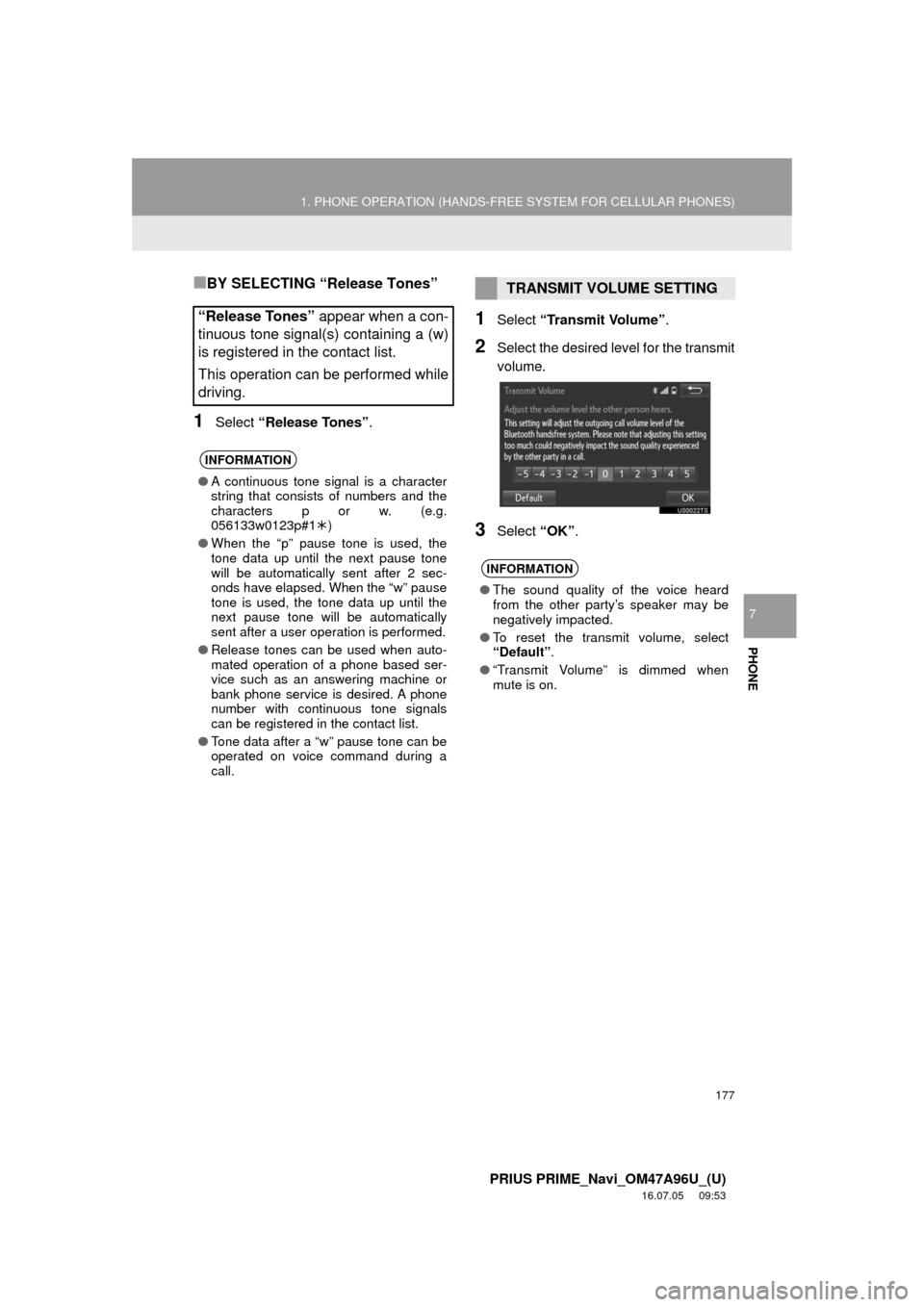
1Select “Transmit Volume”.
2Select the desired level for the transmit
volume.
3Select “OK”.
“Release Tones” appear when a con-
tinuous tone signal(s) containing a (w)
is registered in the contact list.
This operation can be performed while
driving.
INFORMATION
● A continuous tone signal is a character
string that consists of numbers and the
characters p or w. (e.g.
056133w0123p#1 )
● When the “p” pause tone is used, the
tone data up until the next pause tone
will be automatically sent after 2 sec-
onds have elapsed. When the “w” pause
tone is used, the tone data up until the
next pause tone will be automatically
sent after a user operation is performed.
● Release tones can be used when auto-
mated operation of a phone based ser-
vice such as an answering machine or
bank phone service is desired. A phone
number with continuous tone signals
can be registered in the contact list.
● Tone data after a “w” pause tone can be
operated on voice command during a
call.
TRANSMIT VOLUME SETTING
INFORMATION
●The sound quality of the voice heard
from the other party’s speaker may be
negatively impacted.
● To reset the transmit volume, select
“Default” .
● “Transmit Volume” is dimmed when
mute is on.
Page 182 of 304
182
1. PHONE OPERATION (HANDS-FREE SYSTEM FOR CELLULAR PHONES)
PRIUS PRIME_Navi_OM47A96U_(U)
16.07.05 09:53
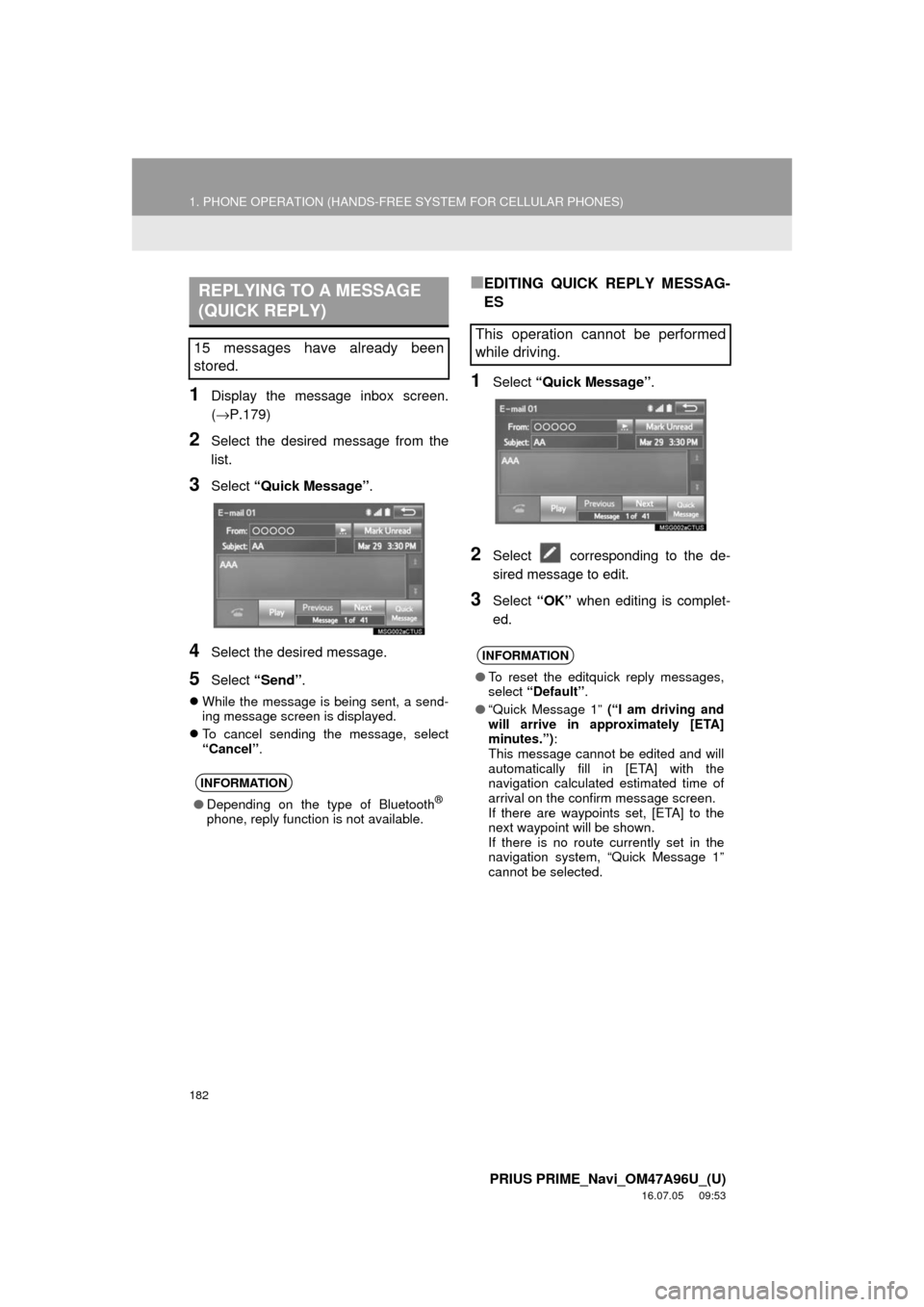
1Display the message inbox screen.
(→P.179)
2Select the desired message from the
list.
3Select “Quick Message” .
4Select the desired message.
5Select “Send” .
While the message is being sent, a send-
ing message screen is displayed.
To cancel sending the message, select
“Cancel” .
■EDITING QUICK REPLY MESSAG-
ES
1Select “Quick Message” .
2Select corresponding to the de-
sired message to edit.
3Select “OK” when editing is complet-
ed.
REPLYING TO A MESSAGE
(QUICK REPLY)
15 messages have already been
stored.
INFORMATION
● Depending on the type of Bluetooth®
phone, reply function is not available.
This operation cannot be performed
while driving.
INFORMATION
●To reset the editquick reply messages,
select “Default” .
● “Quick Message 1” (“I am driving and
will arrive in approximately [ETA]
minutes.”) :
This message cannot be edited and will
automatically fill in [ETA] with the
navigation calculated estimated time of
arrival on the confirm message screen.
If there are waypoints set, [ETA] to the
next waypoint will be shown.
If there is no route currently set in the
navigation system, “Quick Message 1”
cannot be selected.
Page 185 of 304
185
2. SETUP
PRIUS PRIME_Navi_OM47A96U_(U)
16.07.05 09:53
PHONE
7
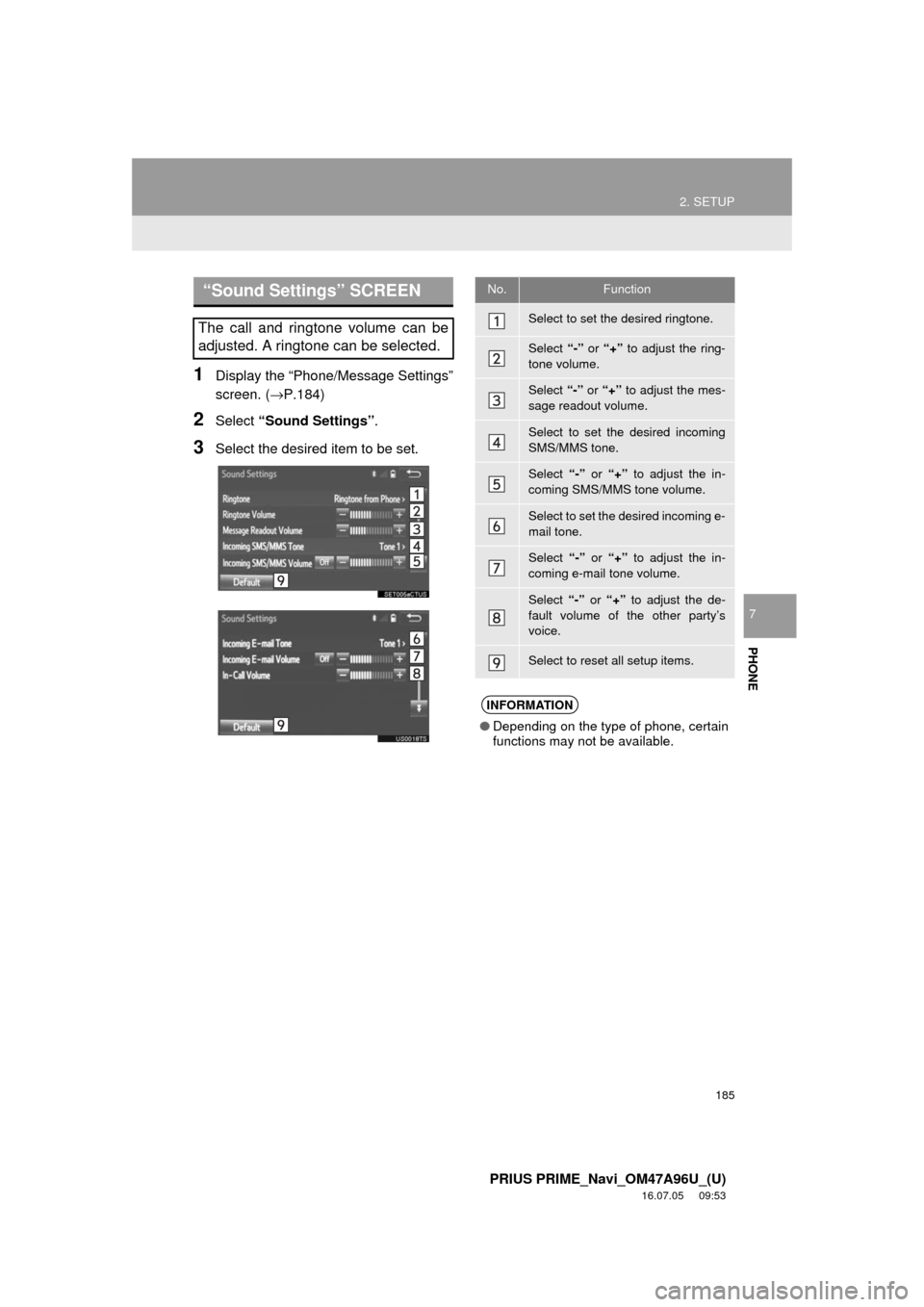
1Display the “Phone/Message Settings”
screen. (→P.184)
2Select “Sound Settings” .
3Select the desired item to be set.
“Sound Settings” SCREEN
The call and ringtone volume can be
adjusted. A ringtone can be selected.
No.Function
Select to set the desired ringtone.
Select “-” or “+” to adjust the ring-
tone volume.
Select “-” or “+” to adjust the mes-
sage readout volume.
Select to set the desired incoming
SMS/MMS tone.
Select “-” or “+” to adjust the in-
coming SMS/MMS tone volume.
Select to set the desired incoming e-
mail tone.
Select “-” or “+” to adjust the in-
coming e-mail tone volume.
Select “-” or “+” to adjust the de-
fault volume of the other party’s
voice.
Select to reset all setup items.
INFORMATION
● Depending on the type of phone, certain
functions may not be available.
Page 187 of 304
187
2. SETUP
PRIUS PRIME_Navi_OM47A96U_(U)
16.07.05 09:53
PHONE
7
*: For PBAP compatible Bluetooth®
phones, this function is available when
“Automatic Transfer” is set to off.
(→P.186)
■FOR PBAP COMPATIBLE
Bluetooth
® PHONES
1Select “Update Contacts from
Phone” .
Contacts are transferred automatically.
2Check that a confirmation screen is
displayed when the operation is com-
plete.
This operation may be unnecessary
depending on the type of cellular phone.
Depending on the type of cellular phone,
OBEX authentication may be required
when transferring contact data. Enter
“1234” into the Bluetooth
® phone.
If another Bluetooth
® device is connected
when transferring contact data, depending
on the phone, the connected Bluetooth
®
device may need to be disconnected.
Depending on the type of Bluetooth
®
phone being connected, it may be neces-
sary to perform additional steps on the
phone.
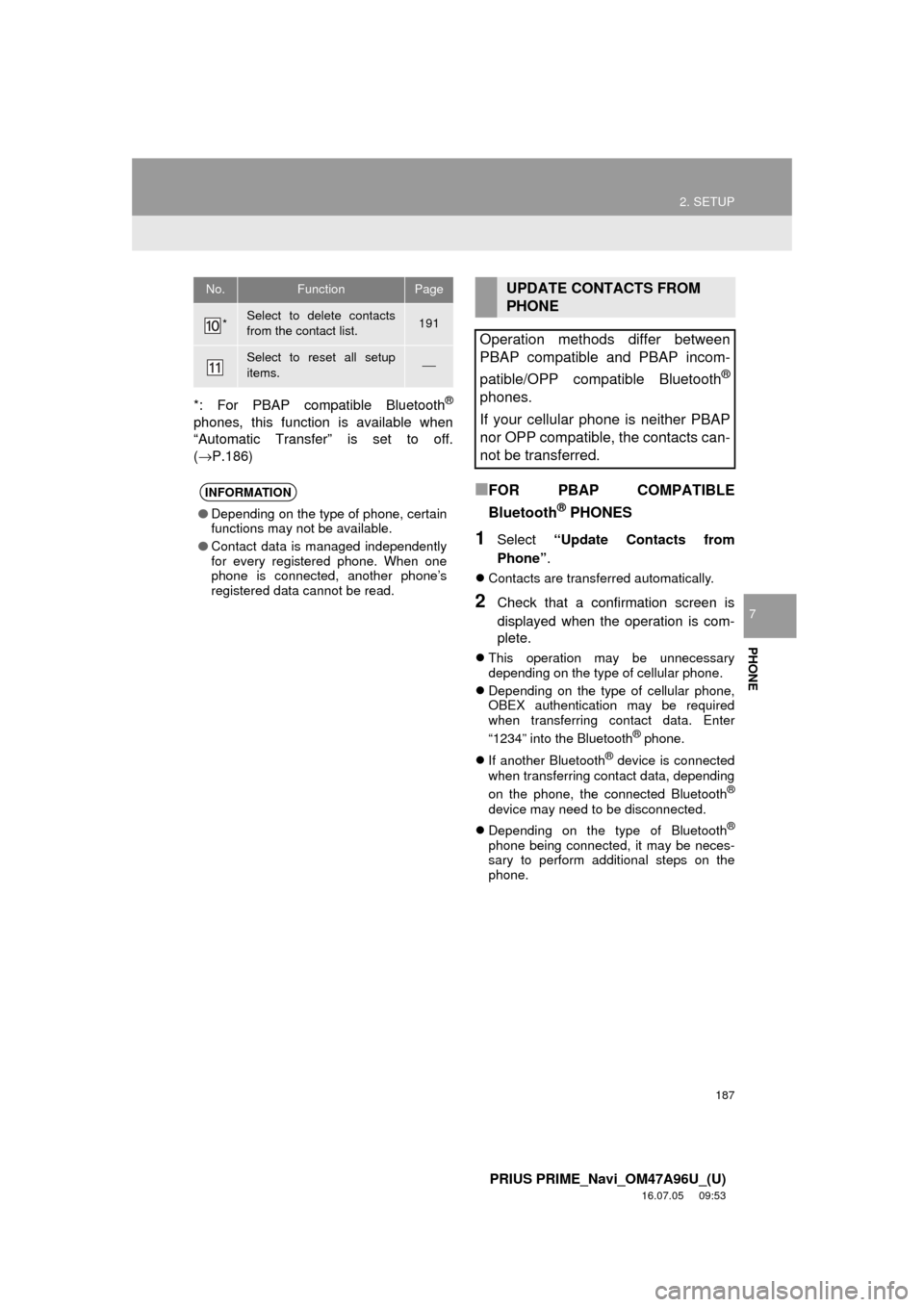
*Select to delete contacts
from the contact list.191
Select to reset all setup
items.⎯
INFORMATION
● Depending on the type of phone, certain
functions may not be available.
● Contact data is managed independently
for every registered phone. When one
phone is connected, another phone’s
registered data cannot be read.
No.FunctionPageUPDATE CONTACTS FROM
PHONE
Operation methods differ between
PBAP compatible and PBAP incom-
patible/OPP compatible Bluetooth
®
phones.
If your cellular phone is neither PBAP
nor OPP compatible, the contacts can-
not be transferred.
Page 195 of 304
195
2. SETUP
PRIUS PRIME_Navi_OM47A96U_(U)
16.07.05 09:53
PHONE
7
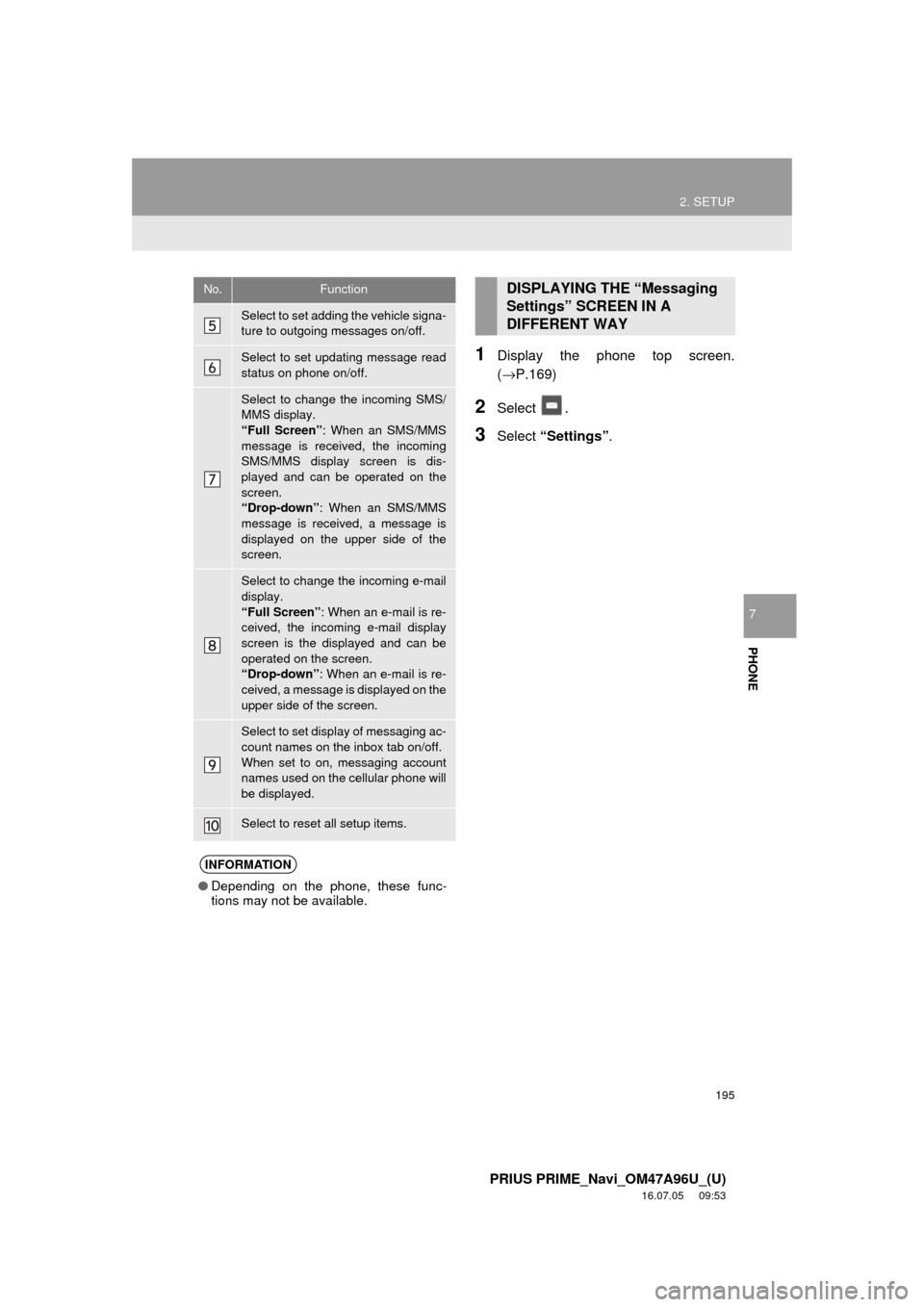
1Display the phone top screen.
(→P.169)
2Select .
3Select “Settings” .
Select to set adding the vehicle signa-
ture to outgoing messages on/off.
Select to set updating message read
status on phone on/off.
Select to change the incoming SMS/
MMS display.
“Full Screen” : When an SMS/MMS
message is received, the incoming
SMS/MMS display screen is dis-
played and can be operated on the
screen.
“Drop-down” : When an SMS/MMS
message is received, a message is
displayed on the upper side of the
screen.
Select to change the incoming e-mail
display.
“Full Screen” : When an e-mail is re-
ceived, the incoming e-mail display
screen is the displayed and can be
operated on the screen.
“Drop-down” : When an e-mail is re-
ceived, a message is displayed on the
upper side of the screen.
Select to set display of messaging ac-
count names on the inbox tab on/off.
When set to on, messaging account
names used on the cellular phone will
be displayed.
Select to reset all setup items.
INFORMATION
● Depending on the phone, these func-
tions may not be available.
No.FunctionDISPLAYING THE “Messaging
Settings” SCREEN IN A
DIFFERENT WAY
Page 196 of 304
196
2. SETUP
PRIUS PRIME_Navi_OM47A96U_(U)
16.07.05 09:53
1Display the “Phone/Message Settings”
screen. (→P.184)
2Select “Phone Display Settings” .
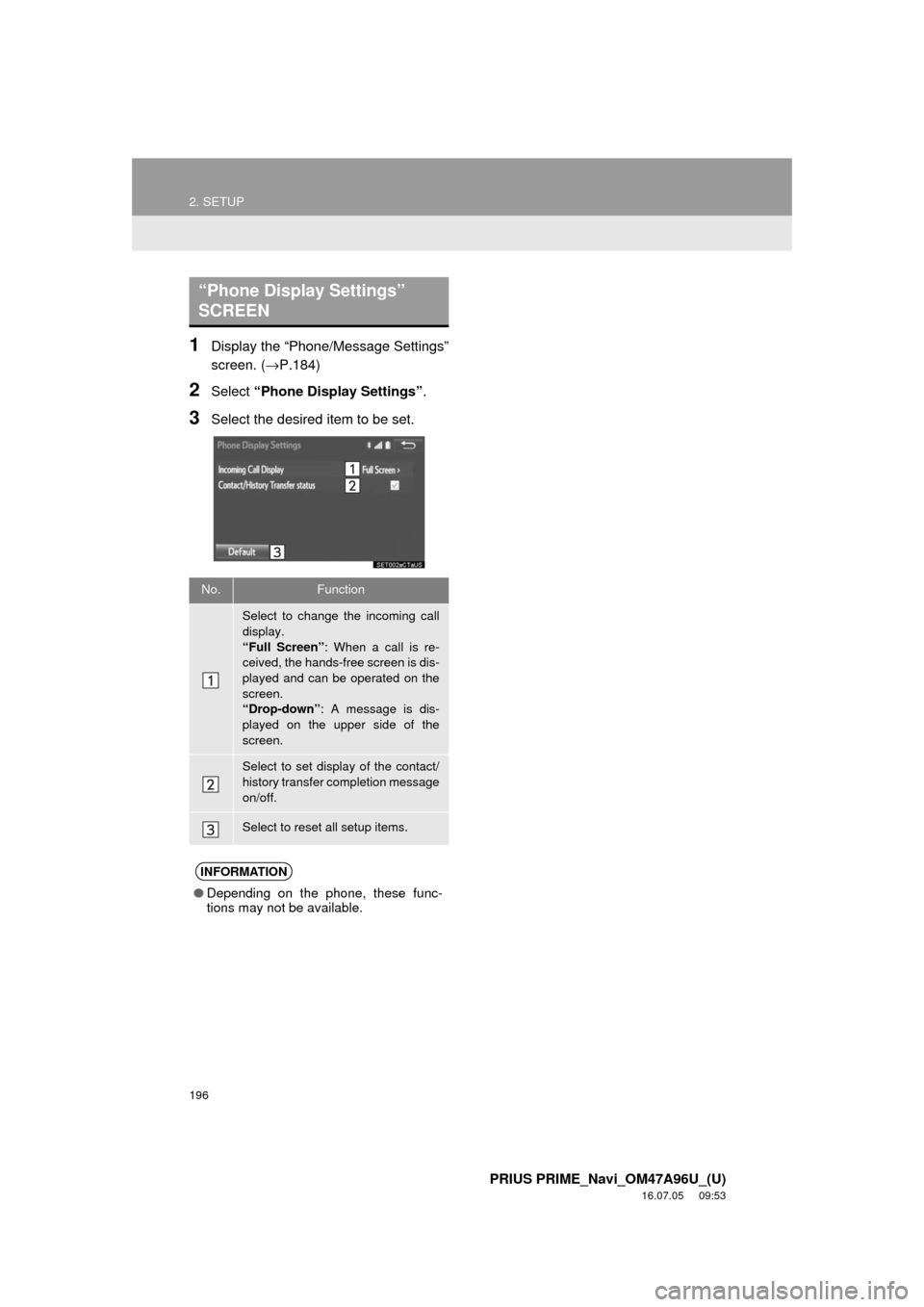
3Select the desired item to be set.
“Phone Display Settings”
SCREEN
No.Function
Select to change the incoming call
display.
“Full Screen”: When a call is re-
ceived, the hands-free screen is dis-
played and can be operated on the
screen.
“Drop-down” : A message is dis-
played on the upper side of the
screen.
Select to set display of the contact/
history transfer completion message
on/off.
Select to reset all setup items.
INFORMATION
● Depending on the phone, these func-
tions may not be available.
Page 204 of 304
204
PRIUS PRIME_Navi_OM47A96U_(U)
16.07.05 10:14
1. QUICK REFERENCE ................... 206
MAP SCREEN ..................................... 206
NAVIGATION OPTIONS SCREEN...... 208
2. MAP SCREEN OPERATION ....... 209
CURRENT POSITION DISPLAY ......... 209
MAP SCALE ........................................ 210
ORIENTATION OF THE MAP ............. 210
SWITCHING THE MAP MODE............ 211
SCREEN SCROLL OPERATION ........ 213
ADJUSTING LOCATION IN SMALL INCREMENTS................................... 214
3. MAP SCREEN INFORMATION .......................... 215
DISPLAYING MAP INFORMATION .... 215
DISPLAYING INFORMATION
ABOUT THE ICON WHERE
THE CURSOR IS SET ...................... 217
STANDARD MAP ICONS .................... 218
4. TRAFFIC INFORMATION ............ 219
DISPLAYING TRAFFIC INFORMATION ON THE MAP .......... 221
1. DESTINATION SEARCH SCREEN .................................... 222
2. SEARCH OPERATION.. .............. 224
SELECTING SEARCH AREA .............. 225
SETTING HOME AS
DESTINATION................................... 225
SETTING PRESET DESTINATIONS AS DESTINATION ............................. 225
SEARCHING BY ADDRESS ................ 226
SEARCHING BY POINT OF INTEREST ......................................... 227
SEARCHING FROM PREVIOUS DESTINATIONS ................................ 230
SEARCHING BY ADDRESS BOOK .... 230
SEARCHING BY EMERGENCY .......... 231
SEARCHING BY INTERSECTION AND FREEWAY ................................ 231
SEARCHING BY MAP ......................... 233
SEARCHING BY COORDINATES ....... 233
3. STARTING ROUTE GUIDANCE ....... ......................... 234
STARTING ROUTE GUIDANCE.......... 234
PAUSING GUIDANCE ......................... 237
1BASIC OPERATION2DESTINATION SEARCH
8
NAVIGATION SYSTEM