reset TOYOTA PRIUS PRIME 2017 2.G Navigation Manual
[x] Cancel search | Manufacturer: TOYOTA, Model Year: 2017, Model line: PRIUS PRIME, Model: TOYOTA PRIUS PRIME 2017 2.GPages: 304, PDF Size: 4.56 MB
Page 205 of 304
8
205
PRIUS PRIME_Navi_OM47A96U_(U)
16.07.05 10:14
1
2
3
4
5
6
7
8
9
1. ROUTE GUIDANCE SCREEN ..... 238
SCREEN FOR ROUTE GUIDANCE ... 238
ROUTE OVERVIEW............................ 239
DURING FREEWAY DRIVING............ 240
WHEN APPROACHING INTERSECTION ............................... 241
TURN LIST SCREEN .......................... 242
TURN-BY-TURN ARROW SCREEN ........................................... 242
2. TYPICAL VOICE GUIDANCE PROMPTS.................................. 243
3. EDITING ROUTE ......................... 244
ADDING DESTINATIONS ................... 245
REORDERING DESTINATIONS ......... 245
DELETING DESTINATIONS ............... 245
SETTING ROUTE PREFERENCES ... 246
SELECTING ROUTE TYPE ................ 246
DETOUR SETTING ............................. 247
1. MEMORY POINTS SETTINGS .... 248
SETTING UP HOME ........................... 249
SETTING UP PRESET DESTINATIONS................................ 250
SETTING UP ADDRESS BOOK ......... 252
SETTING UP AREAS TO AVOID ........ 255
DELETING PREVIOUS DESTINATIONS................................ 257
1. DETAILED NAVIGATION SETTINGS ................................. 258
SCREENS FOR NAVIGATION
SETTINGS ........................................ 258
2. TRAFFIC SETTINGS................... 262
SCREEN FOR TRAFFIC SETTINGS ........................................ 262
AUTO AVOID TRAFFIC....................... 263
MY TRAFFIC ROUTES ....................... 264
1. GPS (GLOBAL POSITIONING SYSTEM) .................... ............... 269
LIMITATIONS OF THE NAVIGATION
SYSTEM ............................................ 269
2. MAP DATABASE VERSION AND COVERED AREA ...................... 272
MAP INFORMATION ........................... 272
ABOUT THE MAP DATA ..................... 273
3ROUTE GUIDANCE
4MEMORY POINTS
5SETUP
6TIPS FOR THE NAVIGATION
SYSTEM
NAVIGATION SYSTEM
Page 223 of 304
223
2. DESTINATION SEARCH
PRIUS PRIME_Navi_OM47A96U_(U)
16.07.05 09:53
NAVIGATION SYSTEM
8
No.FunctionPage
Select to search for a destination by address. 226
Select to search for a destination by point of interest. 227
Select to search for a destination from previously set destinations.230
Select to search for a destination from a registered entry in “Address
book”.230
Select to search for a destination by online database. 285
Select to search for a destination from emergency service points.231
Select to search for a destination by intersection or freeway entrance/
exit.231
Select to search for a destination by the last displayed map.233
Select to search for a destination by coordinates.233
Select to set a destination by home.225
Select to set a destinati on from preset destinations.225
Select to delete set destinations.245
Page 225 of 304
225
2. DESTINATION SEARCH
PRIUS PRIME_Navi_OM47A96U_(U)
16.07.05 09:53
NAVIGATION SYSTEM
8
1Display the “Destination” screen.
(→P.224)
2Select “Address” , “Point of Interest”
or “Intersection & Freeway” .
3Select “Select State/Province” or
“Change State/Province” .
If a state (province) has not been selected
yet, “Select State/Province” is dis-
played.
4Select the desired state (province).
To change countries, select the “United
States”, “Canada” or “Mexico” tab.
For map database information and
updates: →P. 2 7 2
1Display the “Destination” screen.
(→P.224)
2Select “Go Home” .
The navigation system performs a search
for the route and the entire route map is
displayed. ( →P.234)
1Display the “Destination” screen.
(→P.224)
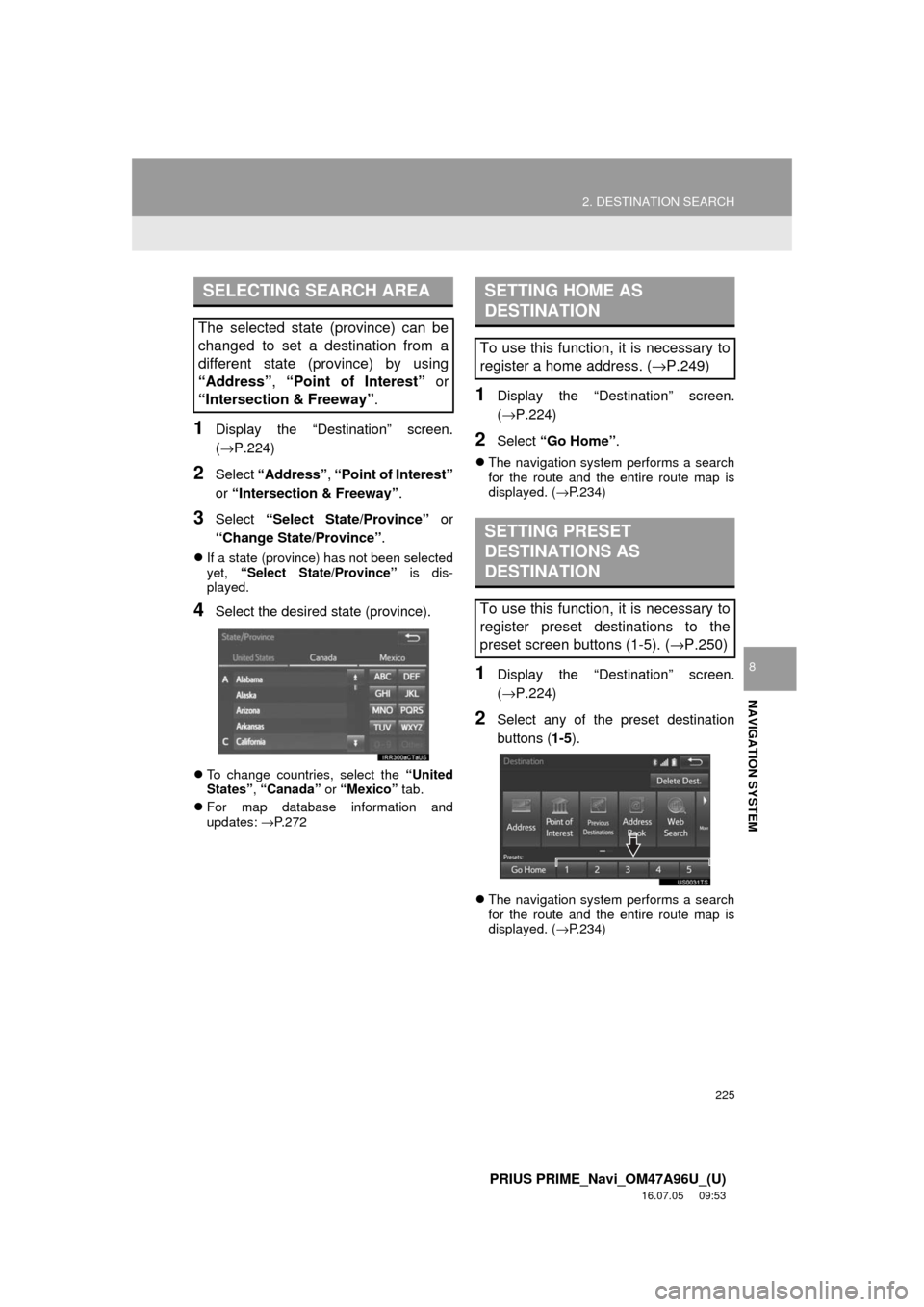
2Select any of the preset destination
buttons ( 1-5).
The navigation system performs a search
for the route and the entire route map is
displayed. ( →P.234)
SELECTING SEARCH AREA
The selected state (province) can be
changed to set a destination from a
different state (province) by using
“Address”, “Point of Interest” or
“Intersection & Freeway”.
SETTING HOME AS
DESTINATION
To use this function, it is necessary to
register a home address. ( →P.249)
SETTING PRESET
DESTINATIONS AS
DESTINATION
To use this function, it is necessary to
register preset destinations to the
preset screen buttons (1-5). ( →P.250)
Page 248 of 304
248
PRIUS PRIME_Navi_OM47A96U_(U)
16.07.05 09:53
4. MEMORY POINTS
1. MEMORY POINTS SETTINGS
1Press the “APPS” button.
2Select “Setup” .
3Select “Navigation” .
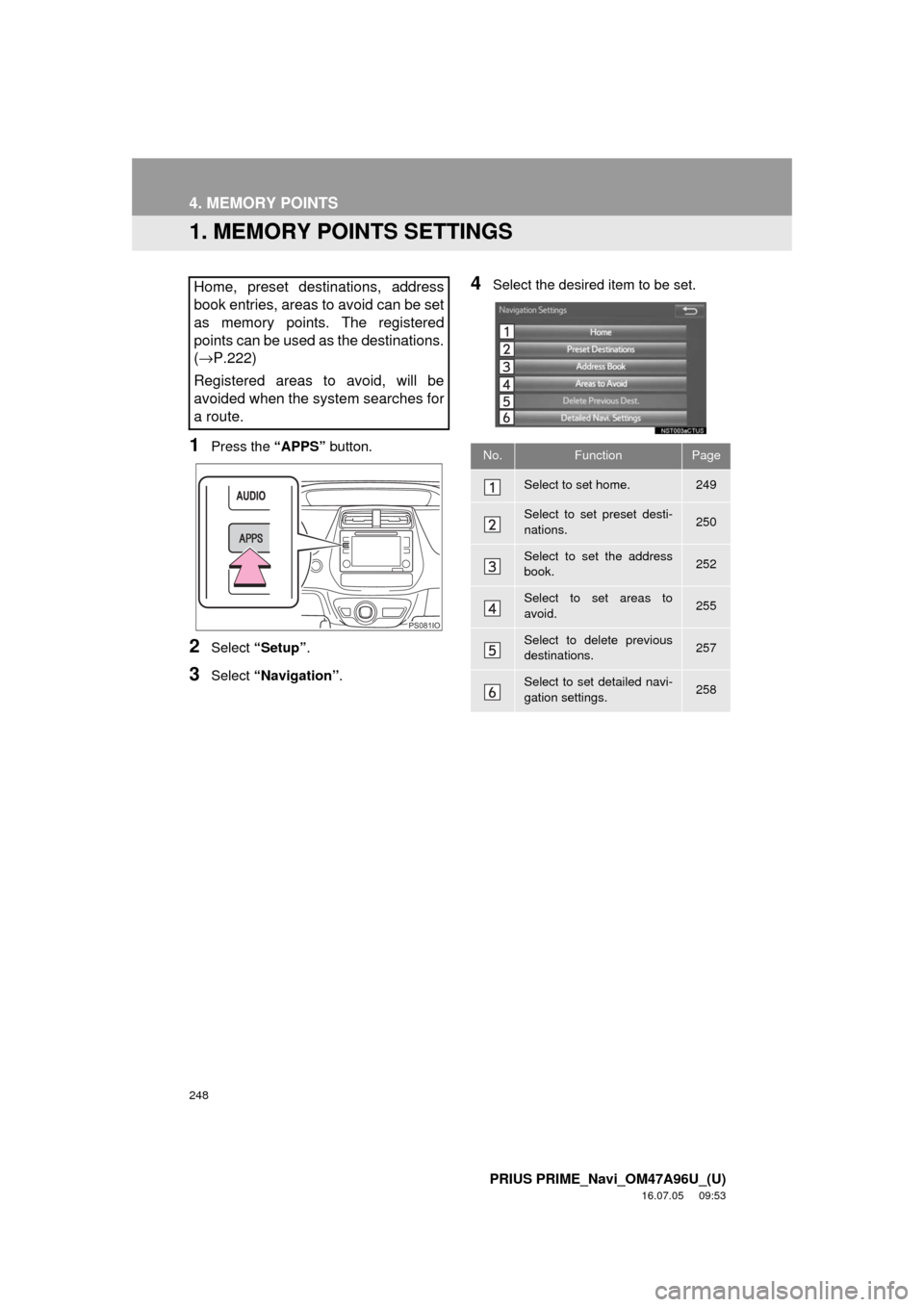
4Select the desired item to be set.Home, preset destinations, address
book entries, areas to avoid can be set
as memory points. The registered
points can be used as the destinations.
(→ P.222)
Registered areas to avoid, will be
avoided when the system searches for
a route.
PS081IO
No.FunctionPage
Select to set home.249
Select to set preset desti-
nations.250
Select to set the address
book.252
Select to set areas to
avoid.255
Select to delete previous
destinations.257
Select to set detailed navi-
gation settings.258
Page 250 of 304
250
4. MEMORY POINTS
PRIUS PRIME_Navi_OM47A96U_(U)
16.07.05 09:53
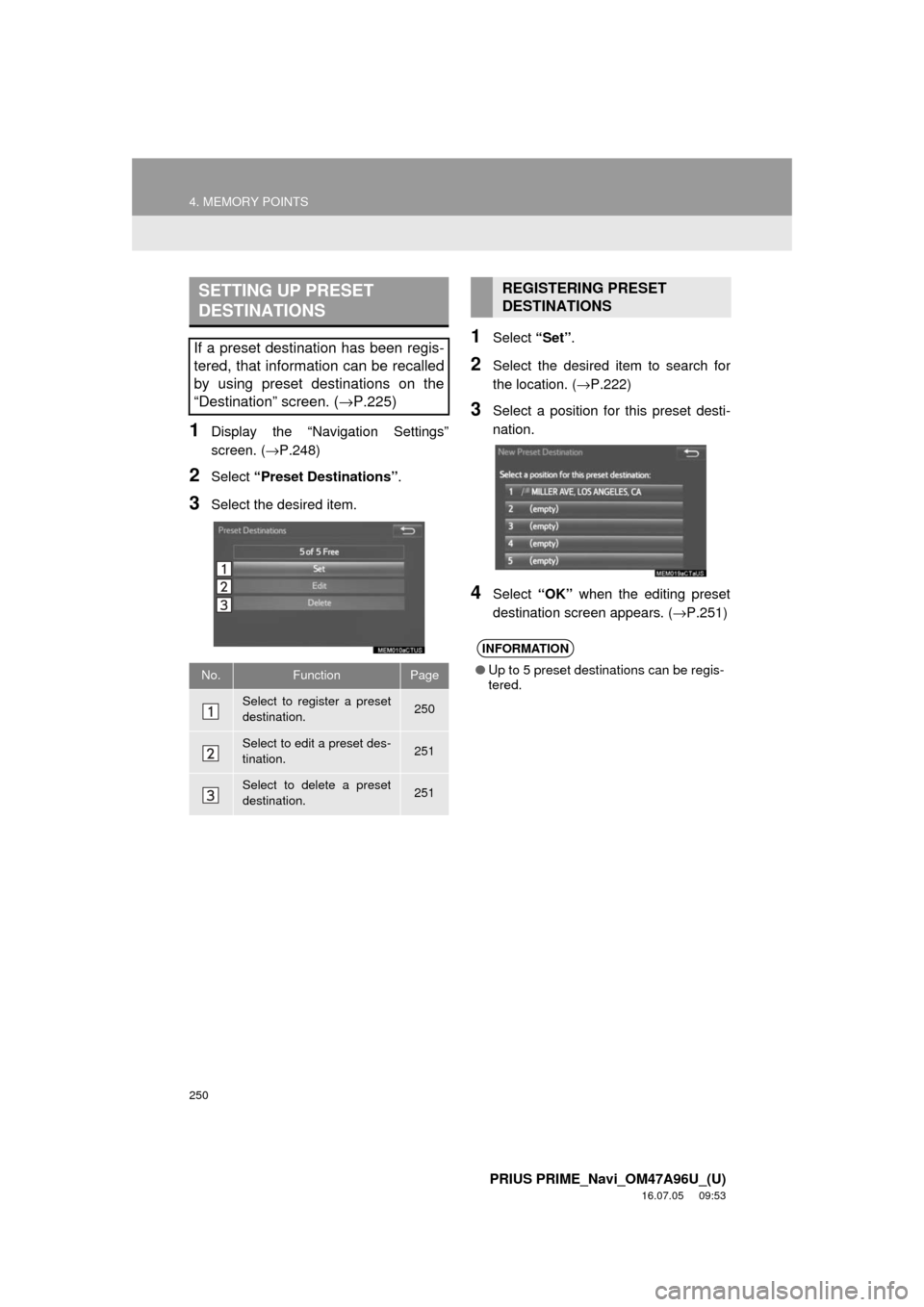
1Display the “Navigation Settings”
screen. (→P.248)
2Select “Preset Destinations” .
3Select the desired item.
1Select “Set”.
2Select the desired item to search for
the location. ( →P.222)
3Select a position for this preset desti-
nation.
4Select “OK” when the editing preset
destination screen appears. ( →P.251)
SETTING UP PRESET
DESTINATIONS
If a preset destination has been regis-
tered, that information can be recalled
by using preset destinations on the
“Destination” screen. (→P.225)
No.FunctionPage
Select to register a preset
destination.250
Select to edit a preset des-
tination.251
Select to delete a preset
destination.251
REGISTERING PRESET
DESTINATIONS
INFORMATION
●Up to 5 preset destinations can be regis-
tered.
Page 251 of 304
251
4. MEMORY POINTS
PRIUS PRIME_Navi_OM47A96U_(U)
16.07.05 09:53
NAVIGATION SYSTEM
8
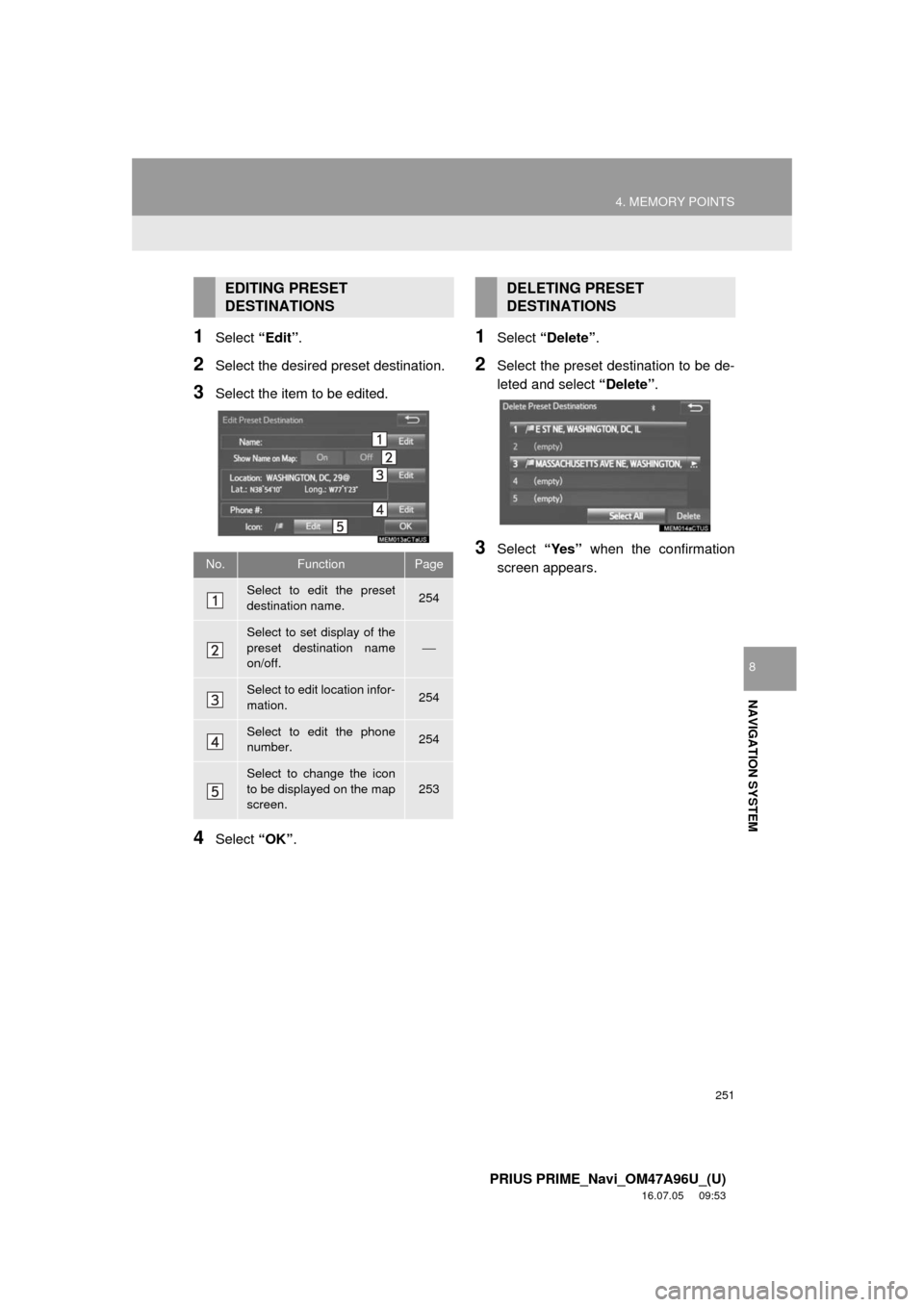
1Select “Edit”.
2Select the desired preset destination.
3Select the item to be edited.
4Select “OK”.
1Select “Delete” .
2Select the preset destination to be de-
leted and select “Delete”.
3Select “Yes” when the confirmation
screen appears.
EDITING PRESET
DESTINATIONS
No.FunctionPage
Select to edit the preset
destination name.254
Select to set display of the
preset destination name
on/off.
⎯
Select to edit location infor-
mation.254
Select to edit the phone
number.254
Select to change the icon
to be displayed on the map
screen.
253
DELETING PRESET
DESTINATIONS
Page 259 of 304
259
5. SETUP
PRIUS PRIME_Navi_OM47A96U_(U)
16.07.05 09:53
NAVIGATION SYSTEM
8
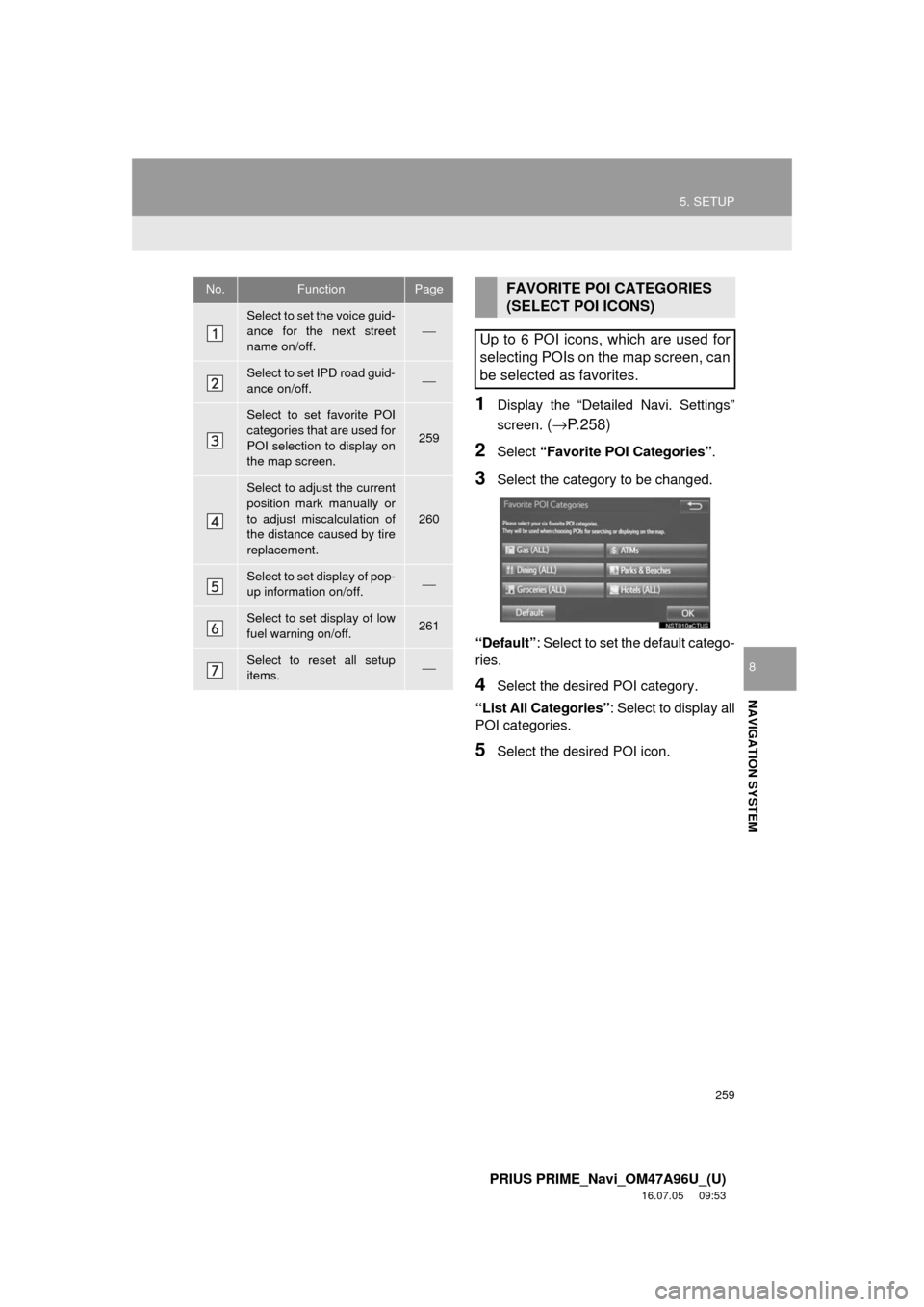
1Display the “Detailed Navi. Settings”
screen.
(→ P.258)
2Select “Favorite POI Categories” .
3Select the category to be changed.
“Default” : Select to set the default catego-
ries.
4Select the desired POI category.
“List All Categories”: Select to display all
POI categories.
5Select the desired POI icon.
No.FunctionPage
Select to set the voice guid-
ance for the next street
name on/off.⎯
Select to set IPD road guid-
ance on/off.⎯
Select to set favorite POI
categories that are used for
POI selection to display on
the map screen.
259
Select to adjust the current
position mark manually or
to adjust miscalculation of
the distance caused by tire
replacement.
260
Select to set display of pop-
up information on/off.⎯
Select to set display of low
fuel warning on/off.261
Select to reset all setup
items.⎯
FAVORITE POI CATEGORIES
(SELECT POI ICONS)
Up to 6 POI icons, which are used for
selecting POIs on the map screen, can
be selected as favorites.
Page 263 of 304
263
5. SETUP
PRIUS PRIME_Navi_OM47A96U_(U)
16.07.05 09:53
NAVIGATION SYSTEM
8
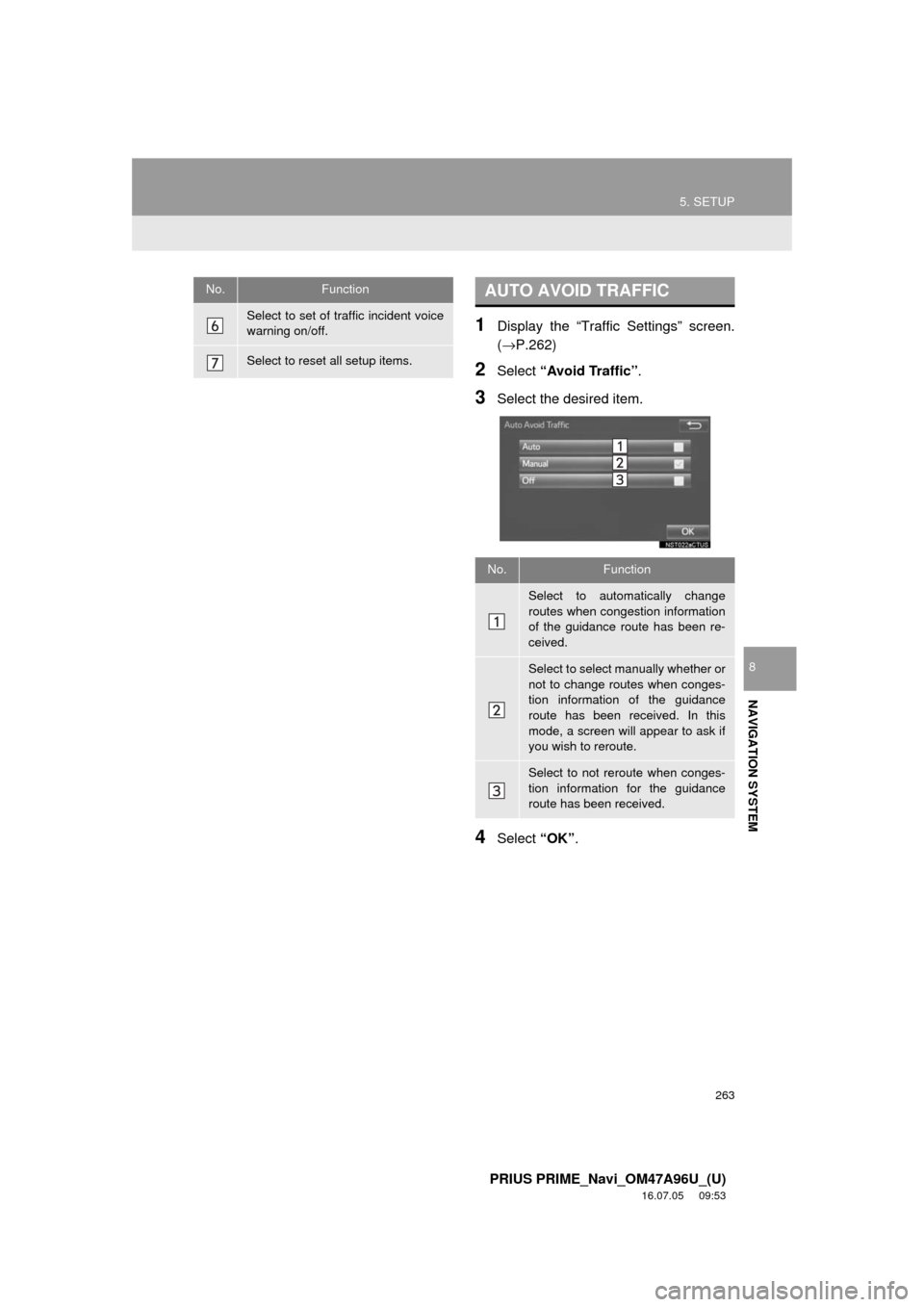
1Display the “Traffic Settings” screen.
(→P.262)
2Select “Avoid Traffic” .
3Select the desired item.
4Select “OK”.
Select to set of traffic incident voice
warning on/off.
Select to reset all setup items.
No.FunctionAUTO AVOID TRAFFIC
No.Function
Select to automatically change
routes when congestion information
of the guidance route has been re-
ceived.
Select to select manually whether or
not to change routes when conges-
tion information of the guidance
route has been received. In this
mode, a screen will appear to ask if
you wish to reroute.
Select to not reroute when conges-
tion information for the guidance
route has been received.
Page 288 of 304
288
PRIUS PRIME_Navi_OM47A96U_(U)
16.07.05 09:53
3. SETUP
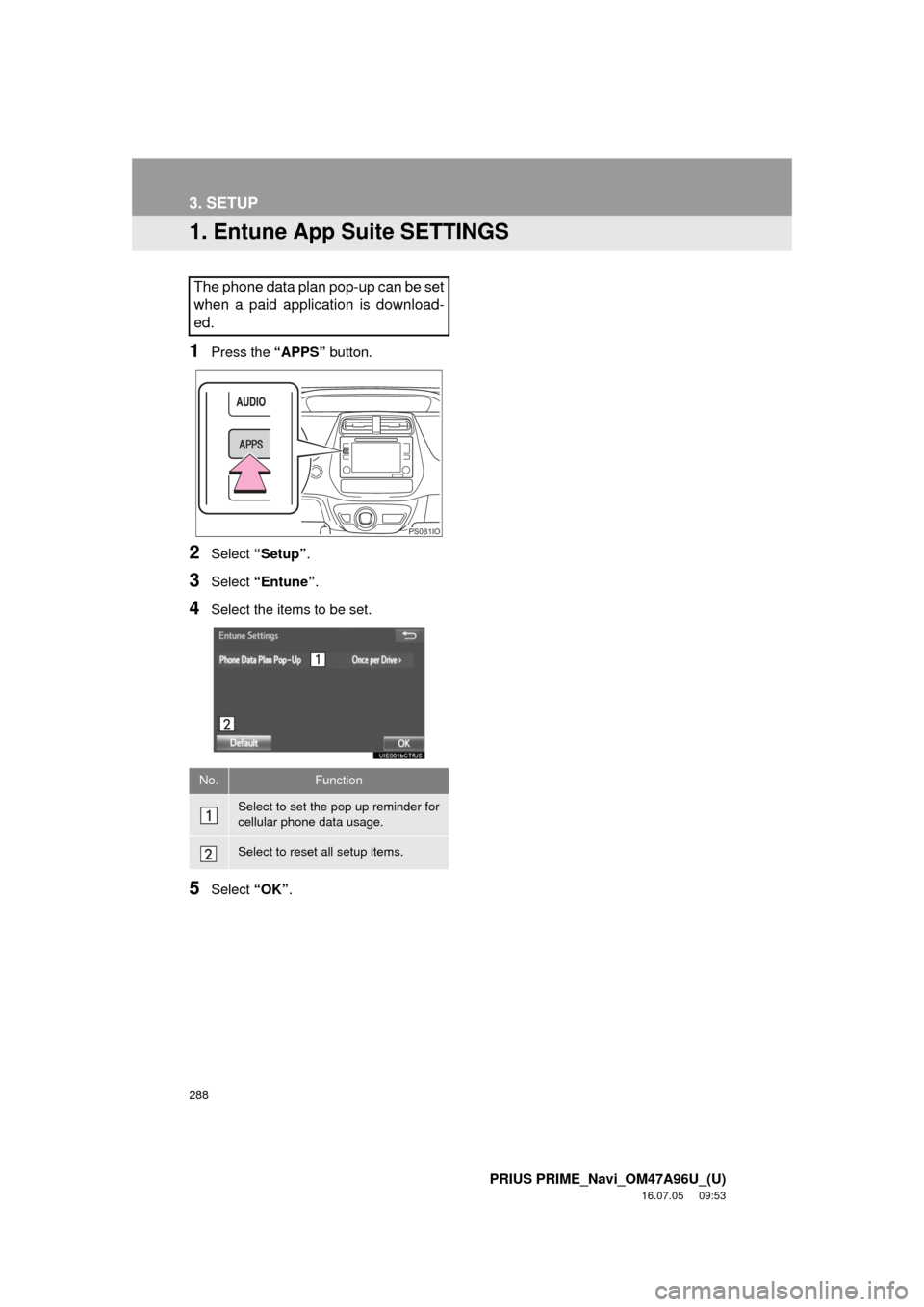
1. Entune App Suite SETTINGS
1Press the “APPS” button.
2Select “Setup” .
3Select “Entune” .
4Select the items to be set.
5Select “OK”.
The phone data plan pop-up can be set
when a paid application is download-
ed.
No.Function
Select to set the pop up reminder for
cellular phone data usage.
Select to reset all setup items.
PS081IO
Page 290 of 304

290
ALPHABETICAL INDEX
PRIUS PRIME_Navi_OM47A96U_(U)
16.07.05 10:20
A
AM/FM radio ............................................. 77Available HD radio™ technology........... 85
Caching a radio program ....................... 82
Overview ............................................... 77
Presetting a station................................ 81
Radio broadcast data system ................ 83
Selecting a station from the list ............. 81
Traffic announcement (FM radio) .......... 84
Troubleshooting guide ........................... 87
Using HD radio™ technology ................ 85
“Apps” screen............................................ 14
Audio remote controls ............................. 119
Audio settings ......................................... 121 Audio settings screen .......................... 121
Audio system ....... ..................................... 69
AUX......................................................... 116 Overview ............................................. 116
B
Basic function...................................... 12, 31
Basic information before operation ........... 32
Basic operation ................................. 70, 206
Bluetooth
® audio ..................................... 111
Connecting a Bluetooth® device ......... 115
Listening to Bluetooth® audio .............. 115
Overview ............................................. 111
Bluetooth
® phone message function ...... 179
Calling the message sender ................ 183
Checking messages ............................ 181
Message inbox screen ........................ 179
Receiving a message .......................... 180
Replying to a message (Quick reply) .................................... 182
Bluetooth
® settings ................................... 44
C
Calling on the Bluetooth® phone .............169
By call history ......................................170
By contacts list.....................................171
By dial pad ...........................................173
By favorites list ....................................170
By “Home” screen................................174
By off hook switch................................173
Capacitive touch switches .........................34
Casual speech recognization ..................141
CD .............................................................97 Overview................................................97
Playing an audio CD ............................100
Playing an MP3/WMA/AAC disc ..........100
Command list ..........................................142
Controls overview......................................12
D
Data services settings .............................150 Setting download methods ..................150
Destination search ..................................222
Destination search screen.......................222
Detailed navigation settings ....................258 Screens for navigation settings ...........258
Driver settings ...........................................64 Manually select linked settings ..............64
ALPHABETICAL INDEX