maintenance reset TOYOTA PRIUS PRIME 2018 Accessories, Audio & Navigation (in English)
[x] Cancel search | Manufacturer: TOYOTA, Model Year: 2018, Model line: PRIUS PRIME, Model: TOYOTA PRIUS PRIME 2018Pages: 306, PDF Size: 3.46 MB
Page 8 of 306

TABLE OF CONTENTS
8
PRIUS PRIME_Navi_OM47C23U_(U)
17.11.06 14:19
1. BASIC FUNCTION........................... 12
CONTROLS OVERVIEW....................... 12
“Apps” SCREEN .................................... 14
HOME SCREEN .................................... 16
2. QUICK REFERENCE....................... 20
“Setup” SCREEN ................................... 20
3. NAVIGATION OPERATION ............ 22
REGISTERING HOME .......................... 22
REGISTERING PRESET DESTINATIONS .................................. 24
OPERATION FLOW: GUIDING THE ROUTE ....................... 26
SETTING HOME AS THE DESTINATION .................................... 27
4. FUNCTION INDEX ..... ...................... 28
FUNCTION INDEX ................................ 28
1. BASIC INFORMATION BEFORE
OPERATION .................................. 32
INITIAL SCREEN ................................... 32
CAPACITIVE TOUCH SWITCHES ........ 34
TOUCH SCREEN GESTURES .............. 35
TOUCH SCREEN OPERATION ............ 36
HOME SCREEN OPERATION .............. 37
ENTERING LETTERS AND NUMBERS/
LIST SCREEN OPERATION ............... 38
SCREEN ADJUSTMENT ....................... 41
LINKING MULTI-INFORMATION DISPLAY AND NAVIGATION
SYSTEM .............................................. 43
2. Bluetooth® SETTINGS ................... 44
REGISTERING/CONNECTING
Bluetooth® DEVICE ............................. 44
SETTING Bluetooth® DETAILS ............. 50
3. OTHER SETTINGS ......................... 58
GENERAL SETTINGS ........................... 58
VOICE SETTINGS ................................. 64
DRIVER SETTINGS ............................... 65
MAINTENANCE ..................................... 66
1QUICK GUIDE2BASIC FUNCTION
Page 67 of 306
67
3. OTHER SETTINGS
PRIUS PRIME_Navi_OM47C23U_(U)
17.11.06 14:19
BASIC FUNCTION
21Select the desired part or component
screen button.
When the vehicle needs to be serviced,
the screen button color will change to
orange.
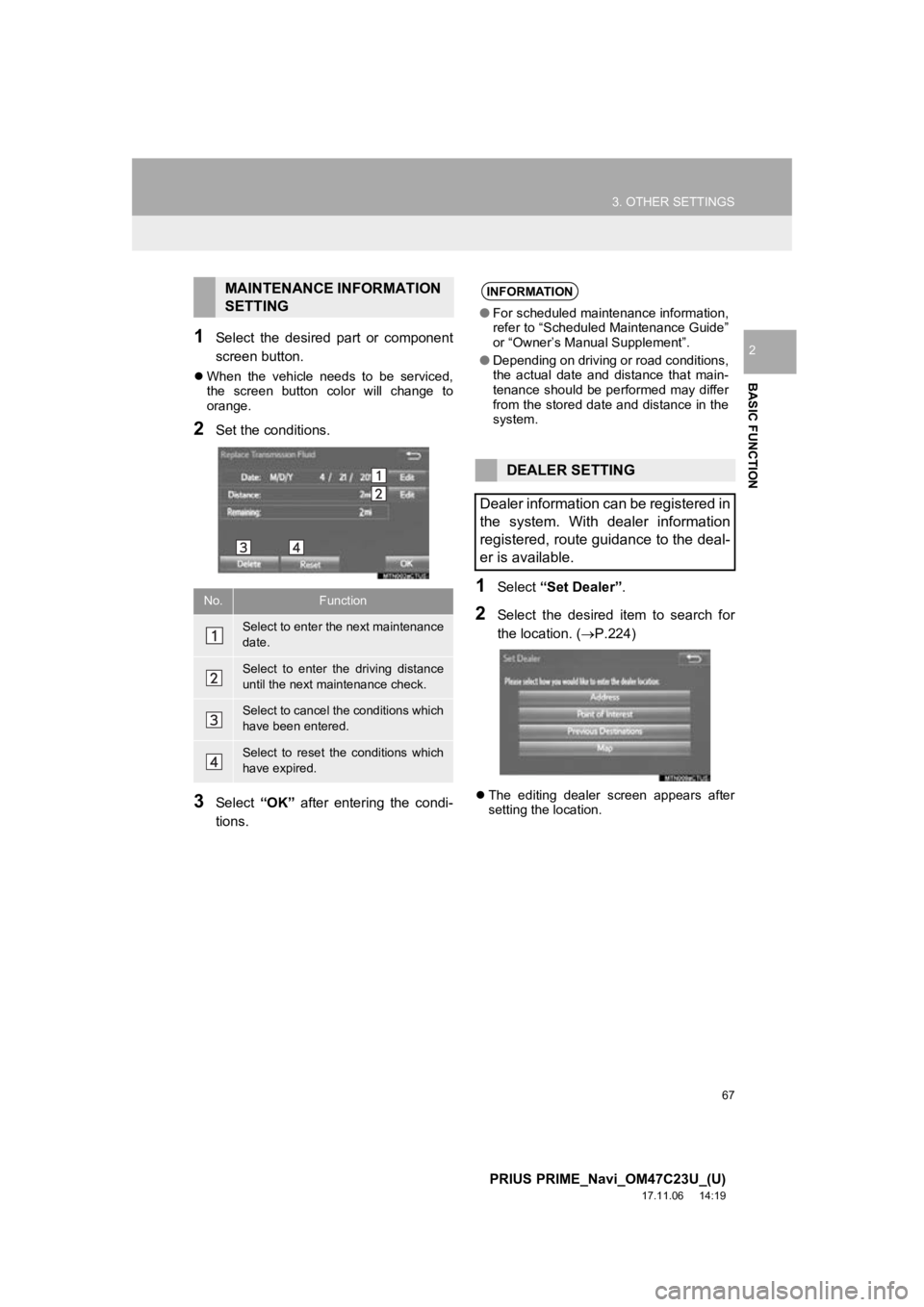
2Set the conditions.
3Select “OK” after entering the condi-
tions.
1Select “Set Dealer” .
2Select the desired item to search for
the location. ( P.224)
The editing dealer screen appears after
setting the location.
MAINTENANCE INFORMATION
SETTING
No.Function
Select to enter the next maintenance
date.
Select to enter the driving distance
until the next maintenance check.
Select to cancel t he conditions which
have been entered.
Select to reset the conditions which
have expired.
INFORMATION
● For scheduled maintenance information,
refer to “Scheduled Maintenance Guide”
or “Owner’s Manual Supplement”.
● Depending on driving or road conditions,
the actual date and distance that main-
tenance should be performed may differ
from the stored date and distance in the
system.
DEALER SETTING
Dealer information can be registered in
the system. With dealer information
registered, route guidance to the deal-
er is available.