wheel TOYOTA PRIUS PRIME 2021 Accessories, Audio & Navigation (in English)
[x] Cancel search | Manufacturer: TOYOTA, Model Year: 2021, Model line: PRIUS PRIME, Model: TOYOTA PRIUS PRIME 2021Pages: 310, PDF Size: 6.79 MB
Page 165 of 310
165
1. PHONE OPERATION (HANDS-FREE SYSTEM FOR CELLULAR PHONES)
PRIUS PRIME_Navi_OM47D79U_(U)
20.04.15 12:52
PHONE
7
2. SOME BASICS
The hands-free system enables calls
to be made and received without hav-
ing to take your hands off the steering
wheel.
This system supports Bluetooth
®.
Bluetooth® is a wireless data system
that enables cellular phones to be used
without being connected by a cable or
placed in a cradle.
The operating procedure of the phone
is explained here.
When an Apple CarPlay connection is
established, phone functions will be
performed by Apple CarPlay instead of
the hands-free system.
WA R N I N G
● While driving, do not use a cellular
phone or connect the Bluetooth® phone.
● Your audio unit is fitted with Bluetooth
®
antennas. People with implantable car-
diac pacemakers, cardiac resynchroni-
zation therapy-pacemakers or
implantable cardioverter defibrillators
should maintain a reasonable distance
between themselves and the Bluetooth
®
antennas. The radio waves may affect
the operation of such devices.
● Before using Bluetooth
® devices, users
of any electrical medical device other
than implantable cardiac pacemakers,
cardiac resynchronization therapy-pace-
makers or implantable cardioverter
defibrillators should consult the manu-
facturer of the device for information
about its operation under the influence
of radio waves. Radio waves could have
unexpected effects on the operation of
such medical devices.
NOTICE
● Do not leave your cellular phone in the
vehicle. The temperature inside may rise
to a level that could damage the phone.
INFORMATION
●If your cellular phone does not support
Bluetooth®, this system cannot function.
● In the following conditions, the system
may not function:
• The cellular phone is turned off.
• The current position is outside the
communication area.
• The cellular phone is not connected.
• The cellular phone has a low battery.
● When using Bluetooth
® audio and
hands-free at the same time, the follow-
ing problems may occur:
• The Bluetooth
® connection may be
cut.
• Noise may be heard on the Bluetooth
®
audio playback.
Page 166 of 310
166
1. PHONE OPERATION (HANDS-FREE SYSTEM FOR CELLULAR PHONES)
PRIUS PRIME_Navi_OM47D79U_(U)
20.04.15 12:52
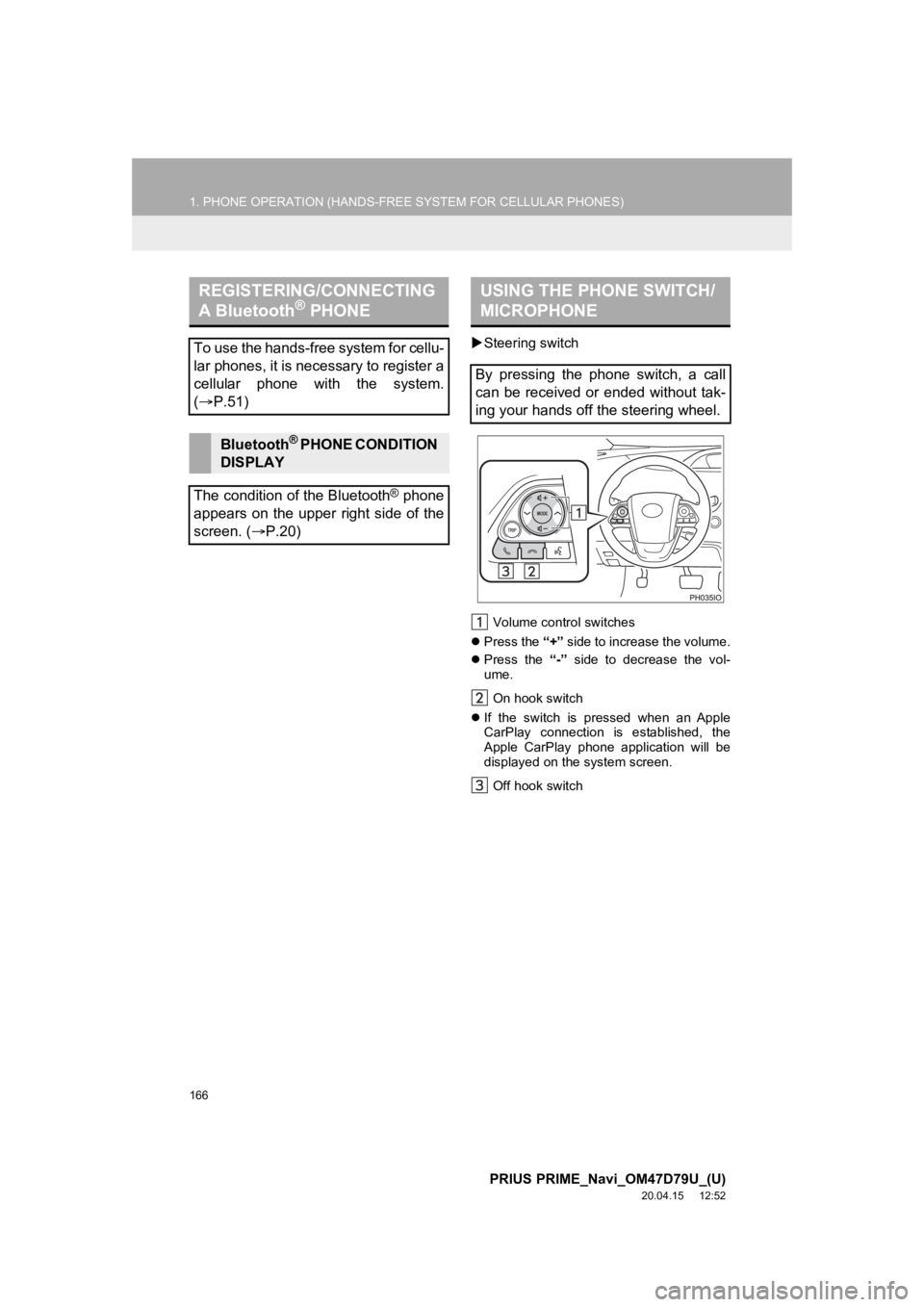
Steering switch
Volume control switches
Press the “+” side to increase the volume.
Press the “-” side to decrease the vol-
ume.
On hook switch
If the switch is pressed when an Apple
CarPlay connection is established, the
Apple CarPlay phone application will be
displayed on t he system screen.
Off hook switch
REGISTERING/CONNECTING
A Bluetooth® PHONE
To use the hands-free system for cellu-
lar phones, it is necessary to register a
cellular phone with the system.
( P.51)
Bluetooth® PHONE CONDITION
DISPLAY
The condition of the Bluetooth
® phone
appears on the upper right side of the
screen. ( P.20)
USING THE PHONE SWITCH/
MICROPHONE
By pressing the phone switch, a call
can be received or ended without tak-
ing your hands off the steering wheel.
Page 170 of 310
170
1. PHONE OPERATION (HANDS-FREE SYSTEM FOR CELLULAR PHONES)
PRIUS PRIME_Navi_OM47D79U_(U)
20.04.15 12:52
3. CALLING ON THE Bluetooth® PHONE
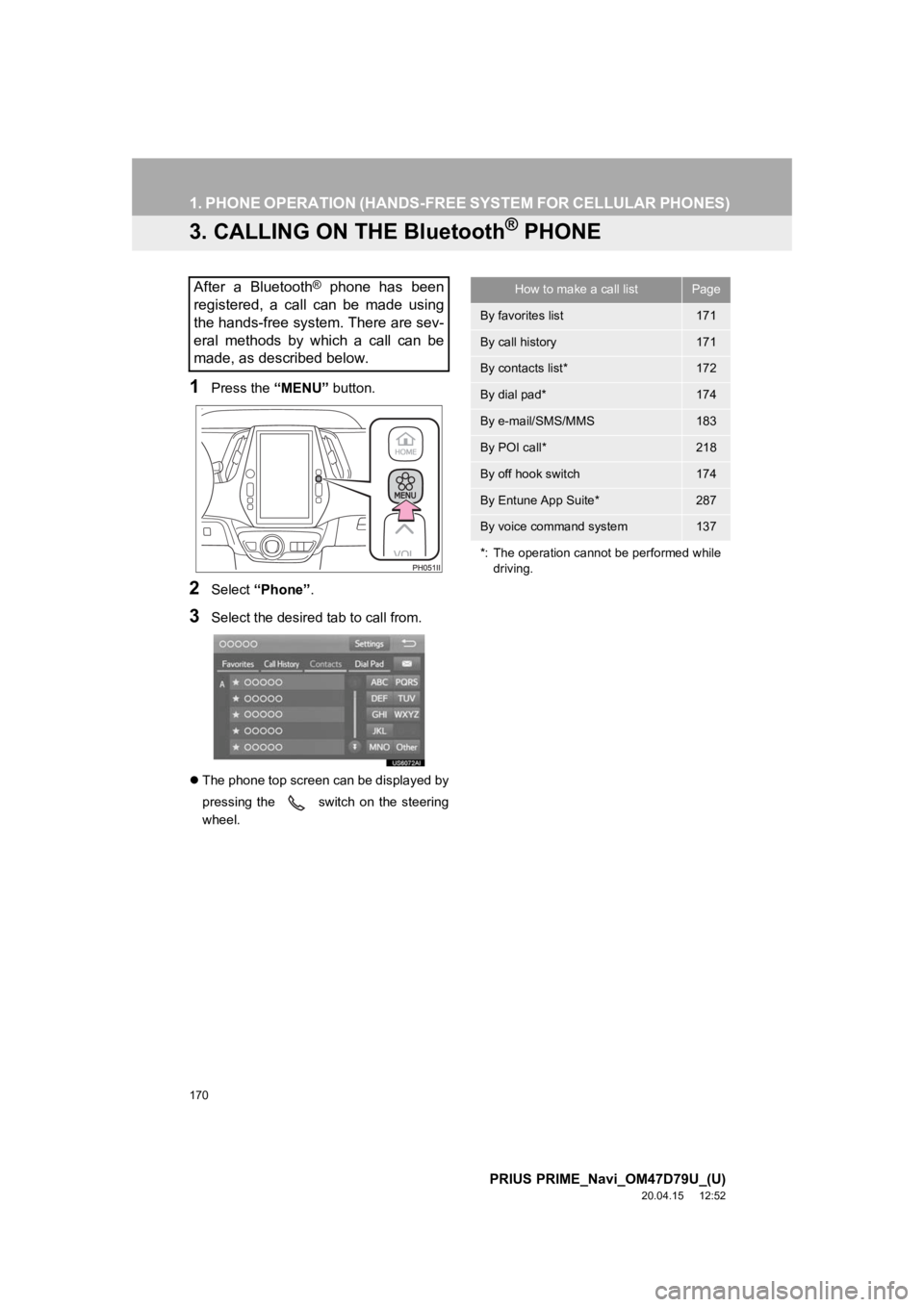
1Press the “MENU” button.
2Select “Phone” .
3Select the desired tab to call from.
The phone top screen can be displayed by
pressing the
switch on the steering
wheel.
After a Bluetooth® phone has been
registered, a call can be made using
the hands-free system. There are sev-
eral methods by which a call can be
made, as described below.How to make a call listPage
By favorites list171
By call history171
By contacts list*172
By dial pad*174
By e-mail/SMS/MMS183
By POI call*218
By off hook switch174
By Entune App Suite*287
By voice command system137
*: The operation cannot be performed while driving.
Page 172 of 310
172
1. PHONE OPERATION (HANDS-FREE SYSTEM FOR CELLULAR PHONES)
PRIUS PRIME_Navi_OM47D79U_(U)
20.04.15 12:52
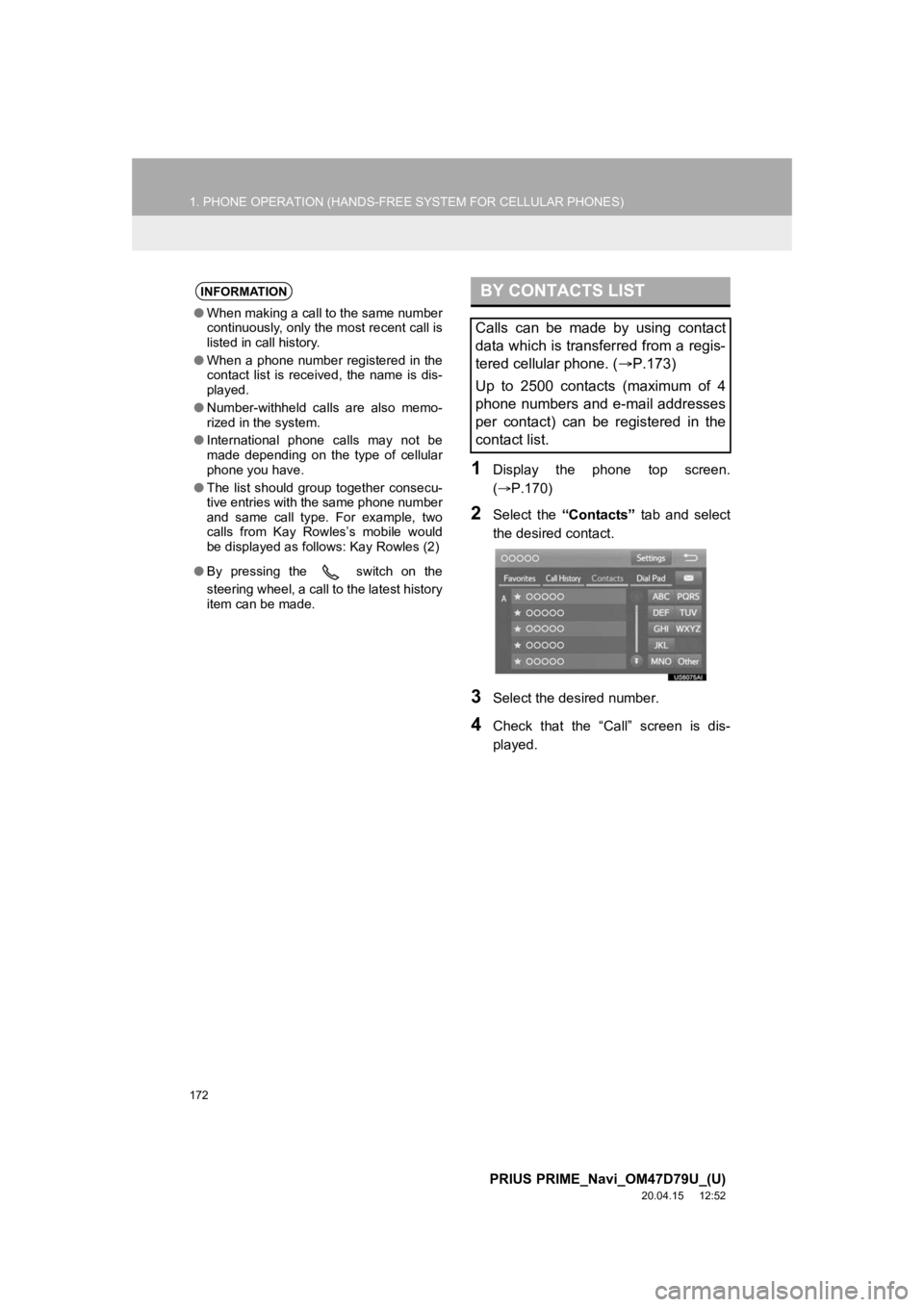
1Display the phone top screen.
(P.170)
2Select the “Contacts” tab and select
the desired contact.
3Select the desired number.
4Check that the “Call” screen is dis-
played.
INFORMATION
● When making a call to the same number
continuously, only the most recent call is
listed in call history.
● When a phone number registered in the
contact list is received, the name is dis-
played.
● Number-withheld calls are also memo-
rized in the system.
● International phone calls may not be
made depending on the type of cellular
phone you have.
● The list should group together consecu-
tive entries with the same phone number
and same call type. For example, two
calls from Kay Rowles’s mobile would
be displayed as follows: Kay Rowles (2)
● By pressing the switch on the
steering wheel, a call to the latest history
item can be made.
BY CONTACTS LIST
Calls can be made by using contact
data which is transferred from a regis-
tered cellular phone. ( P.173)
Up to 2500 contacts (maximum of 4
phone numbers and e-mail addresses
per contact) can be registered in the
contact list.
Page 174 of 310
174
1. PHONE OPERATION (HANDS-FREE SYSTEM FOR CELLULAR PHONES)
PRIUS PRIME_Navi_OM47D79U_(U)
20.04.15 12:52
1Display the phone top screen.
(P.170)
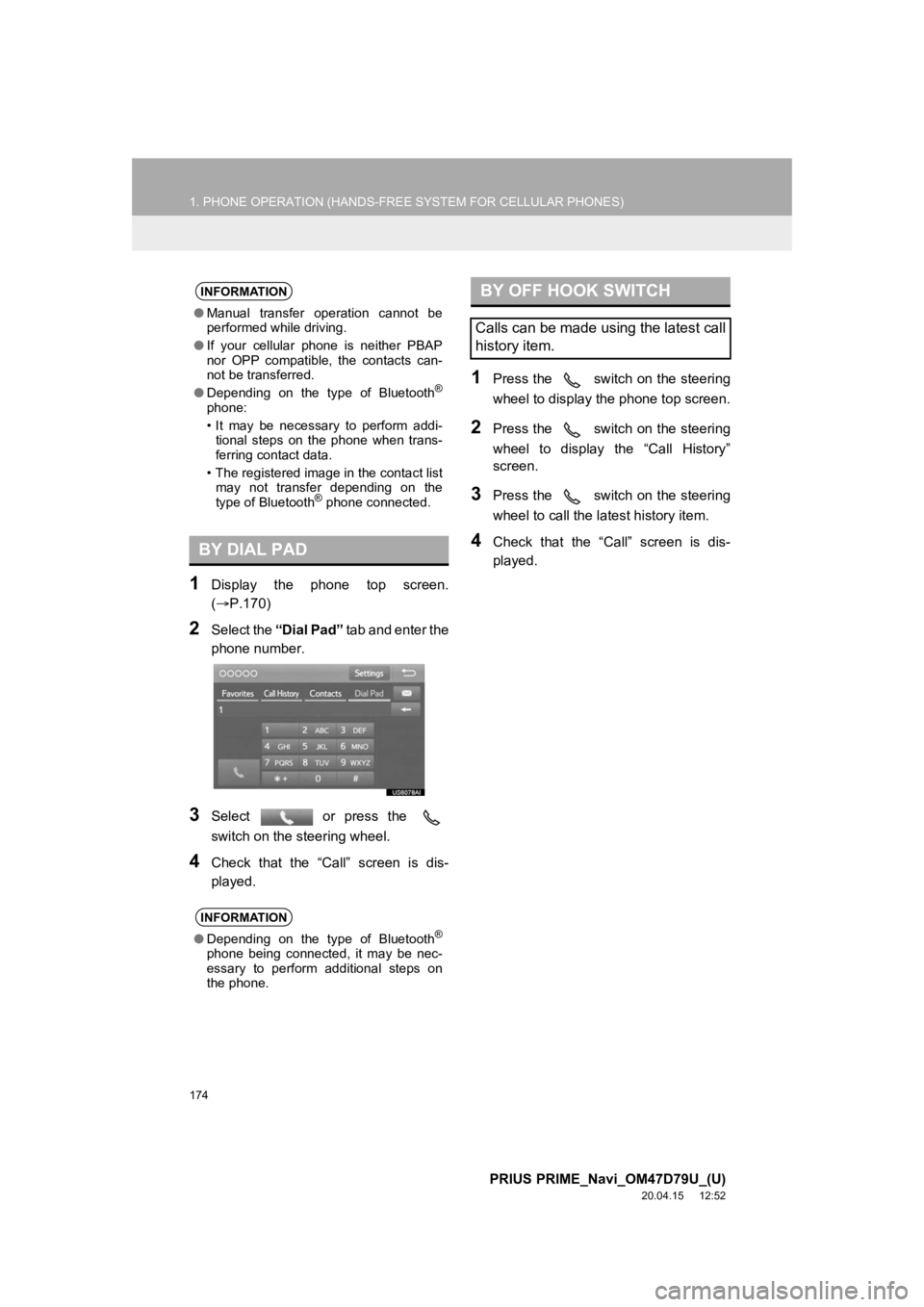
2Select the “Dial Pad” t a b a n d e n t e r t h e
phone number.
3Select or press the
switch on the steering wheel.
4Check that the “Call” screen is dis-
played.
1Press the switch on the steering
wheel to display the phone top screen.
2Press the switch on the steering
wheel to display the “Call History”
screen.
3Press the switch on the steering
wheel to call the la test history item.
4Check that the “Call” screen is dis-
played.
INFORMATION
●Manual transfer operation cannot be
performed while driving.
● If your cellular phone is neither PBAP
nor OPP compatible, the contacts can-
not be transferred.
● Depending on the type of Bluetooth
®
phone:
• It may be necessary to perform addi-
tional steps on the phone when trans-
ferring contact data.
• The registered image in the contact list may not transfer depending on the
type of Bluetooth
® phone connected.
BY DIAL PAD
INFORMATION
● Depending on the type of Bluetooth®
phone being connected, it may be nec-
essary to perform additional steps on
the phone.
BY OFF HOOK SWITCH
Calls can be made using the latest call
history item.
Page 175 of 310
175
1. PHONE OPERATION (HANDS-FREE SYSTEM FOR CELLULAR PHONES)
PRIUS PRIME_Navi_OM47D79U_(U)
20.04.15 12:52
PHONE
7
4. RECEIVING ON THE Bluetooth® PHONE
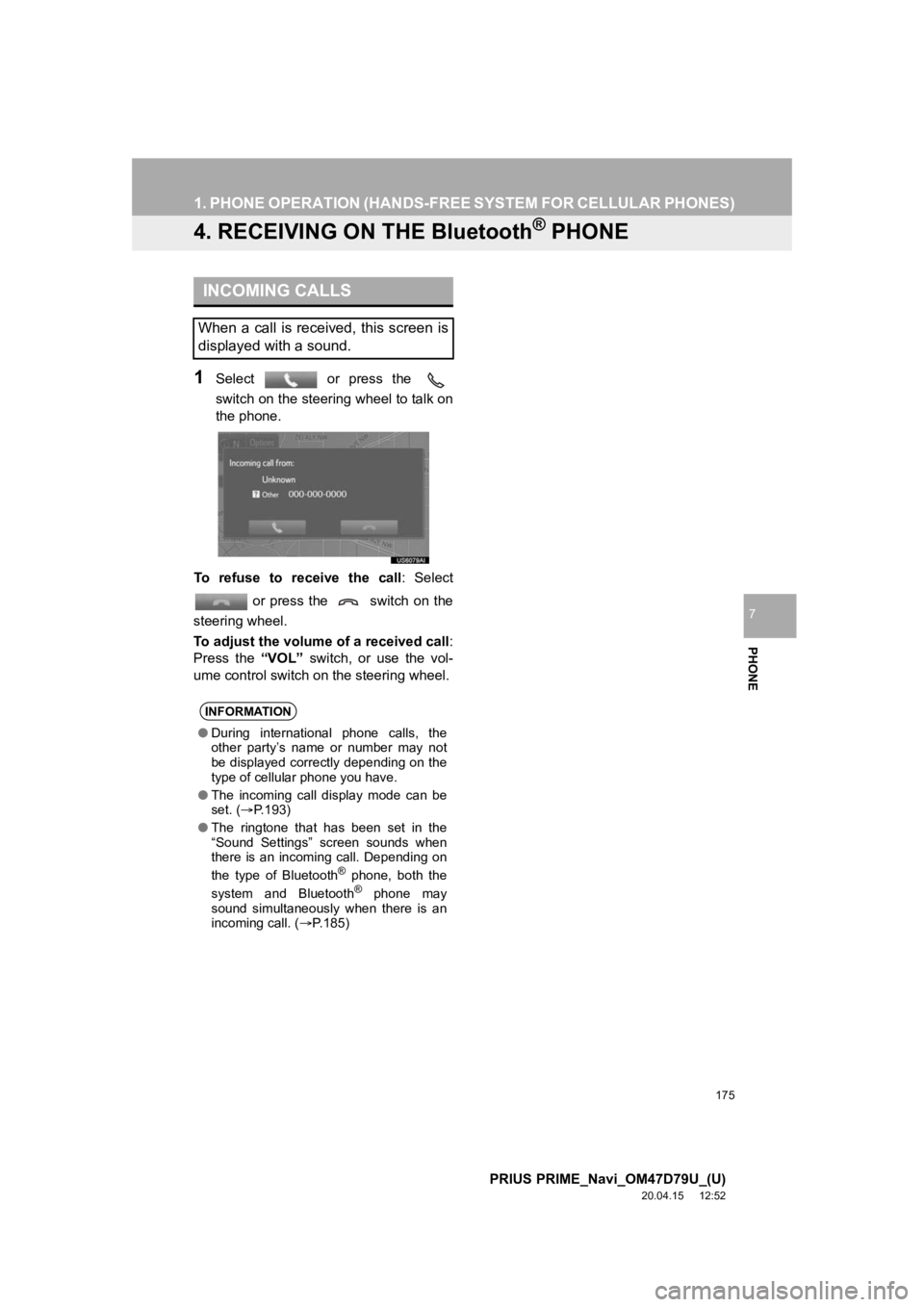
1Select or press the
switch on the steering wheel to talk on
the phone.
To refuse to receive the call : Select
or press the switch on the
steering wheel.
To adjust the volume of a received call :
Press the “VOL” switch, or use the vol-
ume control switch on the steering wheel.
INCOMING CALLS
When a call is received, this screen is
displayed with a sound.
INFORMATION
●During international phone calls, the
other party’s name or number may not
be displayed correctly depending on the
type of cellular phone you have.
● The incoming call display mode can be
set. ( P.193)
● The ringtone that has been set in the
“Sound Settings” screen sounds when
there is an incoming call. Depending on
the type of Bluetooth
® phone, both the
system and Bluetooth® phone may
sound simultaneously when there is an
incoming call. ( P.185)
Page 178 of 310
178
1. PHONE OPERATION (HANDS-FREE SYSTEM FOR CELLULAR PHONES)
PRIUS PRIME_Navi_OM47D79U_(U)
20.04.15 12:52
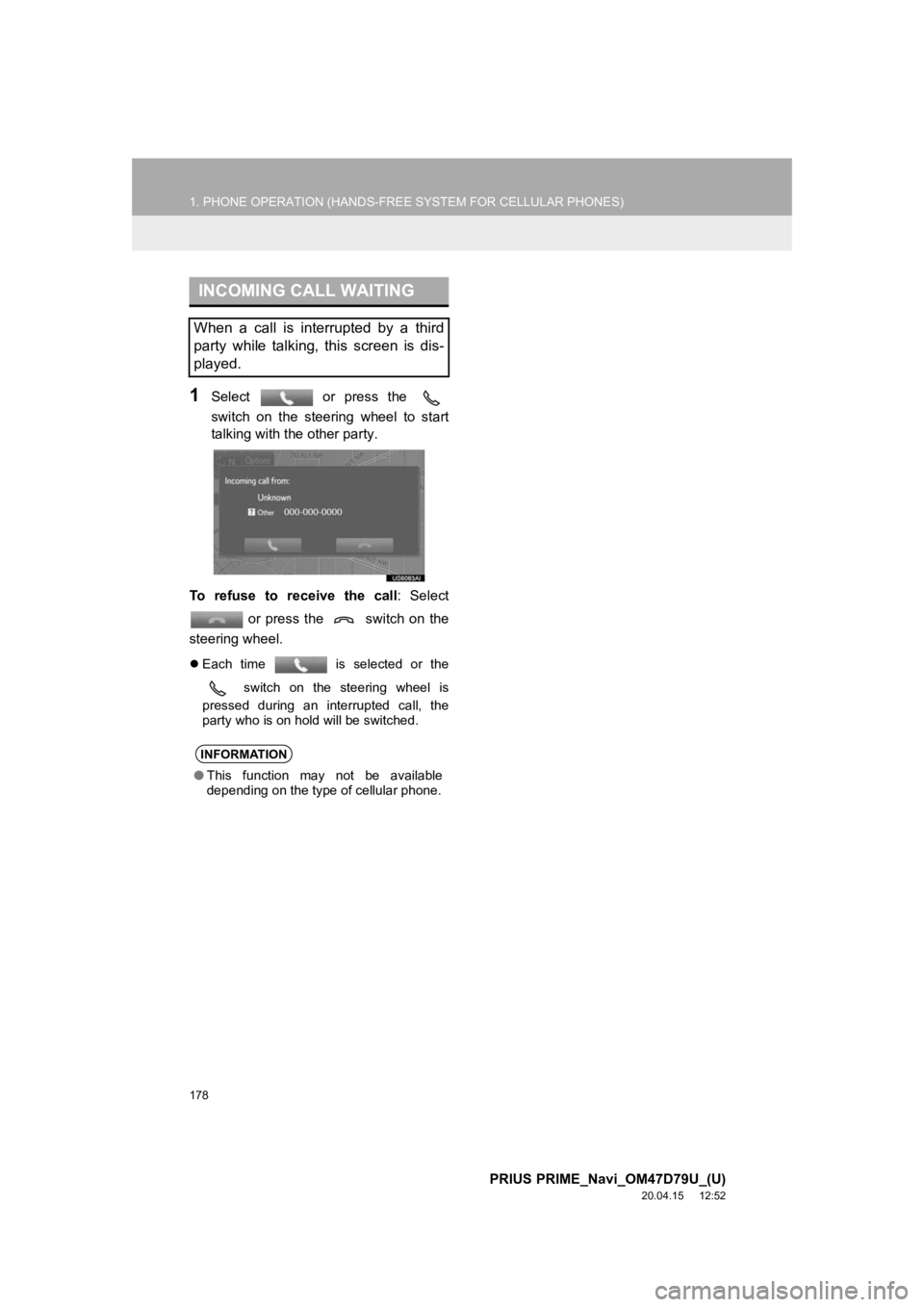
1Select or press the
switch on the steering wheel to start
talking with the other party.
To refuse to receive the call : Select
or press the switch on the
steering wheel.
Each time is selected or the
switch on the steering wheel is
pressed during an interrupted call, the
party who is on hold will be switched.
INCOMING CALL WAITING
When a call is interrupted by a third
party while talking, this screen is dis-
played.
INFORMATION
● This function may not be available
depending on the type of cellular phone.
Page 181 of 310
181
1. PHONE OPERATION (HANDS-FREE SYSTEM FOR CELLULAR PHONES)
PRIUS PRIME_Navi_OM47D79U_(U)
20.04.15 12:52
PHONE
7
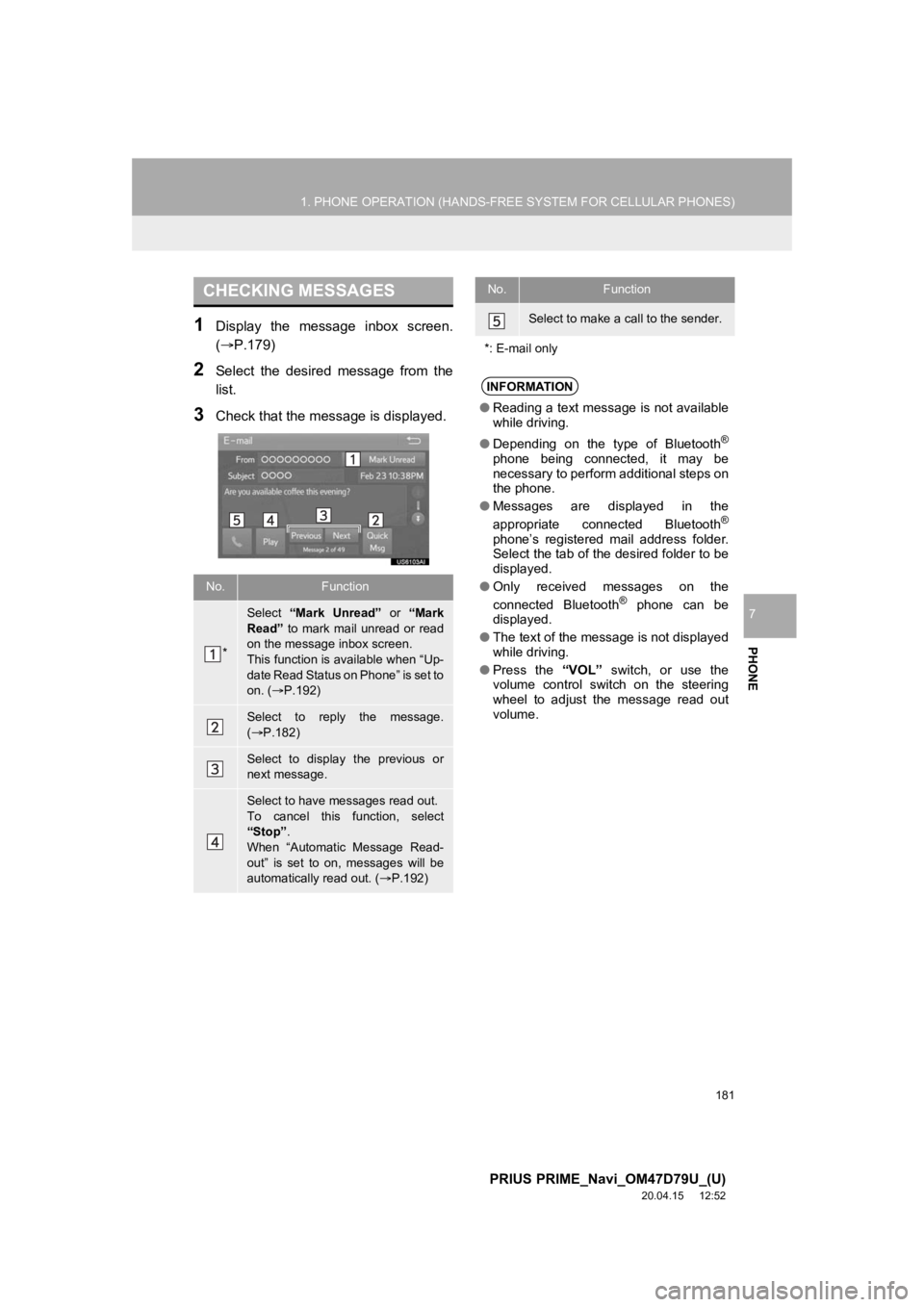
1Display the message inbox screen.
(P.179)
2Select the desired message from the
list.
3Check that the message is displayed.
CHECKING MESSAGES
No.Function
*
Select “Mark Unread” or “Mark
Read” to mark mail unread or read
on the message inbox screen.
This function is available when “Up-
date Read Status on Phone” is set to
on. ( P.192)
Select to reply the message.
( P.182)
Select to display the previous or
next message.
Select to have messages read out.
To cancel this function, select
“Stop”.
When “Automatic Message Read-
out” is set to on, messages will be
automatically read out. ( P.192)
Select to make a call to the sender.
*: E-mail only
INFORMATION
● Reading a text message is not available
while driving.
● Depending on the type of Bluetooth
®
phone being connected, it may be
necessary to perform additional steps on
the phone.
● Messages are displayed in the
appropriate connected Bluetooth
®
phone’s registered mail address folder.
Select the tab of the desired folder to be
displayed.
● Only received messages on the
connected Bluetooth
® phone can be
displayed.
● The text of the message is not displayed
while driving.
● Press the “VOL” switch, or use the
volume control switch on the steering
wheel to adjust the message read out
volume.
No.Function
Page 194 of 310
194
2. SETUP
PRIUS PRIME_Navi_OM47D79U_(U)
20.04.15 12:52
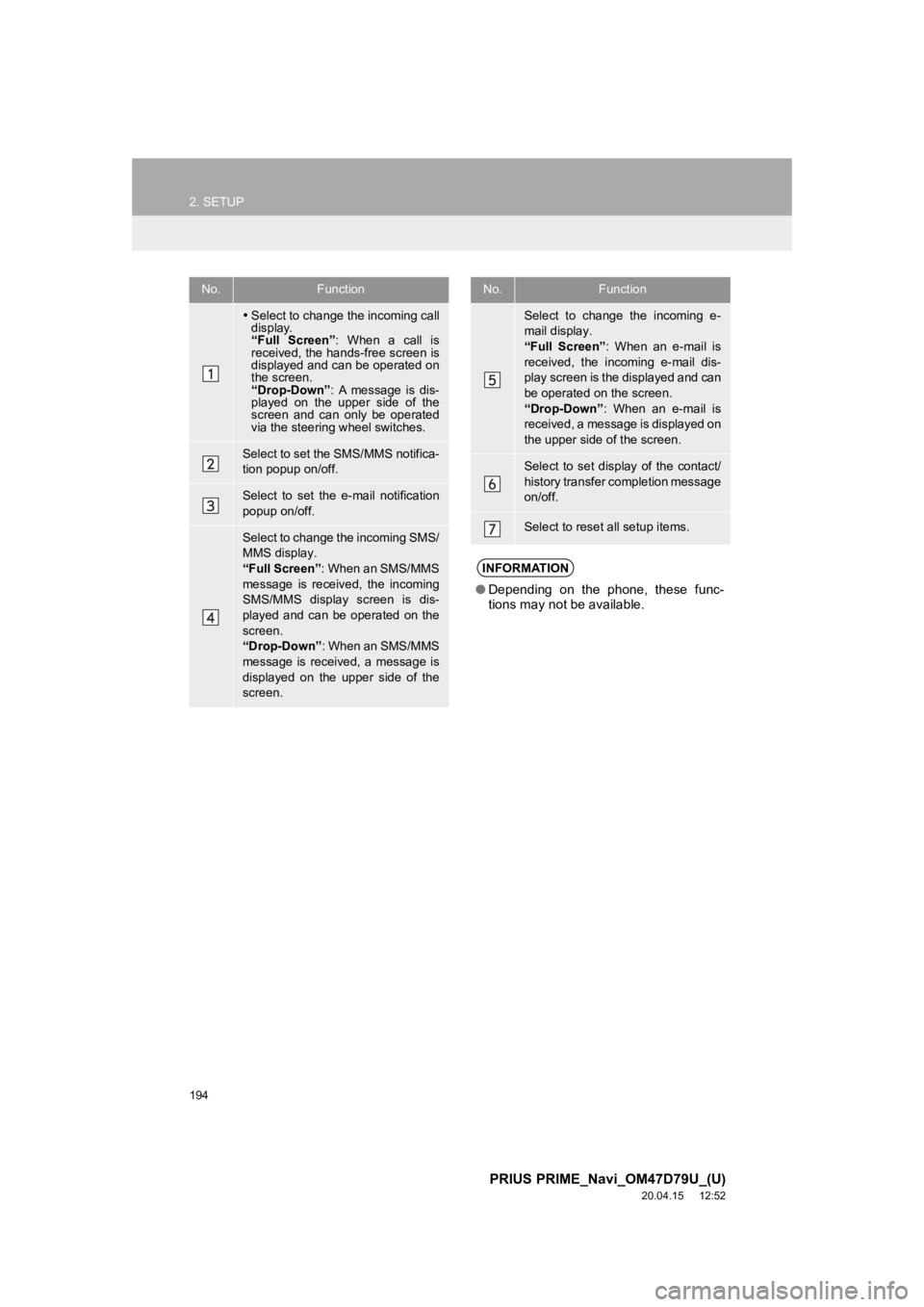
No.Function
Select to change the incoming call
display.
“Full Screen” : When a call is
received, the hands-free screen is
displayed and can be operated on
the screen.
“Drop-Down” : A message is dis-
played on the upper side of the
screen and can only be operated
via the steering wheel switches.
Select to set the SMS/MMS notifica-
tion popup on/off.
Select to set the e-mail notification
popup on/off.
Select to change the incoming SMS/
MMS display.
“Full Screen” : When an SMS/MMS
message is received, the incoming
SMS/MMS display screen is dis-
played and can be operated on the
screen.
“Drop-Down” : When an SMS/MMS
message is received, a message is
displayed on the upper side of the
screen.
Select to change the incoming e-
mail display.
“Full Screen” : When an e-mail is
received, the incoming e-mail dis-
play screen is the displayed and can
be operated on the screen.
“Drop-Down” : When an e-mail is
received, a message is displayed on
the upper side of the screen.
Select to set display of the contact/
history transfer completion message
on/off.
Select to reset all setup items.
INFORMATION
● Depending on the phone, these func-
tions may not be available.
No.Function