steering TOYOTA PRIUS V 2016 ZVW40 / 1.G Navigation Manual
[x] Cancel search | Manufacturer: TOYOTA, Model Year: 2016, Model line: PRIUS V, Model: TOYOTA PRIUS V 2016 ZVW40 / 1.GPages: 294, PDF Size: 4.85 MB
Page 149 of 294
149
1. PHONE OPERATION (HANDS-FREE SYSTEM FOR CELLULAR PHONES)
PRIUS v_Navi_OM47B14U_(U)
15.06.04 12:24
PHONE
6
2. SOME BASICS
The hands-free system enables calls
to be made and received without hav-
ing to take your hands off the steering
wheel.
This system supports Bluetooth
®.
Bluetooth® is a wireless data system
that enables cellular phones to be used
without being connected by a cable or
placed in a cradle.
The operating procedure of the phone
is explained here.
WA R N I N G
● While driving, do not use a cellular
phone or connect the Bluetooth® phone.
● Your audio unit is fitted with Bluetooth
®
antennas. People with implantable car-
diac pacemakers, cardiac resynchroni-
zation therapy-pacemakers or
implantable cardioverter defibrillators
should maintain a reasonable distance
between themselves and the Bluetooth
®
antennas. The radio waves may affect
the operation of such devices.
● Before using Bluetooth
® devices, users
of any electrical medical device other
than implantable cardiac pacemakers,
cardiac resynchronization therapy-pace-
makers or implantable cardioverter
defibrillators should consult the manu-
facturer of the device for information
about its operation under the influence
of radio waves. Radio waves could have
unexpected effects on the operation of
such medical devices.
NOTICE
● Do not leave your cellular phone in the
vehicle. The temperature inside may rise
to a level that could damage the phone.
INFORMATION
●If your cellular phone does not support
Bluetooth®, this system cannot function.
● In the following conditions, the system
may not function:
• The cellular phone is turned off.
• The current position is outside the
communication area.
• The cellular phone is not connected.
• The cellular phone has a low battery.
● When using Bluetooth
® audio and
hands-free at the same time, the follow-
ing problems may occur:
• The Bluetooth
® connection may be
cut.
• Noise may be heard on the Bluetooth
®
audio playback.
REGISTERING/CONNECTING
A Bluetooth® PHONE
To use the hands-free system for cellu-
lar phones, it is necessary to register a
cellular phone with the system.
( P.44)
Bluetooth® PHONE CONDITION
DISPLAY
The condition of the Bluetooth
® phone
appears on the upper right side of the
screen. ( P.18)
Page 150 of 294
150
1. PHONE OPERATION (HANDS-FREE SYSTEM FOR CELLULAR PHONES)
PRIUS v_Navi_OM47B14U_(U)
15.06.04 12:24
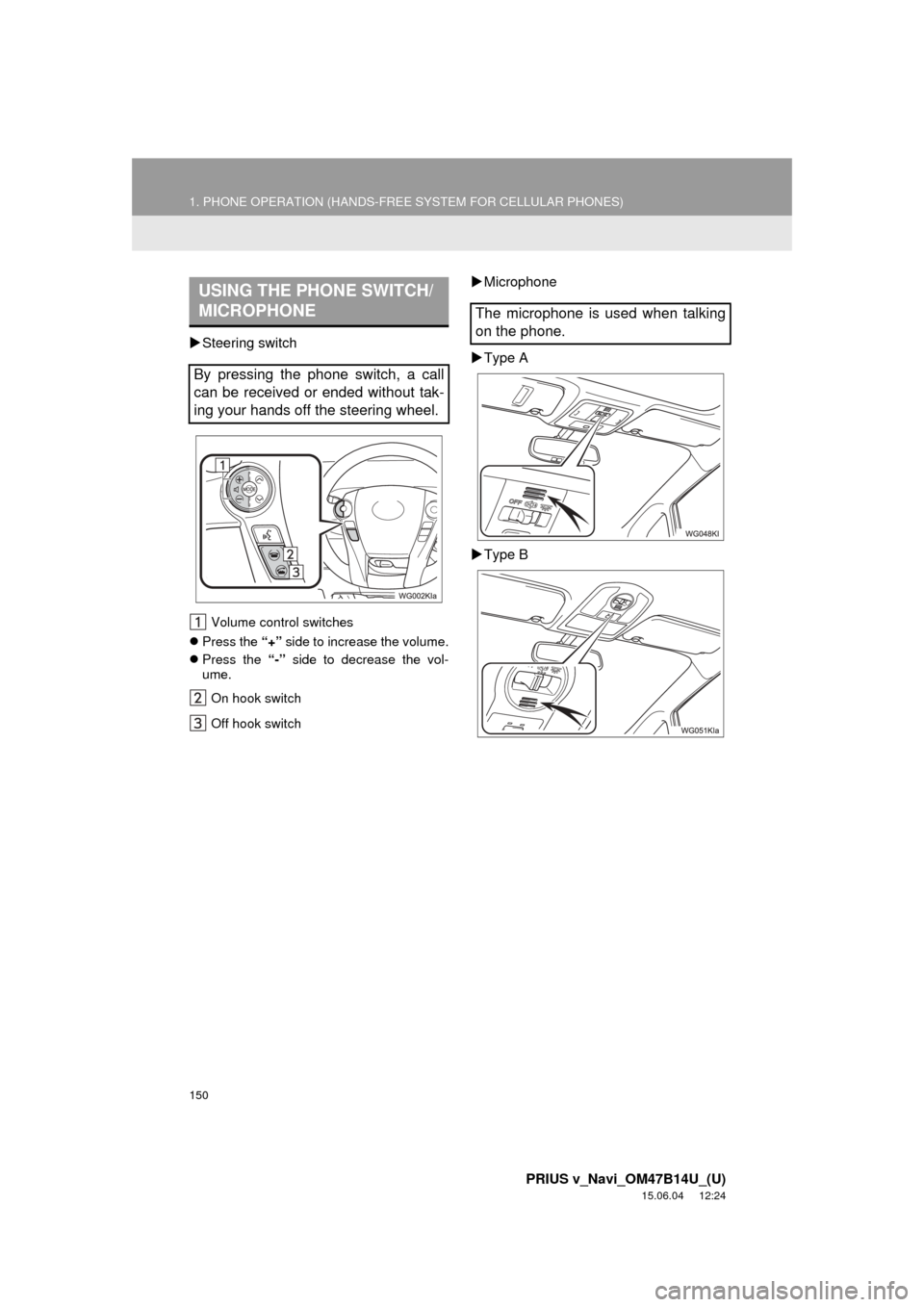
Steering switch
Volume control switches
Press the “+” side to increase the volume.
Press the “-” side to decrease the vol-
ume.
On hook switch
Off hook switch
Microphone
Type A
Type BUSING THE PHONE SWITCH/
MICROPHONE
By pressing the phone switch, a call
can be received or ended without tak-
ing your hands off the steering wheel.
The microphone is used when talking
on the phone.
Page 153 of 294
153
1. PHONE OPERATION (HANDS-FREE SYSTEM FOR CELLULAR PHONES)
PRIUS v_Navi_OM47B14U_(U)
15.06.04 12:24
PHONE
6
3. CALLING ON THE Bluetooth® PHONE
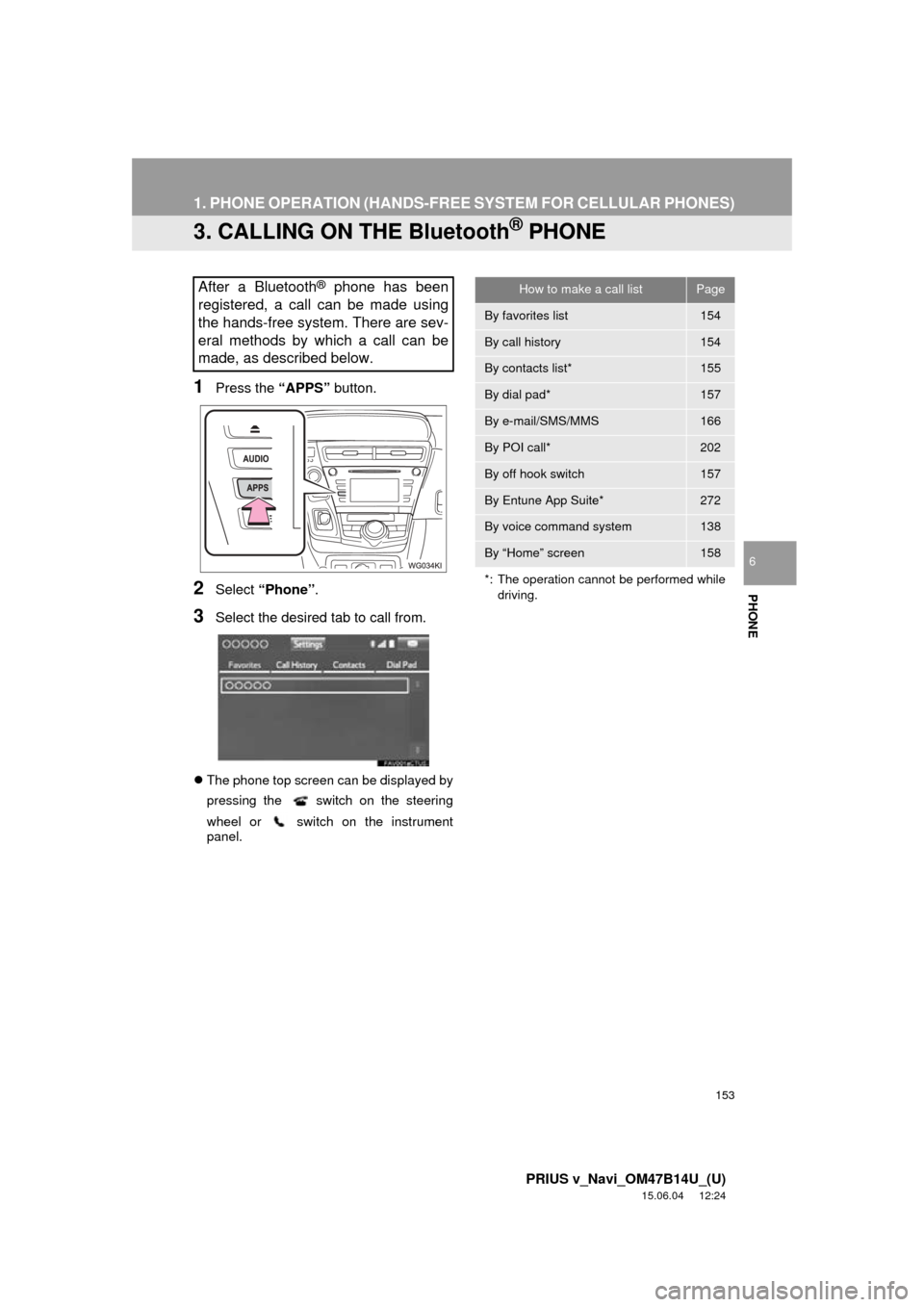
1Press the “APPS” button.
2Select “Phone” .
3Select the desired tab to call from.
The phone top screen can be displayed by
pressing the switch on the steering
whee l or swit
ch on the instrument
panel.
After a Bluetooth® phone has been
registered, a call can be made using
the hands-free system. There are sev-
eral methods by which a call can be
made, as described below.How to make a call listPage
By favorites list154
By call history154
By contacts list*155
By dial pad*157
By e-mail/SMS/MMS166
By POI call*202
By off hook switch157
By Entune App Suite*272
By voice command system138
By “Home” screen158
*: The operation cannot be performed while driving.
Page 157 of 294
157
1. PHONE OPERATION (HANDS-FREE SYSTEM FOR CELLULAR PHONES)
PRIUS v_Navi_OM47B14U_(U)
15.06.04 12:24
PHONE
6
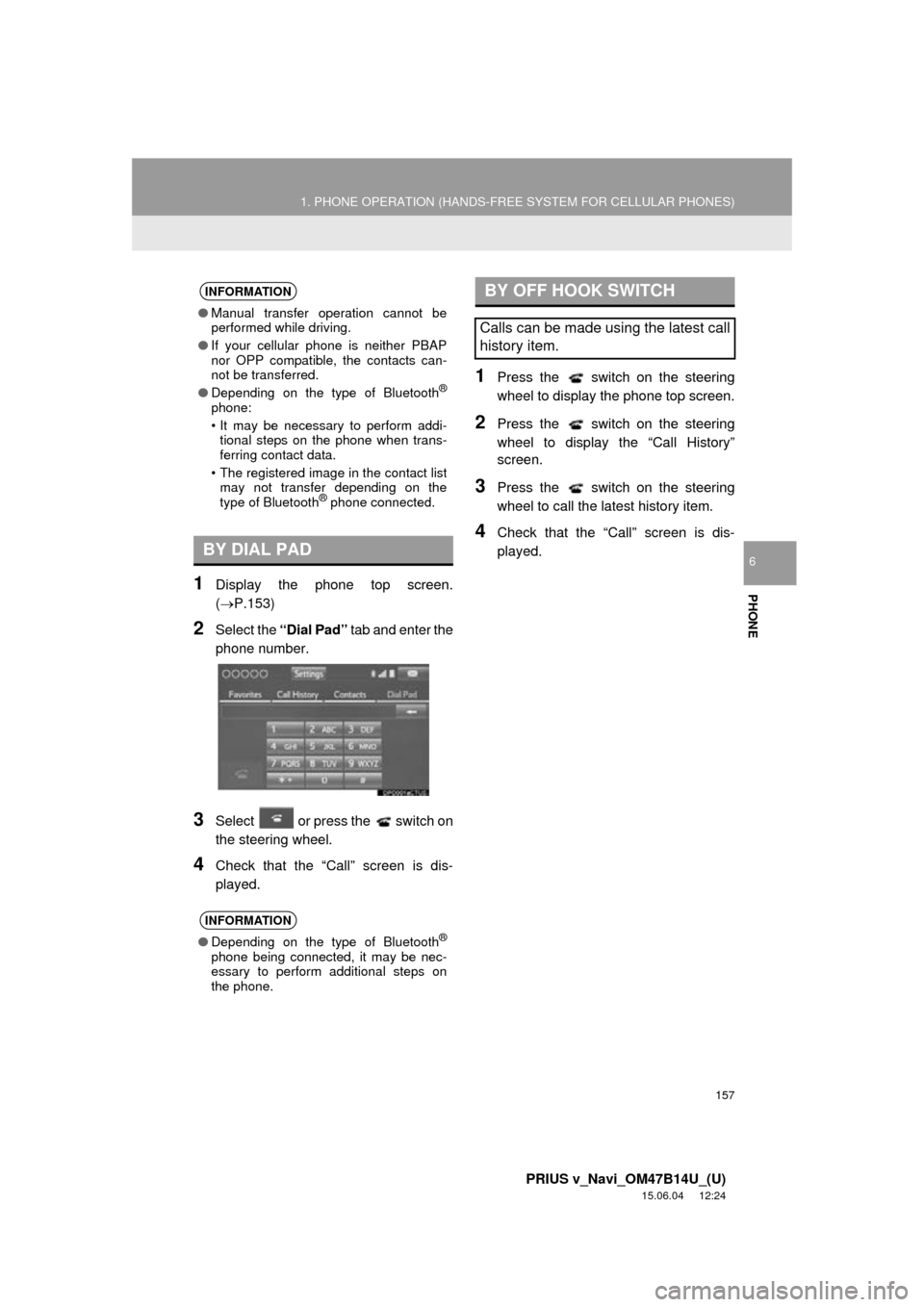
1Display the phone top screen.
(P.153)
2Select the “Dial Pad” tab and enter the
phone number.
3Select or press the switch on
the steering wheel.
4Check that the “Call” screen is dis-
played.
1Press the switch on the steering
wheel to display the phone top screen.
2Press the switch on the steering
wheel to display the “Call History”
screen.
3Press the switch on the steering
wheel to call the latest history item.
4Check that the “Call” screen is dis-
played.
INFORMATION
● Manual transfer operation cannot be
performed while driving.
● If your cellular phone is neither PBAP
nor OPP compatible, the contacts can-
not be transferred.
● Depending on the type of Bluetooth
®
phone:
• It may be necessary to perform addi-
tional steps on the phone when trans-
ferring contact data.
• The registered image in the contact list may not transfer depending on the
type of Bluetooth
® phone connected.
BY DIAL PAD
INFORMATION
● Depending on the type of Bluetooth®
phone being connected, it may be nec-
essary to perform additional steps on
the phone.
BY OFF HOOK SWITCH
Calls can be made using the latest call
history item.
Page 159 of 294
159
1. PHONE OPERATION (HANDS-FREE SYSTEM FOR CELLULAR PHONES)
PRIUS v_Navi_OM47B14U_(U)
15.06.04 12:24
PHONE
6
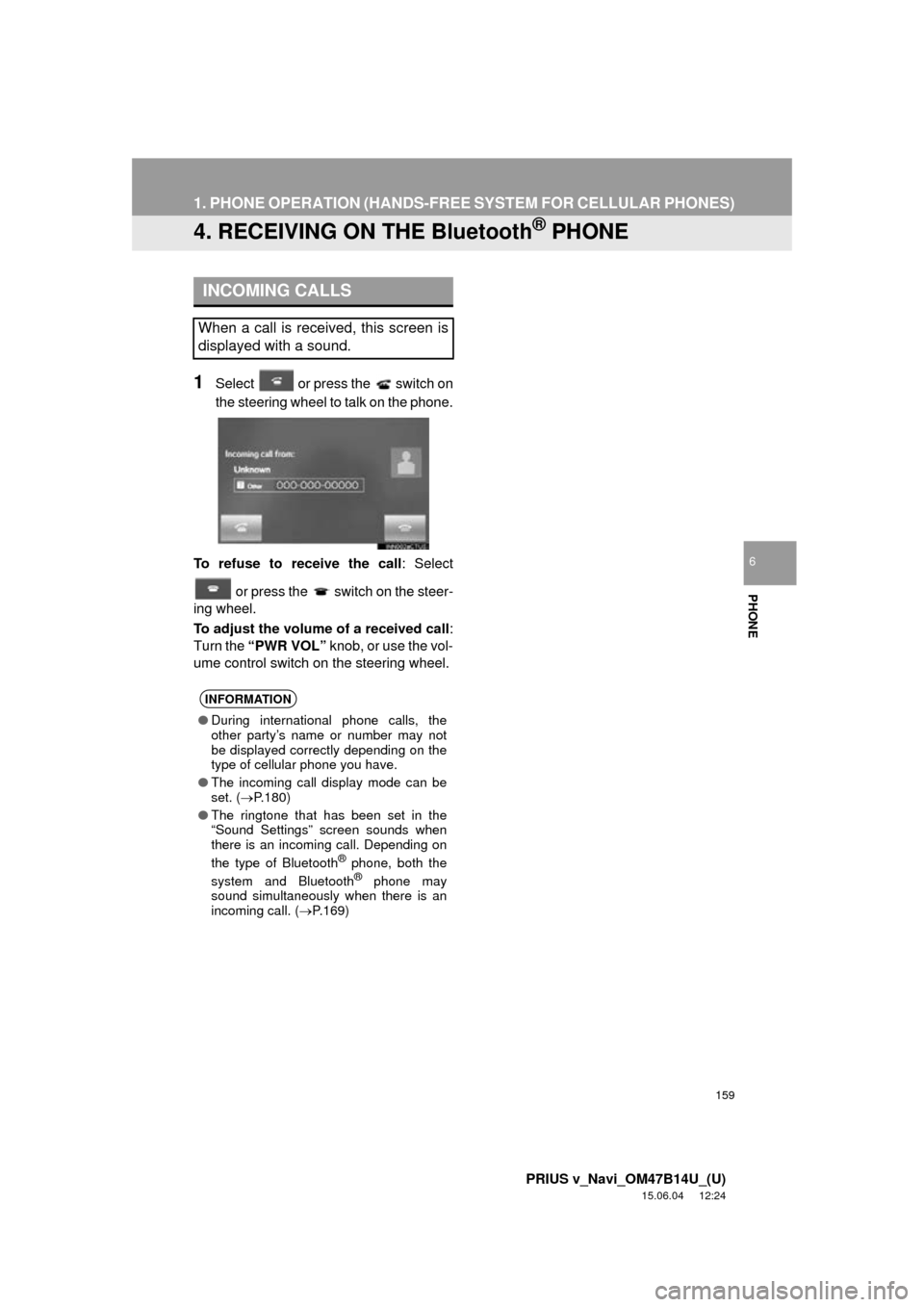
4. RECEIVING ON THE Bluetooth® PHONE
1Select or press the switch on
the steering wheel to talk on the phone.
To refuse to receive the call : Select
or press the switch on the steer-
ing wheel.
To adjust the volume of a received call :
Turn the “PWR VOL” knob, or use the vol-
ume control switch on the steering wheel.
INCOMING CALLS
When a call is received, this screen is
displayed with a sound.
INFORMATION
● During international phone calls, the
other party’s name or number may not
be displayed correctly depending on the
type of cellular phone you have.
● The incoming call display mode can be
set. ( P.180)
● The ringtone that has been set in the
“Sound Settings” screen sounds when
there is an incoming call. Depending on
the type of Bluetooth
® phone, both the
system and Bluetooth® phone may
sound simultaneously when there is an
incoming call. ( P.169)
Page 162 of 294
162
1. PHONE OPERATION (HANDS-FREE SYSTEM FOR CELLULAR PHONES)
PRIUS v_Navi_OM47B14U_(U)
15.06.04 12:24
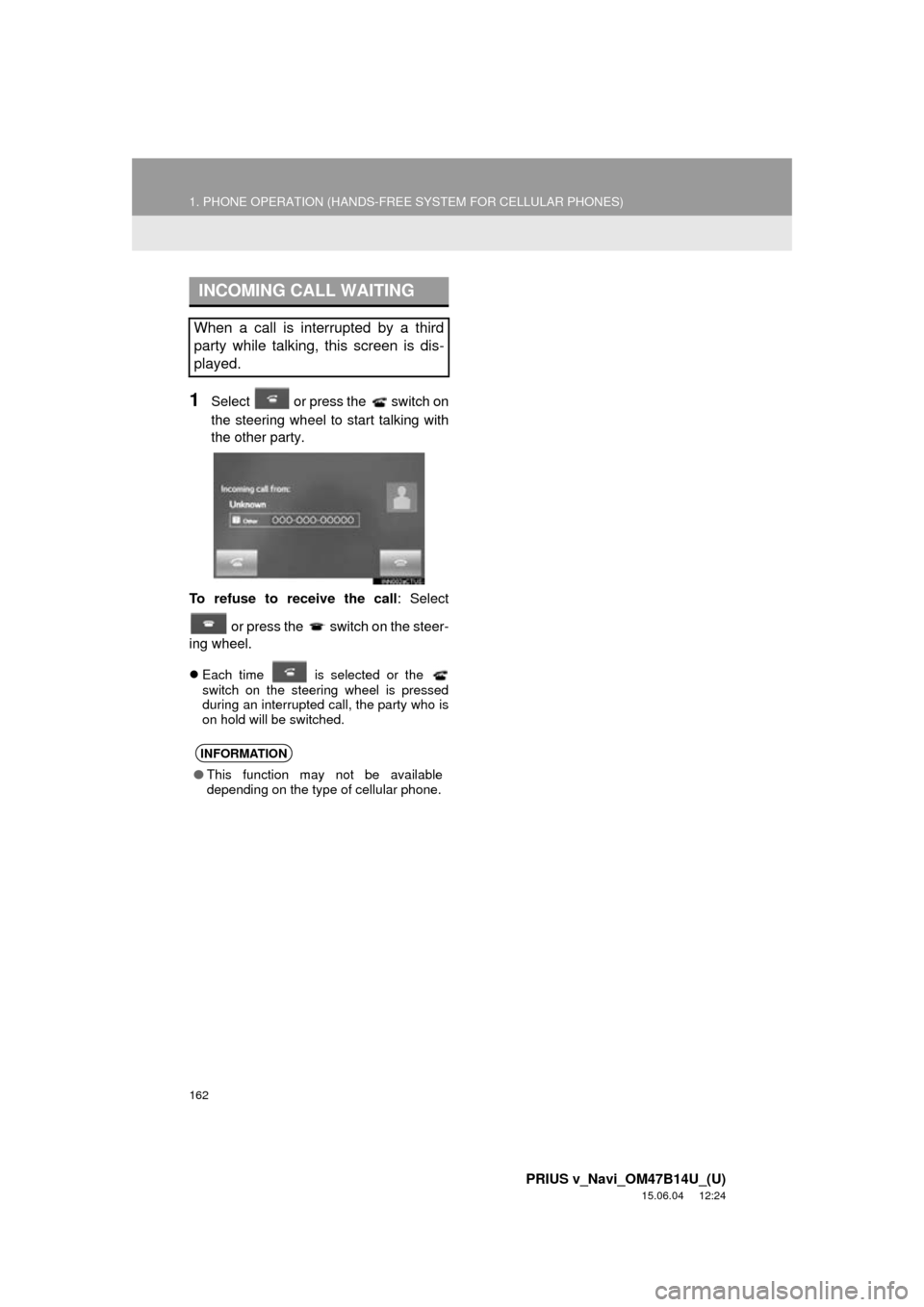
1Select or press the switch on
the steering wheel to start talking with
the other party.
To refuse to receive the call : Select
or press the switch on the steer-
ing wheel.
Each time is selected or the
switch on the steering wheel is pressed
during an interrupted call, the party who is
on hold will be switched.
INCOMING CALL WAITING
When a call is interrupted by a third
party while talking, this screen is dis-
played.
INFORMATION
● This function may not be available
depending on the type of cellular phone.
Page 163 of 294
163
1. PHONE OPERATION (HANDS-FREE SYSTEM FOR CELLULAR PHONES)
PRIUS v_Navi_OM47B14U_(U)
15.06.04 12:24
PHONE
6
6. Bluetooth® PHONE MESSAGE FUNCTION
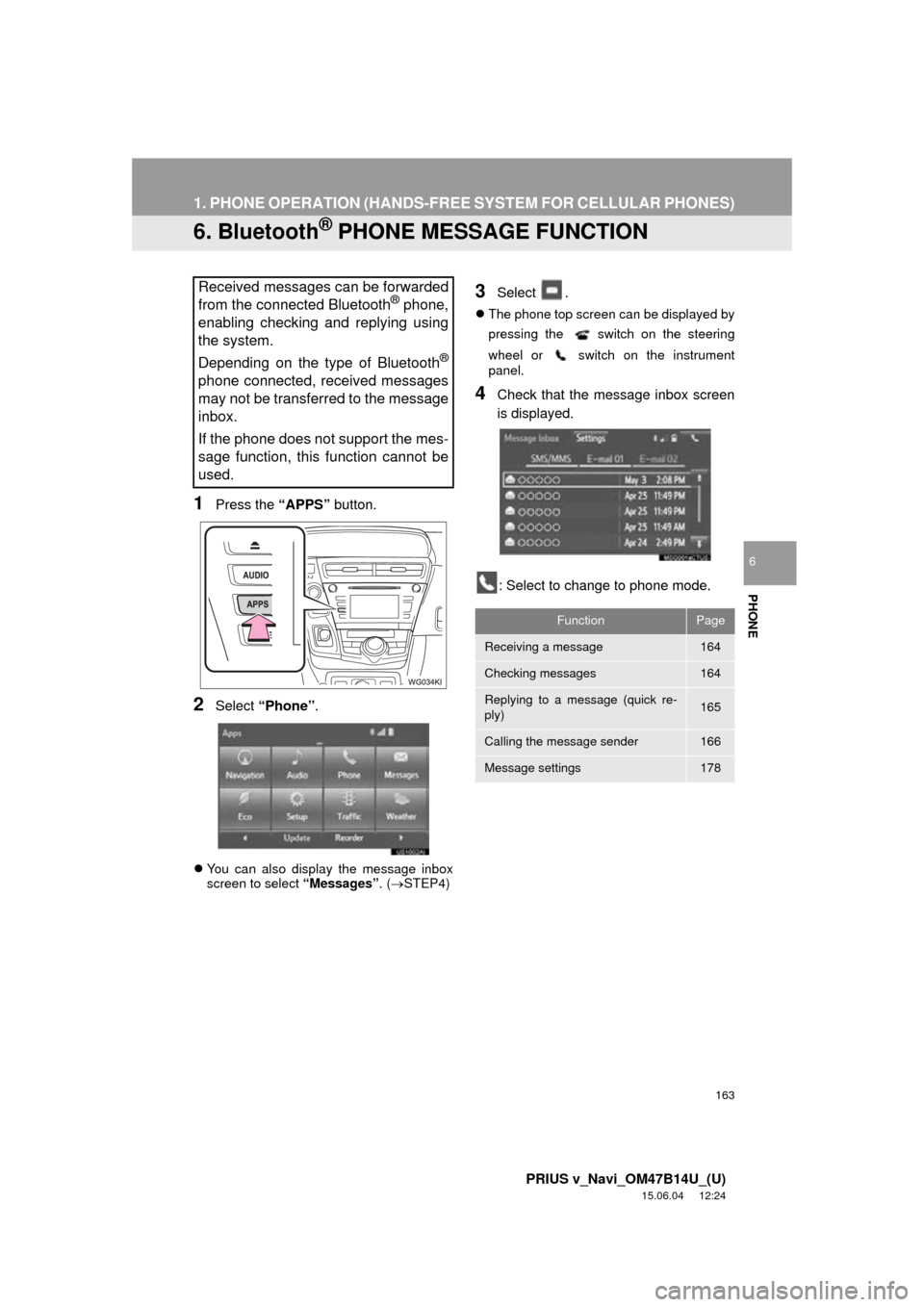
1Press the “APPS” button.
2Select “Phone” .
You can also display the message inbox
screen to select “Messages”. (STEP4)
3Select .
The phone top screen can be displayed by
pressing the switch on the steering
wh eel
or switch on the instrument
panel.
4Check that the message inbox screen
is displayed.
: Select to change to phone mode.
Received messages can be forwarded
from the connected Bluetooth® phone,
enabling checking and replying using
the system.
Depending on the type of Bluetooth
®
phone connected, received messages
may not be transferred to the message
inbox.
If the phone does not support the mes-
sage function, this function cannot be
used.
FunctionPage
Receiving a message164
Checking messages164
Replying to a message (quick re-
ply)165
Calling the message sender166
Message settings178
Page 165 of 294
165
1. PHONE OPERATION (HANDS-FREE SYSTEM FOR CELLULAR PHONES)
PRIUS v_Navi_OM47B14U_(U)
15.06.04 12:24
PHONE
6
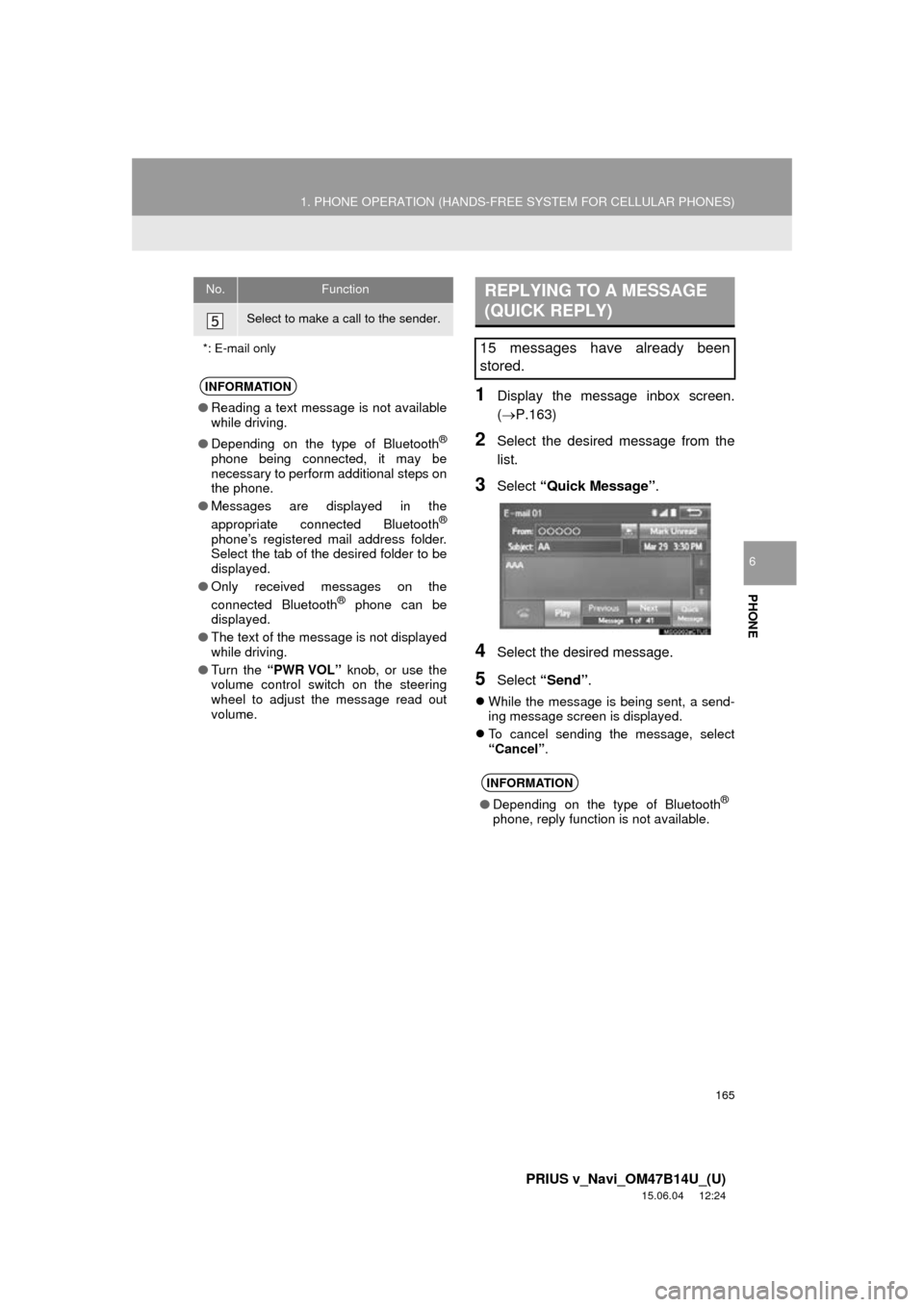
1Display the message inbox screen.
(P.163)
2Select the desired message from the
list.
3Select “Quick Message” .
4Select the desired message.
5Select “Send” .
While the message is being sent, a send-
ing message screen is displayed.
To cancel sending the message, select
“Cancel” .
Select to make a call to the sender.
*: E-mail only
INFORMATION
● Reading a text message is not available
while driving.
● Depending on the type of Bluetooth
®
phone being connected, it may be
necessary to perform additional steps on
the phone.
● Messages are displayed in the
appropriate connected Bluetooth
®
phone’s registered mail address folder.
Select the tab of the desired folder to be
displayed.
● Only received messages on the
connected Bluetooth
® phone can be
displayed.
● The text of the message is not displayed
while driving.
● Turn the “PWR VOL” knob, or use the
volume control switch on the steering
wheel to adjust the message read out
volume.
No.FunctionREPLYING TO A MESSAGE
(QUICK REPLY)
15 messages have already been
stored.
INFORMATION
● Depending on the type of Bluetooth®
phone, reply function is not available.
Page 281 of 294

281
PRIUS v_Navi_OM47B14U_(U)
15.06.04 12:24
R
Radio operation ........................................ 79
Receiving on the Bluetooth® phone........ 159
Incoming calls ..................................... 159
Receiving weather information ............... 144 Displaying weather information ........... 144
Registering home...................................... 22
Registering preset destinations ................ 24
Registering/connecting Bluetooth
®
device .................................................... 44
Certification ........................................... 48
Profiles .................................................. 46
Registering a Bluetooth
® audio player
for the first time .................................. 45
Registering a Bluetooth
® phone
for the first time .................................. 44
Route guidance....................................... 223
Route guidance screen ........................... 223 During freeway driving ........................ 225
Route overview ................................... 224
Screen for route guidance ................... 223
Turn list screen.................................... 227
Turn-by-turn arrow screen................... 227
When approaching intersection........... 226
S
Screen adjustment .................................... 41
Search operation .................................... 209
Searching by address ......................... 211
Searching by address book................. 215
Searching by coordinates.................... 218
Searching by emergency .................... 216
Searching by intersection and freeway ............................................ 216
Searching by map ............................... 218
Searching by point of interest.............. 212 Searching from previous
destinations...................................... 215
Selecting search area.......................... 210
Setting home as destination ................ 210
Setting preset destinations as destination ....................................... 210
Setting Bluetooth
® details ......................... 49
“Bluetooth* Setup” screen ..................... 49
Connecting a Bluetooth
® device ........... 52
Deleting a Bluetooth® device ................ 51
Editing the Bluetooth® device
information ......................................... 54
Registering a Bluetooth
® device ........... 50
“System Settings” screen ...................... 55
Setting home as the destination................ 27
Setup............................... 121, 168, 244, 274
“Setup” screen .......................................... 20
Some basics ..................................... 71, 149 About the contacts in the contact list ........................................ 152
Audio screen adjustment ....................... 76
Disc slot ................................................. 73
Registering/connecting a Bluetooth
®
phone ............................................... 149
Selecting an audio source ..................... 72
Sound settings....................................... 75
Turning the system on and off ............... 71
USB/AUX port ....................................... 74
Using the phone switch/microphone ........................... 150
Voice command system .... ............ 78, 151
When selling or disposing of the vehicle.............................................. 152
Starting route guidance ........................... 219 Pausing guidance ................................ 222
Starting route guidance ....................... 219
Steering switches .................................... 118
*: Bluetooth is a registered trademark of Bluetooth SIG, Inc.