display TOYOTA PRIUS V 2018 Repair Manual
[x] Cancel search | Manufacturer: TOYOTA, Model Year: 2018, Model line: PRIUS V, Model: TOYOTA PRIUS V 2018Pages: 607, PDF Size: 41.96 MB
Page 273 of 607
PRIUS v_OM_OM47B78U_(U)
2715-1. Basic Operations
5
Audio system
■When using the touch screen
●If the screen is cold, the display may be dark, or the system may seem to be
operating slightly slower than normal.
● The screen may seem dark and hard to see when viewed through sun-
glasses. Change your angle of viewing, adjust the display on the “Display
Settings” screen (P. 280) or remove your sunglasses.
● Flick operations may not be performed smoothly in high altitudes.
NOTICE
■To avoid damaging the touch screen
●To prevent damaging the screen, lightly touch the screen buttons with your
finger.
● Do not use objects other than your finger to touch the screen.
● Wipe off fingerprints using a glass cleaning cloth. Do not use chemical
cleaners to clean the screen, as they may damage the touch screen.
Page 276 of 607
274
PRIUS v_OM_OM47B78U_(U)
5-1. Basic Operations
Basic audio operations
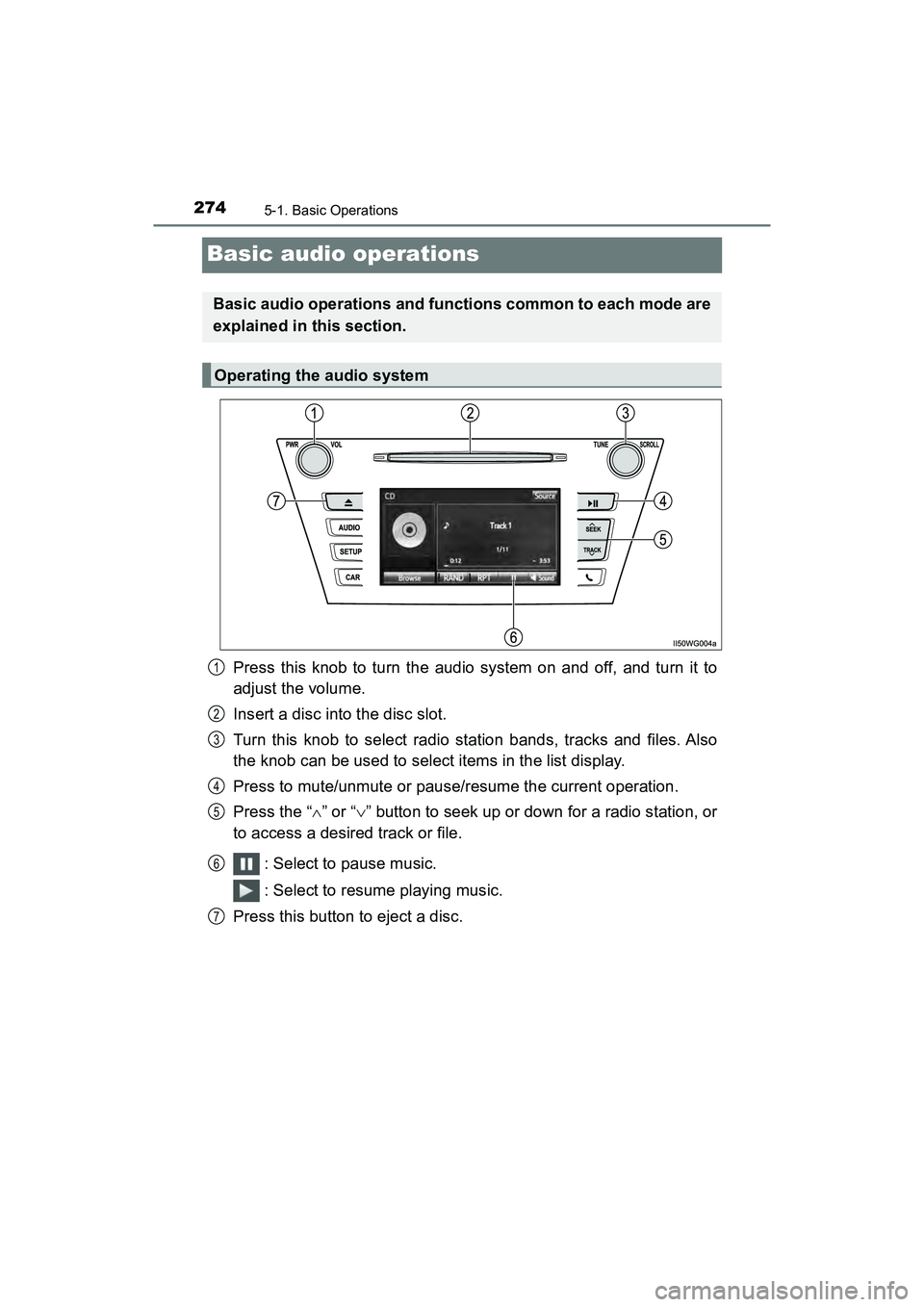
Press this knob to turn the audio system on and off, and turn it to
adjust the volume.
Insert a disc into the disc slot.
Turn this knob to select radio station bands, tracks and files. Also
the knob can be used to select items in the list display.
Press to mute/unmute or pause/resume the current operation.
Press the “” or “ ” button to seek up or down for a radio station, or
to access a desired track or file.
: Select to pause music.
: Select to resume playing music.
Press this button to eject a disc.
Basic audio operations and functions common to each mode are
explained in this section.
Operating the audio system
1
2
3
4
5
6
7
Page 278 of 607
276
PRIUS v_OM_OM47B78U_(U)
5-2. Setup
Setup menu
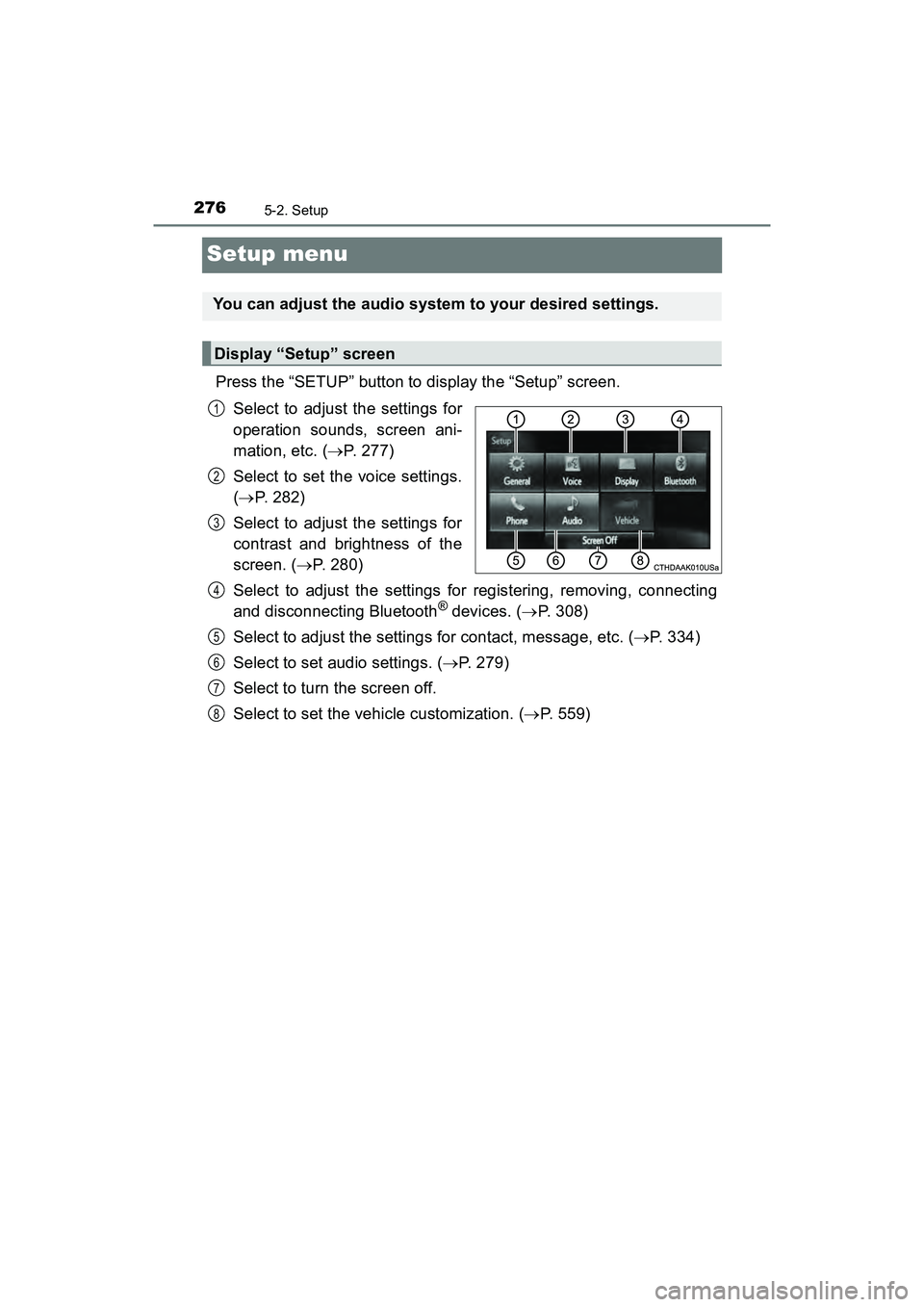
Press the “SETUP” button to display the “Setup” screen.Select to adjust the settings for
operation sounds, screen ani-
mation, etc. ( P. 277)
Select to set the voice settings.
( P. 282)
Select to adjust the settings for
contrast and brightness of the
screen. ( P. 280)
Select to adjust the settings for registering, removing, connecting
and disconnecting Bluetooth
® devices. ( P. 308)
Select to adjust the settings for contact, message, etc. ( P. 334)
Select to set audio settings. ( P. 279)
Select to turn the screen off.
Select to set the vehicle customization. ( P. 559)
You can adjust the audio system to your desired settings.
Display “Setup” screen
1
2
3
4
5
6
7
8
Page 279 of 607
277
PRIUS v_OM_OM47B78U_(U)
5-2. Setup
5
Audio system
General settings
Press the “SETUP” button.
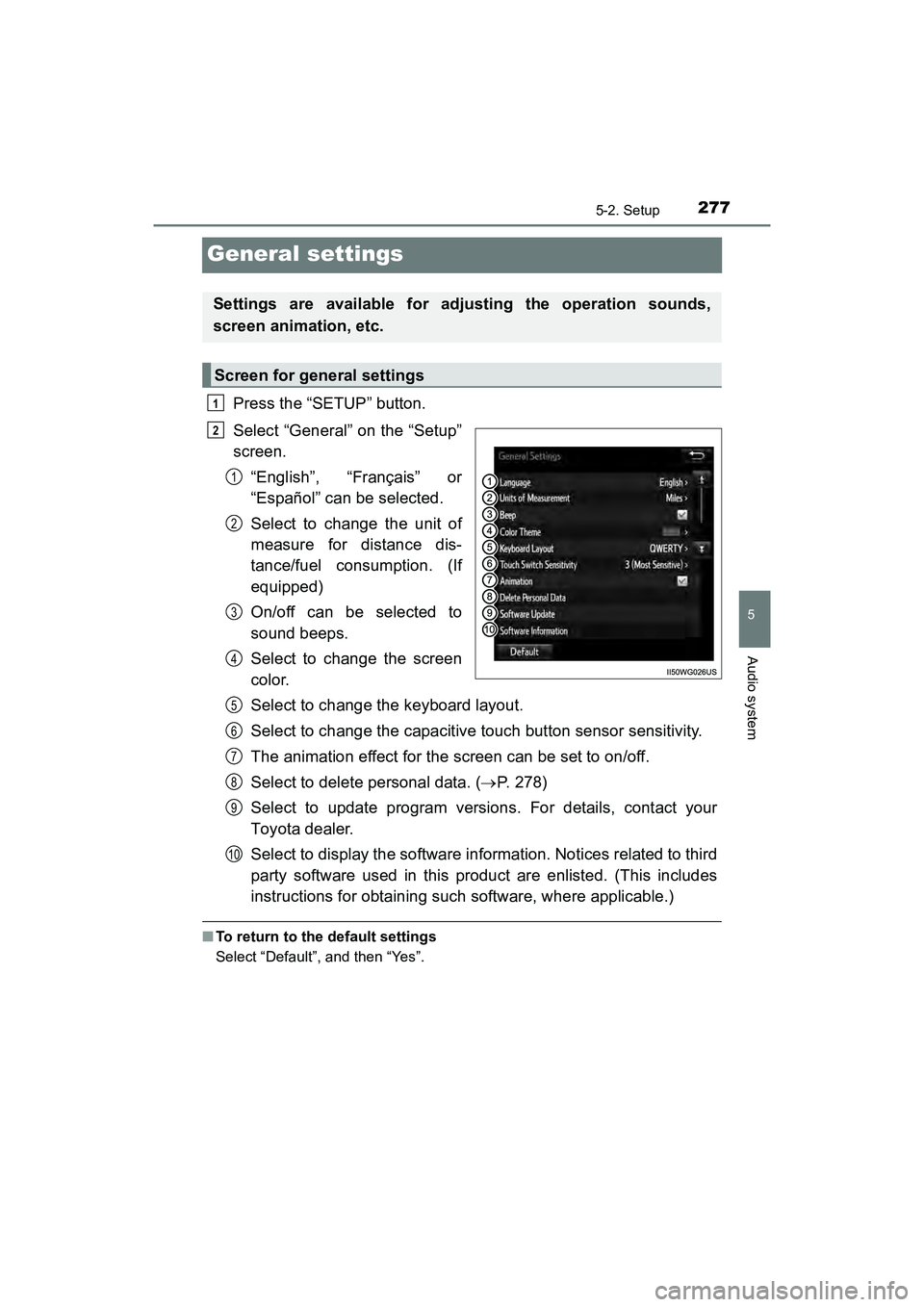
Select “General” on the “Setup”
screen.“English”, “Français” or
“Español” can be selected.
Select to change the unit of
measure for distance dis-
tance/fuel consumption. (If
equipped)
On/off can be selected to
sound beeps.
Select to change the screen
color.
Select to change the keyboard layout.
Select to change the capacitive touch button sensor sensitivity.
The animation effect for the screen can be set to on/off.
Select to delete personal data. ( P. 278)
Select to update program versions. For details, contact your
Toyota dealer.
Select to display the software information. Notices related to third
party software used in this product are enlisted. (This includes
instructions for obtaining such software, where applicable.)
■ To return to the default settings
Select “Default”, and then “Yes”.
Settings are available for adjusting the operation sounds,
screen animation, etc.
Screen for general settings
1
2
1
2
3
4
5
6
7
8
9
10
Page 280 of 607
2785-2. Setup
PRIUS v_OM_OM47B78U_(U)
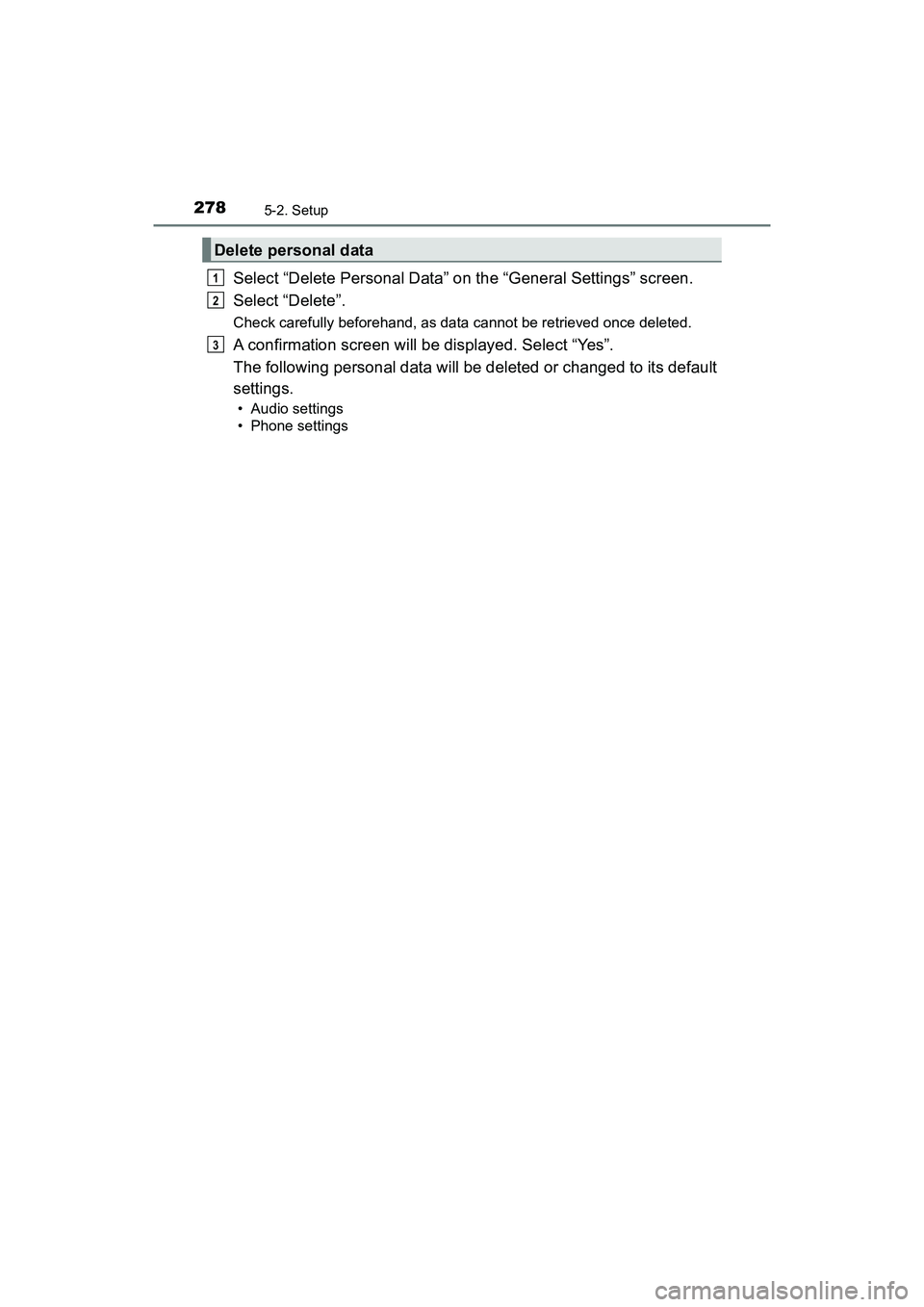
Select “Delete Personal Data” on the “General Settings” screen.
Select “Delete”.
Check carefully beforehand, as data cannot be retrieved once deleted.
A confirmation screen will be displayed. Select “Yes”.
The following personal data will be deleted or changed to its default
settings.
• Audio settings
• Phone settings
Delete personal data
1
2
3
Page 281 of 607
279
PRIUS v_OM_OM47B78U_(U)
5-2. Setup
5
Audio system
Audio settings
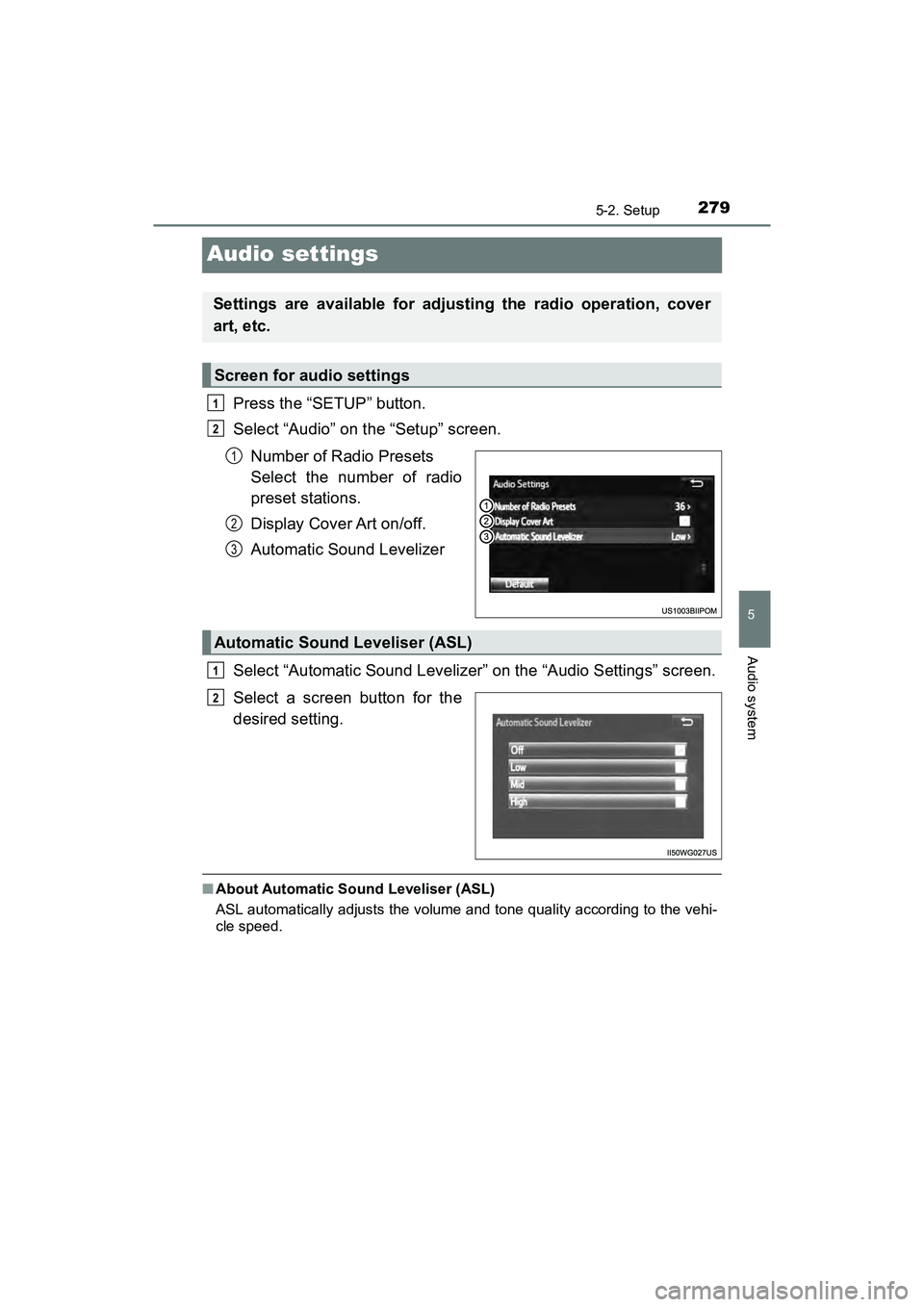
Press the “SETUP” button.
Select “Audio” on the “Setup” screen.Number of Radio Presets
Select the number of radio
preset stations.
Display Cover Art on/off.
Automatic Sound Levelizer
Select “Automatic Sound Levelizer” on the “Audio Settings” screen.
Select a screen button for the
desired setting.
■ About Automatic Sound Leveliser (ASL)
ASL automatically adjusts the volume and tone quality according to the vehi-
cle speed.
Settings are available for adjusting the radio operation, cover
art, etc.
Screen for audio settings
1
2
1
2
3
Automatic Sound Leveliser (ASL)
1
2
Page 282 of 607
280
PRIUS v_OM_OM47B78U_(U)
5-2. Setup
Display settings
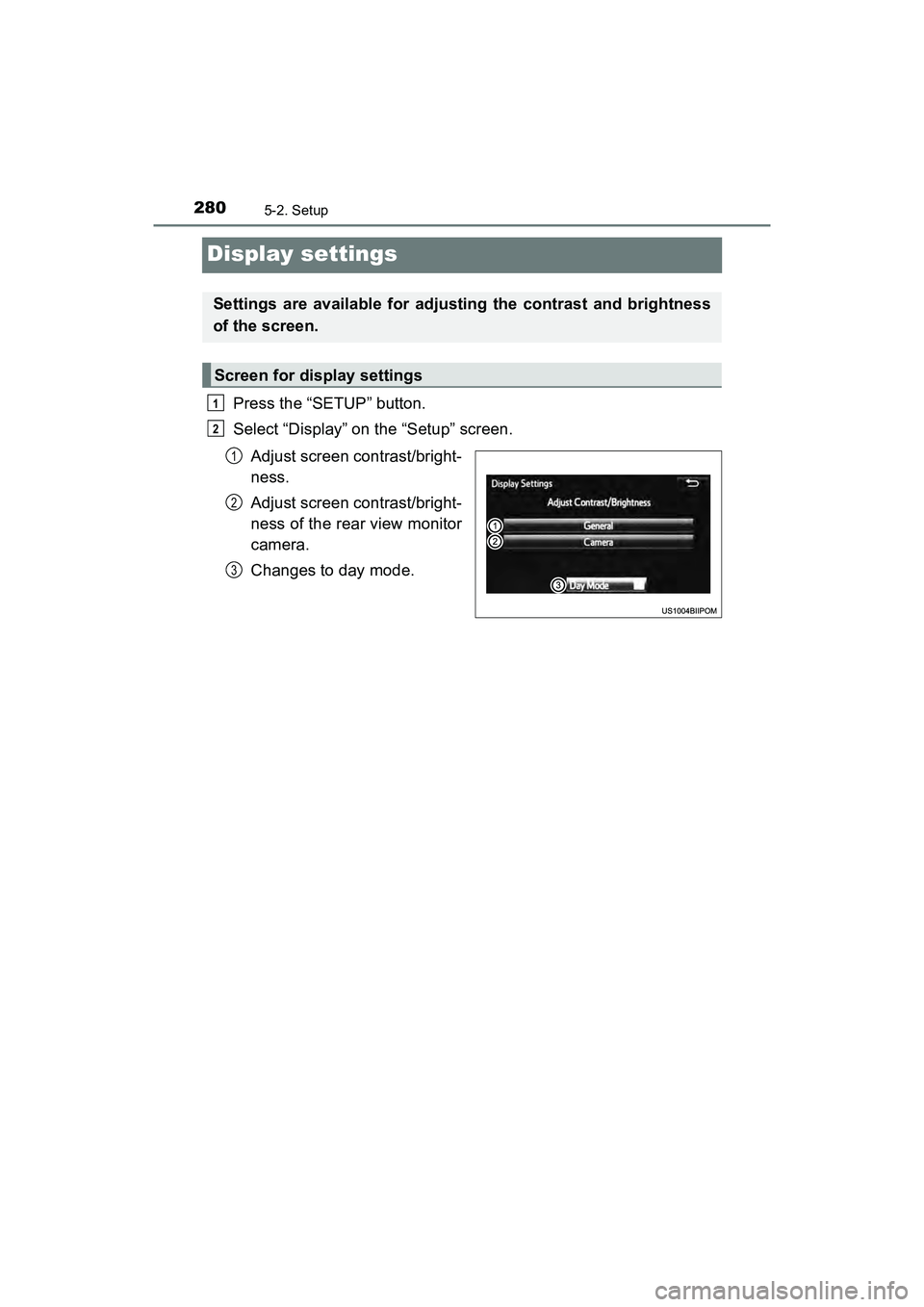
Press the “SETUP” button.
Select “Display” on the “Setup” screen.Adjust screen contrast/bright-
ness.
Adjust screen contrast/bright-
ness of the rear view monitor
camera.
Changes to day mode.
Settings are available for adjusting the contrast and brightness
of the screen.
Screen for display settings
1
2
1
2
3
Page 283 of 607
PRIUS v_OM_OM47B78U_(U)
2815-2. Setup
5
Audio system
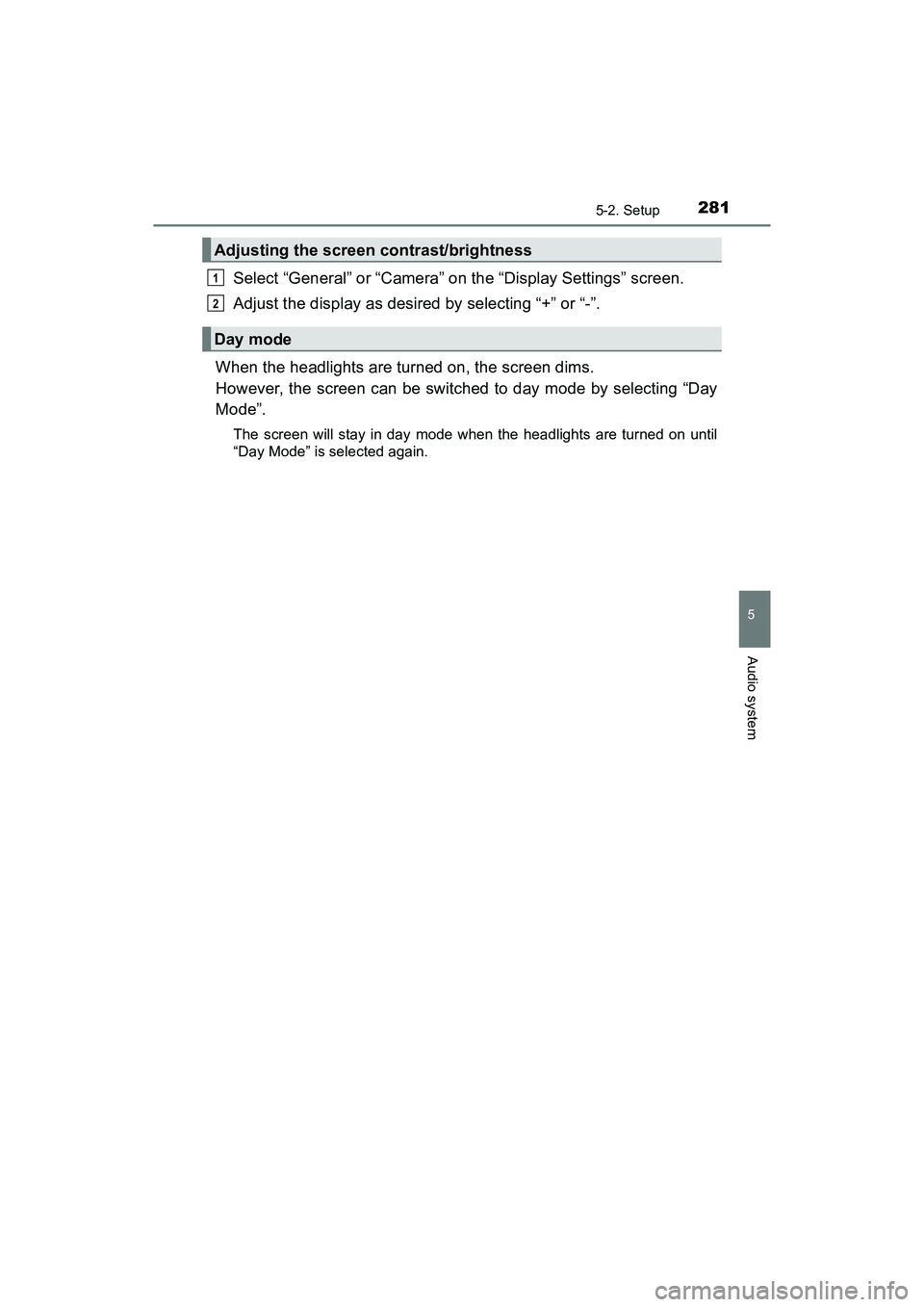
Select “General” or “Camera” on the “Display Settings” screen.
Adjust the display as desired by selecting “+” or “-”.
When the headlights are turned on, the screen dims.
However, the screen can be switched to day mode by selecting “Day
Mode”.
The screen will stay in day mode when the headlights are turned on until
“Day Mode” is selected again.
Adjusting the screen contrast/brightness
Day mode
1
2
Page 285 of 607

283
PRIUS v_OM_OM47B78U_(U)
5-3. Using the Multimedia system
5
Audio system
Selecting the audio source
Press the “AUDIO” button to display the audio source selection
screen.
If the audio source selection screen is not displayed, press the “AUDIO”
button again.
Select the desired audio
source.Select the desired audio
source then or to
reorder.
The audio source changes each time the “MODE” switch is pressed.
Switching between audio sources such as radio and CD are
explained in this section.
Changing audio source
1
2
1
Using the steering wheel switches to change audio source
Page 286 of 607
284
PRIUS v_OM_OM47B78U_(U)
5-3. Using the Multimedia system
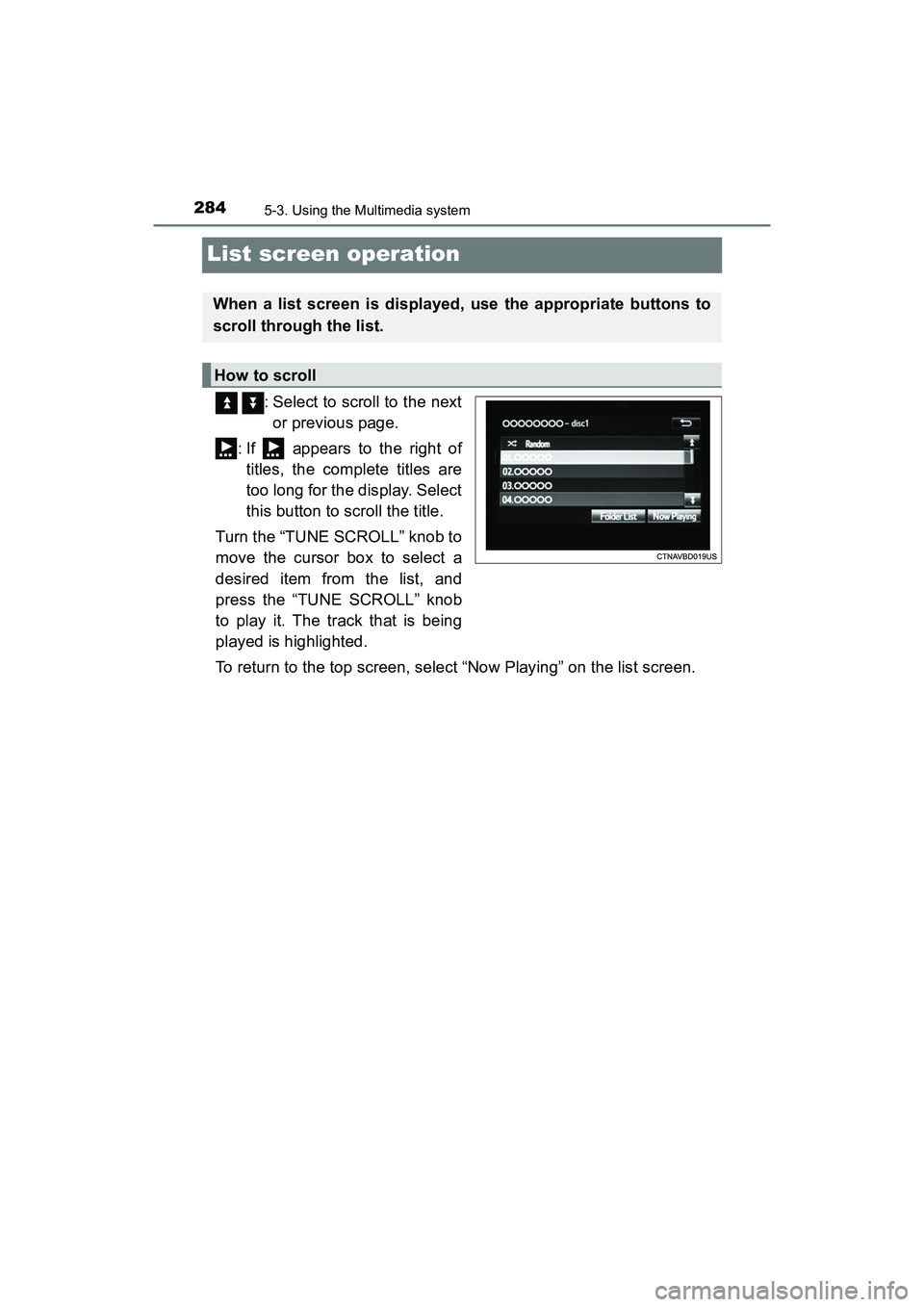
List screen operation
: Select to scroll to the nextor previous page.
: If appears to the right of titles, the complete titles are
too long for the display. Select
this button to scroll the title.
Turn the “TUNE SCROLL” knob to
move the cursor box to select a
desired item from the list, and
press the “TUNE SCROLL” knob
to play it. The track that is being
played is highlighted.
To return to the top screen, select “Now Playing” on the list screen.
When a list screen is displayed, use the appropriate buttons to
scroll through the list.
How to scroll