audio TOYOTA PRIUS V 2018 Manual PDF
[x] Cancel search | Manufacturer: TOYOTA, Model Year: 2018, Model line: PRIUS V, Model: TOYOTA PRIUS V 2018Pages: 607, PDF Size: 41.96 MB
Page 332 of 607
3305-9. Bluetooth® phone
PRIUS v_OM_OM47B78U_(U)
■Receiving a message
●Depending on the cellular phone used for receiving messages, or its regis-
tration status with the audio system, some information may not be dis-
played.
● The pop up screen is separately available for incoming e-mail and SMS/
MMS messages under the following conditions:
E-mail:
• “Incoming E-mail Display” is set to “Full Screen”. ( P. 342)
• “E-mail Notification Popup” is set to on. (P. 342)
SMS/MMS:
• “Incoming SMS/MMS Display” is set to “Full Screen”. ( P. 342)
• “SMS/MMS Notification Popup” is set to on. ( P. 342)
Page 333 of 607
PRIUS v_OM_OM47B78U_(U)
3315-9. Bluetooth® phone
5
Audio system
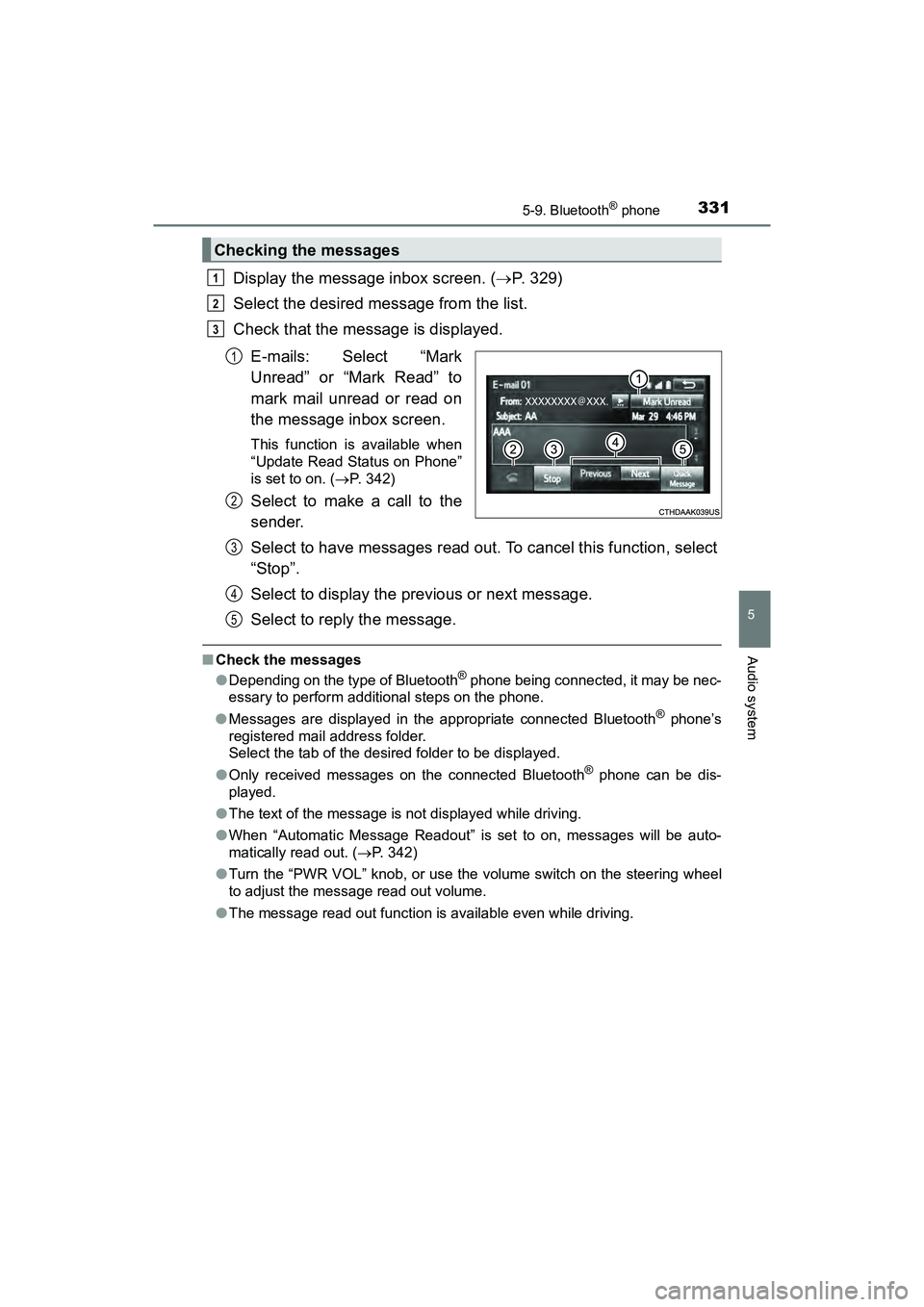
Display the message inbox screen. (P. 329)
Select the desired message from the list.
Check that the message is displayed.
E-mails: Select “Mark
Unread” or “Mark Read” to
mark mail unread or read on
the message inbox screen.
This function is available when
“Update Read Status on Phone”
is set to on. ( P. 342)
Select to make a call to the
sender.
Select to have messages read out. To cancel this function, select
“Stop”.
Select to display the previous or next message.
Select to reply the message.
■Check the messages
●Depending on the type of Bluetooth® phone being connected, it may be nec-
essary to perform additional steps on the phone.
● Messages are displayed in the appropriate connected Bluetooth
® phone’s
registered mail address folder.
Select the tab of the desired folder to be displayed.
● Only received messages on the connected Bluetooth
® phone can be dis-
played.
● The text of the message is not displayed while driving.
● When “Automatic Message Readout” is set to on, messages will be auto-
matically read out. ( P. 342)
● Turn the “PWR VOL” knob, or use the volume switch on the steering wheel
to adjust the message read out volume.
● The message read out function is available even while driving.
Checking the messages
1
2
3
1
2
3
4
5
Page 335 of 607
333
PRIUS v_OM_OM47B78U_(U)
5-9. Bluetooth® phone
5
Audio system
Using the steering wheel switches
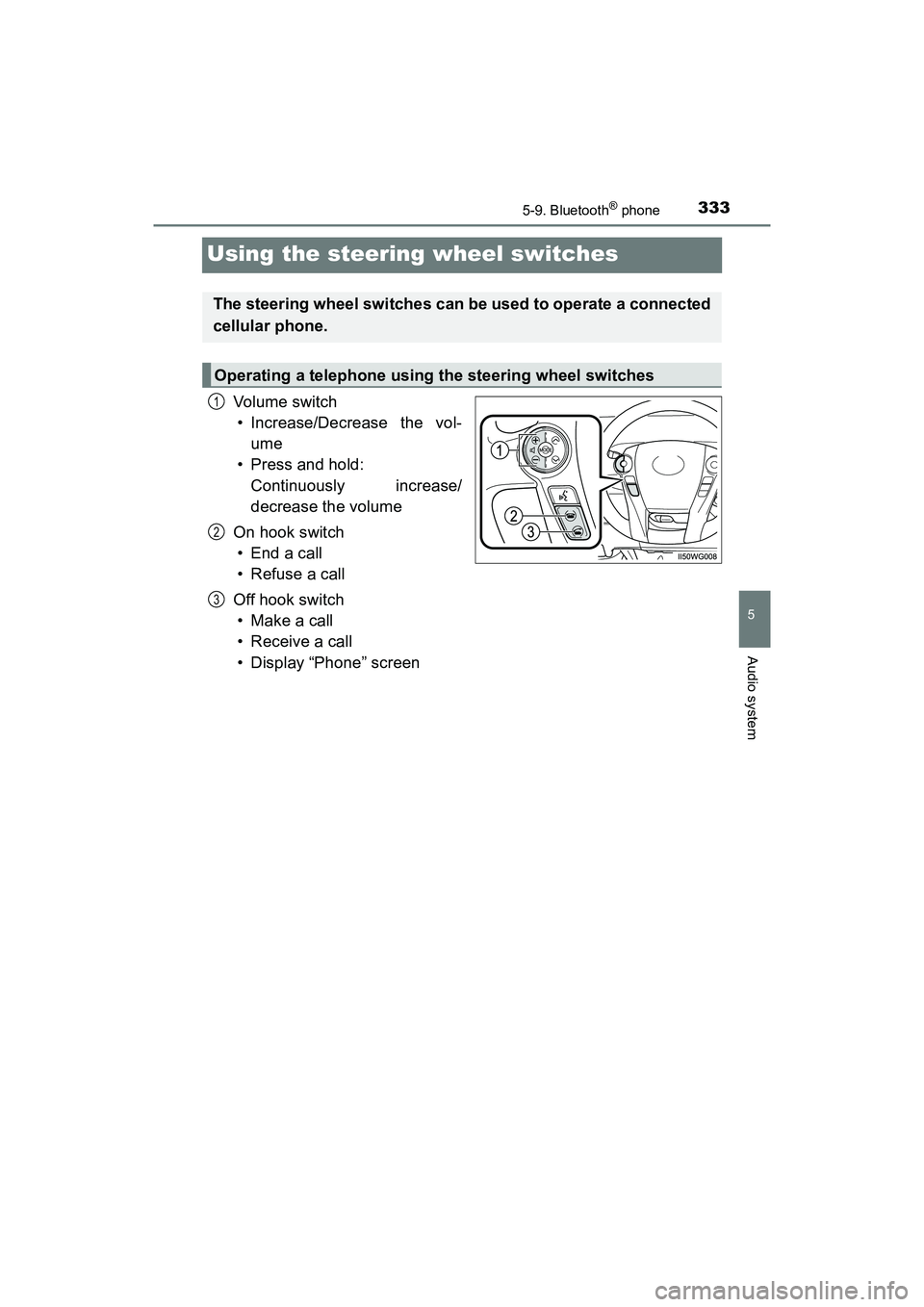
Vol um e s wit ch• Increase/Decrease the vol-
ume
• Press and hold:
Continuously increase/
decrease the volume
On hook switch •End a call
• Refuse a call
Off hook switch • Make a call
• Receive a call
• Display “Phone” screen
The steering wheel switches can be used to operate a connected
cellular phone.
Operating a telephone using the steering wheel switches
1
2
3
Page 337 of 607
335
PRIUS v_OM_OM47B78U_(U)
5-9. Bluetooth® phone
5
Audio system
Contact/Call History Settings
Display the “Phone/Message Settings” screen. (P. 334)
Select “Contact/Call History Settings”.
Select the desired item to be set.
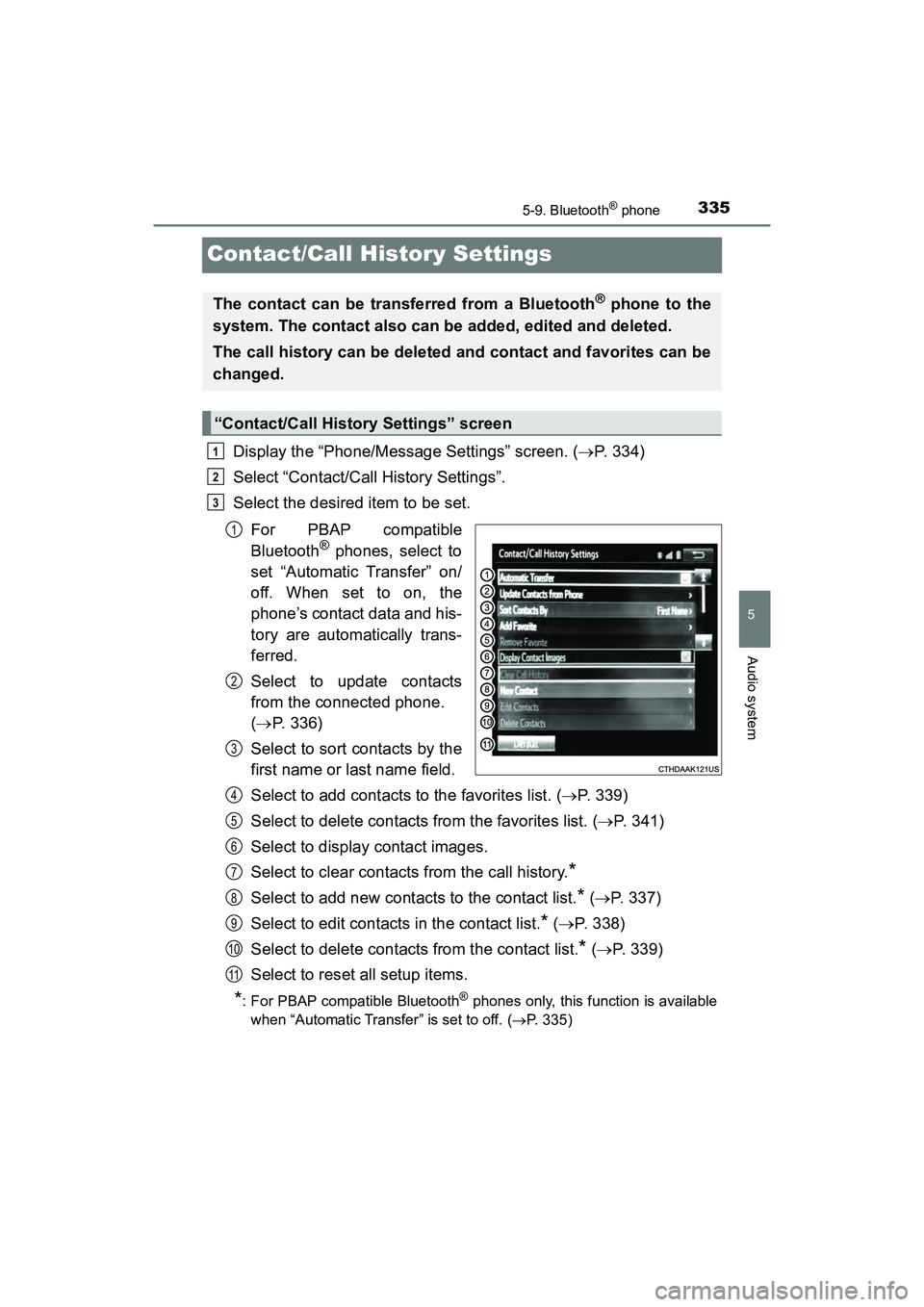
For PBAP compatible
Bluetooth
® phones, select to
set “Automatic Transfer” on/
off. When set to on, the
phone’s contact data and his-
tory are automatically trans-
ferred.
Select to update contacts
from the connected phone.
( P. 336)
Select to sort contacts by the
first name or last name field.
Select to add contacts to the favorites list. ( P. 339)
Select to delete contacts from the favorites list. ( P. 341)
Select to display contact images.
Select to clear contacts from the call history.
*
Select to add new contacts to the contact list.* ( P. 337)
Select to edit contacts in the contact list.
* ( P. 338)
Select to delete contacts from the contact list.
* ( P. 339)
Select to reset all setup items.
*: For PBAP compatible Bluetooth® phones only, this function is available
when “Automatic Transfer” is set to off.
( P. 335)
The contact can be transferred from a Bluetooth® phone to the
system. The contact also can be added, edited and deleted.
The call history can be deleted and contact and favorites can be
changed.
“Contact/Call History Settings” screen
1
2
3
1
2
3
4
5
6
7
8
9
10
11
Page 339 of 607
PRIUS v_OM_OM47B78U_(U)
3375-9. Bluetooth® phone
5
Audio system
■Updating the contacts in a different way (From the “Call
History” screen)
For PBAP compatible Bluetooth
® phones, this function is available
when “Automatic Transfer” is set to off. ( P. 335)
Display the phone screen. ( P. 319)
Select the “Call History” tab and select a contact not yet regis-
tered in the contact list.
Select “Update Contact”.
Select the desired contact.
Select a phone type for the phone number.
New contact data can be registered. Up to 4 numbers per person can
be registered. For PBAP compatible Bluetooth
® phones, this function
is available when “Automatic Transfer” is set to off. ( P. 335)
Select “New Contact”.
Enter the name and select “OK”.
Enter the phone number and select “OK”.
Select the phone type for the phone number.
To add another number to this contact, select “Yes”.
■Registering a new contact in a different way (From the “Call
History” screen)
Display the phone screen. ( P. 319)
Select the “Call History” tab and select a contact not yet regis-
tered in the contact list.
Select “Add to Contacts”.
Follow the steps in “Registering a new contact to the contact list”
from . ( P. 337)
Registering a new contact to the contact list
1
2
3
4
5
1
2
3
4
5
1
2
3
4
2
Page 341 of 607
PRIUS v_OM_OM47B78U_(U)
3395-9. Bluetooth® phone
5
Audio system
For PBAP compatible Bluetooth® phones, this function is available
when “Automatic Transfer” is set to off. ( P. 335)
Select “Delete Contacts”.
Select the desired contact and select “Delete”.
Select “Yes” when the confirmation screen appears.
■Deleting the contact in a different way (From the “Contact
Details” screen) Display the phone screen. ( P. 319)
Select the “Contacts”, “Call History” tab or the “Favorites” tab and
select the desired contact.
Select “Delete Contacts”.
Select “Yes” when the confirmation screen appears.
Up to 15 contacts (maximum of 4 numbers per contact) can be regis-
tered in the favorites list.
■Registering the contacts in the favorites list Select “Add Favorite”.
Select the desired contact to add to the favorites list.
Dimmed contacts are already stored as a favorite.
Check that a confirmation screen is displayed when the opera-
tion is complete.
Deleting the contact data
Favorites list setting
1
2
3
1
2
3
4
1
2
3
Page 343 of 607
PRIUS v_OM_OM47B78U_(U)
3415-9. Bluetooth® phone
5
Audio system
■Deleting the contacts in the favorites listSelect “Remove Favorite”.
Select the desired contacts and select “Remove”.
Select “Yes” when the confirmation screen appears.
Check that a confirmation screen is displayed when the opera-
tion is complete.
Deleting contacts in the favorites list in a different way (from the
“Contacts” screen)
Display the phone screen. ( P. 319)
Select the “Contacts” tab.
Select at the beginning of the contact list name to be deleted
from the favorites list.
When selected, is changed to , and the data is deleted from the
list.
Deleting contacts in the favorites list in a different way (from the
“Contact Details” screen)
Display the phone screen. ( P. 319)
Select the “Contacts”, “Call History” tab or the “Favorites” tab and
select the desired contact to delete.
Select “Remove Favorite”.
Select “Yes” when the confirmation screen appears.
Check that a confirmation screen is displayed when the opera-
tion is complete.
1
2
3
4
1
2
3
1
2
3
4
5
Page 345 of 607
PRIUS v_OM_OM47B78U_(U)
3435-9. Bluetooth® phone
5
Audio system
■Displaying the “Messaging Settings” screen in a different wayDisplay the phone screen. ( P. 319)
Select .
Select “Settings”.
Select “Messaging Settings”.
Display the “Phone/Message Settings” screen. ( P. 334)
Select “Phone Display Settings”.
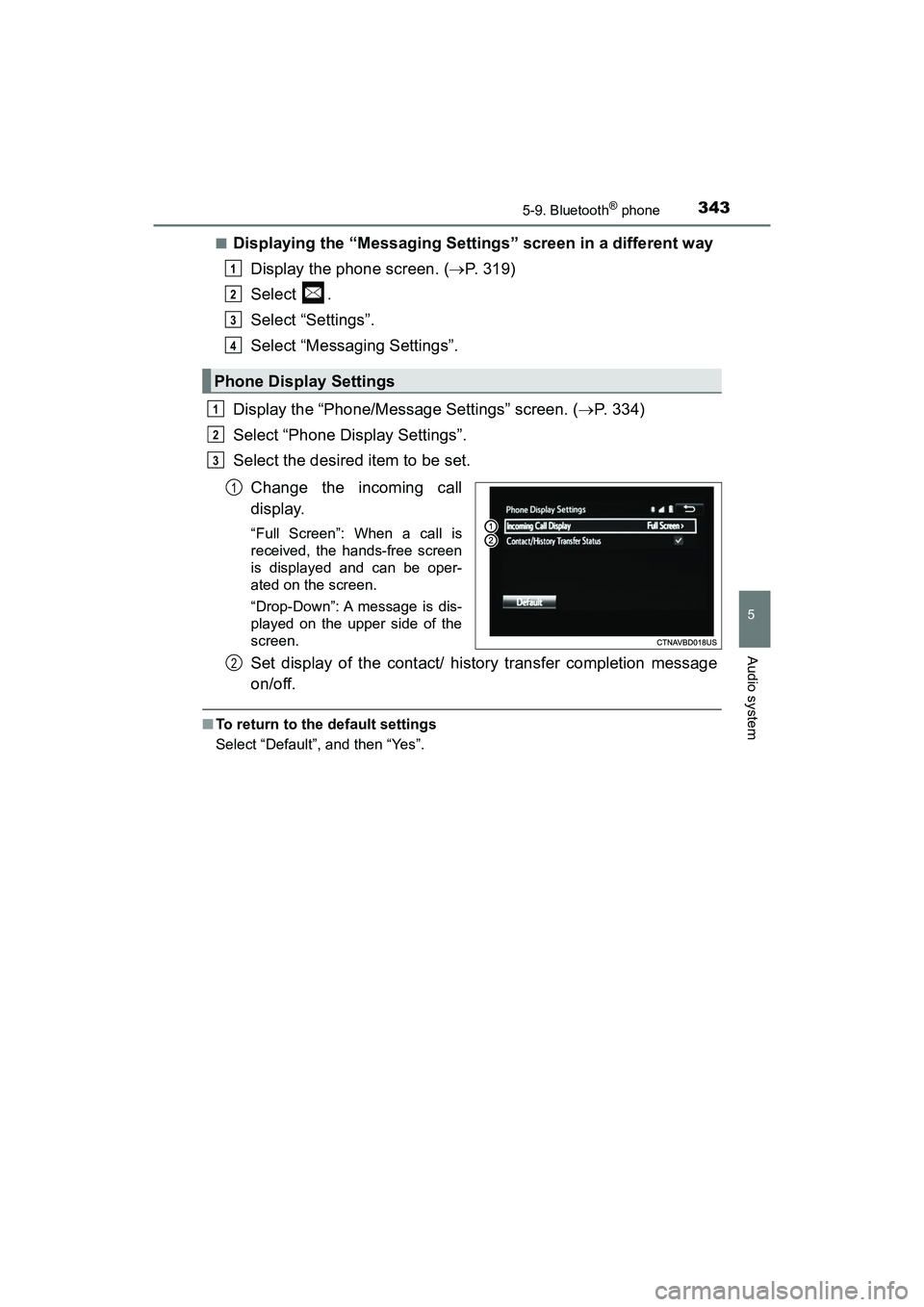
Select the desired item to be set.
Change the incoming call
display.
“Full Screen”: When a call is
received, the hands-free screen
is displayed and can be oper-
ated on the screen.
“Drop-Down”: A message is dis-
played on the upper side of the
screen.
Set display of the contact/ history transfer completion message
on/off.
■To return to the default settings
Select “Default”, and then “Yes”.
Phone Display Settings
1
2
3
4
1
2
3
1
2
Page 347 of 607
PRIUS v_OM_OM47B78U_(U)
3455-9. Bluetooth® phone
5
Audio system
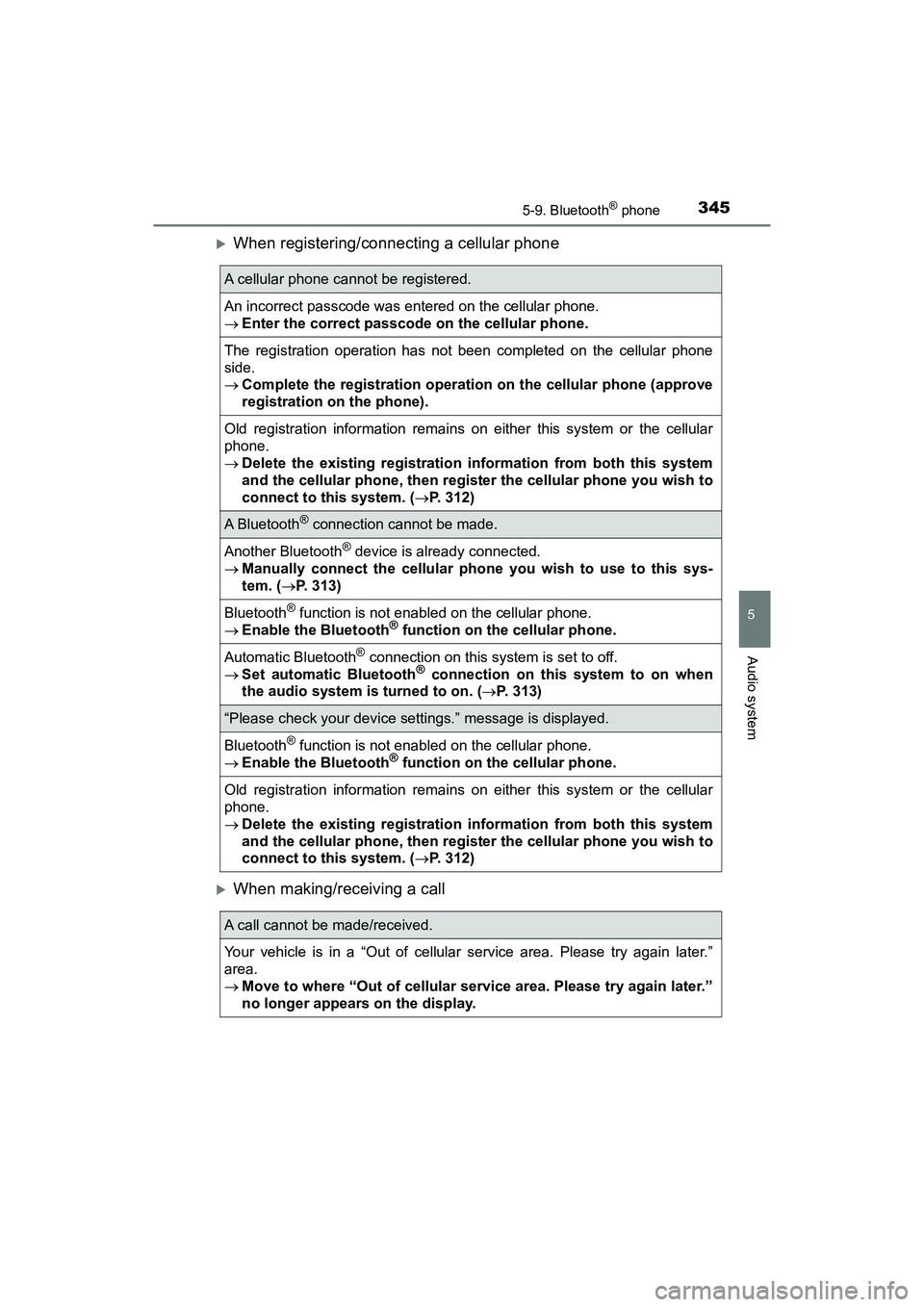
When registering/connecting a cellular phone
When making/receiving a call
A cellular phone cannot be registered.
An incorrect passcode was entered on the cellular phone.
Enter the correct passcode on the cellular phone.
The registration operation has not been completed on the cellular phone
side.
Complete the registration operation on the cellular phone (approve
registration on the phone).
Old registration information remains on either this system or the cellular
phone.
Delete the existing registration information from both this system
and the cellular phone, then regist er the cellular phone you wish to
connect to this system. ( P. 312)
A Bluetooth® connection cannot be made.
Another Bluetooth® device is already connected.
Manually connect the cellular phone you wish to use to this sys-
tem. ( P. 313)
Bluetooth® function is not enabled on the cellular phone.
Enable the Bluetooth® function on the cellular phone.
Automatic Bluetooth® connection on this system is set to off.
Set automatic Bluetooth® connection on this system to on when
the audio system is turned to on. ( P. 313)
“Please check your device settings.” message is displayed.
Bluetooth® function is not enabled on the cellular phone.
Enable the Bluetooth® function on the cellular phone.
Old registration information remains on either this system or the cellular
phone.
Delete the existing registration information from both this system
and the cellular phone, then regist er the cellular phone you wish to
connect to this system. ( P. 312)
A call cannot be made/received.
Your vehicle is in a “Out of cellular service area. Please try again later.”
area.
Move to where “Out of cellular service area. Please try again later.”
no longer appears on the display.
Page 349 of 607
PRIUS v_OM_OM47B78U_(U)
3475-9. Bluetooth® phone
5
Audio system
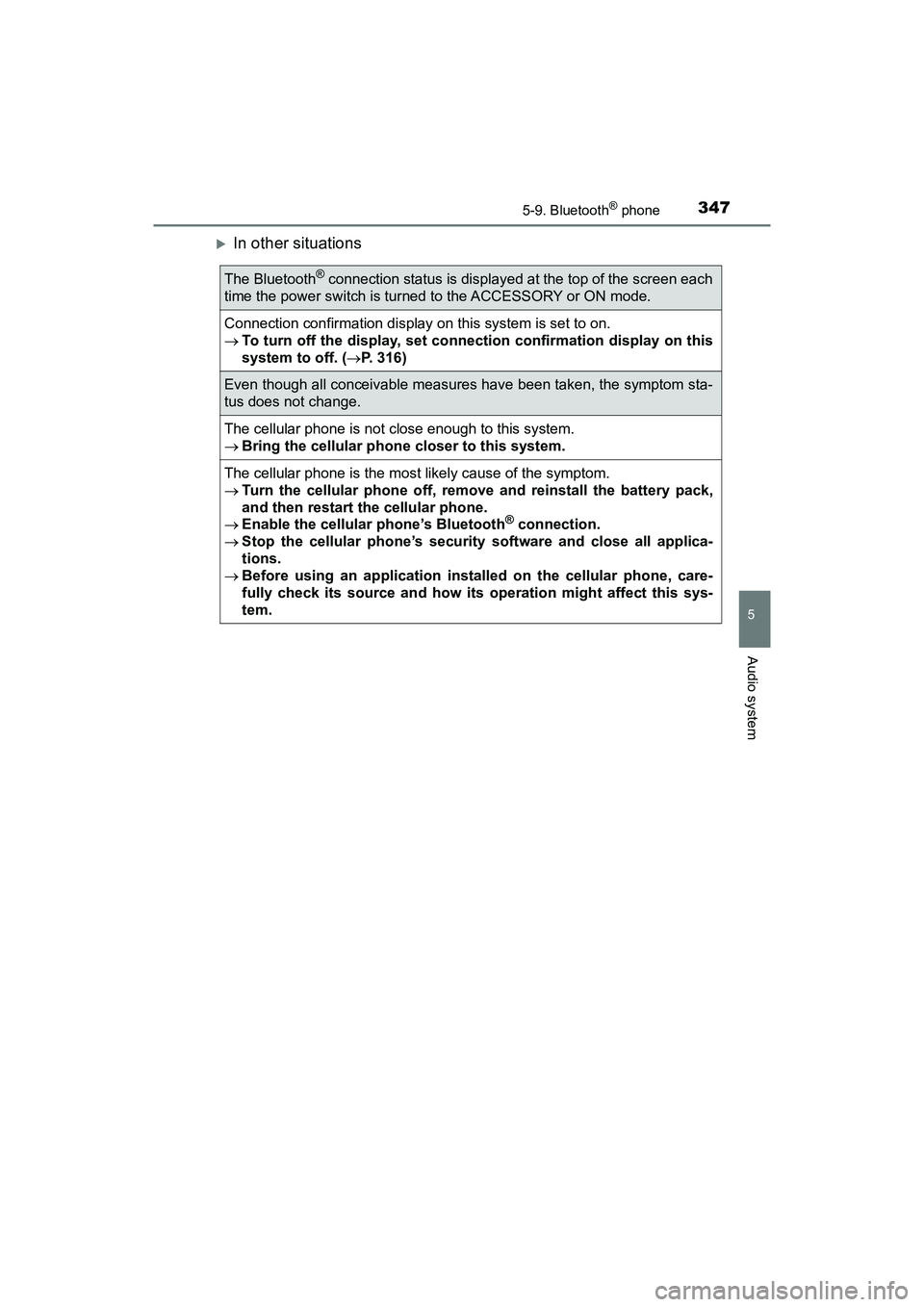
In other situations
The Bluetooth® connection status is displayed at the top of the screen each
time the power switch is turned to the ACCESSORY or ON mode.
Connection confirmation display on this system is set to on.
To turn off the display, set connection confirmation display on this
system to off. ( P. 316)
Even though all conceivable measures have been taken, the symptom sta-
tus does not change.
The cellular phone is not close enough to this system.
Bring the cellular phone closer to this system.
The cellular phone is the most likely cause of the symptom.
Turn the cellular phone off, remo ve and reinstall the battery pack,
and then restart the cellular phone.
Enable the cellular phone’s Bluetooth
® connection.
Stop the cellular phone’s security software and close all applica-
tions.
Before using an application inst alled on the cellular phone, care-
fully check its source and how its operation might affect this sys-
tem.