audio TOYOTA PRIUS V 2018 Repair Manual
[x] Cancel search | Manufacturer: TOYOTA, Model Year: 2018, Model line: PRIUS V, Model: TOYOTA PRIUS V 2018Pages: 607, PDF Size: 41.96 MB
Page 317 of 607
315
PRIUS v_OM_OM47B78U_(U)
5-7. Connecting Bluetooth®
5
Audio system
Displaying a Bluetooth® device details
Display the “Bluetooth* Setup” screen. (P. 308)
Select the device.
Select “Device Info”.
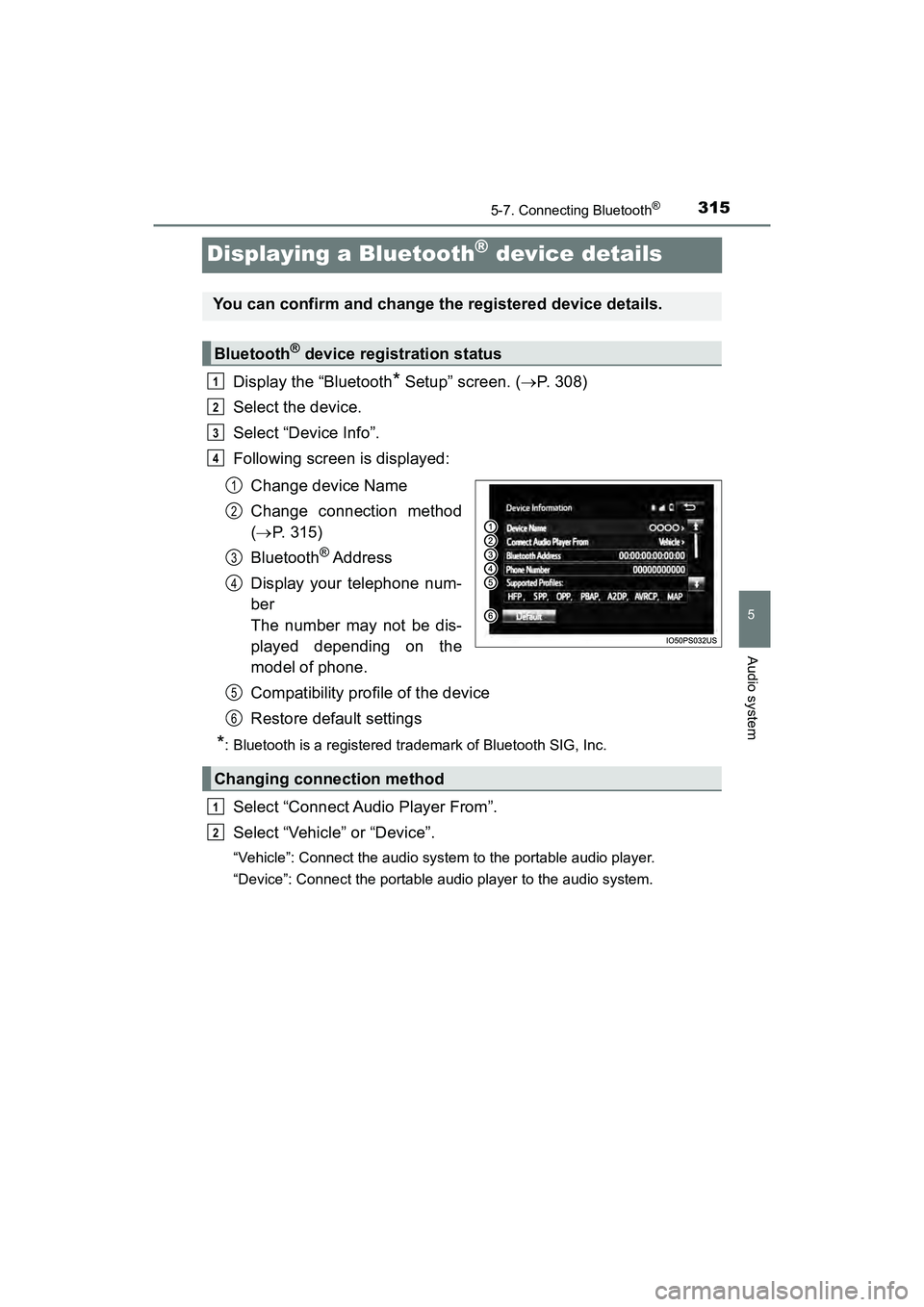
Following screen is displayed:
Change device Name
Change connection method
( P. 315)
Bluetooth
® Address
Display your telephone num-
ber
The number may not be dis-
played depending on the
model of phone.
Compatibility profile of the device
Restore default settings
*: Bluetooth is a registered trademark of Bluetooth SIG, Inc.
Select “Connect Audio Player From”.
Select “Vehicle” or “Device”.
“Vehicle”: Connect the audio system to the portable audio player.
“Device”: Connect the portable audio player to the audio system.
You can confirm and change the registered device details.
Bluetooth® device registration status
1
2
3
4
1
2
3
4
Changing connection method
5
6
1
2
Page 318 of 607
316
PRIUS v_OM_OM47B78U_(U)
5-7. Connecting Bluetooth®
Detailed Bluetooth® settings
Display the “Bluetooth* Setup” screen. (P. 308)
Select “System Settings”.
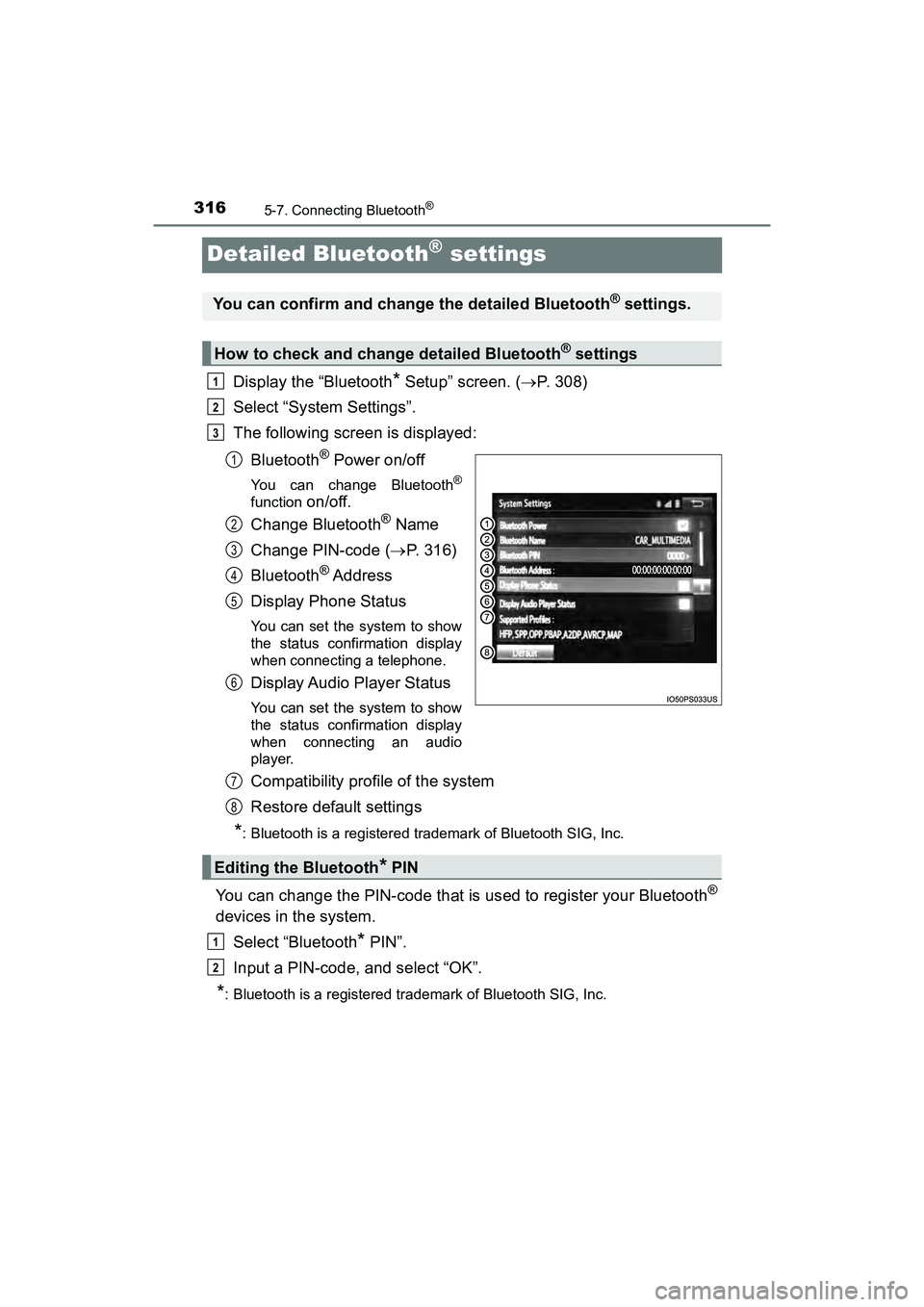
The following screen is displayed:
Bluetooth
® Power on/off
You can change Bluetooth®
function on/off.
Change Bluetooth
® Name
Change PIN-code ( P. 316)
Bluetooth
® Address
Display Phone Status
You can set the system to show
the status confirmation display
when connecting a telephone.
Display Audio Player Status
You can set the system to show
the status confirmation display
when connecting an audio
player.
Compatibility profile of the system
Restore default settings
*: Bluetooth is a registered trademark of Bluetooth SIG, Inc.
You can change the PIN-code that is used to register your Bluetooth®
devices in the system. Select “Bluetooth
* PIN”.
Input a PIN-code, and select “OK”.
*: Bluetooth is a registered trademark of Bluetooth SIG, Inc.
You can confirm and change the detailed Bluetooth® settings.
How to check and change detailed Bluetooth® settings
1
2
3
1
2
3
4
5
6
Editing the Bluetooth* PIN
7
8
1
2
Page 319 of 607
317
PRIUS v_OM_OM47B78U_(U)
5-8. Bluetooth® Audio
5
Audio system
Listening to Bluetooth® Audio
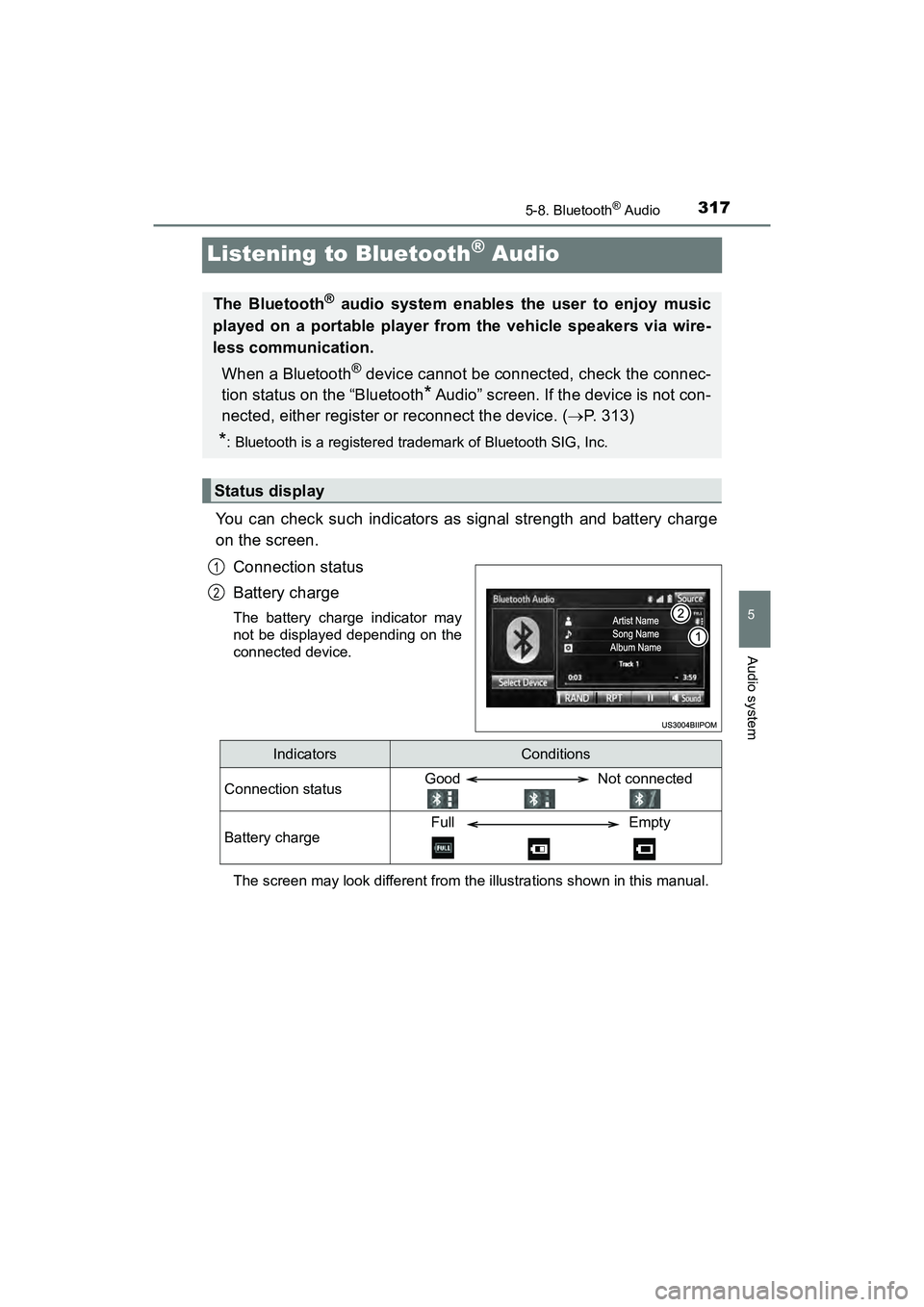
You can check such indicators as signal strength and battery charge
on the screen.Connection status
Battery charge
The battery charge indicator may
not be displayed depending on the
connected device.
The screen may look different from th e illustrations shown in this manual.
The Bluetooth® audio system enables the user to enjoy music
played on a portable player from the vehicle speakers via wire-
less communication.
When a Bluetooth
® device cannot be connected, check the connec-
tion status on the “Bluetooth
* Audio” screen. If the device is not con-
nected, either register or reconnect the device. ( P. 313)
*: Bluetooth is a registered trademark of Bluetooth SIG, Inc.
Status display
1
2
IndicatorsConditions
Connection statusGood Not connected
Battery chargeFull Empty
Page 320 of 607
3185-8. Bluetooth® Audio
PRIUS v_OM_OM47B78U_(U)
Select or to Play/Pause.
For details on “Bluetooth
* Audio” screen operation methods, refer to
Basic Audio Operations. ( P. 274)
For details on how to select a track or album, refer to selecting, fast-
forwarding and reversing tracks/files/songs. ( P. 285)
*: Bluetooth is a registered trademark of Bluetooth SIG, Inc.
Playing Bluetooth® audio
Page 321 of 607
319
PRIUS v_OM_OM47B78U_(U)
5-9. Bluetooth® phone
5
Audio system
Using a Bluetooth® Phone
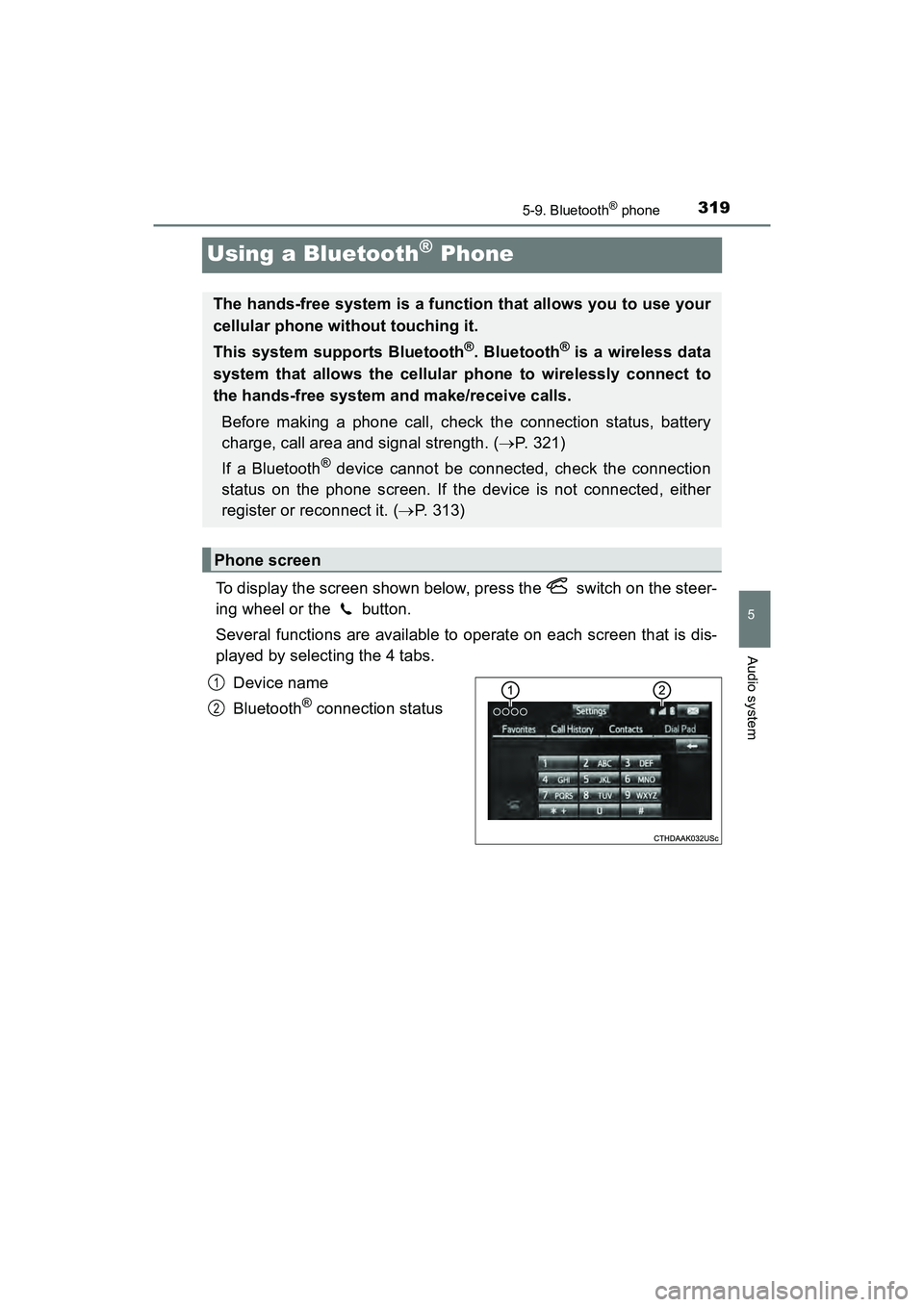
To display the screen shown below, press the switch on the steer-
ing wheel or the button.
Several functions are available to operate on each screen that is dis-
played by selecting the 4 tabs.Device name
Bluetooth
® connection status
The hands-free system is a function that allows you to use your
cellular phone without touching it.
This system supports Bluetooth
®. Bluetooth® is a wireless data
system that allows the cellular phone to wirelessly connect to
the hands-free system and make/receive calls.
Before making a phone call, check the connection status, battery
charge, call area and signal strength. ( P. 321)
If a Bluetooth
® device cannot be connected, check the connection
status on the phone screen. If the device is not connected, either
register or reconnect it. ( P. 313)
Phone screen
1
2
Page 323 of 607
PRIUS v_OM_OM47B78U_(U)
3215-9. Bluetooth® phone
5
Audio system
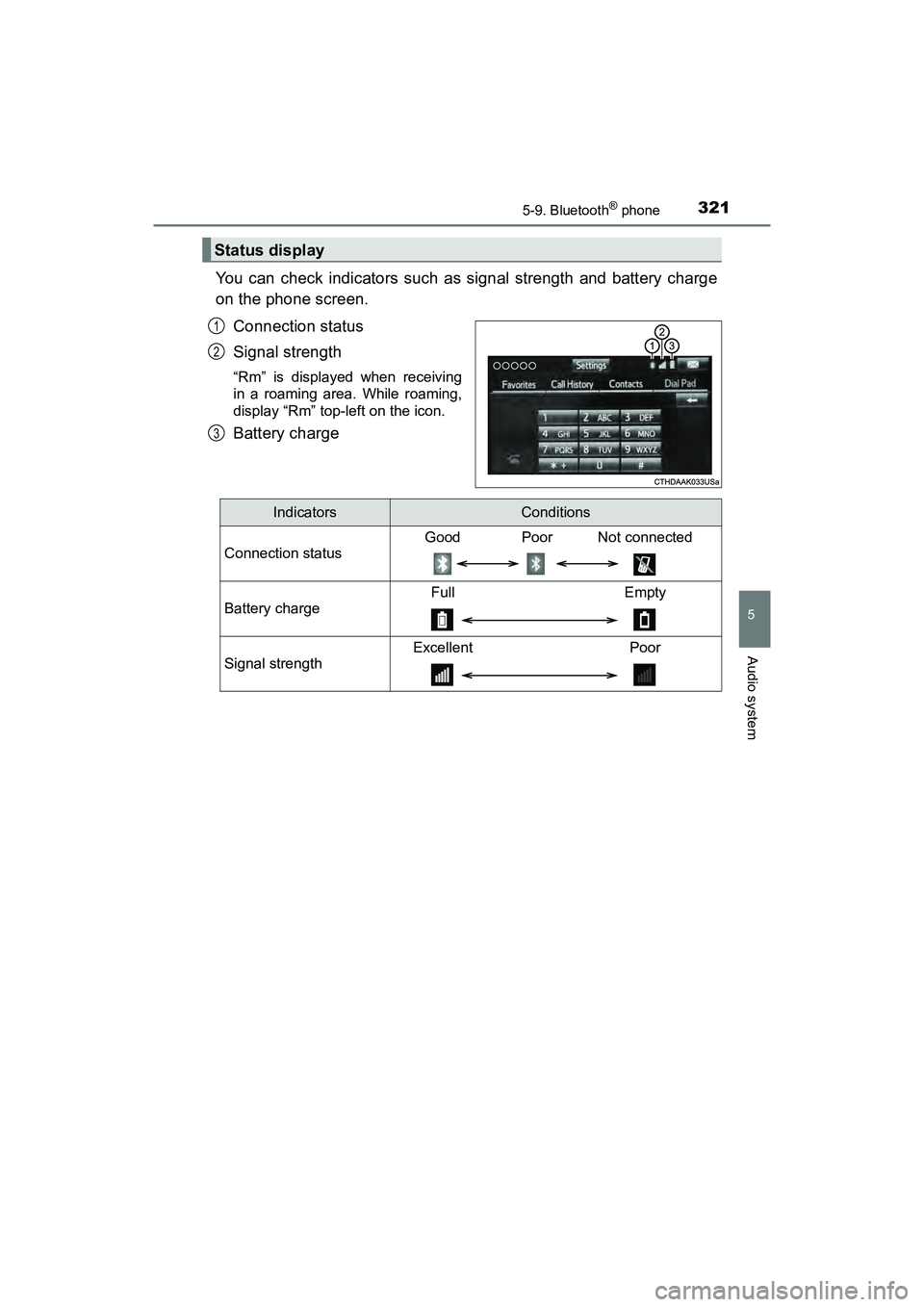
You can check indicators such as signal strength and battery charge
on the phone screen.Connection status
Signal strength
“Rm” is displayed when receiving
in a roaming area. While roaming,
display “Rm” top-left on the icon.
Battery charge
Status display
1
2
3
IndicatorsConditions
Connection status
Good Poor Not connected
Battery charge
Full Empty
Signal strength
Excellent Poor
Page 325 of 607
PRIUS v_OM_OM47B78U_(U)
3235-9. Bluetooth® phone
5
Audio system
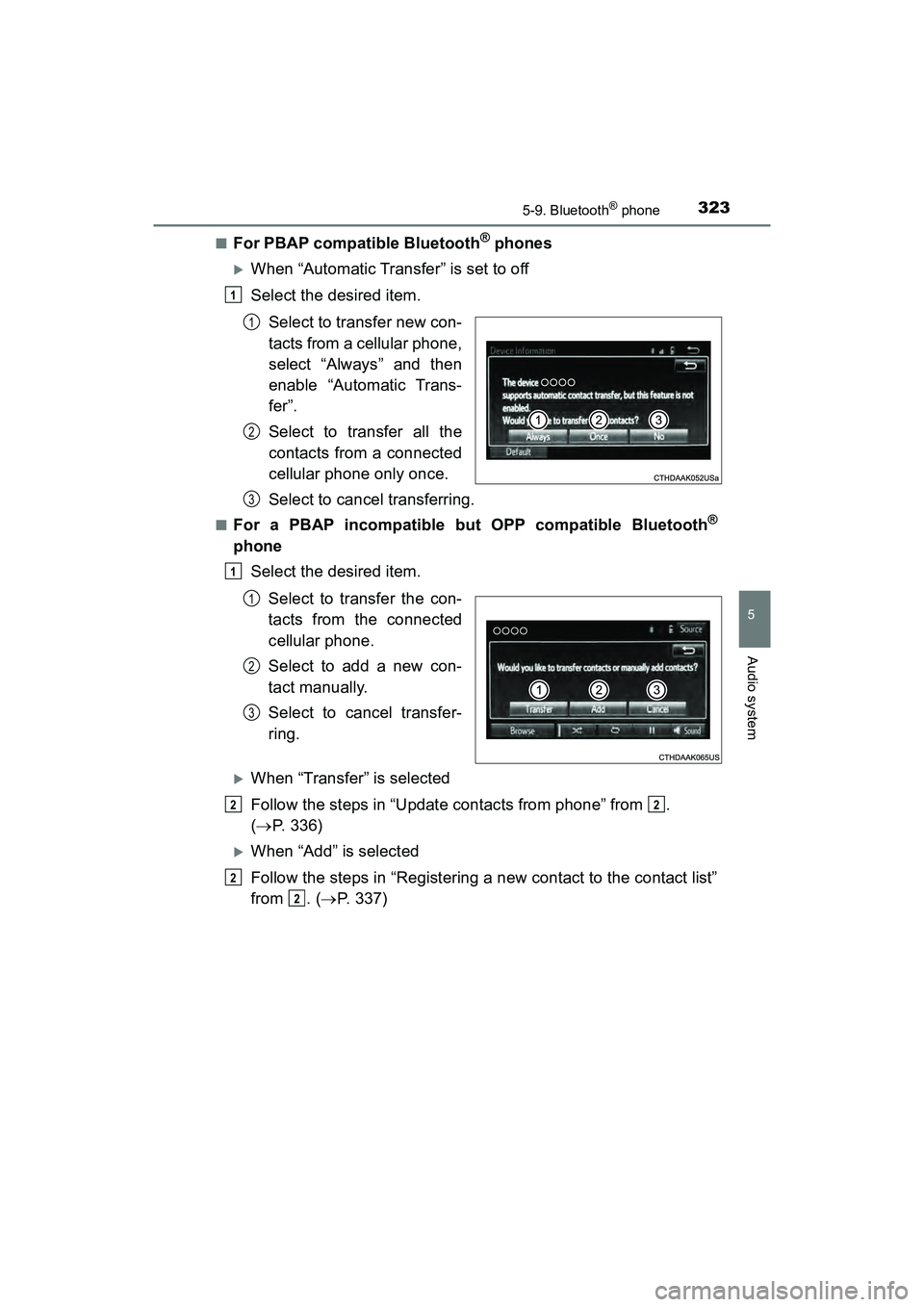
■For PBAP compatible Bluetooth® phones
When “Automatic Transfer” is set to off
Select the desired item.Select to transfer new con-
tacts from a cellular phone,
select “Always” and then
enable “Automatic Trans-
fer”.
Select to transfer all the
contacts from a connected
cellular phone only once.
Select to cancel transferring.
■For a PBAP incompatible but OPP compatible Bluetooth®
phoneSelect the desired item.
Select to transfer the con-
tacts from the connected
cellular phone.
Select to add a new con-
tact manually.
Select to cancel transfer-
ring.
When “Transfer” is selected
Follow the steps in “Update contacts from phone” from .
( P. 336)
When “Add” is selected
Follow the steps in “Registering a new contact to the contact list”
from . ( P. 337)
1
1
2
3
1
1
2
3
22
2
2
Page 327 of 607
325
PRIUS v_OM_OM47B78U_(U)
5-9. Bluetooth® phone
5
Audio system
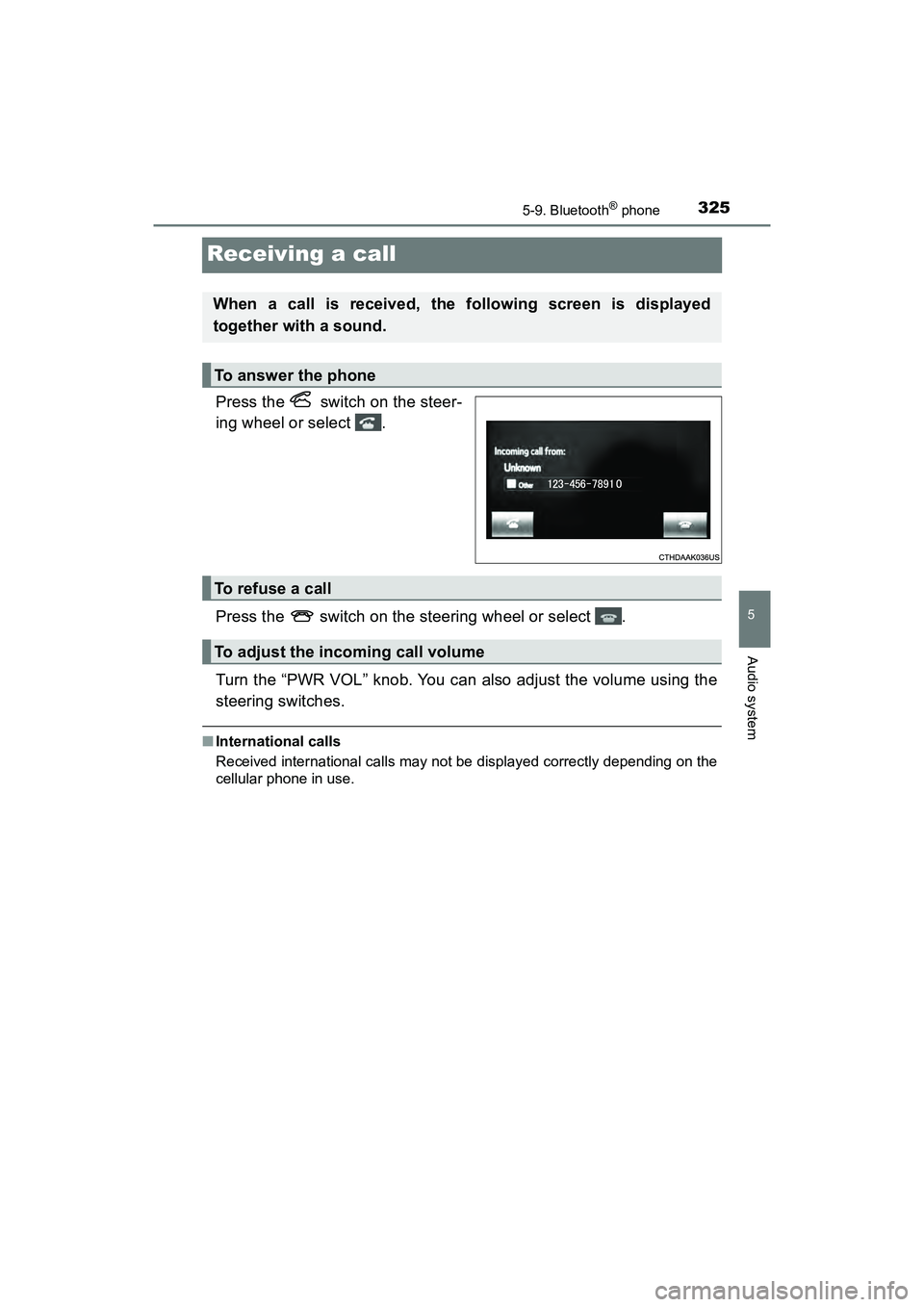
Receiving a call
Press the switch on the steer-
ing wheel or select .
Press the switch on the steering wheel or select .
Turn the “PWR VOL” knob. You can also adjust the volume using the
steering switches.
■International calls
Received international calls may not be displayed correctly depending on the
cellular phone in use.
When a call is received, the following screen is displayed
together with a sound.
To answer the phone
To refuse a call
To adjust the incoming call volume
Page 329 of 607
PRIUS v_OM_OM47B78U_(U)
3275-9. Bluetooth® phone
5
Audio system
■Release Tones
●A continuous tone signal is a character string that consists of numbers and
the characters p or w. (e.g.056133w0123p#1 )
● When the “p” pause tone is used, the tone data up until the next pause tone
will be automatically sent after 2 seconds have elapsed. When the “w”
pause tone is used, the tone data up until the next pause tone will be auto-
matically sent after a user operation is performed.
● Release tones can be used when automated operation of a phone based
service such as an answering machine or bank phone service is desired. A
phone number with continuous tone signals can be registered in the contact
list.
● Tone data after a “w” pause tone can be operated on voice command during
a call.
Page 331 of 607
329
PRIUS v_OM_OM47B78U_(U)
5-9. Bluetooth® phone
5
Audio system
Bluetooth® phone message function
Press button.
Select .
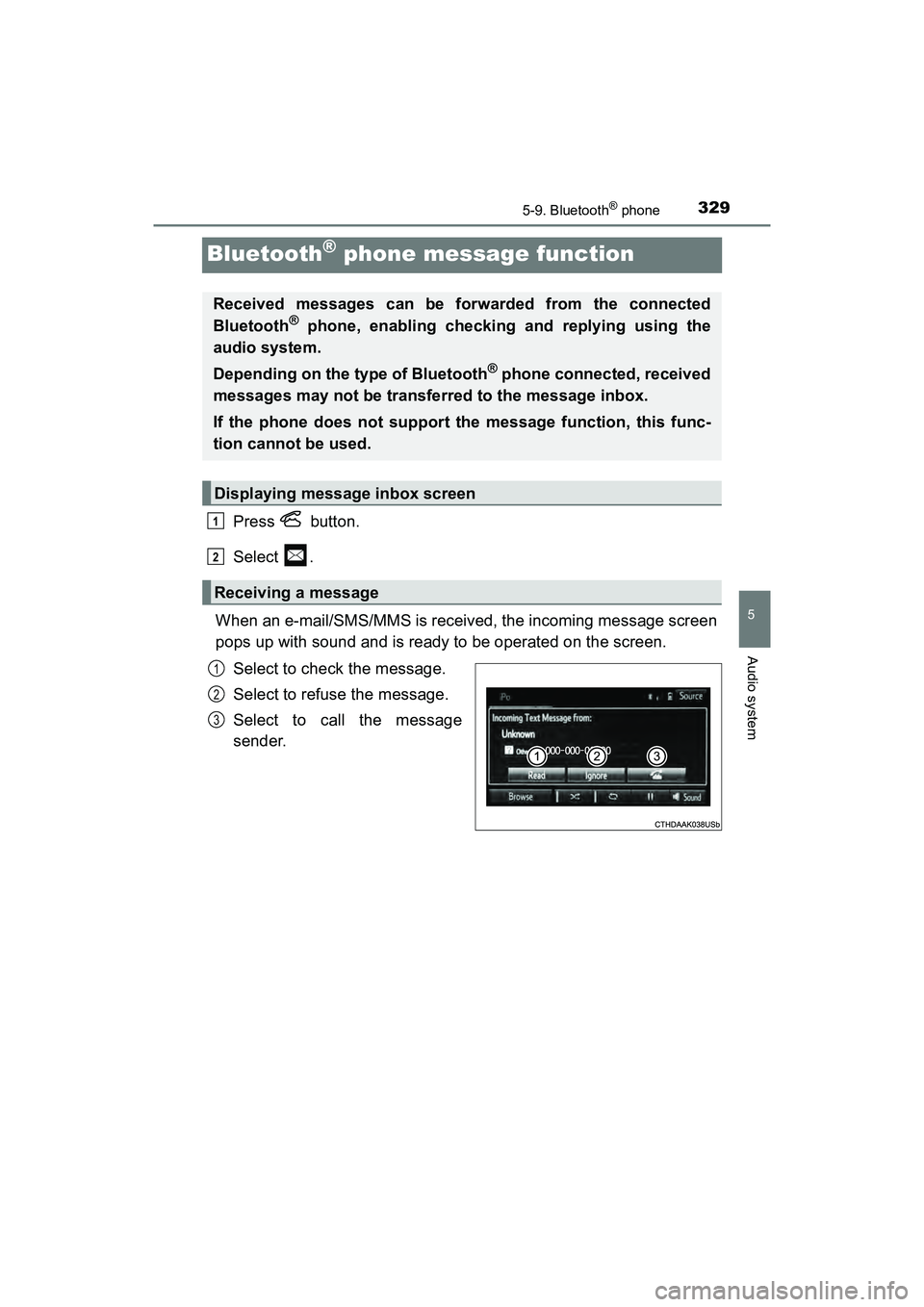
When an e-mail/SMS/MMS is received, the incoming message screen
pops up with sound and is ready to be operated on the screen. Select to check the message.
Select to refuse the message.
Select to call the message
sender.
Received messages can be forwarded from the connected
Bluetooth® phone, enabling checking and replying using the
audio system.
Depending on the type of Bluetooth
® phone connected, received
messages may not be transferred to the message inbox.
If the phone does not support the message function, this func-
tion cannot be used.
Displaying message inbox screen
Receiving a message
1
2
1
2
3