buttons TOYOTA PROACE 2017 Owner's Manual
[x] Cancel search | Manufacturer: TOYOTA, Model Year: 2017, Model line: PROACE, Model: TOYOTA PROACE 2017Pages: 516, PDF Size: 91.65 MB
Page 235 of 516
235
Exceeding the programmed
speed
If the programmed speed is exceeded, the displayed speed flashes.Once the vehicle returns to the programmed speed, the display becomes steady again.
Switching off
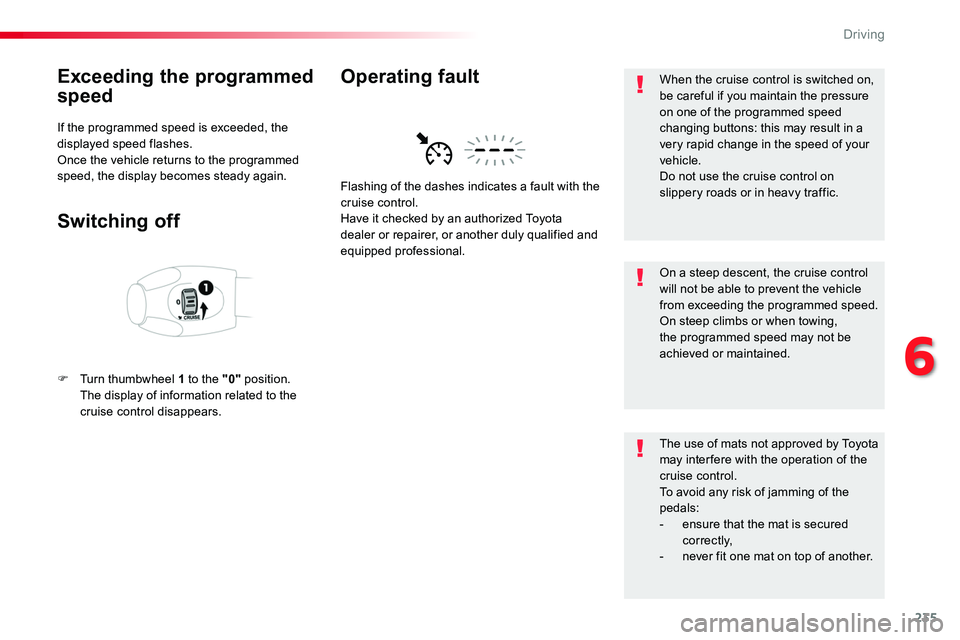
F Turn thumbwheel 1 to the "0" position. The display of information related to the cruise control disappears.
Flashing of the dashes indicates a fault with the cruise control.Have it checked by an authorized Toyota
dealer or repairer, or another duly qualified and equipped professional.
Operating faultWhen the cruise control is switched on, be careful if you maintain the pressure on one of the programmed speed changing buttons: this may result in a very rapid change in the speed of your vehicle.Do not use the cruise control on slippery roads or in heavy traffic.
On a steep descent, the cruise control will not be able to prevent the vehicle from exceeding the programmed speed.On steep climbs or when towing, the programmed speed may not be achieved or maintained.
The use of mats not approved by Toyota may inter fere with the operation of the cruise control.To avoid any risk of jamming of the pedals:- ensure that the mat is secured c o r r e c t l y,- never fit one mat on top of another.
6
Driving
Page 237 of 516
237
If your vehicle has an automatic or electronic gearbox, second gear or higher must be engaged.
If your vehicle has a manual gearbox, third or fourth gear, or higher, must be engaged.
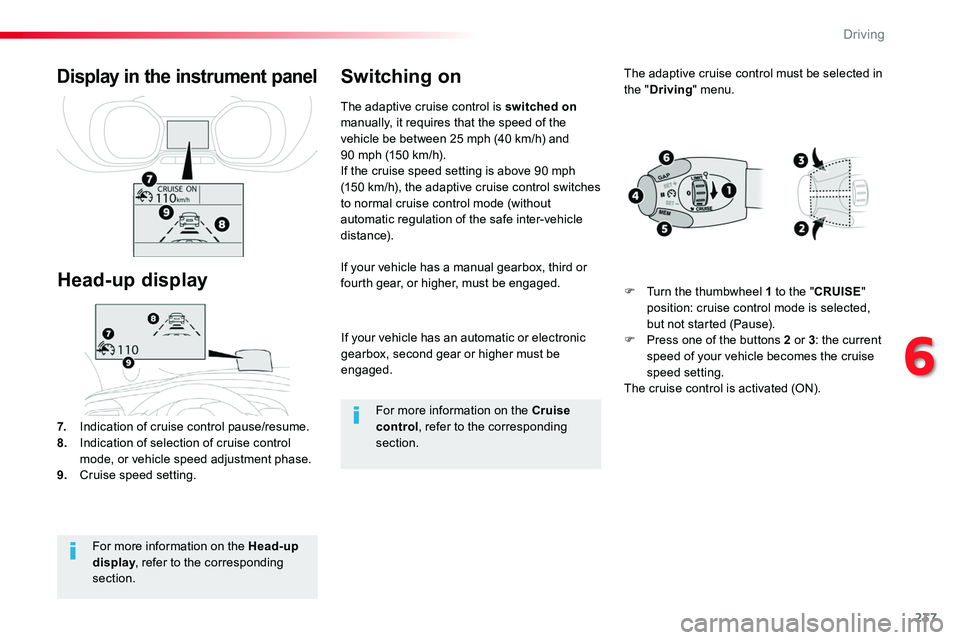
7. Indication of cruise control pause/resume.8. Indication of selection of cruise control mode, or vehicle speed adjustment phase.9. Cruise speed setting.
Display in the instrument panel
Head-up display
The adaptive cruise control is switched on manually, it requires that the speed of the vehicle be between 25 mph (40 km/h) and 90 mph (150 km/h).If the cruise speed setting is above 90 mph (150 km/h), the adaptive cruise control switches to normal cruise control mode (without automatic regulation of the safe inter-vehicle distance).
Switching on
For more information on the Head-up display, refer to the corresponding section.
For more information on the Cruise control, refer to the corresponding
section.
The adaptive cruise control must be selected in the "Driving" menu.
F Turn the thumbwheel 1 to the "CRUISE" position: cruise control mode is selected, but not started (Pause).F Press one of the buttons 2 or 3: the current speed of your vehicle becomes the cruise speed setting.The cruise control is activated (ON).
6
Driving
Page 242 of 516
242
In the event of a fault with the adaptive cruise control, you are alerted by an audible signal and display of the message message "Driving aid functions fault".Have the system checked by an authorized Toyota dealer or repairer, or another duly qualified and equipped professional.
Operating faultThe adaptive cruise control operates by day and at night, in fog or moderate rainfall.
When the cruise control is working, take care if making a maintained press on one of the cruise control programmed speed modification buttons: this can lead to a very quick change in the speed of your vehicle.Do not use the adaptive cruise control on slippery sur faces or in heavy traffic.
When descending a steep hill, the cruise control may not be able to prevent the vehicle from exceeding the programmed speed.When ascending a steep hill or when towing, it might not be possible to achieve or maintain the programmed speed.
The use of mats not approved by Toyota may inter fere with the operation of the adaptive cruise control.To avoid any risk of jamming the pedals:- ensure that mats are secured c o r r e c t l y,- never fit one mat on top of another.It is recommended that you always keep
your feet close to the pedals.
If the difference between the programmed speed setting and the speed of the vehicle in front is too great, the speed cannot be adjusted: the cruise control is automatically deactivated.
The system does not act on the braking system, but works only with engine braking.The regulation range is limited: there will no longer be any adjustment of speed if the difference between the programmed speed setting and the speed of the vehicle in front becomes too high.
The adaptive cruise control cannot in any circumstances replace the observation of speed limits, nor the need for the vigilance on the part of the driver.
Driving
Page 339 of 516
339
Localised Assistance Call
For technical reasons, particularly to improve the quality of Telematic services to customers, the manufacturer reserves the right to
carry out updates to the vehicle's on-board telematic system.
The fault with the system does not prevent the vehicle being driven.
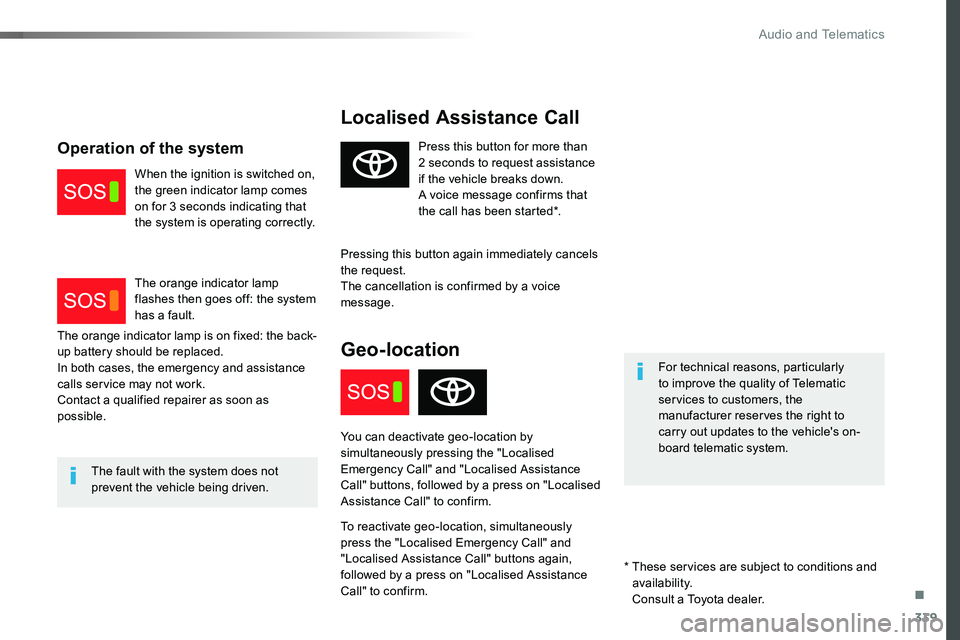
Press this button for more than 2 seconds to request assistance if the vehicle breaks down.A voice message confirms that the call has been started*.
Pressing this button again immediately cancels the request.The cancellation is confirmed by a voice message.
Geo-location
You can deactivate geo-location by simultaneously pressing the "Localised Emergency Call" and "Localised Assistance Call" buttons, followed by a press on "Localised Assistance Call" to confirm.
To reactivate geo-location, simultaneously press the "Localised Emergency Call" and "Localised Assistance Call" buttons again, followed by a press on "Localised Assistance Call" to confirm.
The orange indicator lamp is on fixed: the back-up battery should be replaced.In both cases, the emergency and assistance calls service may not work.Contact a qualified repairer as soon as possible.
Operation of the system
When the ignition is switched on, the green indicator lamp comes on for 3 seconds indicating that the system is operating correctly.
The orange indicator lamp flashes then goes off: the system has a fault.
* These services are subject to conditions and availability.
Consult a Toyota dealer.
.
Audio and Telematics
Page 342 of 516
342
FM/87.5 MHz
87.5MHz 12:13
23 °C 87.5 MHz
First steps
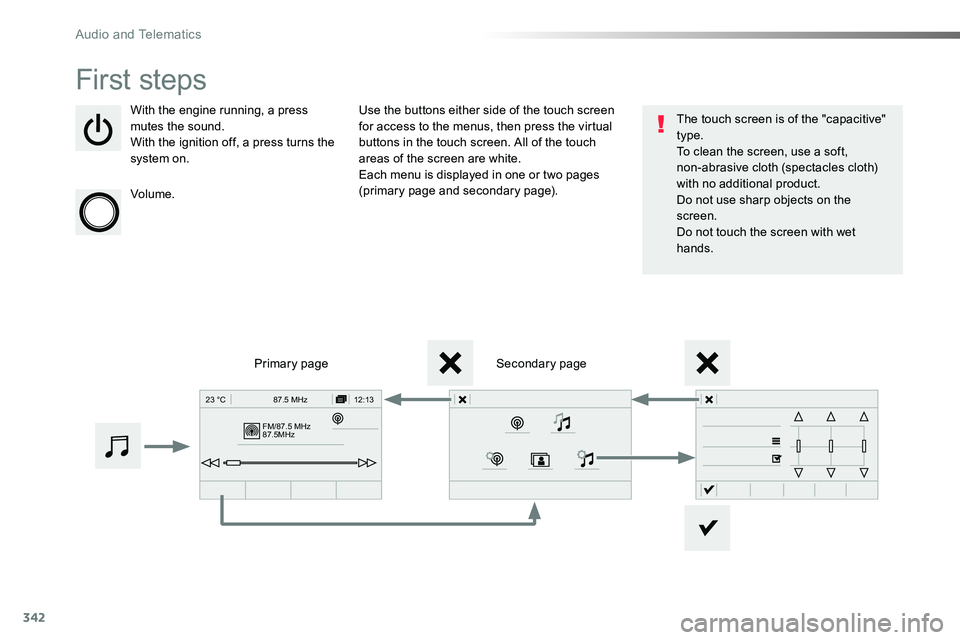
With the engine running, a press mutes the sound.With the ignition off, a press turns the system on.
Volume.
Use the buttons either side of the touch screen for access to the menus, then press the virtual buttons in the touch screen. All of the touch areas of the screen are white.Each menu is displayed in one or two pages (primary page and secondary page).
Secondary pagePrimary page
The touch screen is of the "capacitive" type.To clean the screen, use a soft, non-abrasive cloth (spectacles cloth) with no additional product.Do not use sharp objects on the screen.Do not touch the screen with wet hands.
Audio and Telematics
Page 343 of 516
343
12:13
23 °C531 kHz
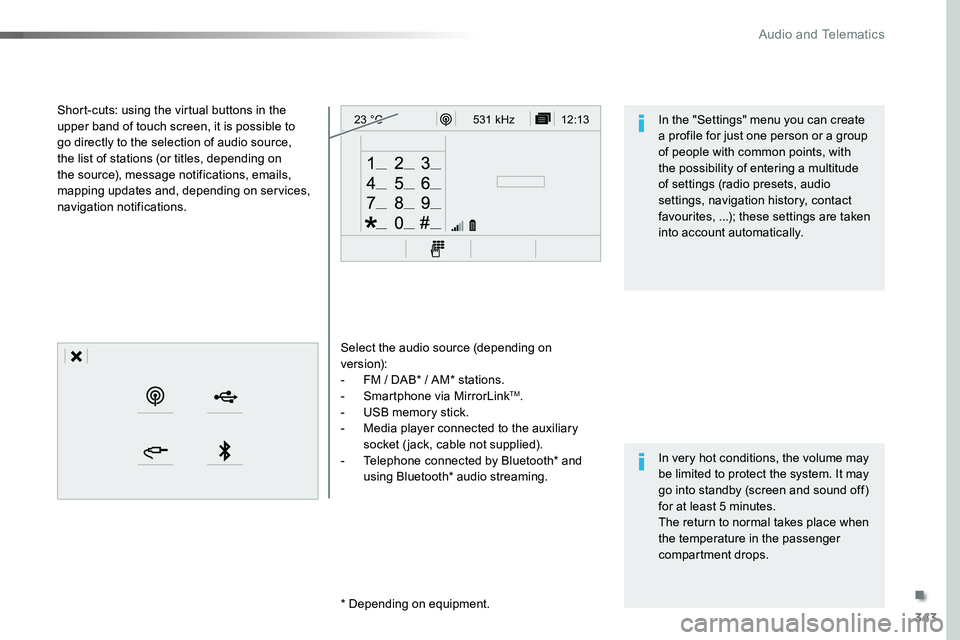
Select the audio source (depending on version):- FM / DAB* / AM* stations.- Smartphone via MirrorLinkTM.- USB memory stick.- Media player connected to the auxiliary socket (jack, cable not supplied).- Telephone connected by Bluetooth* and using Bluetooth* audio streaming.
* Depending on equipment.
Short-cuts: using the virtual buttons in the upper band of touch screen, it is possible to go directly to the selection of audio source, the list of stations (or titles, depending on the source), message notifications, emails, mapping updates and, depending on services, navigation notifications.
In very hot conditions, the volume may be limited to protect the system. It may go into standby (screen and sound off) for at least 5 minutes.The return to normal takes place when the temperature in the passenger compartment drops.
In the "Settings" menu you can create a profile for just one person or a group of people with common points, with the possibility of entering a multitude of settings (radio presets, audio settings, navigation history, contact favourites, ...); these settings are taken into account automatically.
.
Audio and Telematics
Page 383 of 516
383
As a safety measure and because it requires the sustained attention of the driver, using a smartphone when driving is prohibited.Operation must be with the vehicle stationary.
The synchronisation of a smartphone allows applications on a smartphone that are adapted to the MirrorLinkTM technology to be displayed in the vehicle's screen.The principles and standards are constantly evolving. For the communication process between the smartphone and the system to work correctly, the smartphone must be unlocked; update the operating system of your smar tphone as well as the date and time in the smartphone and the system.For the list of eligible smartphones, connect to the brand's internet website in your country.
The "MirrorLinkTM" function requires the use of a compatible smartphone
and applications.
There may be a wait for the availability of applications, depending on the quality of your network.
When connecting a smartphone to the system, it is recommended that Bluetooth® be started on the smartphone
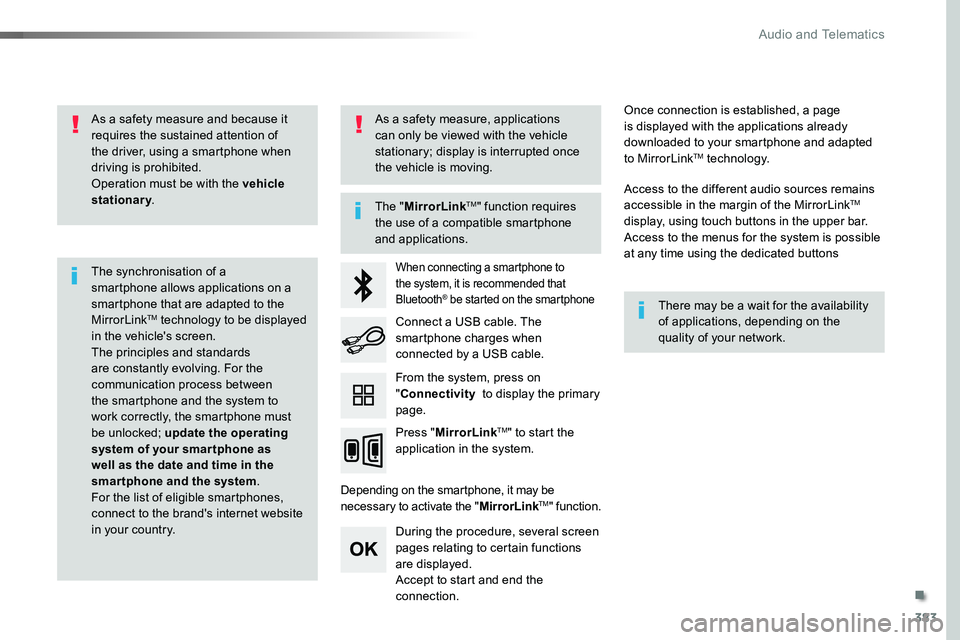
Depending on the smartphone, it may be necessary to activate the "MirrorLinkTM" function.
During the procedure, several screen pages relating to certain functions are displayed.Accept to start and end the connection.
Connect a USB cable. The smartphone charges when connected by a USB cable.
Press "MirrorLinkTM" to start the application in the system.
Once connection is established, a page is displayed with the applications already downloaded to your smartphone and adapted to MirrorLinkTM technology.
Access to the different audio sources remains accessible in the margin of the MirrorLinkTM display, using touch buttons in the upper bar.Access to the menus for the system is possible at any time using the dedicated buttons
From the system, press on "Connectivity to display the primary page.
As a safety measure, applications can only be viewed with the vehicle stationary; display is interrupted once the vehicle is moving.
.
Audio and Telematics
Page 394 of 516
394
1
2
2
2
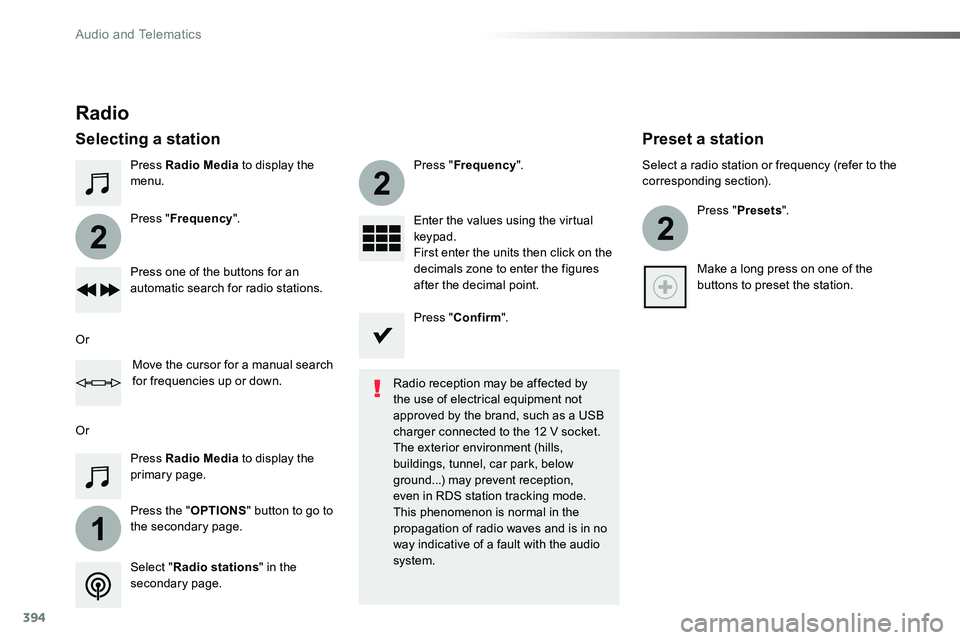
Press Radio Media to display the menu.
Press the "OPTIONS" button to go to the secondary page.
Press "Frequency".
Press "Frequency".
Enter the values using the virtual keypad.First enter the units then click on the decimals zone to enter the figures after the decimal point.Press one of the buttons for an automatic search for radio stations.
Press Radio Media to display the primary page.
Radio
Selecting a station
Radio reception may be affected by the use of electrical equipment not approved by the brand, such as a USB
charger connected to the 12 V socket.The exterior environment (hills, buildings, tunnel, car park, below ground...) may prevent reception, even in RDS station tracking mode. This phenomenon is normal in the propagation of radio waves and is in no way indicative of a fault with the audio system.Select "Radio stations" in the secondary page.
Or
Or
Move the cursor for a manual search for frequencies up or down.
Select a radio station or frequency (refer to the corresponding section).
Press "Presets".
Make a long press on one of the buttons to preset the station.
Preset a station
Press "Confirm".
Audio and Telematics
Page 398 of 516
398
Media
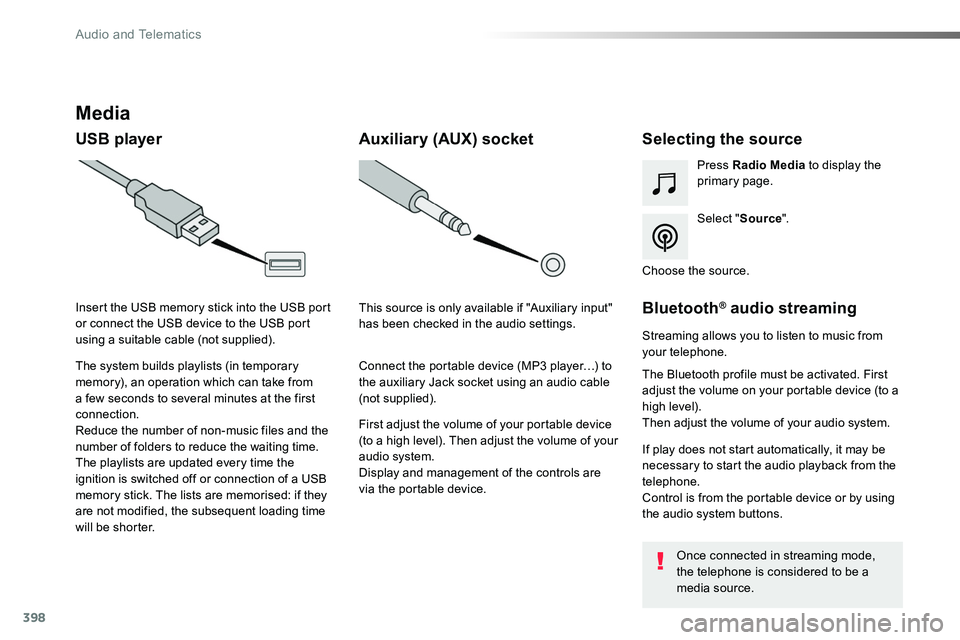
USB playerSelecting the source
Select "Source".
Press Radio Media to display the primary page.
The system builds playlists (in temporary memory), an operation which can take from a few seconds to several minutes at the first connection.
Reduce the number of non-music files and the number of folders to reduce the waiting time.The playlists are updated every time the ignition is switched off or connection of a USB memory stick. The lists are memorised: if they are not modified, the subsequent loading time will be shorter.
Insert the USB memory stick into the USB port or connect the USB device to the USB port using a suitable cable (not supplied).
Auxiliary (AUX) socket
First adjust the volume of your portable device (to a high level). Then adjust the volume of your audio system.Display and management of the controls are via the portable device.
This source is only available if "Auxiliary input" has been checked in the audio settings.
Connect the portable device (MP3 player…) to the auxiliary Jack socket using an audio cable (not supplied).
Choose the source.
Bluetooth® audio streaming
Streaming allows you to listen to music from your telephone.
The Bluetooth profile must be activated. First adjust the volume on your portable device (to a high level).Then adjust the volume of your audio system.
If play does not start automatically, it may be necessary to start the audio playback from the telephone.Control is from the portable device or by using the audio system buttons.
Once connected in streaming mode, the telephone is considered to be a media source.
Audio and Telematics
Page 430 of 516
430
First steps
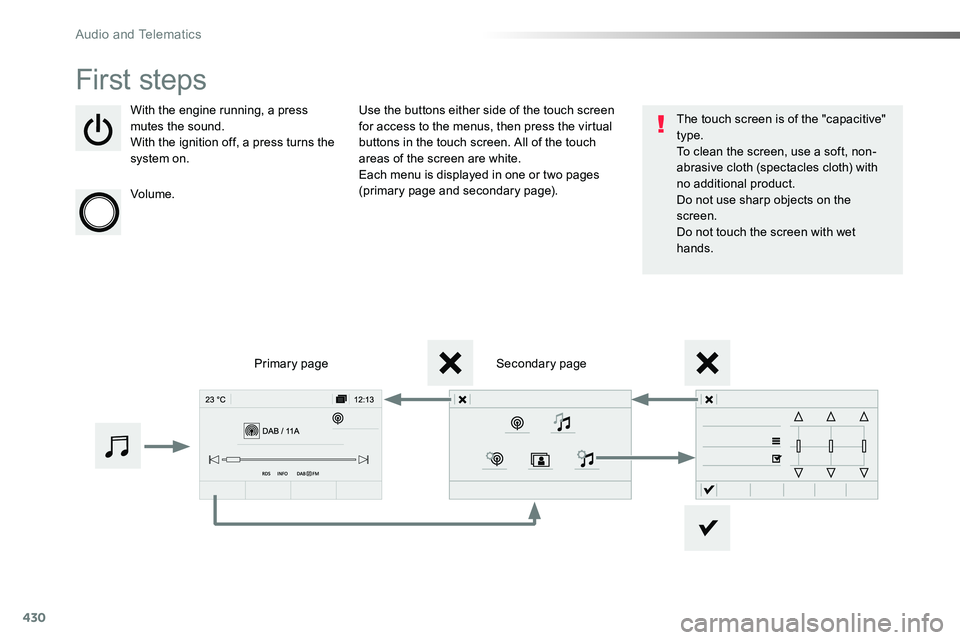
With the engine running, a press mutes the sound.With the ignition off, a press turns the system on.
Volume.
Use the buttons either side of the touch screen for access to the menus, then press the virtual buttons in the touch screen. All of the touch areas of the screen are white.Each menu is displayed in one or two pages (primary page and secondary page).
Secondary pagePrimary page
The touch screen is of the "capacitive" type.To clean the screen, use a soft, non-abrasive cloth (spectacles cloth) with no additional product.Do not use sharp objects on the screen.Do not touch the screen with wet hands.
Audio and Telematics