steering TOYOTA PROACE 2017 Workshop Manual
[x] Cancel search | Manufacturer: TOYOTA, Model Year: 2017, Model line: PROACE, Model: TOYOTA PROACE 2017Pages: 516, PDF Size: 91.65 MB
Page 429 of 516
429
To y o t a P r o To u c h
Connectivity - Multimedia audio - Bluetooth® telephone
ContentsFirst steps 430
Steering mounted controls 432
Menus 433
Connectivity 434
Radio Media 444
Telephone 456
Settings 468
Frequently asked questions 478
The system is protected in such a way that it will only operate in your vehicle.As a safety measure and because it requires sustained attention by the driver, the pairing of a Bluetooth mobile telephone with the Bluetooth hands-free system of your audio system must be done with the vehicle stationary and the ignition on.The display of the energy economy mode message signals that a change to standby is imminent. For more information on the Energy economy mode refer to the corresponding section.
.
Audio and Telematics
Page 432 of 516
432
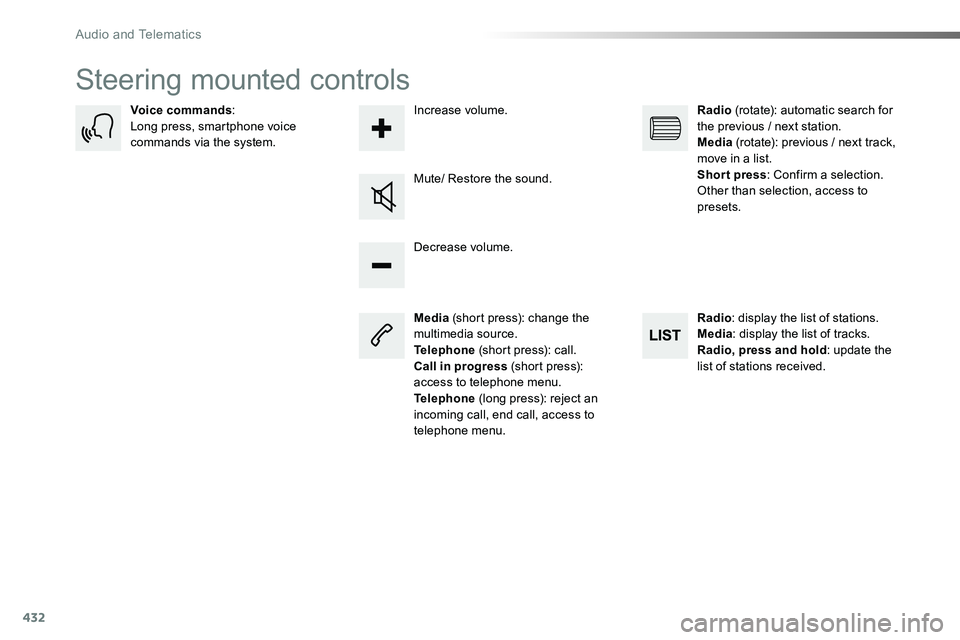
Steering mounted controls
Media (short press): change the multimedia source.Telephone (short press): call.Call in progress (short press): access to telephone menu.Telephone (long press): reject an incoming call, end call, access to telephone menu.
Decrease volume.
Voice commands:Long press, smartphone voice commands via the system.
Mute/ Restore the sound.
Radio (rotate): automatic search for the previous / next station.Media (rotate): previous / next track, move in a list.Short press: Confirm a selection. Other than selection, access to presets.
Radio: display the list of stations.Media: display the list of tracks.Radio, press and hold: update the list of stations received.
Increase volume.
Audio and Telematics
Page 464 of 516
464
1
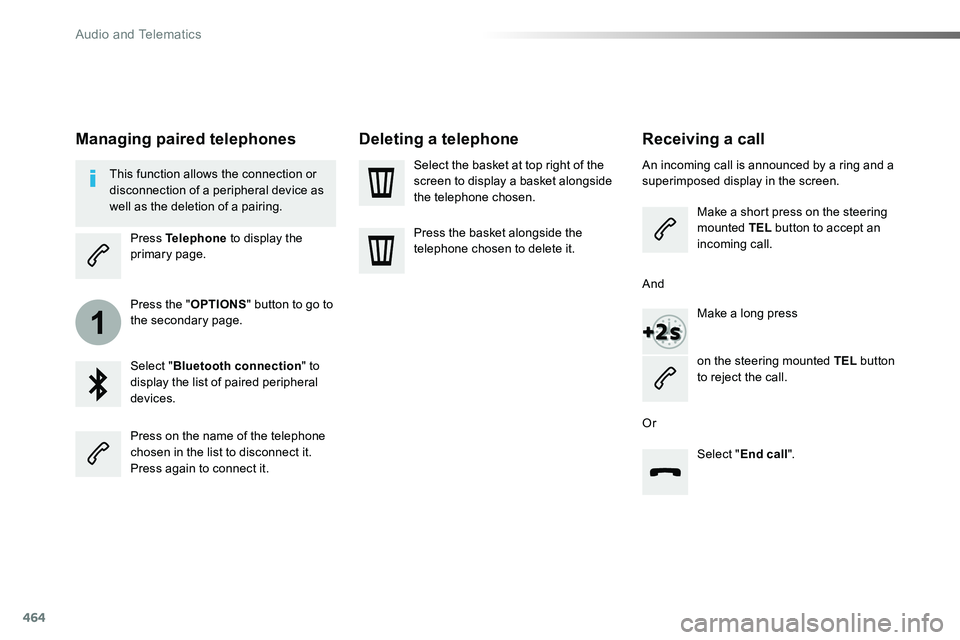
Receiving a call
An incoming call is announced by a ring and a superimposed display in the screen.
Make a short press on the steering mounted TEL button to accept an incoming call.
Make a long press
on the steering mounted TEL button to reject the call.
Or
And
Select "End call".
Press on the name of the telephone chosen in the list to disconnect it.Press again to connect it.
Select the basket at top right of the screen to display a basket alongside the telephone chosen.
Press the basket alongside the telephone chosen to delete it.
Managing paired telephones
This function allows the connection or disconnection of a peripheral device as well as the deletion of a pairing.
Press Telephone to display the primary page.
Press the "OPTIONS" button to go to the secondary page.
Select "Bluetooth connection" to display the list of paired peripheral devices.
Deleting a telephone
Audio and Telematics
Page 465 of 516
465
2
3
on the steering mounted button.
Using the telephone is not recommended while driving.Park the vehicle.Make the call using the steering
mounted controls.
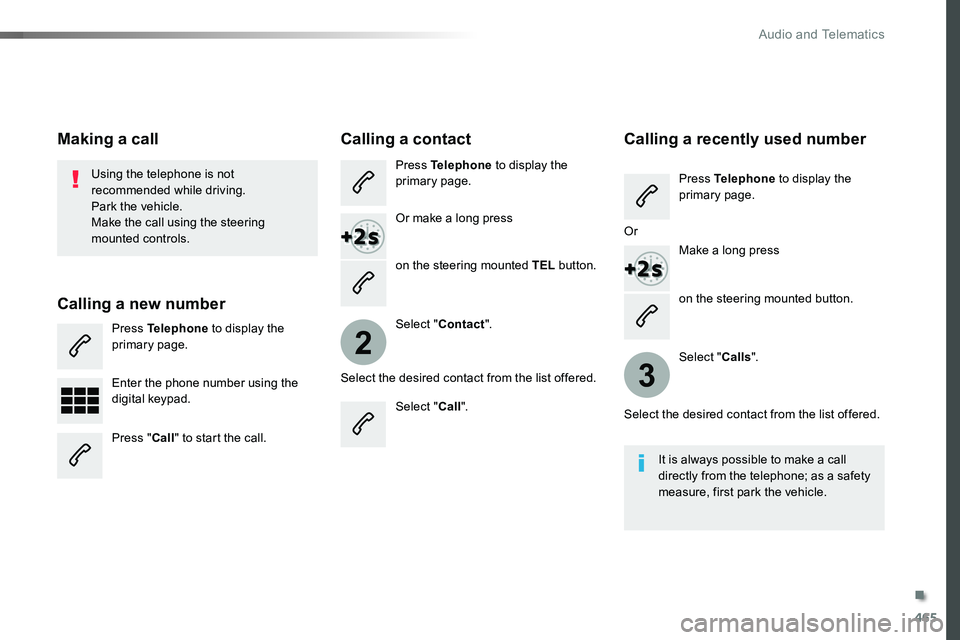
Making a call
Calling a new number
Press Telephone to display the primary page.
Enter the phone number using the digital keypad.
Press "Call" to start the call.
Calling a contact
Press Telephone to display the primary page.
Or make a long press
on the steering mounted TEL button.
Select "Contact".
Select the desired contact from the list offered.
Select "Call".
Calling a recently used number
Press Telephone to display the primary page.
Make a long press
Select "Calls".
Select the desired contact from the list offered.
It is always possible to make a call directly from the telephone; as a safety measure, first park the vehicle.
Or
.
Audio and Telematics
Page 483 of 516
483
Toyota Radio Bluetooth®
ContentsFirst steps 484
Steering mounted controls - Type 1 485
Steering mounted controls - Type 2 486
Menus 487
Radio 488
DAB (Digital Audio Broadcasting) radio 490
Media 492
Telephone 497
Frequently asked questions 502
Your audio system is coded in such a way that it will only operate in your vehicle.
The different functions and adjustments described vary according to the version and configuration of your vehicle.
As a safety measure and because it requires the sustained attention of the driver, the pairing of your Bluetooth telephone to the Bluetooth hands-free audio system must only be carried out with the vehicle stationary and the ignition on.To avoid discharging the battery, the audio system may switch off after a few minutes if the engine is not running.
.
Audio and Telematics
Page 485 of 516
485
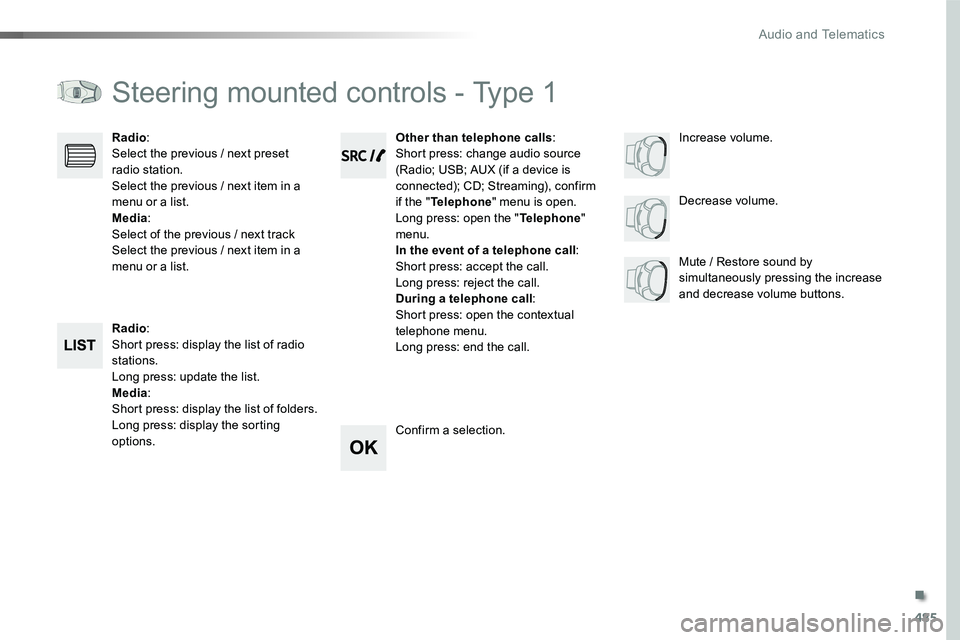
Steering mounted controls - Type 1
Radio:Short press: display the list of radio stations.Long press: update the list.Media:Short press: display the list of folders.Long press: display the sorting options.
Decrease volume.
Radio:Select the previous / next preset radio station.Select the previous / next item in a menu or a list.Media:Select of the previous / next trackSelect the previous / next item in a menu or a list.Mute / Restore sound by simultaneously pressing the increase and decrease volume buttons.
Other than telephone calls:Short press: change audio source (Radio; USB; AUX (if a device is connected); CD; Streaming), confirm if the "Telephone" menu is open.Long press: open the "Telephone" menu.In the event of a telephone call:Short press: accept the call.Long press: reject the call.During a telephone call:Short press: open the contextual telephone menu.Long press: end the call.
Confirm a selection.
Increase volume.
.
Audio and Telematics
Page 486 of 516
486
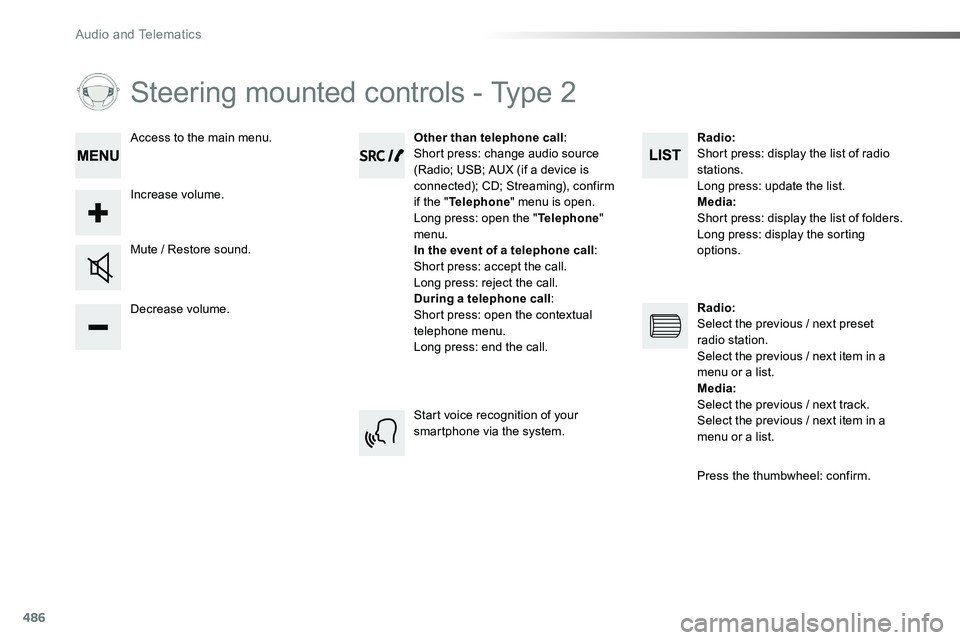
Steering mounted controls - Type 2
Decrease volume.
Mute / Restore sound.
Other than telephone call:Short press: change audio source (Radio; USB; AUX (if a device is connected); CD; Streaming), confirm if the "Telephone" menu is open.Long press: open the "Telephone" menu.In the event of a telephone call:Short press: accept the call.Long press: reject the call.During a telephone call:Short press: open the contextual telephone menu.Long press: end the call.
Increase volume.
Access to the main menu.
Start voice recognition of your smartphone via the system.
Radio:Short press: display the list of radio stations.Long press: update the list.Media:Short press: display the list of folders.Long press: display the sorting options.
Radio:Select the previous / next preset radio station.Select the previous / next item in a menu or a list.Media:Select the previous / next track.Select the previous / next item in a
menu or a list.
Press the thumbwheel: confirm.
Audio and Telematics
Page 495 of 516
495
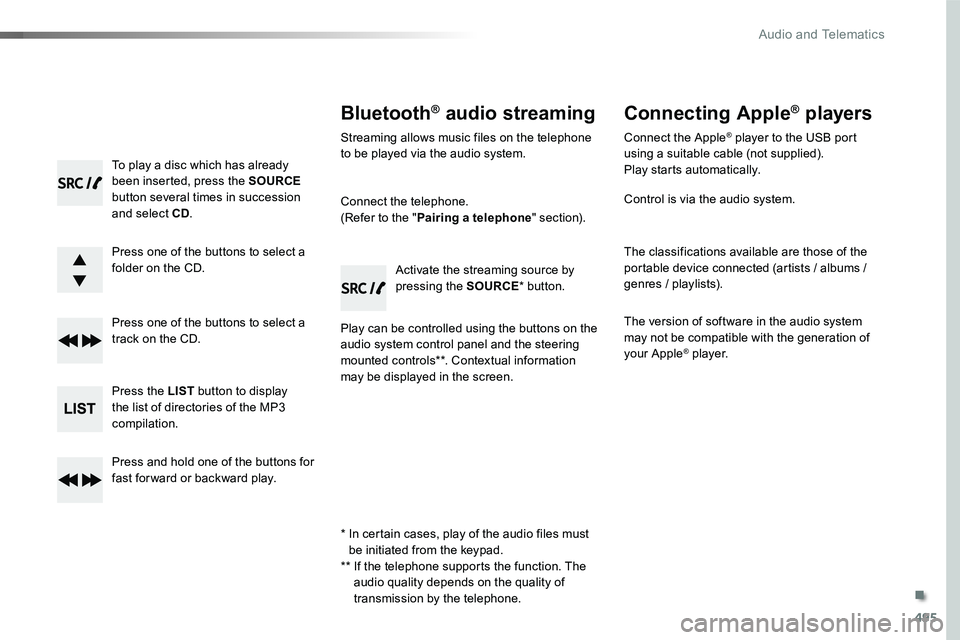
To play a disc which has already been inserted, press the SOURCE button several times in succession and select CD.
Press one of the buttons to select a folder on the CD.
Press one of the buttons to select a track on the CD.
Press the LIST button to display the list of directories of the MP3 compilation.
Press and hold one of the buttons for fast for ward or backward play.
Bluetooth® audio streaming
Streaming allows music files on the telephone to be played via the audio system.
Connect the telephone.(Refer to the "Pairing a telephone" section).
Play can be controlled using the buttons on the audio system control panel and the steering mounted controls**. Contextual information may be displayed in the screen.
Activate the streaming source by pressing the SOURCE* button.
Connecting Apple® players
Connect the Apple® player to the USB port using a suitable cable (not supplied).Play starts automatically.
Control is via the audio system.
The classifications available are those of the portable device connected (artists / albums / genres / playlists).
The version of software in the audio system may not be compatible with the generation of your Apple® p l aye r.
* In certain cases, play of the audio files must be initiated from the keypad.** If the telephone supports the function. The audio quality depends on the quality of transmission by the telephone.
.
Audio and Telematics
Page 499 of 516
499
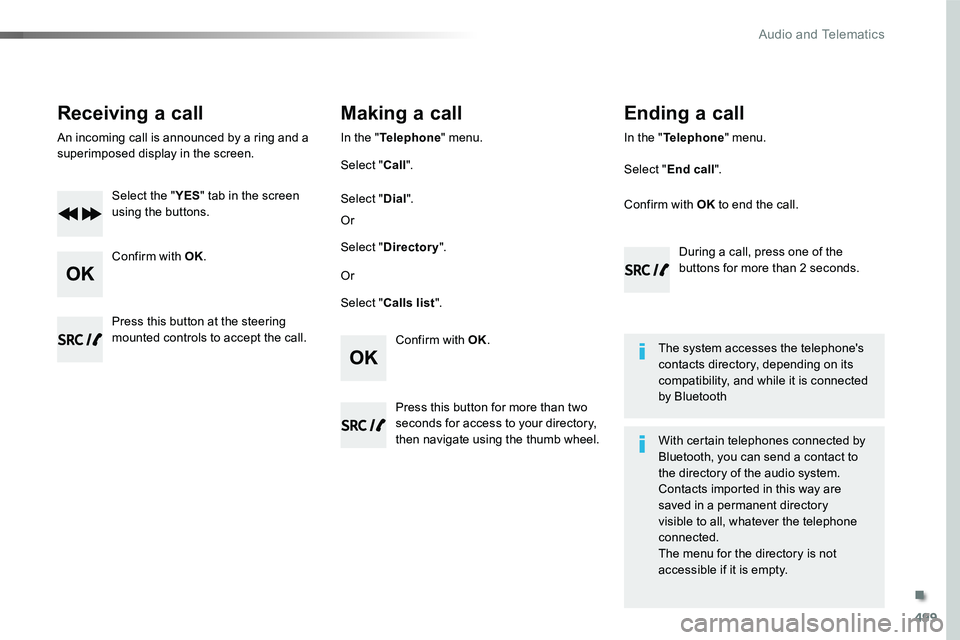
Receiving a call
An incoming call is announced by a ring and a superimposed display in the screen.
Select the "YES" tab in the screen using the buttons.
Confirm with OK.
Confirm with OK.
Press this button at the steering mounted controls to accept the call.
Making a call
In the "Telephone" menu.
Select "Call".
Select "Calls list".
Select "Dial".
Or
Or
Select "Directory".
Press this button for more than two seconds for access to your directory, then navigate using the thumb wheel.
In the "Telephone" menu.
Select "End call".
Ending a call
During a call, press one of the buttons for more than 2 seconds.
Confirm with OK to end the call.
The system accesses the telephone's contacts directory, depending on its compatibility, and while it is connected by Bluetooth
With certain telephones connected by Bluetooth, you can send a contact to the directory of the audio system.Contacts imported in this way are saved in a permanent directory visible to all, whatever the telephone
connected.The menu for the directory is not accessible if it is empty.
.
Audio and Telematics
Page 501 of 516
501
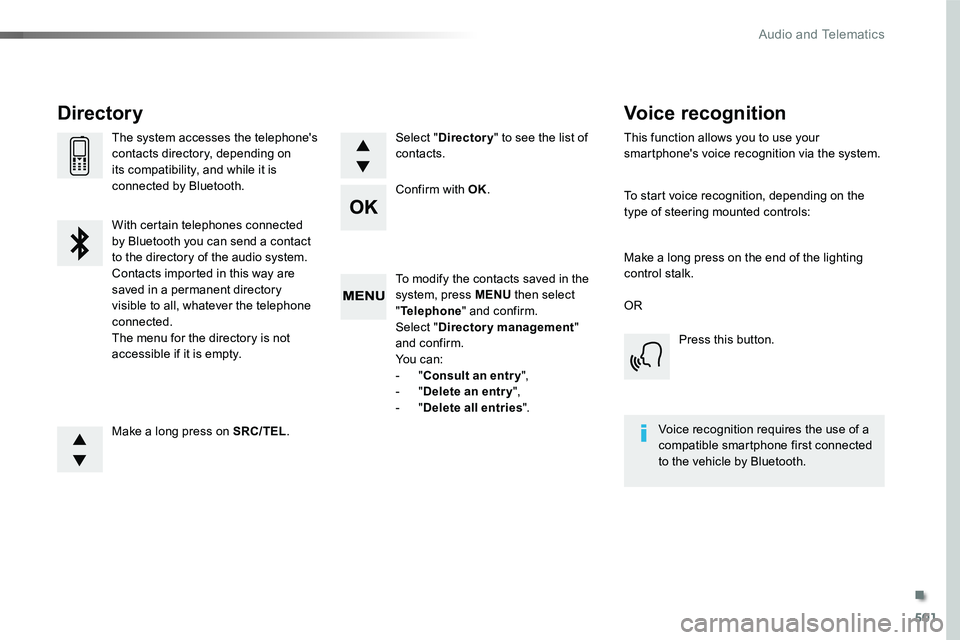
To modify the contacts saved in the system, press MENU then select "Telephone" and confirm.Select "Directory management" and confirm.Yo u c a n :- "Consult an entr y",- "Delete an entry",- "Delete all entries".
Make a long press on SRC/TEL.
The system accesses the telephone's contacts directory, depending on its compatibility, and while it is connected by Bluetooth.
With certain telephones connected by Bluetooth you can send a contact to the directory of the audio system.Contacts imported in this way are saved in a permanent directory visible to all, whatever the telephone connected.The menu for the directory is not accessible if it is empty.
Select "Directory" to see the list of contacts.
Directory
Confirm with OK.
OR
Voice recognition
This function allows you to use your smartphone's voice recognition via the system.
To start voice recognition, depending on the type of steering mounted controls:
Make a long press on the end of the lighting control stalk.
Press this button.
Voice recognition requires the use of a compatible smartphone first connected to the vehicle by Bluetooth.
.
Audio and Telematics