eco TOYOTA PROACE 2018 Owners Manual
[x] Cancel search | Manufacturer: TOYOTA, Model Year: 2018, Model line: PROACE, Model: TOYOTA PROACE 2018Pages: 516, PDF Size: 90.91 MB
Page 473 of 516
473
1
1
17
18
20
19
21
22
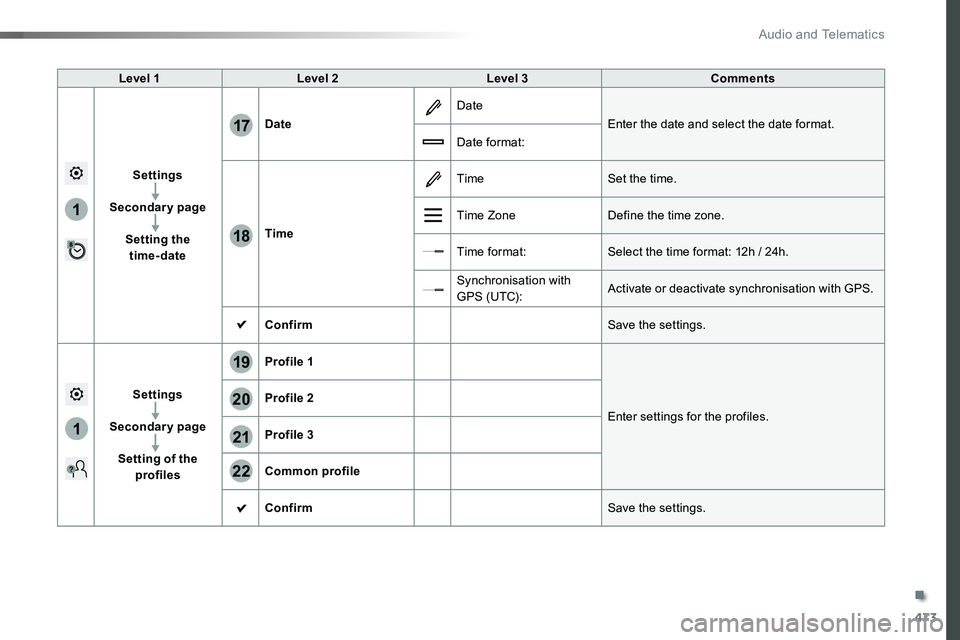
Level 1Level 2Level 3Comments
Settings
Secondary page
Setting the time-date
Date
Date
Enter the date and select the date format.
Date format:
Time
TimeSet the time.
Time ZoneDefine the time zone.
Time format:Select the time format: 12h / 24h.
Synchronisation with G PS (UTC):Activate or deactivate synchronisation with GPS.
ConfirmSave the settings.
Settings
Secondary page
Setting of the profiles
Profile 1
Enter settings for the profiles.
Profile 2
Profile 3
Common profile
ConfirmSave the settings.
.
Audio and Telematics
Page 474 of 516
474
3
4
5
6
7
1
19
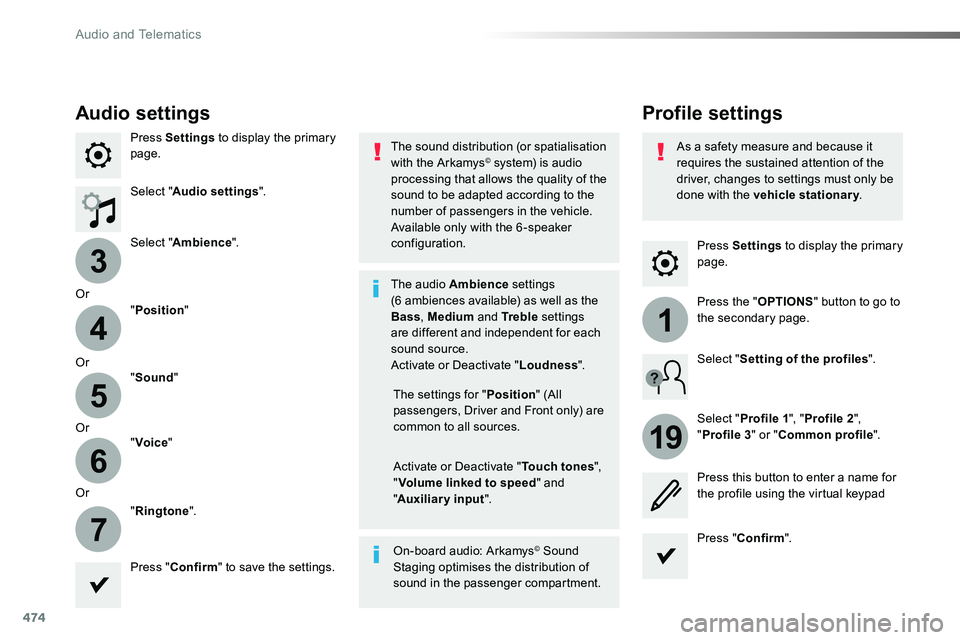
Press Settings to display the primary page.
Profile settingsAudio settings
Press Settings to display the primary page.
Select "Audio settings".
Select "Ambience".
Or
"Position"
Or"Sound"
Or"Voice"
Or
"Ringtone".
On-board audio: Arkamys© Sound Staging optimises the distribution of sound in the passenger compartment.
The settings for "Position" (All passengers, Driver and Front only) are common to all sources.
Activate or Deactivate "Touch tones", "Volume linked to speed" and "Auxiliary input".
The sound distribution (or spatialisation with the Arkamys© system) is audio processing that allows the quality of the sound to be adapted according to the number of passengers in the vehicle.
Available only with the 6 -speaker configuration.
The audio Ambience settings (6 ambiences available) as well as the Bass, Medium and Tr e b l e settings are different and independent for each sound source.Activate or Deactivate "Loudness".
Press "Confirm" to save the settings.
Press "Confirm".
Press the "OPTIONS" button to go to the secondary page.
Select "Profile 1", "Profile 2",
"Profile 3" or "Common profile".
Select "Setting of the profiles".
Press this button to enter a name for the profile using the virtual keypad
As a safety measure and because it requires the sustained attention of the driver, changes to settings must only be done with the vehicle stationary.
Audio and Telematics
Page 476 of 516
476
111
10
11
12
8
91
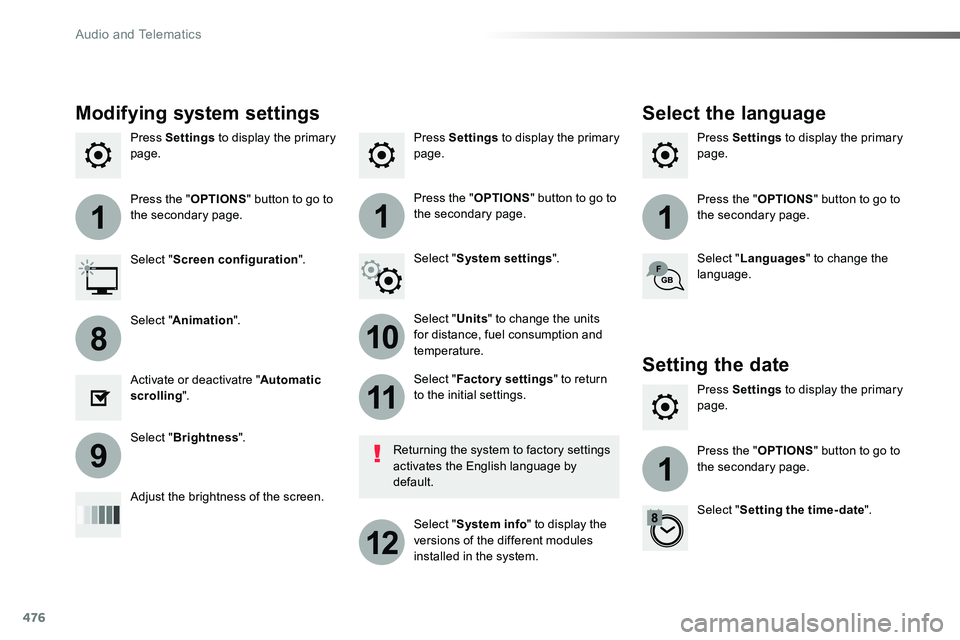
Press Settings to display the primary page.Press Settings to display the primary page.Press Settings to display the primary page.
Press the "OPTIONS" button to go to the secondary page.Press the "OPTIONS" button to go to the secondary page.Press the "OPTIONS" button to go to the secondary page.
Select "System settings".Select "Screen configuration".
Select "Units" to change the units for distance, fuel consumption and temperature.
Select "Languages" to change the language.
Activate or deactivatre "Automatic scrolling".
Adjust the brightness of the screen.
Select "Factory settings" to return to the initial settings.
Select "System info" to display the versions of the different modules installed in the system.
Modifying system settings
Returning the system to factory settings activates the English language by default.
Select "Animation".
Select "Brightness".
Select the language
Press Settings to display the primary page.
Press the "OPTIONS" button to go to the secondary page.
Select "Setting the time- date".
Setting the date
Audio and Telematics
Page 477 of 516
477
1
17
18
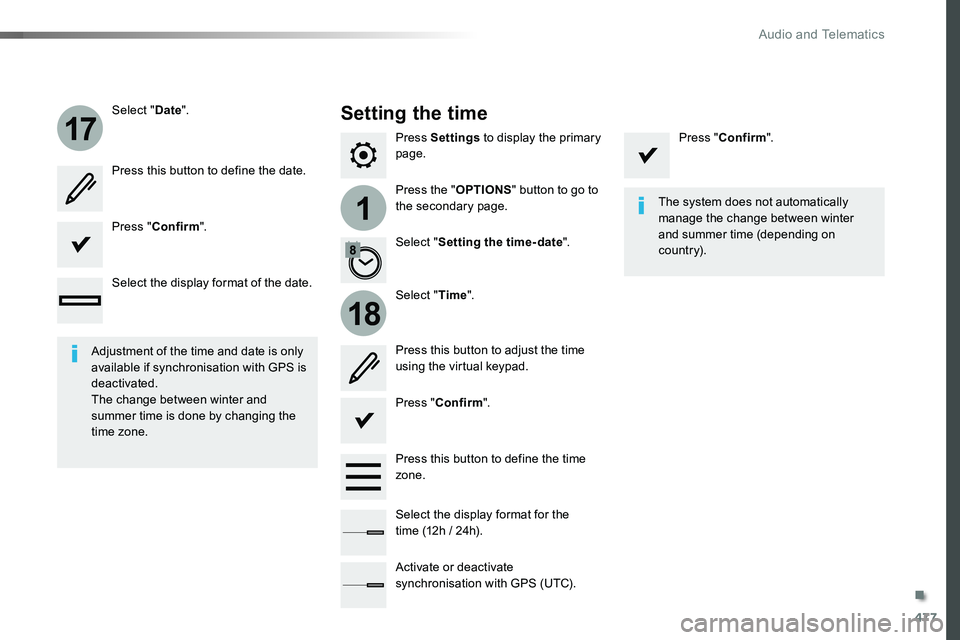
Press Settings to display the primary page.
Press the "OPTIONS" button to go to the secondary page.
Select "Date".
Select "Time".
Select "Setting the time- date".
Adjustment of the time and date is only available if synchronisation with GPS is deactivated.The change between winter and summer time is done by changing the time zone.
The system does not automatically manage the change between winter and summer time (depending on c ountr y).
Setting the time
Press this button to define the date.
Press this button to adjust the time using the virtual keypad.
Press "Confirm".
Press "Confirm".
Press "Confirm".
Press this button to define the time zone.
Select the display format of the date.
Select the display format for the time (12h / 24h).
Activate or deactivate synchronisation with GPS (UTC).
.
Audio and Telematics
Page 478 of 516
478
Radio
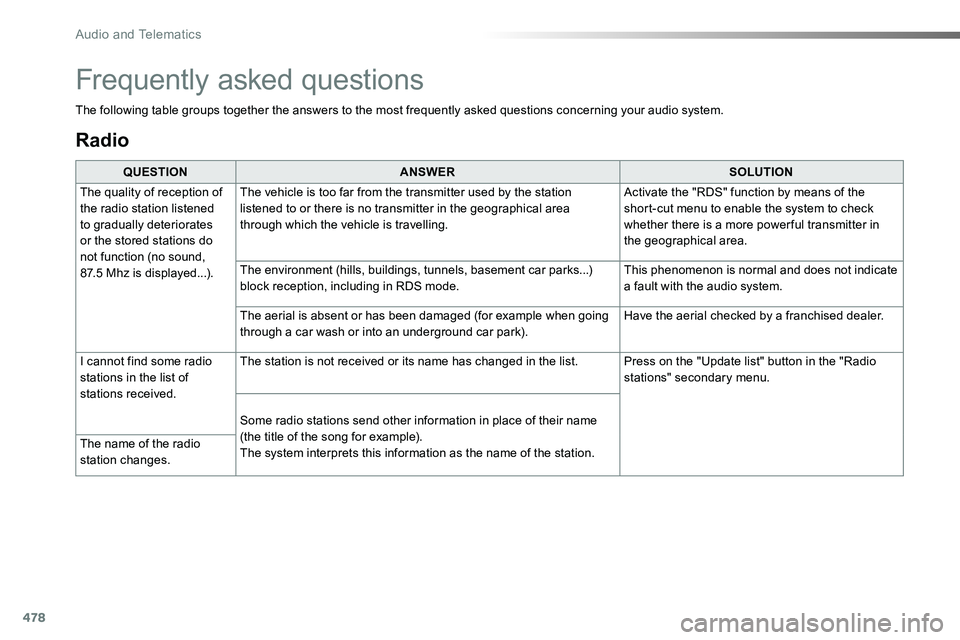
QUESTIONANSWERSOLUTION
The quality of reception of the radio station listened to gradually deteriorates or the stored stations do not function (no sound, 87.5 Mhz is displayed...).
The vehicle is too far from the transmitter used by the station listened to or there is no transmitter in the geographical area through which the vehicle is travelling.
Activate the "RDS" function by means of the short-cut menu to enable the system to check whether there is a more power ful transmitter in the geographical area.
The environment (hills, buildings, tunnels, basement car parks...) block reception, including in RDS mode.This phenomenon is normal and does not indicate a fault with the audio system.
The aerial is absent or has been damaged (for example when going through a car wash or into an underground car park).Have the aerial checked by a franchised dealer.
I cannot find some radio stations in the list of stations received.
The station is not received or its name has changed in the list.Press on the "Update list" button in the "Radio stations" secondary menu.
Some radio stations send other information in place of their name
(the title of the song for example).The system interprets this information as the name of the station.The name of the radio station changes.
Frequently asked questions
The following table groups together the answers to the most frequently asked questions concerning your audio system.
Audio and Telematics
Page 482 of 516
482
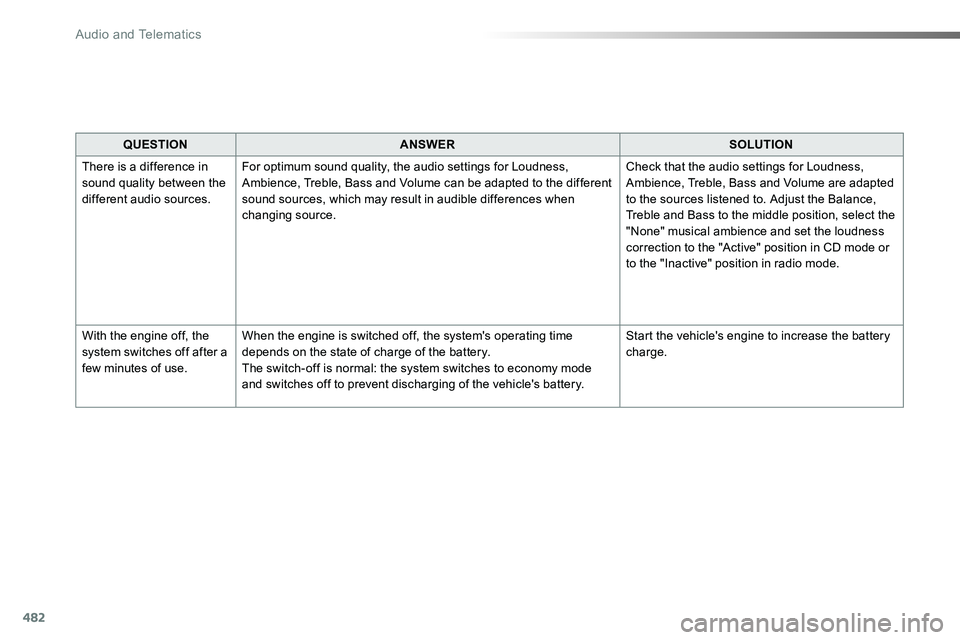
QUESTIONANSWERSOLUTION
There is a difference in sound quality between the different audio sources.
For optimum sound quality, the audio settings for Loudness, Ambience, Treble, Bass and Volume can be adapted to the different sound sources, which may result in audible differences when changing source.
Check that the audio settings for Loudness, Ambience, Treble, Bass and Volume are adapted to the sources listened to. Adjust the Balance, Treble and Bass to the middle position, select the "None" musical ambience and set the loudness correction to the "Active" position in CD mode or to the "Inactive" position in radio mode.
With the engine off, the system switches off after a few minutes of use.
When the engine is switched off, the system's operating time depends on the state of charge of the battery.The switch-off is normal: the system switches to economy mode and switches off to prevent discharging of the vehicle's battery.
Start the vehicle's engine to increase the battery charge.
Audio and Telematics
Page 486 of 516
486
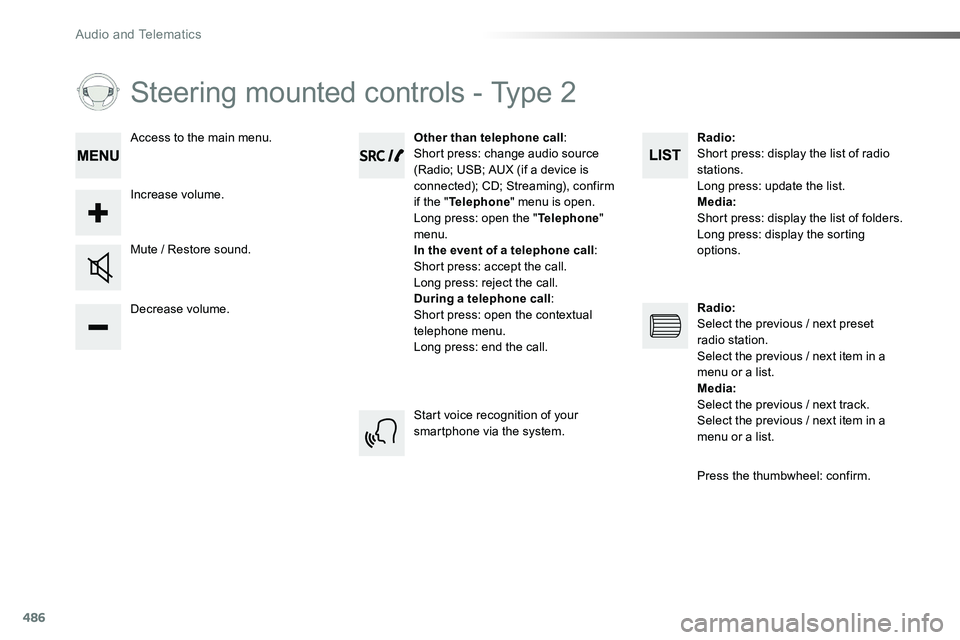
Steering mounted controls - Type 2
Decrease volume.
Mute / Restore sound.
Other than telephone call:Short press: change audio source (Radio; USB; AUX (if a device is connected); CD; Streaming), confirm if the "Telephone" menu is open.Long press: open the "Telephone" menu.In the event of a telephone call:Short press: accept the call.Long press: reject the call.During a telephone call:Short press: open the contextual telephone menu.Long press: end the call.
Increase volume.
Access to the main menu.
Start voice recognition of your smartphone via the system.
Radio:Short press: display the list of radio stations.Long press: update the list.Media:Short press: display the list of folders.Long press: display the sorting options.
Radio:Select the previous / next preset radio station.Select the previous / next item in a menu or a list.Media:Select the previous / next track.Select the previous / next item in a
menu or a list.
Press the thumbwheel: confirm.
Audio and Telematics
Page 488 of 516
488
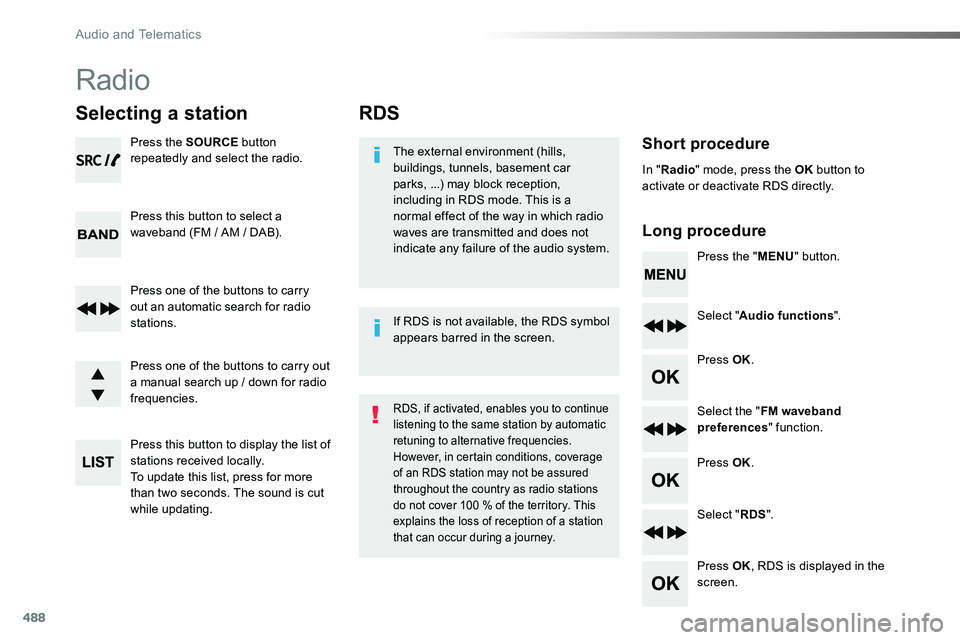
RDS
Short procedure
Long procedure
The external environment (hills, buildings, tunnels, basement car parks, ...) may block reception, including in RDS mode. This is a normal effect of the way in which radio waves are transmitted and does not indicate any failure of the audio system.Press the "MENU" button.
Select "Audio functions".
Press OK.
Select the "FM waveband preferences" function.
Press OK.
Select "RDS".
Press OK, RDS is displayed in the screen.
In "Radio" mode, press the OK button to activate or deactivate RDS directly.
RDS, if activated, enables you to continue listening to the same station by automatic retuning to alternative frequencies. However, in certain conditions, coverage of an RDS station may not be assured throughout the country as radio stations do not cover 100 % of the territory. This explains the loss of reception of a station that can occur during a journey.
If RDS is not available, the RDS symbol appears barred in the screen.
Radio
Selecting a station
Press the SOURCE button repeatedly and select the radio.
Press this button to select a waveband (FM / AM / DAB).
Press one of the buttons to carry out an automatic search for radio stations.
Press one of the buttons to carry out a manual search up / down for radio frequencies.
Press this button to display the list of stations received locally.To update this list, press for more than two seconds. The sound is cut while updating.
Audio and Telematics
Page 491 of 516
491
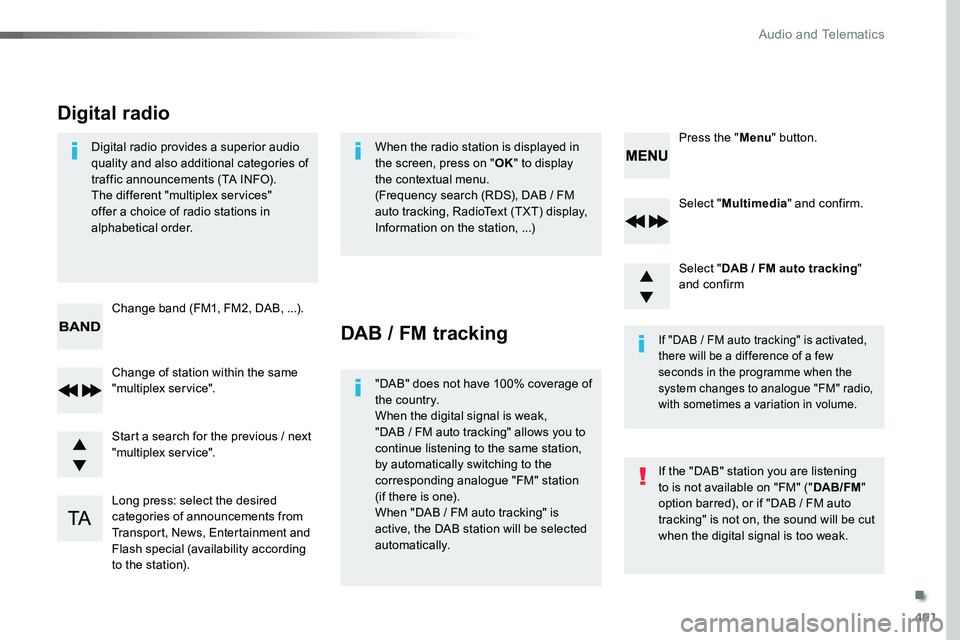
Select "Multimedia" and confirm.
Select "DAB / FM auto tracking" and confirm
Long press: select the desired categories of announcements from Transport, News, Entertainment and Flash special (availability according to the station).
Change of station within the same "multiplex service".
Press the "Menu" button.
Start a search for the previous / next "multiplex service".
Change band (FM1, FM2, DAB, ...).
Digital radio provides a superior audio quality and also additional categories of traffic announcements (TA INFO).The different "multiplex services" offer a choice of radio stations in alphabetical order.
Digital radio
When the radio station is displayed in the screen, press on "OK" to display the contextual menu.(Frequency search (RDS), DAB / FM auto tracking, RadioText (TXT) display, Information on the station, ...)
DAB / FM tracking
"DAB" does not have 100% coverage of the country.When the digital signal is weak,
"DAB / FM auto tracking" allows you to continue listening to the same station, by automatically switching to the corresponding analogue "FM" station (if there is one).When "DAB / FM auto tracking" is active, the DAB station will be selected automatically.
If "DAB / FM auto tracking" is activated, there will be a difference of a few seconds in the programme when the system changes to analogue "FM" radio, with sometimes a variation in volume.
If the "DAB" station you are listening to is not available on "FM" ("DAB/FM" option barred), or if "DAB / FM auto tracking" is not on, the sound will be cut when the digital signal is too weak.
.
Audio and Telematics
Page 492 of 516
492
Media
USB player
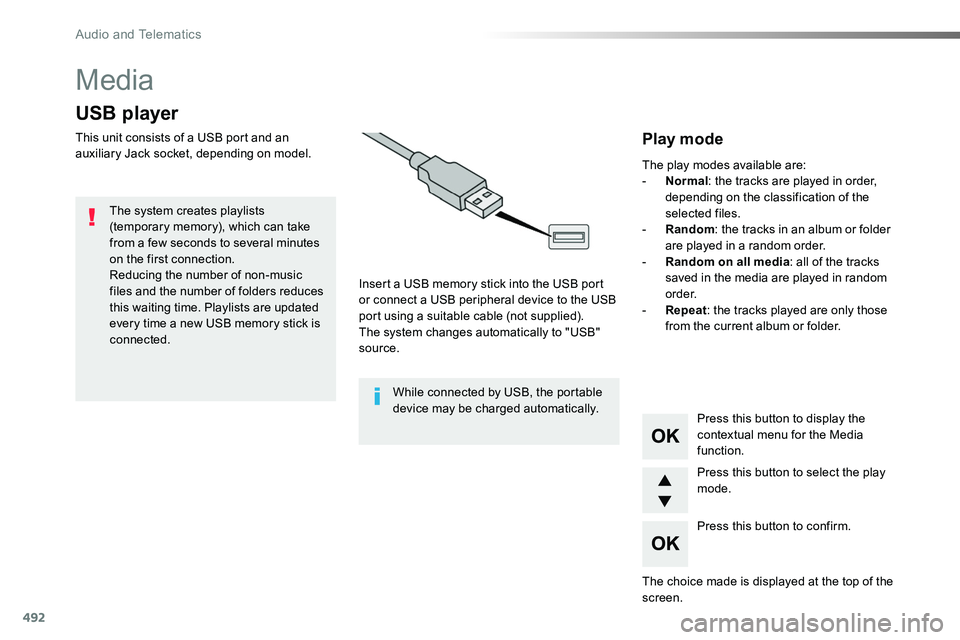
This unit consists of a USB port and an auxiliary Jack socket, depending on model.
Insert a USB memory stick into the USB port or connect a USB peripheral device to the USB port using a suitable cable (not supplied).The system changes automatically to "USB" source.
The system creates playlists (temporary memory), which can take from a few seconds to several minutes on the first connection.Reducing the number of non-music files and the number of folders reduces this waiting time. Playlists are updated every time a new USB memory stick is connected.
Press this button to display the
contextual menu for the Media function.
Press this button to select the play mode.
Press this button to confirm.
Play mode
The play modes available are:- Normal: the tracks are played in order, depending on the classification of the selected files.- Random: the tracks in an album or folder are played in a random order.- Random on all media: all of the tracks saved in the media are played in random o r d e r.- Repeat: the tracks played are only those from the current album or folder.
The choice made is displayed at the top of the screen.
While connected by USB, the portable device may be charged automatically.
Audio and Telematics