USB TOYOTA PROACE 2020 (in English) Owner's Manual
[x] Cancel search | Manufacturer: TOYOTA, Model Year: 2020, Model line: PROACE, Model: TOYOTA PROACE 2020Pages: 430, PDF Size: 48.01 MB
Page 382 of 430
382
Press "OK" to confirm.
Radio reception may be affected by the use of electrical equipment not approved by the Brand, such as a USB charger connected to the 12 V socket.The exterior environment (hills, buildings, tunnels, basement car parks, etc.) may block reception, including in RDS mode. This behaviour is normal in the
propagation of radio waves and does not indicate any failure of the audio system.
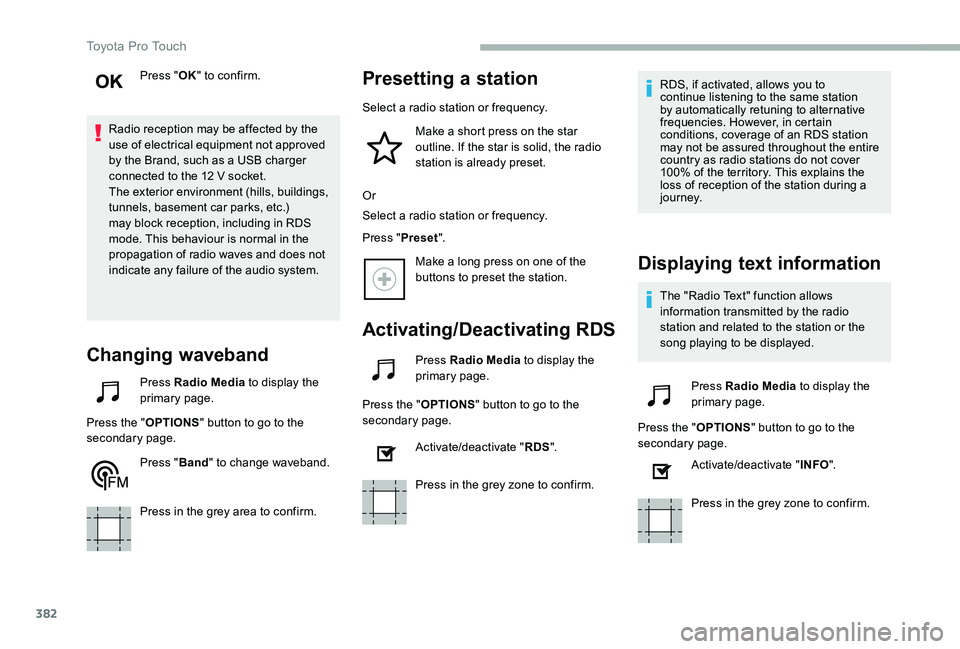
Changing waveband
Press Radio Media to display the primary page.
Press the "OPTIONS" button to go to the secondary page.
Press "Band" to change waveband.
Press in the grey area to confirm.
Presetting a station
Select a radio station or frequency.
Make a short press on the star outline. If the star is solid, the radio station is already preset.
Or
Select a radio station or frequency.
Press "Preset".
Make a long press on one of the buttons to preset the station.
Activating/Deactivating RDS
Press Radio Media to display the primary page.
Press the "OPTIONS" button to go to the secondary page.
Activate/deactivate "RDS".
Press in the grey zone to confirm.
RDS, if activated, allows you to continue listening to the same station by automatically retuning to alternative frequencies. However, in certain conditions, coverage of an RDS station may not be assured throughout the entire country as radio stations do not cover 100% of the territory. This explains the loss of reception of the station during a j o u r n ey.
Displaying text information
The "Radio Text" function allows information transmitted by the radio station and related to the station or the song playing to be displayed.
Press Radio Media to display the primary page.
Press the "OPTIONS" button to go to the secondary page.
Activate/deactivate "INFO".
Press in the grey zone to confirm.
Toyota Pro Touch
Page 384 of 430
384
Press Radio Media to display the primary page.
Press the "OPTIONS" button to go to the secondary page.
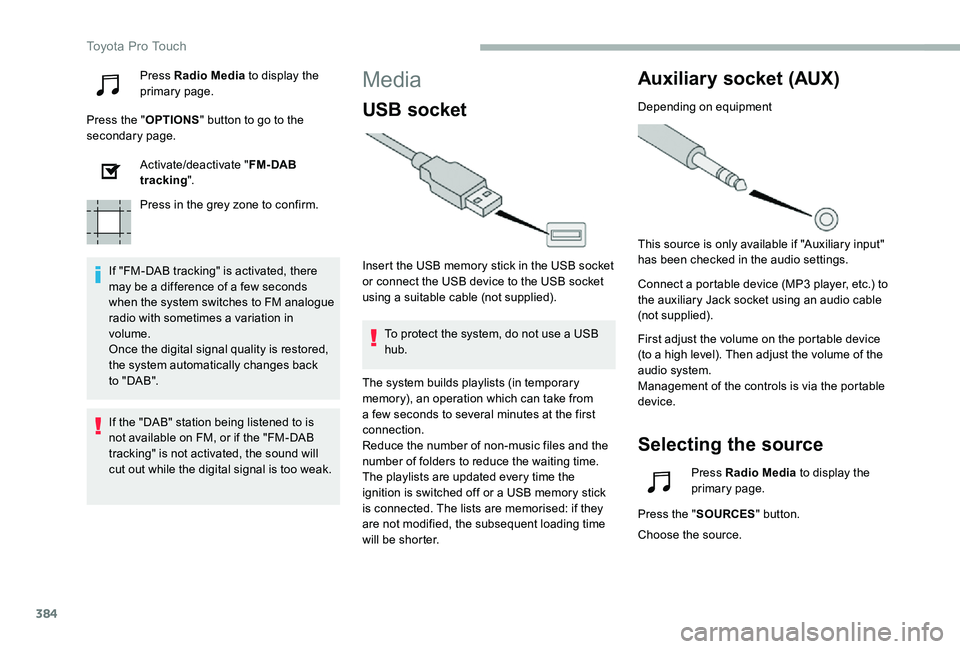
Activate/deactivate "FM- DAB tracking".
Press in the grey zone to confirm.
If "FM-DAB tracking" is activated, there may be a difference of a few seconds when the system switches to FM analogue radio with sometimes a variation in volume.Once the digital signal quality is restored, the system automatically changes back to " DA B ".
Media
USB socket
Insert the USB memory stick in the USB socket or connect the USB device to the USB socket using a suitable cable (not supplied).
To protect the system, do not use a USB hub.
Auxiliary socket (AUX)
Depending on equipment
This source is only available if "Auxiliary input" has been checked in the audio settings.
Connect a portable device (MP3 player, etc.) to the auxiliary Jack socket using an audio cable (not supplied).
First adjust the volume on the portable device (to a high level). Then adjust the volume of the audio system.Management of the controls is via the portable device.
Selecting the source
If the "DAB" station being listened to is not available on FM, or if the "FM-DAB
tracking" is not activated, the sound will cut out while the digital signal is too weak.
The system builds playlists (in temporary memory), an operation which can take from a few seconds to several minutes at the first connection.Reduce the number of non-music files and the number of folders to reduce the waiting time.The playlists are updated every time the ignition is switched off or a USB memory stick is connected. The lists are memorised: if they are not modified, the subsequent loading time will be shorter.
Press Radio Media to display the primary page.
Press the "SOURCES" button.
Choose the source.
Toyota Pro Touch
Page 385 of 430
385
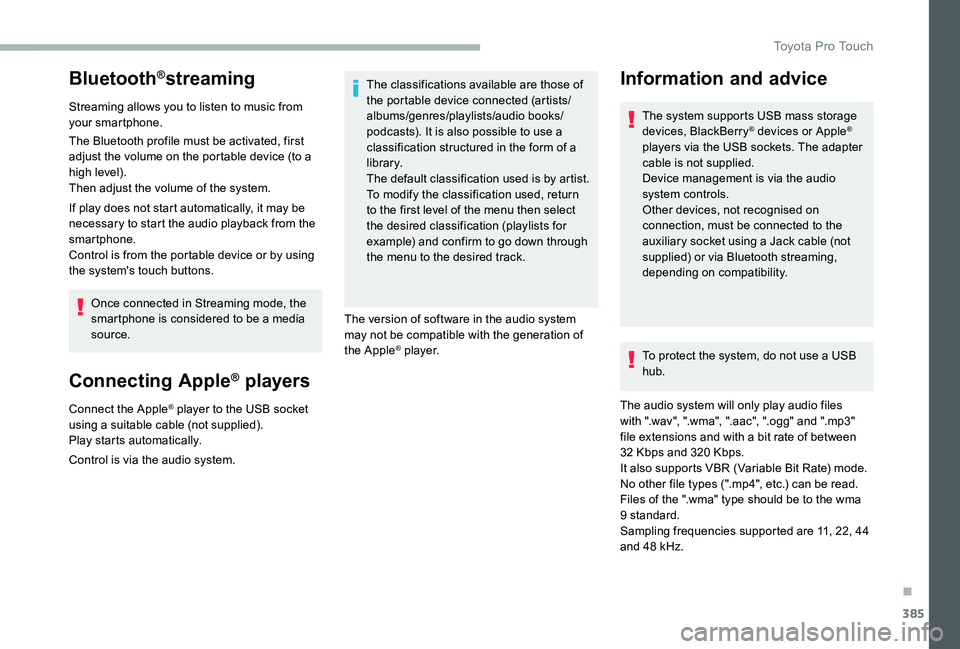
Bluetooth®streaming
Streaming allows you to listen to music from your smartphone.
The Bluetooth profile must be activated, first adjust the volume on the portable device (to a high level).Then adjust the volume of the system.
If play does not start automatically, it may be necessary to start the audio playback from the smartphone.
Control is from the portable device or by using the system's touch buttons.
Once connected in Streaming mode, the smartphone is considered to be a media source.
Connecting Apple® players
Connect the Apple® player to the USB socket using a suitable cable (not supplied).Play starts automatically.
Control is via the audio system.
The classifications available are those of the portable device connected (artists/albums/genres/playlists/audio books/podcasts). It is also possible to use a classification structured in the form of a library.The default classification used is by artist. To modify the classification used, return to the first level of the menu then select the desired classification (playlists for example) and confirm to go down through the menu to the desired track.
The version of software in the audio system may not be compatible with the generation of the Apple® p l aye r.To protect the system, do not use a USB hub.
The audio system will only play audio files with ".wav", ".wma", ".aac", ".ogg" and ".mp3" file extensions and with a bit rate of between 32 Kbps and 320 Kbps.It also supports VBR (Variable Bit Rate) mode.No other file types (".mp4", etc.) can be read.Files of the ".wma" type should be to the wma 9 standard.Sampling frequencies supported are 11, 22, 44
and 48 kHz.
Information and advice
The system supports USB mass storage devices, BlackBerry® devices or Apple® players via the USB sockets. The adapter cable is not supplied.Device management is via the audio system controls.Other devices, not recognised on connection, must be connected to the auxiliary socket using a Jack cable (not supplied) or via Bluetooth streaming, depending on compatibility.
.
Toyota Pro Touch
Page 386 of 430
386
It is recommended that file names are less than 20 characters long and do not contain any special characters (e.g. « » ? . ; ù) so as to avoid any reading or display problems.
Use only USB memory sticks in FAT32 format (File Allocation Table).
It is recommended that the original USB cable for the portable device be used.
In order to be able to play a burned CDR or
CDRW, select standards ISO 9660 level 1, 2, or Joliet, if possible, when burning the CD.If the disc is burned in another format, it may not be played correctly.It is recommended that the same burning standard be always used on an individual disc, with the lowest speed possible (4x maximum) for the best acoustic quality.In the particular case of a multi-session CD, the Joliet standard is recommended.
TelephoneMirrorLinkTM smartphone
connection
The "MirrorLinkTM" function requires a compatible smartphone and applications.
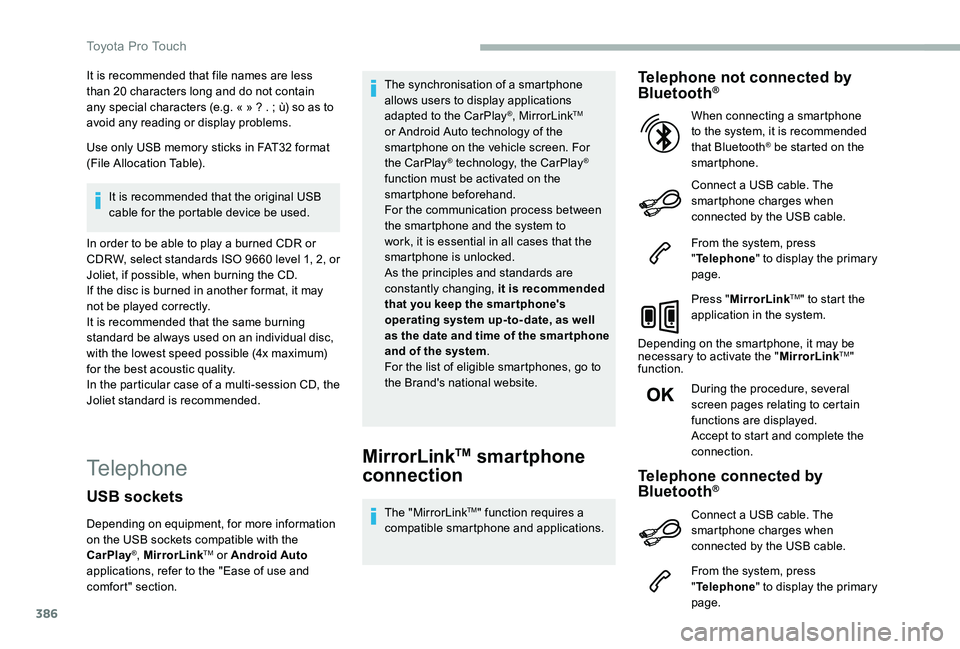
Telephone not connected by Bluetooth®
Connect a USB cable. The smartphone charges when connected by the USB cable.
From the system, press "Telephone" to display the primary page.
Press "MirrorLinkTM" to start the application in the system.
Depending on the smartphone, it may be necessary to activate the "MirrorLinkTM" function.
During the procedure, several screen pages relating to certain functions are displayed.Accept to start and complete the connection.
When connecting a smartphone to the system, it is recommended that Bluetooth® be started on the smartphone.
Telephone connected by Bluetooth®
From the system, press "Telephone" to display the primary
page.
USB sockets
Depending on equipment, for more information on the USB sockets compatible with the CarPlay®, MirrorLinkTM or Android Auto applications, refer to the "Ease of use and comfort" section.
The synchronisation of a smartphone allows users to display applications adapted to the CarPlay®, MirrorLinkTM or Android Auto technology of the smartphone on the vehicle screen. For the CarPlay® technology, the CarPlay® function must be activated on the smartphone beforehand.For the communication process between the smartphone and the system to work, it is essential in all cases that the smartphone is unlocked.As the principles and standards are constantly changing, it is recommended that you keep the smar tphone's operating system up-to- date, as well as the date and time of the smar tphone and of the system.For the list of eligible smartphones, go to the Brand's national website.
Connect a USB cable. The smartphone charges when connected by the USB cable.
Toyota Pro Touch
Page 387 of 430
387
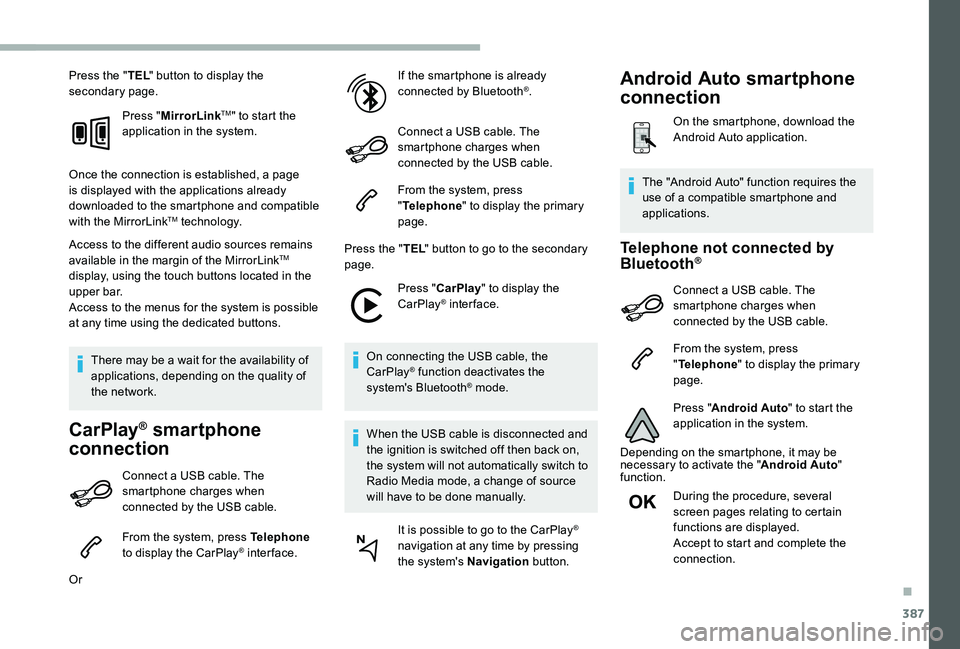
Press the "TEL" button to display the secondary page.
Press "MirrorLinkTM" to start the application in the system.
Once the connection is established, a page is displayed with the applications already downloaded to the smartphone and compatible with the MirrorLinkTM technology.
Access to the different audio sources remains available in the margin of the MirrorLinkTM display, using the touch buttons located in the u p p e r b a r.Access to the menus for the system is possible at any time using the dedicated buttons.
There may be a wait for the availability of applications, depending on the quality of the network.
CarPlay® smartphone
connection
Connect a USB cable. The smartphone charges when connected by the USB cable.
From the system, press Telephone to display the CarPlay® inter face.
Or
If the smartphone is already connected by Bluetooth®.
Connect a USB cable. The smartphone charges when connected by the USB cable.
From the system, press "Telephone" to display the primary page.
Press the "TEL" button to go to the secondary page.
Press "CarPlay" to display the CarPlay® inter face.
On connecting the USB cable, the CarPlay® function deactivates the system's Bluetooth® mode.
When the USB cable is disconnected and
the ignition is switched off then back on, the system will not automatically switch to Radio Media mode, a change of source will have to be done manually.
It is possible to go to the CarPlay® navigation at any time by pressing the system's Navigation button.
Telephone not connected by Bluetooth®
Connect a USB cable. The smartphone charges when connected by the USB cable.
From the system, press "Telephone" to display the primary page.
Press "Android Auto" to start the application in the system.
Depending on the smartphone, it may be necessary to activate the "Android Auto" function.
During the procedure, several screen pages relating to certain functions are displayed.Accept to start and complete the
connection.
The "Android Auto" function requires the use of a compatible smartphone and applications.
Android Auto smartphone
connection
On the smartphone, download the Android Auto application.
.
Page 394 of 430
394
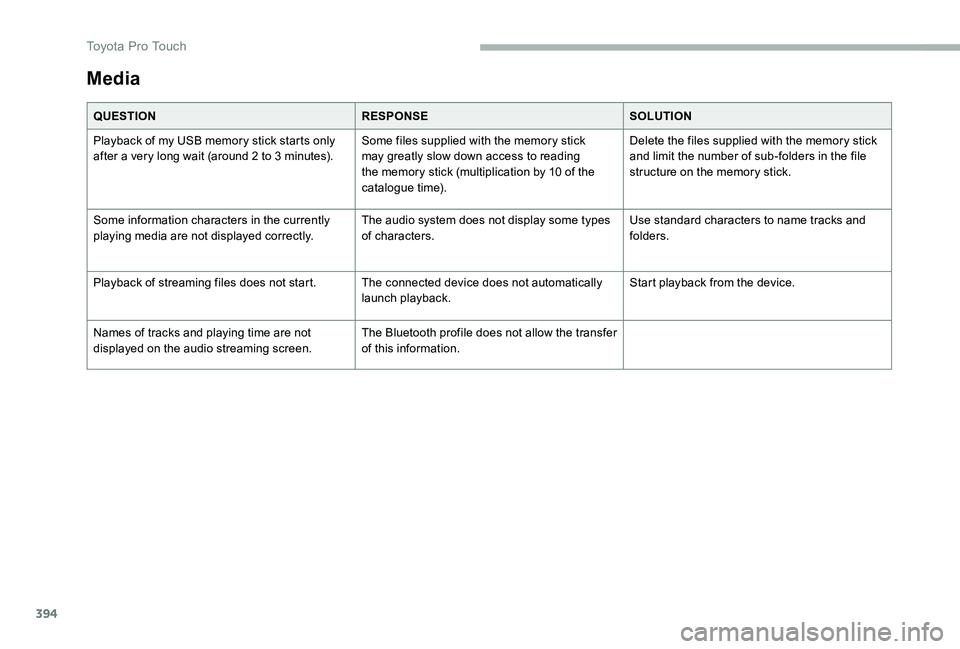
Media
QUESTIONRESPONSESOLUTION
Playback of my USB memory stick starts only after a very long wait (around 2 to 3 minutes).Some files supplied with the memory stick may greatly slow down access to reading the memory stick (multiplication by 10 of the catalogue time).
Delete the files supplied with the memory stick and limit the number of sub-folders in the file structure on the memory stick.
Some information characters in the currently playing media are not displayed correctly.The audio system does not display some types of characters.Use standard characters to name tracks and folders.
Playback of streaming files does not start.The connected device does not automatically launch playback.Start playback from the device.
Names of tracks and playing time are not displayed on the audio streaming screen.The Bluetooth profile does not allow the transfer of this information.
Toyota Pro Touch
Page 395 of 430
395
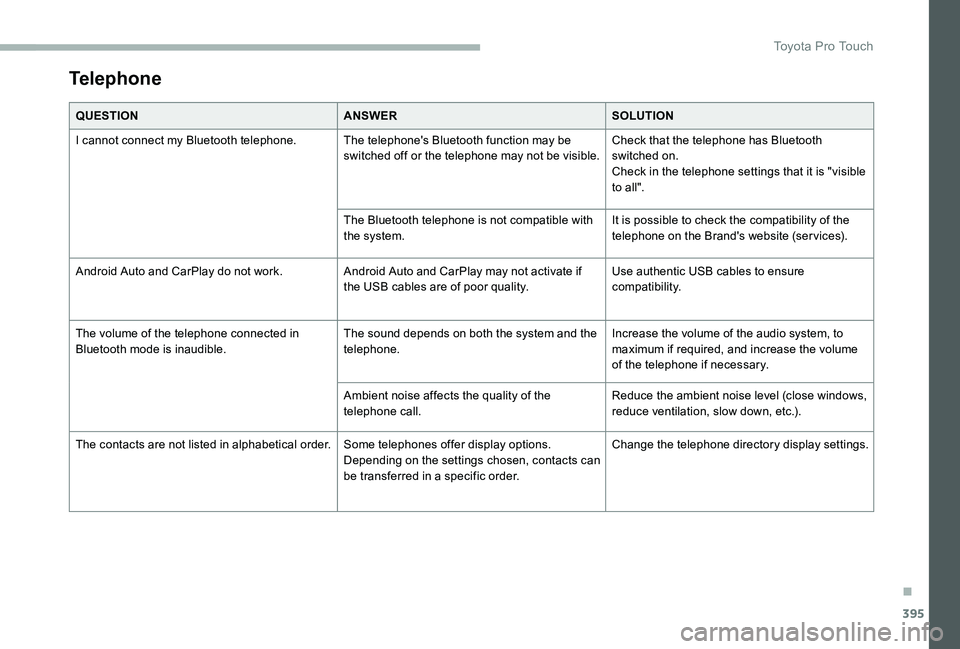
Telephone
QUESTIONANSWERSOLUTION
I cannot connect my Bluetooth telephone.The telephone's Bluetooth function may be switched off or the telephone may not be visible.Check that the telephone has Bluetooth switched on.Check in the telephone settings that it is "visible to all".
The Bluetooth telephone is not compatible with the system.It is possible to check the compatibility of the telephone on the Brand's website (services).
Android Auto and CarPlay do not work.Android Auto and CarPlay may not activate if the USB cables are of poor quality.Use authentic USB cables to ensure compatibility.
The volume of the telephone connected in Bluetooth mode is inaudible.The sound depends on both the system and the telephone.Increase the volume of the audio system, to maximum if required, and increase the volume of the telephone if necessary.
Ambient noise affects the quality of the telephone call.Reduce the ambient noise level (close windows, reduce ventilation, slow down, etc.).
The contacts are not listed in alphabetical order.Some telephones offer display options. Depending on the settings chosen, contacts can be transferred in a specific order.
Change the telephone directory display settings.
.
Toyota Pro Touch
Page 398 of 430
398
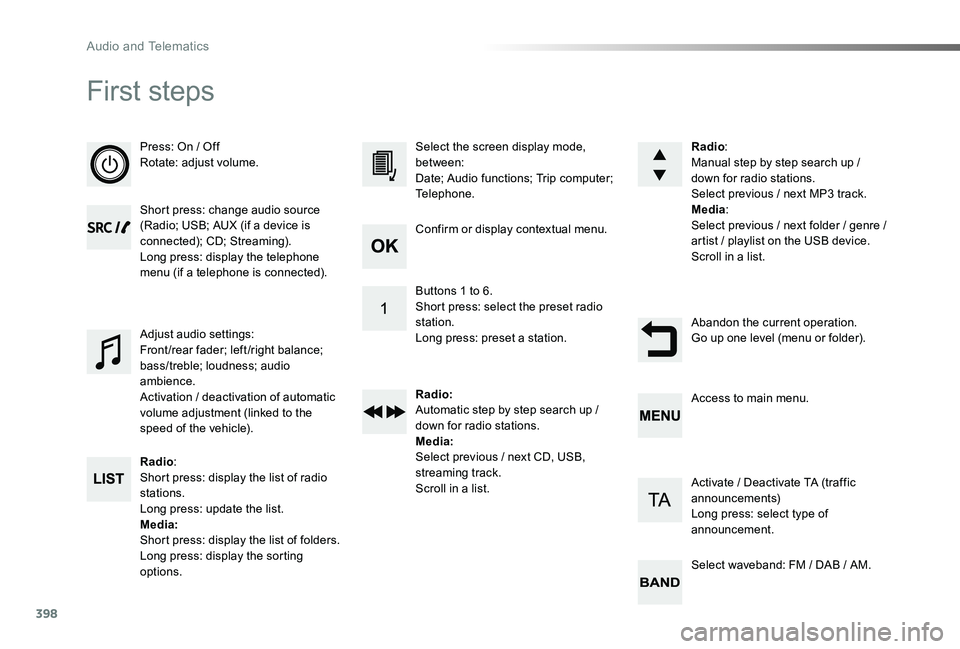
First steps
Press: On / OffRotate: adjust volume.
Short press: change audio source (Radio; USB; AUX (if a device is connected); CD; Streaming).Long press: display the telephone menu (if a telephone is connected).
Radio:Short press: display the list of radio stations.Long press: update the list.Media:Short press: display the list of folders.Long press: display the sorting options.
Select the screen display mode, between:Date; Audio functions; Trip computer; Telephone.
Adjust audio settings:Front/rear fader; left/right balance; bass/treble; loudness; audio ambience.Activation / deactivation of automatic volume adjustment (linked to the speed of the vehicle).
Radio:Manual step by step search up / down for radio stations.Select previous / next MP3 track.Media:Select previous / next folder / genre / artist / playlist on the USB device.Scroll in a list.
Abandon the current operation.Go up one level (menu or folder).
Confirm or display contextual menu.
Buttons 1 to 6.Short press: select the preset radio station.Long press: preset a station.
Radio:Automatic step by step search up / down for radio stations.Media:Select previous / next CD, USB, streaming track.Scroll in a list.
Access to main menu.
Activate / Deactivate TA (traffic announcements)Long press: select type of announcement.
Select waveband: FM / DAB / AM.
Audio and Telematics
Page 399 of 430
399
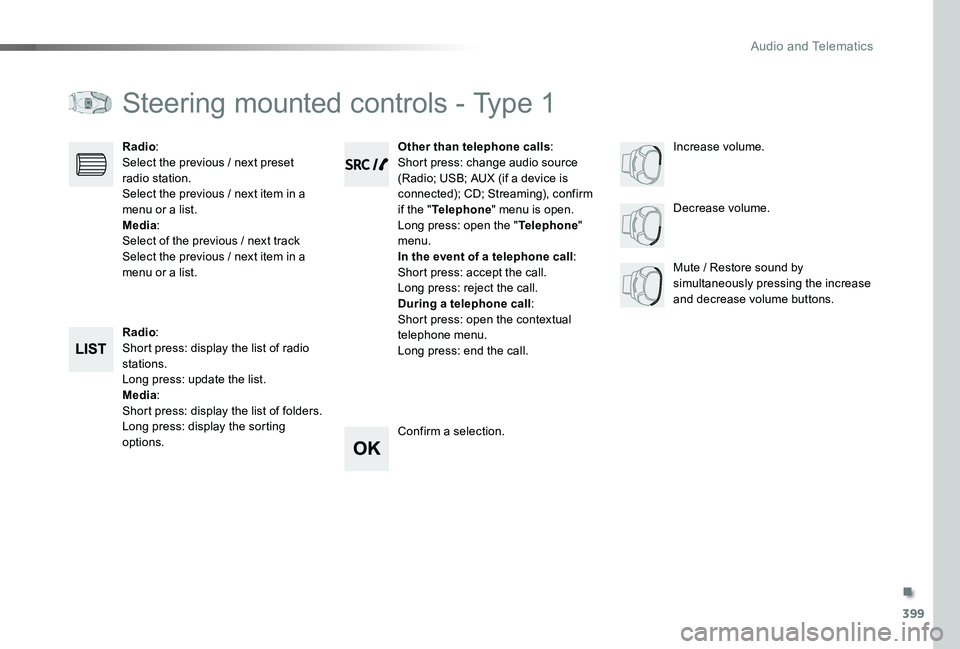
Steering mounted controls - Type 1
Radio:Short press: display the list of radio stations.Long press: update the list.Media:Short press: display the list of folders.Long press: display the sorting options.
Decrease volume.
Radio:Select the previous / next preset radio station.Select the previous / next item in a menu or a list.Media:Select of the previous / next trackSelect the previous / next item in a menu or a list.Mute / Restore sound by simultaneously pressing the increase and decrease volume buttons.
Other than telephone calls:Short press: change audio source (Radio; USB; AUX (if a device is connected); CD; Streaming), confirm if the "Telephone" menu is open.Long press: open the "Telephone" menu.In the event of a telephone call:Short press: accept the call.Long press: reject the call.During a telephone call:Short press: open the contextual telephone menu.Long press: end the call.
Confirm a selection.
Increase volume.
.
Audio and Telematics
Page 400 of 430
400
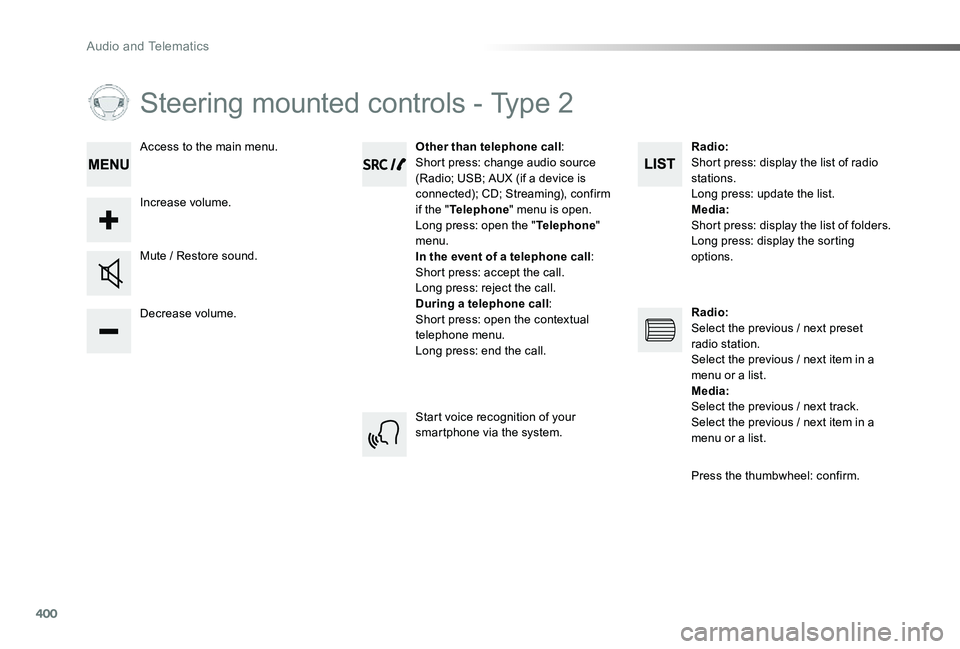
Steering mounted controls - Type 2
Decrease volume.
Mute / Restore sound.
Other than telephone call:Short press: change audio source (Radio; USB; AUX (if a device is connected); CD; Streaming), confirm if the "Telephone" menu is open.Long press: open the "Telephone" menu.In the event of a telephone call:Short press: accept the call.Long press: reject the call.During a telephone call:Short press: open the contextual telephone menu.Long press: end the call.
Increase volume.
Access to the main menu.
Start voice recognition of your smartphone via the system.
Radio:Short press: display the list of radio stations.Long press: update the list.Media:Short press: display the list of folders.Long press: display the sorting
options.
Radio:Select the previous / next preset radio station.Select the previous / next item in a menu or a list.Media:Select the previous / next track.Select the previous / next item in a menu or a list.
Press the thumbwheel: confirm.
Audio and Telematics