park TOYOTA PROACE 2023 Workshop Manual
[x] Cancel search | Manufacturer: TOYOTA, Model Year: 2023, Model line: PROACE, Model: TOYOTA PROACE 2023Pages: 360, PDF Size: 70.22 MB
Page 251 of 360
251
In the event of a breakdown
8
WARNI NG
With a manual gearbox, place the gear lever in neutral.With an automatic gearbox, place the gear selector in position N.Failure to adhere to this instruction may lead to damage to some braking components and the lack of braking assistance on restarting
the engine.
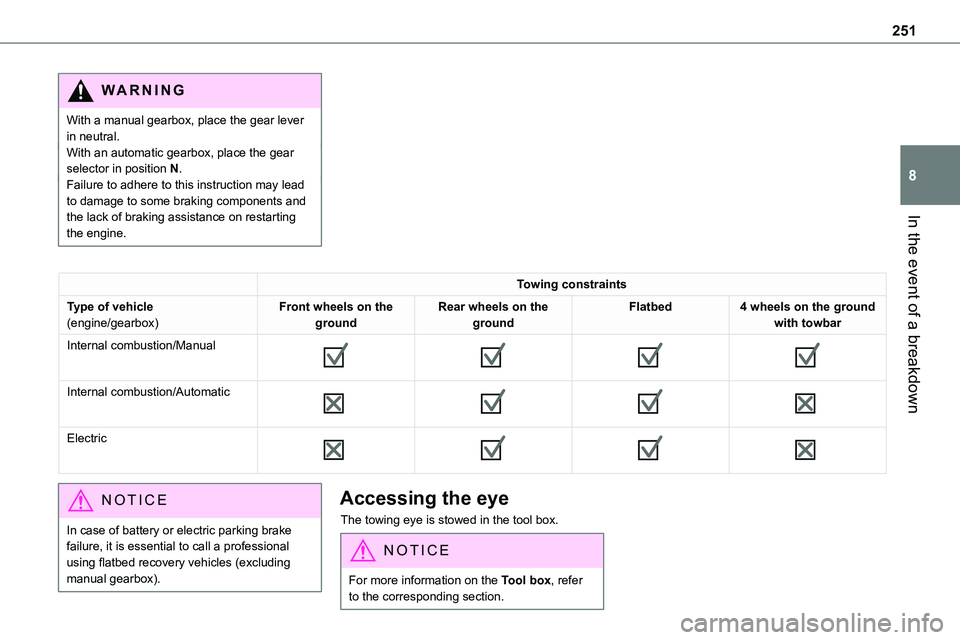
Towing constraints
Type of vehicle(engine/gearbox)Front wheels on the groundRear wheels on the groundFlatbed4 wheels on the ground with towbar
Internal combustion/Manual
Internal combustion/Automatic
Electric
NOTIC E
In case of battery or electric parking brake failure, it is essential to call a professional using flatbed recovery vehicles (excluding manual gearbox).
Accessing the eye
The towing eye is stowed in the tool box.
NOTIC E
For more information on the Tool box, refer to the corresponding section.
Page 265 of 360
265
Bluetooth® audio system
10
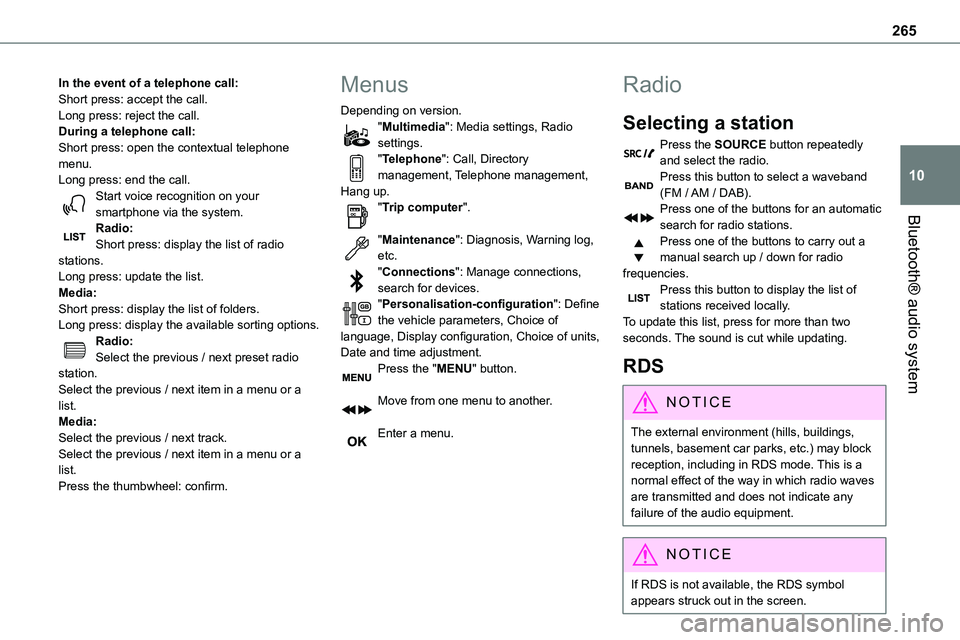
In the event of a telephone call:Short press: accept the call.Long press: reject the call.During a telephone call:Short press: open the contextual telephone menu.Long press: end the call.Start voice recognition on your smartphone via the system.
Radio:Short press: display the list of radio stations.Long press: update the list.Media:Short press: display the list of folders.Long press: display the available sorting options.Radio:Select the previous / next preset radio station.Select the previous / next item in a menu or a list.Media:Select the previous / next track.Select the previous / next item in a menu or a list.Press the thumbwheel: confirm.
Menus
Depending on version."Multimedia": Media settings, Radio settings."Telephone": Call, Directory management, Telephone management, Hang up."Trip computer".
"Maintenance": Diagnosis, Warning log, etc."Connections": Manage connections, search for devices."Personalisation-configuration": Define the vehicle parameters, Choice of language, Display configuration, Choice of units, Date and time adjustment.Press the "MENU" button.
Move from one menu to another.
Enter a menu.
Radio
Selecting a station
Press the SOURCE button repeatedly and select the radio.Press this button to select a waveband (FM / AM / DAB).Press one of the buttons for an automatic
search for radio stations.Press one of the buttons to carry out a manual search up / down for radio frequencies.Press this button to display the list of stations received locally.To update this list, press for more than two seconds. The sound is cut while updating.
RDS
NOTIC E
The external environment (hills, buildings, tunnels, basement car parks, etc.) may block reception, including in RDS mode. This is a normal effect of the way in which radio waves are transmitted and does not indicate any failure of the audio equipment.
NOTIC E
If RDS is not available, the RDS symbol appears struck out in the screen.
Page 274 of 360
274
NOTIC E
Voice recognition requires the use of a compatible smartphone first connected to the vehicle by Bluetooth.
Frequently asked
questions
The following information groups together the answers to the most frequently asked questions concerning your audio system.With the engine off, the audio system switches off after a few minutes of use.When the engine is switched off, the audio system operating time depends on the state of charge of the battery.The switch-off is normal: the audio system switches to economy mode and switches off to avoid discharging the vehicle's battery.► Start the vehicle’s engine to increase the charge of the battery.The message "the audio system is overheated" is displayed onscreen.To protect the installation if the ambient temperature is too high, the audio system switches to an automatic thermal protection mode, in which the volume may be decreased or the CD player stopped.► Switch the audio system off for a few minutes to allow the system to cool.
Radio
There is a difference in sound quality between the different audio sources (radio, CD, etc.).For optimal listening quality, the audio settings (Volume, Bass, Treble, Ambience and Loudness) can be adjusted to different audio sources, resulting in audible differences when switching between sources (radio, CD, etc.).
► Check that the audio settings (Volume, Bass, Treble, Ambience and Loudness) are appropriate to the sources being listened to. We recommend setting the audio functions (Bass, Treble, Fr-Re balance and Le-Ri balance) to the middle position, setting the musical ambience to "None", setting loudness correction to "Active" in CD mode and "Inactive" in Radio mode.The preset stations do not function (no sound, 87.5 MHz is displayed, etc.).The wrong waveband is selected.► Press the BAND button to return to the waveband (FM, FM2, DAB, AM) on which the stations are preset.Traffic announcement (TA) is shown but I receive no traffic information.The radio station is not part of the regional traffic information network.► Tune to a radio station that broadcasts traffic information.The reception quality of the tuned radio station gradually deteriorates or the station
presets are inoperative (no sound, 87.5 MHz is displayed, etc.).The vehicle is too far from the selected station’s transmitter, or no transmitter is present in the geographical area.► Activate the RDS function to allow the system to check for a more powerful transmitter in the area.The environment (hills, buildings, tunnels,
basement car parks, etc.) may block reception, including in RDS mode.This is a perfectly normal phenomenon, and is not indicative of an audio system malfunction.The aerial is absent or has been damaged (for example when going through an automatic car wash or in an underground car park).► Have the aerial checked by a dealer.The sound intermittently cuts out for 1 or 2 seconds in radio mode.During this brief sound cut-out, the RDS searches for another frequency giving better reception of the station.► Switch off the RDS function if the phenomenon occurs too frequently and always on the same route.
Media
The Bluetooth connection is cut.The battery in the peripheral device may not be sufficiently charged.► Charge the battery in the peripheral device.The message "USB device error" is displayed in the screen.
Page 280 of 360
280
Press this button to select the display settings for messages.Press this button to search and select a recipient.Select the "Quick messages” tab.
Press this button to select the display settings for messages.Press this button to write a new message.
Press the bin alongside the selected message to delete it.Press this button alongside the selected message to display the secondary page.Press this button to edit and modify the existing text.Press this button to write a new message.
Press the bin to delete the message.
Radio
Selecting a station
Press Radio Media to display the main page.Press one of the buttons to perform an automatic search for radio stations.Or
Move the slider to manually search for frequencies up or down.OrPress the frequency.
Enter the FM and AM waveband values using the virtual keypad.Press "OK" to confirm.
WARNI NG
Radio reception may be affected by the use of electrical equipment not approved by the Brand, such as a USB charger connected to the 12 V socket.The exterior environment (hills, buildings, tunnels, basement car parks, etc.) may block reception, including in RDS mode. This phenomenon is perfectly normal in the
context of radio wave transmission, and in no way indicative of an audio system malfunction.
Changing the waveband
Press Radio Media to display the main page. Press the "OPTIONS" button to access the secondary page.Press "Band" to change waveband.
Press in the shaded area to confirm.
Presetting a station
Select a radio station or frequency.Make a short press on the star outline. If the star is solid, the radio station is already preset.OrSelect a radio station or frequency.Press "Preset".Make a long press on one of the buttons to preset the station.
Activating/Deactivating RDS
RDS, if activated, allows you to continue listening to the same station by automatically retuning to alternative frequencies.Press Radio Media to display the main page.Press the "OPTIONS" button to access the secondary page.Activate/deactivate "RDS".
Page 286 of 360
286
NOTIC E
The profiles compatible with the system are: HFP, OPP, PBAP, A2DP, AVRCP, MAP and PAN.
Visit the Brand's website for more information (compatibility, additional help, etc.).
Automatic reconnection
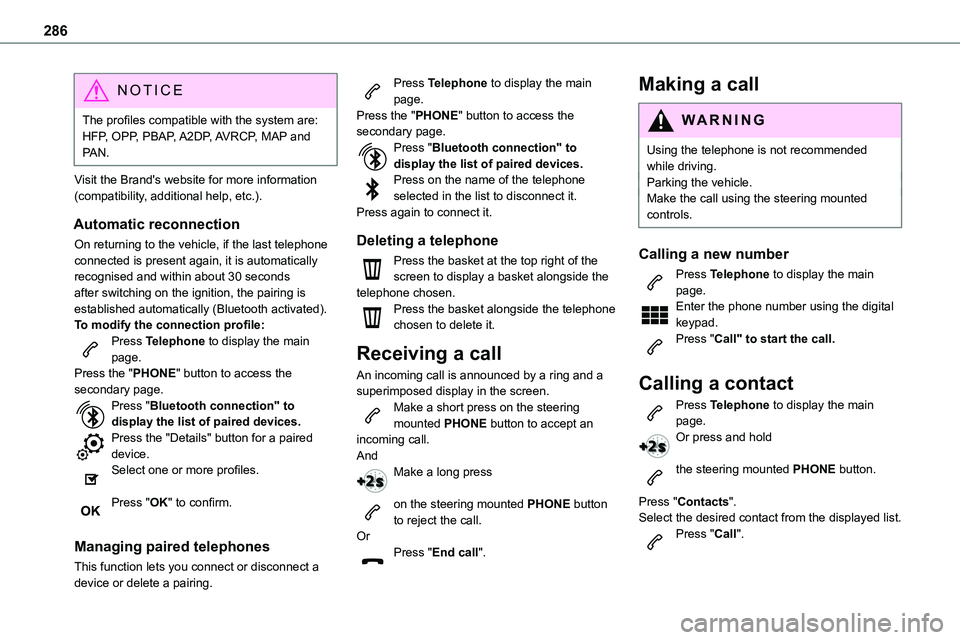
On returning to the vehicle, if the last telephone connected is present again, it is automatically recognised and within about 30 seconds after switching on the ignition, the pairing is established automatically (Bluetooth activated).To modify the connection profile:Press Telephone to display the main page.Press the "PHONE" button to access the secondary page.Press "Bluetooth connection" to display the list of paired devices.Press the "Details" button for a paired device.Select one or more profiles.
Press "OK" to confirm.
Managing paired telephones
This function lets you connect or disconnect a device or delete a pairing.
Press Telephone to display the main page.Press the "PHONE" button to access the secondary page.Press "Bluetooth connection" to display the list of paired devices.Press on the name of the telephone selected in the list to disconnect it.Press again to connect it.
Deleting a telephone
Press the basket at the top right of the screen to display a basket alongside the telephone chosen.Press the basket alongside the telephone chosen to delete it.
Receiving a call
An incoming call is announced by a ring and a superimposed display in the screen.Make a short press on the steering mounted PHONE button to accept an incoming call.AndMake a long press
on the steering mounted PHONE button to reject the call.OrPress "End call".
Making a call
WARNI NG
Using the telephone is not recommended while driving.Parking the vehicle.Make the call using the steering mounted controls.
Calling a new number
Press Telephone to display the main page. Enter the phone number using the digital keypad.Press "Call" to start the call.
Calling a contact
Press Telephone to display the main page. Or press and hold
the steering mounted PHONE button.
Press "Contacts".Select the desired contact from the displayed list.
Press "Call".
Page 287 of 360
287
TOYOTA Pro Touch
11
Calling a recently used
number
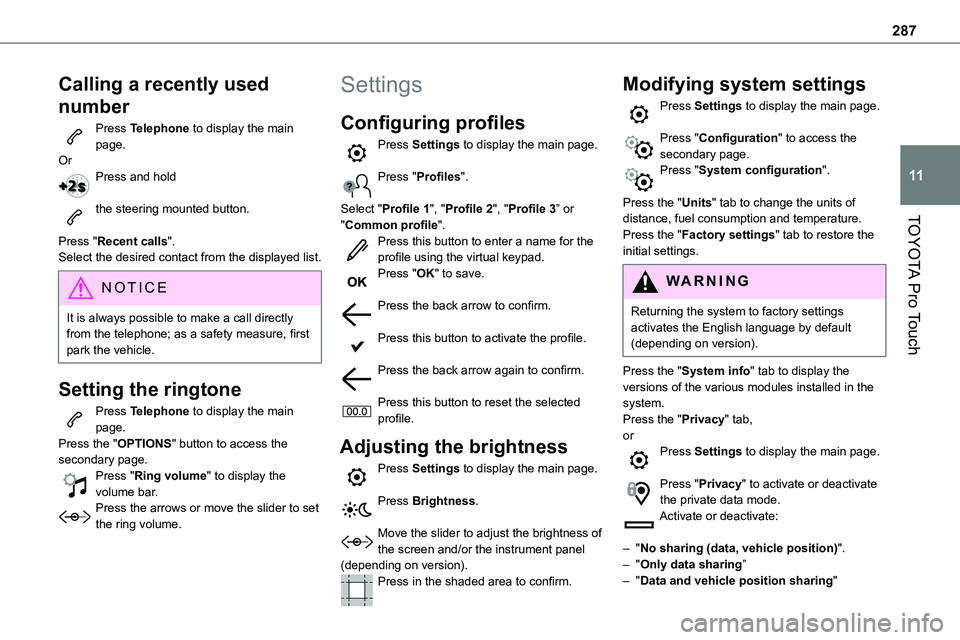
Press Telephone to display the main page.OrPress and hold
the steering mounted button.
Press "Recent calls".Select the desired contact from the displayed list.
NOTIC E
It is always possible to make a call directly from the telephone; as a safety measure, first park the vehicle.
Setting the ringtone
Press Telephone to display the main page. Press the "OPTIONS" button to access the secondary page.Press "Ring volume" to display the volume bar.Press the arrows or move the slider to set the ring volume.
Settings
Configuring profiles
Press Settings to display the main page.
Press "Profiles".
Select "Profile 1", "Profile 2", "Profile 3” or
"Common profile".Press this button to enter a name for the profile using the virtual keypad.Press "OK" to save.
Press the back arrow to confirm.
Press this button to activate the profile.
Press the back arrow again to confirm.
Press this button to reset the selected profile.
Adjusting the brightness
Press Settings to display the main page.
Press Brightness.
Move the slider to adjust the brightness of the screen and/or the instrument panel (depending on version).Press in the shaded area to confirm.
Modifying system settings
Press Settings to display the main page.
Press "Configuration" to access the secondary page.Press "System configuration".
Press the "Units" tab to change the units of distance, fuel consumption and temperature.
Press the "Factory settings" tab to restore the initial settings.
WARNI NG
Returning the system to factory settings activates the English language by default (depending on version).
Press the "System info" tab to display the versions of the various modules installed in the system.Press the "Privacy" tab,orPress Settings to display the main page.
Press "Privacy" to activate or deactivate the private data mode.Activate or deactivate:
– "No sharing (data, vehicle position)".– "Only data sharing”– "Data and vehicle position sharing"
Page 289 of 360
289
TOYOTA Pro Touch
11
Frequently asked
questions
The following information groups together the answers to the most frequently asked questions concerning the system.
Radio
The reception quality of the tuned radio
station gradually deteriorates or the station presets are not working (no sound, 87.5 MHz is displayed, etc.).The vehicle is too far from the selected station’s transmitter, or no transmitter is present in the geographical area.► Activate the "RDS" function in the upper bar to enable the system to check whether there is a more powerful transmitter in the geographical area.The environment (hills, buildings, tunnels, basement car parks, etc.) is blocking reception, including in RDS mode.This is a perfectly normal phenomenon, and is not indicative of an audio system malfunction.The aerial is missing or has been damaged (for example while entering a car wash or underground car park).► Have the aerial checked by a dealer.I cannot find some radio stations in the list of received stations.The name of the radio station changes.The station is no longer received or its name has changed in the list.
► Press the round arrow on the "List" tab on the "Radio" page.Some radio stations send other information in place of their name (the title of the song for example).The system interprets these details as the station name.► Press the round arrow on the "List" tab on the "Radio" page.
Media
Playback of my USB memory stick starts only after a very long wait (around 2 to 3 minutes).Some files supplied with the memory stick may greatly slow down access to reading the memory stick (multiplication by 10 of the cataloguing time).► Delete the files supplied with the memory stick and limit the number of sub-folders in the file structure on the memory stick. Some characters in information about the currently playing media are not displayed correctly.The audio system is unable to process certain types of character.► Use standard characters to name tracks and folders.Playback of streaming files does not start.The connected device does not automatically launch playback.► Start playback from the device.Track names and playing times are not displayed on the audio streaming screen.
The Bluetooth profile does not allow the transfer of this information.
Telephone
I cannot connect my Bluetooth telephone.The telephone's Bluetooth function may be switched off or the device may not be visible.► Check that the telephone has Bluetooth switched on.
► Check in the telephone settings that it is "visible to all".The Bluetooth telephone is not compatible with the system.► Check the compatibility of the telephone on the Brand's website (services).Android Auto and/or CarPlay do not work.Android Auto and CarPlay may not activate if the USB cables are of poor quality.► Use genuine USB cables to ensure compatibility.Android Auto and/or CarPlay do not work.Android Auto and CarPlay are not available in all countries.► Check the Google Android Auto or Apple website to see which countries are supported.The volume of the telephone connected in Bluetooth mode is inaudible.The volume depends on both the system and the telephone.► Increase the volume of the audio system, to maximum if required, and increase the volume of the telephone if necessary.
Page 296 of 360
296
You can say "stop" or "resume route guidance". To get information about your current route, you can say "tell me the remaining time", "remaining distance" or "arrival time". To learn more commands, try saying "help with navigation". Voice commands
Show POI ''hotel'' at the destinationShow nearby POI petrol station
Navigate to POI Heathrow Airport in LondonNavigate to POI petrol station along the routeHelp messages
To see points of interest on a map, you can say things like "show hotels in Banbury", "show nearby parking", "show hotel at the destination" or "show petrol station along the route". If you prefer to navigate directly to a point of interest, you can say "navigate to nearby petrol station". If you feel you are not being well understood, try to say the word "POI" in front of the point of interest. For example say "navigate to POI restaurant at the destination".To choose a POI, say something like "select line 2". If you've searched for a Point of Interest and don't see the one you're after, you can filter further by saying something like "select POI in line 2", or "select the city in line 3". You can also scroll through the list by saying "next page" or "previous page".
NOTIC E
Depending on the country, give destination (address) instructions in the language configured for the system.
"Radio Media" voice
commands
Voice commands
Turn on source radio - Streaming Bluetooth - …Help messages
You can select an audio source by saying "turn on source" followed by the device name. For example, "turn on source, Streaming Bluetooth", or "turn on source, radio". Use the command "play" to specify the type of music you'd like to hear. You can choose between "song", "artist", or "album". Just say something like "play artist, Madonna", "play song, Hey Jude", or "play album, Thriller". Voice commands
Tune to channel BBC Radio 2Tune to 98.5 FMTune to preset number fiveHelp messages
You can pick a radio station by saying "tune to" and the station name or frequency. For example "tune to channel Talksport" or "tune to 98.5 FM". To listen to a preset radio station, say for example "tune to preset number five". Voice commands
What's playing?Help messages
To choose what you'd like to play, start by saying "play" and then the item. For example, say "play song Hey Jude", "play line 3" or "select line 2". You can undo your last action and start over by saying "undo", or say "cancel" to cancel the current action.Voice commands
Play song Hey JudePlay artist MadonnaPlay album ThrillerHelp messages
I'm not sure what you'd like to play. Please say "play" and then a song title, an album title, or an artist name. For example, say "play song Hey Jude", "play artist Madonna" or "play album Thriller". To select a line number from the display, say "select line two". To move around a displayed list, you can say "next page" or "previous page". You can undo your last action and start over by saying "undo", or say "cancel" to cancel the current action.
Page 302 of 360
302
– "Only data sharing"– "Sharing data and vehicle position"
Settings specific to
connected navigation
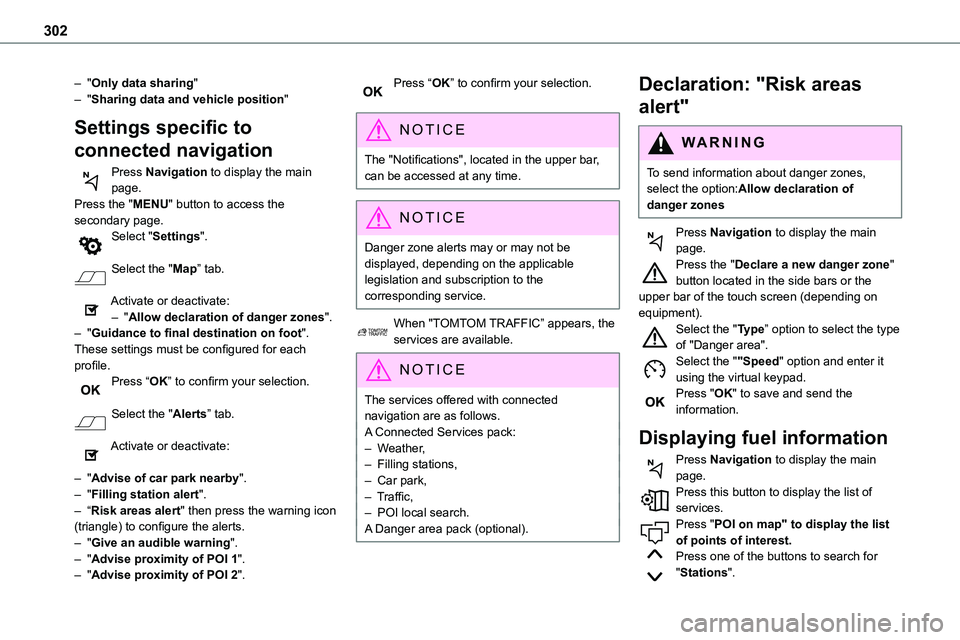
Press Navigation to display the main page.Press the "MENU" button to access the secondary page.
Select "Settings".
Select the "Map” tab.
Activate or deactivate:– "Allow declaration of danger zones".– "Guidance to final destination on foot".These settings must be configured for each profile.Press “OK” to confirm your selection.
Select the "Alerts” tab.
Activate or deactivate:
– "Advise of car park nearby".– "Filling station alert".– “Risk areas alert" then press the warning icon (triangle) to configure the alerts.– "Give an audible warning".– "Advise proximity of POI 1".– "Advise proximity of POI 2".
Press “OK” to confirm your selection.
NOTIC E
The "Notifications", located in the upper bar, can be accessed at any time.
NOTIC E
Danger zone alerts may or may not be displayed, depending on the applicable legislation and subscription to the corresponding service.
When "TOMTOM TRAFFIC” appears, the services are available.
NOTIC E
The services offered with connected navigation are as follows.A Connected Services pack:– Weather,– Filling stations,– Car park,– Traffic,– POI local search.A Danger area pack (optional).
Declaration: "Risk areas
alert"
WARNI NG
To send information about danger zones, select the option:Allow declaration of danger zones
Press Navigation to display the main page.Press the "Declare a new danger zone" button located in the side bars or the upper bar of the touch screen (depending on equipment).Select the "Type” option to select the type of "Danger area".Select the ""Speed" option and enter it using the virtual keypad.Press "OK" to save and send the information.
Displaying fuel information
Press Navigation to display the main page.Press this button to display the list of services.Press "POI on map" to display the list
of points of interest.Press one of the buttons to search for "Stations".
Page 307 of 360
307
TOYOTA Pro Touch with navigation system
12
WARNI NG
Radio reception may be affected by the use of electrical equipment not approved by the Brand, such as a USB charger connected to the 12 V socket.The exterior environment (hills, buildings, tunnels, basement car parks, etc.) may block reception, including in RDS mode.
This phenomenon is perfectly normal in the context of radio wave transmission, and in no way indicative of an audio system malfunction.
Presetting a station
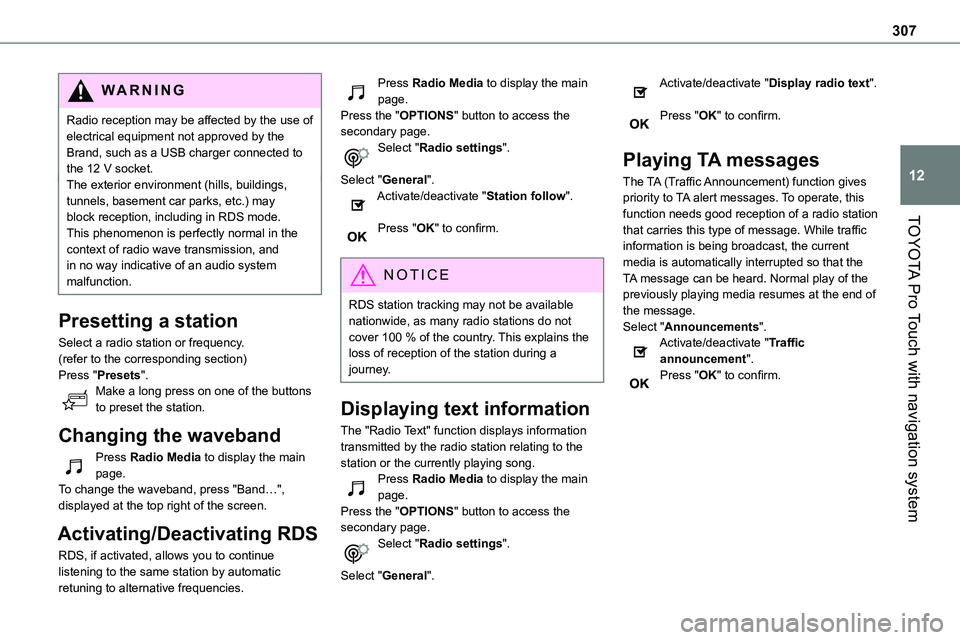
Select a radio station or frequency.(refer to the corresponding section)Press "Presets".Make a long press on one of the buttons to preset the station.
Changing the waveband
Press Radio Media to display the main page.To change the waveband, press "Band…", displayed at the top right of the screen.
Activating/Deactivating RDS
RDS, if activated, allows you to continue listening to the same station by automatic retuning to alternative frequencies.
Press Radio Media to display the main page.Press the "OPTIONS" button to access the secondary page.Select "Radio settings".
Select "General".Activate/deactivate "Station follow".
Press "OK" to confirm.
NOTIC E
RDS station tracking may not be available nationwide, as many radio stations do not cover 100 % of the country. This explains the loss of reception of the station during a journey.
Displaying text information
The "Radio Text" function displays information transmitted by the radio station relating to the station or the currently playing song.Press Radio Media to display the main page.Press the "OPTIONS" button to access the secondary page.
Select "Radio settings".
Select "General".
Activate/deactivate "Display radio text".
Press "OK" to confirm.
Playing TA messages
The TA (Traffic Announcement) function gives priority to TA alert messages. To operate, this function needs good reception of a radio station
that carries this type of message. While traffic information is being broadcast, the current media is automatically interrupted so that the TA message can be heard. Normal play of the previously playing media resumes at the end of the message.Select "Announcements".Activate/deactivate "Traffic announcement".Press "OK" to confirm.