radio controls TOYOTA PROACE CITY VERSO 2021 Owners Manual
[x] Cancel search | Manufacturer: TOYOTA, Model Year: 2021, Model line: PROACE CITY VERSO, Model: TOYOTA PROACE CITY VERSO 2021Pages: 272, PDF Size: 57.64 MB
Page 3 of 272
3
Contents
Cruise control - particular recommendations 126Programmable cruise control 126Adaptive Cruise Control 129Memorising speeds 133Active Safety Brake with Collision Risk Alert and Intelligent emergency braking assistance 133Active Lane Departure Warning System 136Blind Spot Monitoring System 139Active Blind Spot Monitoring System 141Distraction detection 141Parking sensors 143Top Rear Vision 145Park Assist 147
7Practical information
Compatibility of fuels 151Refuelling 151Misfuel prevention (Diesel) 153Snow chains 153Towing device 154Towing device with quickly
detachable towball 156Energy economy mode 157Roof bars / Roof rack 157Bonnet 158Engine compartment 159Checking levels 160Speed checks 162AdBlue® (Diesel engines) 164Free-wheeling 167
Advice on care and maintenance 167
8In the event of a breakdown
Running out of fuel (Diesel) 169Tool kit 169Temporary puncture repair kit 170Spare wheel 173Changing a bulb 176Changing a fuse 18212 V battery 184Towing 188
9Technical data
Dimensions 190Engine technical data and towed loads 191Identification markings 194
10Bluetooth® audio system
First steps 195Steering mounted controls 196Menus 197Radio 197DAB (Digital Audio Broadcasting) radio 198
Media 200Telephone 202Frequently asked questions 206
11TOYOTA Connect Radio
First steps 208Steering mounted controls 209Menus 210Applications 2 11
Radio 212DAB (Digital Audio Broadcasting) radio 213Media 214Telephone 215Settings 219Frequently asked questions 221
12TOYOTA Connect Nav
First steps 223Steering mounted controls 224Menus 224Voice commands 226Navigation 230Connected navigation 232Applications 235Radio 238DAB (Digital Audio Broadcasting) radio 240Media 240Telephone 242Settings 245Frequently asked questions 247
■Alphabetical index
Page 5 of 272
5
Overview
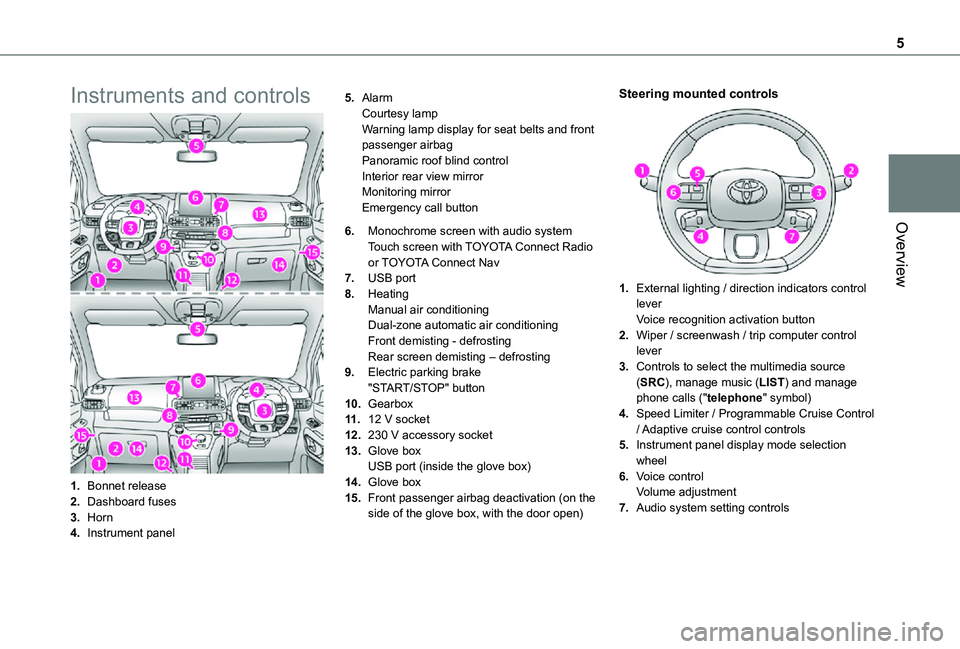
Instruments and controls
1.Bonnet release
2.Dashboard fuses
3.Horn
4.Instrument panel
5.AlarmCourtesy lampWarning lamp display for seat belts and front passenger airbagPanoramic roof blind controlInterior rear view mirrorMonitoring mirrorEmergency call button
6.Monochrome screen with audio system
Touch screen with TOYOTA Connect Radio or TOYOTA Connect Nav
7.USB port
8.HeatingManual air conditioningDual-zone automatic air conditioningFront demisting - defrostingRear screen demisting – defrosting
9.Electric parking brake"START/STOP" button
10.Gearbox
11 .12 V socket
12.230 V accessory socket
13.Glove boxUSB port (inside the glove box)
14.Glove box
15.Front passenger airbag deactivation (on the side of the glove box, with the door open)
Steering mounted controls
1.External lighting / direction indicators control leverVoice recognition activation button
2.Wiper / screenwash / trip computer control lever
3.Controls to select the multimedia source (SRC), manage music (LIST) and manage phone calls ("telephone" symbol)
4.Speed Limiter / Programmable Cruise Control / Adaptive cruise control controls
5.Instrument panel display mode selection wheel
6.Voice controlVolume adjustment
7.Audio system setting controls
Page 50 of 272
50
WARNI NG
The connection of an electrical device not approved by TOYOTA, such as a USB charger, may adversely affect the operation of vehicle electrical systems, causing faults such as poor radio reception or interference with displays in the screens.
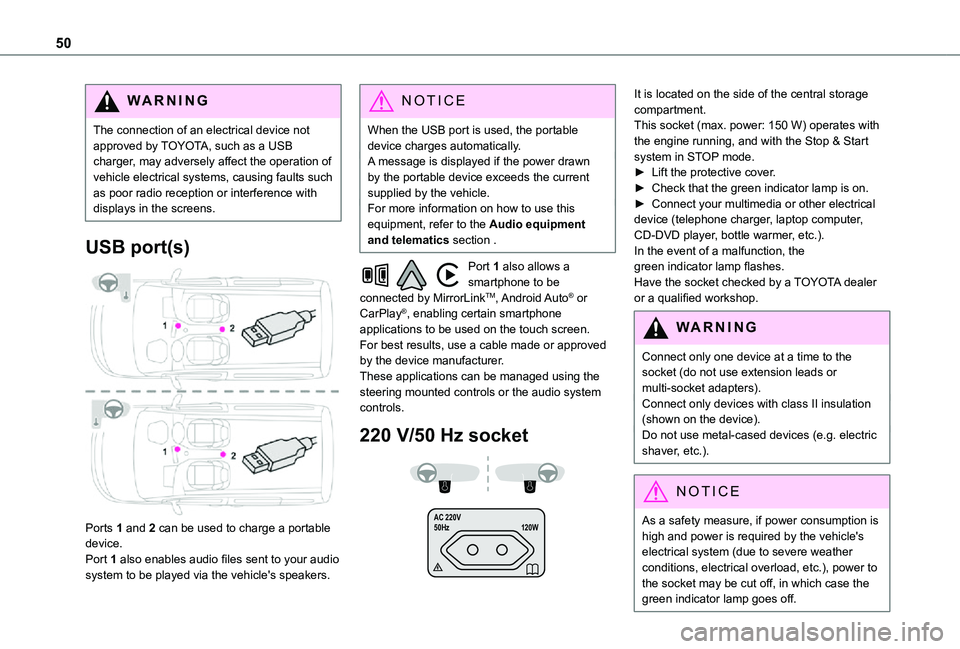
USB port(s)
Ports 1 and 2 can be used to charge a portable device.
Port 1 also enables audio files sent to your audio system to be played via the vehicle's speakers.
NOTIC E
When the USB port is used, the portable device charges automatically.A message is displayed if the power drawn by the portable device exceeds the current supplied by the vehicle.For more information on how to use this equipment, refer to the Audio equipment and telematics section .
Port 1 also allows a smartphone to be connected by MirrorLinkTM, Android Auto® or CarPlay®, enabling certain smartphone applications to be used on the touch screen.For best results, use a cable made or approved by the device manufacturer.These applications can be managed using the steering mounted controls or the audio system controls.
220 V/50 Hz socket
AC 220 V
50Hz 120W
It is located on the side of the central storage compartment.This socket (max. power: 150 W) operates with the engine running, and with the Stop & Start system in STOP mode.► Lift the protective cover.► Check that the green indicator lamp is on.► Connect your multimedia or other electrical device (telephone charger, laptop computer, CD-DVD player, bottle warmer, etc.).In the event of a malfunction, the green indicator lamp flashes.Have the socket checked by a TOYOTA dealer or a qualified workshop.
WARNI NG
Connect only one device at a time to the socket (do not use extension leads or multi-socket adapters).Connect only devices with class II insulation (shown on the device).Do not use metal-cased devices (e.g. electric shaver, etc.).
NOTIC E
As a safety measure, if power consumption is high and power is required by the vehicle's
electrical system (due to severe weather conditions, electrical overload, etc.), power to the socket may be cut off, in which case the green indicator lamp goes off.
Page 183 of 272
183
In the event of a breakdown
8
GoodFailed
Tweezers
NOTIC E
Installing electrical accessoriesYour vehicle's electrical system is designed to operate with standard or optional equipment.Before installing other electrical equipment or accessories on your vehicle, contact a TOYOTA dealer or a qualified workshop.
WARNI NG
TOYOTA will not accept responsibility for the cost incurred in repairing your vehicle or for rectifying malfunctions resulting from the installation of accessories not supplied and not recommended by TOYOTA and not installed in accordance with its instructions, in
particular when the combined consumption of all of the additional equipment connected exceeds 10 milliamperes.
NOTIC E
For more information on installing a towbar or TAXI type equipment, contact a TOYOTA dealer.
Dashboard fuses
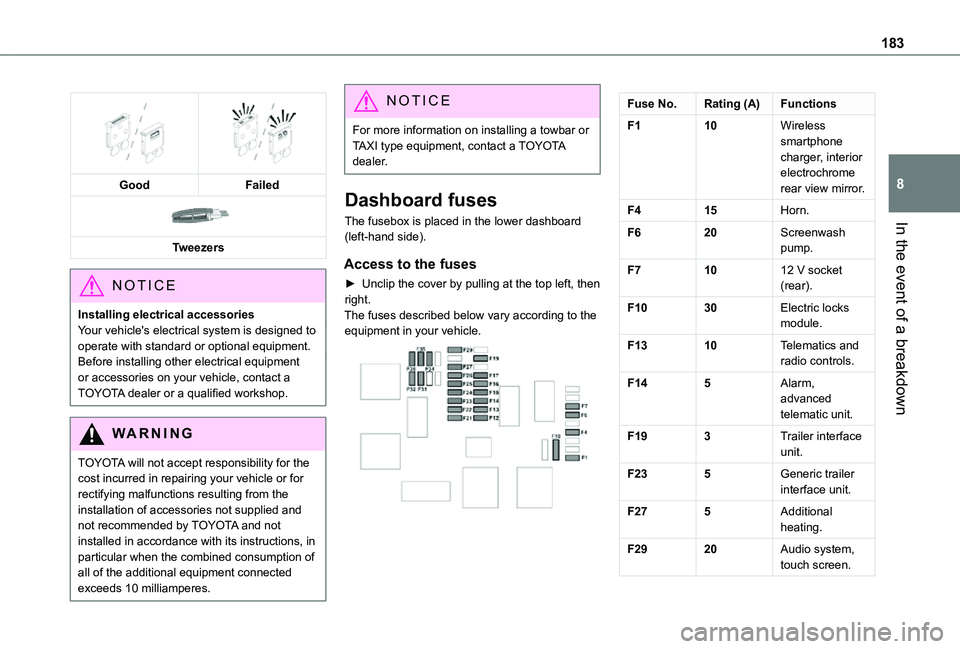
The fusebox is placed in the lower dashboard (left-hand side).
Access to the fuses
► Unclip the cover by pulling at the top left, then right.The fuses described below vary according to the equipment in your vehicle.
Fuse No.Rating (A)Functions
F110Wireless smartphone charger, interior electrochrome rear view mirror.
F415Horn.
F620Screenwash pump.
F71012 V socket (rear).
F1030Electric locks module.
F1310Telematics and radio controls.
F145Alarm, advanced telematic unit.
F193Trailer interface unit.
F235Generic trailer interface unit.
F275Additional heating.
F2920Audio system, touch screen.
Page 196 of 272
196
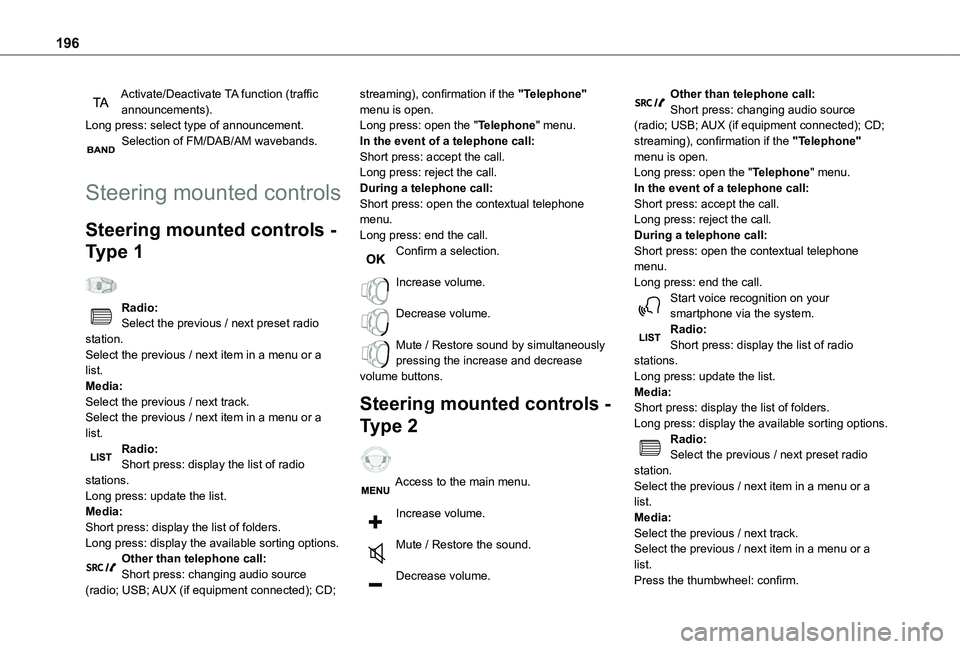
Activate/Deactivate TA function (traffic announcements).Long press: select type of announcement.Selection of FM/DAB/AM wavebands.
Steering mounted controls
Steering mounted controls -
Type 1
Radio:Select the previous / next preset radio station.Select the previous / next item in a menu or a list.Media:Select the previous / next track.Select the previous / next item in a menu or a list.
Radio:Short press: display the list of radio stations.Long press: update the list.Media:Short press: display the list of folders.Long press: display the available sorting options.Other than telephone call:Short press: changing audio source (radio; USB; AUX (if equipment connected); CD;
streaming), confirmation if the "Telephone" menu is open.Long press: open the "Telephone" menu.In the event of a telephone call:Short press: accept the call.Long press: reject the call.During a telephone call:Short press: open the contextual telephone menu.Long press: end the call.Confirm a selection.
Increase volume.
Decrease volume.
Mute / Restore sound by simultaneously pressing the increase and decrease volume buttons.
Steering mounted controls -
Type 2
Access to the main menu.
Increase volume.
Mute / Restore the sound.
Decrease volume.
Other than telephone call:Short press: changing audio source (radio; USB; AUX (if equipment connected); CD; streaming), confirmation if the "Telephone" menu is open.Long press: open the "Telephone" menu.In the event of a telephone call:Short press: accept the call.Long press: reject the call.During a telephone call:Short press: open the contextual telephone menu.Long press: end the call.Start voice recognition on your smartphone via the system.Radio:Short press: display the list of radio stations.Long press: update the list.Media:Short press: display the list of folders.Long press: display the available sorting options.Radio:
Select the previous / next preset radio station.Select the previous / next item in a menu or a list.Media:Select the previous / next track.Select the previous / next item in a menu or a list.Press the thumbwheel: confirm.
Page 209 of 272
209
TOYOTA Connect Radio
11
NOTIC E
In the "Settings" menu, it is possible to create a profile for an individual or for a group of people with shared interests, and configure a wide range of settings (radio presets, audio settings, ambiences, etc.). Settings are applied automatically.
NOTIC E
In very hot conditions, the volume may be limited to protect the system. It may enter standby mode (with the screen and sound off) for 5 minutes or more.The system will resume normal operation when the temperature in the passenger compartment has dropped.
Steering mounted controls
Steering mounted controls -
Type 1
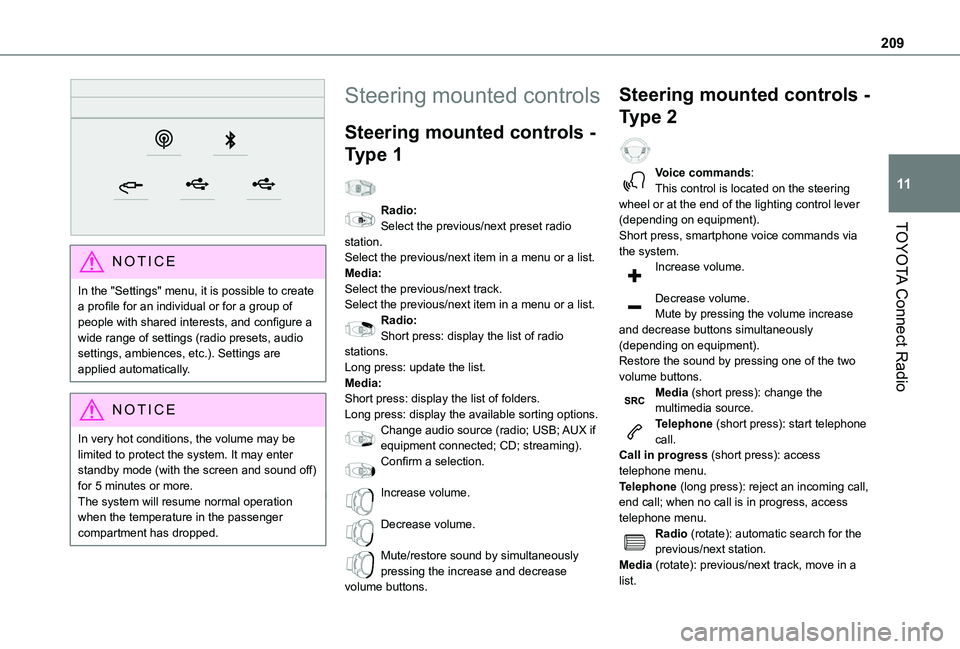
Radio:Select the previous/next preset radio station.Select the previous/next item in a menu or a list.Media:Select the previous/next track.Select the previous/next item in a menu or a list.Radio:Short press: display the list of radio stations.Long press: update the list.Media:Short press: display the list of folders.Long press: display the available sorting options.Change audio source (radio; USB; AUX if
equipment connected; CD; streaming).Confirm a selection.
Increase volume.
Decrease volume.
Mute/restore sound by simultaneously pressing the increase and decrease volume buttons.
Steering mounted controls -
Type 2
Voice commands:This control is located on the steering wheel or at the end of the lighting control lever (depending on equipment).Short press, smartphone voice commands via the system.Increase volume.
Decrease volume.Mute by pressing the volume increase and decrease buttons simultaneously (depending on equipment).Restore the sound by pressing one of the two volume buttons.Media (short press): change the multimedia source.Telephone (short press): start telephone call.
Call in progress (short press): access telephone menu.Telephone (long press): reject an incoming call, end call; when no call is in progress, access telephone menu.Radio (rotate): automatic search for the previous/next station.Media (rotate): previous/next track, move in a list.
Page 215 of 272
215
TOYOTA Connect Radio
11
NOTIC E
The classifications available are those of the portable device connected (artists/albums/genres/playlists/audio books/podcasts). It is also possible to use a classification structured in the form of a library.The default classification used is by artist. To modify the classification used, return to the first level of the menu then select the desired classification (playlists for example) and confirm to go down through the menu to the desired track.
The version of software in the audio system may not be compatible with the generation of the Apple® player.
Information and advice
The system supports USB mass storage devices, BlackBerry® devices or Apple® players via the USB ports. The adapter cable is not supplied.
Devices are managed using the audio system controls.Other devices, not recognised on connection, must be connected to the auxiliary socket using a jack cable (not supplied) or via Bluetooth streaming, if compatible.
WARNI NG
To protect the system, do not use a USB hub.
The audio system will only play audio files with ".wav", ".wma", ".aac", ".ogg" and ".mp3" file extensions, at bit rates between 32 Kbps and 320 Kbps.It also supports VBR (Variable Bit Rate) mode.No other file types (".mp4", etc.) can be read.All ".wma" files must be standard WMA 9 files.The supported sampling rates are 11, 22, 44 and 48 KHz.To avoid reading and display problems, we recommend choosing file names less than 20 characters long that do not contain any special characters (e.g. “ ? . ; ù).Use only USB memory sticks in FAT32 format (File Allocation Table).
NOTIC E
We recommend using the original USB cable for the portable device.
Telephone
USB sockets
Depending on equipment, for more information on the USB sockets compatible with the CarPlay®, MirrorLinkTM or Android Auto applications, refer to the "Ease of use and comfort" section.
NOTIC E
The synchronisation of a smartphone allows users to display applications adapted to the CarPlay®, MirrorLinkTM or Android Auto technology of the smartphone on the vehicle screen. For the CarPlay® technology, the CarPlay® function must be activated on the smartphone beforehand.For the communication process between the smartphone and the system to work, it is essential in all cases that the smartphone is unlocked.As the principles and standards are constantly changing, it is recommended that you keep the smartphone's operating system up-to-date, as well as the date and time of the smartphone and of the system.For the list of eligible smartphones, go to the Brand's national website.
Page 224 of 272
224
– USB memory stick.– Media player connected via the auxiliary socket (depending on equipment).– Video (depending on equipment).
NOTIC E
In the "Settings" menu, it is possible to create a profile for an individual or for a group of people with shared interests, and configure a wide range of settings (radio presets, audio settings, navigation history, favourite contacts, etc.). Settings are applied automatically.
NOTIC E
In very hot conditions, the volume may be limited to protect the system. It may enter
standby mode (with the screen and sound off) for 5 minutes or more.The system will resume normal operation when the temperature in the passenger compartment has dropped.
Steering mounted controls
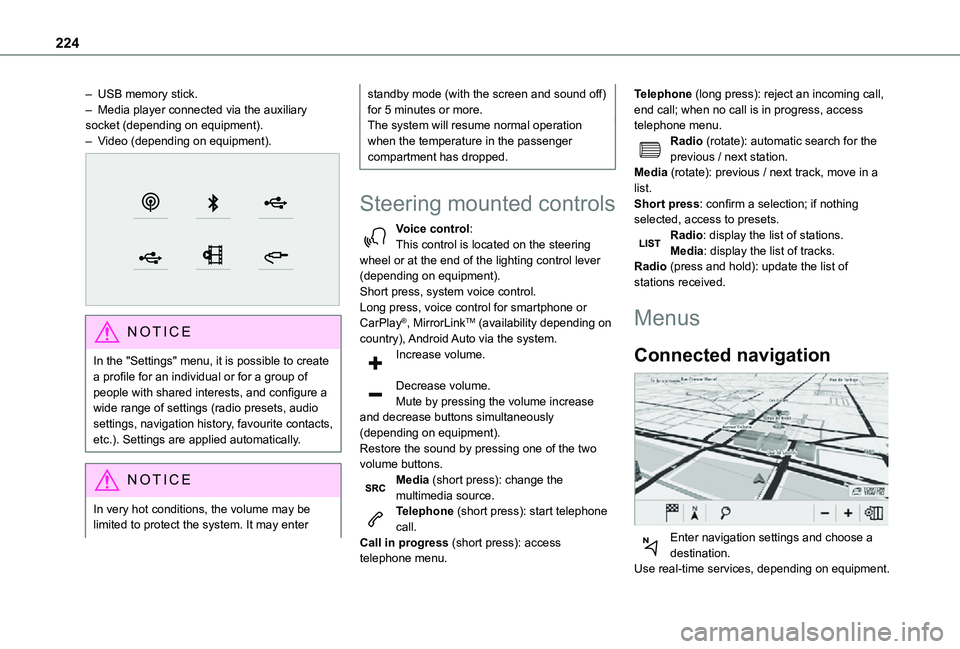
Voice control:This control is located on the steering wheel or at the end of the lighting control lever (depending on equipment).Short press, system voice control.Long press, voice control for smartphone or CarPlay®, MirrorLinkTM (availability depending on country), Android Auto via the system.Increase volume.
Decrease volume.Mute by pressing the volume increase and decrease buttons simultaneously (depending on equipment).
Restore the sound by pressing one of the two volume buttons.Media (short press): change the multimedia source.Telephone (short press): start telephone call.Call in progress (short press): access telephone menu.
Telephone (long press): reject an incoming call, end call; when no call is in progress, access telephone menu.Radio (rotate): automatic search for the previous / next station.Media (rotate): previous / next track, move in a list.Short press: confirm a selection; if nothing selected, access to presets.Radio: display the list of stations.Media: display the list of tracks.Radio (press and hold): update the list of stations received.
Menus
Connected navigation
Enter navigation settings and choose a
destination.Use real-time services, depending on equipment.
Page 226 of 272
226
Voice commands
Steering wheel-mounted
controls
Voice commands:Voice commands can be issued from any screen page after a short press on the "Voice commands" button located on the steering wheel or at the end of the lighting control lever (depending on equipment), as long as there is no telephone call in progress.
WARNI NG
To ensure that voice commands are always recognised by the system, please follow these recommendations: – use natural language in a normal tone without breaking up words or raising your voice.– always wait for the "beep" (audible signal) before speaking.– for best results, closing the windows and sunroof is recommended, to avoid extraneous interference (depending on version).– before issuing a voice command, ask any other passengers to refrain from speaking.
First steps
Example of a "voice command" for navigation:"Navigate to address 11 regent street, London"Example of a "voice command" for the radio and media:"Play artist Madonna"Example of a "voice command" for the telephone:"Call David Miller"
WARNI NG
The voice commands, with a choice of 17 languages (Arabic, Brazilian, Czech, Danish, Dutch, English, Farsi, French, German, Italian, Norwegian, Polish, Portuguese, Russian, Spanish, Swedish, Turkish), are made using the language previously chosen and set in the system.For some voice commands, there are alternative synonyms.Example: Guide to / Navigate to / Go to / ...The voice commands in Arabic for: "Navigate to address" and "Display POI in the city", are not available.
Information - Using the
system
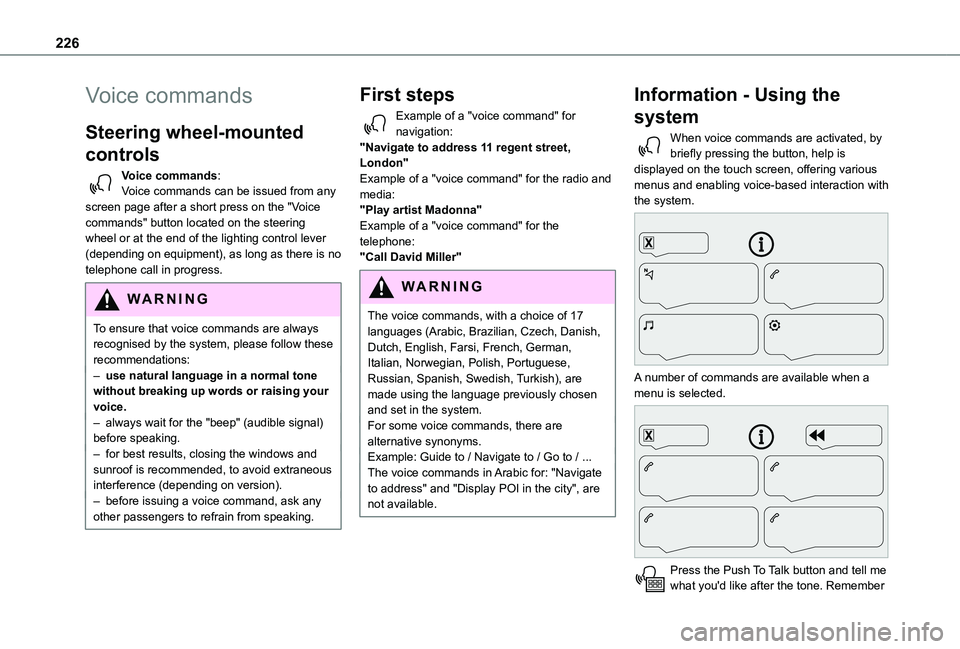
When voice commands are activated, by briefly pressing the button, help is displayed on the touch screen, offering various menus and enabling voice-based interaction with the system.
A number of commands are available when a menu is selected.
Press the Push To Talk button and tell me what you'd like after the tone. Remember
Page 227 of 272
227
TOYOTA Connect Nav
12
you can interrupt me at any time by pressing this button. If you press it again while I'm waiting for you to speak, it'll end the conversation. If you need to start over, say "cancel". If you want to undo something, say "undo". And to get information and tips at any time, just say "help". If you ask to me do something and there's some information missing that I need, I'll give you some examples or take you through it step by step. There's more information available in "novice" mode. You can set the dialogue mode to "expert" when you feel comfortable.
Global voice commands
Voice commands
Set dialogue mode as novice - expertSelect user 1 / Select profile JohnIncrease temperatureDecrease temperatureHelp messages
There are lots of topics I can help you with.
You can say: "help with phone", "help with navigation", "help with media" or "help with radio". For an overview on how to use voice controls, you can say "help with voice controls".Say "yes" if I got that right. Otherwise, say "no" and we'll start that again.
"Navigation" voice
commands
Voice commands
Navigate homeNavigate to workNavigate to preferred address, Tennis clubNavigate to contact, John MillerNavigate to address 11 regent street, LondonHelp messages
To plan a route, say "navigate to" followed by the address, the contact name or an intersection. For example, "navigate to address 11 Regent Street, London", "navigate to contact, John Miller", or "navigate to intersection of Regent Street, London". You can specify if it's a preferred address, or a Point of Interest. For example, say "navigate to preferred address, Tennis club", or "navigate to POI Heathrow Airport in London". Or, you can just say, "navigate home". To see Points of Interest on a map, you can say things
like "show POI hotels in Banbury". For more information say "help with points of interest" or "help with route guidance".To choose a destination, say something like "navigate to line three" or "select line two". If you can't find the destination but the street's right, say for example "select the street in line three". To move around a displayed list, you can say "next page" or "previous page". You can undo
your last action and start over by saying "undo", or say "cancel" to cancel the current action.Voice commands
Tell me the remaining distanceTell me the remaining timeTell me the arrival timeStop route guidanceHelp messages
You can say "stop" or "resume route guidance". To get information about your current route, you can say "tell me the remaining time", "remaining distance" or "arrival time". To learn more commands, try saying "help with navigation". Voice commands
Show POI ''hotel'' at the destinationShow nearby POI petrol stationNavigate to POI Heathrow Airport in LondonNavigate to POI petrol station along the routeHelp messages
To see points of interest on a map, you can say things like "show hotels in Banbury", "show nearby parking", "show hotel at the destination" or "show petrol station along the route". If you prefer to navigate directly to a point of interest, you can say "navigate to nearby petrol station". If you feel you are not being well understood, try to say the word "POI" in front of the point of interest. For example say "navigate to POI
restaurant at the destination".