key TOYOTA PROACE VERSO 2020 Service Manual
[x] Cancel search | Manufacturer: TOYOTA, Model Year: 2020, Model line: PROACE VERSO, Model: TOYOTA PROACE VERSO 2020Pages: 418, PDF Size: 39.32 MB
Page 220 of 418
220
MEM
Adjustable Speed Limiter (ASL)
Programming
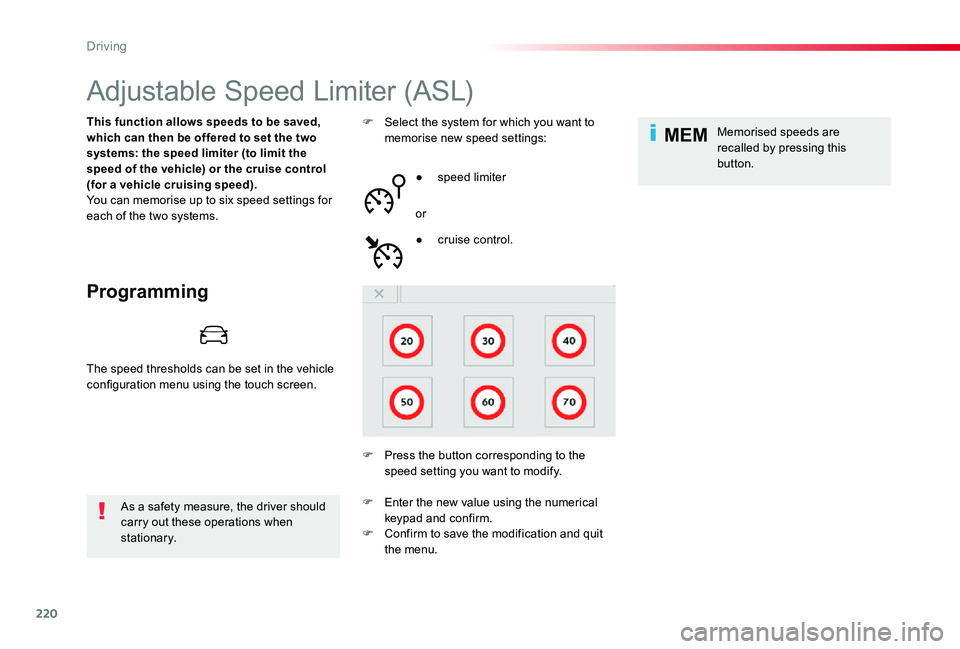
This function allows speeds to be saved, which can then be offered to set the two systems: the speed limiter (to limit the speed of the vehicle) or the cruise control (for a vehicle cruising speed).You can memorise up to six speed settings for each of the two systems.
As a safety measure, the driver should carry out these operations when stationary.
F Select the system for which you want to memorise new speed settings:
● speed limiter
or
F Press the button corresponding to the speed setting you want to modify.
● cruise control.
Memorised speeds are recalled by pressing this button.
F Enter the new value using the numerical keypad and confirm.F Confirm to save the modification and quit the menu.
The speed thresholds can be set in the vehicle configuration menu using the touch screen.
Driving
Page 261 of 418
261
Fuel tank
Opening
If your vehicle is fitted with Stop & Start, never refuel with the engine in STOP mode; you must switch off the ignition using the key, or the START/STOP button if your vehicle has Smart Entry & Start System.
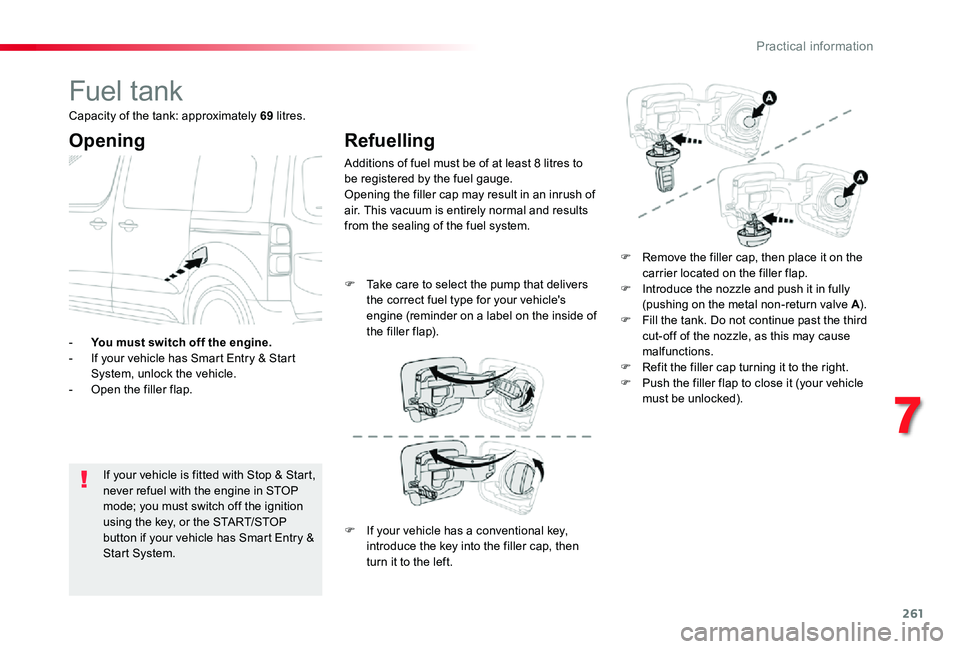
- You must switch off the engine.- If your vehicle has Smart Entry & Start System, unlock the vehicle.- Open the filler flap.
Refuelling
Additions of fuel must be of at least 8 litres to be registered by the fuel gauge.Opening the filler cap may result in an inrush of air. This vacuum is entirely normal and results from the sealing of the fuel system.
F Remove the filler cap, then place it on the carrier located on the filler flap.F Introduce the nozzle and push it in fully (pushing on the metal non-return valve A).F Fill the tank. Do not continue past the third cut-off of the nozzle, as this may cause malfunctions.F Refit the filler cap turning it to the right.F Push the filler flap to close it (your vehicle must be unlocked).
F Take care to select the pump that delivers the correct fuel type for your vehicle's engine (reminder on a label on the inside of the filler flap).
Capacity of the tank: approximately 69 litres.
F If your vehicle has a conventional key,
introduce the key into the filler cap, then turn it to the left.
7
Practical information
Page 280 of 418
280
Recommendations on storage
Never store bottles of AdBlue® in your vehicle.
AdBlue® freezes at about -11°C and deteriorates above 25°C. It is recommended that bottles be stored in a cool area and protected from direct sunlight.Under these conditions, the fluid can be kept for at least a year.If the additive has frozen, it can be used once it has completely thawed out.
Procedure
Before starting the top-up procedure, ensure that the vehicle is parked on a flat and level sur face.
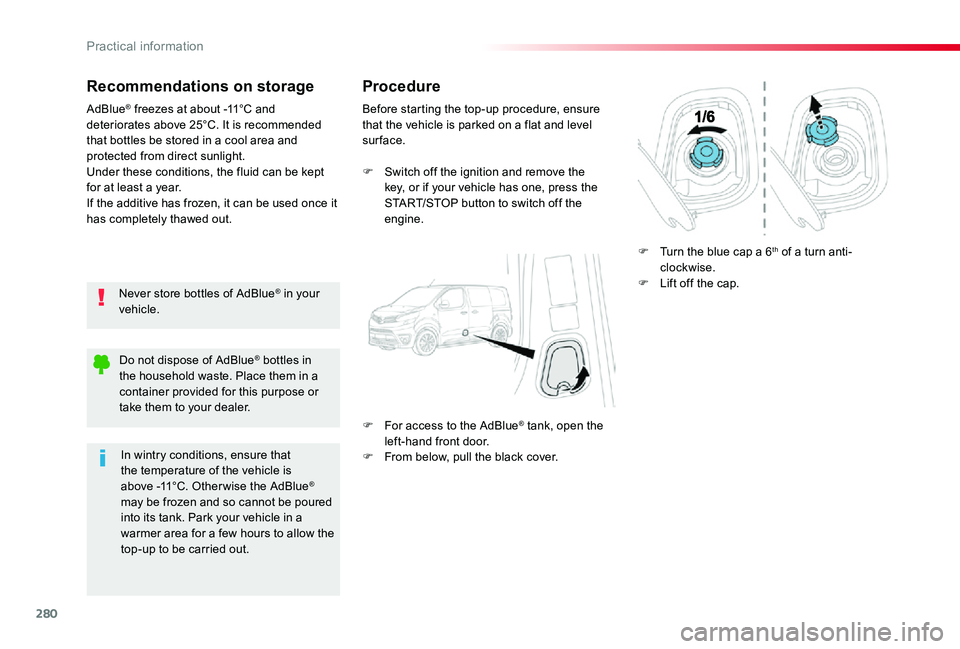
F Switch off the ignition and remove the key, or if your vehicle has one, press the START/STOP button to switch off the engine.
F For access to the AdBlue® tank, open the left-hand front door.F From below, pull the black cover.
F Turn the blue cap a 6th of a turn anti-clockwise.F Lift off the cap.
Do not dispose of AdBlue® bottles in the household waste. Place them in a container provided for this purpose or take them to your dealer.
In wintry conditions, ensure that the temperature of the vehicle is above -11°C. Other wise the AdBlue® may be frozen and so cannot be poured into its tank. Park your vehicle in a warmer area for a few hours to allow the top-up to be carried out.
Practical information
Page 281 of 418
281
F After emptying the bottle, wipe away any spillage around the tank filler using a damp cloth.
If any additive is split or splashed, wash immediately with cold water or wipe with a damp cloth.If the additive has crystallised, clean it off using a sponge and hot water.
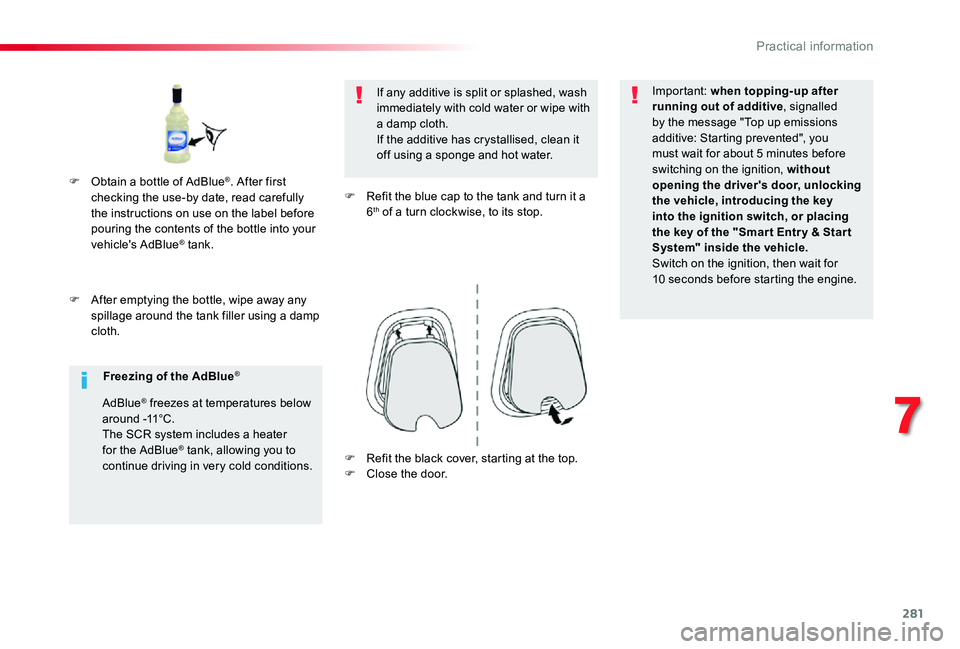
F Refit the blue cap to the tank and turn it a 6th of a turn clockwise, to its stop.
Important: when topping-up after running out of additive, signalled by the message "Top up emissions additive: Starting prevented", you must wait for about 5 minutes before switching on the ignition, without opening the driver's door, unlocking the vehicle, introducing the key into the ignition switch, or placing the key of the "Smar t Entr y & Star t System" inside the vehicle.Switch on the ignition, then wait for 10 seconds before starting the engine.
F Obtain a bottle of AdBlue®. After first checking the use-by date, read carefully the instructions on use on the label before pouring the contents of the bottle into your
vehicle's AdBlue® tank.
Freezing of the AdBlue®
AdBlue® freezes at temperatures below around -11°C.The SCR system includes a heater for the AdBlue® tank, allowing you to continue driving in very cold conditions.F Refit the black cover, starting at the top.F Close the door.
7
Practical information
Page 319 of 418
319
Do not force the lever as locking will not be possible if the clamp is not positioned correctly; start the procedure again.
Disconnecting the battery
In order to maintain an adequate state of charge for starting the engine, it is recommended that the battery be disconnected if the vehicle is taken out of ser vice for a long period.Wait 2 minutes after switching off the ignition before disconnecting the battery.
F close the windows and the doors before disconnecting the battery,F switch off all electrical consumers (audio system, wipers, lighting, ...),F switch off the ignition and wait for four minutes.Having exposed the battery, it is only necessary to disconnect the (+) terminal.
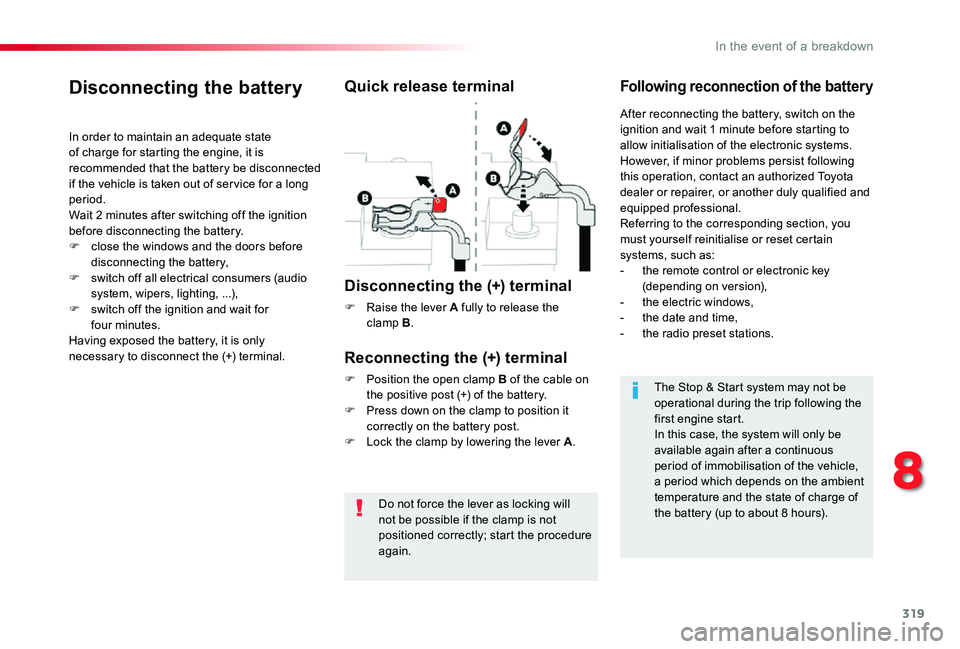
Quick release terminal
Disconnecting the (+) terminal
F Raise the lever A fully to release the clamp B.
Following reconnection of the battery
Reconnecting the (+) terminal
F Position the open clamp B of the cable on the positive post (+) of the battery.F Press down on the clamp to position it correctly on the battery post.F Lock the clamp by lowering the lever A.
After reconnecting the battery, switch on the ignition and wait 1 minute before starting to allow initialisation of the electronic systems.However, if minor problems persist following this operation, contact an authorized Toyota dealer or repairer, or another duly qualified and equipped professional.Referring to the corresponding section, you must yourself reinitialise or reset certain
systems, such as:- the remote control or electronic key (depending on version),- the electric windows,- the date and time,- the radio preset stations.
The Stop & Start system may not be operational during the trip following the first engine start.In this case, the system will only be
available again after a continuous period of immobilisation of the vehicle, a period which depends on the ambient temperature and the state of charge of the battery (up to about 8 hours).
8
In the event of a breakdown
Page 342 of 418
342
Select "My destinations".
Select the "Recent" tab.
Select the address chosen in the list to display the "Guidance criteria".
Press "OK" to start navigation.
Select "Position" to visualise the arrival point geographically.
To "My home" or "My work"
Press Navigation to display the primary page.
Press the "MENU" button to go to the secondary page.
Select "My destinations".
Select the "Preferred" tab.
Select "My home".
Or
Select "My work".
Or
Select a preset favourite destination.
To a contact
Press Navigation to display the primary page.
Press the "MENU" button to go to the secondary page.
Navigation
Choice of a destination
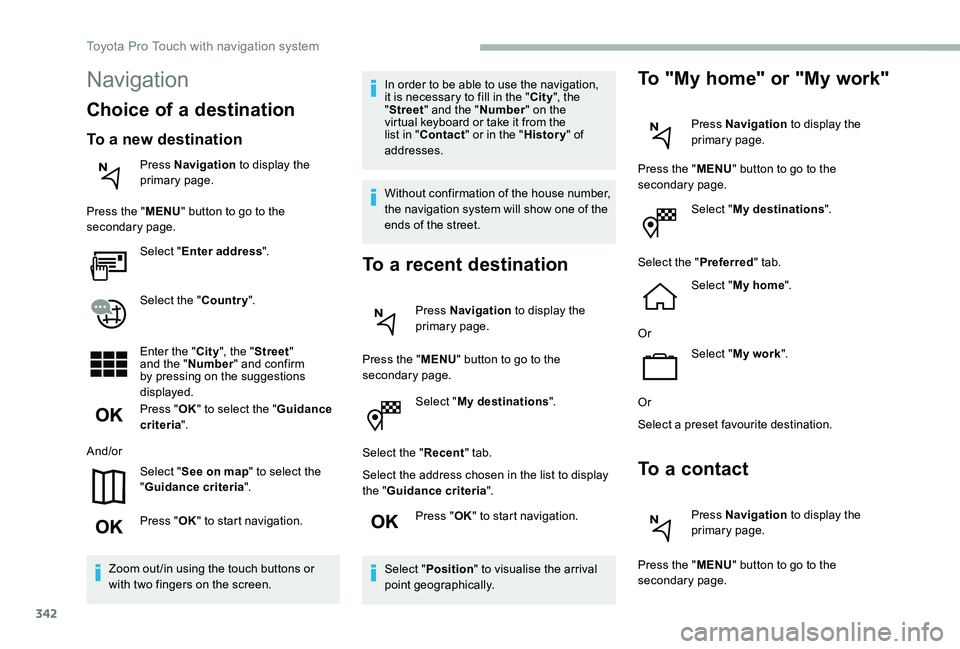
To a new destination
Press Navigation to display the primary page.
Press the "MENU" button to go to the secondary page.
Select "Enter address".
Select the "Country".
Enter the "City", the "Street" and the "Number" and confirm by pressing on the suggestions displayed.
Press "OK" to select the "Guidance criteria".
And/or
Select "See on map" to select the "Guidance criteria".
Press "OK" to start navigation.
Zoom out /in using the touch buttons or with two fingers on the screen.
In order to be able to use the navigation, it is necessary to fill in the "City", the "Street" and the "Number" on the virtual keyboard or take it from the list in "Contact" or in the "History" of addresses.
Without confirmation of the house number, the navigation system will show one of the ends of the street.
To a recent destination
Press Navigation to display the primary page.
Press the "MENU" button to go to the secondary page.
Toyota Pro Touch with navigation system
Page 343 of 418
343
Select "My destinations".
Select the "Contact" tab.
Select a contact in the list to start navigation.
To points of interest (POI)
Points of interest (POI) are listed in different categories.
Press Navigation to display the primary page.
Press the "MENU" button to go to the secondary page.
Select "Points of interest".
Select the "Tr a v e l", or "Leisure" or "Commercial" or "Public" or "Geographic" tab.
Or
Select "Search" to enter the name and address of a POI.
Press "OK" to start calculation of the route.
To a point on the map
Press Navigation to display the primary page.
Explore the map by sliding a finger on the screen.
Select the destination by pressing on the map.
Tap the screen to place a marker and display the sub-menu.
Press this button to start navigation.
Or
Press this button to save the address displayed.
A long press on an item opens a list of POIs nearby.
To GPS coordinates
Press Navigation to display the primary page.
Explore the map by sliding a finger on the screen.
Touch the screen with a finger to go to the next image.
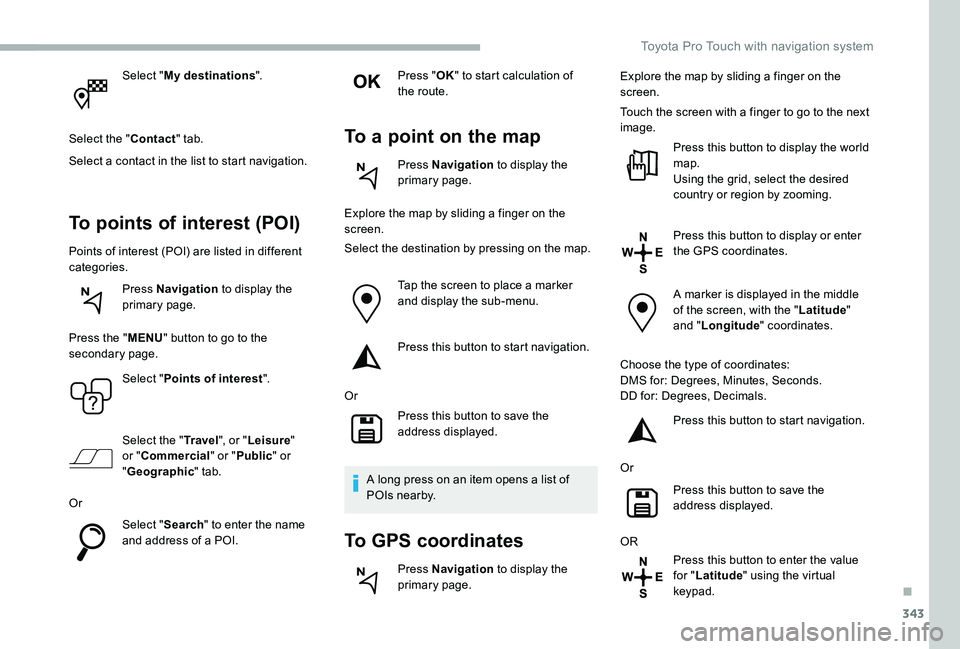
Press this button to display the world map.Using the grid, select the desired country or region by zooming.
Press this button to display or enter
the GPS coordinates.
A marker is displayed in the middle of the screen, with the "Latitude" and "Longitude" coordinates.
Choose the type of coordinates:DMS for: Degrees, Minutes, Seconds.DD for: Degrees, Decimals.
Press this button to start navigation.
Or
Press this button to save the address displayed.
OR
Press this button to enter the value for "Latitude" using the virtual keypad.
.
Toyota Pro Touch with navigation system
Page 344 of 418
344
And
Press this button to enter the value for "Longitude" using the virtual keypad.
TMC (Traffic Message
Channel)
TMC (Traffic Message Channel) messages are linked to a European standard on the broadcasting of traffic information via the RDS system on FM radio, transmitting traffic information in real time.The TMC information is then displayed on a GPS Navigation system map and taken into account straight away during navigation, so as to avoid accidents, traffic jams and closed roads.
The display of danger zones depends on the legislation in force and subscription to the service.
Connected navigation
Depending on version
Depending on the equipment level of the vehicle
Network connection provided by the vehicle
OR
Network connection provided by the user
For the list of eligible smartphones, go to the Brand's national website.
Connected navigation
connection
Network connection provided by
the vehicle
The system is automatically connected to the internet, to the connected ser vices, and does not require a connection provided by the user via their smartphone.
Network connection provided by the user
Connect a USB cable.The smartphone charges when connected by the USB cable.
USB connection
Activate the Bluetooth function on the telephone and ensure that it is visible to all (see the "Applications" section).
Bluetooth connection
This function is only available if it has been activated either via the "Notifications" or via the "Applications" menu.
Press "Notifications".
Select Wi-Fi to activate it.
Activate and enter settings for sharing the smartphone connection.
Wi-Fi connection
Select a Wi-Fi network found by the system and connect.
Toyota Pro Touch with navigation system
Page 345 of 418
345
OR
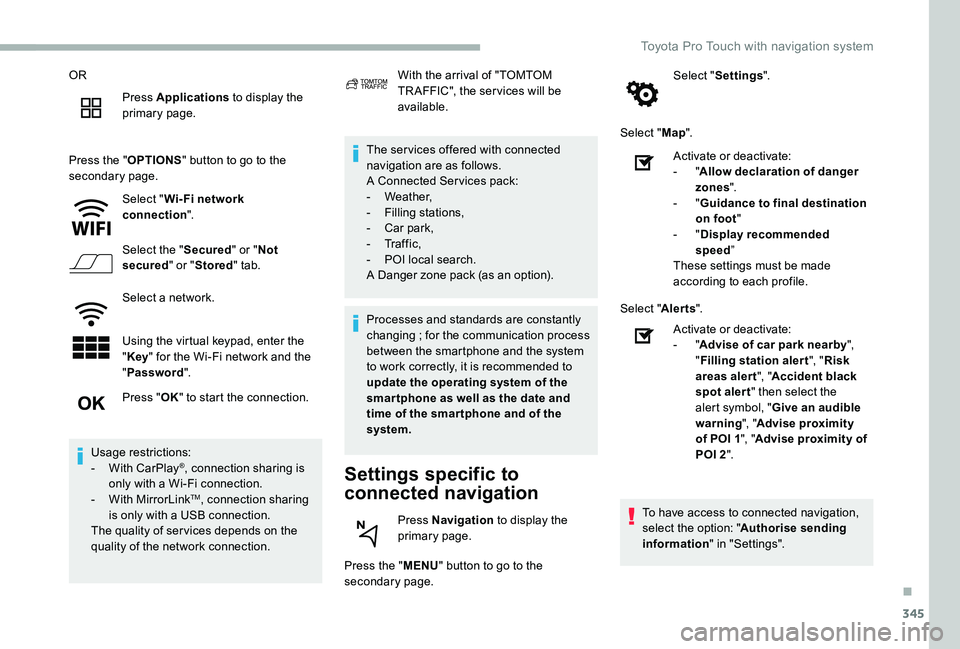
Press Applications to display the primary page.
Press the "OPTIONS" button to go to the secondary page.
Select "Wi- Fi network connection".
Select the "Secured" or "Not secured" or "Stored" tab.
Select a network.
Using the virtual keypad, enter the "Key" for the Wi-Fi network and the "Password".
The ser vices offered with connected navigation are as follows.A Connected Ser vices pack:- Weather,- Filling stations,- Car park,
- Tr a f f i c ,- POI local search.A Danger zone pack (as an option).
Settings specific to
connected navigation
Press the "MENU" button to go to the secondary page.
Select "Settings".
Select "Map".
Press "OK" to start the connection.
Usage restrictions:- With CarPlay®, connection sharing is only with a Wi-Fi connection.- With MirrorLinkTM, connection sharing is only with a USB connection.The quality of ser vices depends on the quality of the network connection.
With the arrival of "TOMTOM TR AFFIC", the ser vices will be available.
Processes and standards are constantly changing ; for the communication process between the smartphone and the system to work correctly, it is recommended to update the operating system of the smar tphone as well as the date and time of the smar tphone and of the system.
Press Navigation to display the primary page.
Activate or deactivate:- "Allow declaration of danger zones".- "Guidance to final destination on foot"- "Display recommended speed”These settings must be made according to each profile.
Select "Alerts".
Activate or deactivate:- "Advise of car park nearby", "Filling station alert", "Risk areas alert", "Accident black spot alert" then select the alert symbol, "Give an audible warning", "Advise proximity of POI 1", "Advise proximity of POI 2".
To have access to connected navigation, select the option: "Authorise sending information" in "Settings".
.
Toyota Pro Touch with navigation system
Page 346 of 418
346
Notification of "Danger
zones"
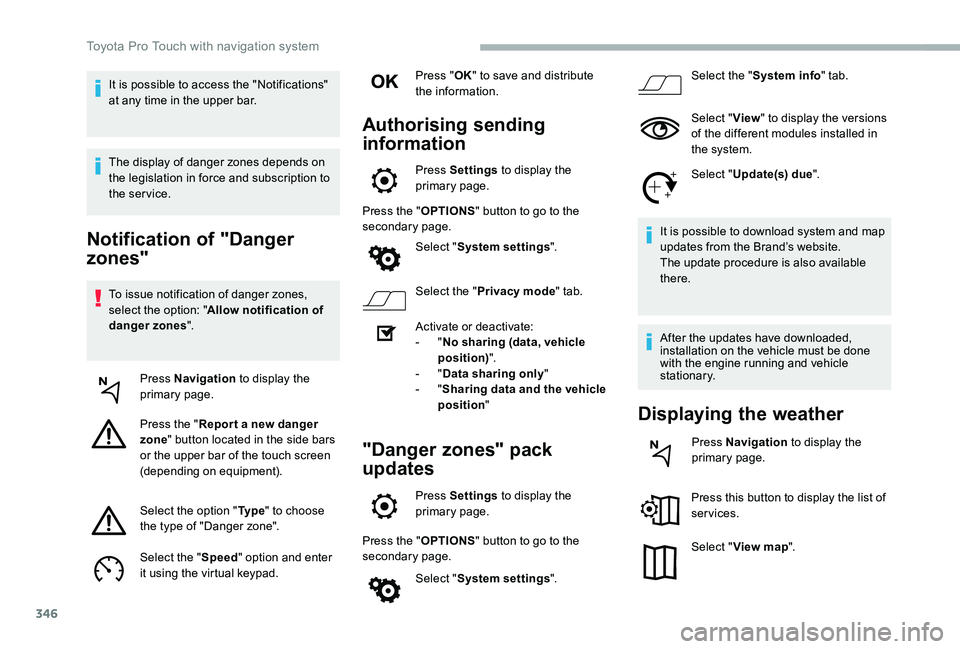
To issue notification of danger zones, select the option: "Allow notification of danger zones".
Press Navigation to display the primary page.
Press the "Repor t a new danger zone" button located in the side bars or the upper bar of the touch screen (depending on equipment).
Select the option "Ty p e" to choose the type of "Danger zone".
Select the "Speed" option and enter it using the virtual keypad.
Press "OK" to save and distribute the information.
Authorising sending
information
Press Settings to display the primary page.
Press the "OPTIONS" button to go to the secondary page.
Select "System settings".
Select the "Privacy mode" tab.
Activate or deactivate:- "No sharing (data, vehicle position)".- "Data sharing only"- "Sharing data and the vehicle position"
"Danger zones" pack
updates
Press Settings to display the primary page.
Press the "OPTIONS" button to go to the secondary page.
Select "System settings".
Select the "System info" tab.
Select "View" to display the versions of the different modules installed in the system.
Select "Update(s) due".
It is possible to download system and map updates from the Brand’s website.The update procedure is also available there.
After the updates have downloaded, installation on the vehicle must be done with the engine running and vehicle stationary.
Displaying the weather
Press Navigation to display the primary page.
Press this button to display the list of services.
Select "View map".
It is possible to access the "Notifications" at any time in the upper bar.
The display of danger zones depends on the legislation in force and subscription to the service.
Toyota Pro Touch with navigation system