display TOYOTA PROACE VERSO 2020 Repair Manual
[x] Cancel search | Manufacturer: TOYOTA, Model Year: 2020, Model line: PROACE VERSO, Model: TOYOTA PROACE VERSO 2020Pages: 418, PDF Size: 39.32 MB
Page 255 of 418
255
180° rear vision
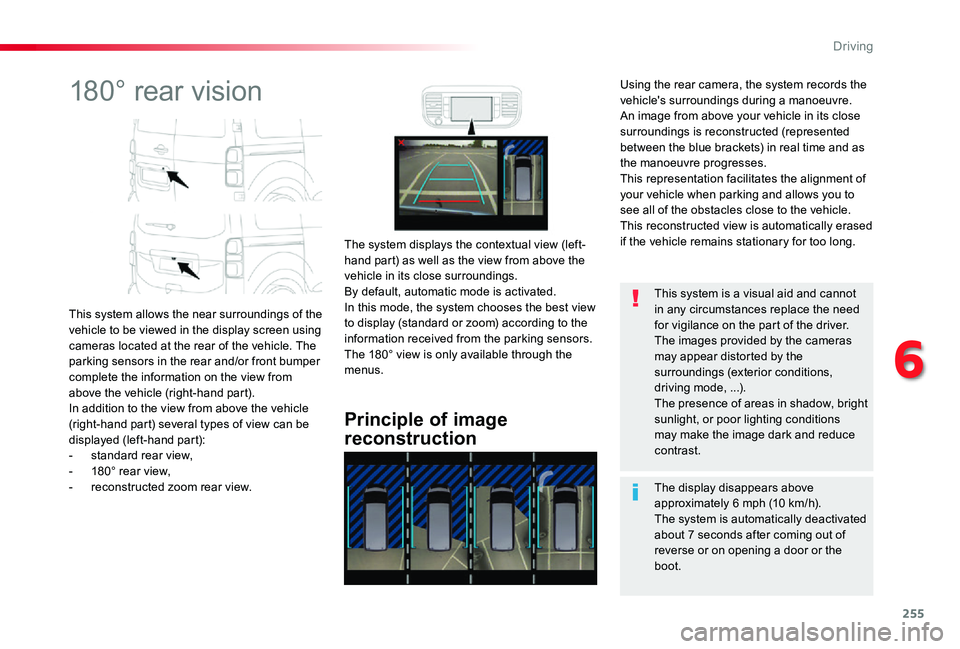
This system allows the near surroundings of the vehicle to be viewed in the display screen using cameras located at the rear of the vehicle. The parking sensors in the rear and/or front bumper complete the information on the view from above the vehicle (right-hand part).In addition to the view from above the vehicle (right-hand part) several types of view can be displayed (left-hand part):- standard rear view,- 180° rear view,- reconstructed zoom rear view.
Principle of image
reconstruction
The system displays the contextual view (left-hand part) as well as the view from above the vehicle in its close surroundings.By default, automatic mode is activated.In this mode, the system chooses the best view to display (standard or zoom) according to the information received from the parking sensors.The 180° view is only available through the menus.
The display disappears above approximately 6 mph (10 km/h).The system is automatically deactivated about 7 seconds after coming out of
reverse or on opening a door or the boot.
This system is a visual aid and cannot in any circumstances replace the need for vigilance on the part of the driver.The images provided by the cameras may appear distorted by the surroundings (exterior conditions, driving mode, ...).The presence of areas in shadow, bright sunlight, or poor lighting conditions may make the image dark and reduce contrast.
Using the rear camera, the system records the vehicle's surroundings during a manoeuvre. An image from above your vehicle in its close surroundings is reconstructed (represented between the blue brackets) in real time and as the manoeuvre progresses.This representation facilitates the alignment of your vehicle when parking and allows you to see all of the obstacles close to the vehicle.This reconstructed view is automatically erased if the vehicle remains stationary for too long.
6
Driving
Page 256 of 418
256
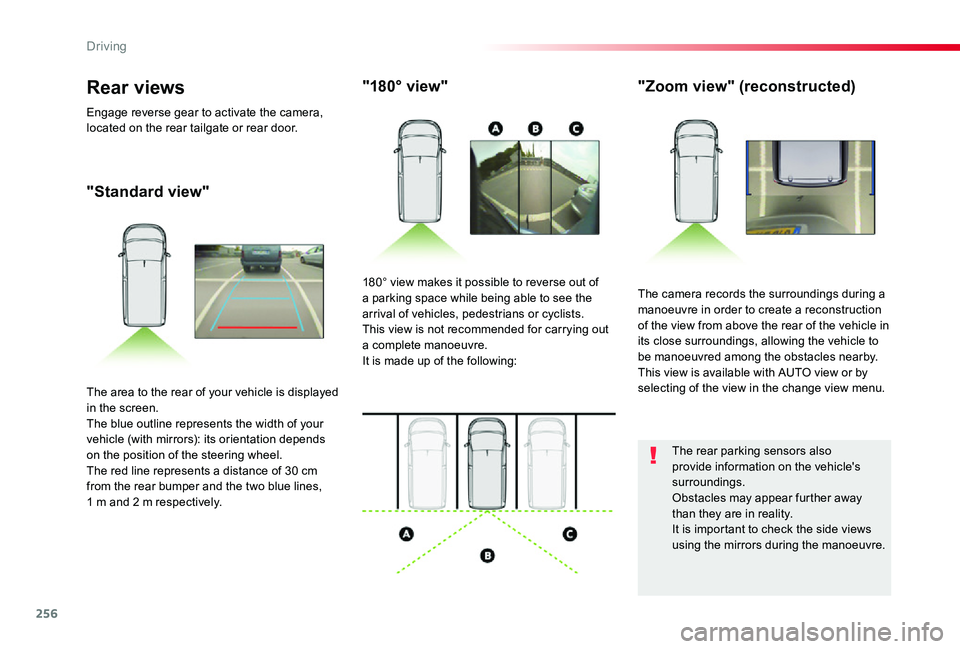
"Standard view"
"180° view""Zoom view" (reconstructed)
The camera records the surroundings during a manoeuvre in order to create a reconstruction of the view from above the rear of the vehicle in its close surroundings, allowing the vehicle to be manoeuvred among the obstacles nearby.This view is available with AUTO view or by selecting of the view in the change view menu.
180° view makes it possible to reverse out of a parking space while being able to see the arrival of vehicles, pedestrians or cyclists.This view is not recommended for carrying out a complete manoeuvre.It is made up of the following:
The area to the rear of your vehicle is displayed in the screen.The blue outline represents the width of your vehicle (with mirrors): its orientation depends on the position of the steering wheel.The red line represents a distance of 30 cm from the rear bumper and the two blue lines, 1 m and 2 m respectively.
Rear views
Engage reverse gear to activate the camera, located on the rear tailgate or rear door.
The rear parking sensors also provide information on the vehicle's surroundings.Obstacles may appear further away than they are in reality.It is important to check the side views
using the mirrors during the manoeuvre.
Driving
Page 257 of 418
257
Activation
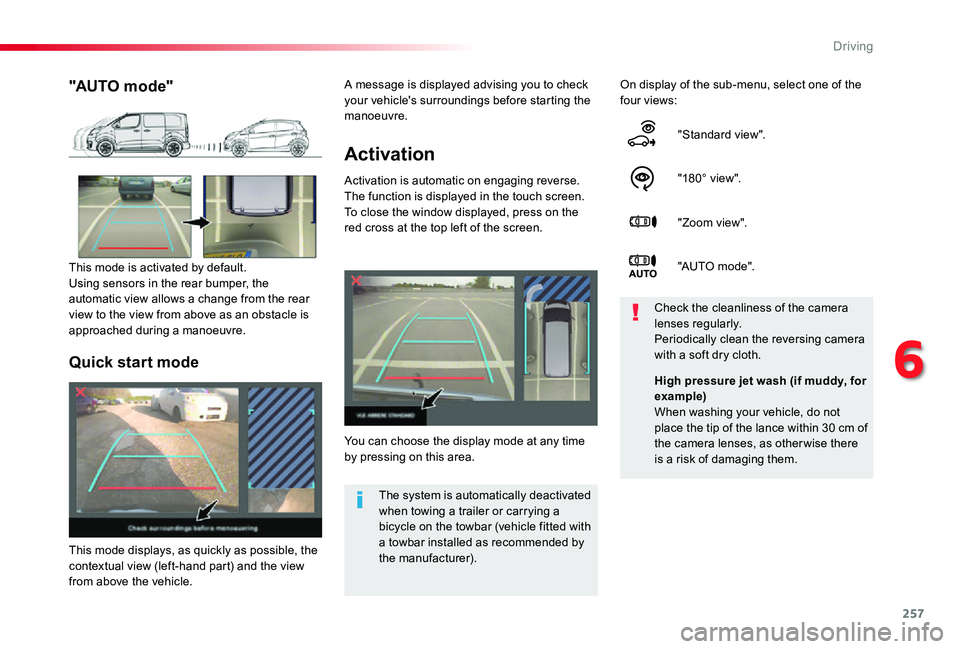
Activation is automatic on engaging reverse.The function is displayed in the touch screen. To close the window displayed, press on the red cross at the top left of the screen.
On display of the sub-menu, select one of the four views:
"Standard view".
"180° view".
"Zoom view".
"AUTO m o de".
You can choose the display mode at any time by pressing on this area.
Check the cleanliness of the camera lenses regularly.Periodically clean the reversing camera with a soft dry cloth.
"AUTO mode"
This mode is activated by default.Using sensors in the rear bumper, the automatic view allows a change from the rear view to the view from above as an obstacle is approached during a manoeuvre.
The system is automatically deactivated when towing a trailer or carrying a bicycle on the towbar (vehicle fitted with a towbar installed as recommended by the manufacturer).
Quick start mode
This mode displays, as quickly as possible, the contextual view (left-hand part) and the view from above the vehicle.
High pressure jet wash (if muddy, for example)When washing your vehicle, do not place the tip of the lance within 30 cm of the camera lenses, as otherwise there
is a risk of damaging them.
A message is displayed advising you to check your vehicle's surroundings before starting the manoeuvre.
6
Driving
Page 259 of 418
259
Tyre Pressure WarningReinitialisation
Before reinitialising the system, ensure that the pressures of the four tyres are correct for the use of the vehicle and in line with the recommendations on the tyre pressure label.The tyre pressure warning alert can only be relied on if the reinitialisation of the system has been done with the pressures in the four tyres correctly adjusted.The tyre pressure warning system does not give a warning if a pressure is incorrect at the time of reinitialisation.
This is given by fixed illumination of this warning lamp, accompanied by an audible signal and, depending on equipment, the display of a message.
It is necessary to reinitialise the system every time one or more tyre pressures are adjusted, and after changing one or more wheels.
F Reduce speed immediately, avoid excessive steering movements and sudden braking.F Stop the vehicle as soon as it is safe to do so.
F In the event of a puncture, use the temporary puncture repair kit or the spare wheel (depending on equipment),orF if you have a compressor, such as the one in the temporary puncture repair kit, check the pressures of the four tyres when cold,orF if it is not possible to make this check immediately, drive carefully at reduced speed.
The loss of pressure detected does not always cause visible bulging of the tyre. Do not satisfy yourself with just a visual check.The alert is maintained until the system is reinitialised.
Initialisation of the system is done with the ignition on and the vehicle stationary.
The new pressure settings registered are considered to be reference values by the system.
6
Driving
Page 313 of 418
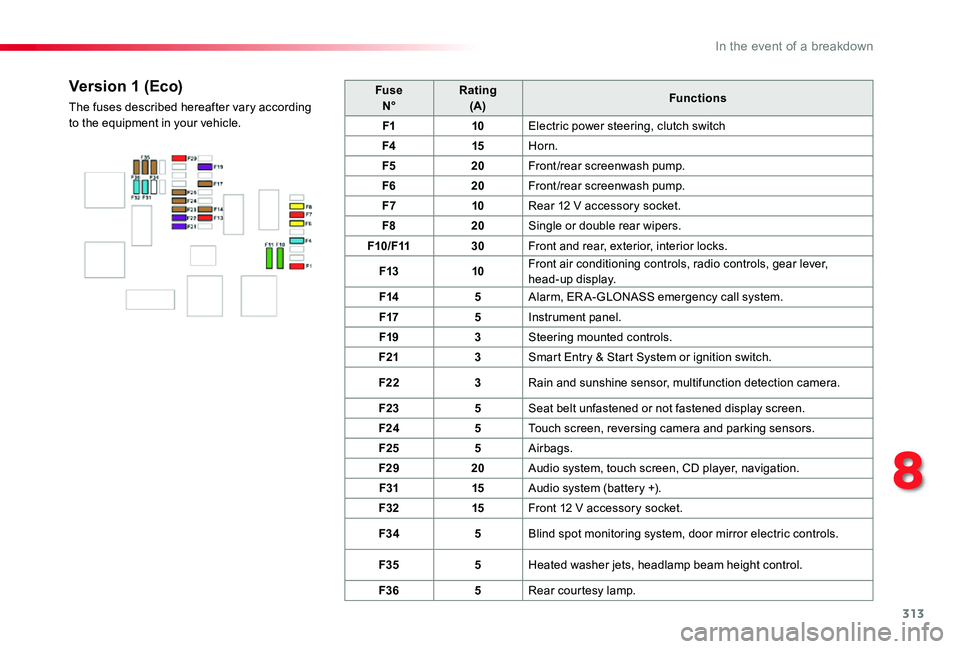
313
FuseN°Rating(A)Functions
F110Electric power steering, clutch switch
F415Horn.
F520Front/rear screenwash pump.
F620Front/rear screenwash pump.
F710Rear 12 V accessory socket.
F820Single or double rear wipers.
F10/F1130Front and rear, exterior, interior locks.
F1310Front air conditioning controls, radio controls, gear lever, head-up display.
F145Alarm, ER A-GLONASS emergency call system.
F175Instrument panel.
F193Steering mounted controls.
F213Smart Entry & Start System or ignition switch.
F223Rain and sunshine sensor, multifunction detection camera.
F235Seat belt unfastened or not fastened display screen.
F245Touch screen, reversing camera and parking sensors.
F255Airbags.
F2920Audio system, touch screen, CD player, navigation.
F3115Audio system (battery +).
F3215Front 12 V accessory socket.
F345Blind spot monitoring system, door mirror electric controls.
F355Heated washer jets, headlamp beam height control.
F365Rear courtesy lamp.
Version 1 (Eco)
The fuses described hereafter vary according to the equipment in your vehicle.
8
In the event of a breakdown
Page 314 of 418
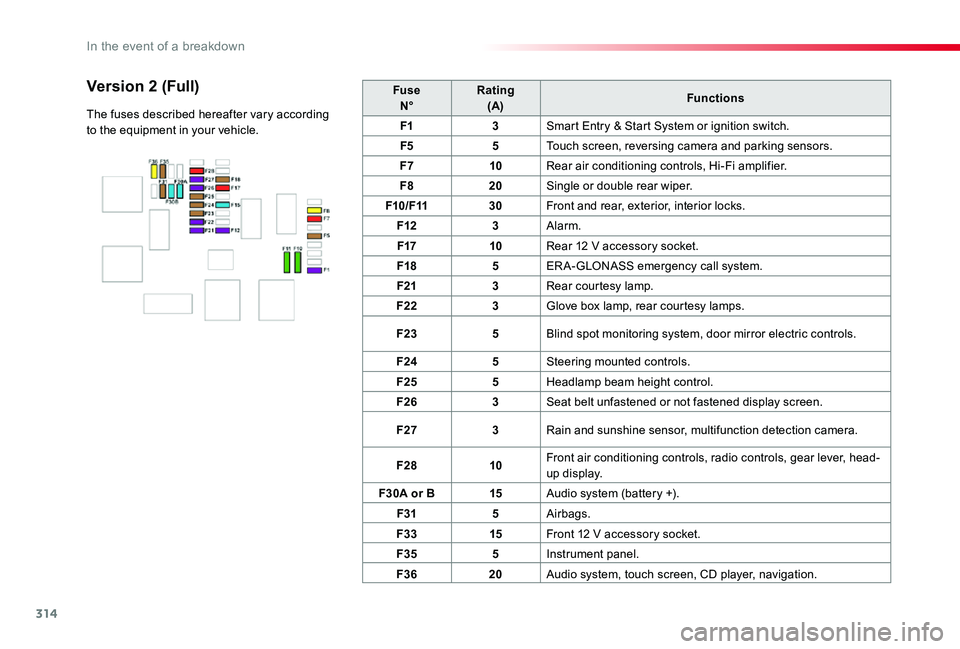
314
FuseN°Rating(A)Functions
F13Smart Entry & Start System or ignition switch.
F55Touch screen, reversing camera and parking sensors.
F710Rear air conditioning controls, Hi-Fi amplifier.
F820Single or double rear wiper.
F10/F1130Front and rear, exterior, interior locks.
F123Alarm.
F1710Rear 12 V accessory socket.
F185ER A-GLONASS emergency call system.
F213Rear courtesy lamp.
F223Glove box lamp, rear courtesy lamps.
F235Blind spot monitoring system, door mirror electric controls.
F245Steering mounted controls.
F255Headlamp beam height control.
F263Seat belt unfastened or not fastened display screen.
F273Rain and sunshine sensor, multifunction detection camera.
F2810Front air conditioning controls, radio controls, gear lever, head-up display.
F30A or B15Audio system (battery +).
F315Airbags.
F3315Front 12 V accessory socket.
F355Instrument panel.
F3620Audio system, touch screen, CD player, navigation.
Version 2 (Full)
The fuses described hereafter vary according to the equipment in your vehicle.
In the event of a breakdown
Page 331 of 418
331
Toyota Pro Touch with
navigation system
GPS navigation -
Applications - Multimedia
audio system - Bluetooth®
telephone
The various functions and settings described differ according to the version and configuration of the vehicle.
For safety reasons and because they require continued attention on the part of the driver, the following operations must be carried out with the vehicle stationary and the ignition switched off:- Using a smartphone.- Pairing a Bluetooth mobile phone to the hands-free Bluetooth system of the audio system.- Smartphone connection operations for CarPlay®, MirrorLinkTM or Android Auto (certain applications interrupt their display when the vehicle starts to move again).- Watching a video (the video stops when the vehicle starts to move again).- The configuration of profiles.
The system is protected in such a way that it will only operate in the vehicle.The display of the message Energy Economy Mode signals that a change to standby is imminent.
First steps
With the engine running, a press mutes the sound.With the ignition off, a press turns the system on.
Increase or decrease the volume using the wheel or the "plus" or "minus" buttons (depending on the equipment).
Use the menu buttons on either side of or below the touch screen for access to the menus, then press the virtual buttons in the touch screen.
Depending on the model, use the "Source" or "Menu" buttons to access the rolling menus, then press the virtual buttons in the touch screen.
Display the rolling menus at any time by pressing the screen briefly with three fingers.
All of the touch areas of the screen are white.Press the back arrow to go back a level.Press "OK" to confirm.
ContentsFirst steps 331Steering mounted controls 332Menus 333Voice commands 334Navigation 342Connected navigation 344Applications 347Radio 350DAB (Digital Audio Broadcasting) radio 352Media 352Telephone 354Frequently asked questions 360
.
Toyota Pro Touch with navigation system
Page 332 of 418
332
The touch screen is of the "capacitive" type.To clean the screen, use a soft, non-abrasive cloth (e.g. spectacles cloth) with no additional product.Do not use sharp objects on the screen.Do not touch the screen with wet hands.
Certain information is displayed permanently in the side bars or in the upper bar of the touch screen (depending on equipment):- Reminder of the air conditioning information (depending on version), and direct access to the corresponding menu.- Go directly to the selection of the audio source, to the list of radio stations (or list of titles depending on the source).- Go to the "Notifications" of messages, emails, map updates and, depending on the services, the navigation notifications.- Go to the settings for the touch screen and the digital instrument panel.
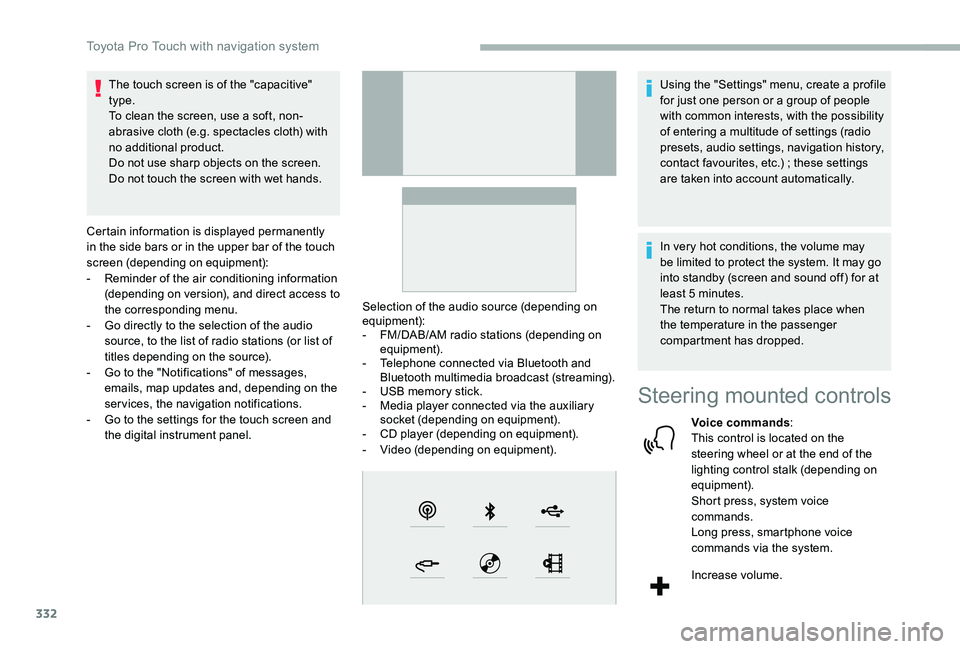
Selection of the audio source (depending on equipment):- FM/DAB/AM radio stations (depending on equipment).- Telephone connected via Bluetooth and Bluetooth multimedia broadcast (streaming).- USB memory stick.- Media player connected via the auxiliary socket (depending on equipment).- CD player (depending on equipment).- Video (depending on equipment).
Using the "Settings" menu, create a profile for just one person or a group of people with common interests, with the possibility of entering a multitude of settings (radio presets, audio settings, navigation history, contact favourites, etc.) ; these settings are taken into account automatically.
In very hot conditions, the volume may be limited to protect the system. It may go into standby (screen and sound off) for at least 5 minutes.The return to normal takes place when the temperature in the passenger compartment has dropped.
Steering mounted controls
Voice commands:This control is located on the steering wheel or at the end of the lighting control stalk (depending on equipment).Short press, system voice commands.Long press, smartphone voice commands via the system.
Increase volume.
Toyota Pro Touch with navigation system
Page 333 of 418
333
FM 87.5 MHz
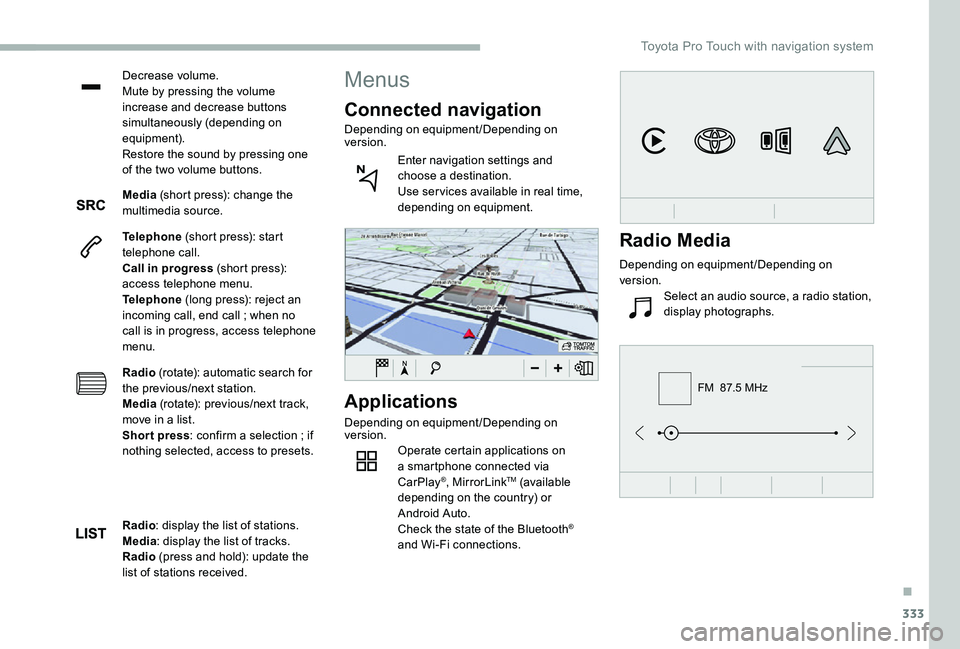
Decrease volume.Mute by pressing the volume increase and decrease buttons simultaneously (depending on equipment).Restore the sound by pressing one of the two volume buttons.
Media (short press): change the multimedia source.
Telephone (short press): start telephone call.Call in progress (short press): access telephone menu.Telephone (long press): reject an incoming call, end call ; when no call is in progress, access telephone menu.
Radio (rotate): automatic search for the previous/next station.Media (rotate): previous/next track, move in a list.Short press: confirm a selection ; if nothing selected, access to presets.
Applications
Depending on equipment/Depending on version.Operate certain applications on a smartphone connected via CarPlay®, MirrorLinkTM (available depending on the country) or Android Auto.Check the state of the Bluetooth®
and Wi-Fi connections.
Menus
Connected navigation
Depending on equipment/Depending on version.
Enter navigation settings and choose a destination.Use ser vices available in real time, depending on equipment.
Radio: display the list of stations.Media: display the list of tracks.Radio (press and hold): update the list of stations received.
Radio Media
Depending on equipment/Depending on version.
Select an audio source, a radio station, display photographs.
.
Toyota Pro Touch with navigation system
Page 334 of 418
334
21,518,5
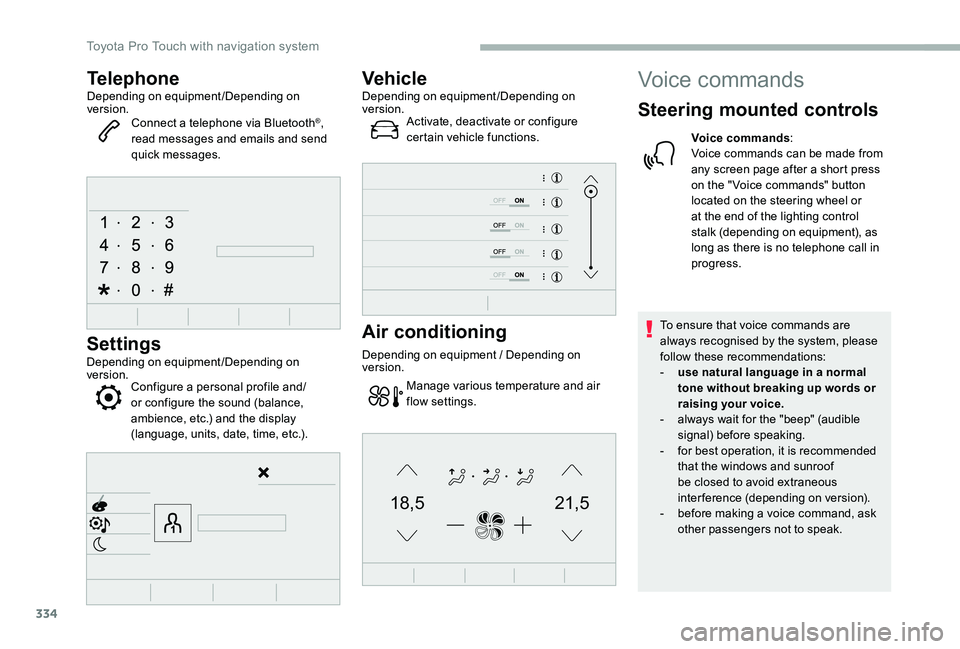
TelephoneDepending on equipment/Depending on version.Connect a telephone via Bluetooth®, read messages and emails and send quick messages.
Settings
Depending on equipment/Depending on version.Configure a personal profile and/or configure the sound (balance, ambience, etc.) and the display (language, units, date, time, etc.).
VehicleDepending on equipment/Depending on version.Activate, deactivate or configure certain vehicle functions.
Air conditioning
Depending on equipment / Depending on version.
Manage various temperature and air flow settings.
Voice commands
Steering mounted controls
Voice commands:Voice commands can be made from any screen page after a short press on the " Voice commands" button located on the steering wheel or at the end of the lighting control stalk (depending on equipment), as long as there is no telephone call in progress.
To ensure that voice commands are always recognised by the system, please follow these recommendations:- use natural language in a normal tone without breaking up words or raising your voice.- always wait for the "beep" (audible signal) before speaking.- for best operation, it is recommended that the windows and sunroof be closed to avoid extraneous interference (depending on version).- before making a voice command, ask other passengers not to speak.
Toyota Pro Touch with navigation system