display TOYOTA PROACE VERSO 2020 Manual PDF
[x] Cancel search | Manufacturer: TOYOTA, Model Year: 2020, Model line: PROACE VERSO, Model: TOYOTA PROACE VERSO 2020Pages: 418, PDF Size: 39.32 MB
Page 335 of 418
335
First steps
Example of a "voice command" for navigation:"Navigate to address 11 regent street, London"Example of a "voice command" for the radio and media:"Play ar tist Madonna"Example of a "voice command" for the telephone:"Call David Miller'' "
The voice commands, with a choice of 17 languages (Arabic, Brazilian, Czech, Danish, Dutch, English, Farsi, French, German, Italian, Nor wegian, Polish, Portuguese, Russian, Spanish, Swedish, Turkish), are made using the language previously chosen and set in the system.For some voice commands, there are alternative synonyms.Example: Guide to / Navigate to /
Go to / ...The voice commands in Arabic for: "Navigate to address" and "Display POI in the city", are not available.
Information - Using the
system
Press the Push To Talk button and tell me what you'd like after the tone. Remember you can interrupt me at any time by pressing this button. If you press it again while I'm waiting for you to speak, it'll end the conversation. If you need to start over, say "cancel". If you want to undo something, say "undo". And to get information and tips at any time, just say "help". If you ask to me do something and there's some information missing that I need, I'll give you some examples or take you through it step by step. There's more information available in "novice" mode. You can set the dialogue mode to "expert" when you feel comfortable.
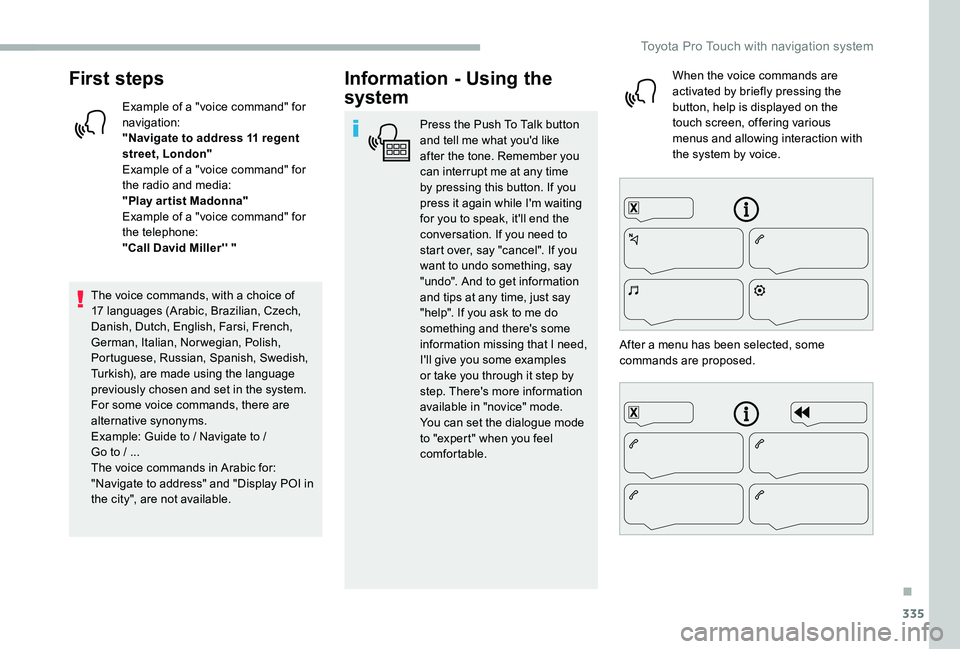
When the voice commands are activated by briefly pressing the button, help is displayed on the touch screen, offering various menus and allowing interaction with the system by voice.
After a menu has been selected, some commands are proposed.
.
Toyota Pro Touch with navigation system
Page 337 of 418
337
"Navigation" voice
commands
Voice commandsHelp messages
Navigate homeTo plan a route, say "navigate to" followed by the address, the contact name or an intersection. For example, "navigate to address 11 Regent Street, London", "navigate to contact, John Miller", or "navigate to intersection of Regent Street, London". You can specify if it's a preferred address, or a Point of Interest. For example, say "navigate to preferred address, Tennis club", or "navigate to POI Heathrow Airport in London". Or, you can just say, "navigate home". To see Points of Interest on a map, you can say things like "show POI hotels in Banbury". For more information say "help with points of interest" or "help with route guidance".To choose a destination, say something like "navigate to line three" or "select line two". If you can't find the destination but the street's right, say for example "select the street in line three". To move around a displayed list, you can say "next page" or "previous page". You can undo your last action and start over by saying "undo", or say "cancel" to cancel the current action.
Navigate to work
Navigate to preferred address, Tennis club
Navigate to contact, John Miller
Navigate to address 11 regent street, London
Tell me the remaining distanceYou can say "stop" or "resume route guidance". To get information about your current route, you can say "tell me the remaining time", "remaining distance" or "arrival time". To learn more commands, try saying "help with navigation". Tell me the remaining time
Tell me the arrival time
Stop route guidance
.
Toyota Pro Touch with navigation system
Page 339 of 418
339
"Radio Media" voice
commands
Voice commandsHelp messages
Turn on source radio - Streaming Bluetooth - …You can select an audio source by saying "turn on source" followed by the device name. For example, "turn on source, Streaming Bluetooth", or "turn on source, radio". Use the command "play" to specify the type of music you'd like to hear. You can choose between "song", "artist", or "album". Just say something like "play artist, Madonna", "play song, Hey Jude", or "play album, Thriller".
Tune to channel BBC Radio 2You can pick a radio station by saying "tune to" and the station name or frequency. For example "tune to channel Talksport" or "tune to 98.5 FM". To listen to a preset radio station, say for example "tune to preset number five". Tune to 98.5 FM
Tune to preset number five
What's playing?To choose what you'd like to play, start by saying "play" and then the item. For example, say "play song Hey Jude", "play line 3" or "select line 2". You can undo your last action and start over by saying "undo", or say "cancel" to cancel the current action.
Play song Hey JudeI'm not sure what you'd like to play. Please say "play" and then a song title, an album title, or an artist name. For example, say "play song Hey Jude", "play artist Madonna" or "play album Thriller". To select a line number from the display, say "select line two". To move around a displayed list, you can say "next page" or "previous page". You can undo your last action and start over by saying "undo", or say "cancel" to cancel the current action.
Play ar tist Madonna
Play album Thriller
Media voice commands are available only for a USB connection.
.
Toyota Pro Touch with navigation system
Page 340 of 418
340
"Telephone" voice
commands
If there is no telephone connected via Bluetooth, a voice message announces: "Please first connect a telephone" and the voice session will be closed.
Voice commandsHelp messages
Call David Miller'' *To make a phone call, say "call" followed by the contact name, for example: "Call David Miller". You can also include the phone type, for example: "Call David Miller at home". To make a call by number, say "dial" followed by the phone number, for example, "Dial 107776 835 417". You can check your voicemail by saying "call voicemail". To send a text, say "send quick message to", followed by the contact, and then the name of the quick message you'd like to send. For example, "send quick message to David Miller, I'll be late". To display the list of calls, say "display calls". For more information on SMS, you can say "help with texting". To choose a contact, say something like "select line three". To move around the list say "next page" or "previous page". You can undo your last action and start over by saying "undo", or say "cancel" to cancel the current
action.
Call voicemail*
Display calls*
* This function is available only if the telephone connected to the system supports downloading of contacts and recent calls and if the download has been done.
Toyota Pro Touch with navigation system
Page 341 of 418
341
"Text message" voice
commands
If there is no telephone connected via Bluetooth, a voice message announces: "Please first connect a telephone" and the voice session will be closed.
The "Text messages" voice commands function allows you to dictate and send an SMS.Dictate the text, taking care to make a short pause between each word.At the end of the operation, the voice recognition system will automatically create an SMS.
Voice commandsHelp messages
Send quick message to Bill Car ter, I'll be lateFrom the list of quick messages, say the name of the one you'd like to send. To move around the list you can say "go to start", "go to end", "next page" or "previous page". You can undo your last action and start over by saying "undo", or say "cancel" to cancel the current action.
Send SMS to John Miller, I'm just arrivingPlease say "call" or "send quick message to", and then select a line from the list. To move around a list shown on the display, you can say "go to start", "go to end", "next page" or "previous page". You can undo your last action and start over by saying "undo", or say "cancel" to cancel the current action.
Send SMS to David Miller at the office, don't wait for me
Listen to most recent message*To hear your last message, you can say "listen to most recent message". When you want to send a text, there's a set of quick
messages ready for you to use. Just use the quick message name and say something like "send quick message to Bill Carter, I'll be late". Check the phone menu for the names of the supported messages.
The system only sends pre-recorded "Quick messages".
* This function is available only if the
telephone connected to the system supports downloading of contacts and recent calls and if the download has been done.
.
Toyota Pro Touch with navigation system
Page 342 of 418
342
Select "My destinations".
Select the "Recent" tab.
Select the address chosen in the list to display the "Guidance criteria".
Press "OK" to start navigation.
Select "Position" to visualise the arrival point geographically.
To "My home" or "My work"
Press Navigation to display the primary page.
Press the "MENU" button to go to the secondary page.
Select "My destinations".
Select the "Preferred" tab.
Select "My home".
Or
Select "My work".
Or
Select a preset favourite destination.
To a contact
Press Navigation to display the primary page.
Press the "MENU" button to go to the secondary page.
Navigation
Choice of a destination
To a new destination
Press Navigation to display the primary page.
Press the "MENU" button to go to the secondary page.
Select "Enter address".
Select the "Country".
Enter the "City", the "Street" and the "Number" and confirm by pressing on the suggestions displayed.
Press "OK" to select the "Guidance criteria".
And/or
Select "See on map" to select the "Guidance criteria".
Press "OK" to start navigation.
Zoom out /in using the touch buttons or with two fingers on the screen.
In order to be able to use the navigation, it is necessary to fill in the "City", the "Street" and the "Number" on the virtual keyboard or take it from the list in "Contact" or in the "History" of addresses.
Without confirmation of the house number, the navigation system will show one of the ends of the street.
To a recent destination
Press Navigation to display the primary page.
Press the "MENU" button to go to the secondary page.
Toyota Pro Touch with navigation system
Page 343 of 418
343
Select "My destinations".
Select the "Contact" tab.
Select a contact in the list to start navigation.
To points of interest (POI)
Points of interest (POI) are listed in different categories.
Press Navigation to display the primary page.
Press the "MENU" button to go to the secondary page.
Select "Points of interest".
Select the "Tr a v e l", or "Leisure" or "Commercial" or "Public" or "Geographic" tab.
Or
Select "Search" to enter the name and address of a POI.
Press "OK" to start calculation of the route.
To a point on the map
Press Navigation to display the primary page.
Explore the map by sliding a finger on the screen.
Select the destination by pressing on the map.
Tap the screen to place a marker and display the sub-menu.
Press this button to start navigation.
Or
Press this button to save the address displayed.
A long press on an item opens a list of POIs nearby.
To GPS coordinates
Press Navigation to display the primary page.
Explore the map by sliding a finger on the screen.
Touch the screen with a finger to go to the next image.
Press this button to display the world map.Using the grid, select the desired country or region by zooming.
Press this button to display or enter
the GPS coordinates.
A marker is displayed in the middle of the screen, with the "Latitude" and "Longitude" coordinates.
Choose the type of coordinates:DMS for: Degrees, Minutes, Seconds.DD for: Degrees, Decimals.
Press this button to start navigation.
Or
Press this button to save the address displayed.
OR
Press this button to enter the value for "Latitude" using the virtual keypad.
.
Toyota Pro Touch with navigation system
Page 344 of 418
344
And
Press this button to enter the value for "Longitude" using the virtual keypad.
TMC (Traffic Message
Channel)
TMC (Traffic Message Channel) messages are linked to a European standard on the broadcasting of traffic information via the RDS system on FM radio, transmitting traffic information in real time.The TMC information is then displayed on a GPS Navigation system map and taken into account straight away during navigation, so as to avoid accidents, traffic jams and closed roads.
The display of danger zones depends on the legislation in force and subscription to the service.
Connected navigation
Depending on version
Depending on the equipment level of the vehicle
Network connection provided by the vehicle
OR
Network connection provided by the user
For the list of eligible smartphones, go to the Brand's national website.
Connected navigation
connection
Network connection provided by
the vehicle
The system is automatically connected to the internet, to the connected ser vices, and does not require a connection provided by the user via their smartphone.
Network connection provided by the user
Connect a USB cable.The smartphone charges when connected by the USB cable.
USB connection
Activate the Bluetooth function on the telephone and ensure that it is visible to all (see the "Applications" section).
Bluetooth connection
This function is only available if it has been activated either via the "Notifications" or via the "Applications" menu.
Press "Notifications".
Select Wi-Fi to activate it.
Activate and enter settings for sharing the smartphone connection.
Wi-Fi connection
Select a Wi-Fi network found by the system and connect.
Toyota Pro Touch with navigation system
Page 345 of 418
345
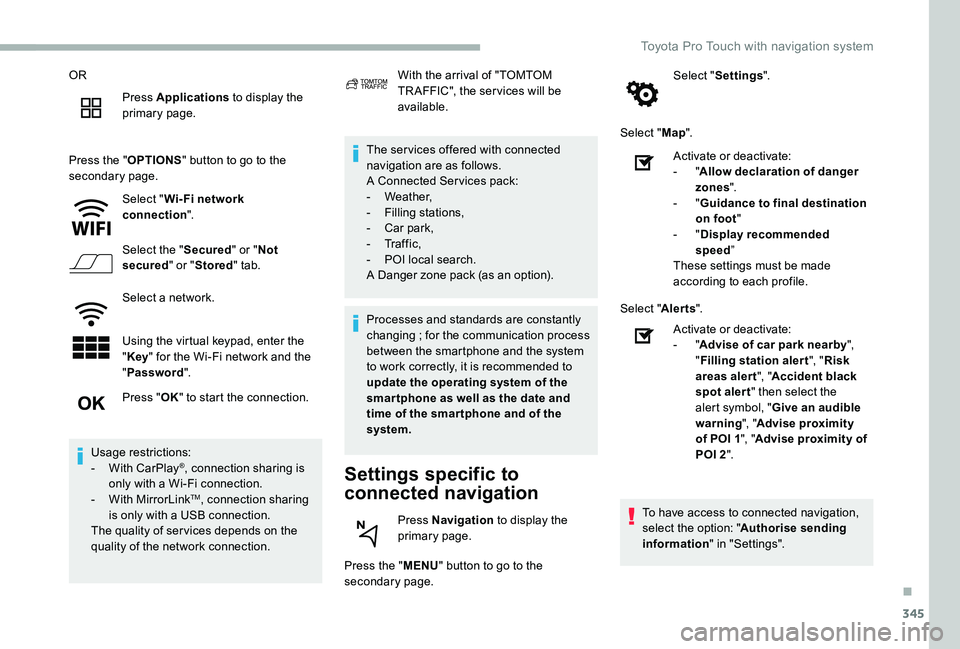
OR
Press Applications to display the primary page.
Press the "OPTIONS" button to go to the secondary page.
Select "Wi- Fi network connection".
Select the "Secured" or "Not secured" or "Stored" tab.
Select a network.
Using the virtual keypad, enter the "Key" for the Wi-Fi network and the "Password".
The ser vices offered with connected navigation are as follows.A Connected Ser vices pack:- Weather,- Filling stations,- Car park,
- Tr a f f i c ,- POI local search.A Danger zone pack (as an option).
Settings specific to
connected navigation
Press the "MENU" button to go to the secondary page.
Select "Settings".
Select "Map".
Press "OK" to start the connection.
Usage restrictions:- With CarPlay®, connection sharing is only with a Wi-Fi connection.- With MirrorLinkTM, connection sharing is only with a USB connection.The quality of ser vices depends on the quality of the network connection.
With the arrival of "TOMTOM TR AFFIC", the ser vices will be available.
Processes and standards are constantly changing ; for the communication process between the smartphone and the system to work correctly, it is recommended to update the operating system of the smar tphone as well as the date and time of the smar tphone and of the system.
Press Navigation to display the primary page.
Activate or deactivate:- "Allow declaration of danger zones".- "Guidance to final destination on foot"- "Display recommended speed”These settings must be made according to each profile.
Select "Alerts".
Activate or deactivate:- "Advise of car park nearby", "Filling station alert", "Risk areas alert", "Accident black spot alert" then select the alert symbol, "Give an audible warning", "Advise proximity of POI 1", "Advise proximity of POI 2".
To have access to connected navigation, select the option: "Authorise sending information" in "Settings".
.
Toyota Pro Touch with navigation system
Page 346 of 418
346
Notification of "Danger
zones"
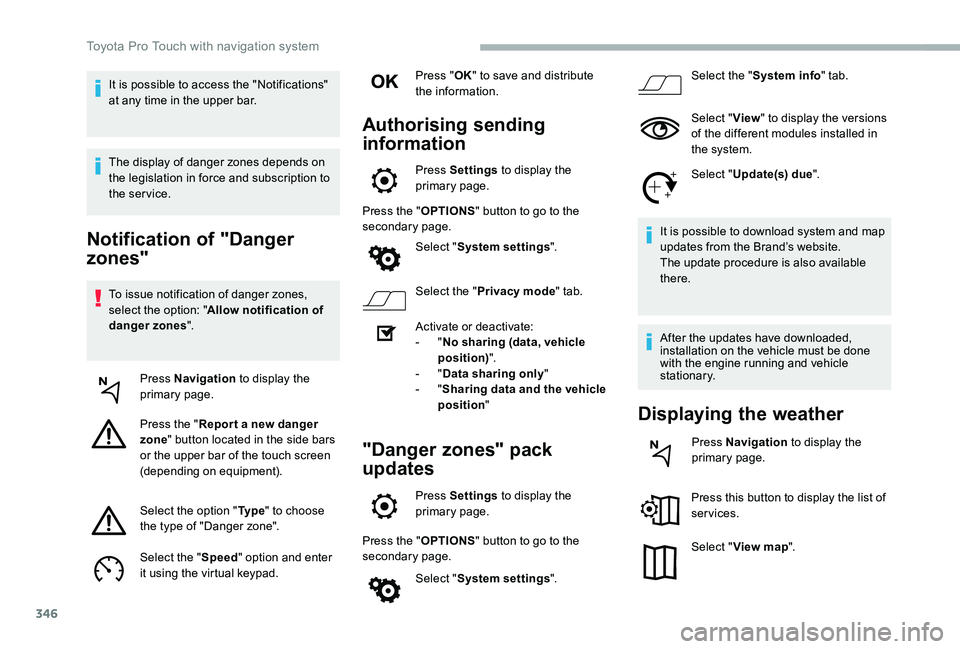
To issue notification of danger zones, select the option: "Allow notification of danger zones".
Press Navigation to display the primary page.
Press the "Repor t a new danger zone" button located in the side bars or the upper bar of the touch screen (depending on equipment).
Select the option "Ty p e" to choose the type of "Danger zone".
Select the "Speed" option and enter it using the virtual keypad.
Press "OK" to save and distribute the information.
Authorising sending
information
Press Settings to display the primary page.
Press the "OPTIONS" button to go to the secondary page.
Select "System settings".
Select the "Privacy mode" tab.
Activate or deactivate:- "No sharing (data, vehicle position)".- "Data sharing only"- "Sharing data and the vehicle position"
"Danger zones" pack
updates
Press Settings to display the primary page.
Press the "OPTIONS" button to go to the secondary page.
Select "System settings".
Select the "System info" tab.
Select "View" to display the versions of the different modules installed in the system.
Select "Update(s) due".
It is possible to download system and map updates from the Brand’s website.The update procedure is also available there.
After the updates have downloaded, installation on the vehicle must be done with the engine running and vehicle stationary.
Displaying the weather
Press Navigation to display the primary page.
Press this button to display the list of services.
Select "View map".
It is possible to access the "Notifications" at any time in the upper bar.
The display of danger zones depends on the legislation in force and subscription to the service.
Toyota Pro Touch with navigation system