Menu TOYOTA PROACE VERSO 2022 Owner's Guide
[x] Cancel search | Manufacturer: TOYOTA, Model Year: 2022, Model line: PROACE VERSO, Model: TOYOTA PROACE VERSO 2022Pages: 360, PDF Size: 70.79 MB
Page 189 of 360
189
Driving
6
Detection - Alert
You are alerted by the flashing of this warning lamp in the instrument panel, accompanied by an audible signal.
NOTIC E
No warning is transmitted while the direction indicator is active and for approximately 20 seconds after the direction indicator is switched off.
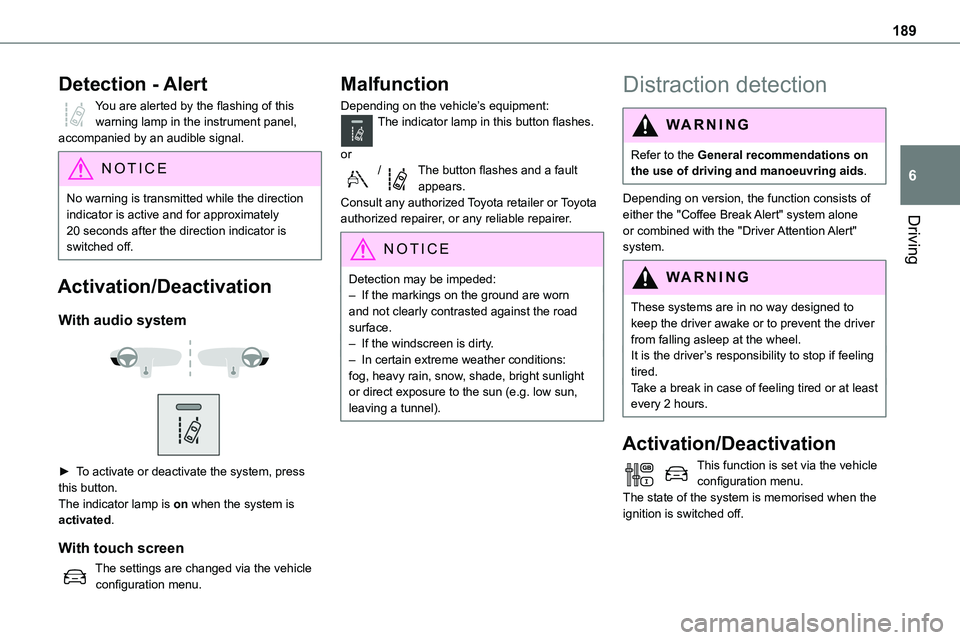
Activation/Deactivation
With audio system
► To activate or deactivate the system, press this button.The indicator lamp is on when the system is activated.
With touch screen
The settings are changed via the vehicle configuration menu.
Malfunction
Depending on the vehicle’s equipment:The indicator lamp in this button flashes.
or/The button flashes and a fault appears.Consult any authorized Toyota retailer or Toyota authorized repairer, or any reliable repairer.
NOTIC E
Detection may be impeded:– If the markings on the ground are worn and not clearly contrasted against the road surface.– If the windscreen is dirty.– In certain extreme weather conditions: fog, heavy rain, snow, shade, bright sunlight or direct exposure to the sun (e.g. low sun, leaving a tunnel).
Distraction detection
WARNI NG
Refer to the General recommendations on the use of driving and manoeuvring aids.
Depending on version, the function consists of either the "Coffee Break Alert" system alone or combined with the "Driver Attention Alert" system.
WARNI NG
These systems are in no way designed to keep the driver awake or to prevent the driver from falling asleep at the wheel. It is the driver’s responsibility to stop if feeling tired.Take a break in case of feeling tired or at least every 2 hours.
Activation/Deactivation
This function is set via the vehicle configuration menu.The state of the system is memorised when the ignition is switched off.
Page 192 of 360
192
– with vehicles moving in the opposite direction,– driving on a winding road or sharp bends,– when overtaking or being overtaken by a very long vehicle (lorry, bus, etc.) which is both in the rear blind spot and present in the driver’s front field of vision,– when overtaking quickly,– in very heavy traffic: vehicles detected in front and behind are confused with a lorry or a
stationary object.
Activation/Deactivation
With audio system
► To activate or deactivate the system, press this button.The indicator lamp is on when the system is activated.
With touch screen
The settings are changed via the vehicle configuration menu.
NOTIC E
The system is automatically deactivated when towing with a towing device approved by TOYOTA.
Malfunction
Depending on the vehicle’s equipment:
In the event of a fault, this or these warning lamp(s) flash(es).orThe warning lamp in this button flashes and a message appears, accompanied by an audible signal.Consult any authorized Toyota retailer or Toyota authorized repairer, or any reliable repairer.
Parking sensors
WARNI NG
Refer to the General recommendations on the use of driving and manoeuvring aids.
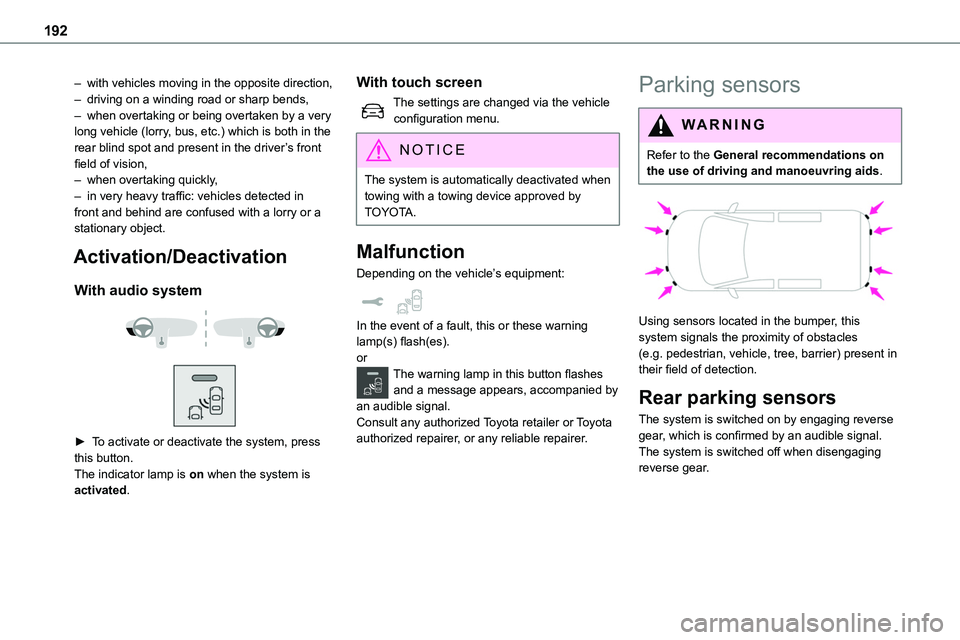
Using sensors located in the bumper, this system signals the proximity of obstacles (e.g. pedestrian, vehicle, tree, barrier) present in their field of detection.
Rear parking sensors
The system is switched on by engaging reverse
gear, which is confirmed by an audible signal.The system is switched off when disengaging reverse gear.
Page 193 of 360
193
Driving
6
Audible assistance
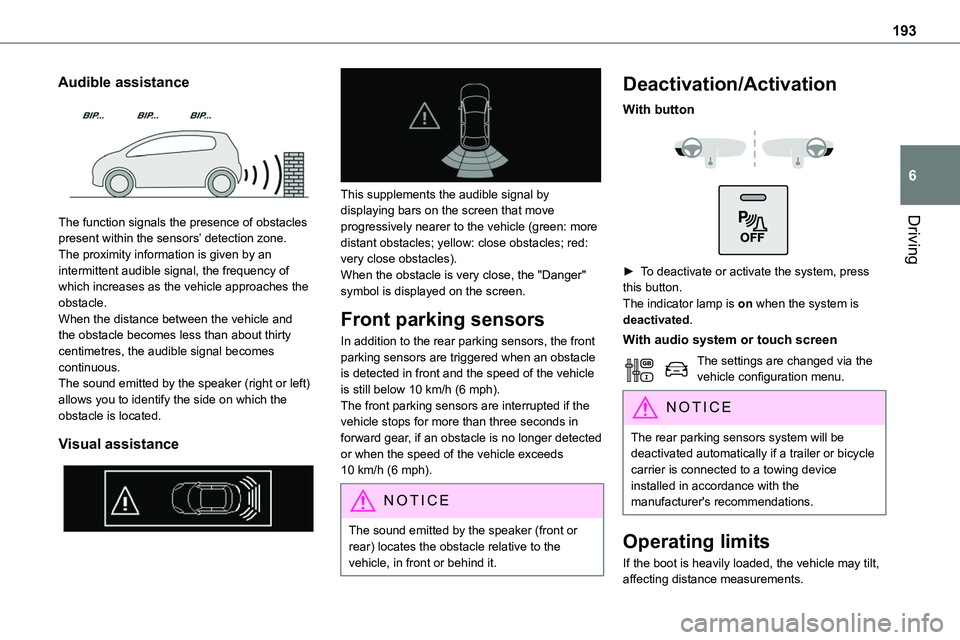
The function signals the presence of obstacles
present within the sensors’ detection zone.The proximity information is given by an intermittent audible signal, the frequency of which increases as the vehicle approaches the obstacle.When the distance between the vehicle and the obstacle becomes less than about thirty centimetres, the audible signal becomes continuous.The sound emitted by the speaker (right or left) allows you to identify the side on which the obstacle is located.
Visual assistance
This supplements the audible signal by displaying bars on the screen that move
progressively nearer to the vehicle (green: more distant obstacles; yellow: close obstacles; red: very close obstacles).When the obstacle is very close, the "Danger" symbol is displayed on the screen.
Front parking sensors
In addition to the rear parking sensors, the front parking sensors are triggered when an obstacle is detected in front and the speed of the vehicle is still below 10 km/h (6 mph).The front parking sensors are interrupted if the vehicle stops for more than three seconds in forward gear, if an obstacle is no longer detected or when the speed of the vehicle exceeds 10 km/h (6 mph).
NOTIC E
The sound emitted by the speaker (front or rear) locates the obstacle relative to the vehicle, in front or behind it.
Deactivation/Activation
With button
► To deactivate or activate the system, press this button.The indicator lamp is on when the system is deactivated.
With audio system or touch screen
The settings are changed via the vehicle configuration menu.
NOTIC E
The rear parking sensors system will be deactivated automatically if a trailer or bicycle carrier is connected to a towing device installed in accordance with the manufacturer's recommendations.
Operating limits
If the boot is heavily loaded, the vehicle may tilt, affecting distance measurements.
Page 195 of 360
195
Driving
6
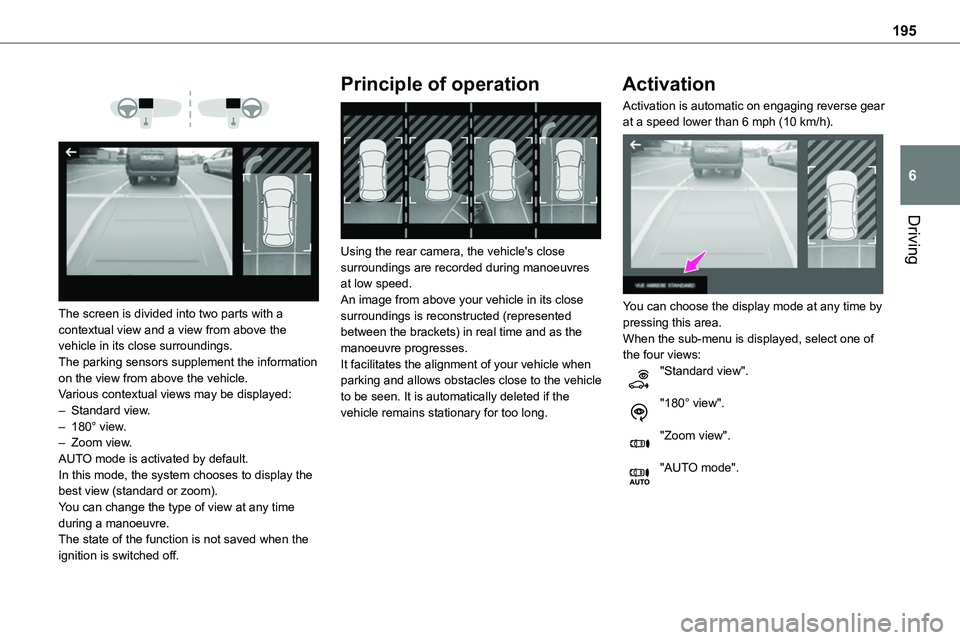
The screen is divided into two parts with a contextual view and a view from above the vehicle in its close surroundings.The parking sensors supplement the information on the view from above the vehicle.Various contextual views may be displayed:– Standard view.– 180° view.– Zoom view.AUTO mode is activated by default.In this mode, the system chooses to display the best view (standard or zoom).You can change the type of view at any time during a manoeuvre.The state of the function is not saved when the ignition is switched off.
Principle of operation
Using the rear camera, the vehicle's close surroundings are recorded during manoeuvres at low speed.An image from above your vehicle in its close surroundings is reconstructed (represented between the brackets) in real time and as the manoeuvre progresses.It facilitates the alignment of your vehicle when parking and allows obstacles close to the vehicle to be seen. It is automatically deleted if the vehicle remains stationary for too long.
Activation
Activation is automatic on engaging reverse gear at a speed lower than 6 mph (10 km/h).
You can choose the display mode at any time by pressing this area.When the sub-menu is displayed, select one of the four views:"Standard view".
"180° view".
"Zoom view".
"AUTO mode".
Page 196 of 360
196
NOTIC E
The function will be deactivated:– If a trailer is attached or a bicycle carrier is fitted on a towing device (vehicle fitted with a towing device installed in line with the manufacturer's recommendations).– Above about 6 mph (10 km/h).– When the boot is opened.
– Upon changing out of reverse gear (the image remains displayed for 7 seconds).– By pressing the white arrow in the upper-left corner of the touch screen.
AUTO mode
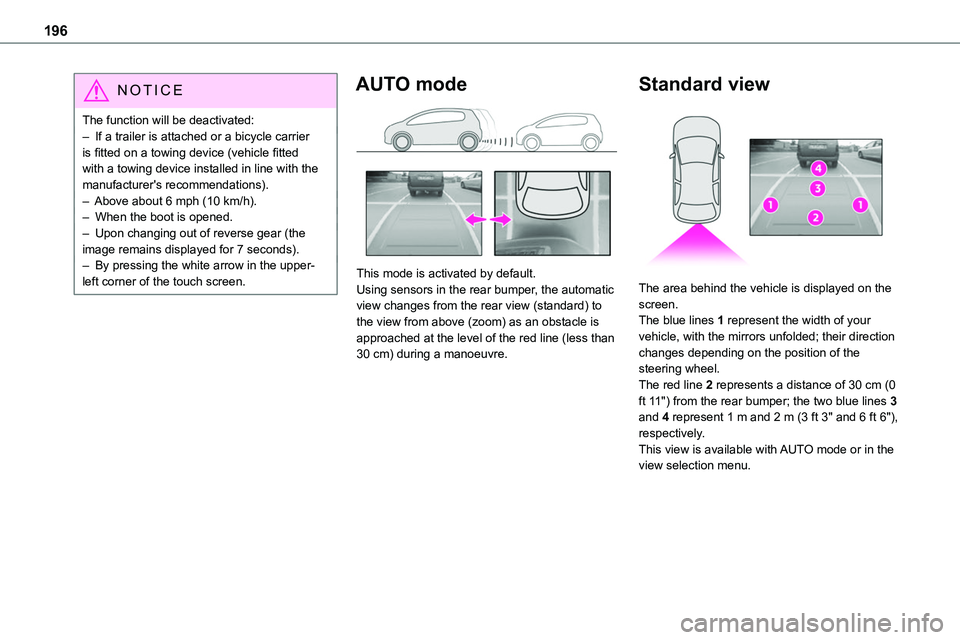
This mode is activated by default.Using sensors in the rear bumper, the automatic view changes from the rear view (standard) to the view from above (zoom) as an obstacle is approached at the level of the red line (less than 30 cm) during a manoeuvre.
Standard view
The area behind the vehicle is displayed on the screen.The blue lines 1 represent the width of your vehicle, with the mirrors unfolded; their direction changes depending on the position of the steering wheel.The red line 2 represents a distance of 30 cm (0 ft 11") from the rear bumper; the two blue lines 3 and 4 represent 1 m and 2 m (3 ft 3" and 6 ft 6"), respectively.This view is available with AUTO mode or in the view selection menu.
Page 197 of 360
197
Driving
6
Zoom view
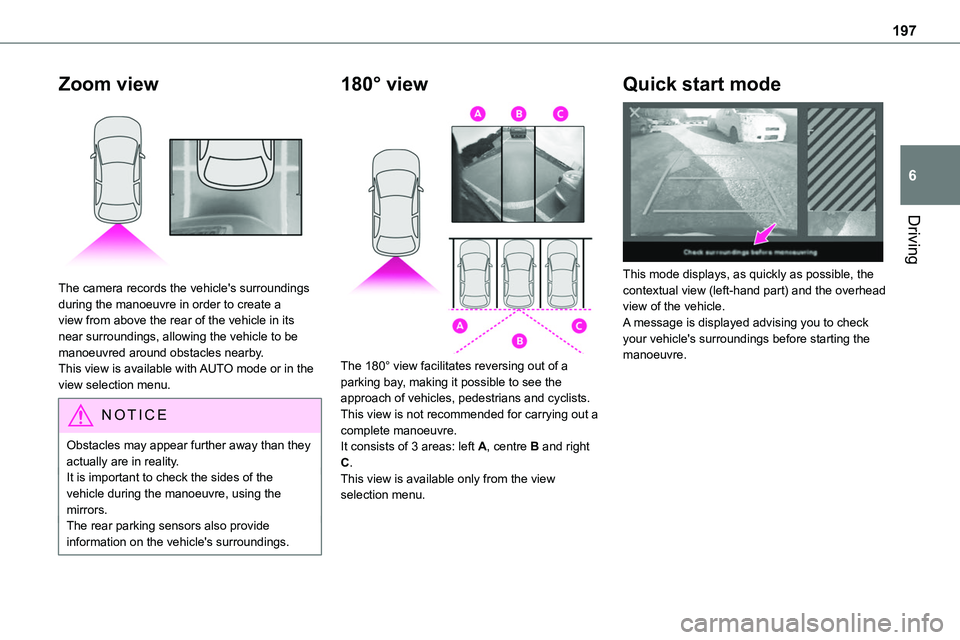
The camera records the vehicle's surroundings during the manoeuvre in order to create a view from above the rear of the vehicle in its near surroundings, allowing the vehicle to be manoeuvred around obstacles nearby.This view is available with AUTO mode or in the view selection menu.
NOTIC E
Obstacles may appear further away than they actually are in reality.It is important to check the sides of the vehicle during the manoeuvre, using the mirrors.The rear parking sensors also provide information on the vehicle's surroundings.
180° view
The 180° view facilitates reversing out of a parking bay, making it possible to see the approach of vehicles, pedestrians and cyclists.This view is not recommended for carrying out a
complete manoeuvre.It consists of 3 areas: left A, centre B and right C.This view is available only from the view selection menu.
Quick start mode
This mode displays, as quickly as possible, the contextual view (left-hand part) and the overhead view of the vehicle.A message is displayed advising you to check your vehicle's surroundings before starting the manoeuvre.
Page 210 of 360
210
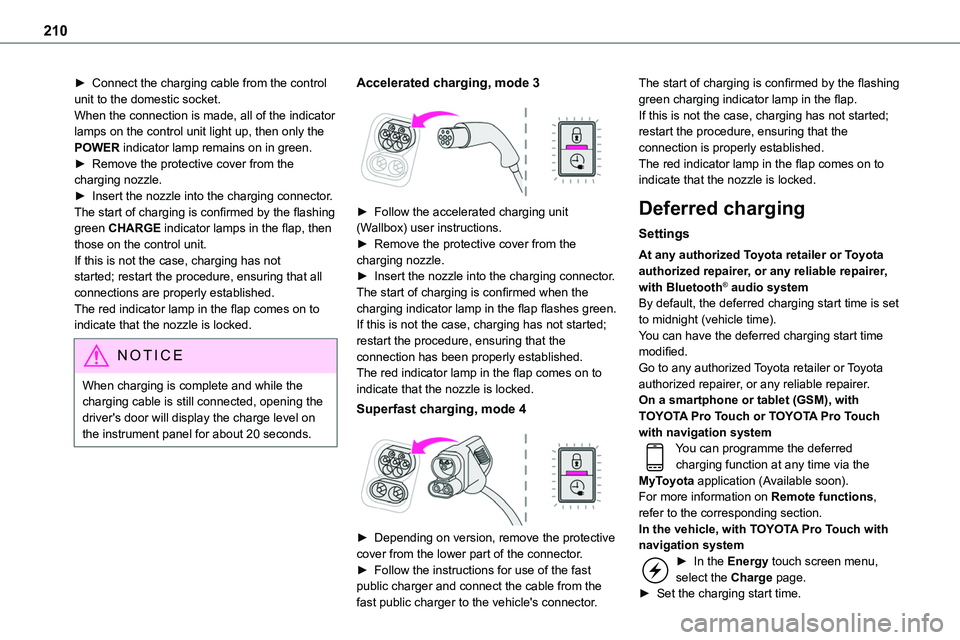
► Connect the charging cable from the control unit to the domestic socket.When the connection is made, all of the indicator lamps on the control unit light up, then only the POWER indicator lamp remains on in green.► Remove the protective cover from the charging nozzle.► Insert the nozzle into the charging connector.The start of charging is confirmed by the flashing
green CHARGE indicator lamps in the flap, then those on the control unit.If this is not the case, charging has not started; restart the procedure, ensuring that all connections are properly established.The red indicator lamp in the flap comes on to indicate that the nozzle is locked.
NOTIC E
When charging is complete and while the charging cable is still connected, opening the driver's door will display the charge level on the instrument panel for about 20 seconds.
Accelerated charging, mode 3
► Follow the accelerated charging unit (Wallbox) user instructions.► Remove the protective cover from the charging nozzle.► Insert the nozzle into the charging connector.The start of charging is confirmed when the charging indicator lamp in the flap flashes green.If this is not the case, charging has not started; restart the procedure, ensuring that the connection has been properly established.The red indicator lamp in the flap comes on to indicate that the nozzle is locked.
Superfast charging, mode 4
► Depending on version, remove the protective cover from the lower part of the connector.► Follow the instructions for use of the fast public charger and connect the cable from the fast public charger to the vehicle's connector.
The start of charging is confirmed by the flashing green charging indicator lamp in the flap.If this is not the case, charging has not started; restart the procedure, ensuring that the connection is properly established.The red indicator lamp in the flap comes on to indicate that the nozzle is locked.
Deferred charging
Settings
At any authorized Toyota retailer or Toyota authorized repairer, or any reliable repairer, with Bluetooth® audio systemBy default, the deferred charging start time is set to midnight (vehicle time).You can have the deferred charging start time modified.Go to any authorized Toyota retailer or Toyota authorized repairer, or any reliable repairer.On a smartphone or tablet (GSM), with TOYOTA Pro Touch or TOYOTA Pro Touch with navigation systemYou can programme the deferred charging function at any time via the MyToyota application (Available soon).For more information on Remote functions, refer to the corresponding section.In the vehicle, with TOYOTA Pro Touch with navigation system► In the Energy touch screen menu, select the Charge page.► Set the charging start time.
Page 236 of 360
236
Access to the spare wheel
► Access to the spare wheel is from the rear.► Depending on version, open the side-hinged doors or the tailgate.
NOTIC E
To avoid any unwanted opening of the electric side door(s), deactivate the Hands-Free Access function in the vehicle configuration menu.For more information on the Hands-Free Sliding Side Door, refer to the corresponding section.
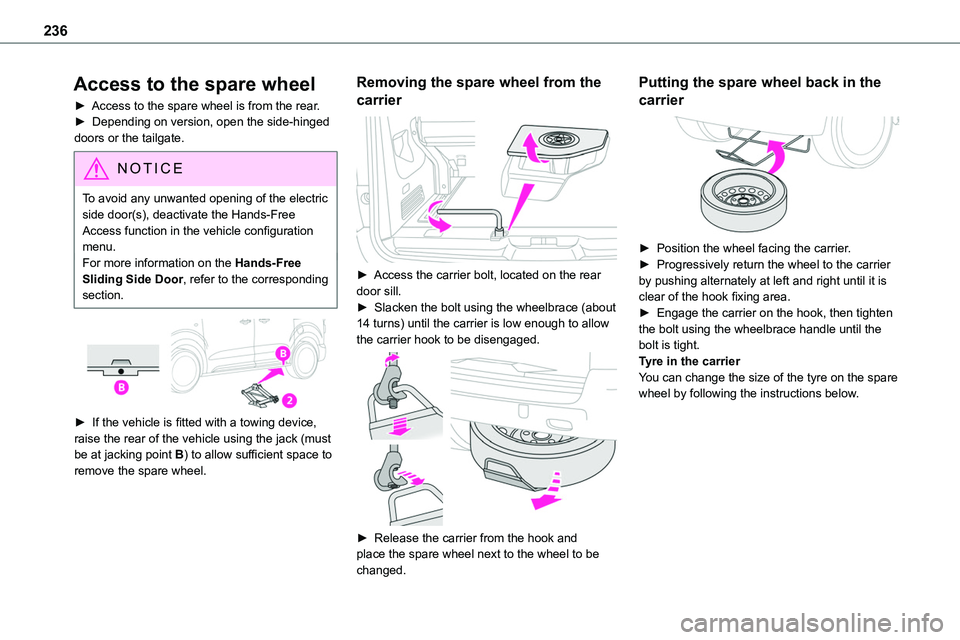
► If the vehicle is fitted with a towing device,
raise the rear of the vehicle using the jack (must be at jacking point B) to allow sufficient space to remove the spare wheel.
Removing the spare wheel from the
carrier
► Access the carrier bolt, located on the rear door sill.► Slacken the bolt using the wheelbrace (about 14 turns) until the carrier is low enough to allow the carrier hook to be disengaged.
► Release the carrier from the hook and place the spare wheel next to the wheel to be changed.
Putting the spare wheel back in the
carrier
► Position the wheel facing the carrier.► Progressively return the wheel to the carrier by pushing alternately at left and right until it is clear of the hook fixing area.► Engage the carrier on the hook, then tighten the bolt using the wheelbrace handle until the bolt is tight.Tyre in the carrierYou can change the size of the tyre on the spare wheel by following the instructions below.
Page 265 of 360
265
Bluetooth® audio system
10
Bluetooth® audio system
NOTIC E
The different functions and settings described vary according to the version and configuration of your vehicle.
WARNI NG
As a safety measure and because it requires sustained attention by the driver, the pairing of a Bluetooth mobile telephone with the Bluetooth hands-free system of your audio system must be done with the vehicle stationary and the ignition on.
WARNI NG
Your audio system is coded in such a way that it will only operate in your vehicle.All work on the system must be carried out exclusively by a dealer or qualified workshop, to avoid any risk of electrocution, fire or mechanical faults.
NOTIC E
To avoid discharging the battery, the audio system may switch off after a few minutes if the engine is not running.
First steps
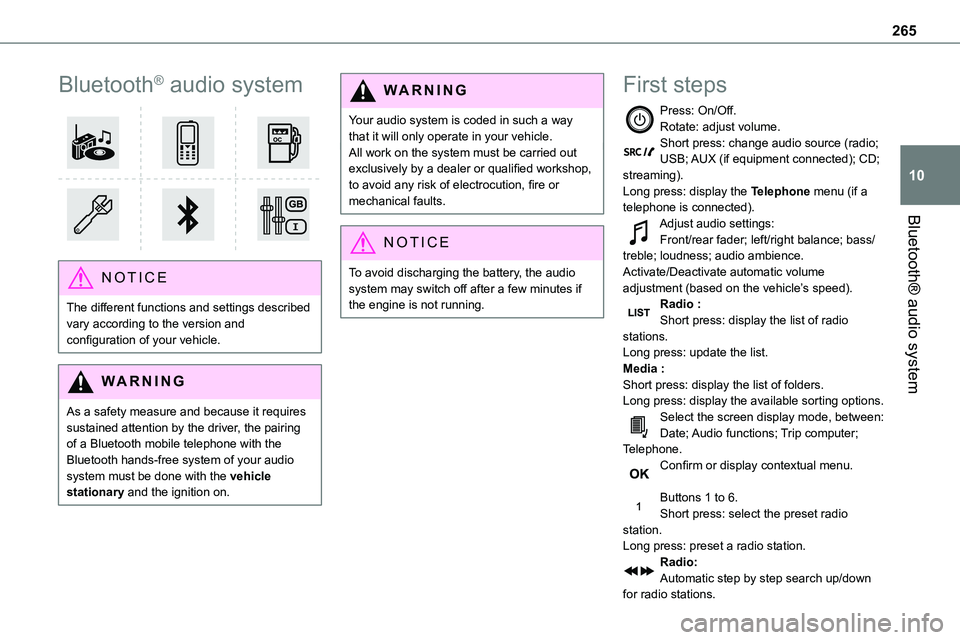
Press: On/Off.Rotate: adjust volume.Short press: change audio source (radio; USB; AUX (if equipment connected); CD; streaming).Long press: display the Telephone menu (if a telephone is connected).
Adjust audio settings:Front/rear fader; left/right balance; bass/treble; loudness; audio ambience.Activate/Deactivate automatic volume adjustment (based on the vehicle’s speed).Radio :Short press: display the list of radio stations.Long press: update the list.Media :Short press: display the list of folders.Long press: display the available sorting options.Select the screen display mode, between:Date; Audio functions; Trip computer; Telephone.Confirm or display contextual menu.
Buttons 1 to 6.Short press: select the preset radio station.Long press: preset a radio station.Radio:Automatic step by step search up/down for radio stations.
Page 266 of 360
266
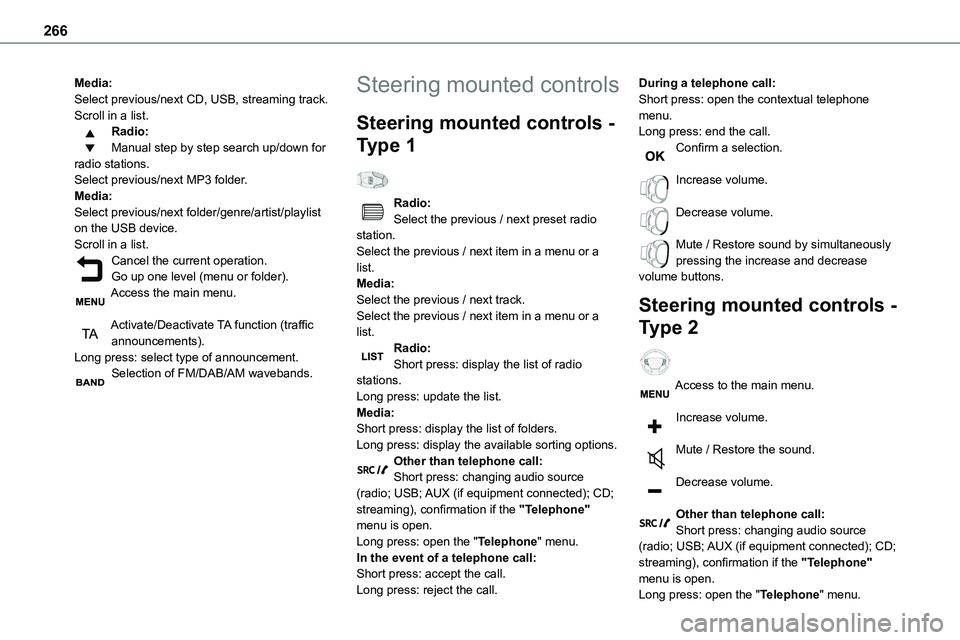
Media:Select previous/next CD, USB, streaming track.Scroll in a list.Radio:Manual step by step search up/down for radio stations.Select previous/next MP3 folder.Media:Select previous/next folder/genre/artist/playlist
on the USB device.Scroll in a list.Cancel the current operation.Go up one level (menu or folder).Access the main menu.
Activate/Deactivate TA function (traffic announcements).Long press: select type of announcement.Selection of FM/DAB/AM wavebands.
Steering mounted controls
Steering mounted controls -
Type 1
Radio:Select the previous / next preset radio
station.Select the previous / next item in a menu or a list.Media:Select the previous / next track.Select the previous / next item in a menu or a list.Radio:Short press: display the list of radio stations.Long press: update the list.Media:Short press: display the list of folders.Long press: display the available sorting options.Other than telephone call:Short press: changing audio source (radio; USB; AUX (if equipment connected); CD; streaming), confirmation if the "Telephone" menu is open.Long press: open the "Telephone" menu.In the event of a telephone call:Short press: accept the call.Long press: reject the call.
During a telephone call:Short press: open the contextual telephone menu.Long press: end the call.Confirm a selection.
Increase volume.
Decrease volume.
Mute / Restore sound by simultaneously pressing the increase and decrease volume buttons.
Steering mounted controls -
Type 2
Access to the main menu.
Increase volume.
Mute / Restore the sound.
Decrease volume.
Other than telephone call:Short press: changing audio source (radio; USB; AUX (if equipment connected); CD; streaming), confirmation if the "Telephone" menu is open.Long press: open the "Telephone" menu.