Menu TOYOTA PROACE VERSO 2022 Service Manual
[x] Cancel search | Manufacturer: TOYOTA, Model Year: 2022, Model line: PROACE VERSO, Model: TOYOTA PROACE VERSO 2022Pages: 360, PDF Size: 70.79 MB
Page 267 of 360
267
Bluetooth® audio system
10
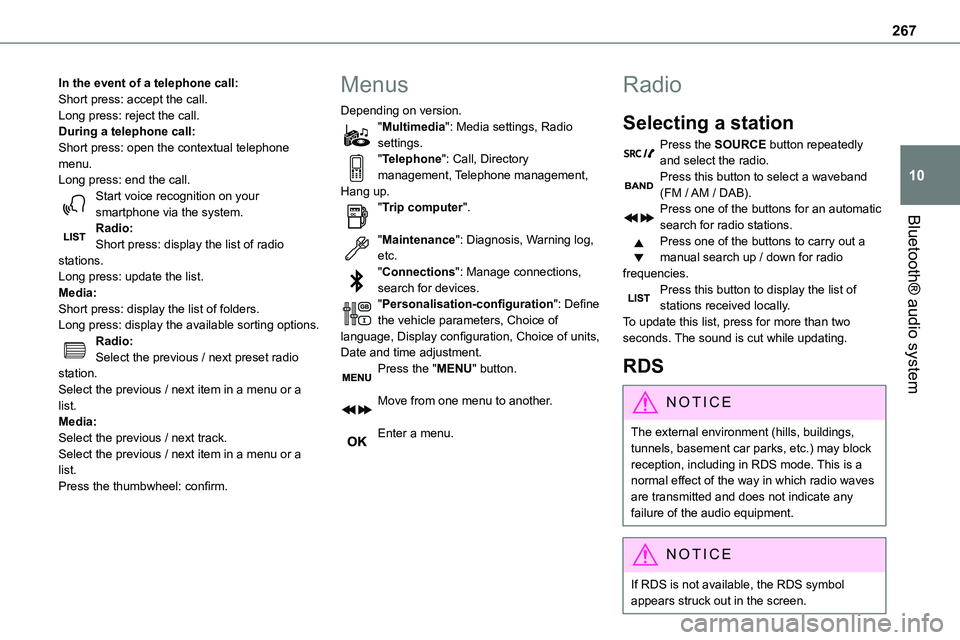
In the event of a telephone call:Short press: accept the call.Long press: reject the call.During a telephone call:Short press: open the contextual telephone menu.Long press: end the call.Start voice recognition on your smartphone via the system.
Radio:Short press: display the list of radio stations.Long press: update the list.Media:Short press: display the list of folders.Long press: display the available sorting options.Radio:Select the previous / next preset radio station.Select the previous / next item in a menu or a list.Media:Select the previous / next track.Select the previous / next item in a menu or a list.Press the thumbwheel: confirm.
Menus
Depending on version."Multimedia": Media settings, Radio settings."Telephone": Call, Directory management, Telephone management, Hang up."Trip computer".
"Maintenance": Diagnosis, Warning log, etc."Connections": Manage connections, search for devices."Personalisation-configuration": Define the vehicle parameters, Choice of language, Display configuration, Choice of units, Date and time adjustment.Press the "MENU" button.
Move from one menu to another.
Enter a menu.
Radio
Selecting a station
Press the SOURCE button repeatedly and select the radio.Press this button to select a waveband (FM / AM / DAB).Press one of the buttons for an automatic
search for radio stations.Press one of the buttons to carry out a manual search up / down for radio frequencies.Press this button to display the list of stations received locally.To update this list, press for more than two seconds. The sound is cut while updating.
RDS
NOTIC E
The external environment (hills, buildings, tunnels, basement car parks, etc.) may block reception, including in RDS mode. This is a normal effect of the way in which radio waves are transmitted and does not indicate any failure of the audio equipment.
NOTIC E
If RDS is not available, the RDS symbol appears struck out in the screen.
Page 268 of 360
268
WARNI NG
The RDS, if activated, enables you to continue listening to the same station by automatic retuning to alternative frequencies. However, in certain conditions, coverage of an RDS station may not be assured throughout the entire country as radio stations do not cover 100% of the territory. This
explains the loss of reception of the station during a journey.
Short procedure
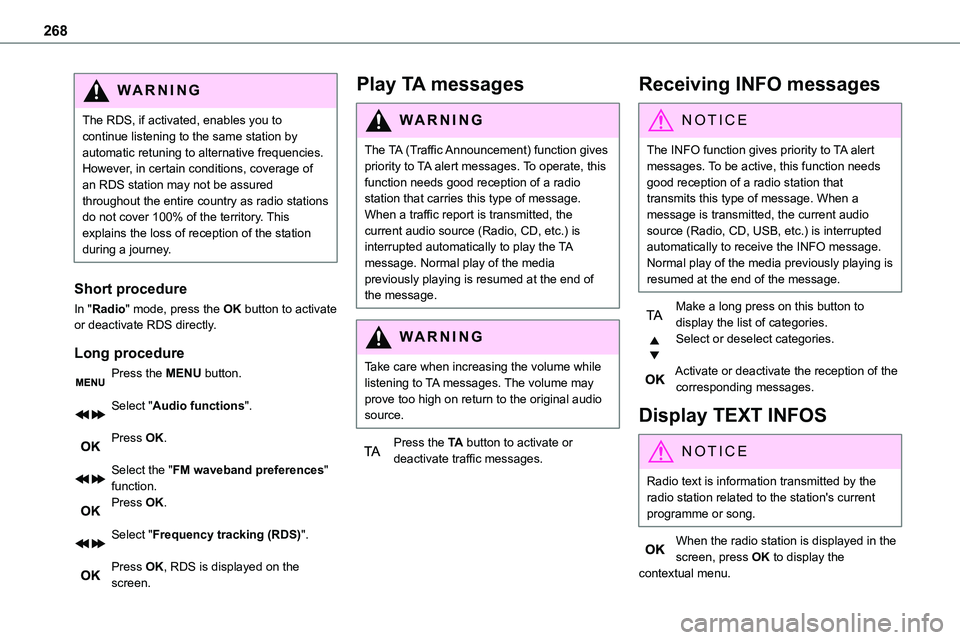
In "Radio" mode, press the OK button to activate or deactivate RDS directly.
Long procedure
Press the MENU button.
Select "Audio functions".
Press OK.
Select the "FM waveband preferences" function.Press OK.
Select "Frequency tracking (RDS)".
Press OK, RDS is displayed on the screen.
Play TA messages
WARNI NG
The TA (Traffic Announcement) function gives priority to TA alert messages. To operate, this function needs good reception of a radio station that carries this type of message. When a traffic report is transmitted, the current audio source (Radio, CD, etc.) is interrupted automatically to play the TA message. Normal play of the media previously playing is resumed at the end of the message.
WARNI NG
Take care when increasing the volume while listening to TA messages. The volume may prove too high on return to the original audio source.
Press the TA button to activate or deactivate traffic messages.
Receiving INFO messages
NOTIC E
The INFO function gives priority to TA alert messages. To be active, this function needs good reception of a radio station that transmits this type of message. When a message is transmitted, the current audio source (Radio, CD, USB, etc.) is interrupted automatically to receive the INFO message. Normal play of the media previously playing is resumed at the end of the message.
Make a long press on this button to display the list of categories.Select or deselect categories.
Activate or deactivate the reception of the corresponding messages.
Display TEXT INFOS
NOTIC E
Radio text is information transmitted by the radio station related to the station's current programme or song.
When the radio station is displayed in the screen, press OK to display the contextual menu.
Page 269 of 360
269
Bluetooth® audio system
10
Select "RadioText (TXT) display" and confirm OK to save.
DAB (Digital Audio
Broadcasting) radio
Terrestrial Digital Radio
Depending on version
NOTIC E
If the current DAB radio station is not available on FM, "DAB FM" is struck out.
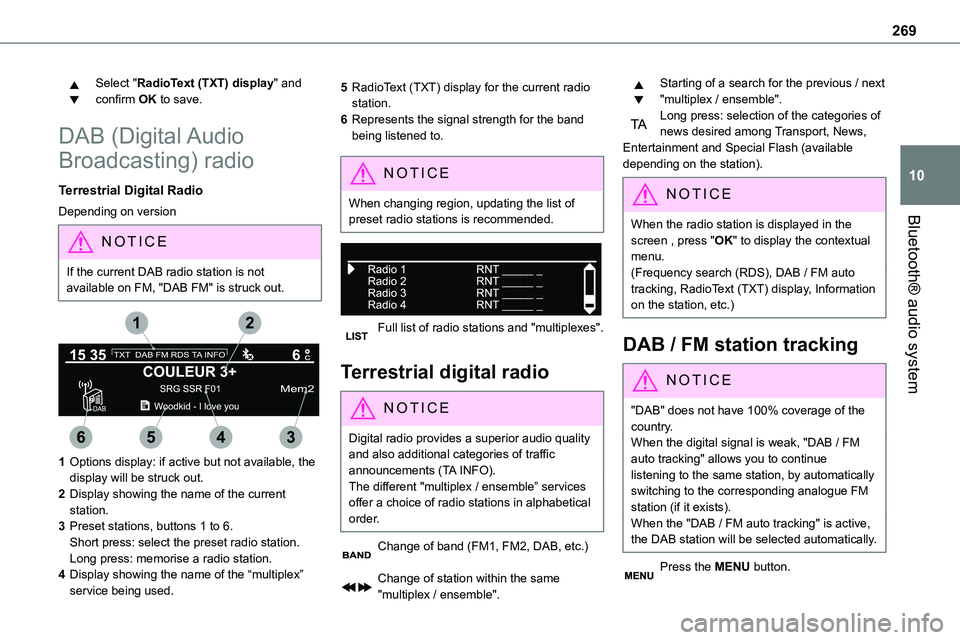
1Options display: if active but not available, the display will be struck out.
2Display showing the name of the current station.
3Preset stations, buttons 1 to 6.Short press: select the preset radio station.Long press: memorise a radio station.
4Display showing the name of the “multiplex” service being used.
5RadioText (TXT) display for the current radio station.
6Represents the signal strength for the band being listened to.
NOTIC E
When changing region, updating the list of preset radio stations is recommended.
Full list of radio stations and "multiplexes".
Terrestrial digital radio
NOTIC E
Digital radio provides a superior audio quality and also additional categories of traffic announcements (TA INFO).The different "multiplex / ensemble” services offer a choice of radio stations in alphabetical order.
Change of band (FM1, FM2, DAB, etc.)
Change of station within the same "multiplex / ensemble".
Starting of a search for the previous / next "multiplex / ensemble".Long press: selection of the categories of news desired among Transport, News, Entertainment and Special Flash (available depending on the station).
NOTIC E
When the radio station is displayed in the screen , press "OK" to display the contextual menu.(Frequency search (RDS), DAB / FM auto tracking, RadioText (TXT) display, Information on the station, etc.)
DAB / FM station tracking
NOTIC E
"DAB" does not have 100% coverage of the country.When the digital signal is weak, "DAB / FM auto tracking" allows you to continue listening to the same station, by automatically switching to the corresponding analogue FM station (if it exists).When the "DAB / FM auto tracking" is active, the DAB station will be selected automatically.
Press the MENU button.
Page 270 of 360
270
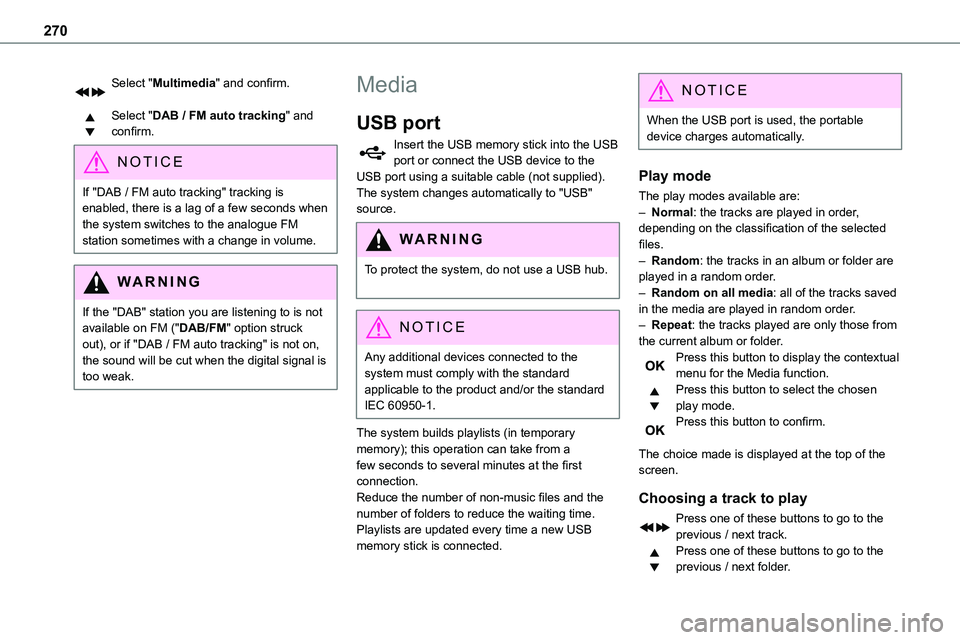
Select "Multimedia" and confirm.
Select "DAB / FM auto tracking" and confirm.
NOTIC E
If "DAB / FM auto tracking" tracking is enabled, there is a lag of a few seconds when the system switches to the analogue FM station sometimes with a change in volume.
WARNI NG
If the "DAB" station you are listening to is not available on FM ("DAB/FM" option struck out), or if "DAB / FM auto tracking" is not on, the sound will be cut when the digital signal is too weak.
Media
USB port
Insert the USB memory stick into the USB port or connect the USB device to the USB port using a suitable cable (not supplied).The system changes automatically to "USB" source.
WARNI NG
To protect the system, do not use a USB hub.
NOTIC E
Any additional devices connected to the system must comply with the standard applicable to the product and/or the standard IEC 60950-1.
The system builds playlists (in temporary memory); this operation can take from a few seconds to several minutes at the first connection.Reduce the number of non-music files and the number of folders to reduce the waiting time. Playlists are updated every time a new USB memory stick is connected.
NOTIC E
When the USB port is used, the portable device charges automatically.
Play mode
The play modes available are:– Normal: the tracks are played in order,
depending on the classification of the selected files.– Random: the tracks in an album or folder are played in a random order.– Random on all media: all of the tracks saved in the media are played in random order.– Repeat: the tracks played are only those from the current album or folder.Press this button to display the contextual menu for the Media function.Press this button to select the chosen play mode.Press this button to confirm.
The choice made is displayed at the top of the screen.
Choosing a track to play
Press one of these buttons to go to the previous / next track.Press one of these buttons to go to the previous / next folder.
Page 273 of 360
273
Bluetooth® audio system
10
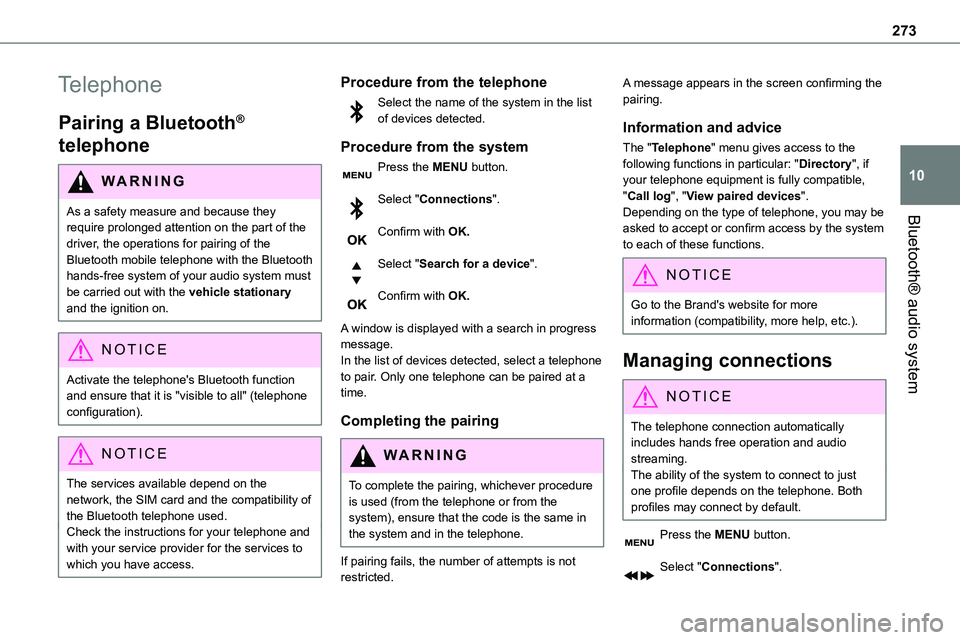
Telephone
Pairing a Bluetooth®
telephone
WARNI NG
As a safety measure and because they require prolonged attention on the part of the driver, the operations for pairing of the Bluetooth mobile telephone with the Bluetooth hands-free system of your audio system must be carried out with the vehicle stationary and the ignition on.
NOTIC E
Activate the telephone's Bluetooth function and ensure that it is "visible to all" (telephone configuration).
NOTIC E
The services available depend on the network, the SIM card and the compatibility of the Bluetooth telephone used.Check the instructions for your telephone and with your service provider for the services to which you have access.
Procedure from the telephone
Select the name of the system in the list of devices detected.
Procedure from the system
Press the MENU button.
Select "Connections".
Confirm with OK.
Select "Search for a device".
Confirm with OK.
A window is displayed with a search in progress message.In the list of devices detected, select a telephone to pair. Only one telephone can be paired at a time.
Completing the pairing
WARNI NG
To complete the pairing, whichever procedure is used (from the telephone or from the system), ensure that the code is the same in
the system and in the telephone.
If pairing fails, the number of attempts is not restricted.
A message appears in the screen confirming the pairing.
Information and advice
The "Telephone" menu gives access to the following functions in particular: "Directory", if your telephone equipment is fully compatible, "Call log", "View paired devices".Depending on the type of telephone, you may be
asked to accept or confirm access by the system to each of these functions.
NOTIC E
Go to the Brand's website for more information (compatibility, more help, etc.).
Managing connections
NOTIC E
The telephone connection automatically includes hands free operation and audio streaming.The ability of the system to connect to just one profile depends on the telephone. Both profiles may connect by default.
Press the MENU button.
Select "Connections".
Page 274 of 360
274
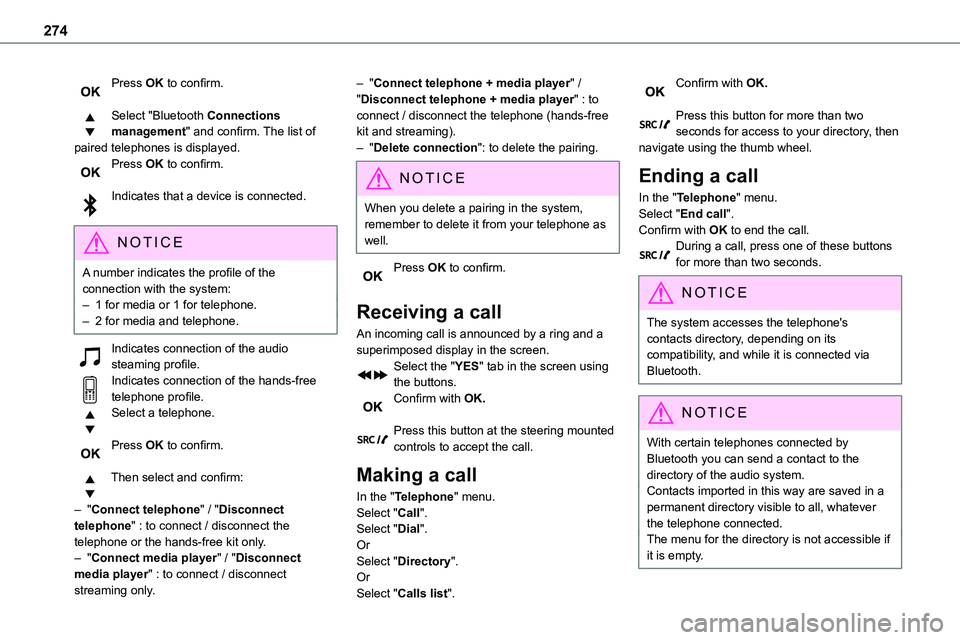
Press OK to confirm.
Select "Bluetooth Connections management" and confirm. The list of paired telephones is displayed.Press OK to confirm.
Indicates that a device is connected.
NOTIC E
A number indicates the profile of the connection with the system:– 1 for media or 1 for telephone.– 2 for media and telephone.
Indicates connection of the audio steaming profile.Indicates connection of the hands-free telephone profile.Select a telephone.
Press OK to confirm.
Then select and confirm:
– "Connect telephone" / "Disconnect telephone" : to connect / disconnect the
telephone or the hands-free kit only.– "Connect media player" / "Disconnect media player" : to connect / disconnect streaming only.
– "Connect telephone + media player" / "Disconnect telephone + media player" : to connect / disconnect the telephone (hands-free kit and streaming).– "Delete connection": to delete the pairing.
NOTIC E
When you delete a pairing in the system, remember to delete it from your telephone as well.
Press OK to confirm.
Receiving a call
An incoming call is announced by a ring and a superimposed display in the screen.Select the "YES" tab in the screen using the buttons.Confirm with OK.
Press this button at the steering mounted controls to accept the call.
Making a call
In the "Telephone" menu.Select "Call".Select "Dial".
OrSelect "Directory".OrSelect "Calls list".
Confirm with OK.
Press this button for more than two seconds for access to your directory, then navigate using the thumb wheel.
Ending a call
In the "Telephone" menu.Select "End call".
Confirm with OK to end the call.During a call, press one of these buttons for more than two seconds.
NOTIC E
The system accesses the telephone's contacts directory, depending on its compatibility, and while it is connected via Bluetooth.
NOTIC E
With certain telephones connected by Bluetooth you can send a contact to the directory of the audio system.Contacts imported in this way are saved in a permanent directory visible to all, whatever the telephone connected.The menu for the directory is not accessible if it is empty.
Page 275 of 360
275
Bluetooth® audio system
10
Managing calls
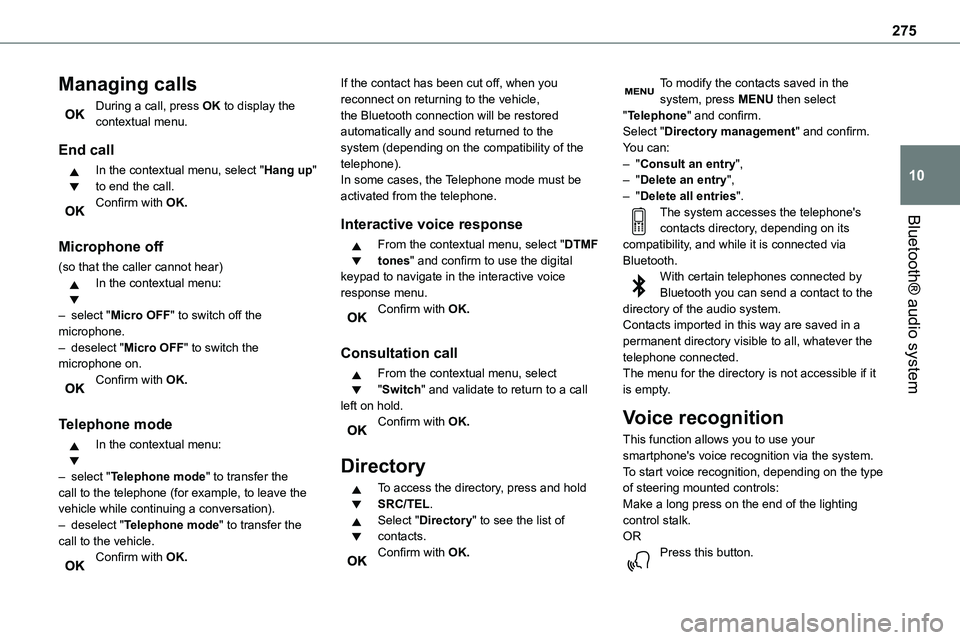
During a call, press OK to display the contextual menu.
End call
In the contextual menu, select "Hang up" to end the call.Confirm with OK.
Microphone off
(so that the caller cannot hear)In the contextual menu:
– select "Micro OFF" to switch off the microphone.– deselect "Micro OFF" to switch the microphone on.Confirm with OK.
Telephone mode
In the contextual menu:
– select "Telephone mode" to transfer the call to the telephone (for example, to leave the vehicle while continuing a conversation).– deselect "Telephone mode" to transfer the call to the vehicle.Confirm with OK.
If the contact has been cut off, when you reconnect on returning to the vehicle, the Bluetooth connection will be restored automatically and sound returned to the system (depending on the compatibility of the telephone).In some cases, the Telephone mode must be activated from the telephone.
Interactive voice response
From the contextual menu, select "DTMF tones" and confirm to use the digital keypad to navigate in the interactive voice response menu.Confirm with OK.
Consultation call
From the contextual menu, select "Switch" and validate to return to a call left on hold.Confirm with OK.
Directory
To access the directory, press and hold SRC/TEL.Select "Directory" to see the list of contacts.Confirm with OK.
To modify the contacts saved in the system, press MENU then select "Telephone" and confirm.Select "Directory management" and confirm.You can:– "Consult an entry",– "Delete an entry",– "Delete all entries".The system accesses the telephone's
contacts directory, depending on its compatibility, and while it is connected via Bluetooth.With certain telephones connected by Bluetooth you can send a contact to the directory of the audio system.Contacts imported in this way are saved in a permanent directory visible to all, whatever the telephone connected.The menu for the directory is not accessible if it is empty.
Voice recognition
This function allows you to use your smartphone's voice recognition via the system.To start voice recognition, depending on the type of steering mounted controls:Make a long press on the end of the lighting control stalk.ORPress this button.
Page 277 of 360
277
Bluetooth® audio system
10
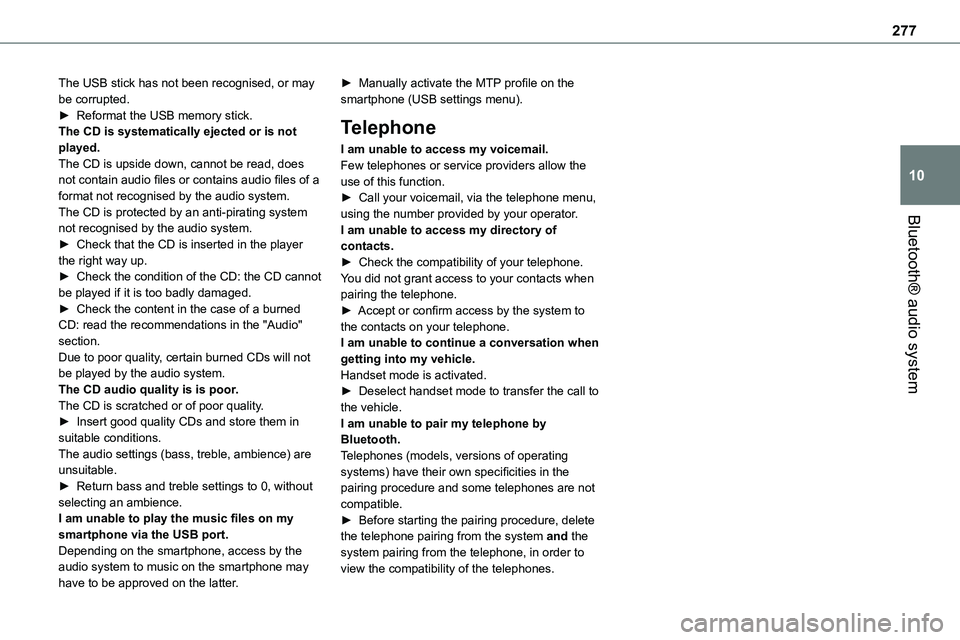
The USB stick has not been recognised, or may be corrupted.► Reformat the USB memory stick.The CD is systematically ejected or is not played.The CD is upside down, cannot be read, does not contain audio files or contains audio files of a format not recognised by the audio system.The CD is protected by an anti-pirating system
not recognised by the audio system.► Check that the CD is inserted in the player the right way up.► Check the condition of the CD: the CD cannot be played if it is too badly damaged.► Check the content in the case of a burned CD: read the recommendations in the "Audio" section.Due to poor quality, certain burned CDs will not be played by the audio system.The CD audio quality is is poor.The CD is scratched or of poor quality.► Insert good quality CDs and store them in suitable conditions.The audio settings (bass, treble, ambience) are unsuitable.► Return bass and treble settings to 0, without selecting an ambience.I am unable to play the music files on my smartphone via the USB port.Depending on the smartphone, access by the audio system to music on the smartphone may have to be approved on the latter.
► Manually activate the MTP profile on the smartphone (USB settings menu).
Telephone
I am unable to access my voicemail.Few telephones or service providers allow the use of this function.► Call your voicemail, via the telephone menu, using the number provided by your operator.
I am unable to access my directory of contacts.► Check the compatibility of your telephone.You did not grant access to your contacts when pairing the telephone.► Accept or confirm access by the system to the contacts on your telephone.I am unable to continue a conversation when getting into my vehicle.Handset mode is activated.► Deselect handset mode to transfer the call to the vehicle.I am unable to pair my telephone by Bluetooth.Telephones (models, versions of operating systems) have their own specificities in the pairing procedure and some telephones are not compatible.► Before starting the pairing procedure, delete the telephone pairing from the system and the system pairing from the telephone, in order to view the compatibility of the telephones.
Page 278 of 360
278
TOYOTA Pro Touch
Multimedia audio system -
Applications - Bluetooth®
telephone
NOTIC E
The functions and settings described vary according to the vehicle version and configuration, as well as the country of sale.
WARNI NG
For safety reasons and because they require sustained attention by the driver, the following operations must be carried out with the vehicle stationary and the ignition on:– Pairing the smartphone with the system via Bluetooth.– Using the smartphone.
– Connecting to the CarPlay® or Android Auto applications (certain applications stop displaying when the vehicle is moving).– Changing the system settings and configuration.
NOTIC E
The system is protected so that it only operates in the vehicle.The message Energy economy mode is displayed when the system is about to go into standby.
First steps
With the engine running, a press mutes the sound.With the ignition off, a press turns the system on.Increase or decrease the volume using the wheel or the "plus" or "minus" buttons (depending on the equipment).Use the buttons on either side of or below the
touch screen to access the menus, then press the virtual buttons on the touch screen.Depending on the model, use the "Source" and "Menu" buttons on the left of the touch screen to access the menus, then press the virtual buttons on the touch screen.At all times it is possible to display the rolling menus by pressing the screen briefly with three fingers.All touch-sensitive areas on the screen are white.On pages with multiple tabs at the bottom of the screen, you can switch between pages either by tapping the tab for the desired page or by swiping the pages to the left or right with your finger.Press in the shaded area to go back up a level or confirm.Press the back arrow to go back a level or confirm.
Page 279 of 360
279
TOYOTA Pro Touch
11
WARNI NG
The touch screen is of the "capacitive" type.To clean the screen, use a soft, non-abrasive cloth (e.g. spectacles cloth) with no additional product.Do not use sharp objects on the screen.Do not touch the screen with wet hands.
Certain information is displayed permanently in the upper bar of the touch screen:– Air conditioning status information (depending on version), and direct access to the corresponding menu.– Radio Media and Telephone menu status information.– Privacy status information.– Access to the touch screen and digital instrument panel settings.Audio source selection (depending on equipment):– FM/DAB/AM radio stations (depending on equipment).– Telephone connected via Bluetooth and Bluetooth multimedia broadcast (streaming).– USB Memory stick.
NOTIC E
In the "Settings" menu, it is possible to create a profile for an individual or for a group of people with shared interests, and configure a wide range of settings (radio presets, audio settings, ambiences, etc.). Settings are applied automatically.
NOTIC E
In very hot conditions, the volume may be limited to protect the system. It may enter standby mode (with the screen and sound off) for 5 minutes or more.The system will resume normal operation when the temperature in the passenger compartment has dropped.
Steering mounted controls
Steering mounted controls -
Type 1
Radio:Select the previous/next preset radio
station.Select the previous/next item in a menu or a list.Media:Select the previous/next track.Select the previous/next item in a menu or a list.Radio:Short press: display the list of radio stations.Long press: update the list.Media:Short press: display the list of folders.Long press: display the available sorting options.Change audio source (radio; USB; AUX if equipment connected; CD; streaming).Confirm a selection.
Increase volume.
Decrease volume.
Mute/restore sound by simultaneously pressing the increase and decrease volume buttons.