carplay TOYOTA RAV4 2021 Accessories, Audio & Navigation (in English)
[x] Cancel search | Manufacturer: TOYOTA, Model Year: 2021, Model line: RAV4, Model: TOYOTA RAV4 2021Pages: 240, PDF Size: 9.35 MB
Page 177 of 240
1777-1. Phone operation (Hands-free system for cellular phones)
7
Phone
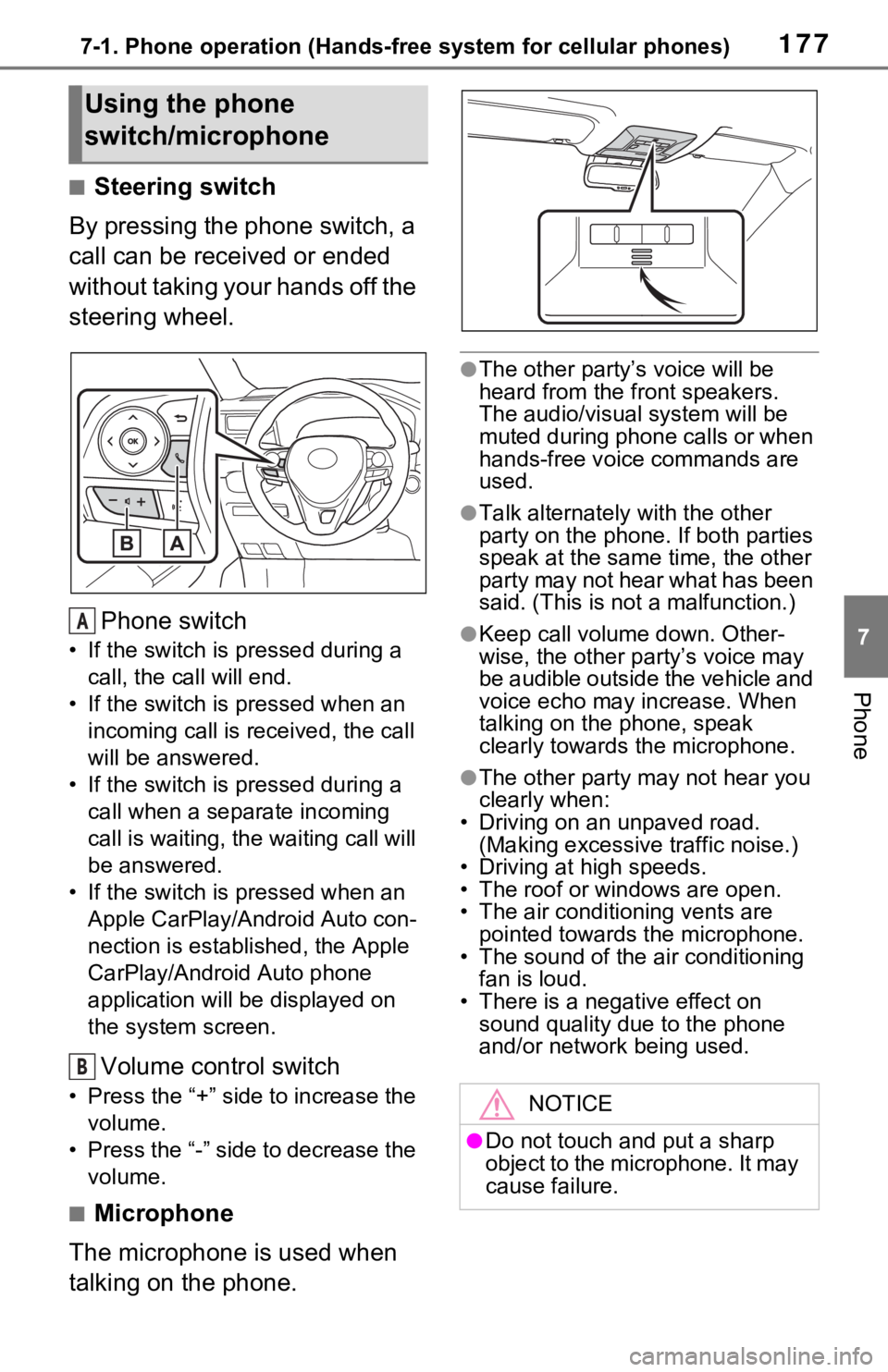
■Steering switch
By pressing the phone switch, a
call can be received or ended
without taking your hands off the
steering wheel.
Phone switch
• If the switch is pressed during a call, the call will end.
• If the switch is pressed when an incoming call is r eceived, the call
will be answered.
• If the switch is pressed during a call when a separate incoming
call is waiting, the waiting call will
be answered.
• If the switch is pressed when an Apple CarPlay/Android Auto con-
nection is established, the Apple
CarPlay/Android Auto phone
application will be displayed on
the system screen.
Volume control switch
• Press the “+” side to increase the volume.
• Press the “-” side to decrease the volume.
■Microphone
The microphone is used when
talking on the phone.
●The other party’s voice will be
heard from the front speakers.
The audio/vis ual system will be
muted during phone calls or when
hands-free voice commands are
used.
●Talk alternately with the other
party on the phone. If both parties
speak at the same time, the other
party may not hear what has been
said. (This is not a malfunction.)
●Keep call volume down. Other-
wise, the other party’s voice may
be audible outside the vehicle and
voice echo may increase. When
talking on the phone, speak
clearly towards the microphone.
●The other party may not hear you
clearly when:
• Driving on an unpaved road.
(Making excessive traffic noise.)
• Driving at high speeds.
• The roof or windows are open.
• The air conditioning vents are pointed towards the microphone.
• The sound of the air conditioning fan is loud.
• There is a negative effect on
sound quality due to the phone
and/or network being used.
Using the phone
switch/microphone
A
B
NOTICE
●Do not touch and put a sharp
object to the microphone. It may
cause failure.
Page 222 of 240

222Alphabetical Index
Alphabetical Index
A
AM/FM/SiriusXM (SXM) radio 125
Available HD Radio™ technol- ogy ..................................... 129
Caching a radio program...... 126
Displaying the radio ID ......... 131
How to subscribe to SiriusXM Radio Services ................... 130
Overview .............................. 125
Presetting a station .............. 126
Radio broadcast data system ........................................... 128
Radio options ....................... 127
Refer to the table below to iden- tify the problem and take the
suggested corrective action 132
Selecting a station from the list ........................................... 127
Smart favorites ..................... 132
Troubleshooting guide.......... 129
Using HD Radio™ technology ........................................... 128
Android Auto .......................... 139 Overview .............................. 139
“Android Auto” button (“Menu” screen) .............................. 14, 54
Apple CarPlay
®/Android Auto™
................................................. 53 Establishing an Android Auto connection ............................ 54
Establishing an Apple CarPlay connection ............................ 53
Troubleshooting ..................... 56
“Apple CarPlay” button (“Menu” screen) .............................. 14, 53
“Apps” button (“Menu” screen) ......................................... 14, 215
“Apps” button (“Setup” screen) ......................................... 18, 220
“APPS” button ..... .............12, 215
Audio/visual remote controls 144 “Audio” button (“Menu” screen)
.........................................14, 120
“Audio” button (“Setup” screen) .........................................18, 146
“AUDIO” button ................12, 120
Audio settings.........................146 Audio settings screen ...........146
Displaying the audio settings screen.................................146
B
Basic function ...........................12
Basic information before opera-tion ...........................................26
Basic operation.................72, 120
Bluetooth
® audio ....................140
Overview ..............................140
Registering/Connecting a
Bluetooth
® device ...............142
Bluetooth
® phone message func-
tion .........................................186 Calling the message sender .189
Checking received messages ...........................................187
Displaying the message screen ...........................................186
Receiving a mess age ...........186
Replying to a message (dictation reply) ..................................188
Replying to a message (quick reply) ..................................188
“Bluetooth” button (“Setup” screen) ...............................18, 40
Buttons overview......................12 Operations of each part ..........12
C
Clock settings .....................14, 61
Command list ..........................162Command list overview ........162
Page 224 of 240
224Alphabetical Index
Restarting the system ............ 26
iPod/iPhone (Apple CarPlay) . 136 Overview .............................. 136
L
Linking multi-information display and the system ....................... 35
M
“MAP” button...................... 12, 72
Map database version and cov-ered area ............................... 117Map information ................... 117
Temporary updates of the map (Vehicles equipped with DCM)........................................... 117
Map screen information ........... 76 Displaying information about the icon where the cursor is set . 80
Displaying the map options screen .................................. 76
Standard map icons ............... 81
Map screen operation .............. 74 Current position display.......... 74
Map scale ............................... 74
Map scroll operation ............... 75
Orientation of the map............ 75
Media operation ...................... 134
“MENU” button ................... 12, 14
“Menu” screen .......................... 14 “Menu” screen operation ........ 14
Mobile Assistant .. ................... 167
Connectable devices and avail- able functions ..................... 167
Mobile Assistant operation ... 167
N
Natural language understanding ............................................... 161
Navigation ................................. 72 Map screen overview .............72
“Navigation” button (“Setup” screen) .............................18, 102
Navigation operation ................21
Navigation settings ................102 Displaying navigation settings screen.................................102
Navigation settings screen ...102
Setting up areas to avoid......104
Setting up favorites list .........103
Setting up home ...................102
O
Operating information ............148 Error messages ....................155
File information .....................150
High-resolution sound source...........................................150
iPod/iPhone ..........................149
Radio ....................................148
Terms ...................................154
Operating the map screen .......21 Displaying the current position of the vehicle on the map screen.............................................21
Moving the map screen ..........21
Zooming in/out the map ..........21
Other settings ...........................60
P
“Phone” button (“Menu” screen) .........................................14, 174
“Phone” button (“Setup” screen) .........................................18, 190
“PHONE” button ...............12, 174
Phone operation (Hands-free system for cellular phones) .174
Phone settings ...... ..................190
Contacts/Call history settings screen.................................192
Displaying the phone settings
Page 225 of 240

Alphabetical Index225
screen ................................ 190
Message settings screen ..... 198
Notifications/display settings screen ................................ 191
Phone settings screen.......... 190
Sounds settings screen ........ 190
Placing a call using the
Bluetooth
® hands-free system
............................................... 179 By call history ....................... 179
By contacts list ..................... 180
By favorites list ..................... 180
By home screen ................... 182
By keypad ............................ 181
Calling methods on the
Bluetooth
® phone ............... 179
“POWER VOLUME” knob ................................... 12, 26, 121
“Projection” button (“Menu” screen) .................................... 14
Q
Quick reference ... ........... 120, 174
Functional overview ............. 120
Phone screen operation ....... 174
R
Radio operation ...................... 125
Receiving a call using the
Bluetooth
® hands-free system
............................................... 182 Incoming calls ...................... 182
Receiving weather information ............................................... 170Displaying weather screen ... 170
Weather guidance service.... 171
Registering/Connecting a
Bluetooth
® device .................. 36
Profiles ................................... 39
Registering a Bluetooth
® audio player for the first time ..........38
Registering a Bluetooth
® phone
for the first time.....................36
Registering home .....................23 Setting home as the destination.............................................24
Route guidance.........................95
Route guidance screen ............95 During freeway driving ............96
Screen for route guidance ......95
Turn list screen .......................98
Turn-by-turn arrow screen ......98
When approaching intersection.............................................97
S
Screen adjustment ...................33 Displaying the screen adjust-ment screen..........................33
“SEEK TRACK” button ............12 AM/FM/SiriusXM (SXM) radio...........................................125
Android Auto.........................139
Bluetooth
® audio ..................141
iPod/iPhone (Apple CarPlay) 137
USB memory ........................135
Setting Bluetooth
® details .......40
“Detailed Settings” screen ......45
Bluetooth
® setup screen.........41
Connecting a Bluetooth
® device
.............................................41
Deleting a Bluetooth
® device..43
Displaying the Bluetooth
® setup
screen...................................40
Editing the Bluetooth
® device
information............................44
Registering a Bluetooth
® device
.............................................43
Setup................102, 146, 190, 220
“Setup” button (“Menu” screen)
Page 226 of 240
226Alphabetical Index
........................................... 14, 18
“Setup” screen ......................... 18
Some basics ................... 121, 175 About the contacts in the contact list ....................................... 178
Audio screen adjustment...... 124
Registering/Connecting a
Bluetooth
® phone ............... 176
Reordering the audio source 122
Selecting an audio source .... 121
Sound settings ..................... 122
Turning the system on and off ........................................... 121
USB port............................... 122
Using the phone switch/micro- phone ................................. 177
Voice command system124, 178
When selling or disposing of the vehicle ................................ 178
Starting route guidance ........... 91 A route from the Cloud (Vehicles equipped with DCM)............. 94
Confirm destinat ion screen .... 91
Route overview screen........... 92
Status icon ................................ 16 Status icon explanation .......... 16
Steering switch “MODE” switch ..................... 144
Phone switch ................ 167, 177
Talk switch ................... 158, 178
Volume control switch .. 144, 177 switch ....................... 144
Steering switches ................... 144 Steering switch operation ..... 144
T
Talking on the Bluetooth®
hands-free system ............... 183 Call screen operation ........... 183
Incoming call waiting ............ 185
Sending tones ...................... 184 Switching calls while a call is in
progress .............................185
Transmit volume setting .......184
Tips for operating the audio/ visual system ...... ..................148
Tips for operating the navigation system ...................................115
Touch screen ............................27 Touch screen gestures ...........27
Touch screen operation ..........28
Toyota Apps ............................215 Entering keyword operation ..217
Using Toyota Apps ...............215
Toyota Apps setting s .............220
Displaying the To yota Apps set-
tings screen ........................220
Toyota Apps settings screen 220
“Traffic” button (“Setup” screen) .........................................18, 109
“Traffic incidents” button (“Infor- mation” screen) ................19, 81
Traffic information ....................81 Displaying the traffic incidents
screen...................................81
Displaying traffic information on the map ................................83
Traffic settings ........................109 Displaying the traffic settings screen.................................109
Screen for traffic settings......109
Troubleshooting .....................200
“TUNE SCROLL” knob .............12 AM/FM/SiriusXM (SXM) radio...........................................125
Android Auto.........................139
Bluetooth
® audio ..................141
iPod/iPhone (Apple CarPlay) 137
USB memory ........................135
Type A: Function achieved by using a smartphone or DCM207Before using the f unction......208
By using a smartphone or DCM