audio TOYOTA RAV4 2022 User Guide
[x] Cancel search | Manufacturer: TOYOTA, Model Year: 2022, Model line: RAV4, Model: TOYOTA RAV4 2022Pages: 748, PDF Size: 22.93 MB
Page 97 of 748
972-1. Instrument cluster
2
Vehicle status information and indicators
play settings)
Select to change the display on
Fuel Economy (P.91).
(Audio settings) (if
equipped)
Select to enable/disable
screen.
(Vehicle information dis-
play settings)
• “Display Contents”
Select to enable/disable the AWD
system display ( P.94). (AWD
models)
• “Drive Info Type”
Select to change the drive informa-
tion type display between trip and
total. ( P.93).
• “Drive Info Items”
Select to set the items on the upper
and lower side of the drive informa-
tion screen from three items, aver-
age speed, distance and total time.
“Pop-Up Display”
Select to enable/d isable the follow-
ing pop-up displays, which may
appear in some situations.
• Intersection guidance display of the navigation system-linked sys-
tem (if equipped)
• Incoming call display of the hands-free phone system (if
equipped)
• Audio operation (if equipped)
• Volume operation (if equipped)
• Voice control (if equipped)
• Stop & Start system duration (if equipped) • Stop & Start system status (if
equipped)
“MID OFF”
A blank screen is displayed
“Default Settings”
Select to reset the meter display
settings.
■Suspension of the settings dis-
play
●In the following situations, opera-
tion of the settings display will be
temporarily suspended.
• When a warning message appears on the multi-information
display
• When the vehicle begins to move
●Settings for functions not
equipped to the vehicle are not
displayed.
●When a function is turned off, the
related settings for that function
are not selectable.
WARNING
■Cautions during setting up
the display
As the engine needs to be run-
ning during setting up the display,
ensure that the vehicle is parked
in a place with adequate ventila-
tion. In a closed area such as a
garage, exhaust gases including
harmful carbon monoxide (CO)
may collect and enter the vehicle.
This may lead to death or a seri-
ous health hazard.
NOTICE
■During setting up the display
To prevent battery discharge,
ensure that the engine is running
while setting up the display fea-
tures.
Page 99 of 748
992-1. Instrument cluster
2
Vehicle status information and indicators
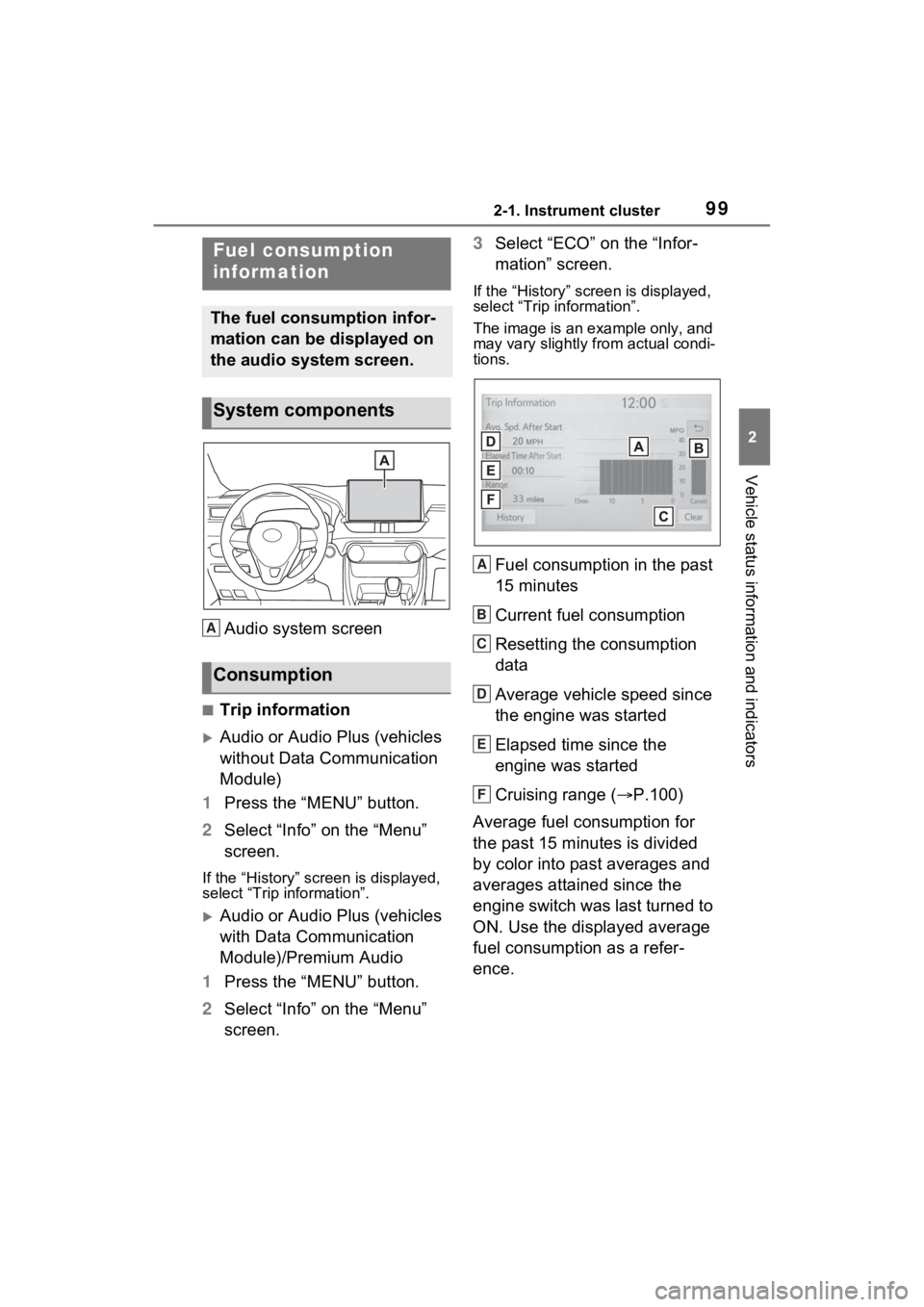
Audio system screen
■Trip information
Audio or Audio Plus (vehicles
without Data Communication
Module)
1 Press the “MENU” button.
2 Select “Info” on the “Menu”
screen.
If the “History” screen is displayed,
select “Trip information”.
Audio or Audio Plus (vehicles
with Data Communication
Module)/Premium Audio
1 Press the “MENU” button.
2 Select “Info” on the “Menu”
screen. 3
Select “ECO” on the “Infor-
mation” screen.
If the “History” screen is displayed,
select “Trip information”.
The image is an example only, and
may vary slightly from actual condi-
tions.
Fuel consumption in the past
15 minutes
Current fuel consumption
Resetting the consumption
data
Average vehicle speed since
the engine was started
Elapsed time since the
engine was started
Cruising range ( P.100)
Average fuel consumption for
the past 15 minutes is divided
by color into past averages and
averages attained since the
engine switch was last turned to
ON. Use the displayed average
fuel consumption as a refer-
ence.
Fuel consumption
information
The fuel consumption infor-
mation can be displayed on
the audio system screen.
System components
Consumption
A
A
B
C
D
E
F
Page 100 of 748
1002-1. Instrument cluster
■History
Audio or Audio Plus (vehicles
without Data Communication
Module)
1 Press the “MENU” button.
2 Select “Info” on the “Menu”
screen.
If the “Trip Information” screen is
displayed, select “History”.
Audio or Audio Plus (vehicles
with Data Communication
Module)/Premium Audio
1 Press the “MENU” button.
2 Select “Info” on the “Menu”
screen.
3 Select “ECO” on the “Infor-
mation” screen.
If the “Trip Information” screen is
displayed, select “History”.
The image is an example only, and
may vary slightly f rom actual condi-
tions.
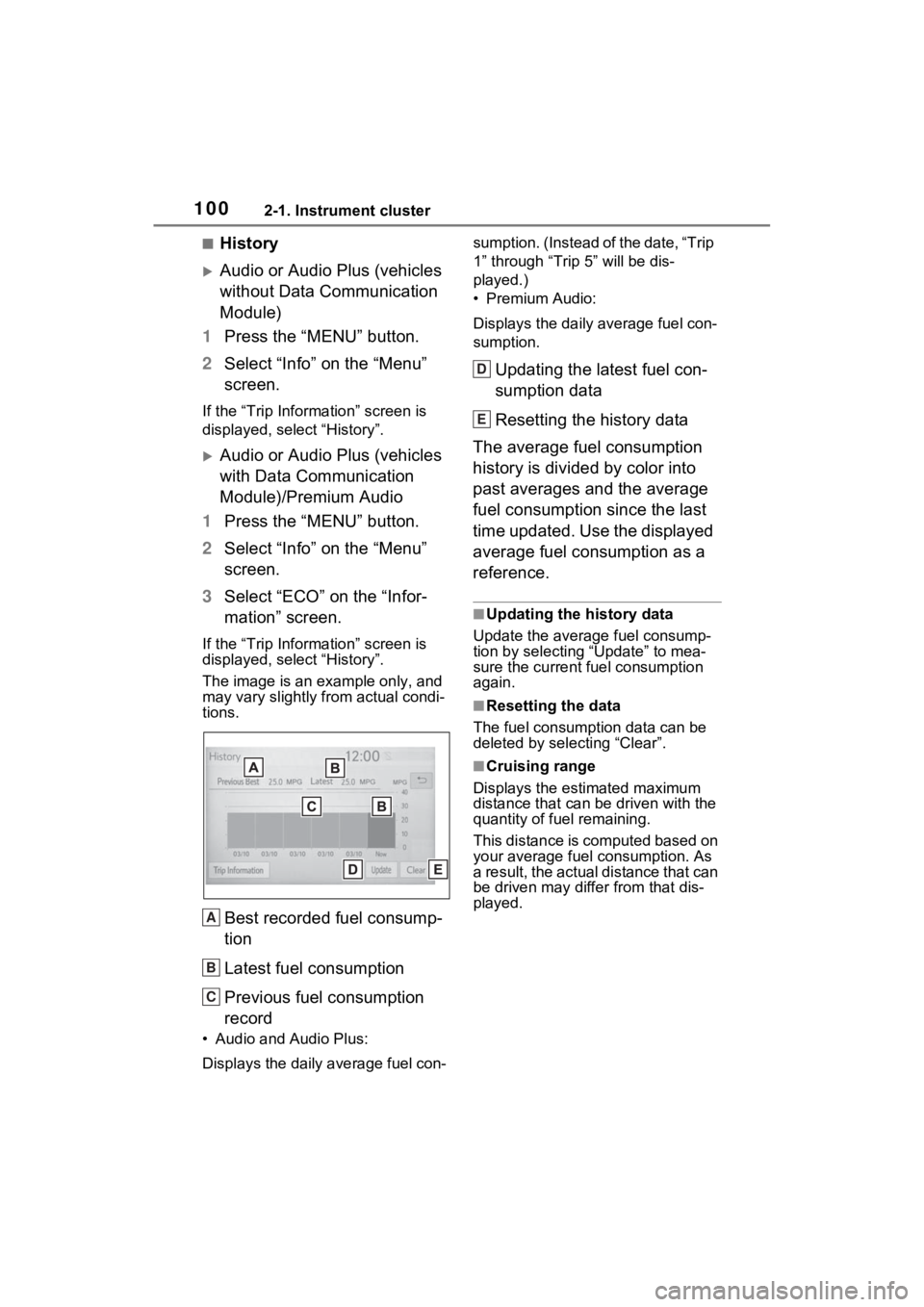
Best recorded fuel consump-
tion
Latest fuel consumption
Previous fuel consumption
record
• Audio and Audio Plus:
Displays the daily average fuel con- sumption. (Instead of the date, “Trip
1” through “Trip
5” will be dis-
played.)
• Premium Audio:
Displays the daily average fuel con-
sumption.
Updating the latest fuel con-
sumption data
Resetting the history data
The average fuel consumption
history is divided by color into
past averages and the average
fuel consumption since the last
time updated. Use the displayed
average fuel consumption as a
reference.
■Updating the history data
Update the average fuel consump-
tion by selecting “Update” to mea-
sure the current fuel consumption
again.
■Resetting the data
The fuel consumption data can be
deleted by selecting “Clear”.
■Cruising range
Displays the estimated maximum
distance that can be driven with the
quantity of fuel remaining.
This distance is computed based on
your average fuel consumption. As
a result, the actual distance that can
be driven may differ from that dis-
played.
A
B
C
D
E
Page 104 of 748
1043-1. Key information
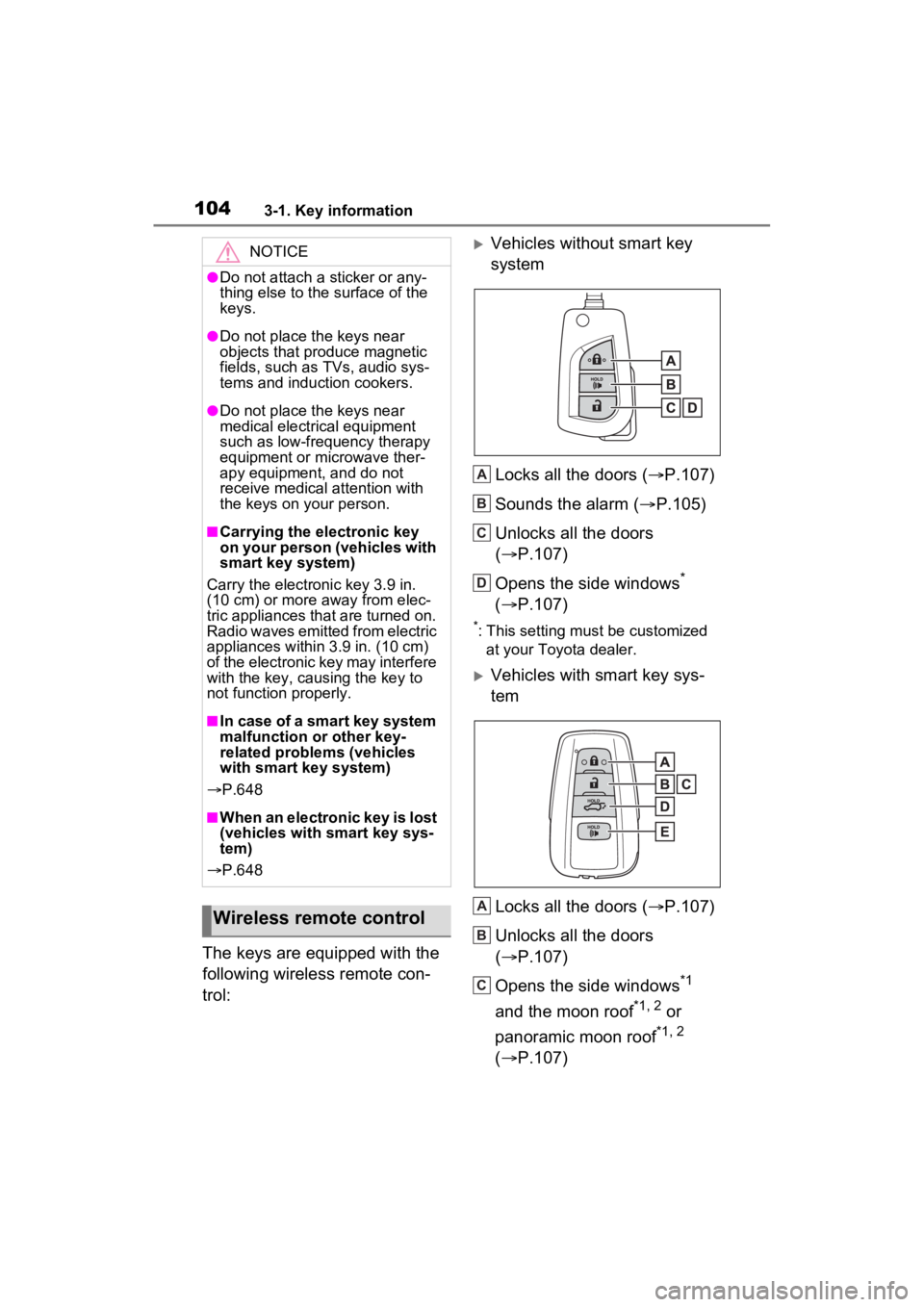
The keys are equipped with the
following wireless remote con-
trol:
Vehicles without smart key
systemLocks all the doors ( P.107)
Sounds the alarm ( P.105)
Unlocks all the doors
( P.107)
Opens the side windows
*
( P.107)
*: This setting must be customized
at your Toyota dealer.
Vehicles with smart key sys-
tem
Locks all the doors ( P.107)
Unlocks all the doors
( P.107)
Opens the side windows
*1
and the moon roof
*1, 2 or
panoramic moon roof
*1, 2
( P.107)
NOTICE
●Do not attach a sticker or any-
thing else to the surface of the
keys.
●Do not place th e keys near
objects that produce magnetic
fields, such as TVs, audio sys-
tems and induction cookers.
●Do not place th e keys near
medical electrical equipment
such as low-frequency therapy
equipment or microwave ther-
apy equipment, and do not
receive medical attention with
the keys on your person.
■Carrying the electronic key
on your person (vehicles with
smart key system)
Carry the electronic key 3.9 in.
(10 cm) or more away from elec-
tric appliances that are turned on.
Radio waves emitted from electric
appliances within 3.9 in. (10 cm)
of the electronic key may interfere
with the key, causing the key to
not function properly.
■In case of a smart key system
malfunction or other key-
related proble ms (vehicles
with smart key system)
P.648
■When an electronic key is lost
(vehicles with smart key sys-
tem)
P.648
Wireless remote control
A
B
C
D
A
B
C
Page 129 of 748
1293-2. Opening, closing and locking the doors
3
Before driving
control and engine immobilizer sys-
tem from operating properly.
(Ways of coping: P.648)
●When the electronic key battery is
depleted
●Near a TV tower, electric power
plant, gas station , radio station,
large display, airpo rt or other facil-
ity that generates strong radio
waves or electrical noise
●When the electronic key is in con-
tact with, or is covered by the fol-
lowing metallic objects
• Cards to which al uminum foil is
attached
• Cigarette boxes that have alumi- num foil inside
• Metallic wallets or bags
• Coins
• Hand warmers made of metal
• Media such as CDs and DVDs
●When other wireless key (that
emits radio waves) is being used
nearby
●When carrying the electronic key
together with the following devices
that emit radio waves
• Portable radio, cellular phone,
cordless phone or other wireless
communication devices
• Another vehicle’s electronic key or
a wireless key that emits radio
waves
• Personal computers or personal
digital assistants (PDAs)
• Digital audio players
• Portable game systems
●If window tint with a metallic con-
tent or metallic objects are
attached to the rear window
●When the electronic key is placed
near a battery charger or elec-
tronic devices
●When parking in a coin-operated
parking lot (Radio waves used to
detect vehicles may affect the
smart key system.)
■Note for the entry function
●Even when the electronic key is
within the effective range (detec- tion areas), the system may not
operate properly in the following
cases:
• The electronic key is too close to the window or outside door han-
dle, near the ground, or in a high
place when the doors are locked
or unlocked.
• The electronic key is on the instru-
ment panel, luggage cover or
floor, or in the door pockets or
glove box when the engine is
started or engine switch modes
are changed.
●Do not leave the electronic key on
top of the instrument panel or near
the door pockets when exiting the
vehicle. Depending on the radio
wave reception conditions, it may
be detected by the antenna out-
side the cabin and the door will
become lockable from the outside,
possibly trapping the electronic
key inside the vehicle.
●As long as the electronic key is
within the effective range, the
doors may be locked or unlocked
by anyone. However, only the
doors detecting the electronic key
can be used to unlock the vehicle.
●Even if the electro nic key is not
inside the vehicle, it may be possi-
ble to start the engine if the elec-
tronic key is near the window.
●The doors may unlock if a large
amount of water splashes on the
door handle, such as in the rain or
in a car wash when the electronic
key is within the effective range.
(The doors will au tomatically be
locked after approximately 60 sec-
onds if the doors are not opened
and closed.)
●If the wireless remote control is
used to lock the doors when the
electronic key is near the vehicle,
there is a possib ility that the door
may not be unlocked by the entry
function. (Use the wireless remote
control to unlock the doors.)
●Touching the door lock sensor
while wearing gloves may delay or
Page 192 of 748
1924-2. Driving procedures
Some electrical components such
as the audio system can be used.
ON (“ON” position)
All electrical components can be
used.
START (“START” position)
For starting the engine.
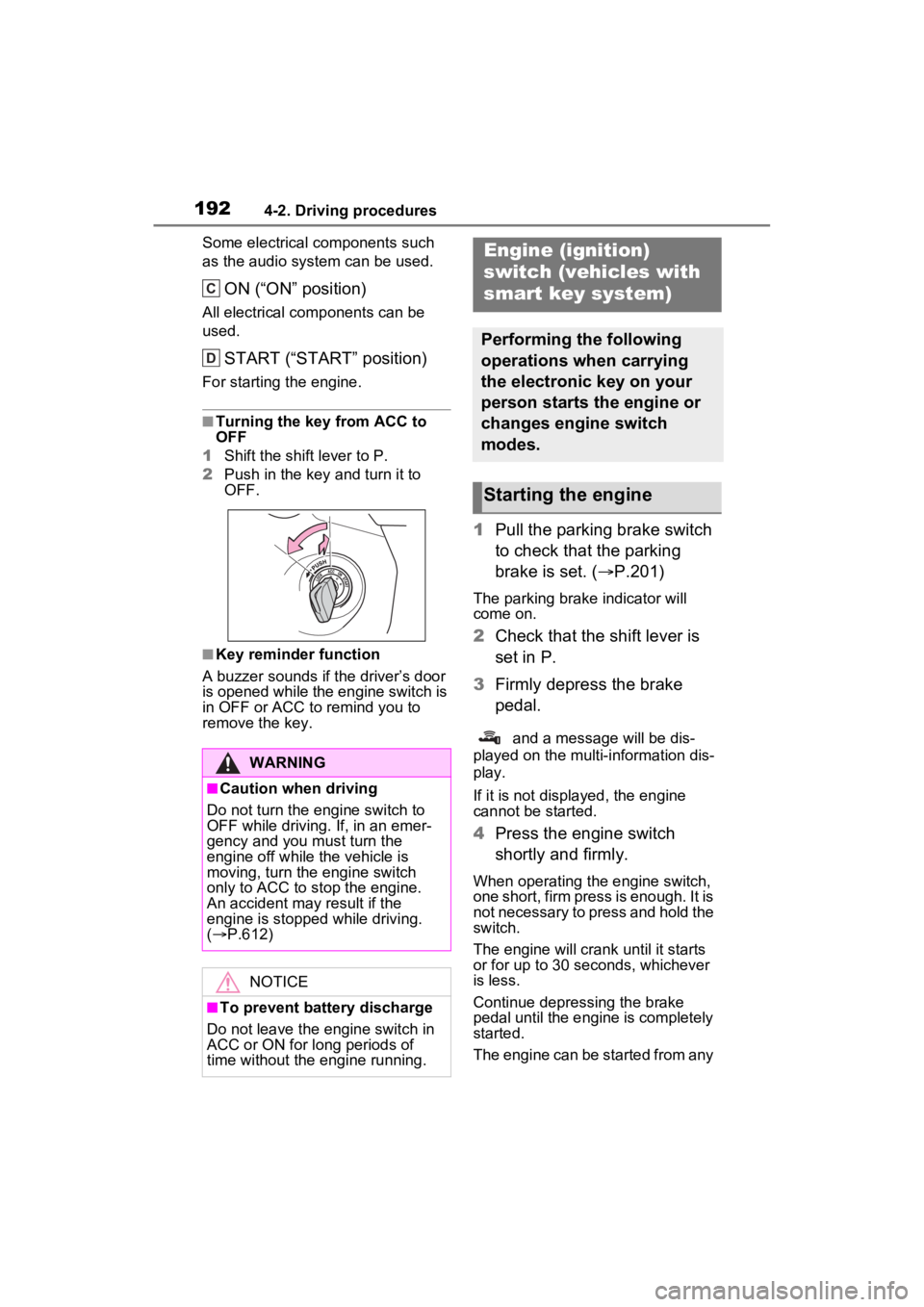
■Turning the key from ACC to
OFF
1 Shift the shift lever to P.
2 Push in the key and turn it to
OFF.
■Key reminder function
A buzzer sounds if the driver’s door
is opened while the engine switch is
in OFF or ACC to remind you to
remove the key.
1 Pull the parking brake switch
to check that the parking
brake is set. ( P.201)
The parking brak e indicator will
come on.
2 Check that the shift lever is
set in P.
3 Firmly depress the brake
pedal.
and a message will be dis-
played on the multi-information dis-
play.
If it is not displ ayed, the engine
cannot be started.
4 Press the engine switch
shortly and firmly.
When operating the engine switch,
one short, firm press is enough. It is
not necessary to press and hold the
switch.
The engine will crank until it starts
or for up to 30 seconds, whichever
is less.
Continue depressing the brake
pedal until the engine is completely
started.
The engine can be started from any
WARNING
■Caution when driving
Do not turn the engine switch to
OFF while driving. If, in an emer-
gency and you must turn the
engine off while the vehicle is
moving, turn the engine switch
only to ACC to stop the engine.
An accident may result if the
engine is stopped while driving.
( P.612)
NOTICE
■To prevent battery discharge
Do not leave the engine switch in
ACC or ON for long periods of
time without the engine running.
C
D
Engine (ignition)
switch (vehicles with
smart key system)
Performing the following
operations when carrying
the electronic key on your
person starts the engine or
changes engine switch
modes.
Starting the engine
Page 195 of 748
1954-2. Driving procedures
4
Driving
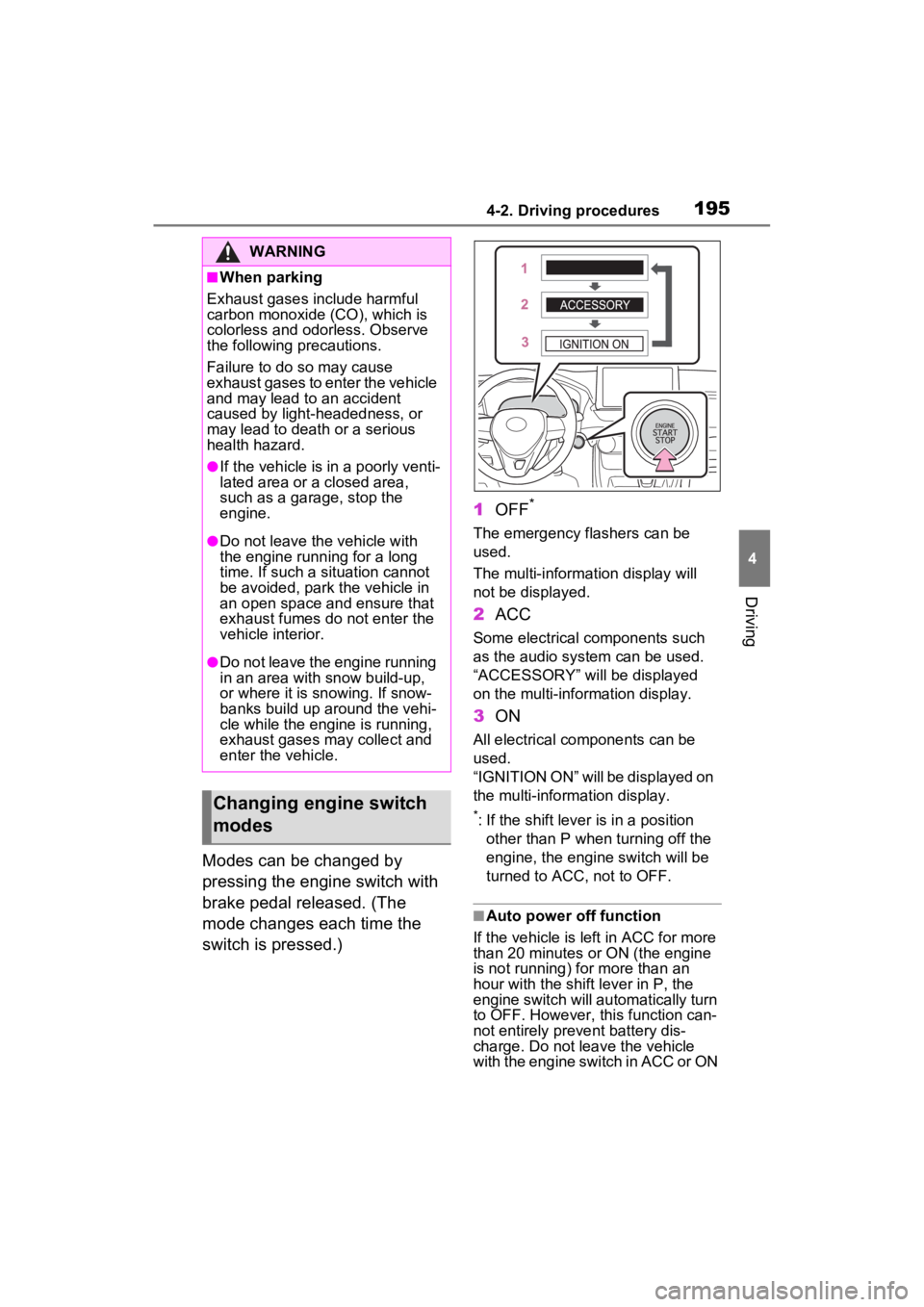
Modes can be changed by
pressing the engine switch with
brake pedal released. (The
mode changes each time the
switch is pressed.)1
OFF
*
The emergency flashers can be
used.
The multi-information display will
not be displayed.
2ACC
Some electrical components such
as the audio sys tem can be used.
“ACCESSORY” will be displayed
on the multi-information display.
3 ON
All electrical components can be
used.
“IGNITION ON” will be displayed on
the multi-information display.
*: If the shift lever is in a position
other than P when turning off the
engine, the engine switch will be
turned to ACC, not to OFF.
■Auto power off function
If the vehicle is left in ACC for more
than 20 minutes or ON (the engine
is not running) for more than an
hour with the shift lever in P, the
engine switch will automatically turn
to OFF. However, this function can-
not entirely prevent battery dis-
charge. Do not leave the vehicle
with the engine switch in ACC or ON
WARNING
■When parking
Exhaust gases include harmful
carbon monoxide (CO), which is
colorless and odorless. Observe
the following precautions.
Failure to do so may cause
exhaust gases to enter the vehicle
and may lead to an accident
caused by light-headedness, or
may lead to death or a serious
health hazard.
●If the vehicle is in a poorly venti-
lated area or a closed area,
such as a garage, stop the
engine.
●Do not leave the vehicle with
the engine running for a long
time. If such a situation cannot
be avoided, park the vehicle in
an open space and ensure that
exhaust fumes do not enter the
vehicle interior.
●Do not leave the engine running
in an area with snow build-up,
or where it is snowing. If snow-
banks build up around the vehi-
cle while the engine is running,
exhaust gases may collect and
enter the vehicle.
Changing engine switch
modes
Page 243 of 748
2434-5. Using the driving support systems
4
Driving
This function operates when all of
the following cond itions are met.
• Setting for “Sway Warning” in the
screen of the mu lti-information
display is set to “ON”. ( P.89)
• Vehicle speed is approximately 32 mph (50 km/h) or more.
• Width of traffic lane is approxi- mately 9.8 ft. ( 3 m) or more.
• No system malfunctions are detected. ( P.244)
●Lane centering function
This function oper ates when all of
the following cond itions are met.
• LTA is turned on.
• Setting for “Steering Assist” and
“Lane Center” in the screen of
the multi-informati on display is set
to “ON”. ( P.89)
• This function recognizes white (yellow) lane lines or the position
of a preceding vehicle (except
when the preceding vehicle is
small, such as a motorcycle).
• The dynamic radar cruise control
with full-speed range is operating
in vehicle-to-vehic le distance con-
trol mode.
• Width of traffic lane is approxi-
mately 10 to 13 ft. (3 to 4 m).
• Turn signal lever is not operated.
• Vehicle is not being driven around a sharp curve.
• No system malfunctions are detected. ( P.244)
• Vehicle does not accelerate or decelerate by a fixed amount or
more.
• Steering wheel is not operated with a steering force level suitable
for changing lanes.
• ABS, VSC, TRAC and PCS are not operating.
• TRAC or VSC is not turned off.
• Hands off steering wheel warning
is not displayed. ( P.244)
• The vehicle is being driven in the
center of a lane.
• Steering assist function is not operating.
■Temporary cancelation of func-
tions
●When operation conditions are no
longer met, a function may be
temporarily canceled. However,
when the operation conditions are
met again, operation of the func-
tion is automatically restored.
( P.242)
●If the operation conditions
( P.242) are no longer met while
the lane centering function is
operating, the buzzer may sound
to indicate that the function has
been temporarily canceled.
■Steering assist function/lane
centering function
●Depending on the vehicle speed,
lane departure situation, road con-
ditions, etc., the driver may not
feel the function is operating or
the function may not operate at
all.
●The steering control of the func-
tion is overridden by the driver’s
steering wheel operation.
●Do not attempt to test the opera-
tion of the steering assist function.
■Lane departure alert function
●The warning buzzer may be diffi-
cult to hear due to external noise,
audio playback, etc.
●If the edge of the course* is not
clear or straight, the lane depar-
ture alert function may not oper-
ate.
●Vehicles with BSM: It may not be
possible for the system to deter-
mine if there is a danger of a colli-
sion with a vehicl e in an adjacent
lane.
●Do not attempt to test the opera-
tion of the lane departure alert
function.
*: Boundary between asphalt and
the side of the road, such as
grass, soil, or a curb
Page 261 of 748
2614-5. Using the driving support systems
4
Driving
■Outside rear view mirror indica-
tors visibility
In strong sunlight, the outside rear
view mirror indicato r may be difficult
to see.
■Hearing the RCTA buzzer
The RCTA buzzer may be difficult to
hear over loud noises such as high
audio volume.
■When “Blind Spot Monitor
Unavailable” or “Rear Cross
Traffic Alert Unavailable” is
shown on the multi-information
display
The sensor voltage has become
abnormal, or water, snow, mud,
etc., may be built up in the vicinity of
the sensor area of the rear bumper. (
P.263)
Removing the water, snow, mud,
etc., from the vicini ty of the sensor
area should return it to normal.
Also, the sensor may not function
normally when used in extremely
hot or cold weather.
■When “Blind Spot Monitor Mal-
function Visit Your Dealer” or
“Rear Cross Traffic Alert Mal-
function Visit Your Dealer” is
shown on the multi-information
display
There may be a sensor malfunction
or misaligned. Have the vehicle
inspected at a Toyota dealer.
■Customization
Some functions can be customized.
( P.94)
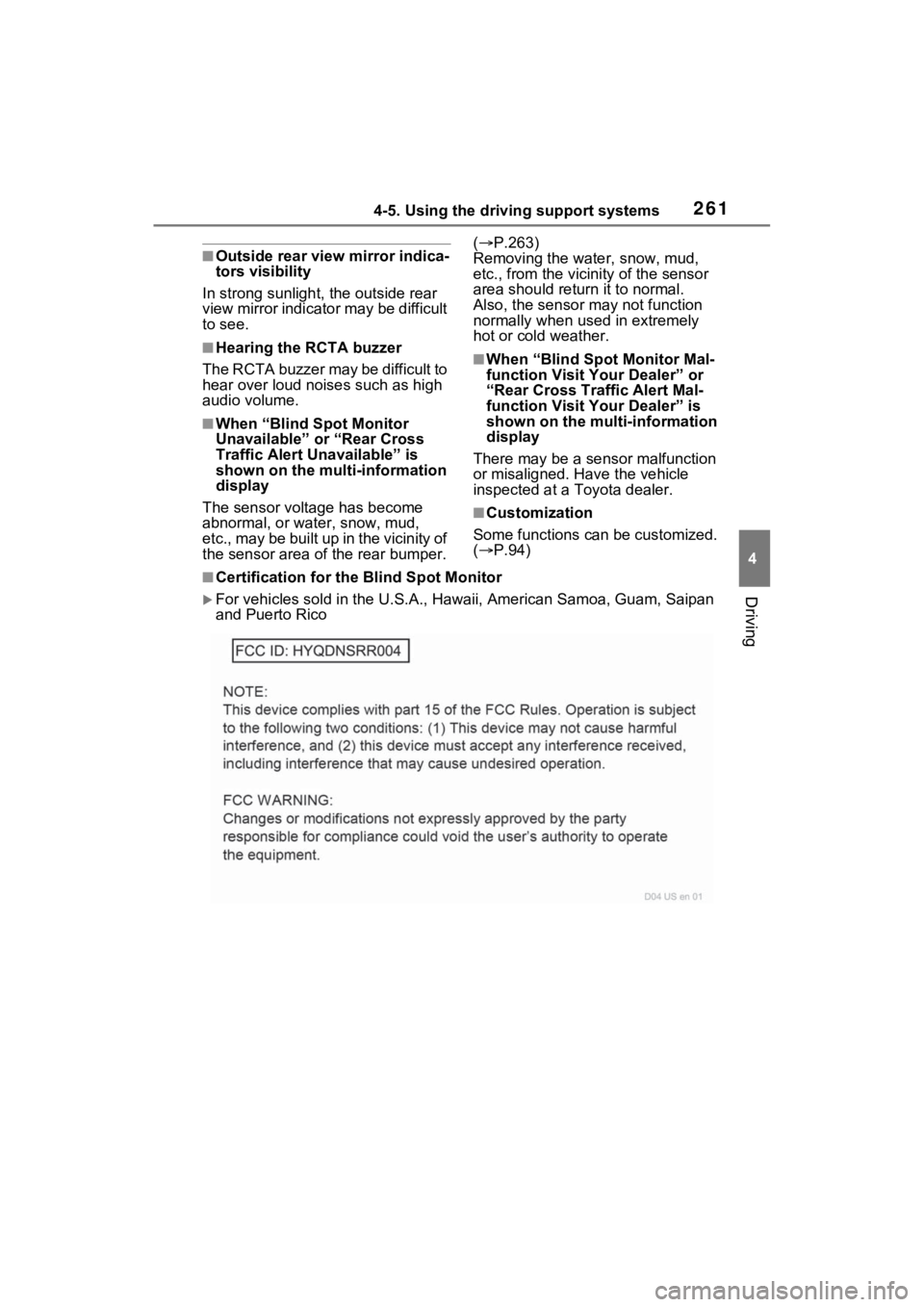
■Certification for the Blind Spot Monitor
For vehicles sold in t he U.S.A., Hawaii, American Samoa, Guam, Saipan
and Puerto Rico
Page 270 of 748
2704-5. Using the driving support systems
*: If equipped
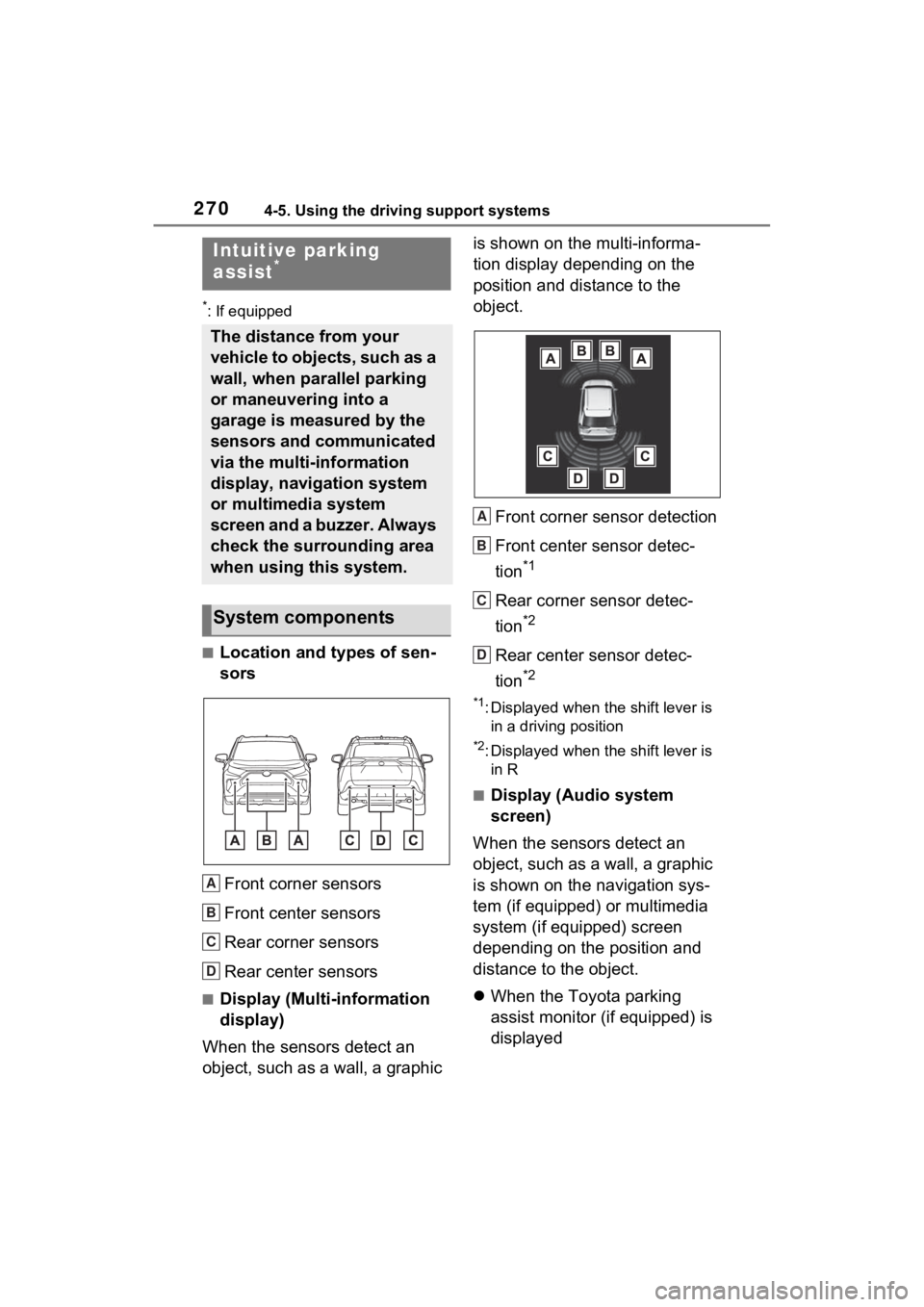
■Location and types of sen-
sorsFront corner sensors
Front center sensors
Rear corner sensors
Rear center sensors
■Display (Multi-information
display)
When the sensors detect an
object, such as a wall, a graphic is shown on the multi-informa-
tion display depending on the
position and distance to the
object.
Front corner sensor detection
Front center sensor detec-
tion
*1
Rear corner sensor detec-
tion
*2
Rear center sensor detec-
tion
*2
*1: Displayed when the shift lever is in a driving position
*2: Displayed when the shift lever is in R
■Display (Audio system
screen)
When the sensors detect an
object, such as a wall, a graphic
is shown on the navigation sys-
tem (if equipped) or multimedia
system (if equipped) screen
depending on the position and
distance to the object.
When the Toyota parking
assist monitor (if equipped) is
displayed
Intuitive parking
assist*
The distance from your
vehicle to objects, such as a
wall, when parallel parking
or maneuvering into a
garage is measured by the
sensors and communicated
via the multi-information
display, navigation system
or multimedia system
screen and a buzzer. Always
check the surrounding area
when using this system.
System components
A
B
C
D
A
B
C
D