audio TOYOTA RAV4 2022 Owner's Manual
[x] Cancel search | Manufacturer: TOYOTA, Model Year: 2022, Model line: RAV4, Model: TOYOTA RAV4 2022Pages: 748, PDF Size: 22.93 MB
Page 273 of 748
2734-5. Using the driving support systems
4
Driving
●Initialization may not have been
performed after a battery terminal
was disconnected and recon-
nected. Initialize the system.
( P.273)
If this message continues to be
displayed even after initialization,
have the vehicle inspected by
your Toyota dealer.
■If a battery terminal has been
disconnected and reconnected
The system needs to be initialized.
To initialize the system, drive the
vehicle straight ahead for 5 seconds
or more at a speed of approximately
22 mph (35 km/h) or more.
■Sensor detection information
●The sensor’s detection areas are
limited to the areas around the
vehicle’s front and rear bumpers.
●The following situations may occur
during use.
• Depending on the shape of the
object and other factors, the
detection distance may shorten,
or detection may be impossible.
• Detection may be impossible if static objects draw too close to the
sensor.
• There will be a short delay
between static object detection
and display (warning buzzer
sounds). Even at low speeds,
there is a possibilit y that the object
will come within 11. 9 in. (30 cm)
before the display is shown and
the warning buzzer sounds.
• It might be difficult to hear the
buzzer due to the volume of the
audio system or air flow noise of
the air conditioning system.
• It may be difficult to hear the sound of this system due to the
buzzers of other systems.
■Objects which the system may
not properly detect
The shape of the object may pre-
vent the sensor from detecting it.
Pay particular attention to the fol-
lowing objects:
●Wires, fences, ropes, etc.
●Cotton, snow and other materials
that absorb sound waves
●Sharply-angled objects
●Low objects
●Tall objects with upper sections
projecting outwards in the direc-
tion of your vehicle
People may not be detected if they
are wearing certain types of cloth-
ing.
■Situations in which the system
may not operate properly
Certain vehicle conditions and the
surrounding environment may affect
the ability of a sensor to correctly
detect objects. Part icular instances
where this may occur are listed
below.
●There is dirt, snow or ice on a sen-
sor. (Cleaning th e sensors will
resolve this problem.)
●A sensor is froz en. (Thawing the
area will resolve this problem.)
In especially cold weather, if a
sensor is frozen the sensor dis-
play may be displayed abnor-
mally, or objects, such as a wall,
may not be detected.
●When a sensor or the area around
a sensor is extremely hot or cold.
●On an extremely bumpy road, on
an incline, on gravel, or on grass.
●When vehicle horns, vehicle
detectors, motorcycle engines, air
brakes of large vehicles, the clear-
ance sonar of ot her vehicles or
other devices which produce ultra-
sonic waves are near the vehicle.
Page 313 of 748
3134-5. Using the driving support systems
4
Driving
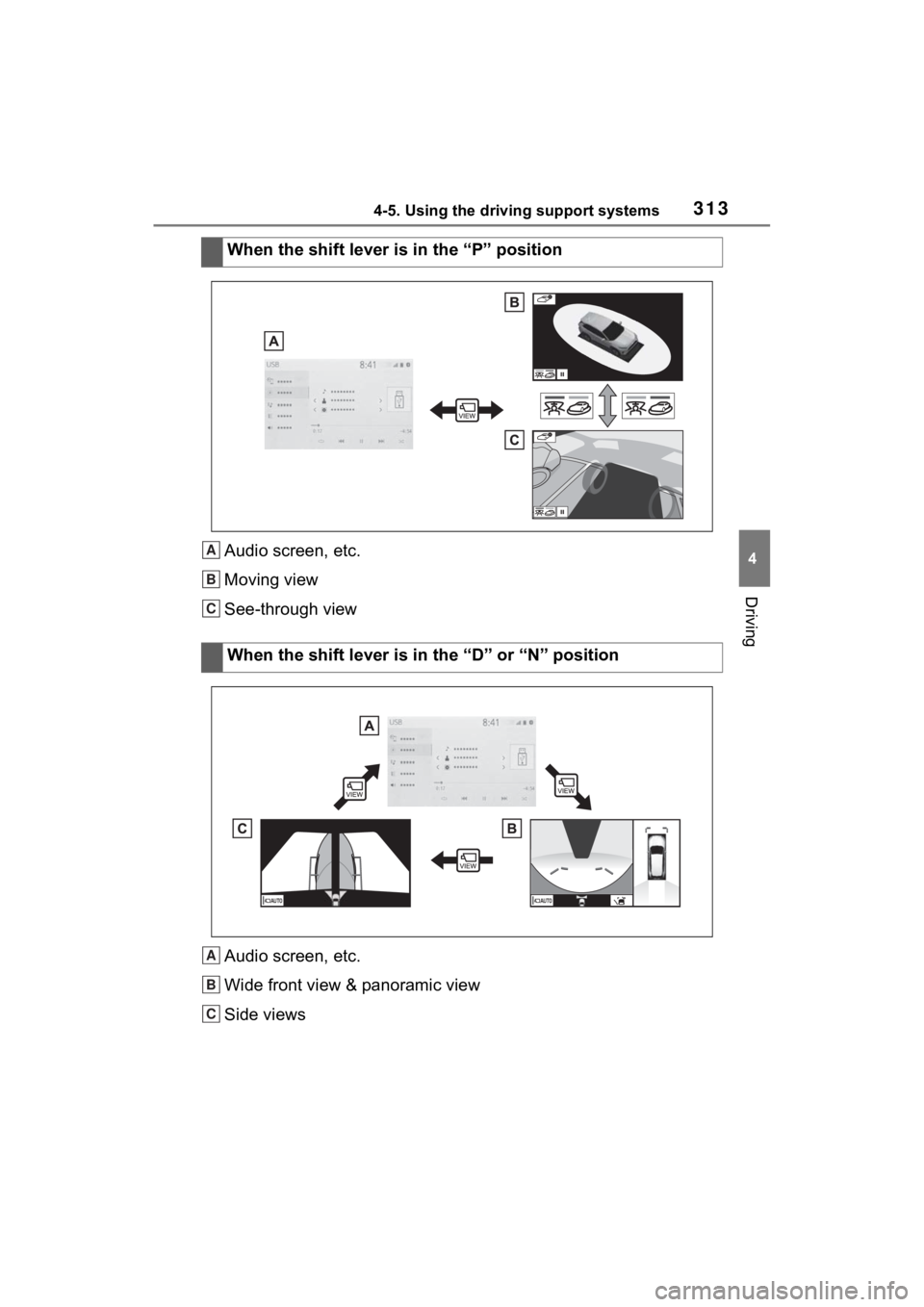
Audio screen, etc.
Moving view
See-through view
Audio screen, etc.
Wide front view & panoramic view
Side viewsWhen the shift lever is in the “P” position
When the shift lever is in the “D” or “N” positionA
B
C
A
B
C
Page 315 of 748
3154-5. Using the driving support systems
4
Driving
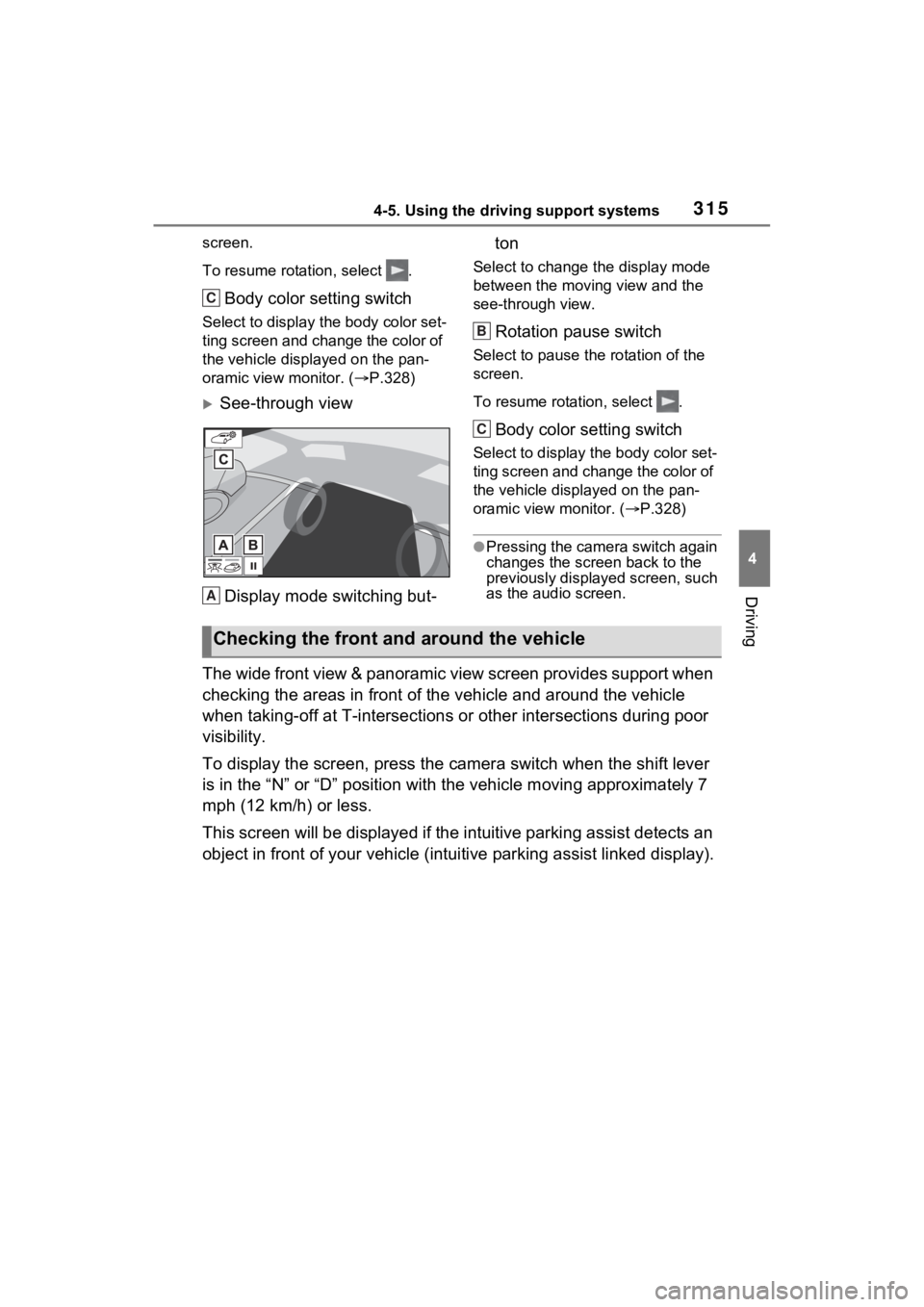
screen.
To resume rotation, select .
Body color setting switch
Select to display the body color set-
ting screen and change the color of
the vehicle displa yed on the pan-
oramic view monitor. ( P.328)
See-through view
Display mode switching but- ton
Select to change the display mode
between the moving view and the
see-through view.
Rotation pause switch
Select to pause th
e rotation of the
screen.
To resume rotation, select .
Body color setting switch
Select to display the body color set-
ting screen and change the color of
the vehicle displayed on the pan-
oramic view monitor. ( P.328)
●Pressing the camera switch again
changes the screen back to the
previously displayed screen, such
as the audio screen.
The wide front view & panoramic view screen provides support wh en
checking the areas in front of the vehicle and around the vehic le
when taking-off at T-intersections or other intersections durin g poor
visibility.
To display the screen, press the camera switch when the shift lever
is in the “N” or “D” position with the vehicle moving approxima tely 7
mph (12 km/h) or less.
This screen will be displayed if the intuitive parking assist d etects an
object in front of your vehicle (i ntuitive parking assist linked display).
C
A
B
C
Checking the front and around the vehicle
Page 316 of 748
3164-5. Using the driving support systems
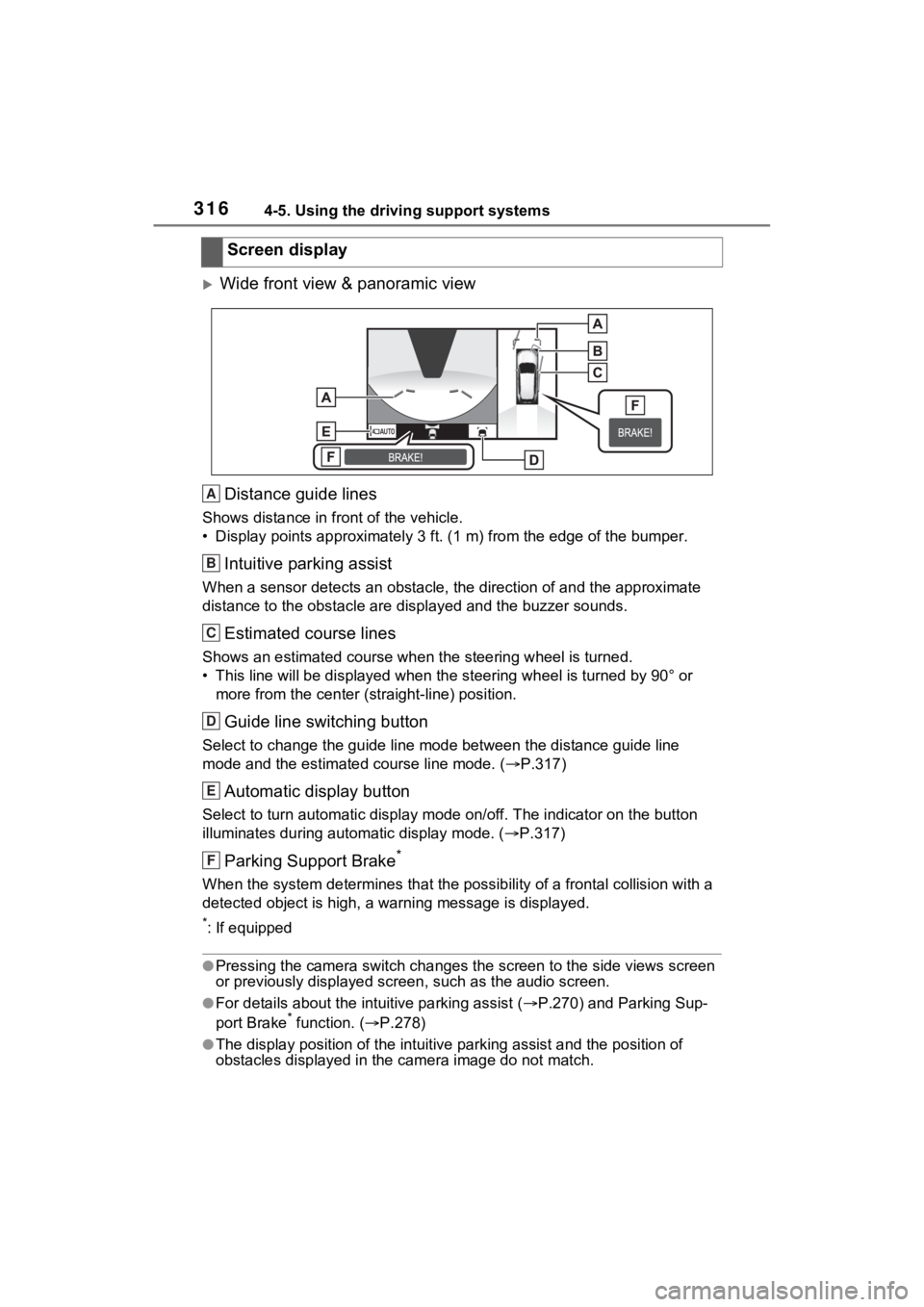
Wide front view & panoramic viewDistance guide lines
Shows distance in front of the vehicle.
• Display points approximately 3 ft. (1 m) from the edge of the bumper.
Intuitive parking assist
When a sensor detects an obstacle, the direction of and the app roximate
distance to the obsta cle are displayed and the buzzer sounds.
Estimated course lines
Shows an estimated course when the steering wheel is turned.
• This line will be displayed when the steering wh eel is turned by 90° or
more from the cen ter (straight-line) position.
Guide line switching button
Select to change the guide line mode between the distance guide line
mode and the estimated course line mode. ( P.317)
Automatic display button
Select to turn automatic display mode on/off. The indicator on the button
illuminates during autom atic display mode. (P.317)
Parking Support Brake*
When the system determines that the possib ility of a frontal collision with a
detected object is high, a warning message is displayed.
*: If equipped
●Pressing the camera switch chan ges the screen to the side views screen
or previously displayed scre en, such as the audio screen.
●For details about the intuitive parking assist (P.270) and Parking Sup-
port Brake* function. ( P.278)
●The display position of the intuitive parking assist and the po sition of
obstacles displayed in the camera image do not match.
Screen display
A
B
C
D
E
F
Page 318 of 748
3184-5. Using the driving support systems
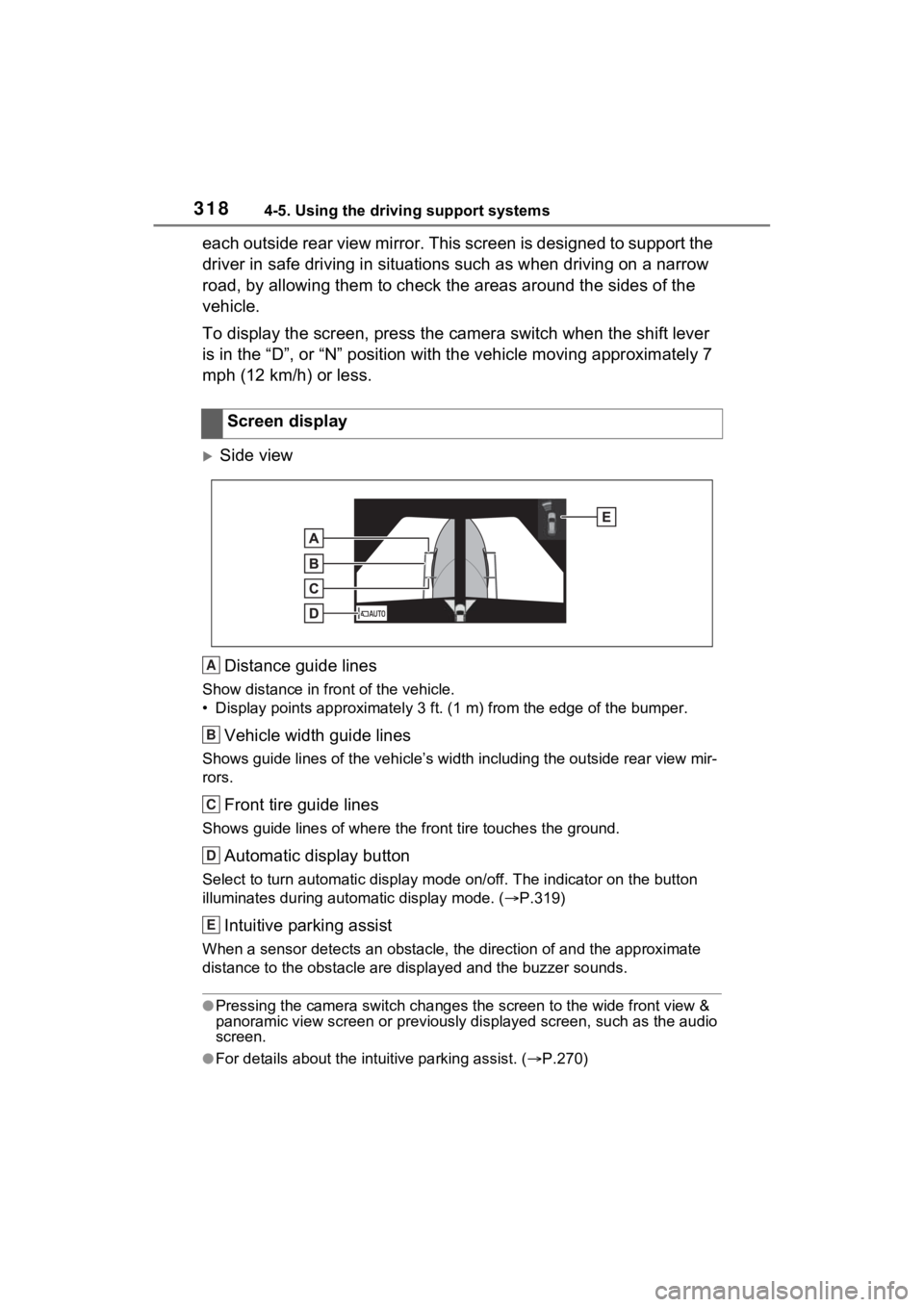
each outside rear view mirror. This screen is designed to support the
driver in safe driving in situations such as when driving on a narrow
road, by allowing them to check the areas around the sides of t he
vehicle.
To display the screen, press the camera switch when the shift lever
is in the “D”, or “N” position with the vehicle moving approxim ately 7
mph (12 km/h) or less.
Side view
Distance guide lines
Show distance in front of the vehicle.
• Display points approximately 3 ft. (1 m) from the edge of the bumper.
Vehicle width guide lines
Shows guide lines of the vehicle’ s width including the outside rear view mir-
rors.
Front tire guide lines
Shows guide lines of where the f ront tire touches the ground.
Automatic display button
Select to turn automatic display mode on/off. The indicator on the button
illuminates during autom atic display mode. (P.319)
Intuitive parking assist
When a sensor detects an obstacle, the direction of and the app roximate
distance to the obsta cle are displayed and the buzzer sounds.
●Pressing the camera switch changes the screen to the wide front view &
panoramic view screen or previous ly displayed screen, such as the audio
screen.
●For details about the int uitive parking assist. (P.270)
Screen display
A
B
C
D
E
Page 346 of 748
3464-5. Using the driving support systems
Start system and the shift lever is in
D, a buzzer will sound and the Stop
& Start system indicator will flash.
To stop the buzzer, close the
driver’s door.
■The Stop & Start system protec-
tion function
●When the volume of the audio
system is excessively high, sound
output from the audio system may
suddenly be cut off in order to
reduce battery consumption. To
prevent the audio system from
being cut off, keep the volume of
audio system at a moderate level.
If the audio system has been cut
off, turn the engine switch to OFF,
wait for 3 secon ds or more and
then turn it to ACC or ON to re-
enable the audio system.
●The audio system may not be acti-
vated if the battery terminals are
disconnected an d then recon-
nected. If this o ccurs, turn the
engine switch to OFF and then
repeat the following operation
twice to activate the audio system
normally.
• Turn the engine switch to ON and
then to off.
■Replacing the battery
P.652
■If the Stop & Start cancel indica-
tor flashes continuously
The system may be malfunctioning.
Have the vehicle inspected by your
Toyota dealer.
■If “Stop & Start System Mal-
function Visit Your Dealer” is
displayed on the multi-informa-
tion display
The system may be malfunctioning.
Have the vehicle inspected by your
Toyota dealer.
WARNING
■When the Stop & Start system
is operating
Make sure to disable the Stop &
Start system while the vehicle is
in a poorly ventilated area.
If not disabled, the engine may be
automatically restarted unexpect-
edly, causing exhaust gases to
collect and enter the vehicle, pos-
sibly resulting in death or a seri-
ous health hazard.
●Do not leave the vehicle while
the engine is stopped by the
Stop & Start system (while the
Stop & Start indicator is on). An
accident may occur due to the
automatic engine start function.
●Depress the brake pedal and
apply the parking brake when
necessary while the engine is
stopped by the Stop & Start sys-
tem (while the Stop & Start indi-
cator is on).
NOTICE
■To ensure the system oper-
ates correctly
If any of the follo wing situations
occur, the Stop & Start system
may not operate c orrectly. Have
your vehicle inspected by your
Toyota dealer.
●While the driver’s seat belt is
fastened, the driver’s and front
passenger’s seat belt reminder
light flashes.
●Even though the driver’s seat
belt is not fastened, the driver’s
and front passenger’s seat belt
reminder light does not illumi-
nate.
Page 369 of 748
369
5
5
Audio
Audio
5-1. Basic functionButtons overview......... 371
Menu screen ............... 373
Status icon .................. 374
“Setup” screen ............ 376
5-2. Basic information before operation
Initial screen ................ 377
Touch screen .............. 378
Home screen............... 380
Entering letters and num- bers/list screen operation.................................. 381
Screen adjustment ...... 384
Linking multi-information display and the system.................................. 385
5-3. Connectivity settings Registering/Connecting a Bluetooth
® device ..... 386
Setting Bluetooth
® details
.................................. 390
Wi-Fi
® Hotspot ............ 398
5-4. Apple CarPlay/Android Auto
Apple CarPlay
®/Android
Auto™ ....................... 403
5-5. Other settings General settings .......... 410
Voice settings.............. 414
Vehicle settings ........... 4155-6. Using the audio/visual
system
Quick reference ........... 416
Some basics................ 417
5-7. Radio operation AM/FM/SiriusXM (SXM) radio .......................... 421
5-8. Media operation USB memory ............... 428
iPod/iPhone (Apple Car- Play) .......................... 430
Android Auto ............... 433
Bluetooth
® audio ......... 434
5-9. Audio/visual remote con- trols
Steering switches ........ 438
5-10.Audio settings Setup ........................... 440
5-11.Tips for operating the audio/visual system
Operating information.. 442
5-12.Voice command system operation
Voice comm and system
.................................. 454
Command list .............. 457
5-13.Mobile Assistant opera- tion
Mobile Assistant .......... 461
Page 371 of 748
3715-1. Basic function
5
Audio
5-1.Basic function
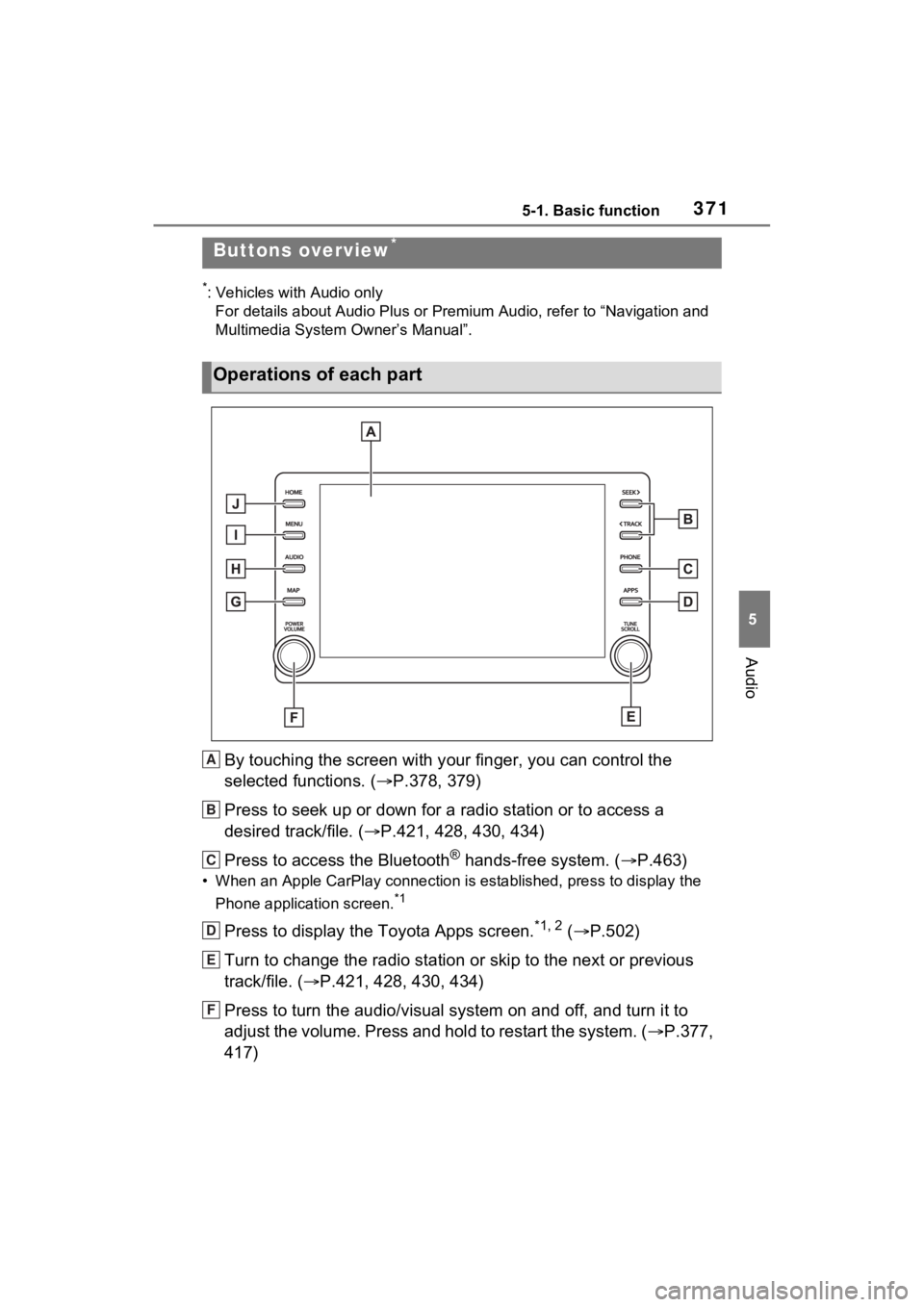
*: Vehicles with Audio onlyFor details about Audio Plus or Premium Audio, refer to “Navigation and
Multimedia System Owner’s Manual”.
By touching the screen with y our finger, you can control the
selected functions. ( P.378, 379)
Press to seek up or down for a radio station or to access a
desired track/file. ( P.421, 428, 430, 434)
Press to access the Bluetooth
® hands-free system. ( P.463)
• When an Apple CarPlay connecti on is established, press to display the
Phone application screen.
*1
Press to display the Toyota Apps screen.*1, 2 ( P.502)
Turn to change the radio station or skip to the next or previou s
track/file. ( P.421, 428, 430, 434)
Press to turn the audio/visual system on and off, and turn it t o
adjust the volume. Press and hold to restart the system. ( P.377,
417)
Buttons overview*
Operations of each part
A
B
C
D
E
F
Page 372 of 748
3725-1. Basic function
When an Apple CarPlay/Android Auto connection is established,
press to display the Maps application screen.
*1
Press to display the audio/visual system screen. (P.416, 417)
Press to display the “Menu” screen. ( P.373)
Press to display the home screen. ( P.380)
*1: This function is not made available in some countries or areas .
*2: When an Apple CarPlay/Android Auto connection is established, this
function will be unavailable.
●The screen shots in this document
and the actual screens of the sys-
tem differ depending on whether
the functions and/or a contract
existed.
G
H
I
J
WARNING
●For safety, the driver should not
operate the system while
he/she is driving. Insufficient
attention to the r oad and traffic
may cause an accident.
Page 373 of 748
3735-1. Basic function
5
Audio
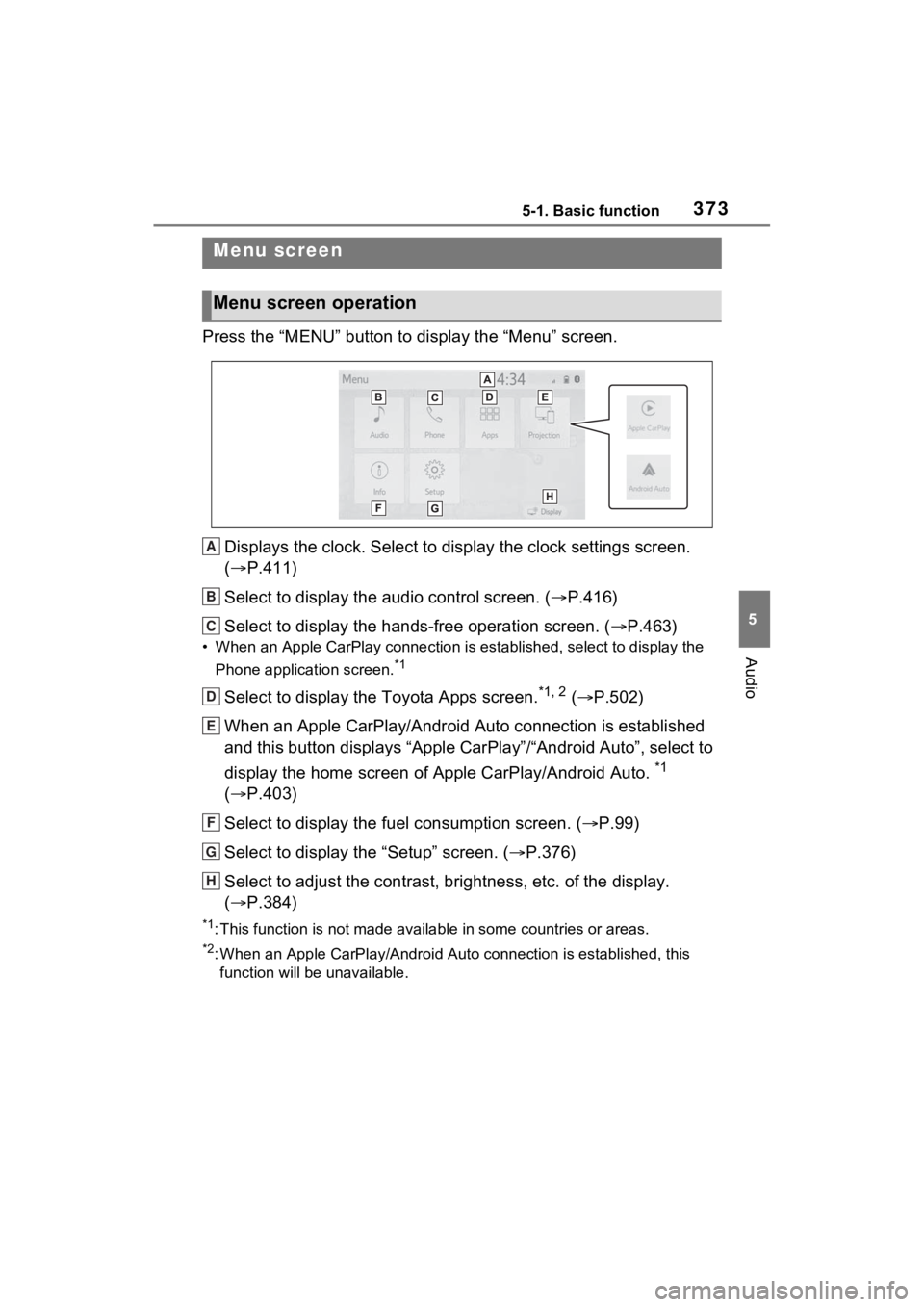
Press the “MENU” button to display the “Menu” screen.
Displays the clock. Select to display the clock settings screen.
( P.411)
Select to display the audio control screen. ( P.416)
Select to display the hands-free operation screen. ( P.463)
• When an Apple CarPlay connection is established, select to display the
Phone application screen.
*1
Select to display the Toyota Apps screen.*1, 2 ( P.502)
When an Apple CarPlay/Android Auto connection is established
and this button displays “Apple CarPlay”/“Android Auto”, select to
display the home screen of Apple CarPlay/Android Auto.
*1
( P.403)
Select to display the fuel consumption screen. ( P.99)
Select to display the “Setup” screen. ( P.376)
Select to adjust the contrast, brightness, etc. of the display.
( P.384)
*1: This function is not made available in some countries or areas .
*2: When an Apple CarPlay/Android Auto connection is established, this
function will be unavailable.
Menu screen
Menu screen operation
A
B
C
D
E
F
G
H