ESP TOYOTA RAV4 HYBRID 2018 (in English) Service Manual
[x] Cancel search | Manufacturer: TOYOTA, Model Year: 2018, Model line: RAV4 HYBRID, Model: TOYOTA RAV4 HYBRID 2018Pages: 680, PDF Size: 13.71 MB
Page 326 of 680
326
RAV4-HV_OM_OM42B81U_(U)
4-6. Driving tips
When driving your vehicle off-road, please observe the following pre-
cautions to ensure your driving enjoyment and to help prevent the clo-
sure of areas to off-road vehicles:
● Drive your vehicle only in areas where off-road vehicles are permit-
ted to travel.
● Respect private property. Get owner’s permission before entering
private property.
● Do not enter areas that are clos ed. Honor gates, barriers and signs
that restrict travel.
● Stay on established roads. When c onditions are wet, driving tech-
niques should be changed or trav el delayed to prevent damage to
roads.
■ Additional information for off-road driving
For owners in U.S. mainland, Hawaii and Puerto Rico:
To obtain additional information pertain ing to driving your vehicle off-road,
consult the following organizations:
● State and Local Parks and Recreation Departments
● State Motor Vehicle Bureau
● Recreational Vehicle Clubs
● U.S. Forest Service and Bureau of Land Management
Off-road driving
Page 327 of 680
RAV4-HV_OM_OM42B81U_(U)
3274-6. Driving tips
4
Driving
WARNING
■Off-road driving precautions
Always observe the following precautions to minimize the risk of death, seri-
ous injury or damage to your vehicle:
● Drive carefully when off the road. Do not take unnecessary risks by driving
in dangerous places.
● Do not grip the steering wheel spokes when driving off-road. A bad bump
could jerk the wheel and injure your hands. Keep both hands and espe-
cially your thumbs on the outside of the rim.
● Always check your brakes for effectiveness immediately after driving in
sand, mud, water or snow.
● After driving through tall grass, mud, rock, sand, rivers, etc., check that
there is no grass, bush, paper, rags, stone, sand, etc. adhering or trapped
on the underbody. Clear off any such matter from the underbody. If the
vehicle is used with these materials trapped or adhering to the underbody,
a breakdown or fire could occur.
● When driving off-road or in rugged te rrain, do not drive at excessive
speeds, jump, make sharp turns, strike objects, etc. This may cause loss
of control or vehicle rollover causing death or serious injury. You are also
risking expensive damage to your vehicle’s suspension and chassis.
Page 332 of 680
332
RAV4-HV_OM_OM42B81U_(U)
5-1. Basic Operations
Audio system types
Entune Audio
→ P. 3 3 3
Entune Audio Plus/Entune Premium Audio with Navigation
Owners of models equipped with a navigation system should refer to
the “NAVIGATION AND MULTIMEDIA SYSTEM OWNER’S
MANUAL”.
WARNING
■ Certification for the disc player
● Part 15 of the FCC Rules
FCC Warning:
Changes or modifications not expressly approved by the party responsi-
ble for compliance could void the user’s authority to operate the equip-
ment.
● Laser products
• Do not take this unit apart or attempt to make any changes yourself.
This is an intricate unit that uses a laser pickup to retrieve information
from the surface of compact discs. The laser is carefully shielded so
that its rays remain inside the cabinet. Therefore, never try to disassem-
ble the player or alter any of its parts since you may be exposed to laser
rays and dangerous voltages.
• This product utilizes a laser.
Use of controls or adjustments or performance of procedures other than
those specified herein may result in hazardous radiation exposure.
THE USE OF OPTICAL INSTRUMENTS WITH THIS PRODUCT WILL
INCREASE EYE HAZARD.
NOTICE
■To prevent 12-volt battery discharge
Do not leave the audio system on longer than necessary when the hybrid
system is off.
■ To avoid damaging the audio system
Take care not to spill drinks or other fluids on the audio system.
Page 342 of 680
342
RAV4-HV_OM_OM42B81U_(U)
5-2. Setup
General settings
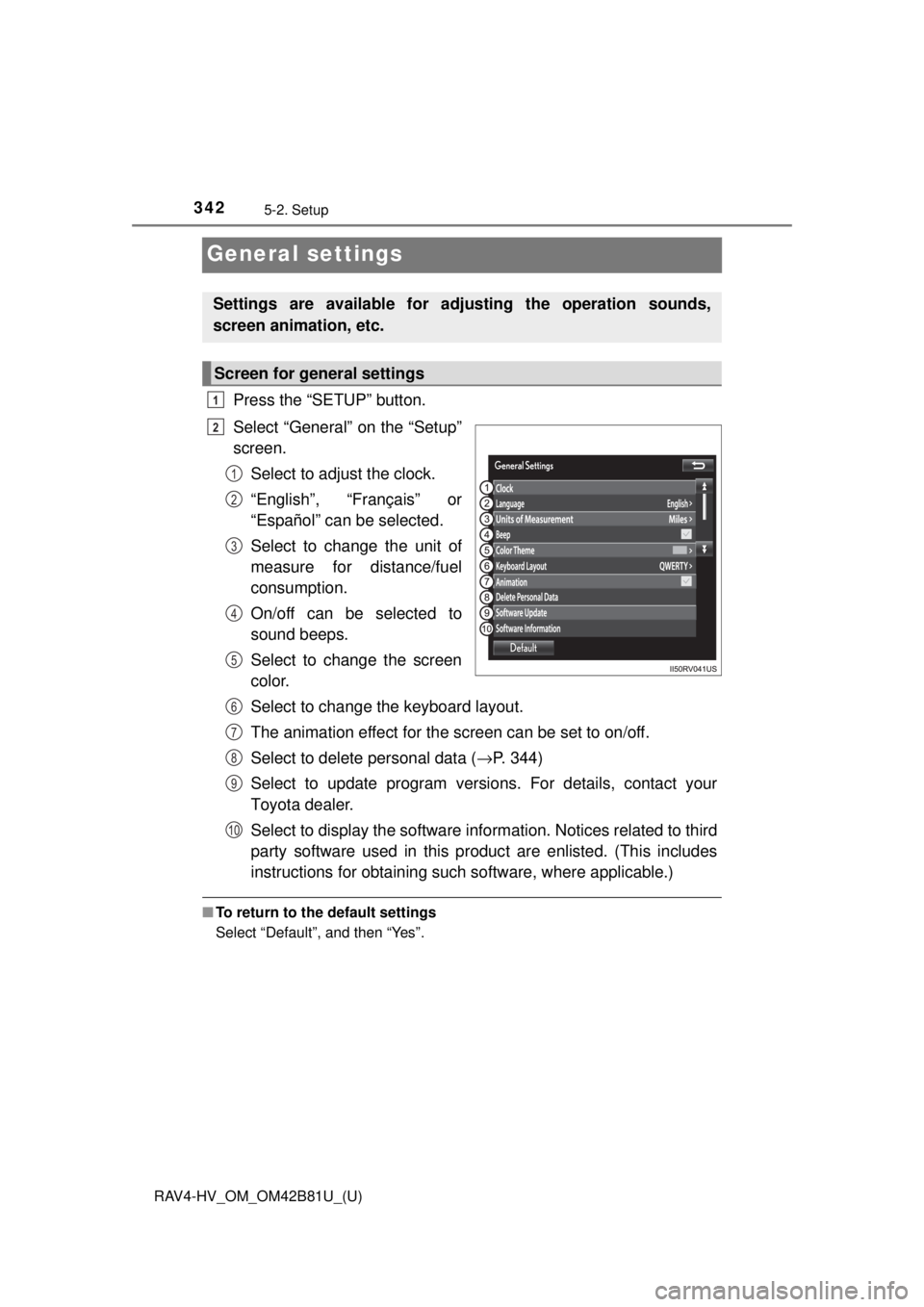
Press the “SETUP” button.
Select “General” on the “Setup”
screen.Select to adjust the clock.
“English”, “Français” or
“Español” can be selected.
Select to change the unit of
measure for distance/fuel
consumption.
On/off can be selected to
sound beeps.
Select to change the screen
color.
Select to change the keyboard layout.
The animation effect for the screen can be set to on/off.
Select to delete personal data ( →P. 344)
Select to update program versions. For details, contact your
Toyota dealer.
Select to display the software info rmation. Notices related to third
party software used in this produc t are enlisted. (This includes
instructions for obta ining such software, where applicable.)
■To return to the default settings
Select “Default”, and then “Yes”.
Settings are available for adjusting the operation sounds,
screen animation, etc.
Screen for general settings
1
2
1
2
3
4
5
6
7
8
9
10
Page 364 of 680
364
RAV4-HV_OM_OM42B81U_(U)
5-6. Using an external device
■About iPod
●“Made for iPod” and “Made for iPhone” mean that an electronic accessory
has been designed to connect specifically to iPod or iPhone, respectively,
and has been certified by the developer to meet Apple performance stan-
dards.
● Apple is not responsible for the operation of this device or its compliance
with safety and regulatory standards. Please note that the use of this acces-
sory with iPod or iPhone may affect wireless performance.
● iPhone, iPod, iPod classic, iPod nano, and iPod touch are trademarks of
Apple Inc., registered in the U.S. and other countries. Lightning is a trade-
mark of Apple Inc.
■ iPod cover art
●Depending on the iPod and songs in the iPod, iPod cover art may be dis-
played.
● This function can be changed to on/off. ( →P. 345)
● It may take time to display iPod cover art, and the iPod may not be operated
while the cover art display is in process.
● Only iPod cover art that is saved in JPEG format can be displayed.
■ iPod functions
●When an iPod is connected and the audio source is changed to iPod mode,
the iPod will resume play from the same point in which it was last used.
● Depending on the iPod that is connected to the system, certain functions
may not be available. If a function is unavailable due to a malfunction (as
opposed to a system specification), disconnecting the device and recon-
necting it may resolve the problem.
● While connected to the system, the iPod cannot be operated with its own
controls. It is necessary to use the controls of the vehicle’s audio system
instead.
● When the battery level of an iPod is very low, the iPod may not operate. If
so, charge the iPod before use.
● Compatible models ( →P. 366)
Page 369 of 680
RAV4-HV_OM_OM42B81U_(U)
3695-6. Using an external device
5
Audio system
■USB memory
●Compatible devices
USB memory device that can be used for MP3, WMA and AAC playback.
● Compatible device formats
The following device format can be used:
• USB communication format: USB2.0 HS (480Mbps) and FS (12 Mbps)
• File system format: FAT16/32 (Windows)
• Correspondence class: Mass storage class
MP3, WMA and AAC files written to a device with any format other than
those listed above may not play correctly, and their file names and folder
names may not be displayed correctly.
Items related to standards and limitations are as follows:
• Maximum directory hierarchy: 8 levels
• Maximum number of folders in a device: 3000 (including the root)
• Maximum number of files in a device: 9999
• Maximum number of files per folder: 255
● MP3, WMA and AAC files
MP3 (MPEG Audio LAYER 3) is a standard audio compression format.
Files can be compressed to approximately 1/10 of their original size usi\
ng
MP3 compression.
WMA (Windows Media Audio) is a Microsoft audio compression format. This
format compresses audio data to a size smaller than that of the MP3 format.
AAC is short for Advanced Audio Coding and refers to an audio compression
technology standard used with MPEG2 and MPEG4.
MP3, WMA and AAC file and media/fo rmats compatibility are limited.
Page 378 of 680
378
RAV4-HV_OM_OM42B81U_(U)
5-7. Connecting Bluetooth®
Registering a Bluetooth® device
Display the “Bluetooth* Setup” screen. (→P. 375)
*: Bluetooth is a registered trademark of Bluetooth SIG, Inc.
Select “Add”.
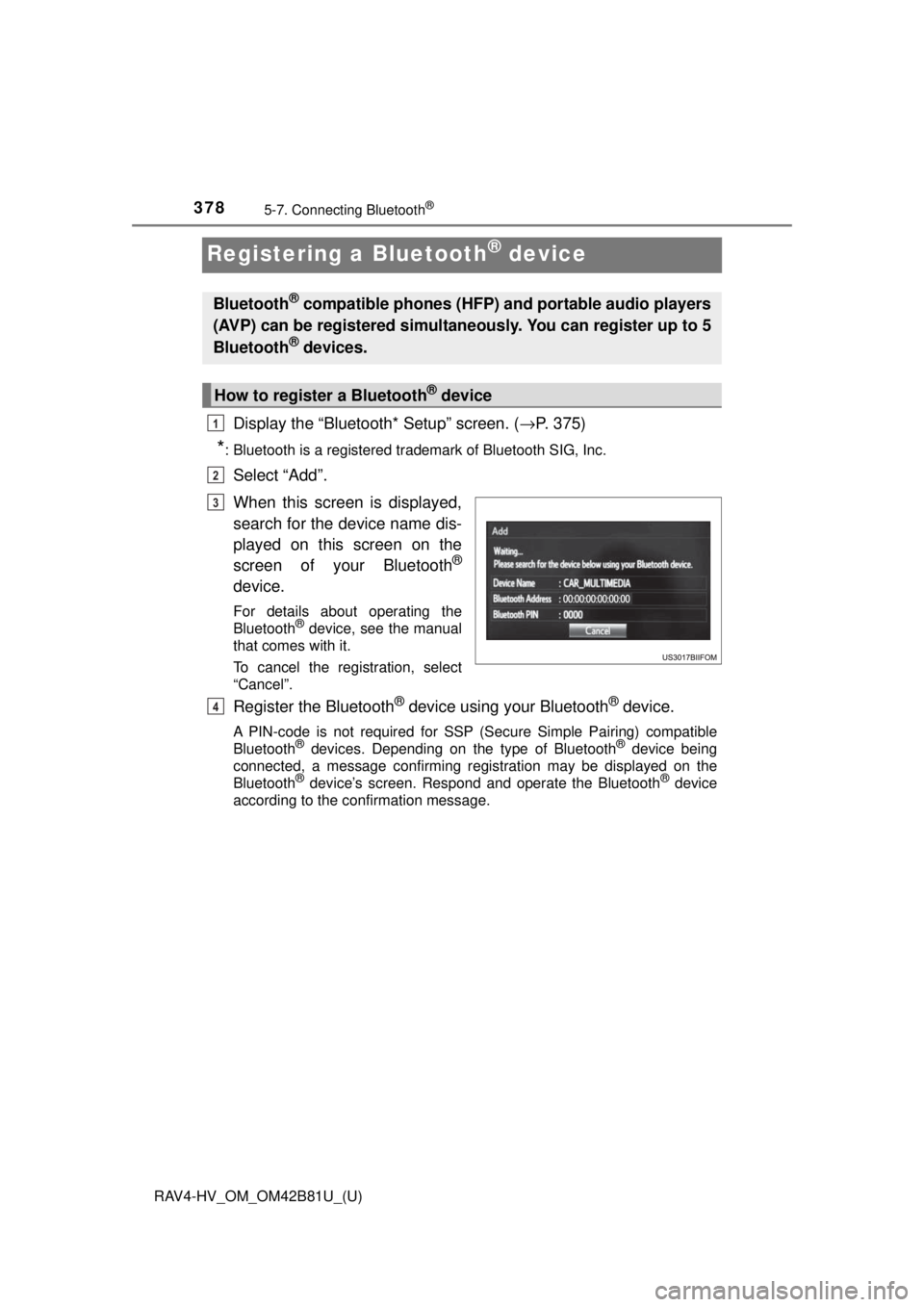
When this screen is displayed,
search for the device name dis-
played on this screen on the
screen of your Bluetooth
®
device.
For details about operating the
Bluetooth® device, see the manual
that comes with it.
To cancel the registration, select
“Cancel”.
Register the Bluetooth® device using your Bluetooth® device.
A PIN-code is not required for SSP (Secure Simple Pairing) compatible
Bluetooth® devices. Depending on the type of Bluetooth® device being
connected, a message confirming registration may be displayed on the
Bluetooth
® device’s screen. Respond and operate the Bluetooth® device
according to the confirmation message.
Bluetooth® compatible phones (HFP) and portable audio players
(AVP) can be registered simultaneously. You can register up to 5
Bluetooth
® devices.
How to register a Bluetooth® device
1
2
3
4
Page 399 of 680

RAV4-HV_OM_OM42B81U_(U)
3995-9. Bluetooth® Phone
5
Audio system
■Check the messages
●Depending on the type of Bluetooth® phone being connected, it may be nec-
essary to perform additional steps on the phone.
● Messages are displayed in the appropriate connected Bluetooth
® phone’s
registered mail address folder.
Select the tab of the desired folder to be displayed.
● Only received messages on the connected Bluetooth
® phone can be dis-
played.
● The text of the message is not displayed while driving.
● When “Automatic Message Readout” is set to on, messages will be auto-
matically read out. ( →P. 412)
● Turn the “PWR VOL” knob, or use the volume switch on the steering wheel
to adjust the message read out volume.
● The message read out function is available even while driving.
Display the “Message Inbox” screen. ( →P. 396)
Select the desired message from the list.
Select “Quick Message”.
Select the desired message.
Select “Send”.
If an error message is displayed, follow the guidance on the screen to try
again.
■
Editing quick reply message
Select “Quick Message”.
Select corresponding to the desired message to edit.
Select “OK” when editing is completed.
Replying to a message
1
2
3
4
5
1
2
3
Page 400 of 680
400
RAV4-HV_OM_OM42B81U_(U)
5-9. Bluetooth® Phone
Calls can be made to an e-mail/SMS/MMS message sender’s phone
number.Display the “Message Inbox” screen. ( →P. 396)
Select the desired message.
Select .
Check that the “Call” screen is displayed.
■Calling from a number within a message
Calls can be made to a number identified in a message’s text area.
This operation cannot be performed while driving.
Display the “Message Inbox” screen. ( →P. 396)
Select the desired message.
Select the text area.
Select corresponding to the desired number.
Check that the “Call” screen is displayed.
■Calling from the incoming message screen → P. 395
Calling the message sender
1
2
3
4
1
2
3
4
5
Page 408 of 680

408
RAV4-HV_OM_OM42B81U_(U)
5-10. Phonebook
For PBAP compatible Bluetooth® phones, this function is available
when “Automatic Contact/History Transfer” is set to off. ( →P. 404)
Select “Edit Contact”.
Select the desired contact.
Select corresponding to the desired name or number.
For editing the name
Follow the steps in “Registering a new contact to the contacts list”
from . ( →P. 407)
For editing the number
Follow the steps in “Registering a new contact to the contacts list”
from . ( →P. 407)
■Editing the contacts in a different way (From the “Contact
Details” screen)
Display the phone screen. (→ P. 387)
Select the “Contacts”, “Call Histor y” tab or the “Favorites” tab and
select the desired contact.
Select “Edit Contact”.
“E-mail Addresses”: Select to display all registered e-mail addresses for
the contact.
Follow the steps in “Editing the contact data” from .
Editing the contact data
1
2
3
4
2
4
3
1
2
3
44