car play TOYOTA RAV4 HYBRID 2019 Accessories, Audio & Navigation (in English)
[x] Cancel search | Manufacturer: TOYOTA, Model Year: 2019, Model line: RAV4 HYBRID, Model: TOYOTA RAV4 HYBRID 2019Pages: 244, PDF Size: 6.8 MB
Page 119 of 244
1194-1. Basic operation
4
Audio/visual system
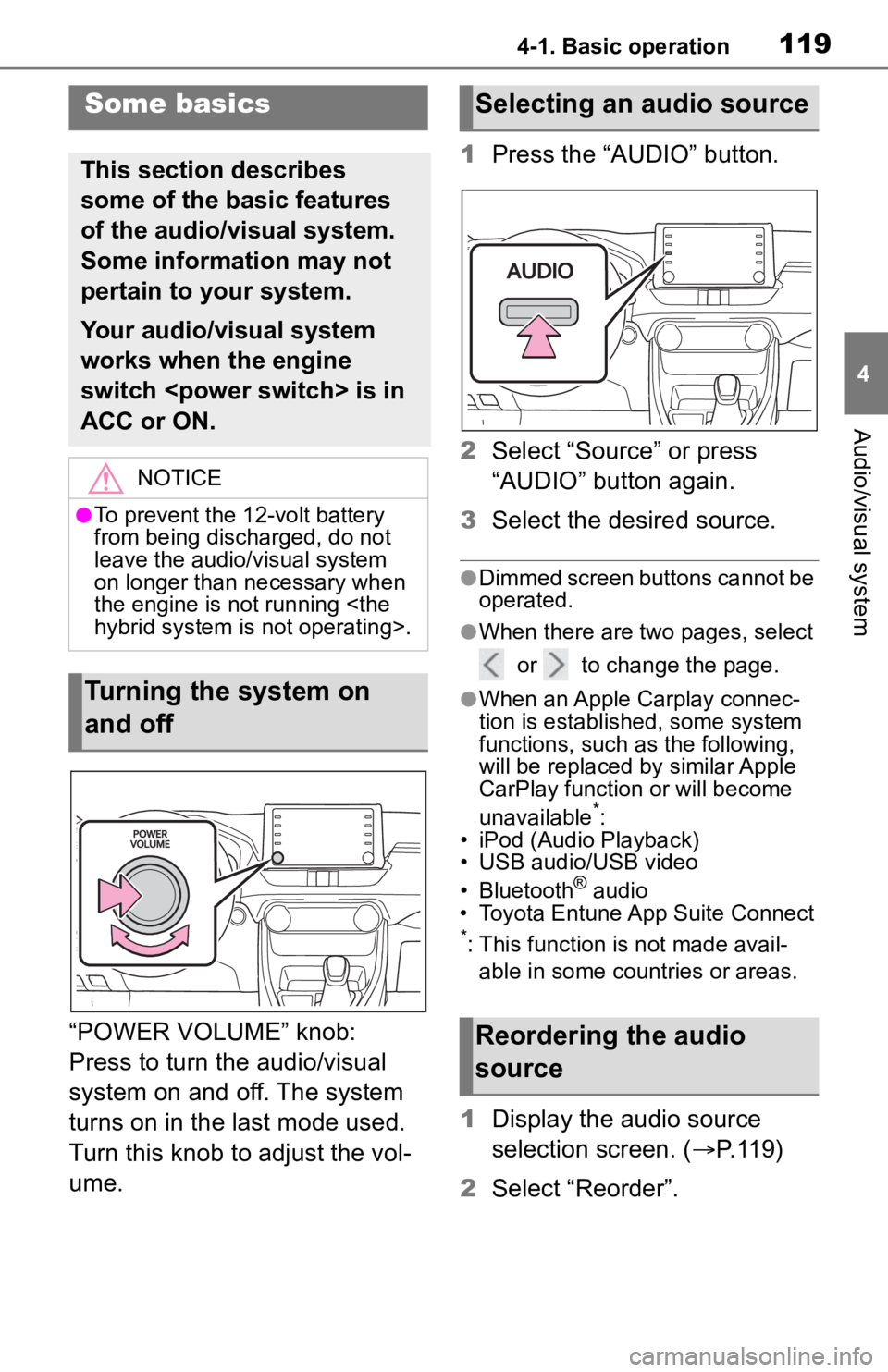
“POWER VOLUME” knob:
Press to turn the audio/visual
system on and off. The system
turns on in the last mode used.
Turn this knob to adjust the vol-
ume.1
Press the “AUDIO” button.
2 Select “Source” or press
“AUDIO” button again.
3 Select the desired source.
●Dimmed screen buttons cannot be
operated.
●When there are tw o pages, select
or to change the page.
●When an Apple Carplay connec-
tion is established, some system
functions, such as the following,
will be replaced by similar Apple
CarPlay function or will become
unavailable
*:
• iPod (Audio Playback)
• USB audio/USB video
• Bluetooth
® audio
• Toyota Entune App Suite Connect
*: This function is not made avail-
able in some countries or areas.
1 Display the audio source
selection screen. ( P.119)
2 Select “Reorder”.
Some basics
This section describes
some of the basic features
of the audio/visual system.
Some information may not
pertain to your system.
Your audio/visual system
works when the engine
switch
ACC or ON.
NOTICE
●To prevent the 12-volt battery
from being discharged, do not
leave the audio/visual system
on longer than necessary when
the engine is not running
Turning the system on
and off
Selecting an audio source
Reordering the audio
source
Page 132 of 244
1324-3. Media operation
4-3.Media operation
The USB memory operation
screen can be reached by the
following methods: P. 1 1 9
Connecting a USB memory
( P.120)
When an Apple CarPlay con-
nection is established, this func-
tion will be unavailable.
*
*: This function is not made avail- able in some countries or areas.
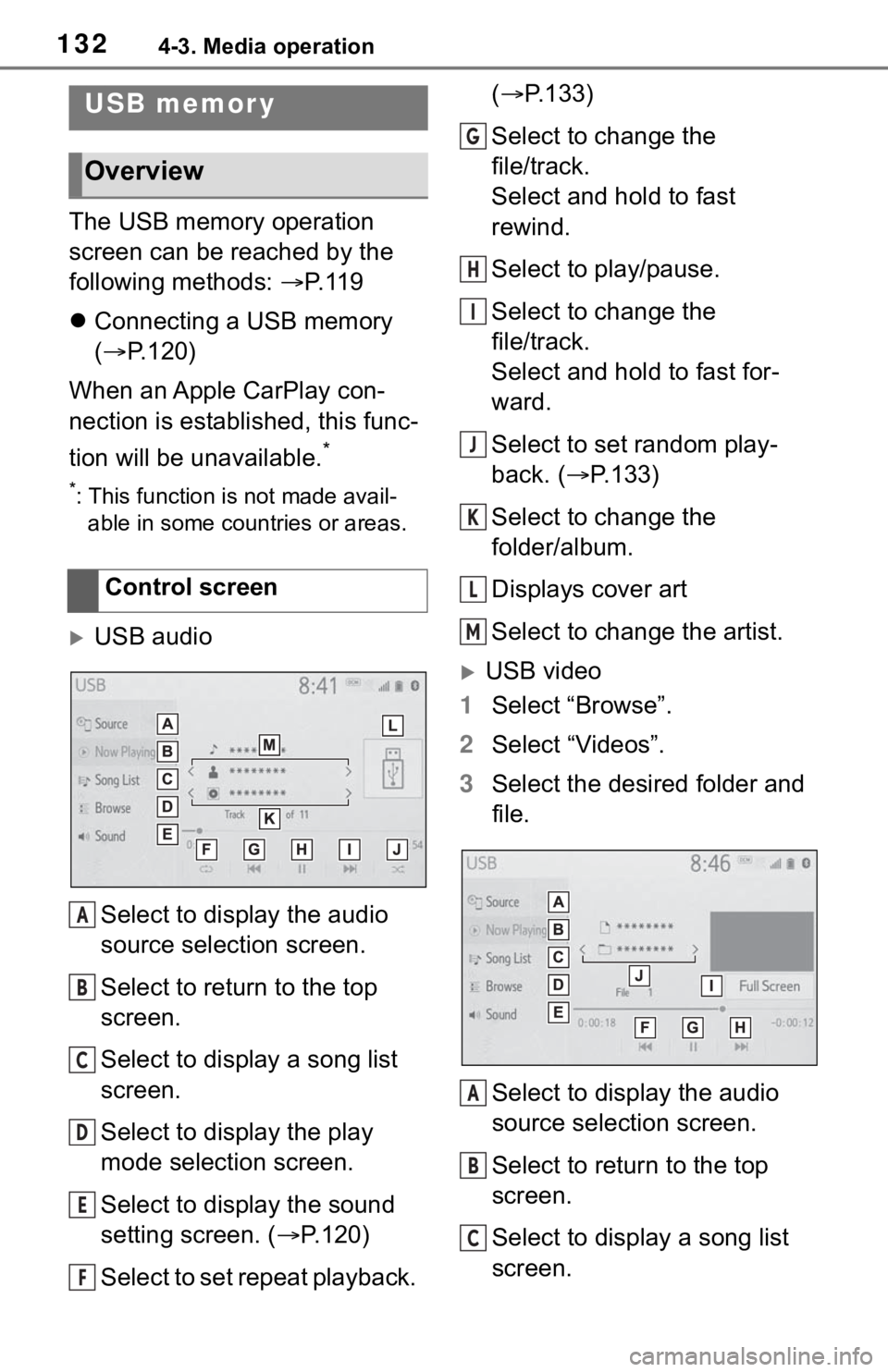
USB audio
Select to display the audio
source selection screen.
Select to return to the top
screen.
Select to display a song list
screen.
Select to display the play
mode selection screen.
Select to display the sound
setting screen. ( P.120)
Select to set repeat playback. (
P.133)
Select to change the
file/track.
Select and hold to fast
rewind.
Select to play/pause.
Select to change the
file/track.
Select and hold to fast for-
ward.
Select to set random play-
back. ( P.133)
Select to change the
folder/album.
Displays cover art
Select to change the artist.
USB video
1 Select “Browse”.
2 Select “Videos”.
3 Select the desired folder and
file.
Select to display the audio
source selection screen.
Select to return to the top
screen.
Select to display a song list
screen.
USB memor y
Overview
Control screen
A
B
C
D
E
F
G
H
I
J
K
L
M
A
B
C
Page 134 of 244
1344-3. Media operation
The iPod/iPhone operation
screen can be reached by the
following methods: P. 1 1 9
Connecting an iPod/iPhone
( P.120)
When the iPod/iPhone con-
nected to the system includes
video, the system can only out-
put the sound.
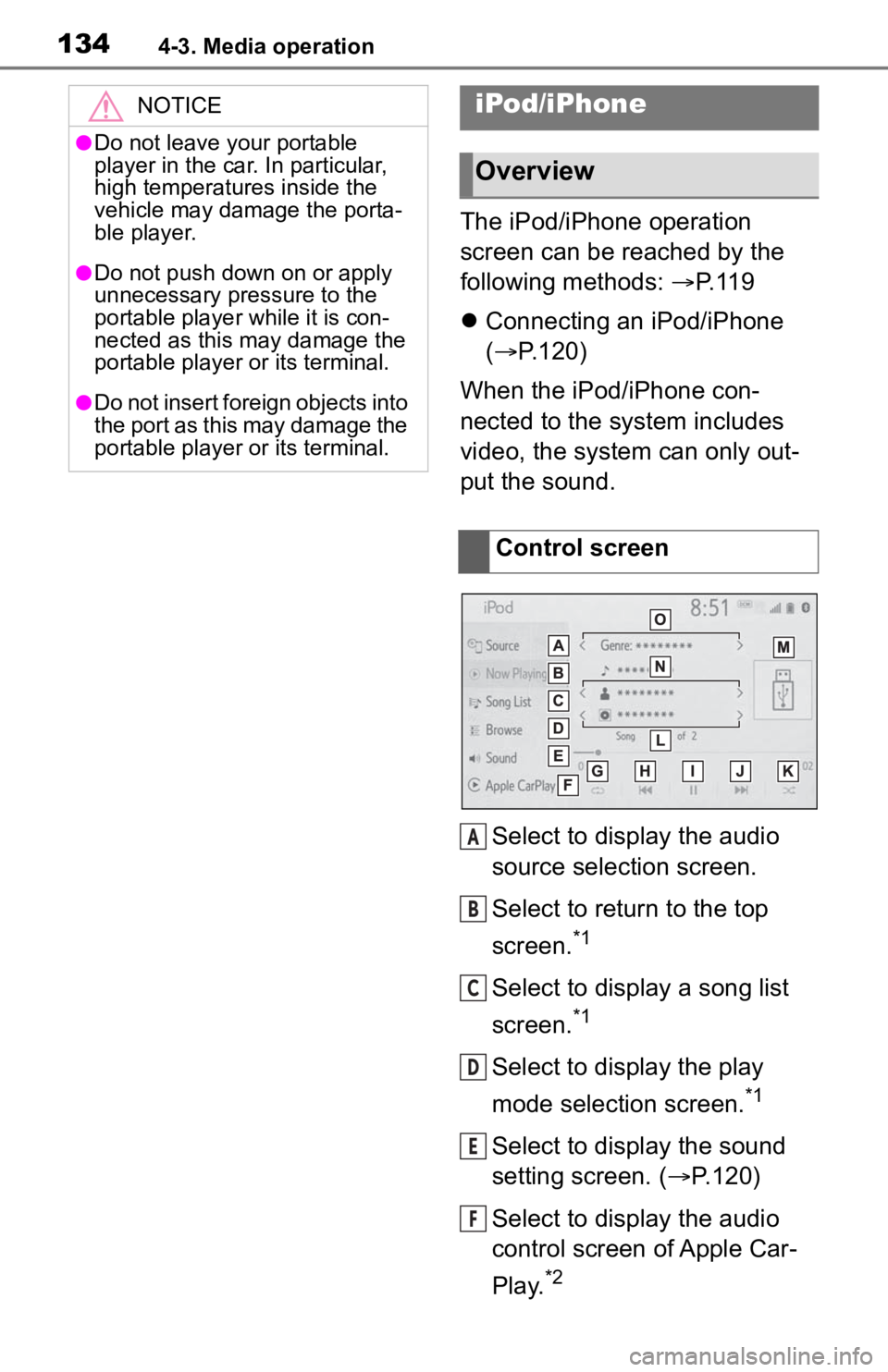
Select to display the audio
source selection screen.
Select to return to the top
screen.
*1
Select to display a song list
screen.
*1
Select to display the play
mode selection screen.
*1
Select to display the sound
setting screen. ( P.120)
Select to display the audio
control screen of Apple Car-
Play.
*2
NOTICE
●Do not leave your portable
player in the car. In particular,
high temperatures inside the
vehicle may damage the porta-
ble player.
●Do not push down on or apply
unnecessary pressure to the
portable player while it is con-
nected as this may damage the
portable player or its terminal.
●Do not insert foreign objects into
the port as this may damage the
portable player or its terminal.
iPod/iPhone
Overview
Control screen
A
B
C
D
E
F
Page 135 of 244
1354-3. Media operation
4
Audio/visual system
Select to set repeat playback.
(P.136)
Select to change the track.
Select and hold to fast
rewind.
Select to play/pause.
Select to change the track.
Select and hold to fast for-
ward.
Select to set random play-
back. ( P.136)
Select to change the
album.
*1
Displays cover art
Select to change the artist.
*1
Select to change the play-
list.
*1
*1: When an Apple CarPlay connec- tion is established, this switch
will not be displayed.
*2: This switch will only be displayed when an Apple CarPlay connec-
tion is established.
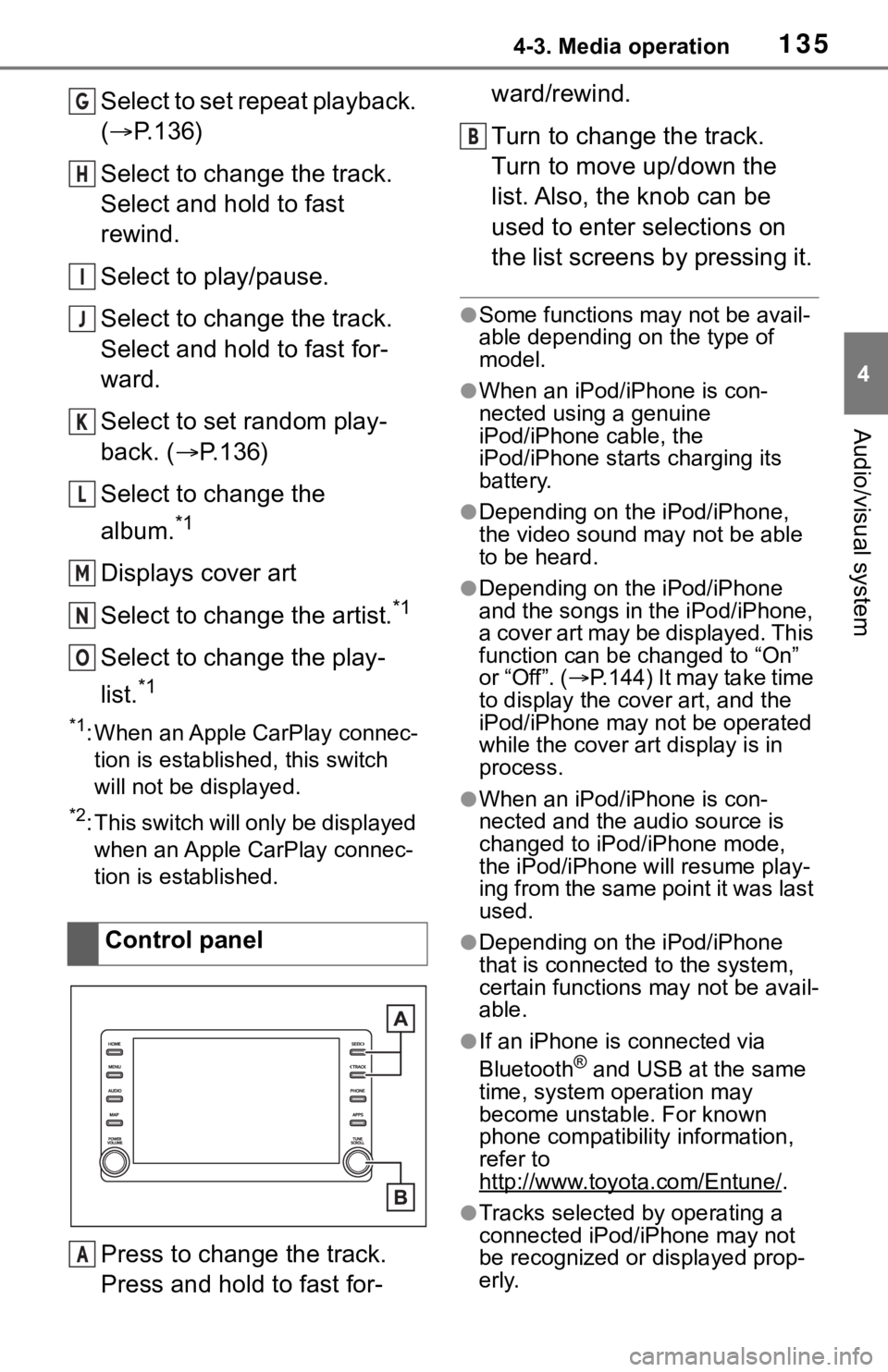
Press to change the track.
Press and hold to fast for- ward/rewind.
Turn to change the track.
Turn to move up/down the
list. Also, the knob can be
used to enter selections on
the list screens by pressing it.
●Some functions may not be avail-
able depending on the type of
model.
●When an iPod/iPhone is con-
nected using a genuine
iPod/iPhone cable, the
iPod/iPhone starts charging its
battery.
●Depending on the iPod/iPhone,
the video sound
may not be able
to be heard.
●Depending on the iPod/iPhone
and the songs in the iPod/iPhone,
a cover art may be displayed. This
function can be changed to “On”
or “Off”. ( P.144) It may take time
to display the cov er art, and the
iPod/iPhone may not be operated
while the cover art display is in
process.
●When an iPod/iPhone is con-
nected and the audio source is
changed to iPod/iPhone mode,
the iPod/iPhone will resume play-
ing from the same point it was last
used.
●Depending on the iPod/iPhone
that is connected to the system,
certain functions may not be avail-
able.
●If an iPhone is connected via
Bluetooth® and USB at the same
time, system operation may
become unstable. For known
phone compatibility information,
refer to
http://www.toyota.com/Entune/
.
●Tracks selected by operating a
connected iPod/iPhone may not
be recognized or displayed prop-
erly.
Control panel
G
H
I
J
K
L
M
N
O
A
B
Page 136 of 244
1364-3. Media operation
●The system may not function
properly if a conversion adapter is
used to connect a device.
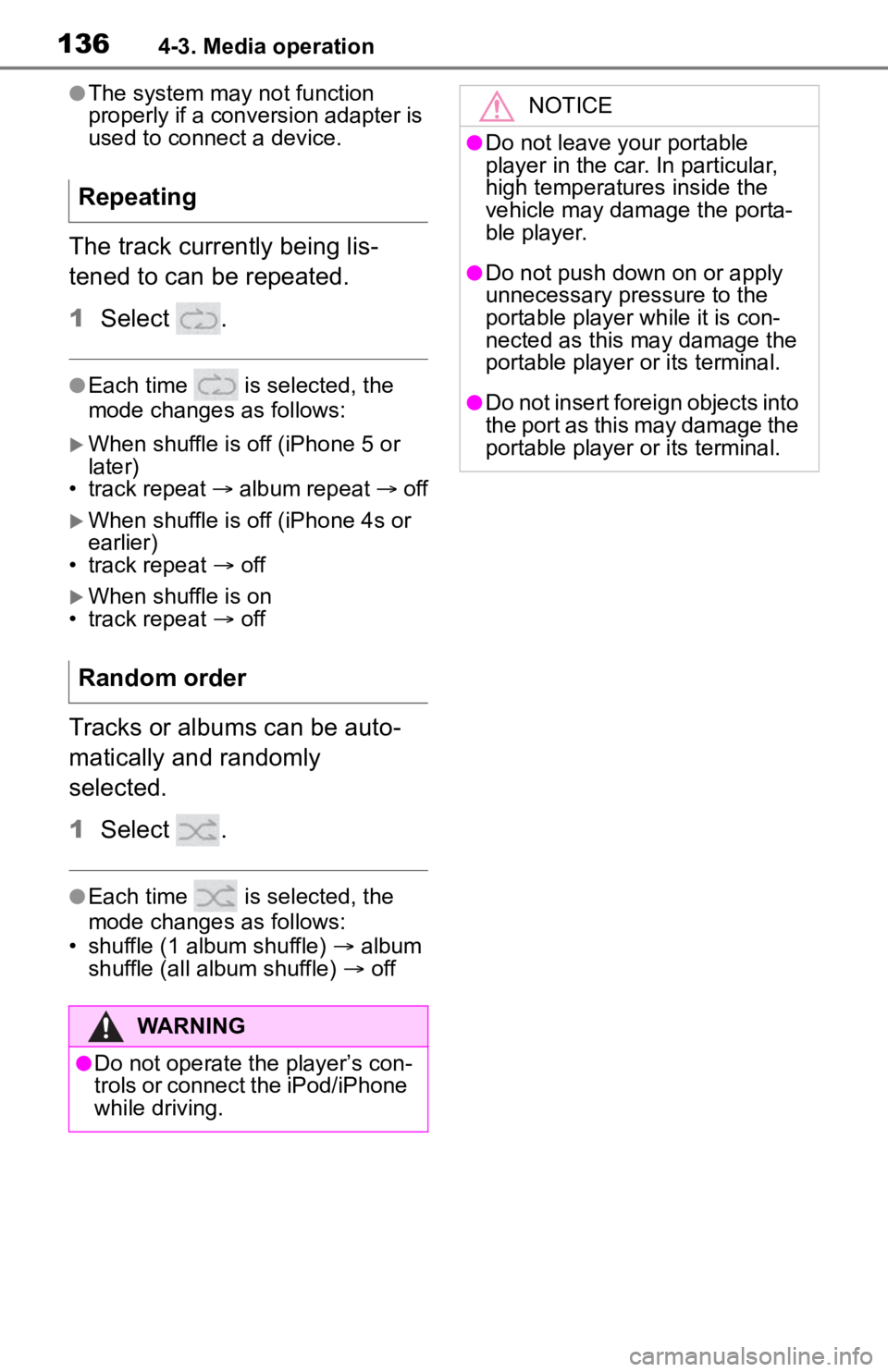
The track currently being lis-
tened to can be repeated.
1Select .
●Each time is selected, the
mode changes as follows:
When shuffle is off (iPhone 5 or
later)
• track repeat album repeat off
When shuffle is off (iPhone 4s or
earlier)
• track repeat off
When shuffle is on
• track repeat off
Tracks or albums can be auto-
matically and randomly
selected.
1 Select .
●Each time is selected, the
mode changes as follows:
• shuffle (1 album shuffle) album
shuffle (all album shuffle) off
Repeating
Random order
WARNING
●Do not operate the player’s con-
trols or connect the iPod/iPhone
while driving.
NOTICE
●Do not leave your portable
player in the car. In particular,
high temperatures inside the
vehicle may damage the porta-
ble player.
●Do not push down on or apply
unnecessary pressure to the
portable player while it is con-
nected as this may damage the
portable player or its terminal.
●Do not insert foreign objects into
the port as this may damage the
portable player or its terminal.
Page 137 of 244
1374-3. Media operation
4
Audio/visual system
The Bluetooth® audio operation
screen can be reached by the
following methods: P. 1 1 9
Connecting a Bluetooth
®
audio device ( P.139)
Depending on the type of porta-
ble player connected, some
functions may not be available
and/or the screen may look dif-
ferently than shown in this man-
ual.
When an Apple CarPlay con-
nection is established, Blue-
tooth
® audio will be suspended
and become unavailable.
*
*: This function is not made avail- able in some countries or areas.
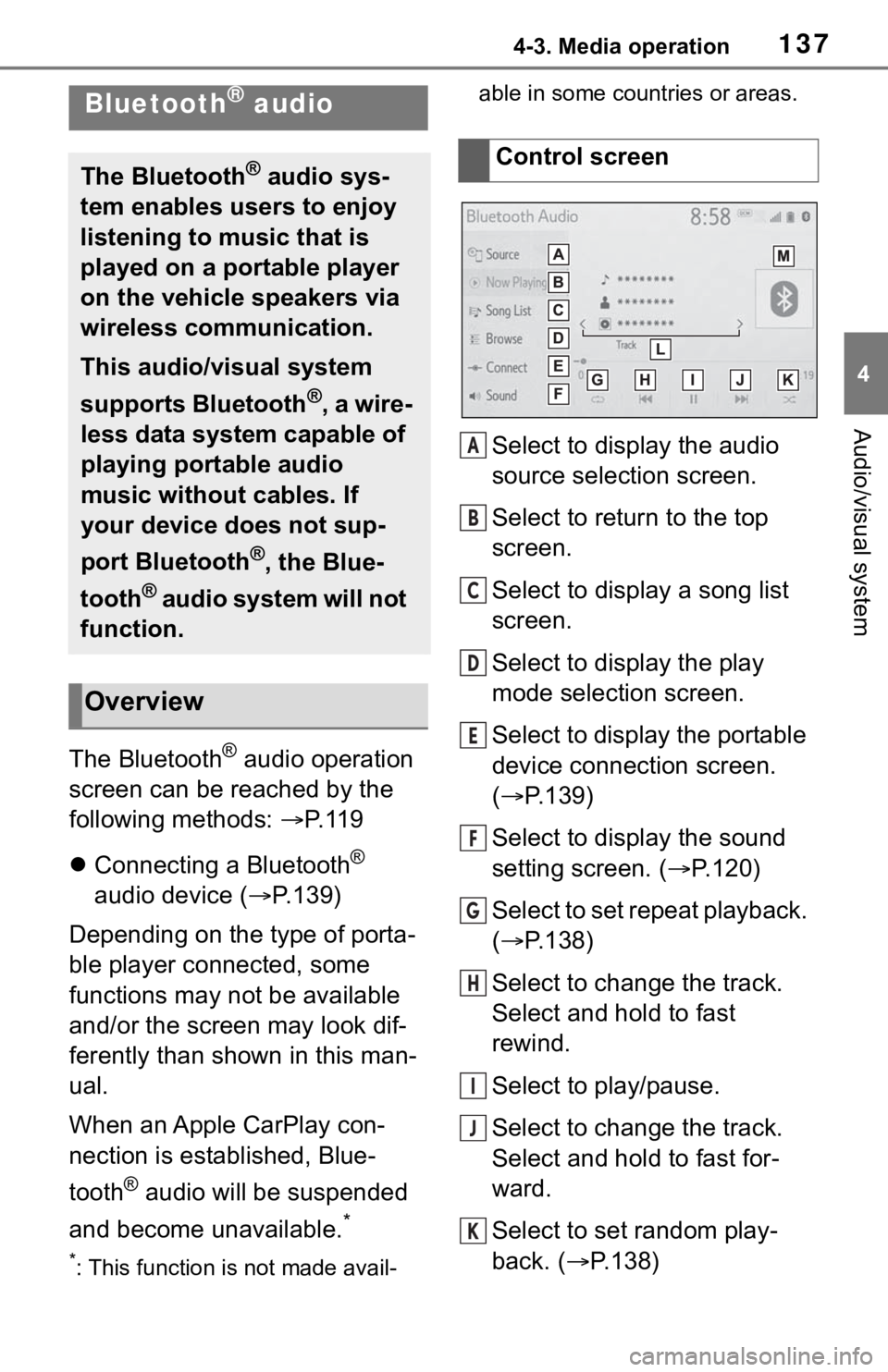
Select to display the audio
source selection screen.
Select to return to the top
screen.
Select to display a song list
screen.
Select to display the play
mode selection screen.
Select to display the portable
device connection screen.
(
P.139)
Select to display the sound
setting screen. ( P.120)
Select to set repeat playback.
( P.138)
Select to change the track.
Select and hold to fast
rewind.
Select to play/pause.
Select to change the track.
Select and hold to fast for-
ward.
Select to set random play-
back. ( P.138)
Bluetooth® audio
The Bluetooth® audio sys-
tem enables users to enjoy
listening to music that is
played on a portable player
on the vehicle speakers via
wireless communication.
This audio/visual system
supports Bluetooth
®, a wire-
less data system capable of
playing portable audio
music without cables. If
your device does not sup-
port Bluetooth
®, the Blue-
tooth
® audio system will not
function.
Overview
Control screen
A
B
C
D
E
F
G
H
I
J
K
Page 139 of 244
1394-3. Media operation
4
Audio/visual system
turned off, this does not happen.
Reconnect the portable player
manually.
●Bluetooth® device information is
registered when the Bluetooth®
device is connected to the Blue-
tooth
® audio system. When selling
or disposing of the vehicle,
remove the Bluetooth
® audio
information from the system.
( P. 5 9 )
●In some situations, sound output
via the Bluetooth® audio system
may be out of syn c with the con-
nected device or output intermit-
tently.
To use the Bluetooth® audio
system, it is necessary to regis-
ter a Bluetooth
® device with the
system.
Registering an additional
device
1 Display the Bluetooth
® audio
control screen. ( P.137)
2 Select “Connect”.
3 Select “Add Device”.
When another Bluetooth
®
device is connected, a confir-
mation screen will be dis-
played. To disconnect the
Bluetooth
® device, select
“Yes”.
4 Follow the steps in “Register-
ing a Bluetooth
® phone for
the first time” from step 5.
( P.36)
Selecting a registered device
1 Display the Bluetooth
® audio
control screen. ( P.137)
2 Select “Connect”.
3 Select the desired device to
be connected.
WARNING
●Do not operate the player’s con-
trols or connect to the Blue-
tooth
® audio system while
driving.
●Your audio unit is fitted with
Bluetooth® antennas. People
with implantable cardiac pace-
makers, cardiac resynchroniza-
tion therapy-pacemakers or
implantable cardioverter defibril-
lators should maintain a reason-
able distance between
themselves and the Bluetooth
®
antennas. The radio waves may
affect the operation of such
devices.
●Before using Bluetooth®
devices, users of any electrical
medical device other than
implantable cardiac pacemak-
ers, cardiac resynchronization
therapy-pacemakers or implant-
able cardioverter defibrillators
should consult the manufacturer
of the device for information
about its operation under the
influence of radio waves. Radio
waves could have unexpected
effects on the operation of such
medical devices.
NOTICE
●Do not leave your portable
player in the vehicle. In particu-
lar, high temperatures inside the
vehicle may damage the porta-
ble player.
Registering/Connecting a
Bluetooth® device
Page 142 of 244
1424-4. Audio/visual remote controls
4-4.Audio/visual remote controls
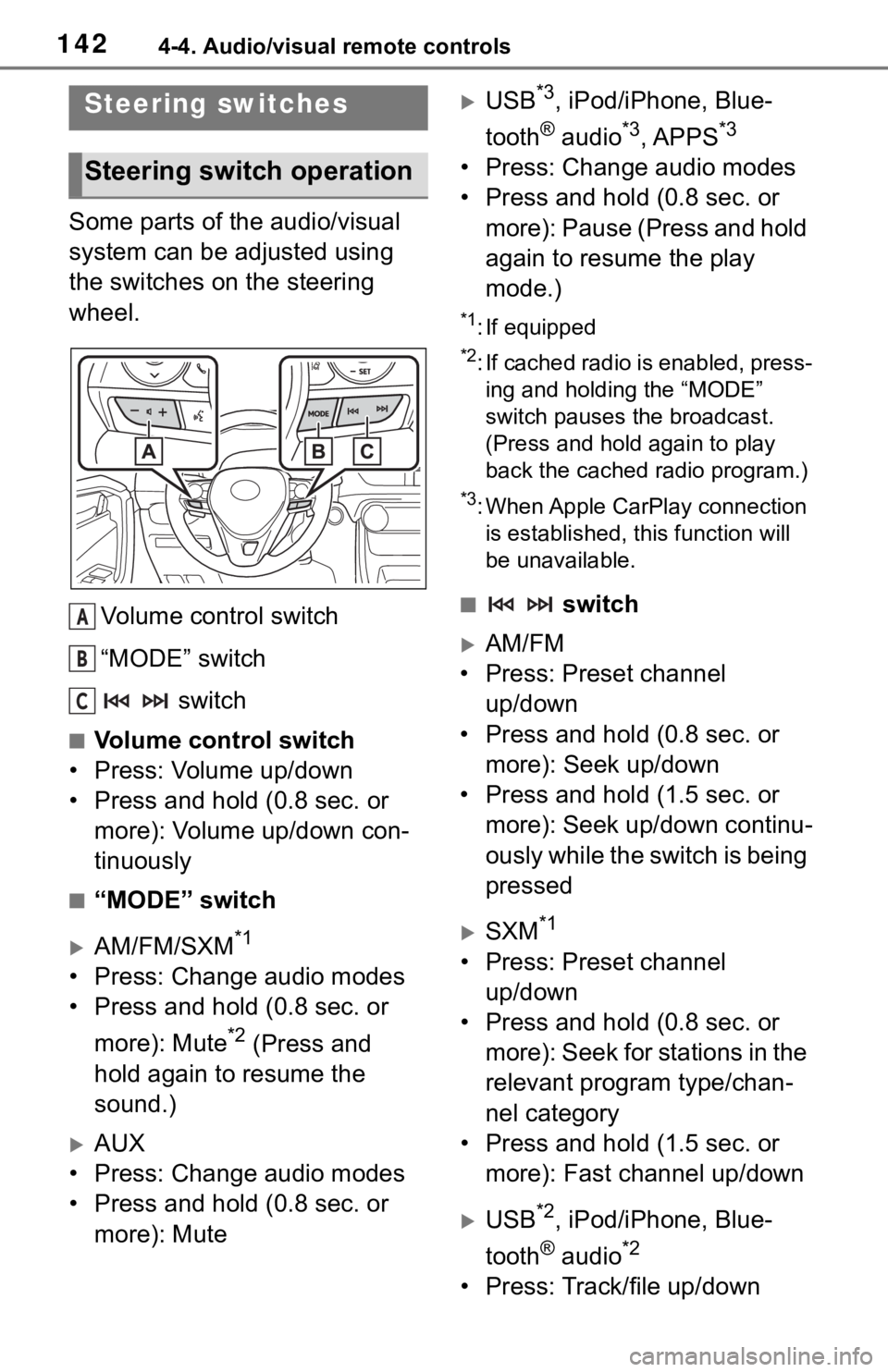
Some parts of the audio/visual
system can be adjusted using
the switches on the steering
wheel.Volume control switch
“MODE” switch switch
■Volume control switch
• Press: Volume up/down
• Press and hold (0.8 sec. or more): Volume up/down con-
tinuously
■“MODE” switch
AM/FM/SXM*1
• Press: Change audio modes
• Press and hold (0.8 sec. or
more): Mute
*2 (Press and
hold again to resume the
sound.)
AUX
• Press: Change audio modes
• Press and hold (0.8 sec. or more): Mute
USB*3, iPod/iPhone, Blue-
tooth
® audio*3, APPS*3
• Press: Change audio modes
• Press and hold (0.8 sec. or more): Pause (Press and hold
again to resume the play
mode.)
*1: If equipped
*2: If cached radio is enabled, press-ing and holding the “MODE”
switch pauses the broadcast.
(Press and hold again to play
back the cached radio program.)
*3: When Apple CarPlay connection is established, this function will
be unavailable.
■ switch
AM/FM
• Press: Preset channel up/down
• Press and hold (0.8 sec. or more): Seek up/down
• Press and hold (1.5 sec. or more): Seek up/down continu-
ously while the switch is being
pressed
SXM*1
• Press: Preset channel up/down
• Press and hold (0.8 sec. or more): Seek for stations in the
relevant program type/chan-
nel category
• Press and hold (1.5 sec. or more): Fast channel up/down
USB*2, iPod/iPhone, Blue-
tooth
® audio*2
• Press: Track/file up/down
Steering switches
Steering switch operation
A
B
C
Page 143 of 244

1434-4. Audio/visual remote controls
4
Audio/visual system
• Press and hold (0.8 sec. or more): Fast forward/rewind
*1: If equipped
*2: When Apple CarPlay connection is established, t his function will
be unavailable.
●In the APPS mode, some opera-
tion may be done on the screen
depend on t he selected APPS.
Page 150 of 244

1504-6. Tips for operating the audio/visual system
and AAC (Advanced Audio
Coding) are audio compres-
sion standards.
This system can play
MP3/WMA/AAC files on USB
memory.
MP4, WMV and AVI files can
use the following resolutions:
128x96, 160x120, 176x144
(QCIF), 320x240 (QVGA),
352x240 (SIF), 352x288
(CIF), 640x480 (VGA),
720x480 (NTSC), 720x576
(PAL)
When naming an
MP3/WMA/AAC file, add an
appropriate file extension
(.mp3/.wma/.m4a).
This system plays back files
with .mp3/.wma/.m4a file
extensions as
MP3/WMA/AAC files respec-
tively. To prevent noise and
playback errors, use the
appropriate file extension.
MP3 files are compatible with
the ID3 Tag Ver. 1.0, Ver. 1.1,
Ver. 2.2 and Ver. 2.3 formats.
This system cannot display
disc title, track title and artist
name in other formats.
WMA/AAC files can contain a
WMA/AAC tag that is used in
the same way as an ID3 tag.
WMA/AAC tags carry infor-
mation such as track title and
artist name.
The emphasis function is available only when playing
MP3 files.
This system can play back
AAC files encoded by iTunes.
The sound quality of
MP3/WMA files generally
improves with higher bit rates.
m3u playlists are not compati-
ble with the audio player.
MP3i (MP3 interactive) and
MP3PRO formats are not
compatible with the audio
player.
The player is compatible with
VBR (Variable Bit Rate).
When playing back files
recorded as VBR (Variable Bit
Rate) files, the play time will
not be correctly displayed if
the fast forward or reverse
operations are used.
It is not possible to check fold-
ers that do not include
MP3/WMA/AAC files.
MP3/WMA/AAC files in fold-
ers up to 8 levels deep can be
played. However, the start of
playback may be delayed
when using USB memory
containing numerous levels of
folders. For this reason, we
recommend creating USB
memory with no more than 2
levels of folders.