car play TOYOTA RAV4 HYBRID 2019 Accessories, Audio & Navigation (in English)
[x] Cancel search | Manufacturer: TOYOTA, Model Year: 2019, Model line: RAV4 HYBRID, Model: TOYOTA RAV4 HYBRID 2019Pages: 244, PDF Size: 6.8 MB
Page 193 of 244
1937-2. Setup
7
Phone
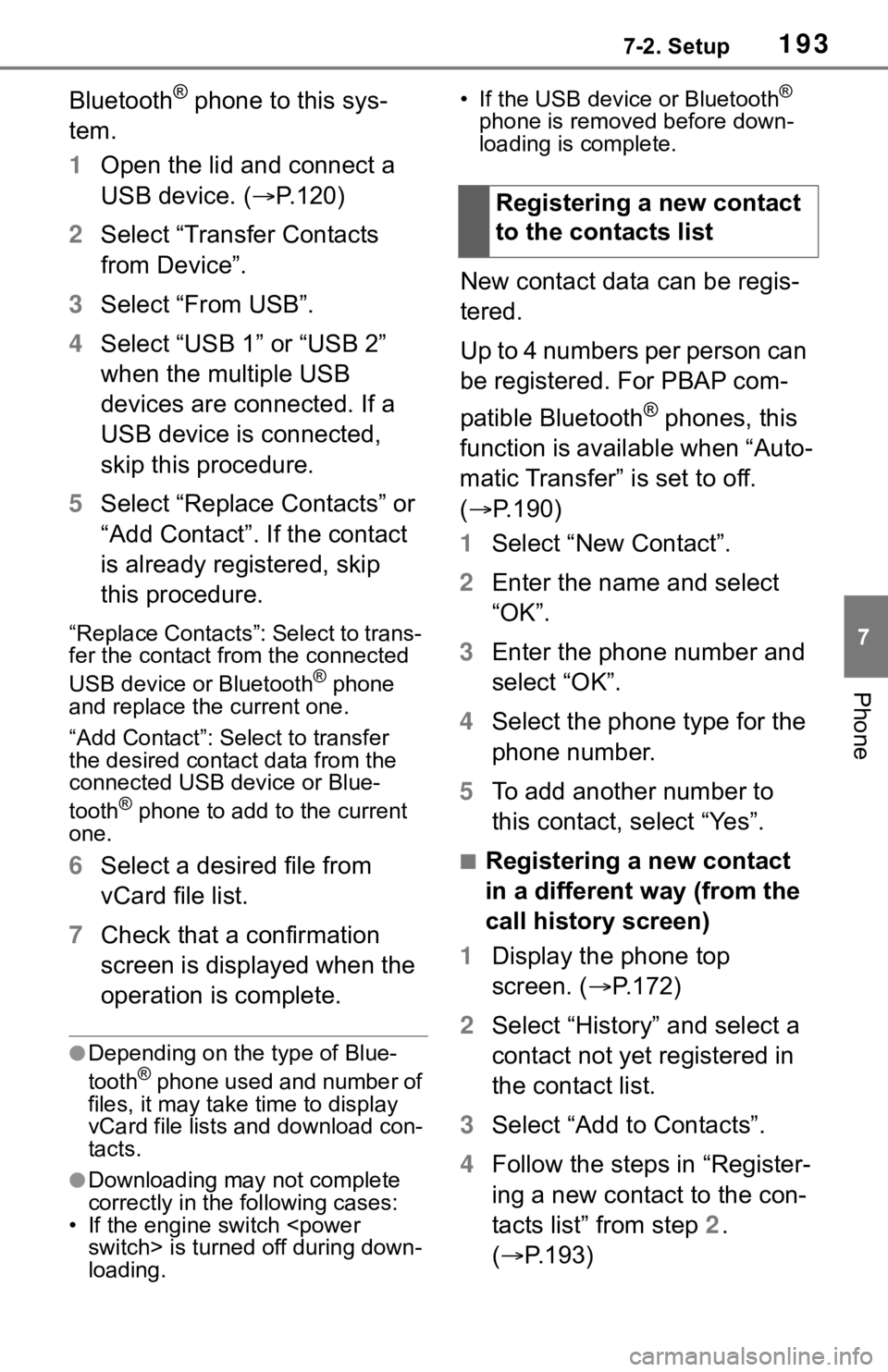
Bluetooth® phone to this sys-
tem.
1 Open the lid and connect a
USB device. ( P.120)
2 Select “Transfer Contacts
from Device”.
3 Select “From USB”.
4 Select “USB 1” or “USB 2”
when the multiple USB
devices are connected. If a
USB device is connected,
skip this procedure.
5 Select “Replace Contacts” or
“Add Contact”. If the contact
is already registered, skip
this procedure.
“Replace Contacts”: Select to trans-
fer the contact fro m the connected
USB device or Bluetooth
® phone
and replace the current one.
“Add Contact”: Select to transfer
the desired contact data from the
connected USB device or Blue-
tooth
® phone to add to the current
one.
6 Select a desired file from
vCard file list.
7 Check that a confirmation
screen is displayed when the
operation is complete.
●Depending on the type of Blue-
tooth® phone used and number of
files, it may take time to display
vCard file lists and download con-
tacts.
●Downloading may not complete
correctly in the following cases:
• If the engine switch
loading. • If the USB device or Bluetooth
®
phone is removed before down-
loading is complete.
New contact data can be regis-
tered.
Up to 4 numbers per person can
be registered. For PBAP com-
patible Bluetooth
® phones, this
function is available when “Auto-
matic Transfer” is set to off.
( P.190)
1 Select “New Contact”.
2 Enter the name and select
“OK”.
3 Enter the phone number and
select “OK”.
4 Select the phone type for the
phone number.
5 To add another number to
this contact, select “Yes”.
■Registering a new contact
in a different way (from the
call history screen)
1 Display the phone top
screen. ( P.172)
2 Select “History” and select a
contact not yet registered in
the contact list.
3 Select “Add to Contacts”.
4 Follow the steps in “Register-
ing a new contact to the con-
tacts list” from step 2.
( P.193)
Registering a new contact
to the contacts list
Page 201 of 244
2017-3. What to do if...
7
Phone
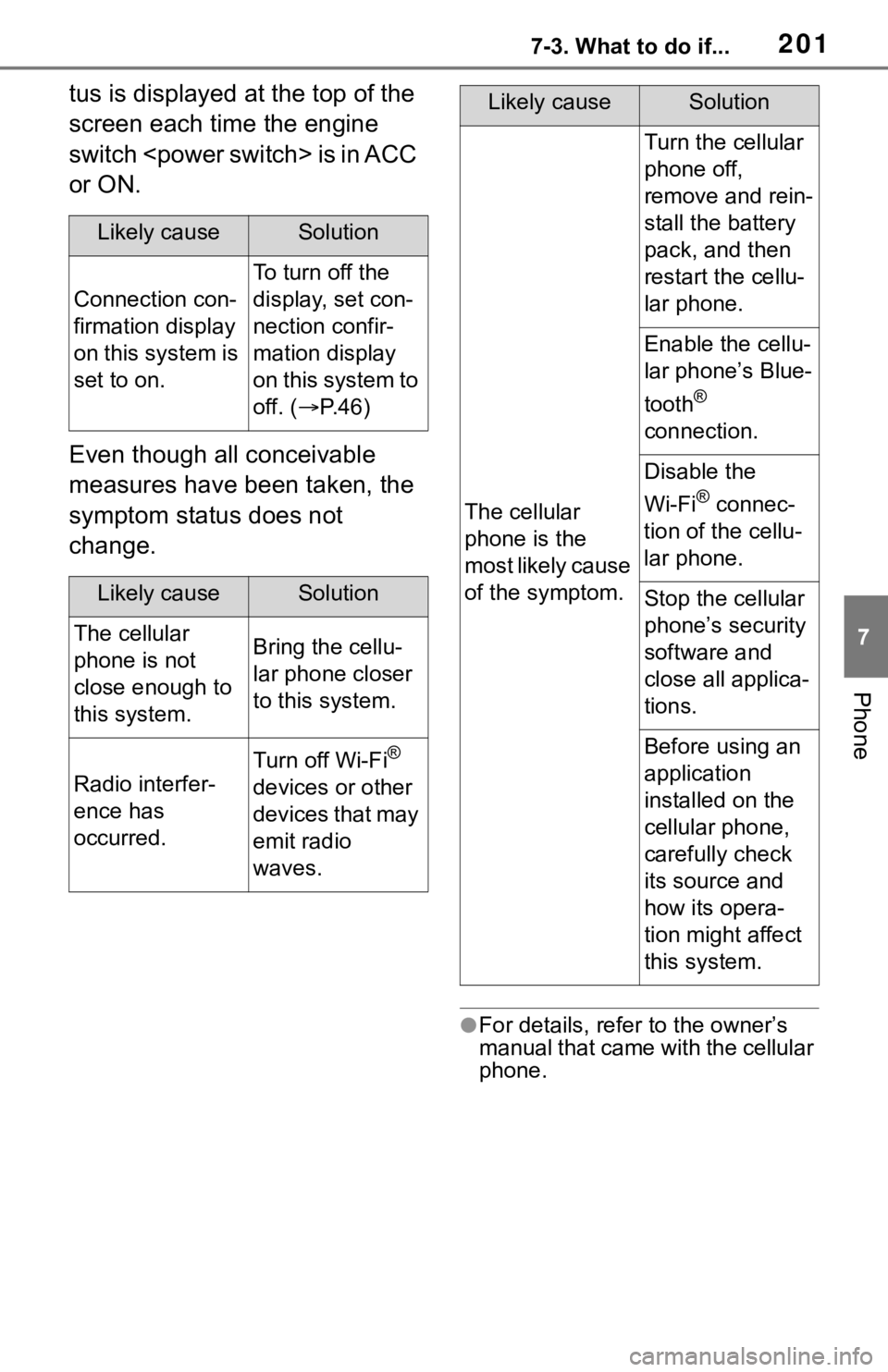
tus is displayed at the top of the
screen each time the engine
switch
or ON.
Even though all conceivable
measures have been taken, the
symptom status does not
change.
●For details, refer to the owner’s
manual that came with the cellular
phone.
Likely causeSolution
Connection con-
firmation display
on this system is
set to on.
To turn off the
display, set con-
nection confir-
mation display
on this system to
off. (P. 4 6 )
Likely causeSolution
The cellular
phone is not
close enough to
this system.Bring the cellu-
lar phone closer
to this system.
Radio interfer-
ence has
occurred.
Turn off Wi-Fi®
devices or other
devices that may
emit radio
waves.
The cellular
phone is the
most likely cause
of the symptom.
Turn the cellular
phone off,
remove and rein-
stall the battery
pack, and then
restart the cellu-
lar phone.
Enable the cellu-
lar phone’s Blue-
tooth
®
connection.
Disable the
Wi-Fi
® connec-
tion of the cellu-
lar phone.
Stop the cellular
phone’s security
software and
close all applica-
tions.
Before using an
application
installed on the
cellular phone,
carefully check
its source and
how its opera-
tion might affect
this system.
Likely causeSolution
Page 224 of 244
224Alphabetical Index
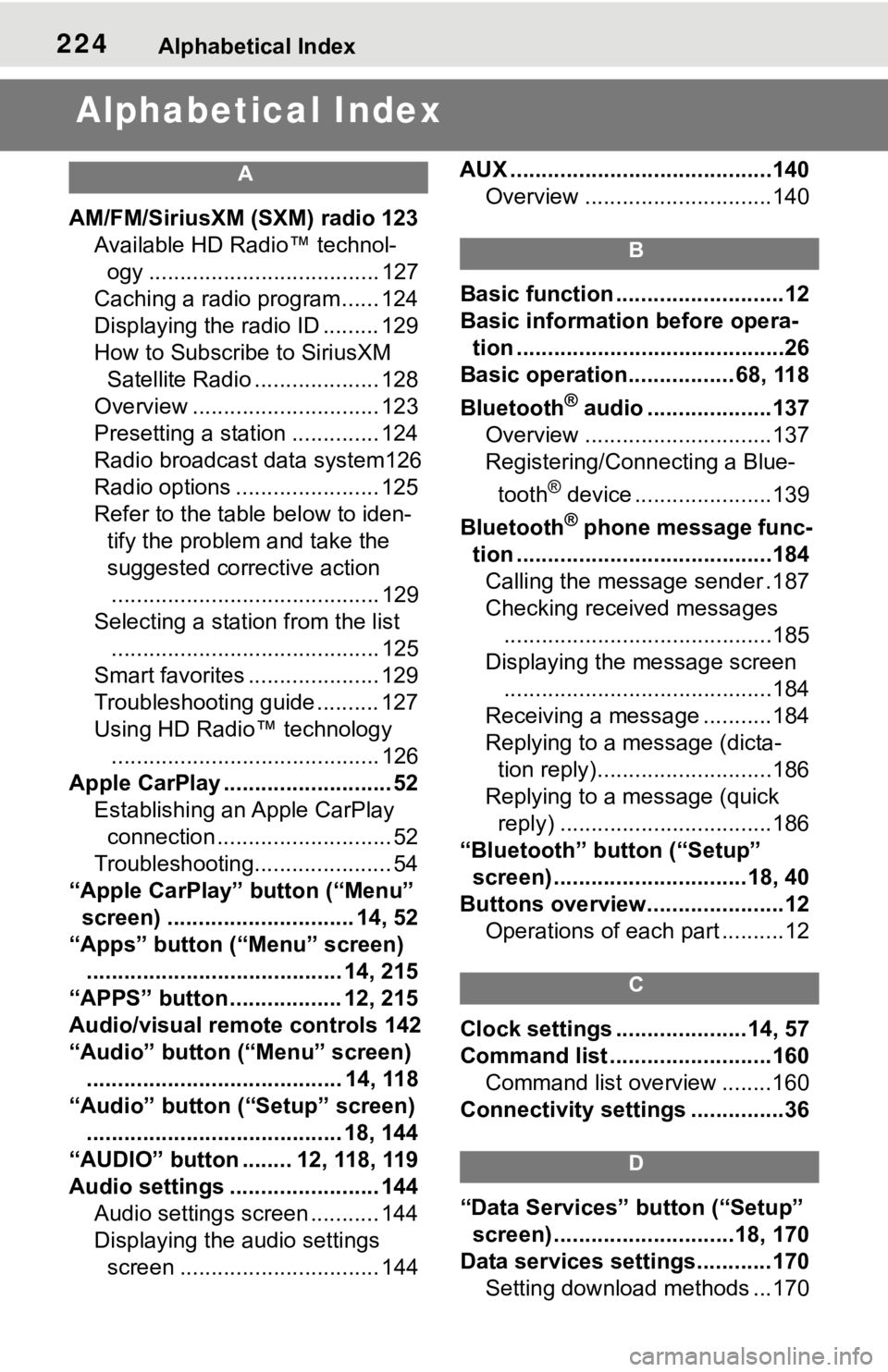
Alphabetical Index
A
AM/FM/SiriusXM (SXM) radio 123
Available HD Radio™ technol- ogy ..................................... 127
Caching a radio program...... 124
Displaying the radio ID ......... 129
How to Subscribe to SiriusXM Satellite Radio .................... 128
Overview .............................. 123
Presetting a station .............. 124
Radio broadcast data system126
Radio options ....................... 125
Refer to the table below to iden- tify the problem and take the
suggested corrective action ........................................... 129
Selecting a station from the list ........................................... 125
Smart favorites ..................... 129
Troubleshooting guide .......... 127
Using HD Radio™ technology ........................................... 126
Apple CarPlay ........................... 52 Establishing an Apple CarPlay connection ............................ 52
Troubleshooting...................... 54
“Apple CarPlay” button (“Menu” screen) .............................. 14, 52
“Apps” button (“Menu” screen) ......................................... 14, 215
“APPS” button ..... .............12, 215
Audio/visual remote controls 142
“Audio” button (“Menu” screen) ......................................... 14, 118
“Audio” button (“Setup” screen) ......................................... 18, 144
“AUDIO” button ........ 12, 118, 119
Audio settings ........................ 144 Audio settings screen ........... 144
Displaying the audio settings screen ................................ 144 AUX ..........................................140
Overview ..............................140
B
Basic function ...........................12
Basic information before opera-tion ...........................................26
Basic operation................. 68, 118
Bluetooth
® audio ....................137
Overview ..............................137
Registering/Connecting a Blue-
tooth
® device ......................139
Bluetooth
® phone message func-
tion .........................................184 Calling the message sender .187
Checking received messages ...........................................185
Displaying the message screen ...........................................184
Receiving a mess age ...........184
Replying to a message (dicta- tion reply)............................186
Replying to a message (quick reply) ..................................186
“Bluetooth” button (“Setup” screen) ...............................18, 40
Buttons overview......................12 Operations of each part ..........12
C
Clock settings .....................14, 57
Command list ..........................160Command list overview ........160
Connectivity settings ...............36
D
“Data Services” button (“Setup”
screen) .............................18, 170
Data services settings............170 Setting download methods ...170