turn signal TOYOTA RAV4 HYBRID 2021 User Guide
[x] Cancel search | Manufacturer: TOYOTA, Model Year: 2021, Model line: RAV4 HYBRID, Model: TOYOTA RAV4 HYBRID 2021Pages: 752, PDF Size: 31.25 MB
Page 265 of 752
2654-5. Using the driving support systems
4
Driving
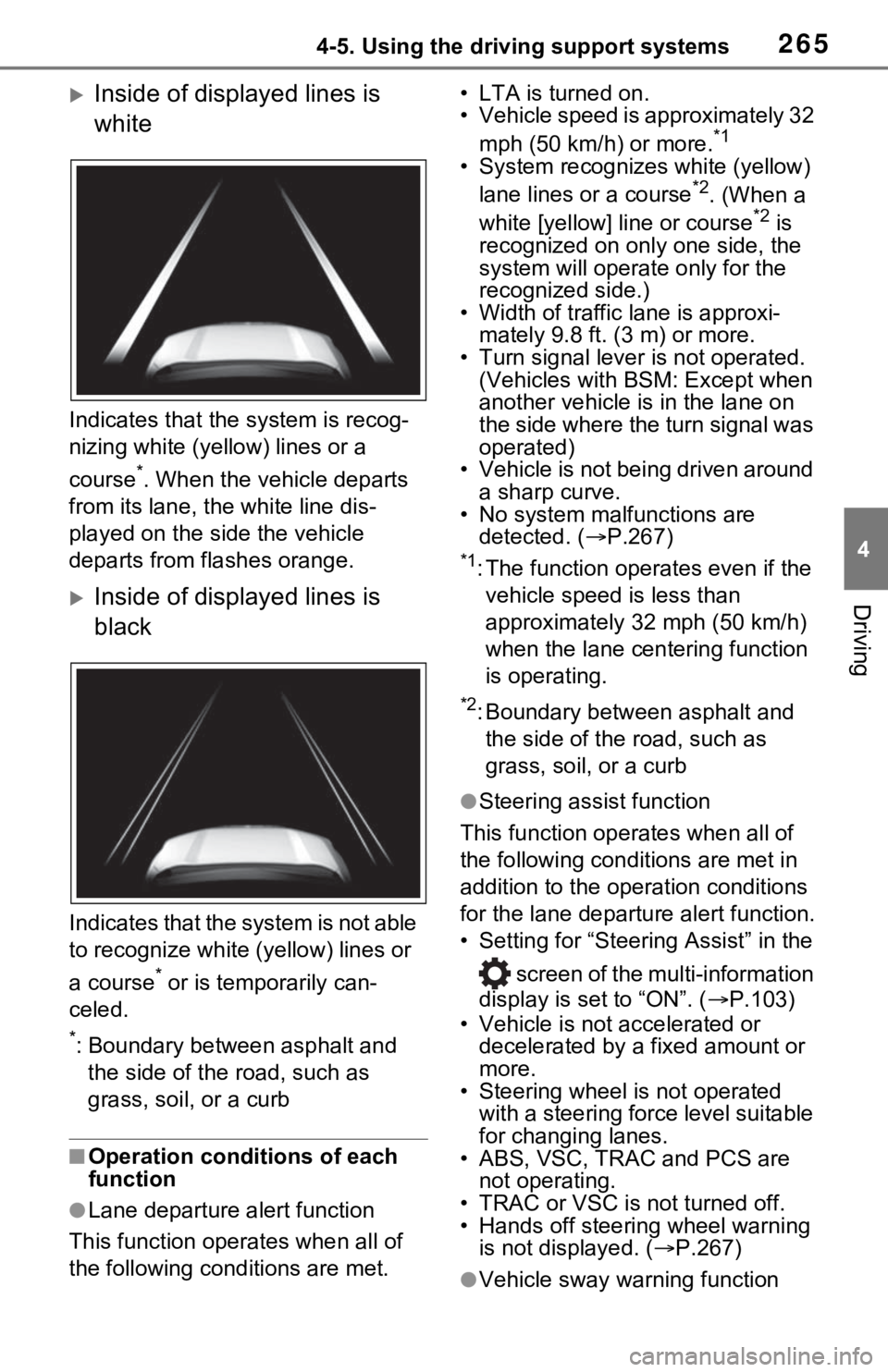
Inside of displayed lines is
white
Indicates that the system is recog-
nizing white (yellow) lines or a
course
*. When the vehicle departs
from its lane, the white line dis-
played on the si de the vehicle
departs from flashes orange.
Inside of displayed lines is
black
Indicates that the system is not able
to recognize white (yellow) lines or
a course
* or is temporarily can-
celed.
*: Boundary between asphalt and the side of the road, such as
grass, soil, or a curb
■Operation conditions of each
function
●Lane departure alert function
This function oper ates when all of
the following cond itions are met. • LTA is turned on.
• Vehicle speed is approximately 32
mph (50 km/h) or more.
*1
• System recognizes white (yellow) lane lines or a course*2. (When a
white [yellow] line or course*2 is
recognized on only one side, the
system will operate only for the
recognized side.)
• Width of traffic lane is approxi- mately 9.8 ft. (3 m) or more.
• Turn signal lever is not operated. (Vehicles with BSM: Except when
another vehicle is in the lane on
the side where the turn signal was
operated)
• Vehicle is not being driven around
a sharp curve.
• No system malfunctions are detected. ( P.267)
*1: The function oper ates even if the
vehicle speed is less than
approximately 32 mph (50 km/h)
when the lane centering function
is operating.
*2: Boundary between asphalt and the side of the road, such as
grass, soil, or a curb
●Steering assist function
This function operates when all of
the following conditions are met in
addition to the operation conditions
for the lane departure alert function.
• Setting for “Steering Assist” in the
screen of the multi-information
display is set to “ON”. ( P.103)
• Vehicle is not accelerated or decelerated by a fixed amount or
more.
• Steering wheel is not operated
with a steering force level suitable
for changing lanes.
• ABS, VSC, TRAC and PCS are
not operating.
• TRAC or VSC is not turned off.
• Hands off steering wheel warning is not displayed. ( P.267)
●Vehicle sway warning function
Page 266 of 752
2664-5. Using the driving support systems
This function operates when all of
the following cond itions are met.
• Setting for “Sway Warning” in the
screen of the mu lti-information
display is set to “ON”. ( P.103)
• Vehicle speed is approximately 32 mph (50 km/h) or more.
• Width of traffic lane is approxi-
mately 9.8 ft. ( 3 m) or more.
• No system malfunctions are detected. ( P.267)
●Lane centering function
This function oper ates when all of
the following cond itions are met.
• LTA is turned on.
• Setting for “Steering Assist” and
“Lane Center” in the screen of
the multi-information display are
set to “ON”. ( P.103)
• This function recognizes white (yellow) lane lines or the position
of a preceding vehicle (except
when the preceding vehicle is
small, such as a motorcycle).
• The dynamic radar cruise control with full-speed range is operating
in vehicle-to-vehic le distance con-
trol mode.
• Width of traffic lane is approxi- mately 10 to 13 ft. (3 to 4 m).
• Turn signal lever is not operated.
• Vehicle is not being driven around a sharp curve.
• No system malfunctions are detected. ( P.267)
• Vehicle does not accelerate or
decelerate by a fixed amount or
more.
• Steering wheel is not operated
with a steering force level suitable
for changing lanes.
• ABS, VSC, TRAC and PCS are
not operating.
• TRAC or VSC is not turned off.
• Hands off steering wheel warning is not displayed. ( P.267)
• The vehicle is being driven in the center of a lane.
• Steering assist function is not operating.
■Temporary cancelation of func-
tions
●When operation conditions are no
longer met, a function may be
temporarily canceled. However,
when the operation conditions are
met again, operation of the func-
tion is automatically restored.
( P.265)
●If the operation conditions
( P.265) are no longer met while
the lane centering function is
operating, the buzzer may sound
to indicate that the function has
been temporarily canceled.
■Steering assist function/lane
centering function
●Depending on the vehicle speed,
lane departure situation, road con-
ditions, etc., the driver may not
feel the function is operating or
the function may not operate at
all.
●The steering control of the func-
tion is overridden by the driver’s
steering wheel operation.
●Do not attempt to test the opera-
tion of the steering assist function.
■Lane departure alert function
●The warning buzzer may be diffi-
cult to hear due to external noise,
audio playback, etc.
●If the edge of the course* is not
clear or straight, the lane depar-
ture alert function may not oper-
ate.
●Vehicles with BSM: It may not be
possible for the system to deter-
mine if there is a danger of a colli-
sion with a vehicl e in an adjacent
lane.
●Do not attempt to test the opera-
tion of the lane departure alert
function.
*: Boundary between asphalt and
the side of the road, such as
grass, soil, or a curb
Page 275 of 752
2754-5. Using the driving support systems
4
Driving
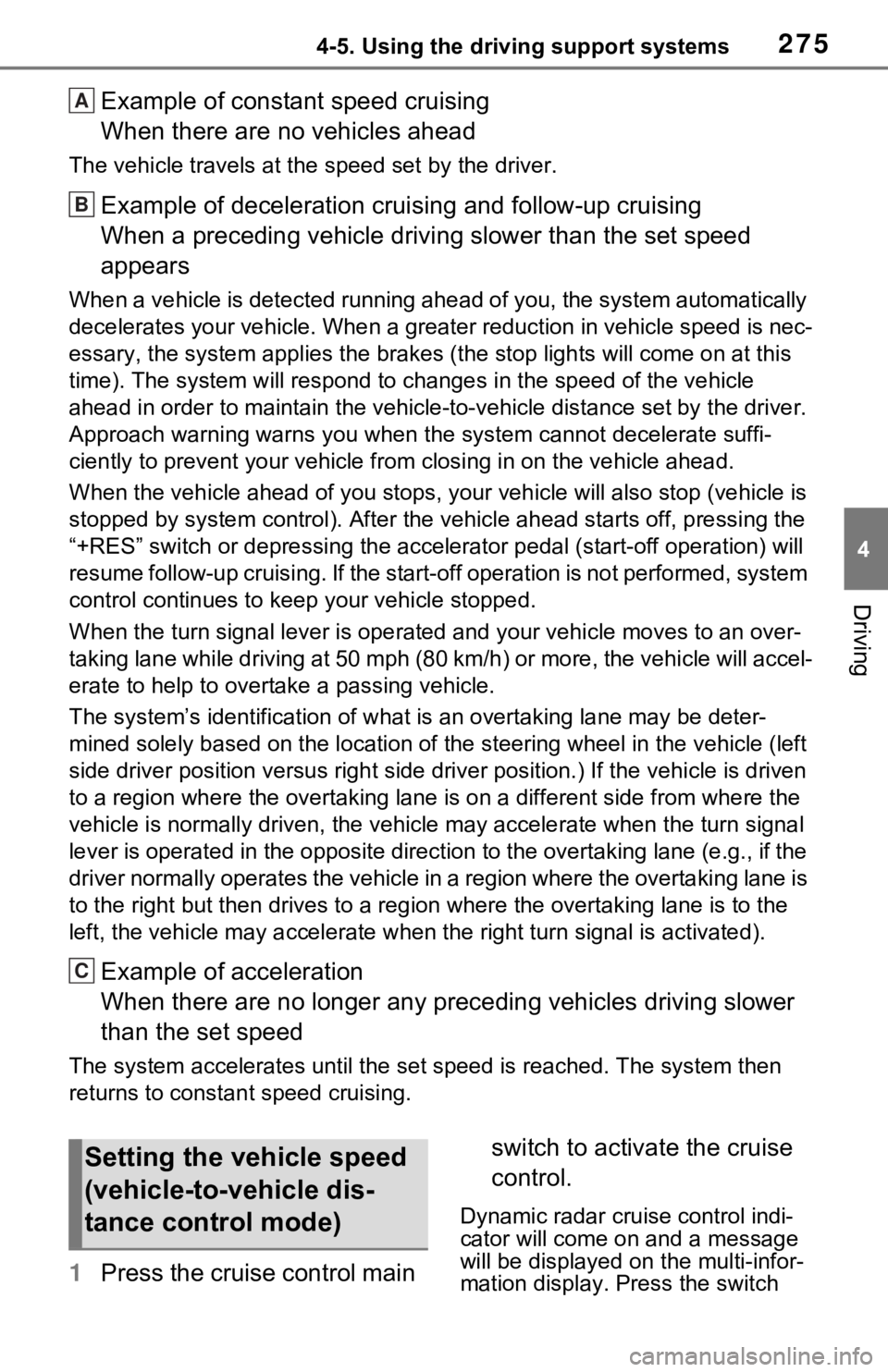
Example of constant speed cruising
When there are no vehicles ahead
The vehicle travels at the speed set by the driver.
Example of deceleration crui sing and follow-up cruising
When a preceding vehicle driving slower than the set speed
appears
When a vehicle is detected runni ng ahead of you, the system automatically
decelerates your vehicle. When a greater reduction in vehicle s peed is nec-
essary, the system applies the brakes (the stop lights will come on at this
time). The system will respond to changes i n the speed of the vehicle
ahead in order to maintain the ve hicle-to-vehicle distance set by the driver.
Approach warning warns you when the system cannot decelerate suffi-
ciently to prevent your vehicle from closing in on the vehicle ahead.
When the vehicle ahead of you st ops, your vehicle will also stop (vehicle is
stopped by system control). Afte r the vehicle ahead starts off, pressing the
“+RES” switch or depressing the accelerator pedal (start-off operation) will
resume follow-up cruising. If the start-off operation is not performed, system
control continues to keep your vehicle stopped.
When the turn signal lever is ope rated and your vehicle moves to an over-
taking lane while driving at 50 mph (80 km/h) or more, the vehi cle will accel-
erate to help to overt ake a passing vehicle.
The system’s identifi cation of what is an overtaking lane may be deter-
mined solely based on the location of the steering wheel in the vehicle (left
side driver position versus righ t side driver position.) If the vehicle is driven
to a region where the overtaking lane is on a different side fr om where the
vehicle is normally driven, the v ehicle may accelerate when the turn signal
lever is operated in the opposite direction to the overtaking l ane (e.g., if the
driver normally operates the vehicle in a region where the over taking lane is
to the right but then drives to a region where the overtaking l ane is to the
left, the vehicle may accelerate when the right turn signal is activated).
Example of acceleration
When there are no longer any preceding vehicles driving slower
than the set speed
The system accelerates until the set speed is reached. The system then
returns to constan t speed cruising.
1Press the cruise control main switch to activate the cruise
control.
Dynamic radar cruise control indi-
cator will come on and a message
will be displayed on
the multi-infor-
mation display. Press the switch
A
B
C
Setting the vehicle speed
(vehicle-to-vehicle dis-
tance control mode)
Page 283 of 752
2834-5. Using the driving support systems
4
Driving
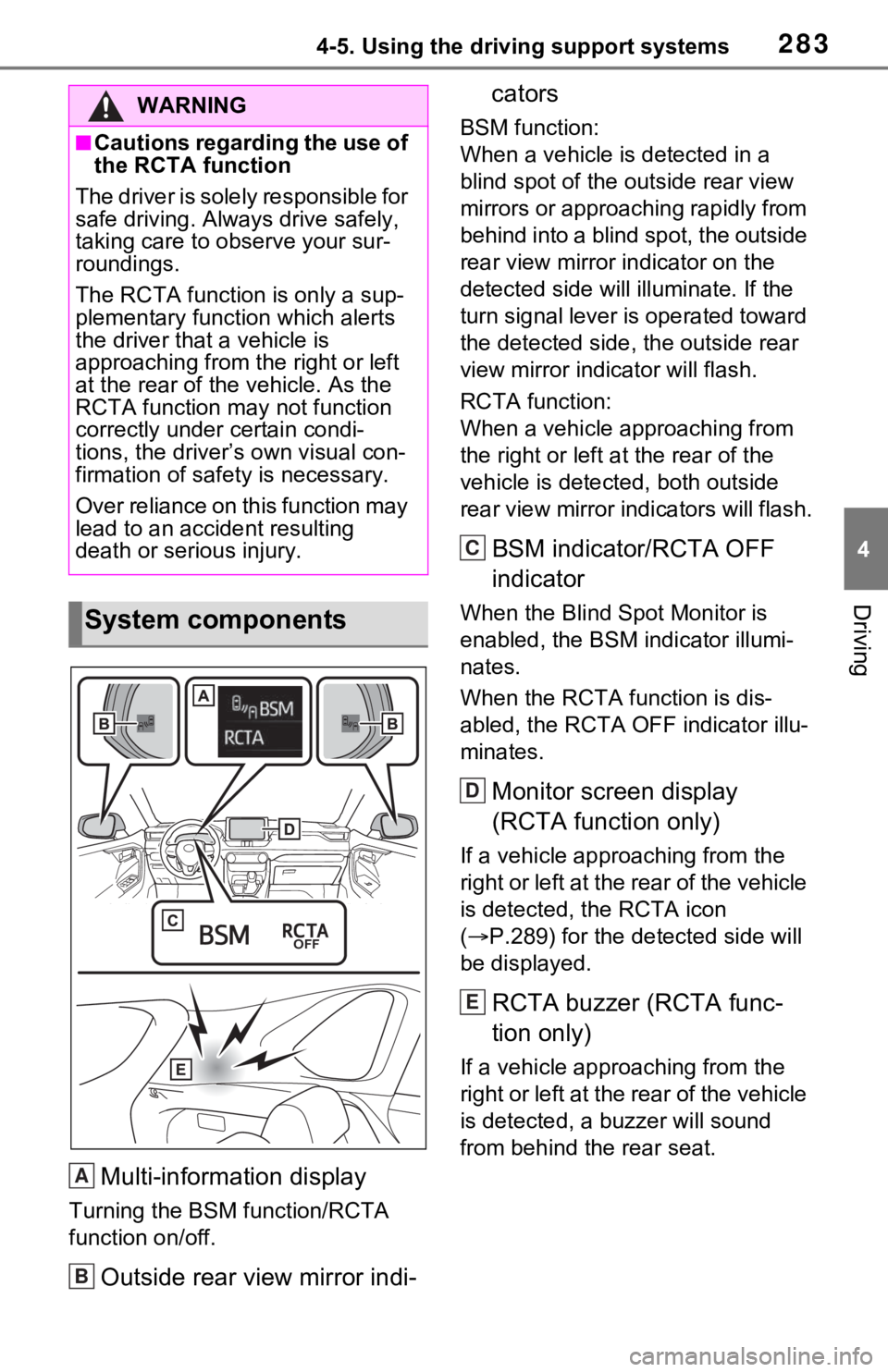
Multi-information display
Turning the BSM function/RCTA
function on/off.
Outside rear view mirror indi-cators
BSM function:
When a vehicle is detected in a
blind spot of the outside rear view
mirrors or approaching rapidly from
behind into a blind spot, the outside
rear view mirror indicator on the
detected side will illuminate. If the
turn signal lever is operated toward
the detected side, the outside rear
view mirror indicator will flash.
RCTA function:
When a vehicle approaching from
the right or left a
t the rear of the
vehicle is detected, both outside
rear view mirror indicators will flash.
BSM indicator/RCTA OFF
indicator
When the Blind Spot Monitor is
enabled, the BSM indicator illumi-
nates.
When the RCTA function is dis-
abled, the RCTA OFF indicator illu-
minates.
Monitor screen display
(RCTA function only)
If a vehicle approaching from the
right or left at the rear of the vehicle
is detected, the RCTA icon
( P.289) for the detected side will
be displayed.
RCTA buzzer (RCTA func-
tion only)
If a vehicle approaching from the
right or left at the rear of the vehicle
is detected, a buzzer will sound
from behind the rear seat.
WARNING
■Cautions regarding the use of
the RCTA function
The driver is solely responsible for
safe driving. Always drive safely,
taking care to o bserve your sur-
roundings.
The RCTA function is only a sup-
plementary function which alerts
the driver tha t a vehicle is
approaching from the right or left
at the rear of the vehicle. As the
RCTA function may not function
correctly under certain condi-
tions, the driver’s own visual con-
firmation of safety is necessary.
Over reliance on this function may
lead to an accident resulting
death or serious injury.
System components
A
B
C
D
E
Page 333 of 752
3334-5. Using the driving support systems
4
Driving
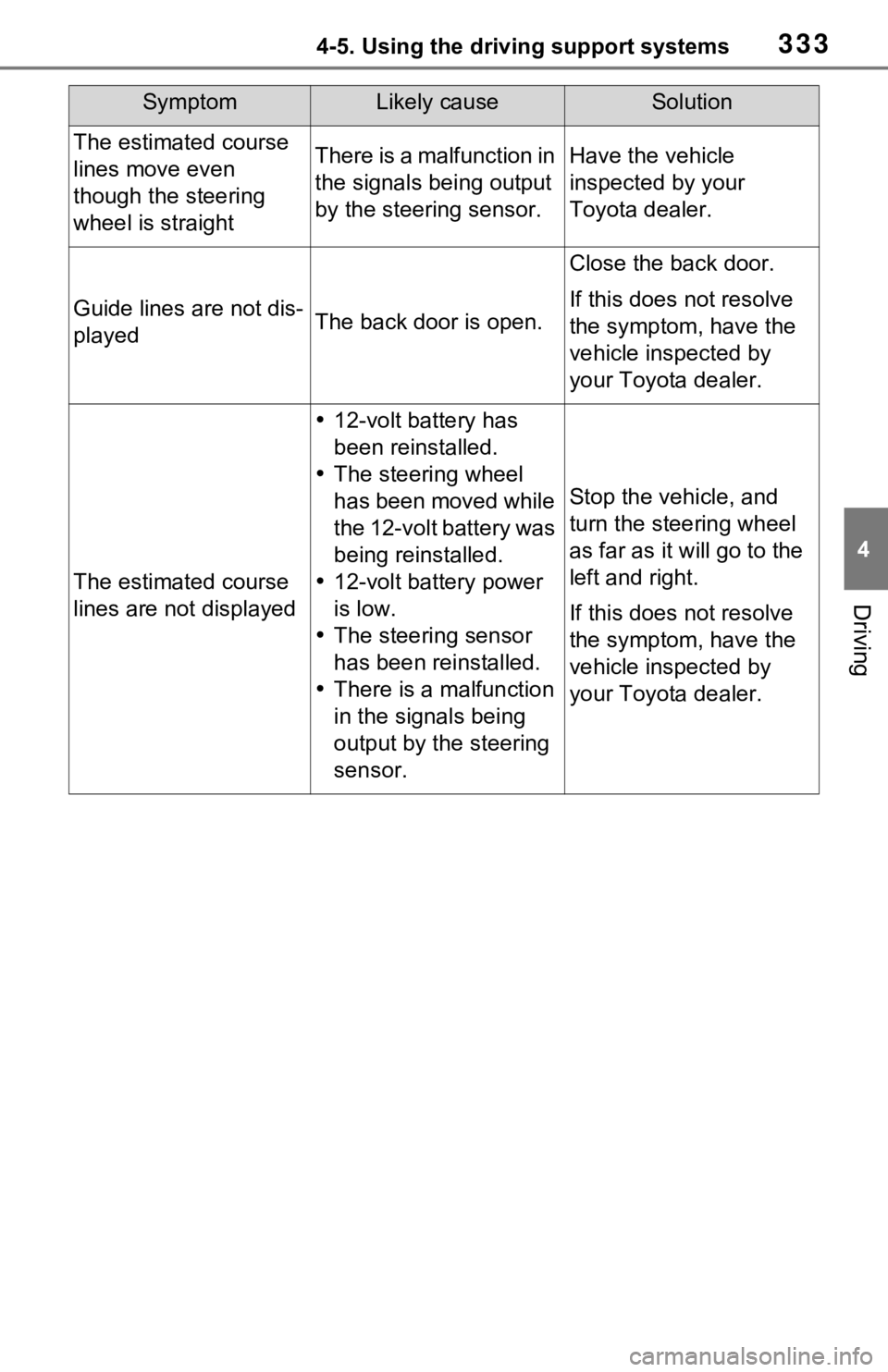
The estimated course
lines move even
though the steering
wheel is straightThere is a malfunction in
the signals being output
by the steering sensor.Have the vehicle
inspected by your
Toyota dealer.
Guide lines are not dis-
playedThe back door is open.
Close the back door.
If this does not resolve
the symptom, have the
vehicle inspected by
your Toyota dealer.
The estimated course
lines are not displayed
12-volt battery has
been reinstalled.
The steering wheel
has been moved while
the 12-volt battery was
being reinstalled.
12-volt battery power
is low.
The steering sensor
has been reinstalled.
There is a malfunction
in the signals being
output by the steering
sensor.
Stop the vehicle, and
turn the steering wheel
as far as it will go to the
left and right.
If this does not resolve
the symptom, have the
vehicle inspected by
your Toyota dealer.
SymptomLikely causeSolution
Page 441 of 752
4415-7. Radio operation
5
Audio●ABOUT SiriusXM Services
• Most in-car trials today include SiriusXM’s best package All
Access. It includes every channel
available on your radio, plus
streaming.
●SiriusXM All Access Subscription
• Listen everywhere with All Access. You get every channel
available in your ride, plus you can
listen on the app and online so
you can enjoy the best SiriusXM
has to offer, any where life takes
you. It’s the only package that
gives you all of our premium pro-
gramming, including Howard
Stern, every NFL, MLB
® and NBA
game, every NASCAR® race,
NHL® games, 24/7 talk channels
dedicated to the biggest leagues,
and more. You get all kinds of
commercial-free m usic, including
artist-dedicated channels and
more, plus sports, news, talk and
entertainment. Did you know? SiriusXM also
delivers a wide variety of services
to certain vehicle
s’ entertainment
and navigation systems such as
Traffic, Weather, Sports Scores,
Movie Listings, Fuel Prices, Stock
Prices and more . For a list of
available features in your vehicle,
visit siriusxm.com/infotainment
and get the most out of your driv-
ing experience.
●RADIO OPERATION
• Look for the Sirius, XM, SiriusXM, Band, SAT, AUX, Radio or Source
button and you’re in. If you can’t
hear us, it’s easy to get started:
Locate your Radio ID by turning to
Channel 0. If you don’t see your
number there, go to siri-
usxm.com/activationhelp to find it.
Visit siriusxm.com/refresh
or call
1-855-MYREFRESH (697-3373)
to send a refresh signal to your
radio.
Canadian Customers:
Locate your Radio ID by turning to
Channel 0.
Visit siriusxm.ca/refresh
to send a
refresh signal to your radio or call
1-888-539-7474 for service.
*: This function is not made avail-
able in some countries or areas.
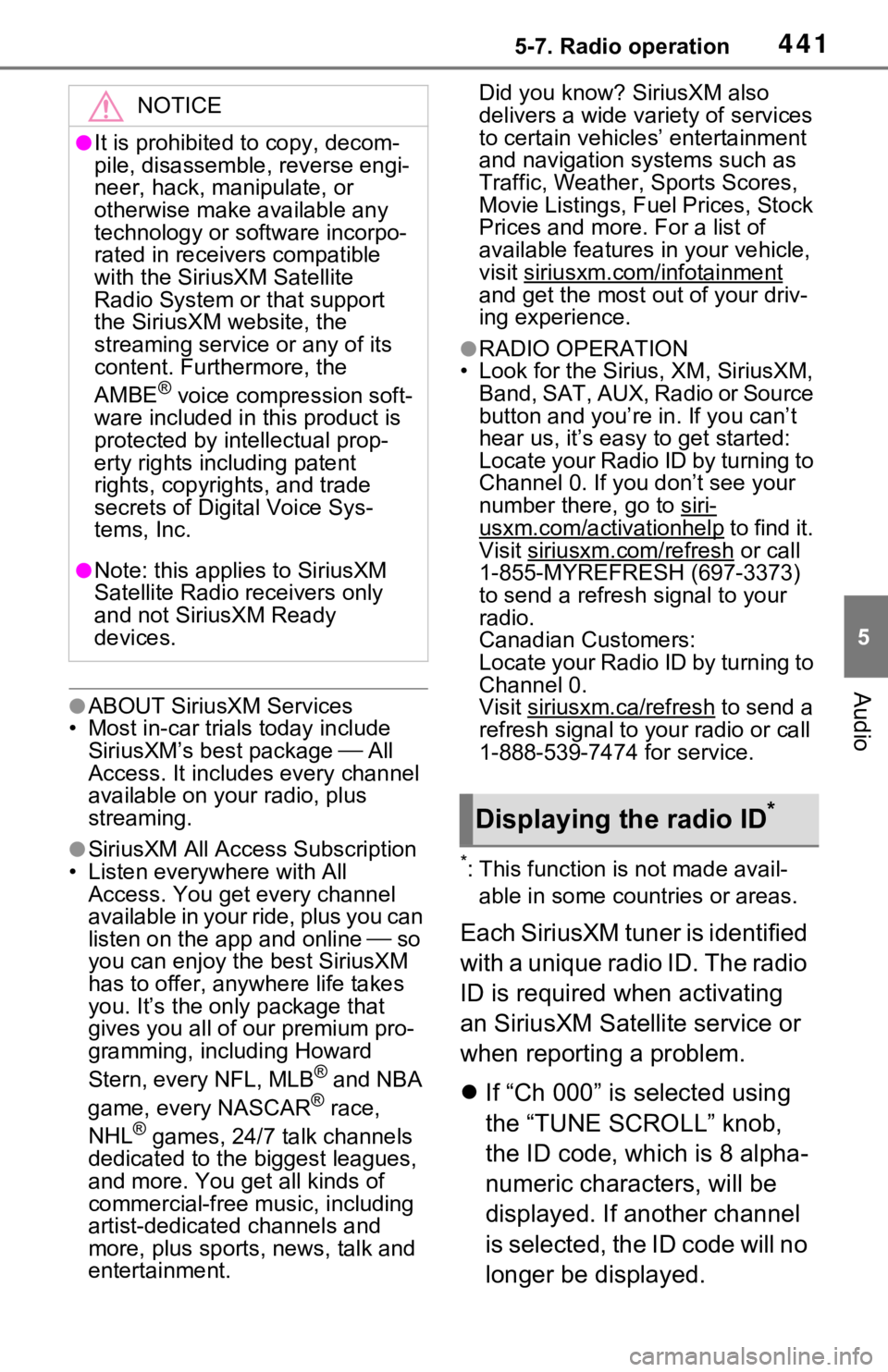
Each SiriusXM tuner is identified
with a unique radio ID. The radio
ID is required when activating
an SiriusXM Satel lite service or
when reporting a problem.
If “Ch 000” is selected using
the “TUNE SCROLL” knob,
the ID code, which is 8 alpha-
numeric characters, will be
displayed. If another channel
is selected, the ID code will no
longer be displayed.
NOTICE
●It is prohibited to copy, decom-
pile, disassemble , reverse engi-
neer, hack, manipulate, or
otherwise make available any
technology or software incorpo-
rated in receivers compatible
with the SiriusXM Satellite
Radio System or that support
the SiriusXM website, the
streaming service or any of its
content. Furthermore, the
AMBE
® voice compression soft-
ware included in this product is
protected by intellectual prop-
erty rights including patent
rights, copyright s, and trade
secrets of Digital Voice Sys-
tems, Inc.
●Note: this applies to SiriusXM
Satellite Radio receivers only
and not SiriusXM Ready
devices.
Displaying the radio ID*
Page 442 of 752
4425-7. Radio operation
*: This function is not made avail-able in some countries or areas.
Up to 20 channels can be regis-
tered as presets in the cache.
For channel registration, refer to
( P.456).
1 Select channels registered to
smart favorites.
2 Select “SXM Replay”.
●Caches up to 30 minutes for each
Smart Favorite preset.
●The radio plays the track from
start when that track has not previ-
ously been heard by the user and
the station is registered as a smart
favorite.
●When “SXM Tune Start” is turned
on ( P.439), the current song is
played from the beginning when
you select the channel.
●Displays icons on the channels
registered to smart favorites.
( P.437)
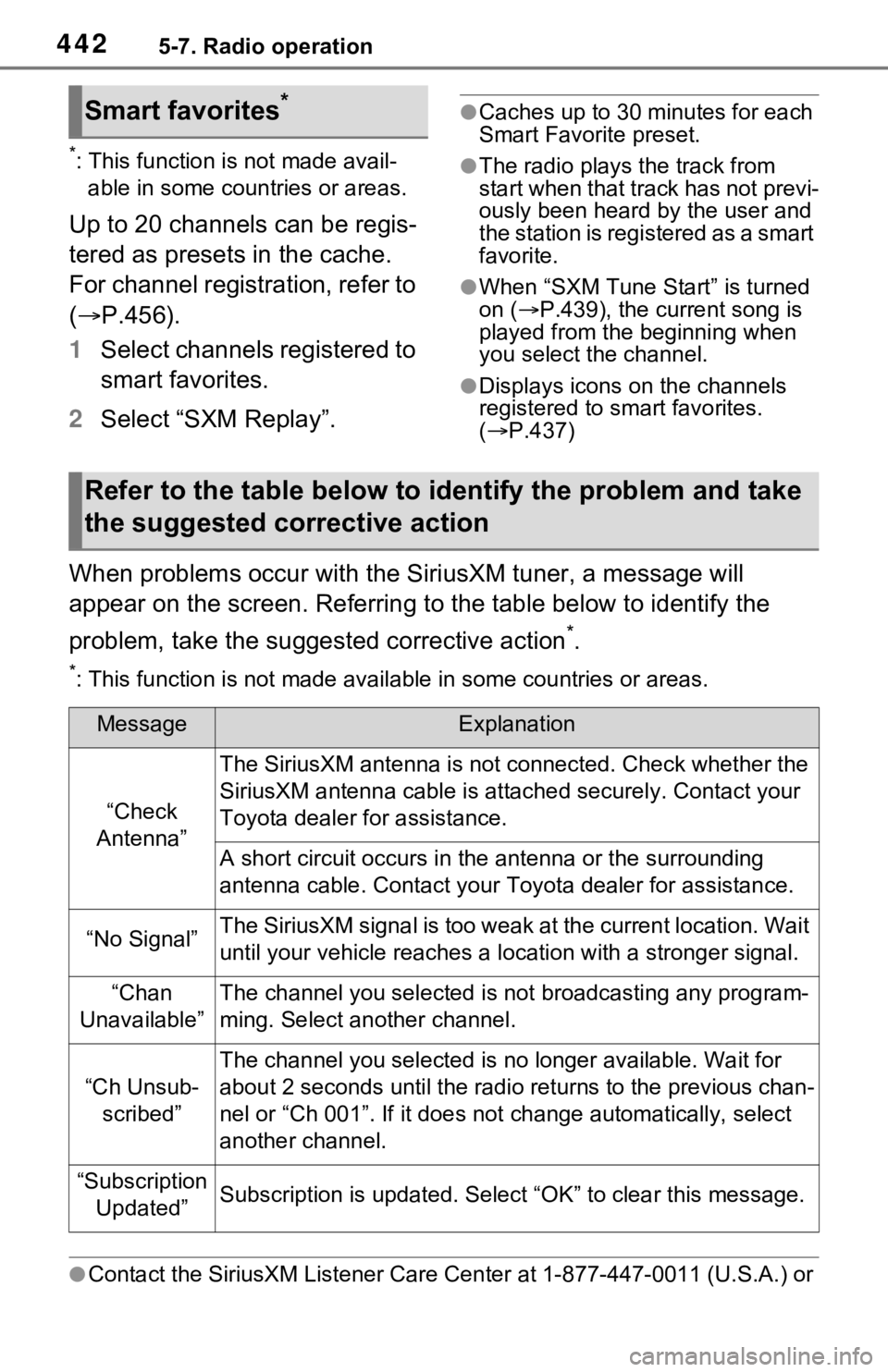
When problems occur with the Si riusXM tuner, a message will
appear on the screen. Referring to the table below to identify the
problem, take the suggested corrective action
*.
*: This function is not made availa ble in some countries or areas.
●Contact the SiriusXM Listener Ca re Center at 1-877-447-0011 (U.S.A.) or
Smart favorites*
Refer to the table below to identify the problem and take
the suggested corrective action
MessageExplanation
“Check
Antenna”
The SiriusXM antenna is not c onnected. Check whether the
SiriusXM antenna cable is atta ched securely. Contact your
Toyota dealer fo r assistance.
A short circuit occurs in the antenna or the surrounding
antenna cable. Contact your T oyota dealer for assistance.
“No Signal”The SiriusXM signal is too weak at the current location. Wait
until your vehicle reaches a l ocation with a stronger signal.
“Chan
Unavailable”The channel you selected is not broadcasting any program-
ming. Select another channel.
“Ch Unsub- scribed”
The channel you selected is no longer available. Wait for
about 2 seconds until the radio returns to the previous chan-
nel or “Ch 001”. If i t does not change automatically, select
another channel.
“Subscription Updated”Subscription is updated. Select “OK” to clear this message.
Page 624 of 752
6247-3. Do-it-yourself maintenance
Check the wattage of the light
bulb to be replaced. ( P.692)
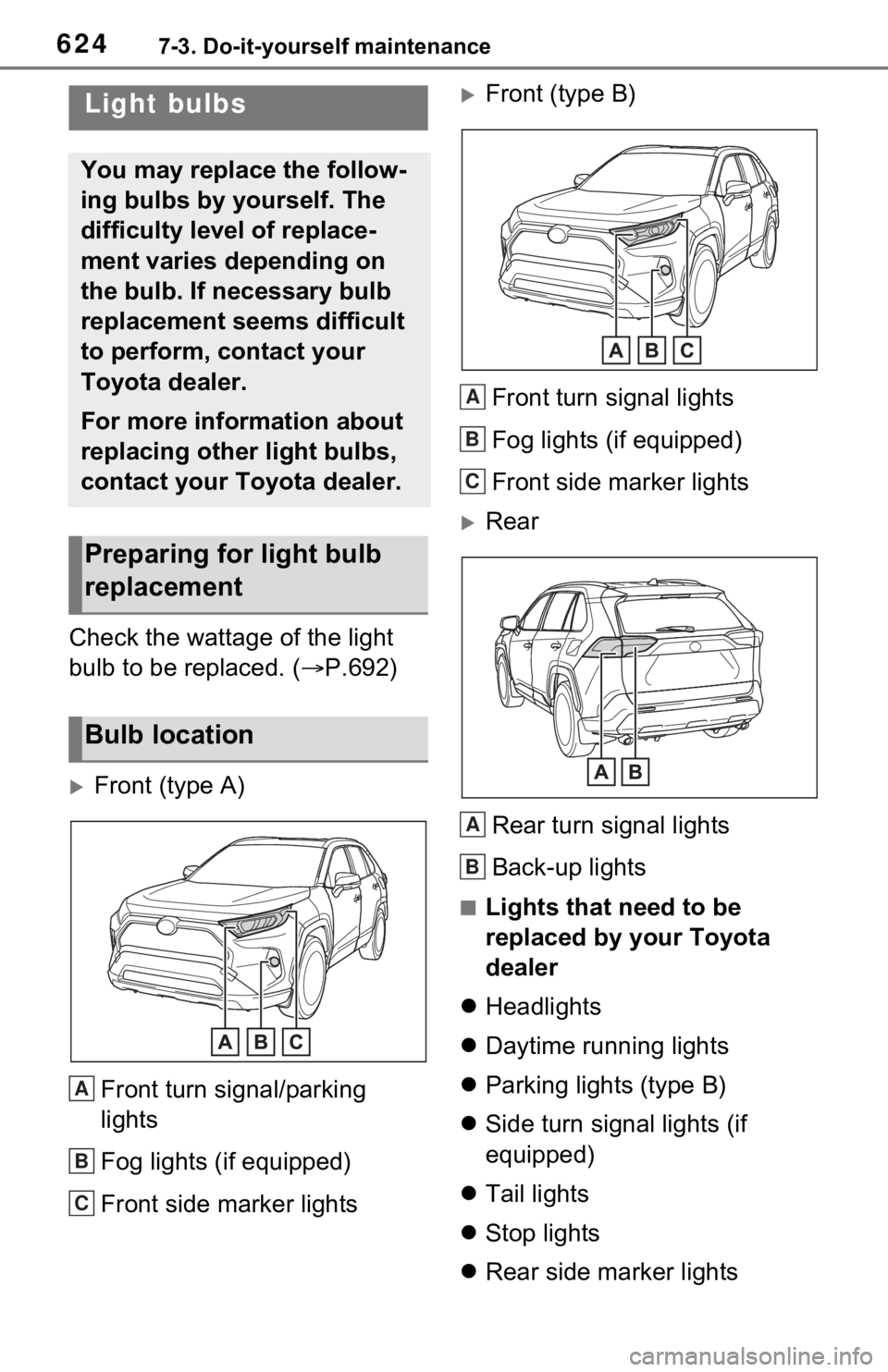
Front (type A)
Front turn signal/parking
lights
Fog lights (if equipped)
Front side marker lights
Front (type B)Front turn signal lights
Fog lights (if equipped)
Front side marker lights
RearRear turn signal lights
Back-up lights
■Lights that need to be
replaced by your Toyota
dealer
Headlights
Daytime running lights
Parking lights (type B)
Side turn signal lights (if
equipped)
Tail lights
Stop lights
Rear side marker lights
Light bulbs
You may replace the follow-
ing bulbs by yourself. The
difficulty level of replace-
ment varies depending on
the bulb. If necessary bulb
replacement seems difficult
to perform, contact your
Toyota dealer.
For more information about
replacing other light bulbs,
contact your Toyota dealer.
Preparing for light bulb
replacement
Bulb location
A
B
C
A
B
C
A
B
Page 625 of 752
6257-3. Do-it-yourself maintenance
7
Maintenance and care
High mounted stoplight
License plate lights
Outer foot lights (if equipped)
■LED lights
The lights other than the following
lights each consist of a number of
LEDs. If any of the LEDs burn out,
take your vehicle to your Toyota
dealer to have the light replaced.
●Front turn signal lights
●Parking lights (type A)
●Front side marker lights
●Fog lights (if equipped)
●Rear turn signal lights
●Back-up lights
■Condensation build-up on the
inside of the lens
Temporary condensation build-up
on the inside of the light lens does
not indicate a malfunction. Contact
your Toyota dealer for more infor-
mation in the following situations:
●Large drops of water have built up
on the inside of the lens.
●Water has built up inside the light.
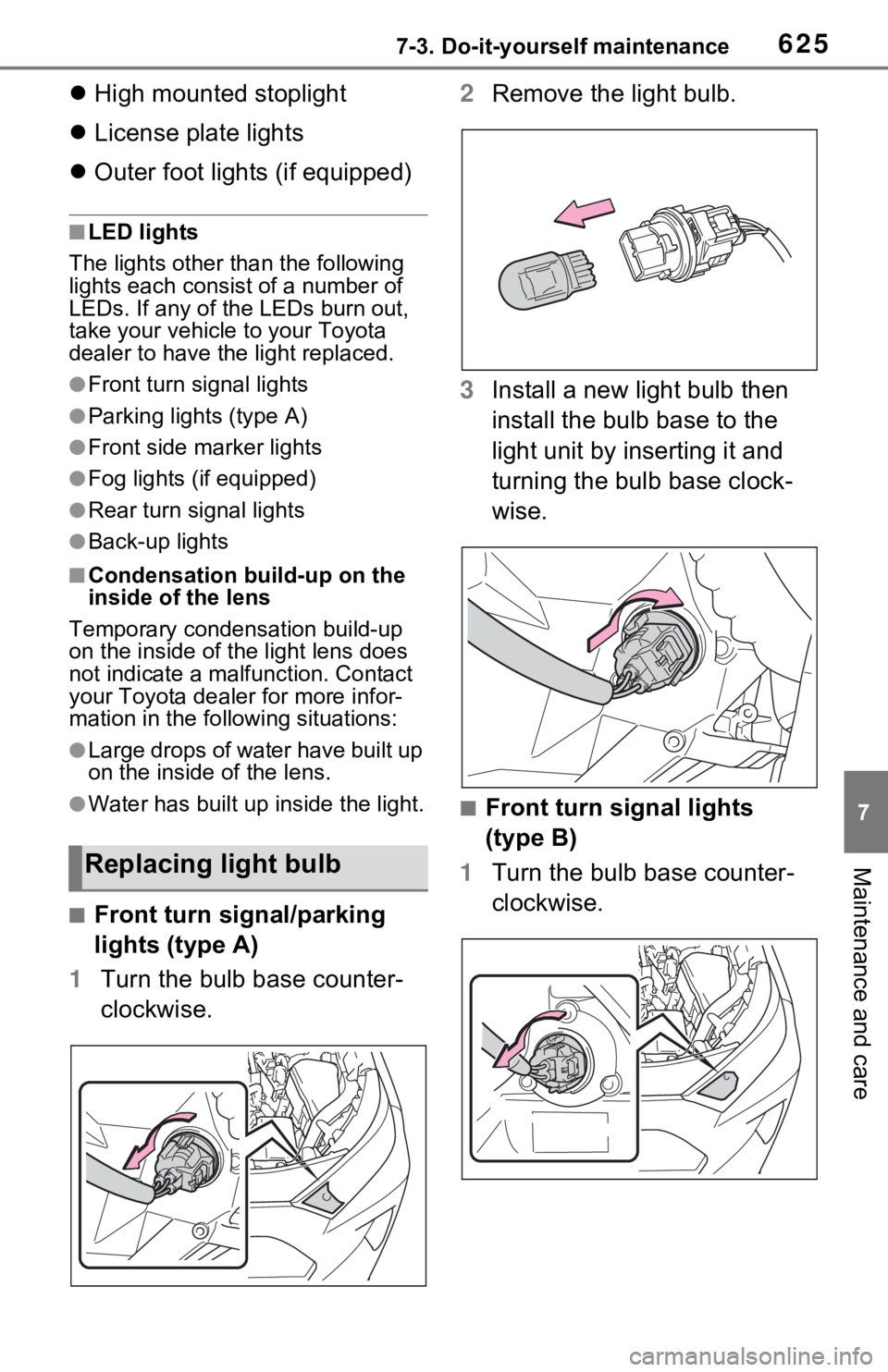
■Front turn signal/parking
lights (type A)
1 Turn the bulb base counter-
clockwise. 2
Remove the light bulb.
3 Install a new light bulb then
install the bulb base to the
light unit by inserting it and
turning the bulb base clock-
wise.
■Front turn signal lights
(type B)
1 Turn the bulb base counter-
clockwise.
Replacing light bulb
Page 628 of 752
6287-3. Do-it-yourself maintenance
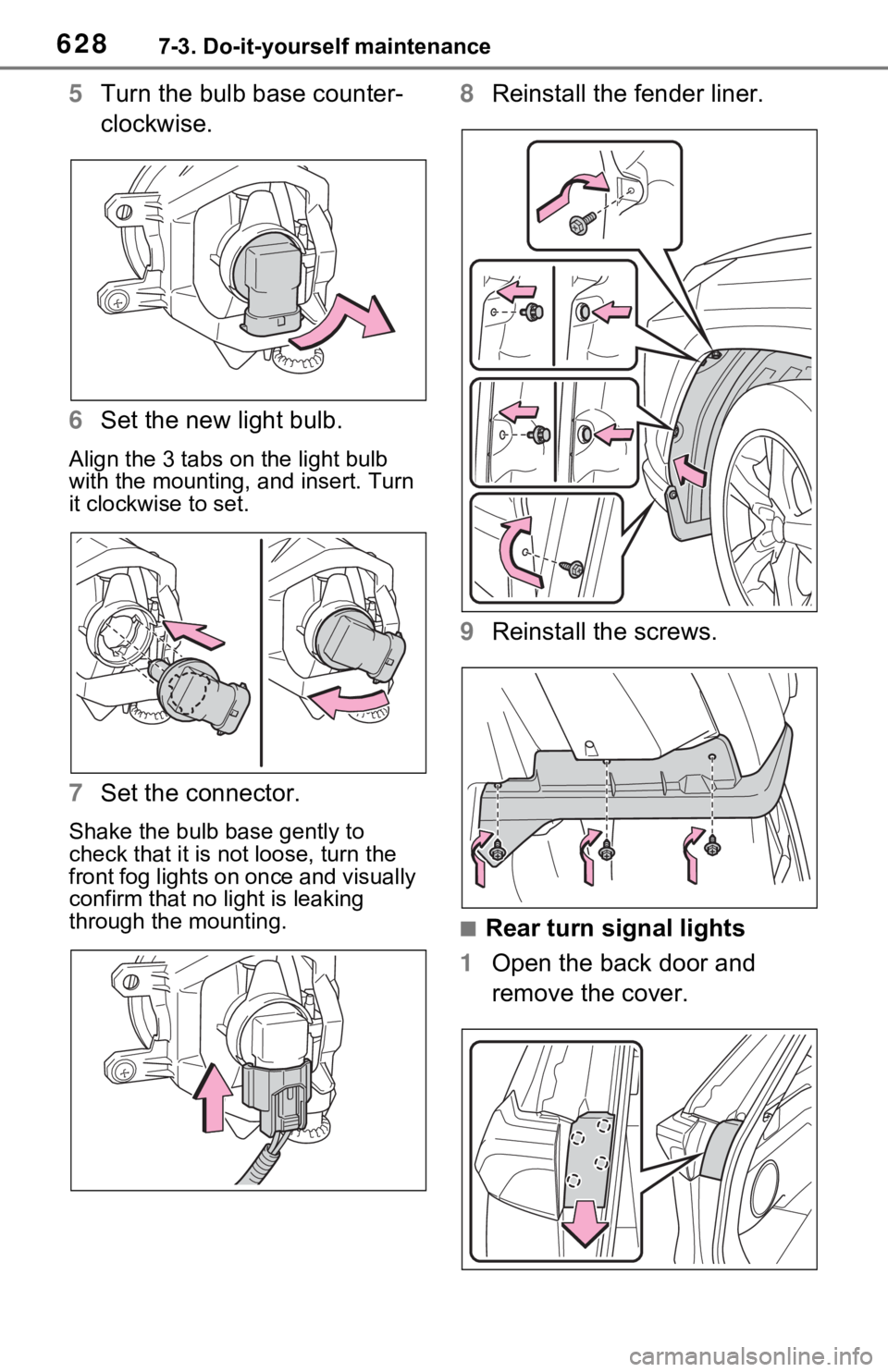
5Turn the bulb base counter-
clockwise.
6 Set the new light bulb.
Align the 3 tabs on the light bulb
with the mounting, and insert. Turn
it clockwise to set.
7 Set the connector.
Shake the bulb base gently to
check that it is not loose, turn the
front fog lights on once and visually
confirm that no light is leaking
through the mounting.
8Reinstall the fender liner.
9 Reinstall the screws.
■Rear turn signal lights
1 Open the back door and
remove the cover.