warning TOYOTA RAV4 PRIME 2021 Manual PDF
[x] Cancel search | Manufacturer: TOYOTA, Model Year: 2021, Model line: RAV4 PRIME, Model: TOYOTA RAV4 PRIME 2021Pages: 618, PDF Size: 24.18 MB
Page 166 of 618
1663-1. Instrument cluster
When the gauge is in the green zone, EV driving is possible. When the
gauge is in the blue zone, EV driving is no longer possible (in this situation,
the vehicle switches to HV mode) . Charge the hybrid battery (traction bat-
tery) to allow EV driving.
Odometer and trip meter
Odometer:
Displays the total distance th at the vehicle has been driven
Trip meter:
Displays the distance the vehicle has been driven since the meter was last
reset. Trip meters “A” and “B” c an be used to record and display different
distances independently.
Outside temperature ( P.168)
Multi-information display
Presents the driver with a variety of driving-related data ( P.170)
Displays warning messages if a malfunction occurs (P.523)
Shift position and shift range indicator
Displays the selected shift posit ion or selected shift range (P.285)
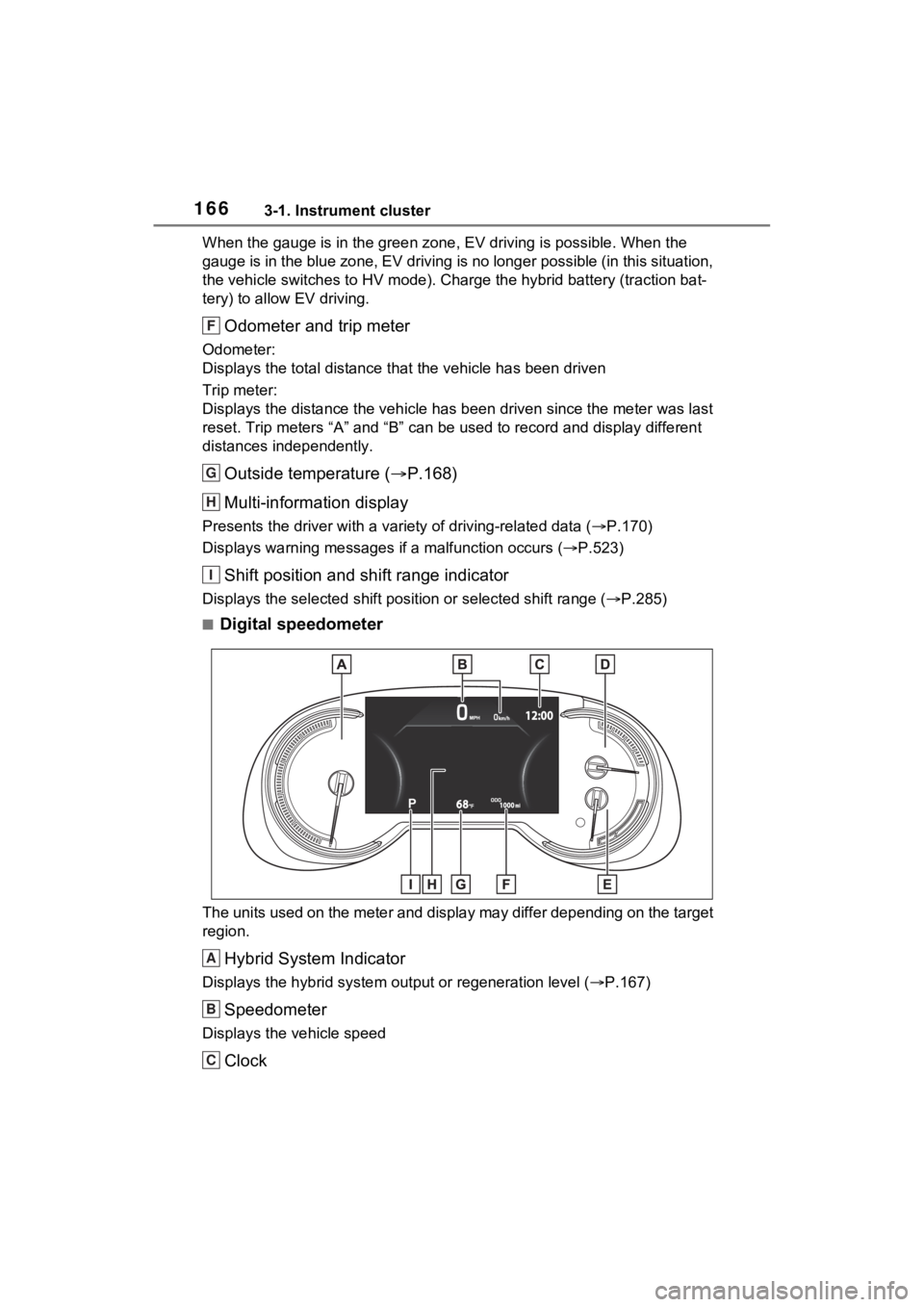
■Digital speedometer
The units used on the meter and display may differ depending on the target
region.
Hybrid System Indicator
Displays the hybrid system output or regeneration level ( P.167)
Speedometer
Displays the vehicle speed
Clock
F
G
H
I
A
B
C
Page 167 of 618
1673-1. Instrument cluster
3
Vehicle status information and indicators
Automatically adjusts the time by using the GPS time information (GPS
clock).
For details, refer to “Navigation and Multimedia System Owner’s Manual” or
“Multimedia Owner’s Manual”.
Fuel gauge
Displays the quantity of fu el remaining in the tank
SOC (State of Charge) gauge
Displays the amount of charge rem aining in the traction battery.
When the gauge is in the green zo ne, EV driving is possible. When the
gauge is in the blue zone, EV driving is no longer possible (in this situation,
the vehicle switches to HV mode) . Charge the hybrid battery (traction bat-
tery) to allow EV driving.
Odometer and trip meter
Odometer:
Displays the total distance th at the vehicle has been driven
Trip meter:
Displays the distance the vehicle has been driven since the meter was last
reset. Trip meters “A” and “B” c an be used to record and display different
distances independently.
Outside temperature ( P.168)
Multi-information display
Presents the driver with a variety of driving-related data ( P.170)
Displays warning messages if a malfunction occurs (P.523)
Shift position and shift range indicator
Displays the selected shift posit ion or selected shift range (P.285)
■The meters and display illumi-
nate when
The power swit ch is in ON.
■When changing driving mode
Speedometer color is changed fol-
lowing the selected driving mode or
when Trail Mode is turned on.
( P.377, 379)
■Hybrid System Indicator
The display content s of the Hybrid
System Indicator are different in EV
mode and HV mode.
D
E
F
G
H
I
Page 169 of 618
1693-1. Instrument cluster
3
Vehicle status information and indicators
●Displays the outside temperature
within the range of -40°F (-40°C)
to 122°F (50°C).
●When the outside temperature is
approximately 37°F (3°C) or
lower, the indicator will flash
for approximately 10 seconds,
then stay on.
■Liquid crystal display
P.171
■Customization
Settings (e. g. meter display) can be
changed on the screen of the
multi-informat ion display. ( P.177)
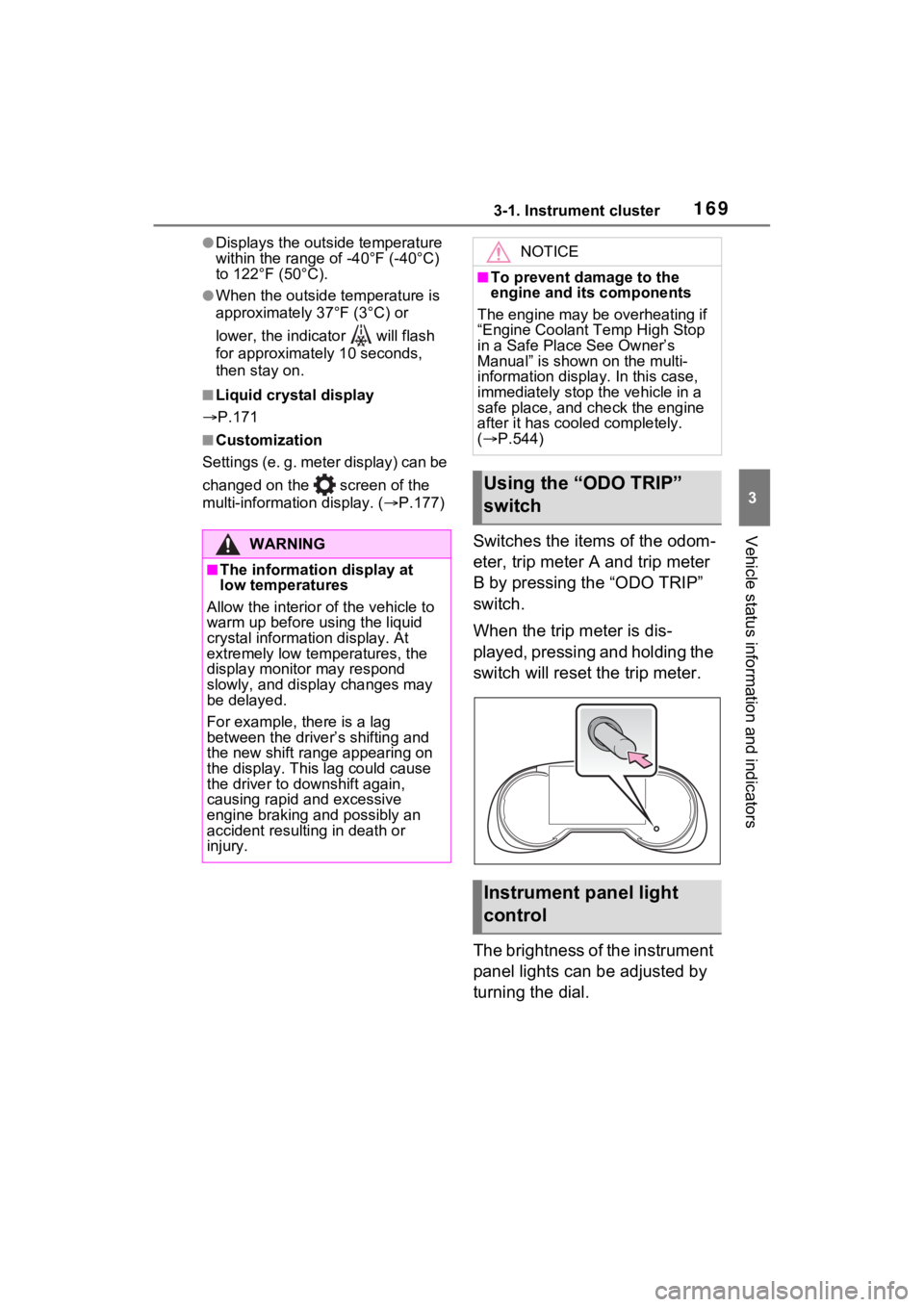
Switches the items of the odom-
eter, trip meter A and trip meter
B by pressing the “ODO TRIP”
switch.
When the trip meter is dis-
played, pressing and holding the
switch will reset the trip meter.
The brightness of the instrument
panel lights can be adjusted by
turning the dial.WARNING
■The information display at
low temperatures
Allow the interior of the vehicle to
warm up before u sing the liquid
crystal informat ion display. At
extremely low temperatures, the
display monitor may respond
slowly, and display changes may
be delayed.
For example, there is a lag
between the driver’s shifting and
the new shift range appearing on
the display. This lag could cause
the driver to downshift again,
causing rapid and excessive
engine braking and possibly an
accident resulting in death or
injury.
NOTICE
■To prevent damage to the
engine and its components
The engine may be overheating if
“Engine Coolant Temp High Stop
in a Safe Place See Owner’s
Manual” is shown on the multi-
information displa y. In this case,
immediately stop the vehicle in a
safe place, and c heck the engine
after it has cooled completely.
( P.544)
Using the “ODO TRIP”
switch
Instrument panel light
control
Page 171 of 618
1713-1. Instrument cluster
3
Vehicle status information and indicators
Information display area
A variety of information can be dis-
played by selecting a menu icon.
Additionally, warning or sugges-
tion/advice pop-up displays will be
displayed in some situations.
Menu icons ( P.171)
■The multi-information display is
displayed when
The power swit ch is in ON.
■When changing driving mode
Background color of the multi-infor-
mation display is changed following
the selected drivi ng mode or when
Trail Mode is turned on. ( P.377,
379)
■Liquid crystal display
Small spots or light spots may
appear on the display. This phe-
nomenon is character istic of liquid
crystal displays, and there is no
problem continuing to use the dis-
play.
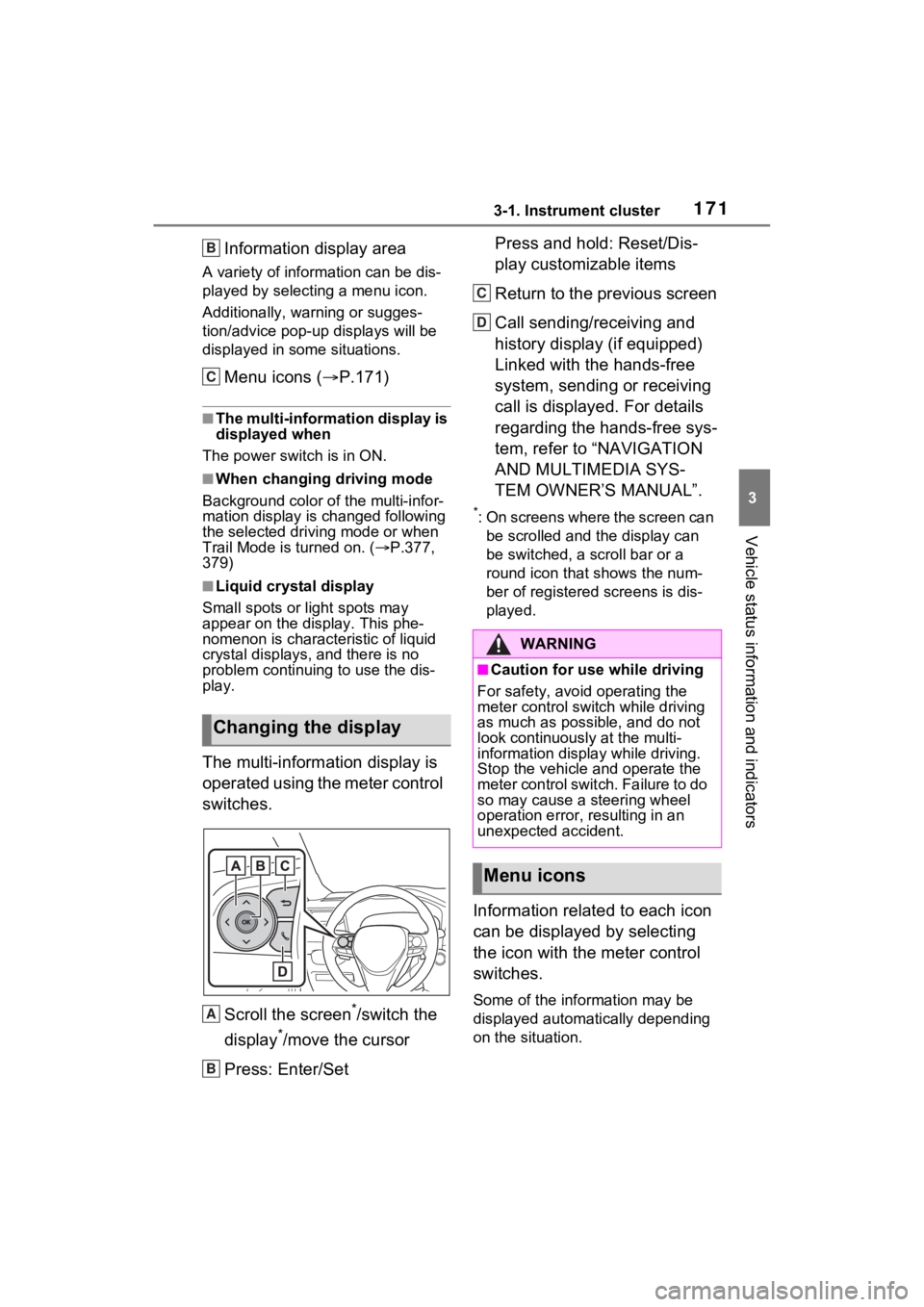
The multi-information display is
operated using the meter control
switches.
Scroll the screen
*/switch the
display
*/move the cursor
Press: Enter/Set Press and hold: Reset/Dis-
play customizable items
Return to the previous screen
Call sending/receiving and
history display (if equipped)
Linked with the hands-free
system, sending or receiving
call is displayed. For details
regarding the hands-free sys-
tem, refer to “NAVIGATION
AND MULTIMEDIA SYS-
TEM OWNER’S MANUAL”.
*: On screens where the screen can
be scrolled and the display can
be switched, a scroll bar or a
round icon that shows the num-
ber of registered screens is dis-
played.
Information related to each icon
can be displayed by selecting
the icon with the meter control
switches.
Some of the information may be
displayed automatically depending
on the situation.
Changing the display
B
C
A
B
:$51,1*
■Caution for use while driving
For safety, avoid operating the
meter control switch while driving
as much as possible, and do not
look continuously at the multi-
information displa y while driving.
Stop the vehicle and operate the
meter control swit ch. Failure to do
so may cause a steering wheel
operation error, resulting in an
unexpected accident.
Menu icons
C
D
Page 172 of 618
1723-1. Instrument cluster
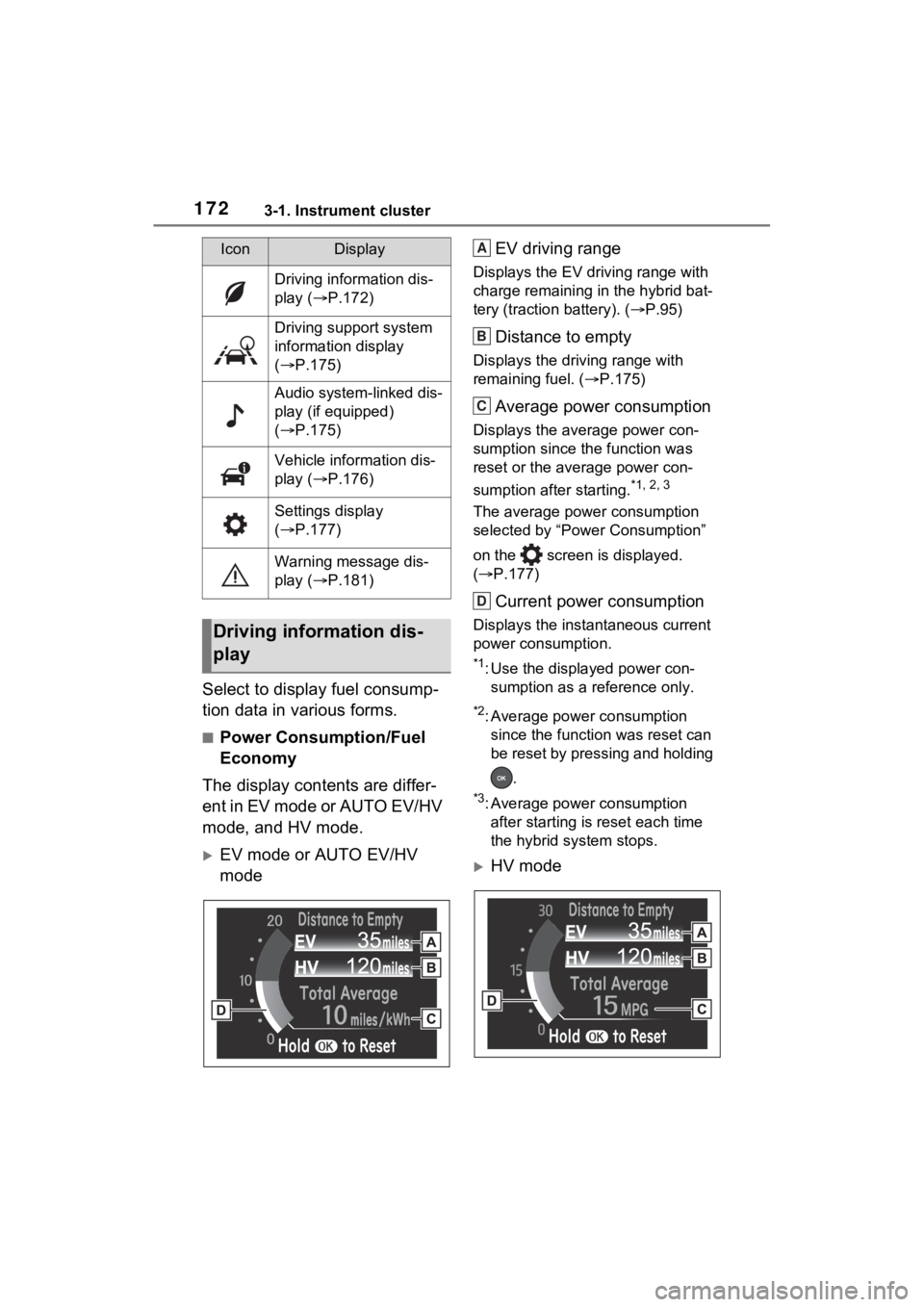
Select to display fuel consump-
tion data in various forms.
■Power Consumption/Fuel
Economy
The display contents are differ-
ent in EV mode or AUTO EV/HV
mode, and HV mode.
EV mode or AUTO EV/HV
mode EV driving range
Displays the EV driving range with
charge remaining in the hybrid bat-
tery (traction
battery). (P.95)
Distance to empty
Displays the driving range with
remaining fuel. ( P.175)
Average power consumption
Displays the average power con-
sumption since the function was
reset or the average power con-
sumption after starting.
*1, 2, 3
The average power consumption
selected by “Power Consumption”
on the screen is displayed.
( P.177)
Current power consumption
Displays the instantaneous current
power consumption.
*1: Use the displayed power con-
sumption as a reference only.
*2: Average power consumption since the function was reset can
be reset by pressing and holding
.
*3: Average power consumption after starting is reset each time
the hybrid system stops.
HV mode
IconDisplay
Driving information dis-
play ( P.172)
Driving support system
information display
( P.175)
Audio system-linked dis-
play (if equipped)
( P.175)
Vehicle information dis-
play ( P.176)
Settings display
( P.177)
Warning message dis-
play ( P.181)
Driving information dis-
play
A
B
C
D
Page 177 of 618
1773-1. Instrument cluster
3
Vehicle status information and indicators
*: This item is displayed only when driving mode is set to sport mode.
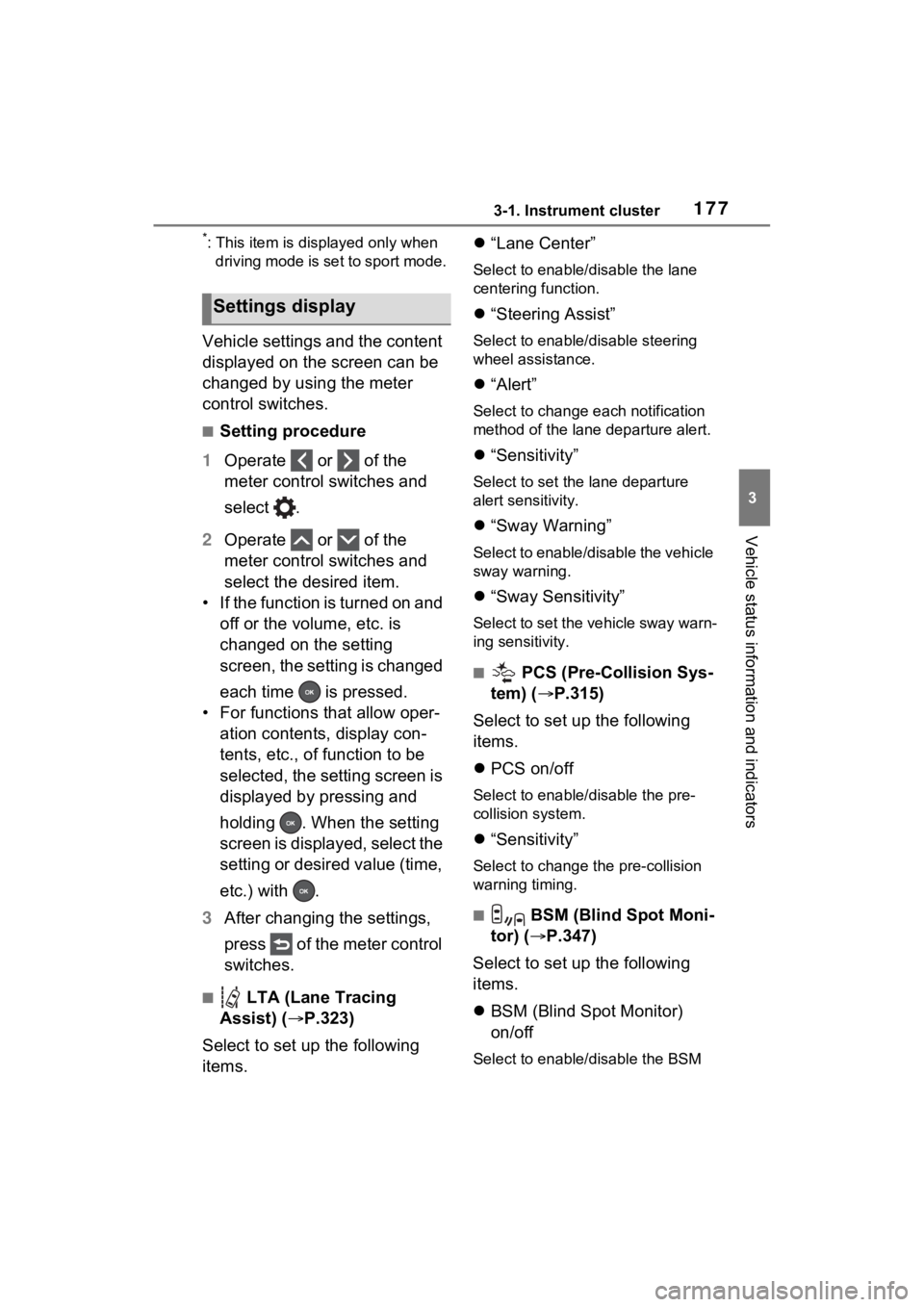
Vehicle settings and the content
displayed on the screen can be
changed by using the meter
control switches.
■Setting procedure
1 Operate or of the
meter control switches and
select .
2 Operate or of the
meter control switches and
select the desired item.
• If the function is turned on and off or the volume, etc. is
changed on the setting
screen, the setting is changed
each time is pressed.
• For functions that allow oper- ation contents, display con-
tents, etc., of function to be
selected, the setting screen is
displayed by pressing and
holding . When the setting
screen is displayed, select the
setting or desired value (time,
etc.) with .
3 After changing the settings,
press of the meter control
switches.
■ LTA (Lane Tracing
Assist) ( P.323)
Select to set up the following
items.
“Lane Center”
Select to enable /disable the lane
centering function.
“Steering Assist”
Select to enable/d isable steering
wheel assistance.
“Alert”
Select to change each notification
method of the lane departure alert.
“Sensitivity”
Select to set the lane departure
alert sensitivity.
“Sway Warning”
Select to enable/disable the vehicle
sway warning.
“Sway Sensitivity”
Select to set the vehicle sway warn-
ing sensitivity.
■ PCS (Pre-Collision Sys-
tem) ( P.315)
Select to set up the following
items.
PCS on/off
Select to enable/disable the pre-
collision system.
“Sensitivity”
Select to change the pre-collision
warning timing.
■ BSM (Blind Spot Moni-
tor) ( P.347)
Select to set up the following
items.
BSM (Blind Spot Monitor)
on/off
Select to enable/disable the BSM
Settings display
Page 179 of 618
1793-1. Instrument cluster
3
Vehicle status information and indicators
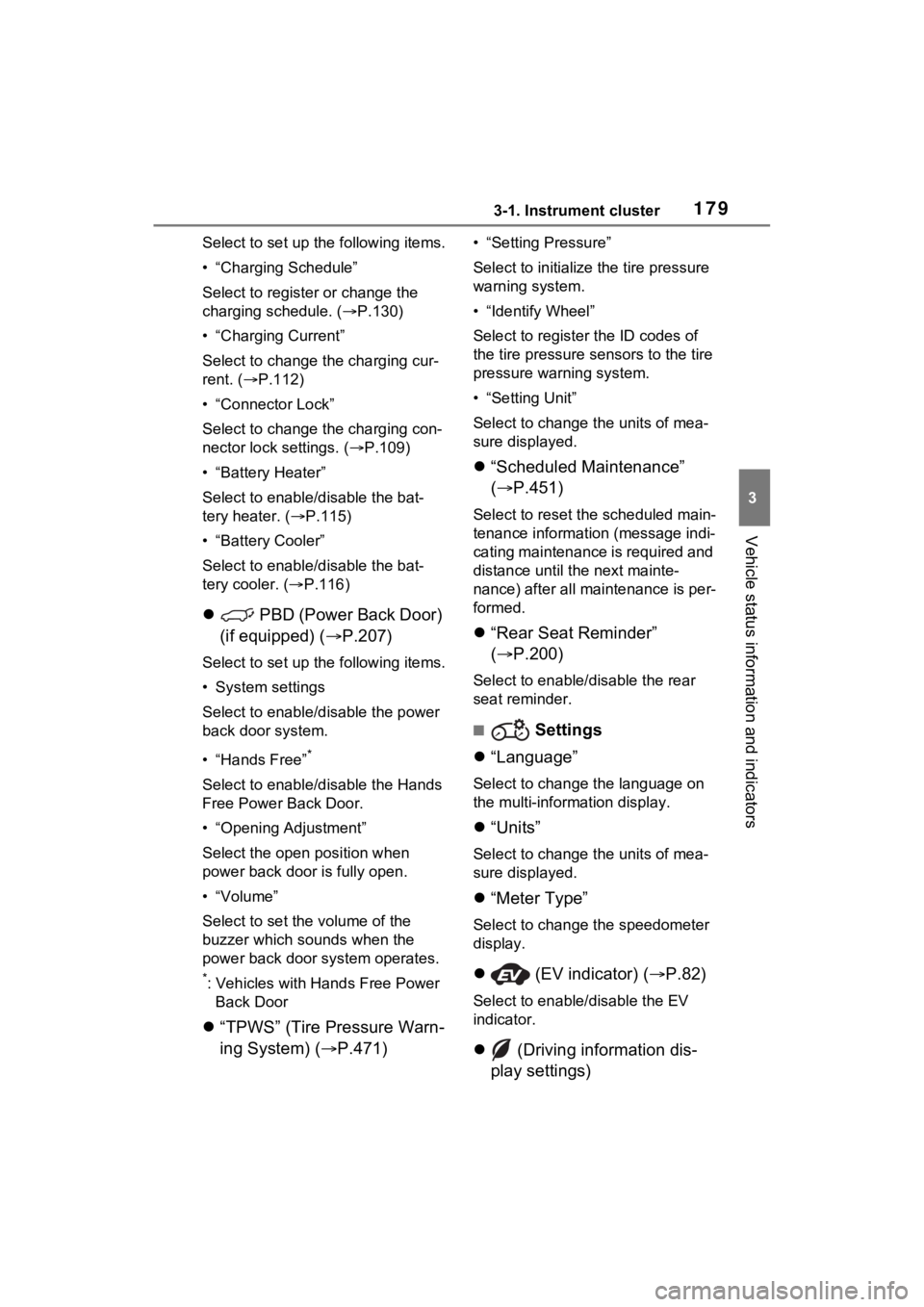
Select to set up the following items.
• “Charging Schedule”
Select to register or change the
charging schedule. ( P.130)
• “Charging Current”
Select to change the charging cur-
rent. ( P.112)
• “Connector Lock”
Select to change the charging con-
nector lock settings. ( P.109)
• “Battery Heater”
Select to enable/disable the bat-
tery heater. ( P.115)
• “Battery Cooler”
Select to enable/disable the bat-
tery cooler. ( P.116)
PBD (Power Back Door)
(if equipped) ( P.207)
Select to set up the following items.
• System settings
Select to enable/disable the power
back door system.
• “Hands Free”
*
Select to enable/disable the Hands
Free Power Back Door.
• “Opening Adjustment”
Select the open position when
power back door is fully open.
•“Volume”
Select to set the volume of the
buzzer which sounds when the
power back door system operates.
*: Vehicles with Hands Free Power
Back Door
“TPWS” (Tire Pressure Warn-
ing System) ( P.471)
• “Setting Pressure”
Select to initialize the tire pressure
warning system.
• “Identify Wheel”
Select to register the ID codes of
the tire pressure se nsors to the tire
pressure warning system.
• “Setting Unit”
Select to change the units of mea-
sure displayed.
“Scheduled Maintenance”
( P.451)
Select to reset the scheduled main-
tenance information (message indi-
cating maintenance is required and
distance until the next mainte-
nance) after all ma intenance is per-
formed.
“Rear Seat Reminder”
( P.200)
Select to enable/disable the rear
seat reminder.
■ Settings
“Language”
Select to change the language on
the multi-information display.
“Units”
Select to change the units of mea-
sure displayed.
“Meter Type”
Select to change the speedometer
display.
(EV indicator) ( P.82)
Select to enable/disable the EV
indicator.
(Driving information dis-
play settings)
Page 180 of 618
1803-1. Instrument cluster
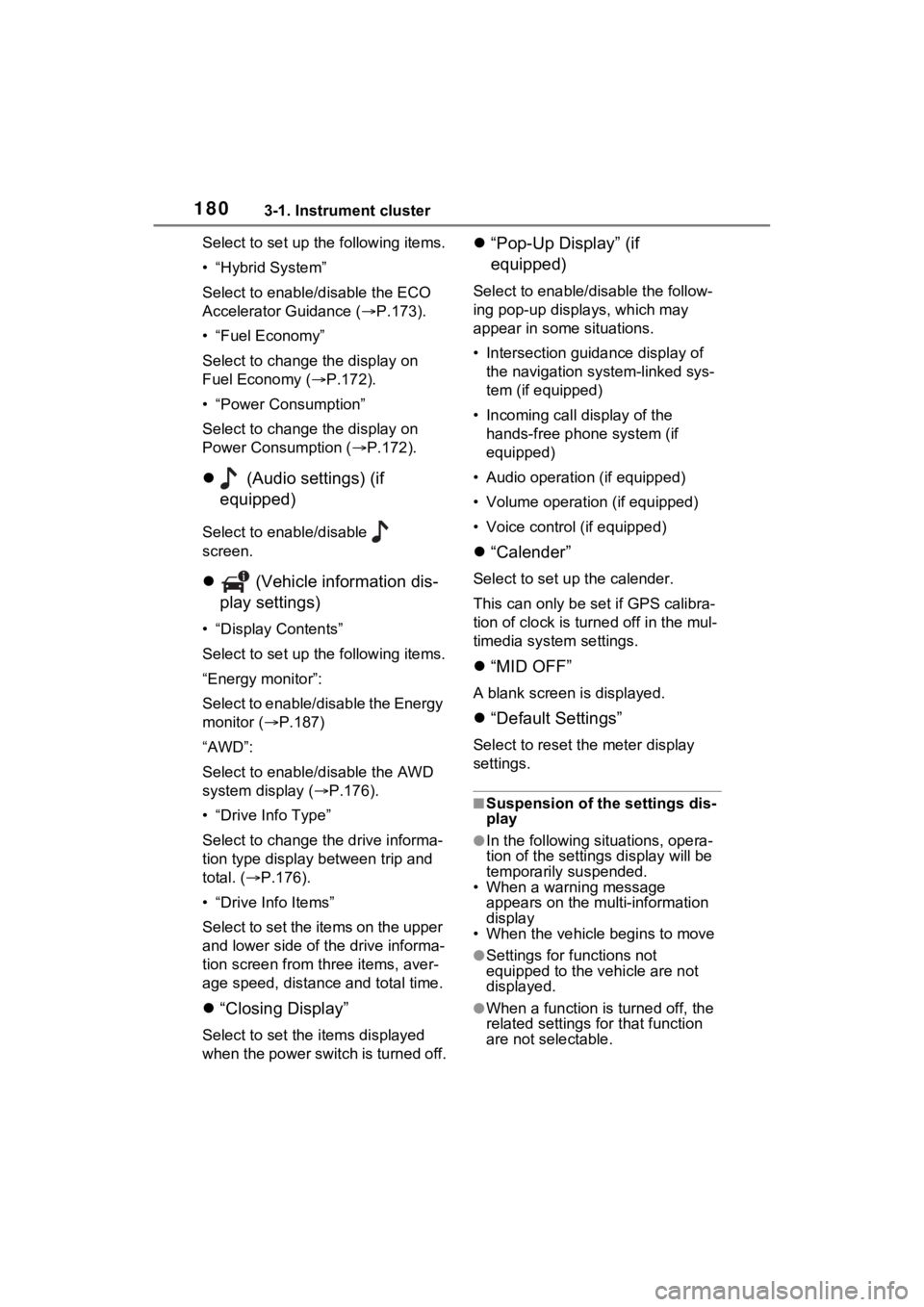
Select to set up the following items.
• “Hybrid System”
Select to enable/disable the ECO
Accelerator Guidance (P.173).
• “Fuel Economy”
Select to change the display on
Fuel Economy ( P.172).
• “Power Consumption”
Select to change the display on
Power Consumption ( P.172).
(Audio settings) (if
equipped)
Select to enable/disable
screen.
(Vehicle information dis-
play settings)
• “Display Contents”
Select to set up the following items.
“Energy monitor”:
Select to enable/disable the Energy
monitor ( P.187)
“AWD”:
Select to enable/disable the AWD
system display ( P.176).
• “Drive Info Type”
Select to change the drive informa-
tion type display between trip and
total. ( P.176).
• “Drive Info Items”
Select to set the items on the upper
and lower side of the drive informa-
tion screen from three items, aver-
age speed, distance and total time.
“Closing Display”
Select to set the i tems displayed
when the power switch is turned off.
“Pop-Up Display” (if
equipped)
Select to enable/d isable the follow-
ing pop-up displays, which may
appear in some situations.
• Intersection guidance display of the navigation s ystem-linked sys-
tem (if equipped)
• Incoming call display of the hands-free phone system (if
equipped)
• Audio operation (if equipped)
• Volume operation (if equipped)
• Voice control (if equipped)
“Calender”
Select to set up the calender.
This can only be set if GPS calibra-
tion of clock is turn ed off in the mul-
timedia system settings.
“MID OFF”
A blank screen is displayed.
“Default Settings”
Select to reset the meter display
settings.
■Suspension of the settings dis-
play
●In the following situations, opera-
tion of the settings display will be
temporarily suspended.
• When a warning message appears on the multi-information
display
• When the vehicle begins to move
●Settings for functions not
equipped to the vehicle are not
displayed.
●When a function is turned off, the
related settings for that function
are not selectable.
Page 181 of 618
1813-1. Instrument cluster
3
Vehicle status information and indicators
Select to display warning mes-
sages and measures to be
taken if a malfunction is
detected. (P.523)
Displays suggestions to the
driver in the following situations.
To select a response to a dis-
played suggestion, use the
meter control switches.
■Suggestion to enable the
power back door (if
equipped)
If the power back door system is
disabled on the screen and
the power back door switch on
the instrument panel is oper- ated, a suggestion message will
be displayed asking if you wish
to enable the power back door
system. To enable the power
back door system, select “Yes”.
After enabling the power back door
system, press the power back door
switch again to op
en or close the
power back door.
■Suggestion to turn on the
headlights
If the headlight switch is in other
than or , and the vehicle
speed is 3 mph (5 km/h) or
higher for a certain amount of
time when the surroundings are
dark, a suggestion message will
be displayed.
■Suggestion to turn off the
headlights
If the headlights are left on for a
certain amount of time after the
power switch has been turned
off, a suggestion message will
be displayed.
When the headlight switch is in
the AUTO position: The mes-
sage asking if you wish to turn
the headlights off is displayed.
To turn the headlights off, select
“Yes”.
If the driver’s door is opened after
the power switch is turned off, this
suggestion message will not be dis-
played.
■Customization
The suggestion fu nction can be
turned on/off. (Customizable fea-
WARNING
■Cautions during setting up
the display
As the hybrid system needs to be
operating during setting up the
display, ensure that the vehicle is
parked in a place with adequate
ventilation. In a closed area such
as a garage, exhaust gases
including harmful carbon monox-
ide (CO) may collect and enter
the vehicle. This may lead to
death or a serious health hazard.
NOTICE
■During setting up the display
To prevent 12-volt battery dis-
charge, ensure t hat the hybrid
system is operating while setting
up the display features.
Warning message display
Suggestion function
Page 183 of 618
1833-1. Instrument cluster
3
Vehicle status information and indicators
tor/tachometer (P.186)
■Head-up display will operate
when
The power swit ch is in ON.
■When using the head-up dis-
play
The head-up display may seem
dark or hard to see when viewed
through sunglasses, especially
polarized sunglasses. Adjust the
brightness of the head-up display or
remove your sunglasses.
■Street name display (vehicles
with navigation system)
Only street names which are
included in the map data will be dis-
played.
WARNING
■When using the head-up dis-
play
●Check that the position and
brightness of the head-up dis-
play image does not interfere
with safe driving. Incorrect
adjustment of the image’s posi-
tion or brightness may obstruct
the driver’s view and lead to an
accident, resulting in death or
serious injury.
●Do not continuously look at the
head-up display while driving as
you may fail to see pedestrians,
objects on the r oad, etc. ahead
of the vehicle.
NOTICE
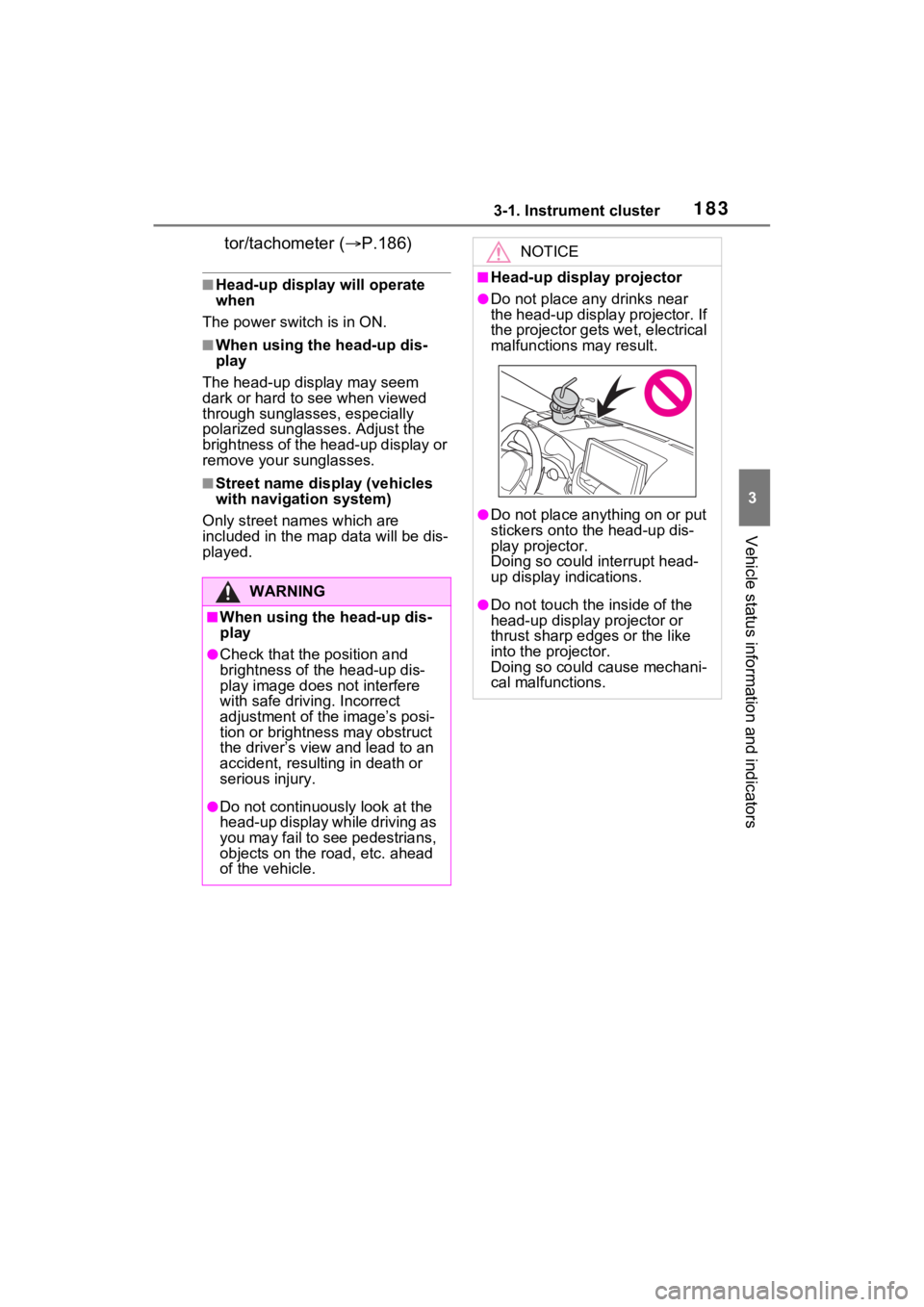
■Head-up display projector
●Do not place any drinks near
the head-up display projector. If
the projector gets wet, electrical
malfunctions may result.
●Do not place any thing on or put
stickers onto the head-up dis-
play projector.
Doing so could interrupt head-
up display indications.
●Do not touch the inside of the
head-up display projector or
thrust sharp edges or the like
into the projector.
Doing so could cause mechani-
cal malfunctions.