buttons TOYOTA RAV4 PRIME 2022 Owners Manual
[x] Cancel search | Manufacturer: TOYOTA, Model Year: 2022, Model line: RAV4 PRIME, Model: TOYOTA RAV4 PRIME 2022Pages: 624, PDF Size: 24.01 MB
Page 22 of 624
22Pictorial index
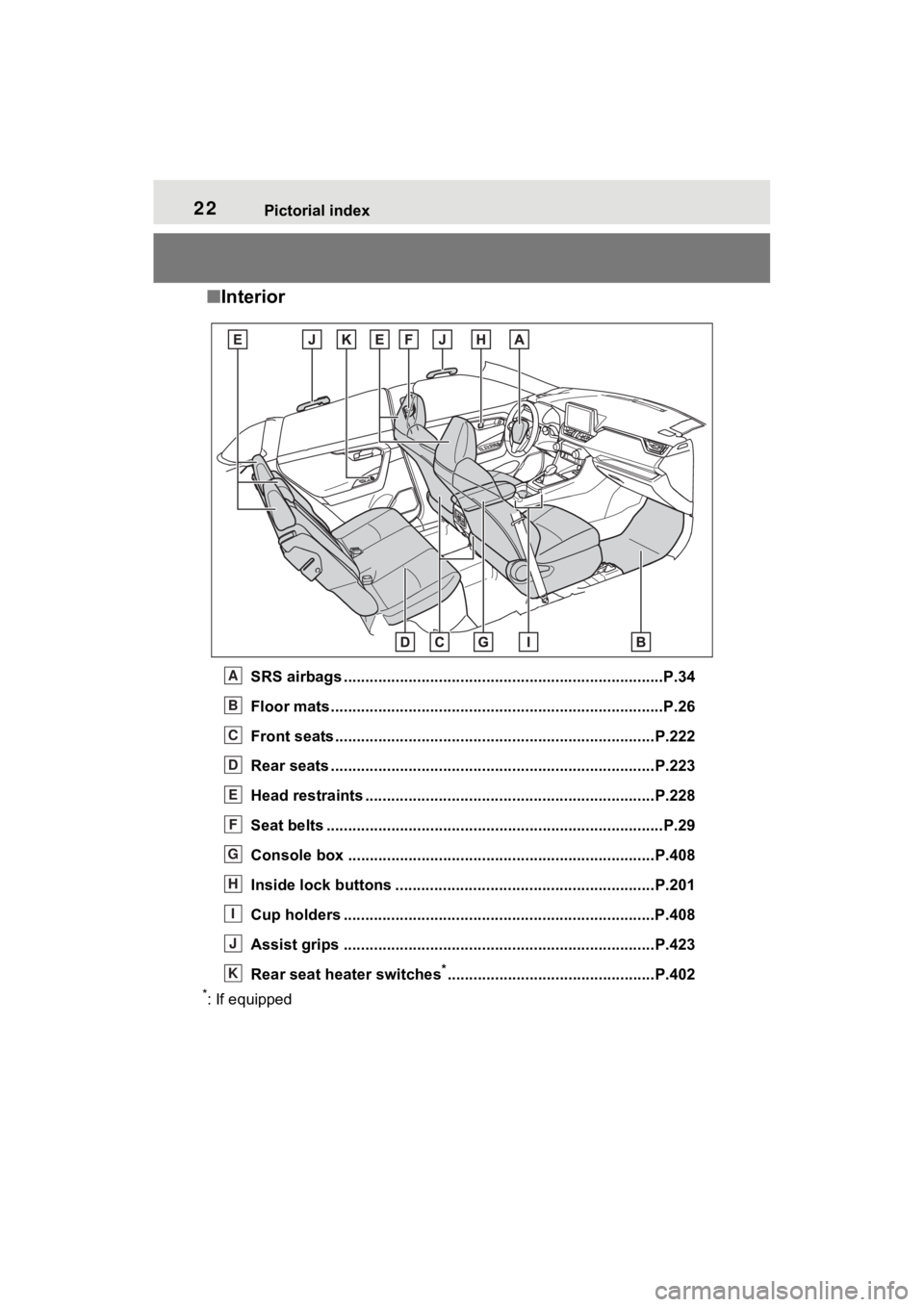
■Interior
SRS airbags .................................................... ......................P.34
Floor mats..................................................... ........................P.26
Front seats .................................................... ......................P.222
Rear seats ..................................................... ......................P.223
Head restraints ...................................................................P.228
Seat belts ..................................................... .........................P.29
Console box .................................................... ...................P.408
Inside lock buttons ............................................ ................P.201
Cup holders ........................................................................P.408
Assist grips ................................................... .....................P.423
Rear seat heater switches
*................................................P.402
*: If equipped
A
B
C
D
E
F
G
H
I
J
K
Page 141 of 624
1412-2. Charging
2
Plug-in hybrid system
is possible to turn more than one
day on.
If no buttons are turned on,
charging is only carried out once
according to the charging schedule
for the next 24 hours.
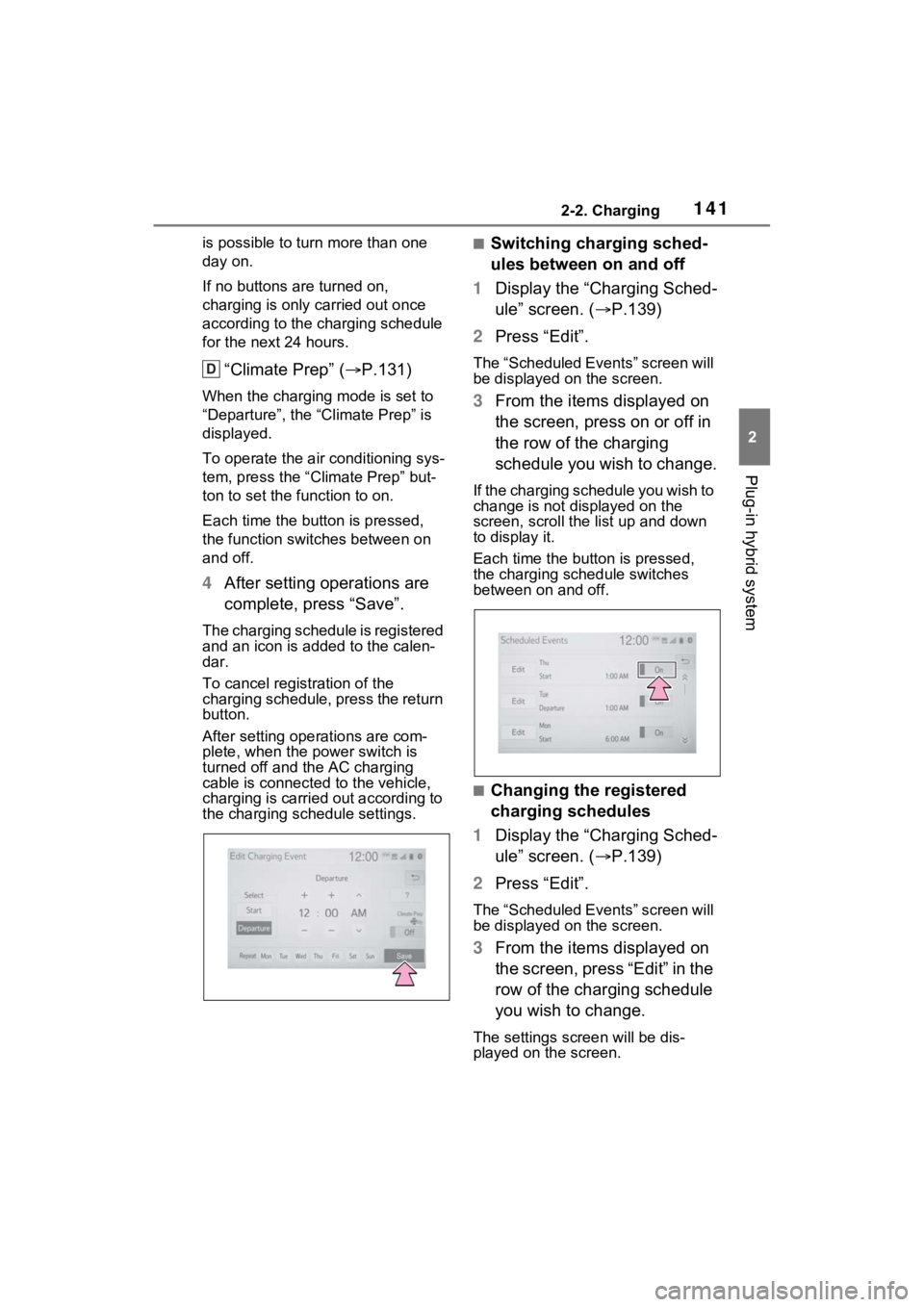
“Climate Prep” ( P.131)
When the charging mode is set to
“Departure”, the “Climate Prep” is
displayed.
To operate the air conditioning sys-
tem, press the “ Climate Prep” but-
ton to set the function to on.
Each time the butt on is pressed,
the function switches between on
and off.
4 After setting operations are
complete, press “Save”.
The charging schedule is registered
and an icon is added to the calen-
dar.
To cancel registration of the
charging schedule, press the return
button.
After setting operations are com-
plete, when the power switch is
turned off and the AC charging
cable is connected to the vehicle,
charging is carried out according to
the charging schedule settings.
■Switching charging sched-
ules between on and off
1 Display the “Charging Sched-
ule” screen. ( P.139)
2 Press “Edit”.
The “Scheduled Events” screen will
be displayed on the screen.
3From the items displayed on
the screen, press on or off in
the row of the charging
schedule you wish to change.
If the charging schedule you wish to
change is not displayed on the
screen, scroll the list up and down
to display it.
Each time the butt on is pressed,
the charging schedule switches
between on and off.
■Changing the registered
charging schedules
1 Display the “Charging Sched-
ule” screen. ( P.139)
2 Press “Edit”.
The “Scheduled Events” screen will
be displayed on the screen.
3From the items displayed on
the screen, press “Edit” in the
row of the charging schedule
you wish to change.
The settings screen will be dis-
played on the screen.
D
Page 194 of 624
1944-1. Key information
4-1.Key information
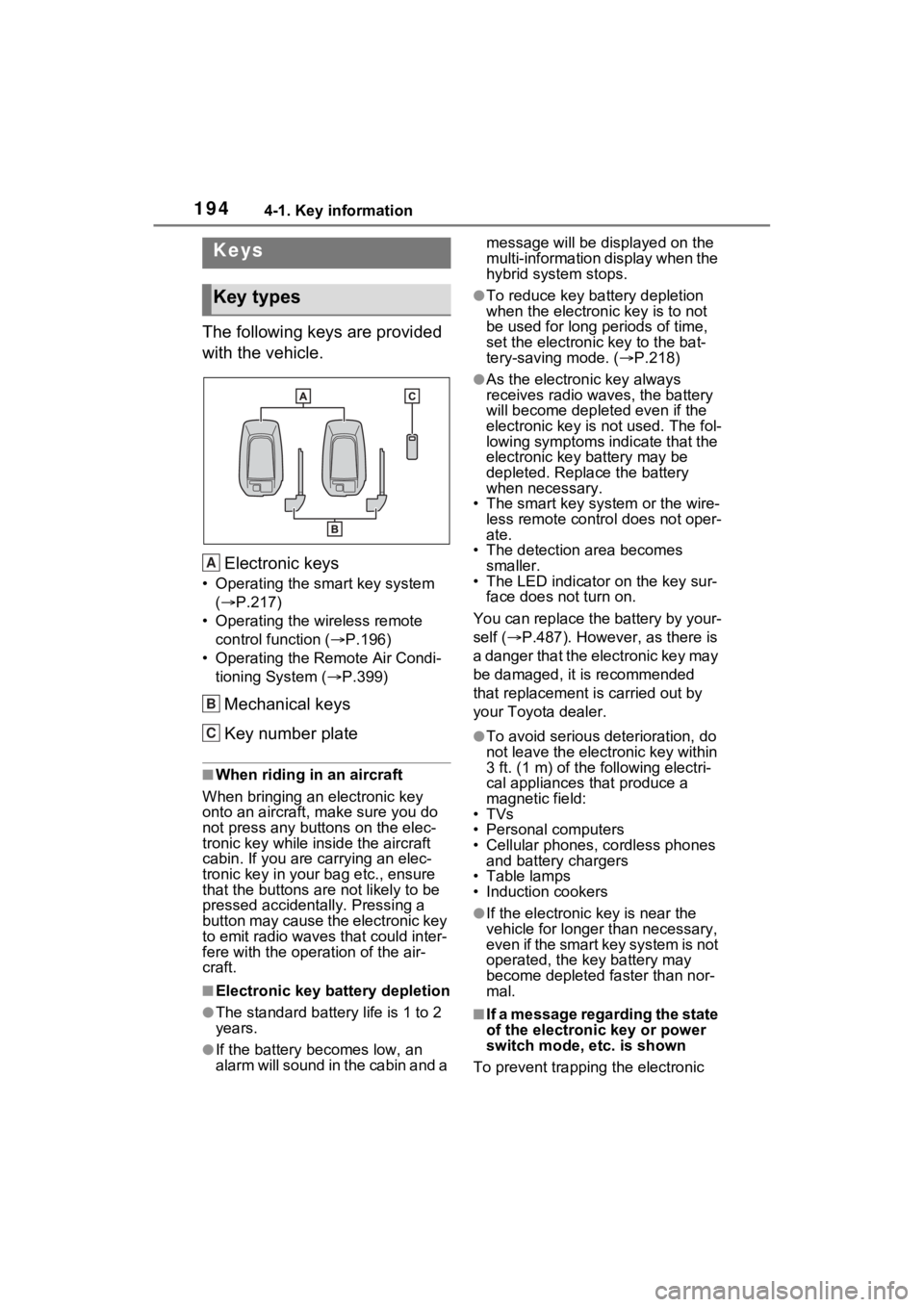
The following keys are provided
with the vehicle.Electronic keys
• Operating the smart key system ( P.217)
• Operating the wireless remote control function ( P.196)
• Operating the Remote Air Condi- tioning System ( P.399)
Mechanical keys
Key number plate
■When riding in an aircraft
When bringing an electronic key
onto an aircraft, make sure you do
not press any buttons on the elec-
tronic key while inside the aircraft
cabin. If you are carrying an elec-
tronic key in your bag etc., ensure
that the buttons are not likely to be
pressed accidentally. Pressing a
button may cause the electronic key
to emit radio waves that could inter-
fere with the oper ation of the air-
craft.
■Electronic key battery depletion
●The standard battery life is 1 to 2
years.
●If the battery becomes low, an
alarm will sound in the cabin and a message will be disp
layed on the
multi-information display when the
hybrid system stops.
●To reduce key battery depletion
when the electronic key is to not
be used for long periods of time,
set the electronic key to the bat-
tery-saving mode. ( P.218)
●As the electronic key always
receives radio waves, the battery
will become depleted even if the
electronic key is not used. The fol-
lowing symptoms indicate that the
electronic key battery may be
depleted. Replace the battery
when necessary.
• The smart key system or the wire- less remote contro l does not oper-
ate.
• The detection area becomes smaller.
• The LED indicator on the key sur-
face does not turn on.
You can replace the battery by your-
self ( P.487). However, as there is
a danger that the electronic key may
be damaged, it is recommended
that replacement is carried out by
your Toyota dealer.
●To avoid serious deterioration, do
not leave the electronic key within
3 ft. (1 m) of the following electri-
cal appliances that produce a
magnetic field:
•TVs
• Personal computers
• Cellular phones, cordless phones and battery chargers
• Table lamps
• Induction cookers
●If the electronic key is near the
vehicle for longer than necessary,
even if the smart key system is not
operated, the key battery may
become depleted faster than nor-
mal.
■If a message regarding the state
of the electronic key or power
switch mode, e tc. is shown
To prevent trapping the electronic
Keys
Key types
A
B
C
Page 199 of 624
1994-2. Opening, closing and locking the doors
4
Before driving
within approximately 3.2 ft. (1 m) of
the vehicle.
1Turn the power switch to OFF.
2 When the indicator light on the
key surface is not on, press and
hold , or for
approximately 5 seconds while
pressing and holding .
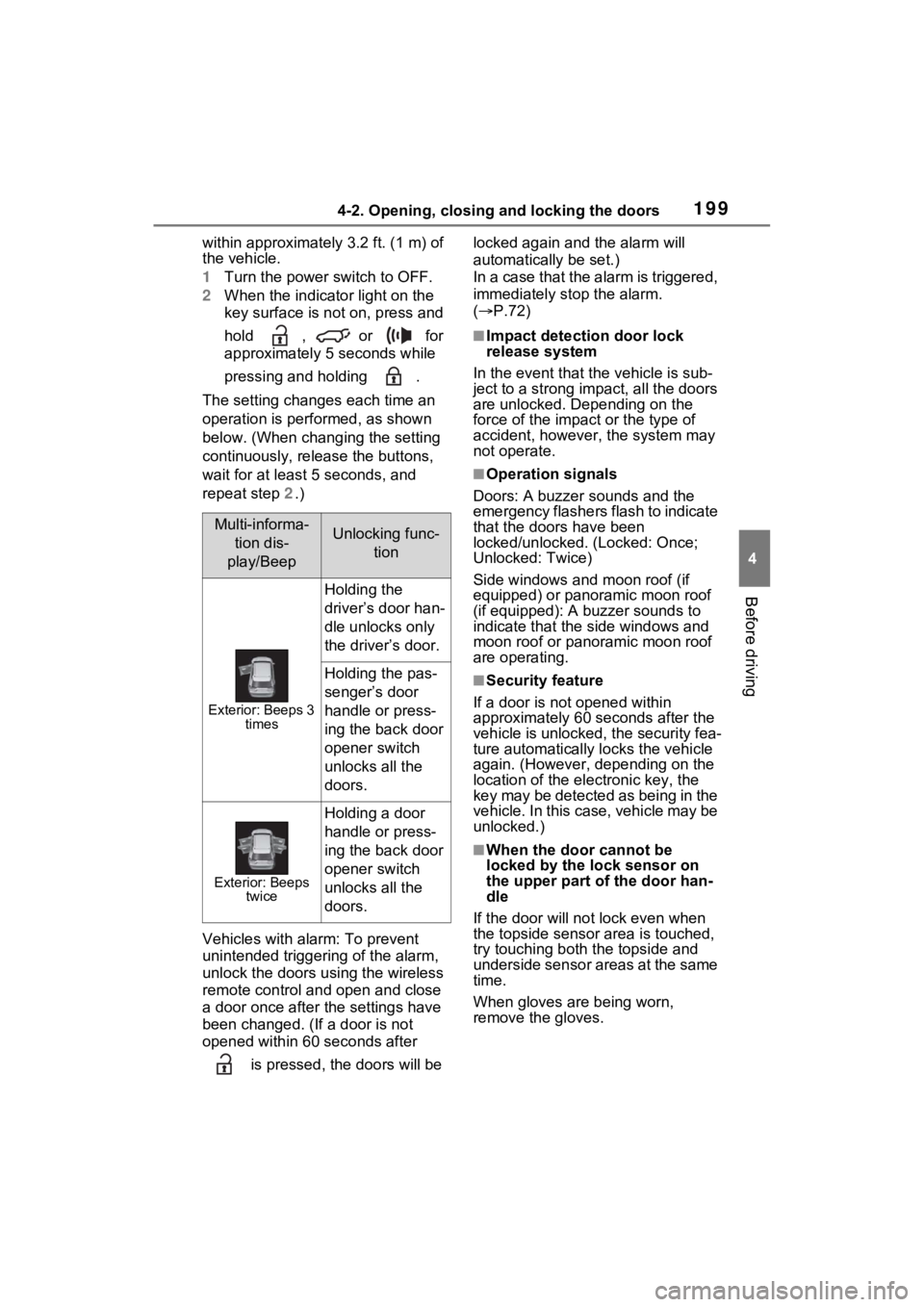
The setting changes each time an
operation is performed, as shown
below. (When changing the setting
continuously, release the buttons,
wait for at least 5 seconds, and
repeat step 2.)
Vehicles with alarm: To prevent
unintended triggering of the alarm,
unlock the doors us ing the wireless
remote control and open and close
a door once after t he settings have
been changed. (If a door is not
opened within 60 seconds after
is pressed, the doors will be locked again and the alarm will
automatically be set.)
In a case that the alarm is triggered,
immediately stop the alarm.
(
P.72)
■Impact detection door lock
release system
In the event that t he vehicle is sub-
ject to a strong impact, all the doors
are unlocked. Depending on the
force of the impact or the type of
accident, however, the system may
not operate.
■Operation signals
Doors: A buzzer sounds and the
emergency flashers flash to indicate
that the doors have been
locked/unlocked. (Locked: Once;
Unlocked: Twice)
Side windows and moon roof (if
equipped) or panoramic moon roof
(if equipped): A buzzer sounds to
indicate that the side windows and
moon roof or panoramic moon roof
are operating.
■Security feature
If a door is not opened within
approximately 60 s econds after the
vehicle is unlocked, the security fea-
ture automatically locks the vehicle
again. (However, depending on the
location of the el ectronic key, the
key may be detected as being in the
vehicle. In this case, vehicle may be
unlocked.)
■When the door cannot be
locked by the lock sensor on
the upper part of the door han-
dle
If the door will not lock even when
the topside sensor area is touched,
try touching both the topside and
underside sensor areas at the same
time.
When gloves are being worn,
remove the gloves.
Multi-informa-
tion dis-
play/BeepUnlocking func- tion
Exterior: Beeps 3 times
Holding the
driver’s door han-
dle unlocks only
the driver’s door.
Holding the pas-
senger’s door
handle or press-
ing the back door
opener switch
unlocks all the
doors.
Exterior: Beeps twice
Holding a door
handle or press-
ing the back door
opener switch
unlocks all the
doors.
Page 200 of 624
2004-2. Opening, closing and locking the doors
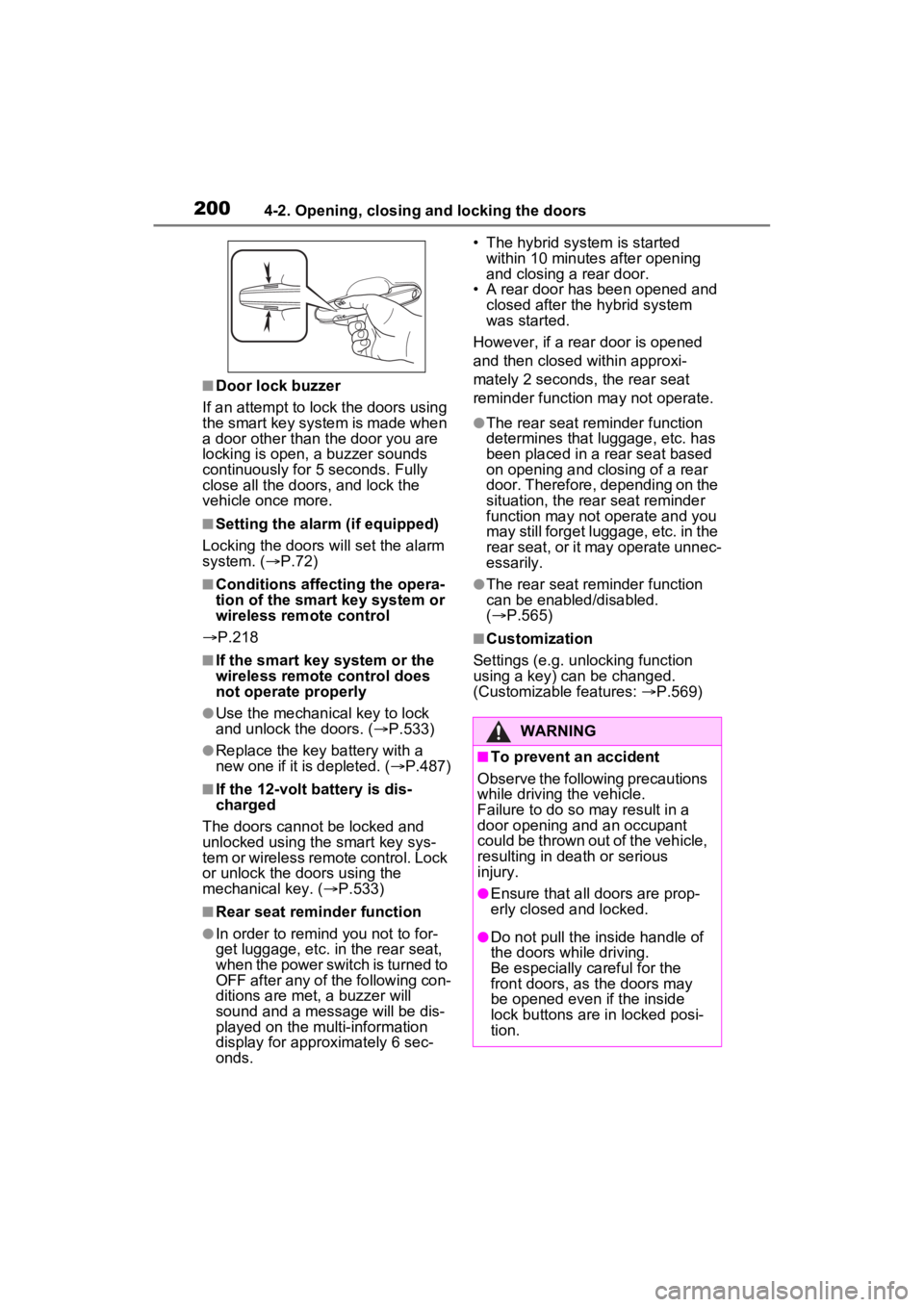
■Door lock buzzer
If an attempt to lock the doors using
the smart key system is made when
a door other than t he door you are
locking is open, a buzzer sounds
continuously for 5 seconds. Fully
close all the doors, and lock the
vehicle once more.
■Setting the alarm (if equipped)
Locking the doors will set the alarm
system. ( P.72)
■Conditions affecting the opera-
tion of the smart key system or
wireless remo te control
P.218
■If the smart key system or the
wireless remote control does
not operate properly
●Use the mechanical key to lock
and unlock the doors. ( P.533)
●Replace the key battery with a
new one if it is depleted. ( P.487)
■If the 12-volt battery is dis-
charged
The doors cannot be locked and
unlocked using the smart key sys-
tem or wireless remote control. Lock
or unlock the doors using the
mechanical key. ( P.533)
■Rear seat reminder function
●In order to remind you not to for-
get luggage, etc. in the rear seat,
when the power switch is turned to
OFF after any of the following con-
ditions are met, a buzzer will
sound and a message will be dis-
played on the multi-information
display for approximately 6 sec-
onds. • The hybrid system is started
within 10 minutes after opening
and closing a rear door.
• A rear door has been opened and closed after the hybrid system
was started.
However, if a rear door is opened
and then closed within approxi-
mately 2 seconds, the rear seat
reminder function may not operate.
●The rear seat reminder function
determines that luggage, etc. has
been placed in a rear seat based
on opening and closing of a rear
door. Therefore, depending on the
situation, the rear seat reminder
function may not operate and you
may still forget luggage, etc. in the
rear seat, or it may operate unnec-
essarily.
●The rear seat reminder function
can be enabled/disabled.
( P.565)
■Customization
Settings (e.g. unlocking function
using a key) can be changed.
(Customizable features: P.569)
WARNING
■To prevent an accident
Observe the following precautions
while driving the vehicle.
Failure to do so may result in a
door opening and an occupant
could be thrown out of the vehicle,
resulting in dea th or serious
injury.
●Ensure that all doors are prop-
erly closed and locked.
●Do not pull the inside handle of
the doors while driving.
Be especially careful for the
front doors, as the doors may
be opened even if the inside
lock buttons are in locked posi-
tion.
Page 201 of 624
2014-2. Opening, closing and locking the doors
4
Before driving
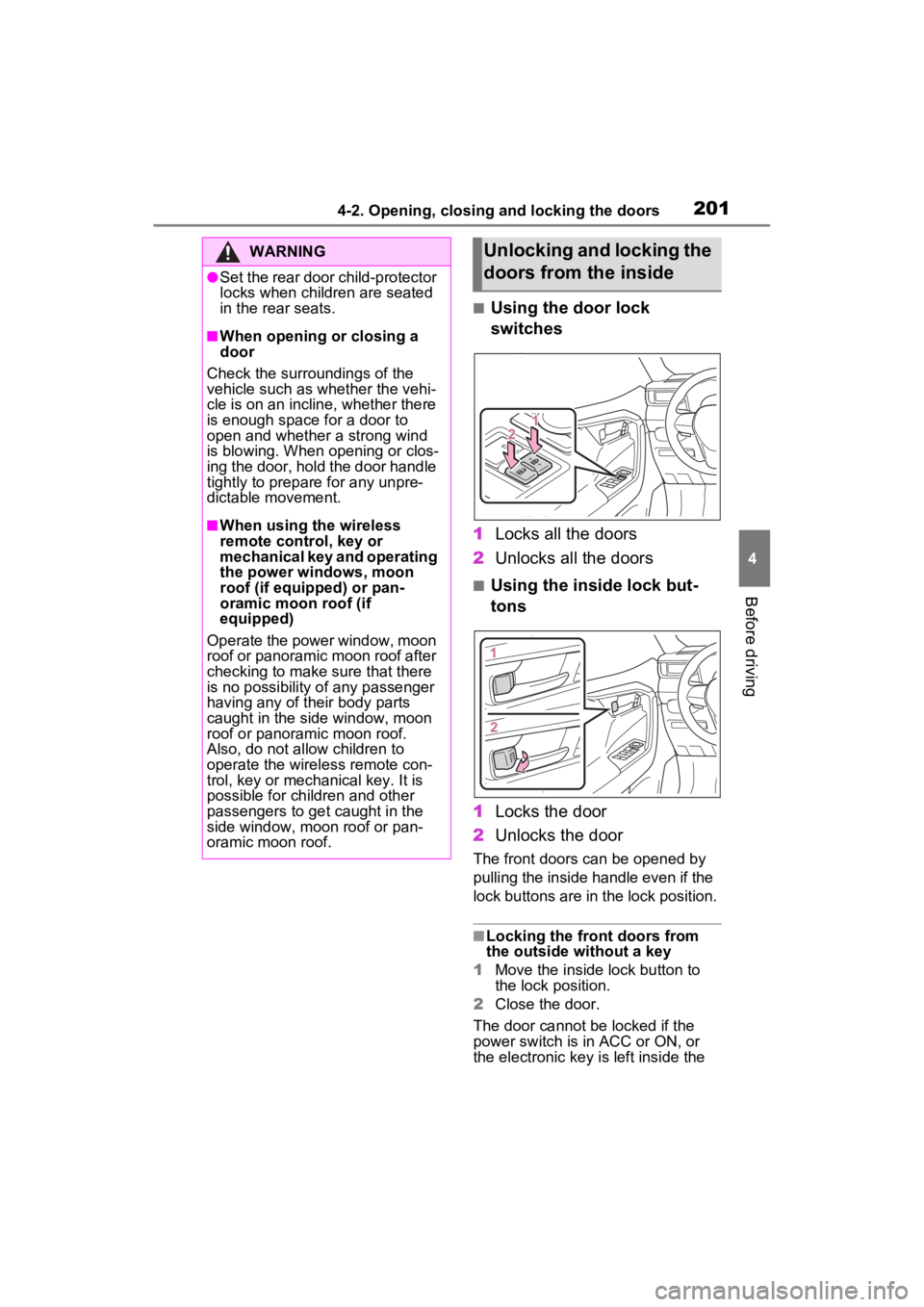
■Using the door lock
switches
1 Locks all the doors
2 Unlocks all the doors
■Using the inside lock but-
tons
1 Locks the door
2 Unlocks the door
The front doors can be opened by
pulling the inside handle even if the
lock buttons are in the lock position.
■Locking the front doors from
the outside without a key
1 Move the inside lock button to
the lock position.
2 Close the door.
The door cannot be locked if the
power switch is in ACC or ON, or
the electronic key is left inside the
WARNING
●Set the rear door child-protector
locks when children are seated
in the rear seats.
■When opening or closing a
door
Check the surroundings of the
vehicle such as whether the vehi-
cle is on an incline, whether there
is enough space for a door to
open and whether a strong wind
is blowing. When opening or clos-
ing the door, hold the door handle
tightly to prepare for any unpre-
dictable movement.
■When using the wireless
remote control, key or
mechanical key and operating
the power windows, moon
roof (if equipped) or pan-
oramic moon roof (if
equipped)
Operate the power window, moon
roof or panoramic moon roof after
checking to make sure that there
is no possibility of any passenger
having any of their body parts
caught in the side window, moon
roof or panoramic moon roof.
Also, do not allow children to
operate the wireless remote con-
trol, key or mechanical key. It is
possible for children and other
passengers to get caught in the
side window, moon roof or pan-
oramic moon roof.
Unlocking and locking the
doors from the inside
Page 218 of 624
2184-2. Opening, closing and locking the doors
●When an exterior alarm sounds
once for 5 seconds
●When an interior alarm pings con-
tinuously
■Battery-saving function
The battery-saving function will be
activated in order to prevent the
electronic key battery and the 12-
volt battery from being discharged
while the vehicle is not in operation
for a long time.
●In the following situations, the
smart key system may take some
time to unlock the doors.
• The electronic key has been left in
an area of approxi mately 11.5 ft.
(3.5 m) of the outside of the vehi-
cle for 2 minutes or longer.
• The smart key system has not been used for 5 days or longer.
●If the smart key system has not
been used for 14 days or longer,
the doors canno t be unlocked at
any doors except the driver’s
door. In this case, take hold of the
driver’s door handle, or use the
wireless remote control or the mechanical key, to unlock the
doors.
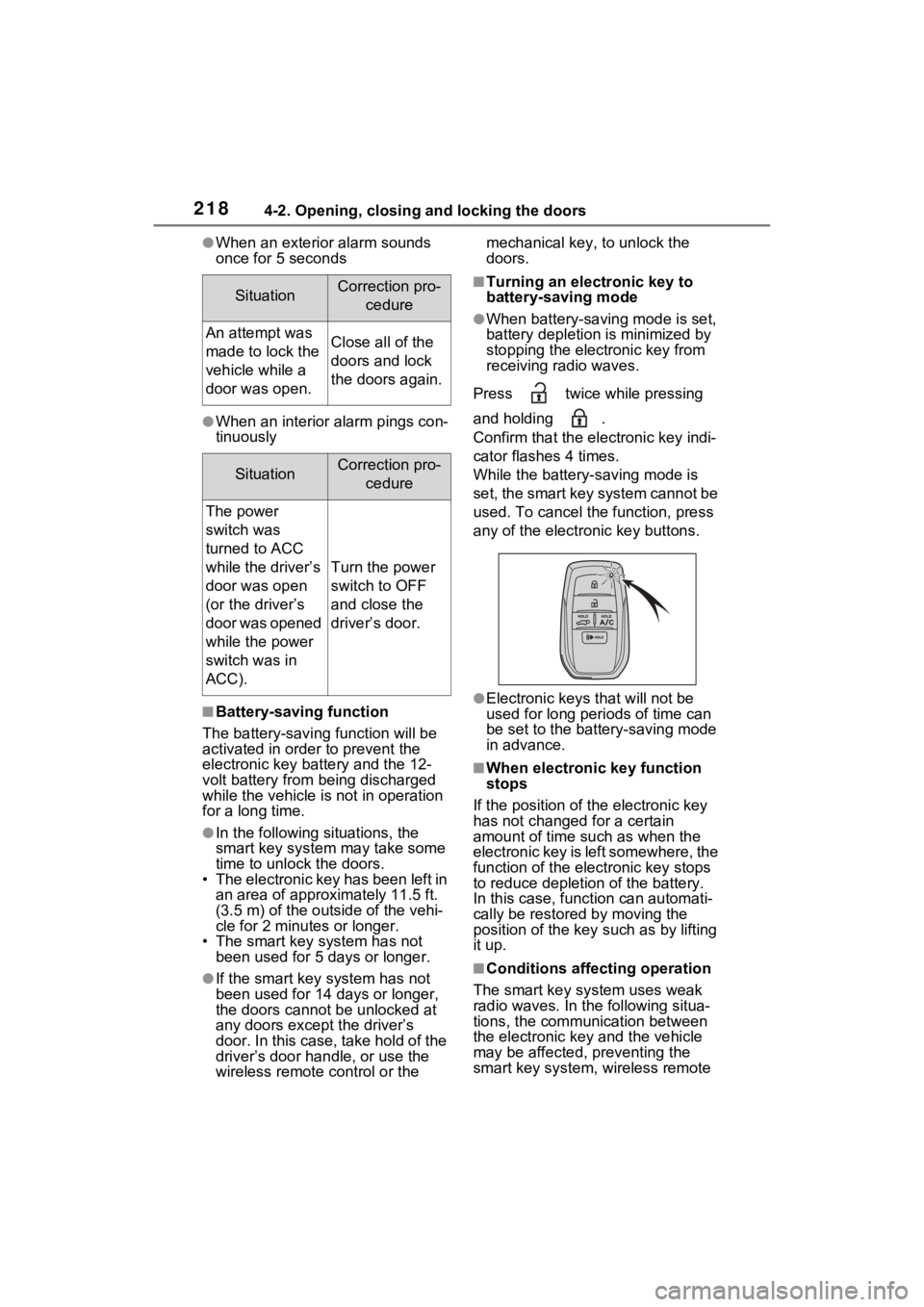
■Turning an electronic key to
battery-saving mode
●When battery-saving mode is set,
battery depletion is minimized by
stopping the electronic key from
receiving radio waves.
Press twice while pressing
and holding .
Confirm that the ele ctronic key indi-
cator flashes 4 times.
While the battery-saving mode is
set, the smart key system cannot be
used. To cancel the function, press
any of the electronic key buttons.
●Electronic keys that will not be
used for long periods of time can
be set to the battery-saving mode
in advance.
■When electronic key function
stops
If the position of the electronic key
has not changed for a certain
amount of time suc h as when the
electronic key is left somewhere, the
function of the elec tronic key stops
to reduce depletion of the battery.
In this case, funct ion can automati-
cally be restored by moving the
position of the key such as by lifting
it up.
■Conditions affecting operation
The smart key system uses weak
radio waves. In the following situa-
tions, the communication between
the electronic key and the vehicle
may be affected, preventing the
smart key system, wireless remote
SituationCorrection pro-
cedure
An attempt was
made to lock the
vehicle while a
door was open.Close all of the
doors and lock
the doors again.
SituationCorrection pro-cedure
The power
switch was
turned to ACC
while the driver’s
door was open
(or the driver’s
door was opened
while the power
switch was in
ACC).
Turn the power
switch to OFF
and close the
driver’s door.
Page 226 of 624
2264-3. Adjusting the seats
ten.
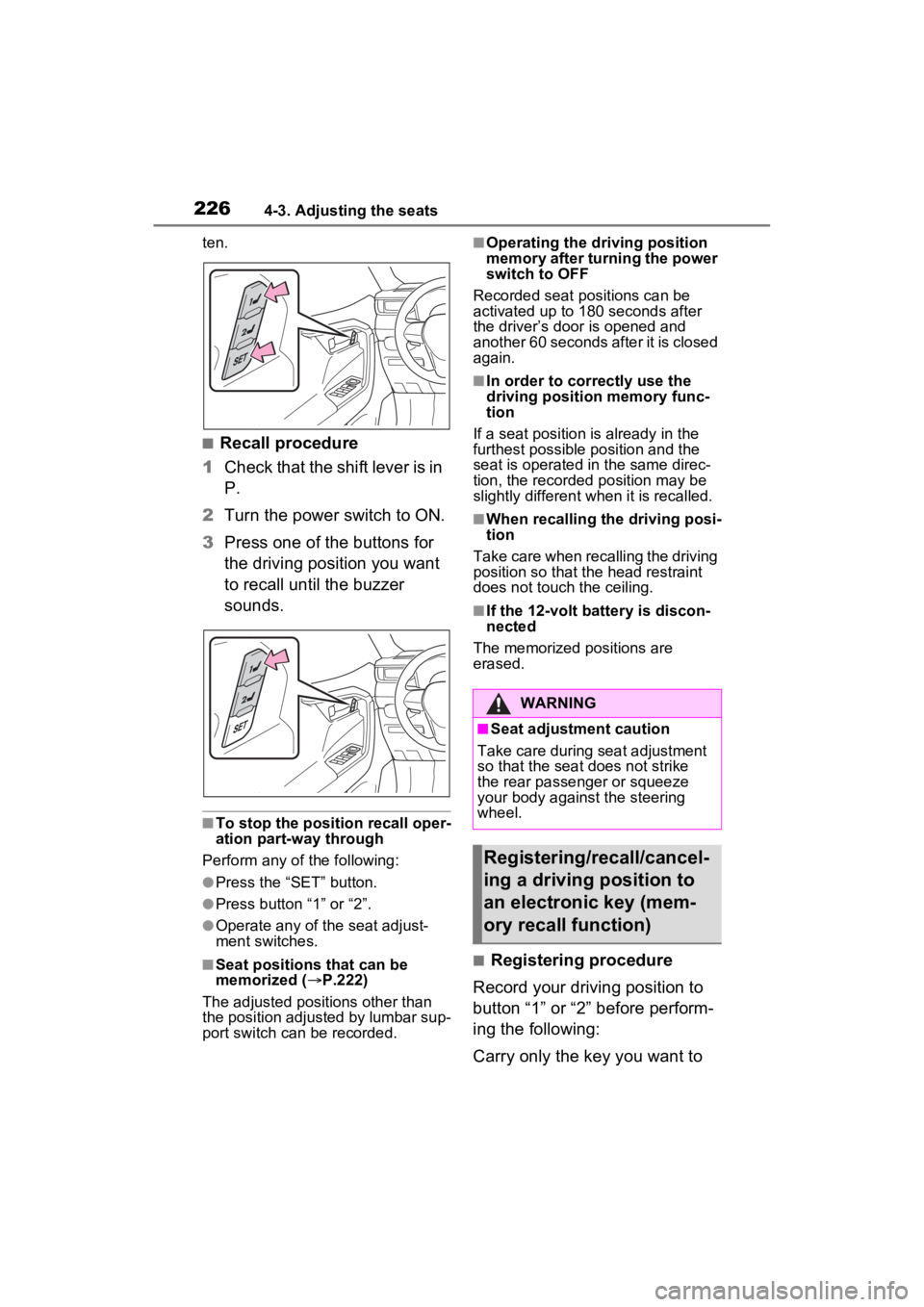
■Recall procedure
1 Check that the shift lever is in
P.
2 Turn the power switch to ON.
3 Press one of the buttons for
the driving position you want
to recall until the buzzer
sounds.
■To stop the position recall oper-
ation part-way through
Perform any of the following:
●Press the “SET” button.
●Press button “1” or “2”.
●Operate any of the seat adjust-
ment switches.
■Seat positions that can be
memorized ( P.222)
The adjusted positions other than
the position adjusted by lumbar sup-
port switch can be recorded.
■Operating the driving position
memory after turning the power
switch to OFF
Recorded seat positions can be
activated up to 180 seconds after
the driver’s door is opened and
another 60 seconds after it is closed
again.
■In order to correctly use the
driving position memory func-
tion
If a seat position is already in the
furthest possible position and the
seat is operated in the same direc-
tion, the recorded position may be
slightly different w hen it is recalled.
■When recalling the driving posi-
tion
Take care when recalling the driving
position so that the head restraint
does not touch the ceiling.
■If the 12-volt b attery is discon-
nected
The memorized positions are
erased.
■Registering procedure
Record your driving position to
button “1” or “2” before perform-
ing the following:
Carry only the key you want to
WARNING
■Seat adjustment caution
Take care during seat adjustment
so that the seat does not strike
the rear passenger or squeeze
your body against the steering
wheel.
Registering/recall/cancel-
ing a driving position to
an electronic key (mem-
ory recall function)
Page 284 of 624
2845-2. Driving procedures
the shift release button is pushed
first, the shift lock will not be
released.
■Shift lock system
The shift lock system is a system to
prevent accidental operation of the
shift lever in starting.
The shift lever can be shifted from P
only when the pow er switch is in
ON, the brake pedal is depressed
and the shift release button is
pushed.
■If the shift lever cannot be
shifted from P
First, check whether the brake pedal
is being depressed.
If the shift lever cannot be shifted
even though the brake pedal is
depressed and the shift release but-
ton is pushed, there may be a prob-
lem with the shift lock system. Have
the vehicle insp ected by your
Toyota dealer immediately.
The following steps may be used as
an emergency measure to ensure
that the shift lev er can be shifted.
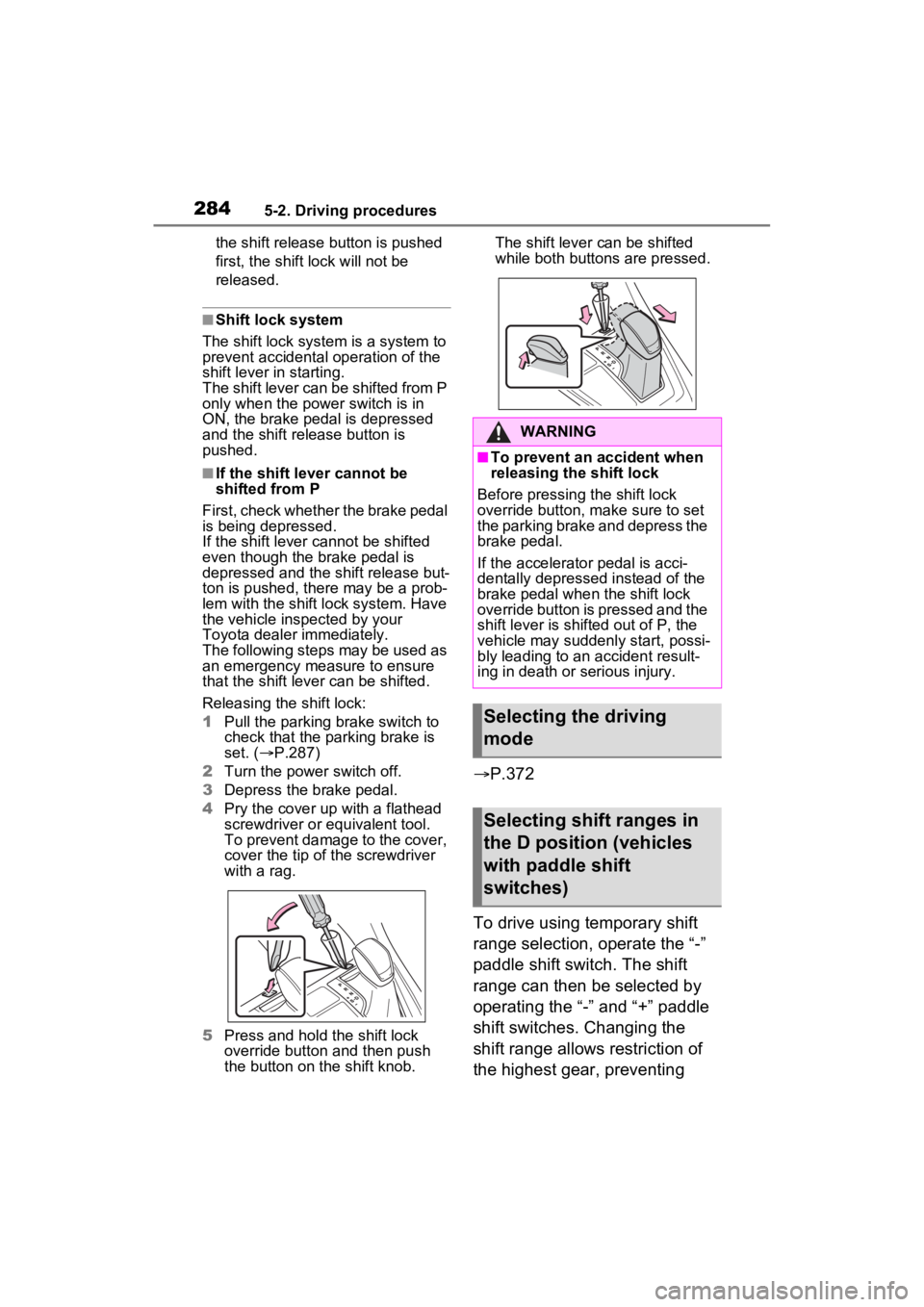
Releasing the shift lock:
1 Pull the parking brake switch to
check that the parking brake is
set. ( P.287)
2 Turn the power switch off.
3 Depress the brake pedal.
4 Pry the cover up with a flathead
screwdriver or equivalent tool.
To prevent damage to the cover,
cover the tip of the screwdriver
with a rag.
5 Press and hold the shift lock
override button and then push
the button on the shift knob. The shift lever can be shifted
while both buttons
are pressed.
P.372
To drive using temporary shift
range selection, operate the “-”
paddle shift switch. The shift
range can then be selected by
operating the “-” and “+” paddle
shift switches. Changing the
shift range allows restriction of
the highest gear, preventing
WARNING
■To prevent an accident when
releasing the shift lock
Before pressing the shift lock
override button, m ake sure to set
the parking brake and depress the
brake pedal.
If the accelerator pedal is acci-
dentally depressed instead of the
brake pedal when the shift lock
override button is pressed and the
shift lever is shifted out of P, the
vehicle may suddenly start, possi-
bly leading to an accident result-
ing in death or serious injury.
Selecting the driving
mode
Selecting shift ranges in
the D position (vehicles
with paddle shift
switches)
Page 432 of 624
4326-4. Using the other interior features
*: If equipped
■HomeLink® programming pro-
cedure
The programming procedures can
also be found at the following URL.
Website: www.hom elink.com/toyota
For support, contact customer sup-
port at the following.
Help Line: 1-800-355-3515
The HomeLink® wireless control
system in your vehicle has 3
buttons which can be pro-
grammed to operate 3 different
devices. Refer to the program-
ming methods on the following
pages to determine the method
which is appropriate for the
device.
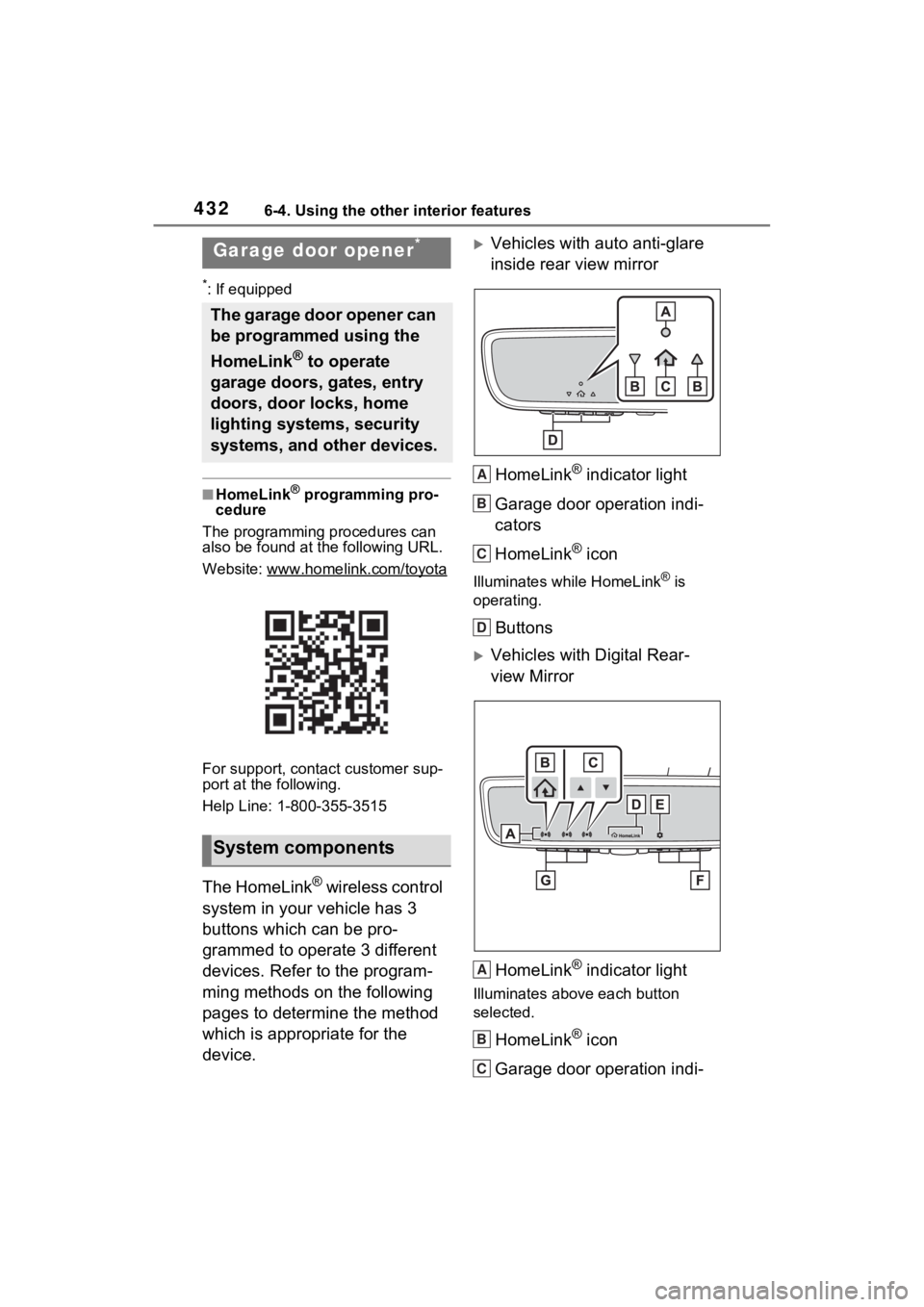
Vehicles with auto anti-glare
inside rear view mirror
HomeLink
® indicator light
Garage door operation indi-
cators
HomeLink
® icon
Illuminates while HomeLink® is
operating.
Buttons
Vehicles with Digital Rear-
view Mirror
HomeLink
® indicator light
Illuminates above each button
selected.
HomeLink® icon
Garage door operation indi-
Garage door opener*
The garage door opener can
be programmed using the
HomeLink
® to operate
garage doors, gates, entry
doors, door locks, home
lighting systems, security
systems, and other devices.
System components
A
B
C
D
A
B
C