display TOYOTA SEQUOIA 2008 2.G Repair Manual
[x] Cancel search | Manufacturer: TOYOTA, Model Year: 2008, Model line: SEQUOIA, Model: TOYOTA SEQUOIA 2008 2.GPages: 596, PDF Size: 12.93 MB
Page 326 of 596
326 3-3. Using the rear audio/video system
■To initialize the password
Press on the remote controller or unit ten times when the Enter Personal
Code screen is displayed.
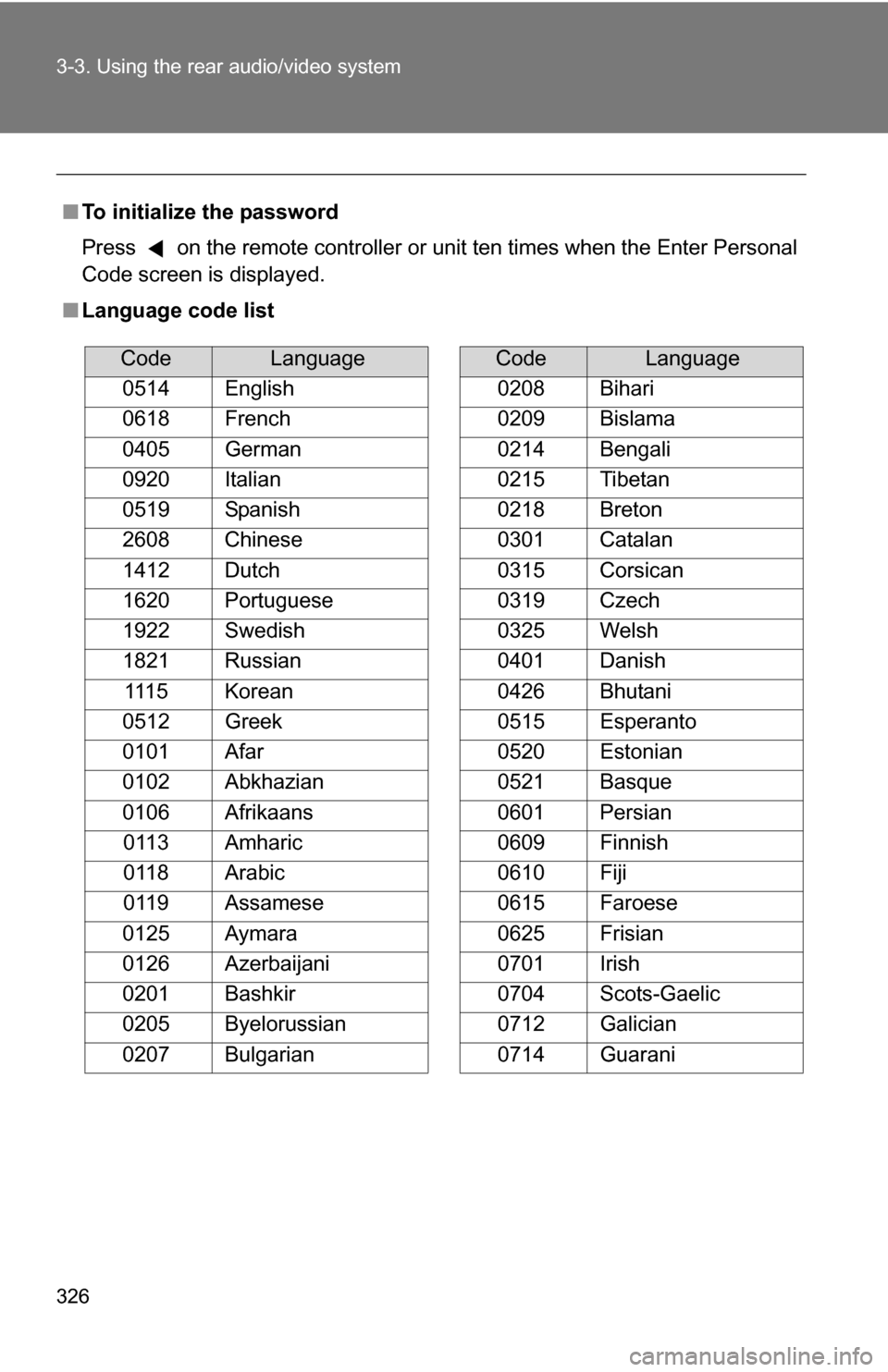
■ Language code list
CodeLanguage
0514 English
0618 French
0405 German
0920 Italian
0519 Spanish
2608 Chinese
1412 Dutch
1620 Portuguese
1922 Swedish
1821 Russian 1115 Korean
0512 Greek
0101 Afar
0102 Abkhazian
0106 Afrikaans 0113 Amharic
0118 Arabic
0119 Assamese
0125 Aymara
0126 Azerbaijani
0201 Bashkir
0205 Byelorussian
0207 Bulgarian
0208 Bihari
0209 Bislama
0214 Bengali
0215 Tibetan
0218 Breton
0301 Catalan
0315 Corsican
0319 Czech
0325 Welsh
0401 Danish
0426 Bhutani
0515 Esperanto
0520 Estonian
0521 Basque
0601 Persian
0609 Finnish
0610 Fiji
0615 Faroese
0625 Frisian
0701 Irish
0704 Scots-Gaelic
0712 Galician
0714 Guarani
CodeLanguage
Page 330 of 596
330 3-4. Using the hands-free phone system (for cellular phone)
■Conditions under which th e system will not operate
● If using a cellular phone that does not support Bluetooth
®
●If the cellular phone is switched off
● If you are outside service range
● If the cellular phone is not connected
● If the cellular phone's battery is low
■ Bluetooth
® antenna
The antenna is built into the display. If the cellular phone is behind the seat
or in the console box, or touching or covered by metal objects, connection
status may deteriorate.
■ Signal status
This display may not correspond exactly with the cellular phone itself.
■ About Bluetooth
®
■Compatible models
Compatible with HFP (Hands Free Profile) Ver. 1.0 and OPP (Object Push
Profile) Ver. 1.1.
If your cellular phone does not support HFP, you cannot enter the Blue-
tooth
® phone. If your cellular phone supports OPP alone, you cannot use
the Bluetooth® phone.
Bluetooth is a registered trademark of
Bluetooth SIG, Inc.
Page 333 of 596
333
3-4. Using the hands-free phone system (for cellular phone)
3
Interior features
Using the hands-free phone system
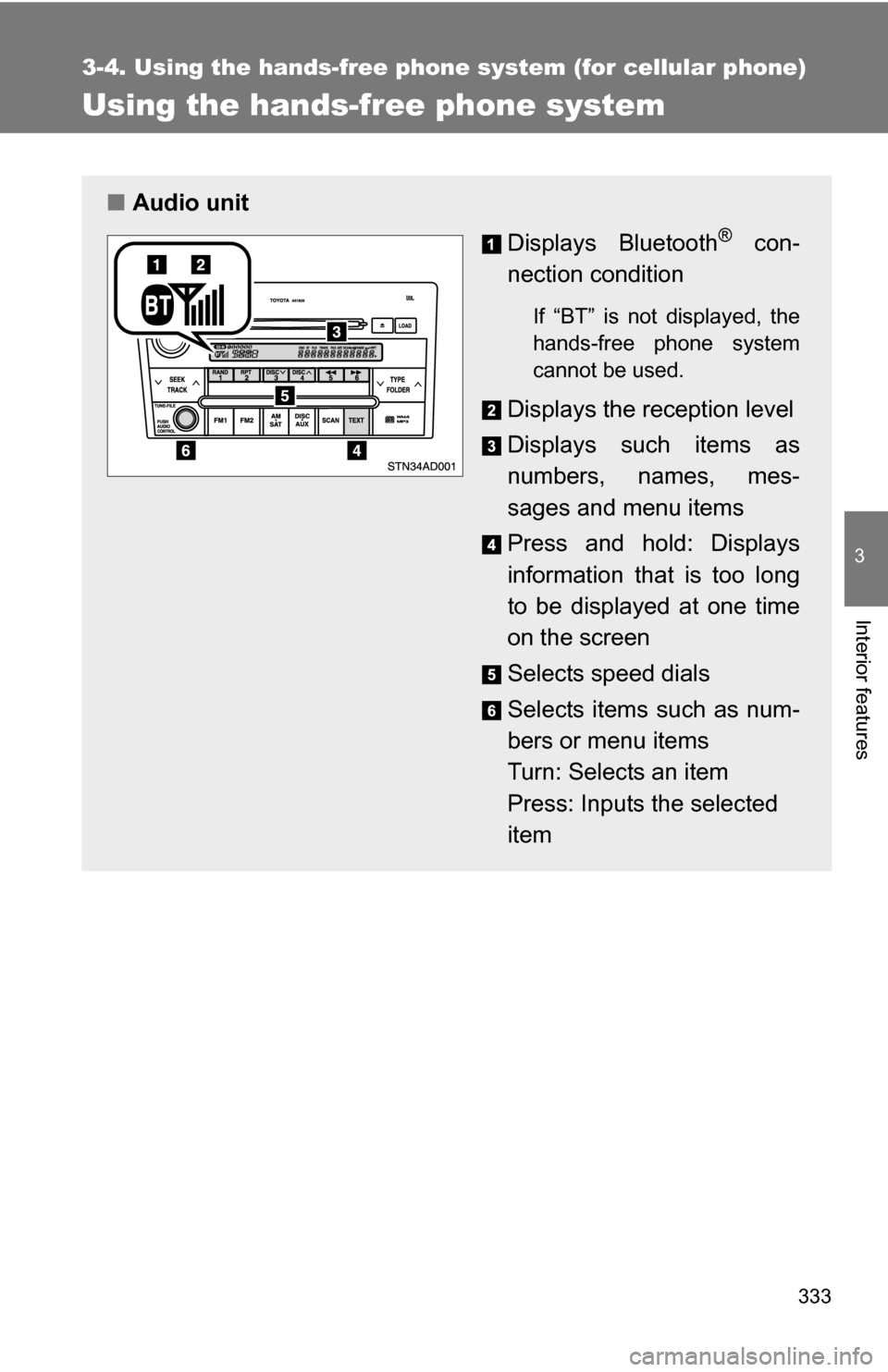
■Audio unit
Displays Bluetooth
® con-
nection condition
If “BT” is not displayed, the
hands-free phone system
cannot be used.
Displays the reception level
Displays such items as
numbers, names, mes-
sages and menu items
Press and hold: Displays
information that is too long
to be displayed at one time
on the screen
Selects speed dials
Selects items such as num-
bers or menu items
Turn: Selects an item
Press: Inputs the selected
item
Page 336 of 596
336 3-4. Using the hands-free phone system (for cellular phone)
Operating the system by using a voice command
By following voice guidance instruct ions output from the speaker, you
can speak voice commands aloud to control the hands-free phone
system without looking at the display or operating .
■ Operation procedure when using voice commands
Press or and say a voice command for a desired
function. ( P. 337)
■ Auxiliary commands when using a voice command
The following auxiliary voice commands can be used at any time
when operating the system using voice commands:
“Repeat”: Repeats the previous voice guidance instruction
“Go back”: Returns to the previous procedure
“Cancel”: Exits the hands-free phone system
“Help”: Reads aloud the function summary if a help comment is
registered for the selected function
Using the hands-free phone system for the first time
Before using the hands-free phone system, it is necessary to register
a cellular phone in the system. Th e phone registration mode will be
entered automatically when starting the system with no cellular
phone registered. Follow the procedure below to register a cellular
phone:
Press , or .
The introductory guidance and phone name registration instructions
are heard.
Page 337 of 596
337
3-4. Using the hand
s-free phone system (for cellular phone)
3
Interior features
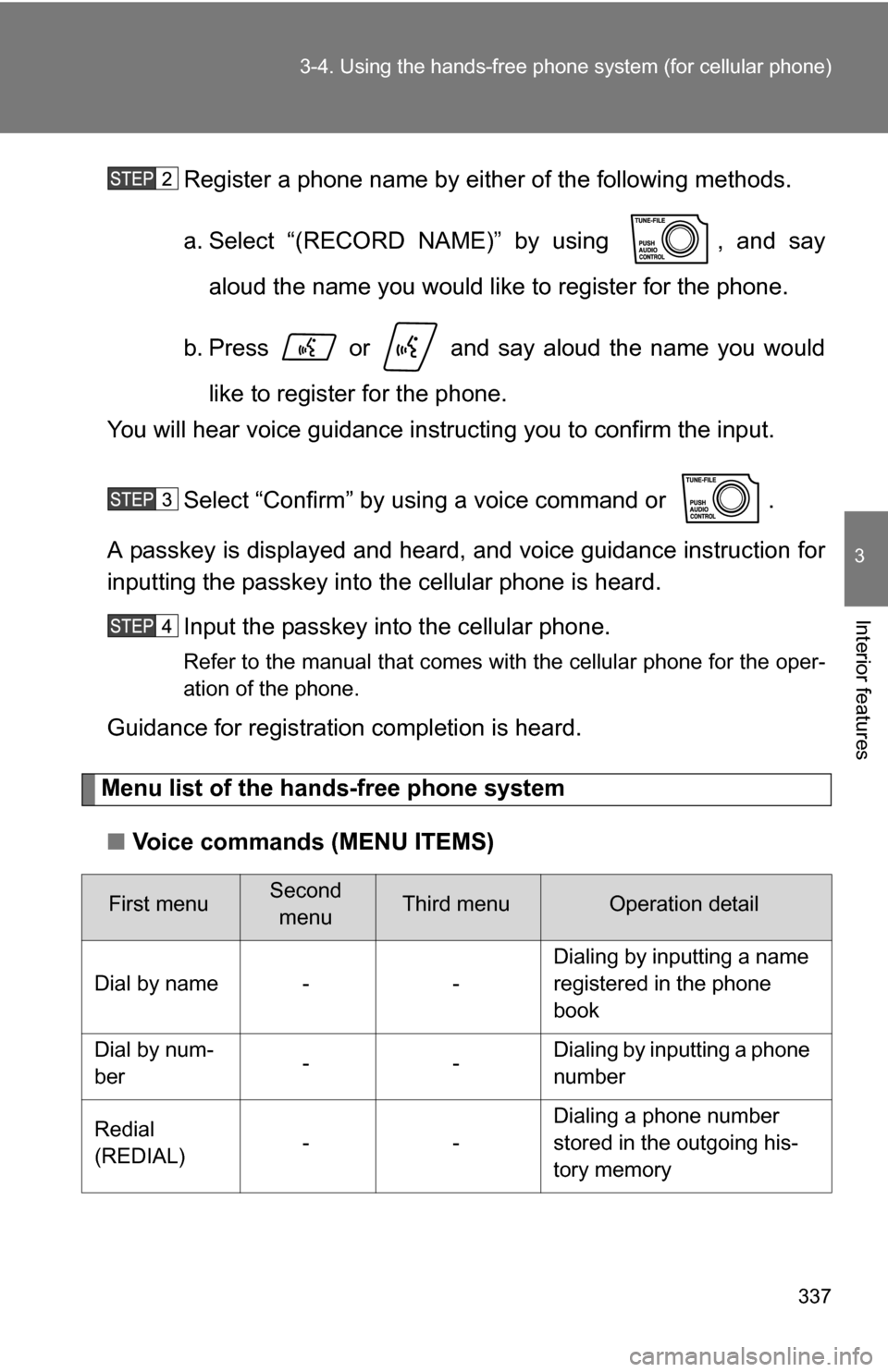
Register a phone name by either of the following methods.
a. Select “(RECORD NAME)” by using , and say
aloud the name you would like to register for the phone.
b. Press or and say aloud the name you would like to register for the phone.
You will hear voice guidance instru cting you to confirm the input.
Select “Confirm” by using a voice command or .
A passkey is displayed and heard, and voice guidance instruction for
inputting the passkey into the cellular phone is heard.
Input the passkey into the cellular phone.
Refer to the manual that comes with the cellular phone for the oper-
ation of the phone.
Guidance for registration completion is heard.
Menu list of the hands-free phone system
■ Voice commands (MENU ITEMS)
First menuSecond
menuThird menuOperation detail
Dial by name - - Dialing by inputting a name
registered in the phone
book
Dial by num-
ber -- Dialing by inputting a phone
number
Redial
(REDIAL) -- Dialing a phone number
stored in the outgoing his-
tory memory
Page 345 of 596
345
3-4. Using the hand
s-free phone system (for cellular phone)
3
Interior features
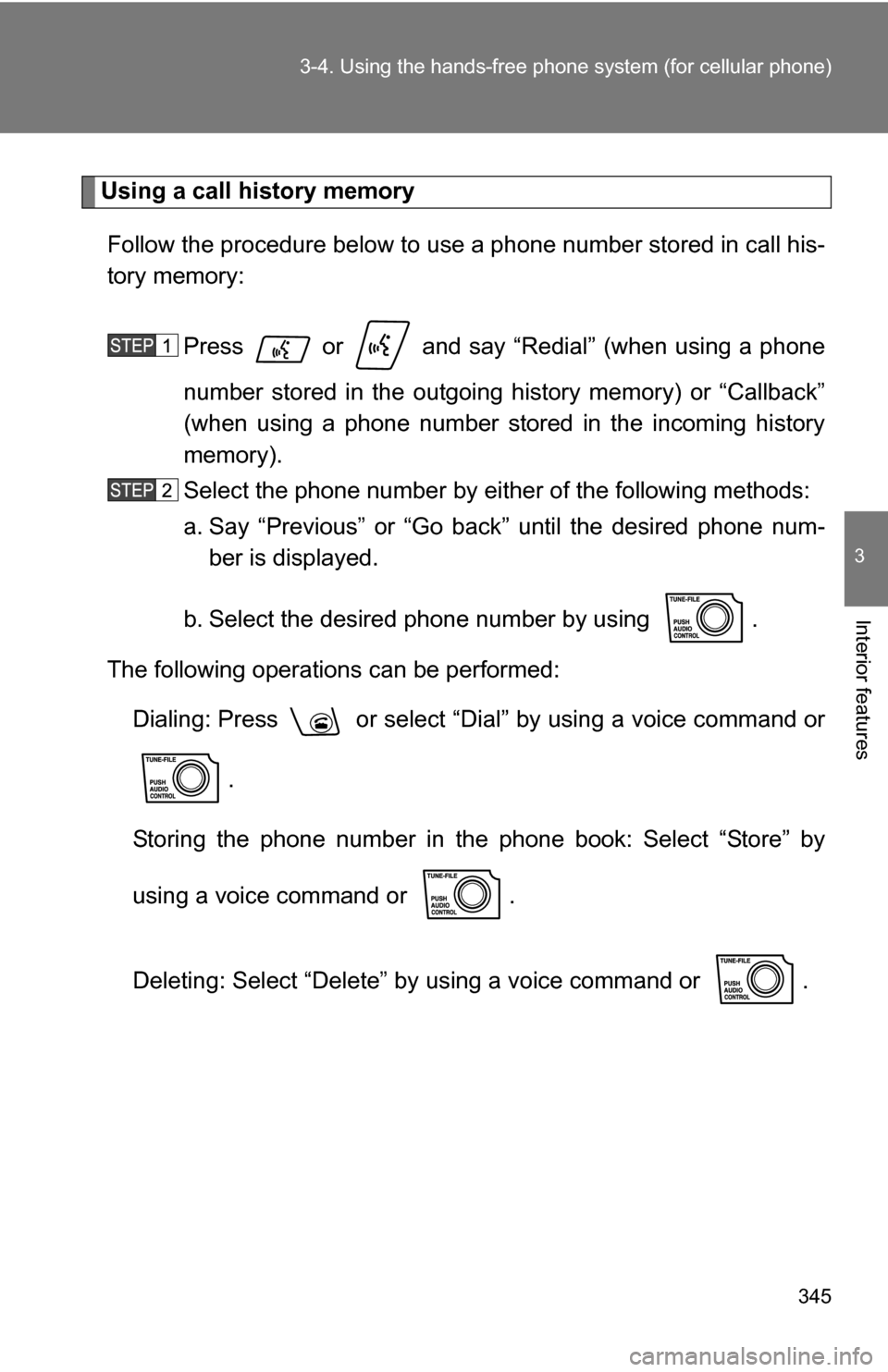
Using a call history memory
Follow the procedure below to use a phone number stored in call his-
tory memory:
Press or and say “Redial” (when using a phone
number stored in the outgoing history memory) or “Callback”
(when using a phone number stored in the incoming history
memory).
Select the phone number by eit her of the following methods:
a. Say “Previous” or “Go back” until the desired phone num- ber is displayed.
b. Select the desired phone number by using .
The following operations can be performed: Dialing: Press or select “Dial” by using a voice command or
.
Storing the phone number in the phone book: Select “Store” by
using a voice command or .
Deleting: Select “Delete” by using a voice command or .
Page 356 of 596
356 3-4. Using the hands-free phone system (for cellular phone)
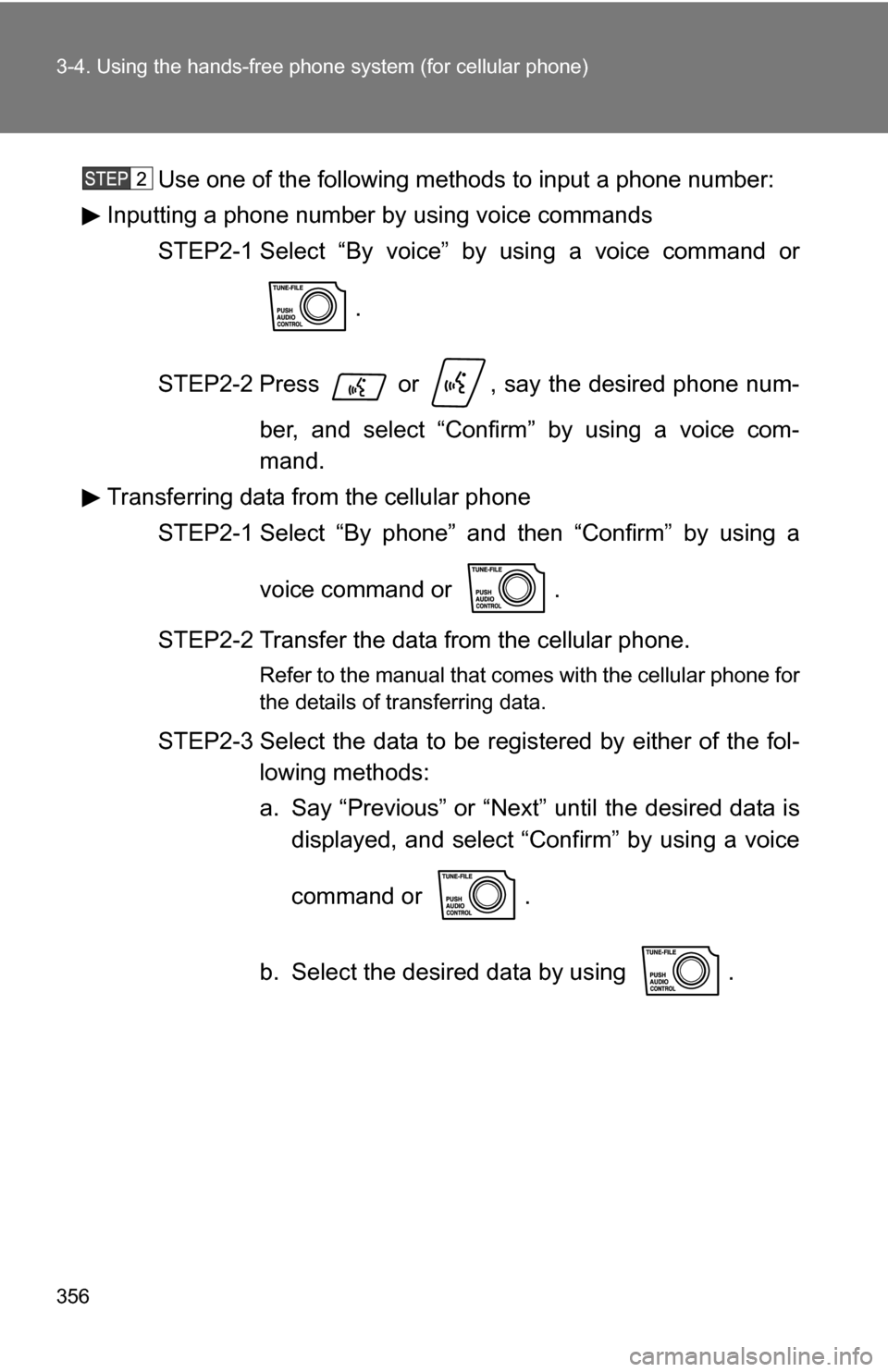
Use one of the following methods to input a phone number:
Inputting a phone number by using voice commands
STEP2-1 Select “By voice” by using a voice command or
.
STEP2-2 Press or , say the desired phone num- ber, and select “Confirm” by using a voice com-
mand.
Transferring data from the cellular phone
STEP2-1 Select “By phone” and then “Confirm” by using a
voice command or .
STEP2-2 Transfer the data from the cellular phone.
Refer to the manual that comes with the cellular phone for
the details of transferring data.
STEP2-3 Select the data to be registered by either of the fol- lowing methods:
a. Say “Previous” or “Next” until the desired data isdisplayed, and select “Confirm” by using a voice
command or .
b. Select the desired data by using .
Page 357 of 596
357
3-4. Using the hand
s-free phone system (for cellular phone)
3
Interior features
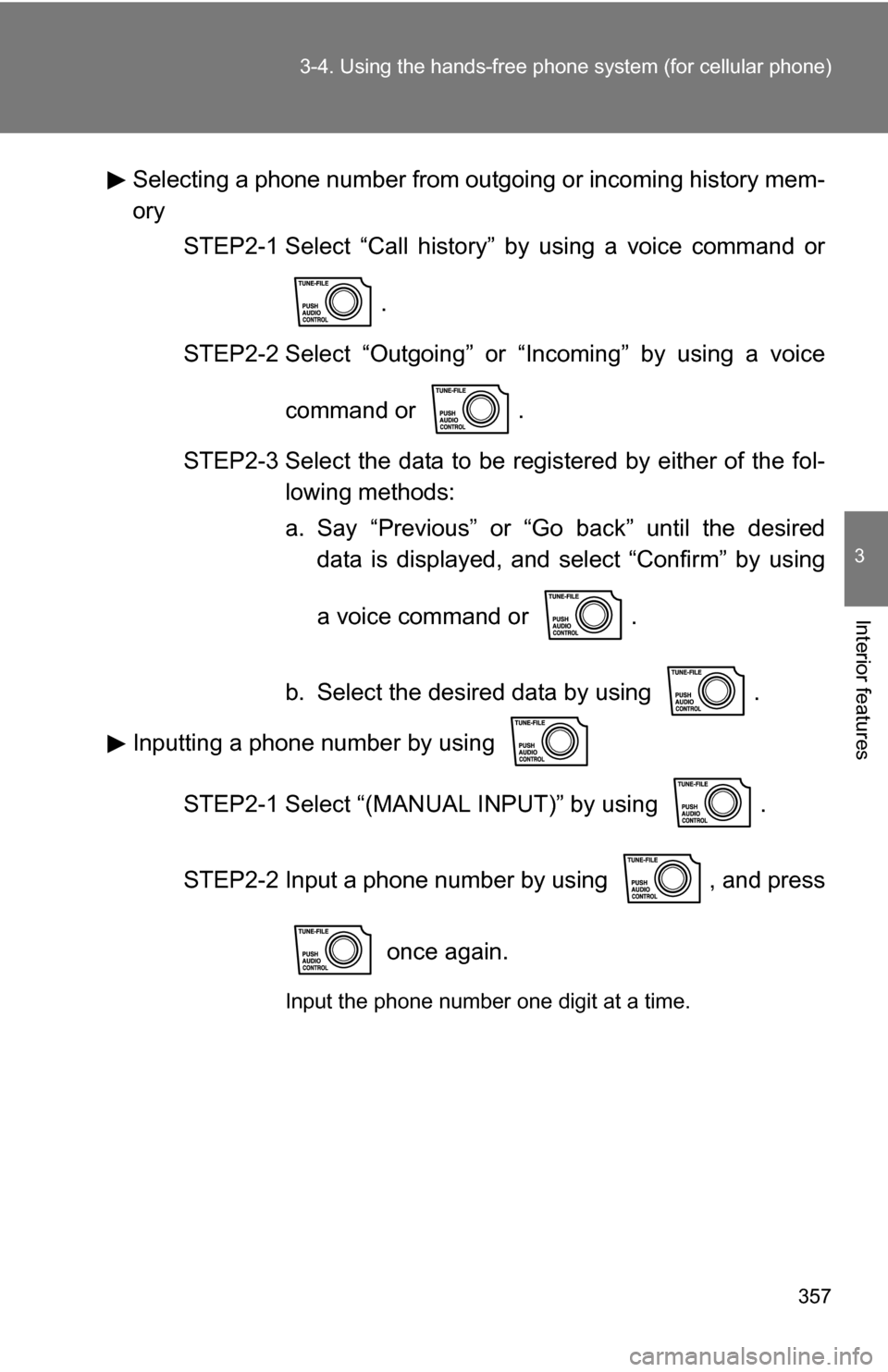
Selecting a phone number from outgoing or incoming history mem-
ory
STEP2-1 Select “Call history” by using a voice command or
.
STEP2-2 Select “Outgoing” or “Incoming” by using a voice
command or .
STEP2-3 Select the data to be registered by either of the fol- lowing methods:
a. Say “Previous” or “Go back” until the desireddata is displayed, and select “Confirm” by using
a voice command or .
b. Select the desired data by using .
Inputting a phone number by using
STEP2-1 Select “(MANUAL INPUT)” by using .
STEP2-2 Input a phone number by using , and press
once again.
Input the phone number one digit at a time.
Page 363 of 596
363
3-5. Using the interior lights
3
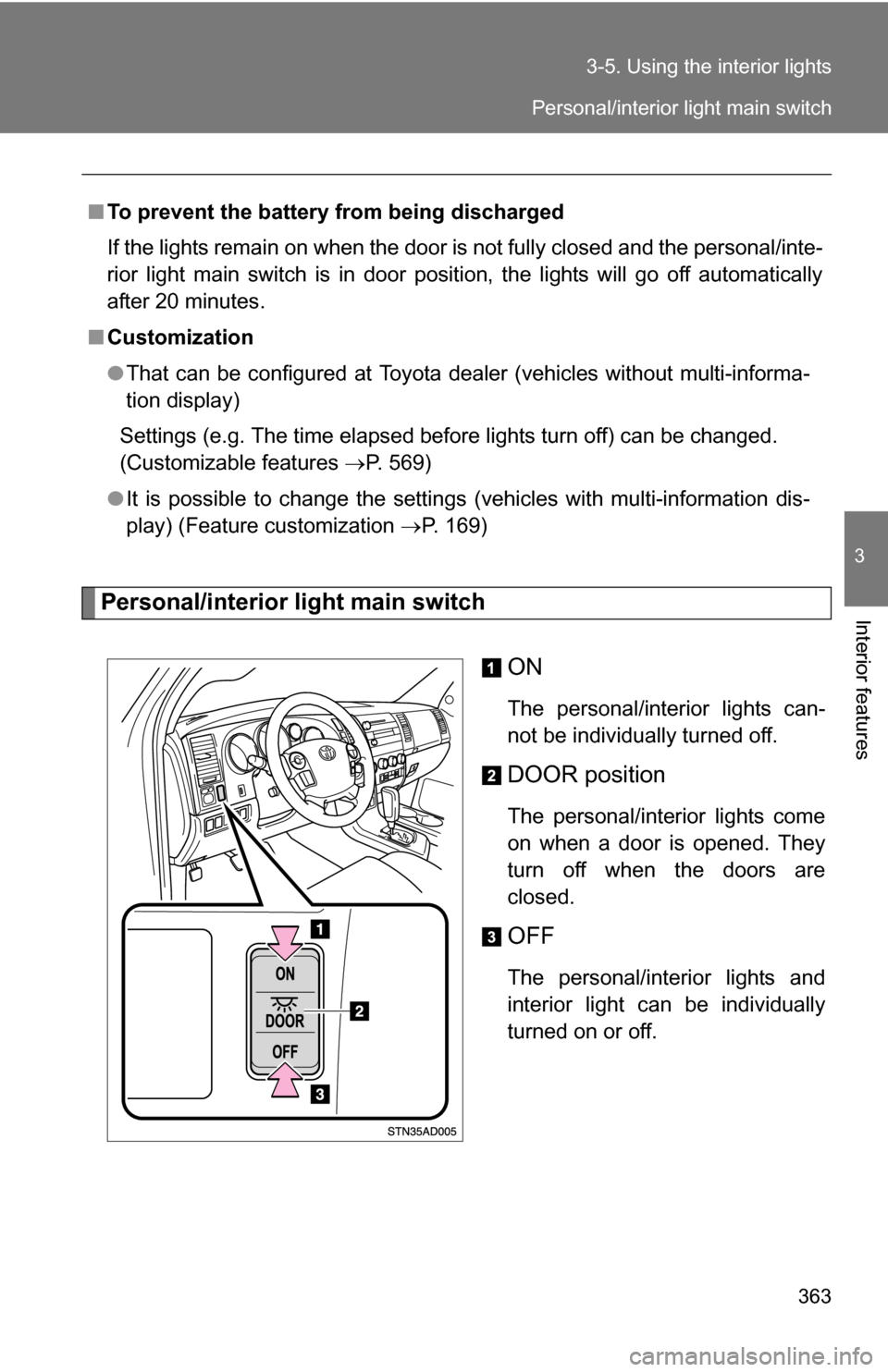
Interior featuresPersonal/interior light main switch
ON
The personal/interior lights can-
not be individually turned off.
DOOR position
The personal/interior lights come
on when a door is opened. They
turn off when the doors are
closed.
OFF
The personal/interior lights and
interior light can be individually
turned on or off.
■
To prevent the battery from being discharged
If the lights remain on when the door is not fully closed and the personal/inte-
rior light main switch is in door position, the lights will go off automatically
after 20 minutes.
■ Customization
●That can be configured at Toyota dealer (vehicles without multi-informa-
tion display)
Settings (e.g. The time elapsed before lights turn off) can be changed.
(Customizable features P. 569)
● It is possible to change the settings (vehicles with multi-information dis-
play) (Feature customization P. 169)
Personal/interior light main switch
Page 388 of 596
388
3-7. Other interior features
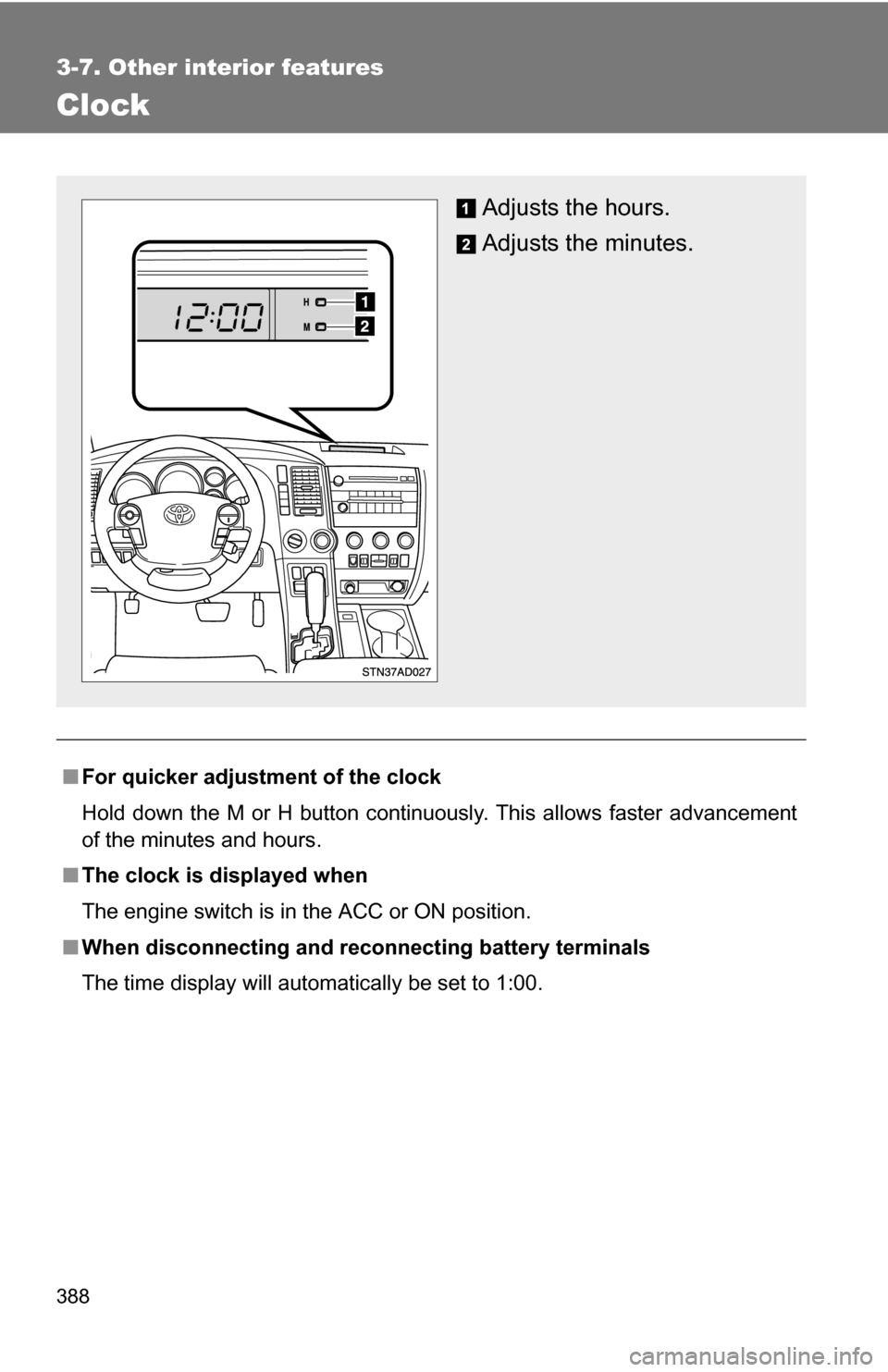
Clock
■For quicker adjustment of the clock
Hold down the M or H button continuously. This allows faster advancement
of the minutes and hours.
■ The clock is displayed when
The engine switch is in the ACC or ON position.
■ When disconnecting and reco nnecting battery terminals
The time display will automatically be set to 1:00.
Adjusts the hours.
Adjusts the minutes.