navigation system TOYOTA SEQUOIA 2013 2.G Navigation Manual
[x] Cancel search | Manufacturer: TOYOTA, Model Year: 2013, Model line: SEQUOIA, Model: TOYOTA SEQUOIA 2013 2.GPages: 328, PDF Size: 8.3 MB
Page 26 of 328
26
1. BASIC INFORMATION BEFORE OPERATION
1. INITIAL SCREEN
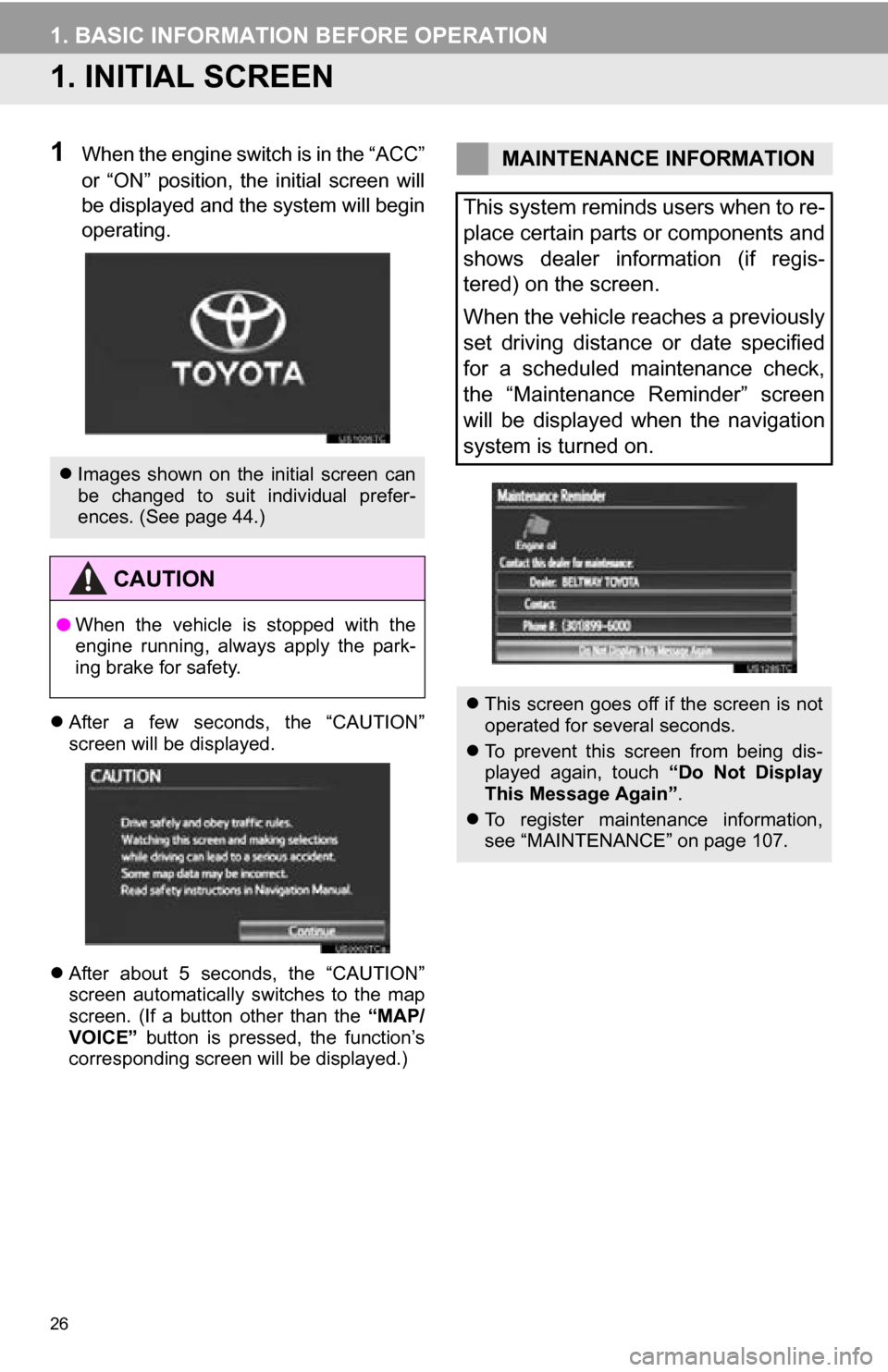
1When the engine switch is in the “ACC”
or “ON” position, the initial screen will
be displayed and the system will begin
operating.
After a few seconds, the “CAUTION”
screen will be displayed.
After about 5 seconds, the “CAUTION”
screen automatically switches to the map
screen. (If a button other than the “MAP/
VOICE” button is pressed, the function’s
corresponding screen will be displayed.)
Images shown on the initial screen can
be changed to suit individual prefer-
ences. (See page 44.)
CAUTION
●When the vehicle is stopped with the
engine running, always apply the park-
ing brake for safety.
MAINTENANCE INFORMATION
This system reminds users when to re-
place certain parts or components and
shows dealer information (if regis-
tered) on the screen.
When the vehicle reaches a previously
set driving distance or date specified
for a scheduled maintenance check,
the “Maintenance Reminder” screen
will be displayed when the navigation
system is turned on.
This screen goes off if the screen is not
operated for several seconds.
To prevent this screen from being dis-
played again, touch “Do Not Display
This Message Again” .
To register maintenance information,
see “MAINTENANCE” on page 107.
Page 32 of 328
32
1. BASIC INFORMATION BEFORE OPERATION
5. MAP SCREEN OPERATION
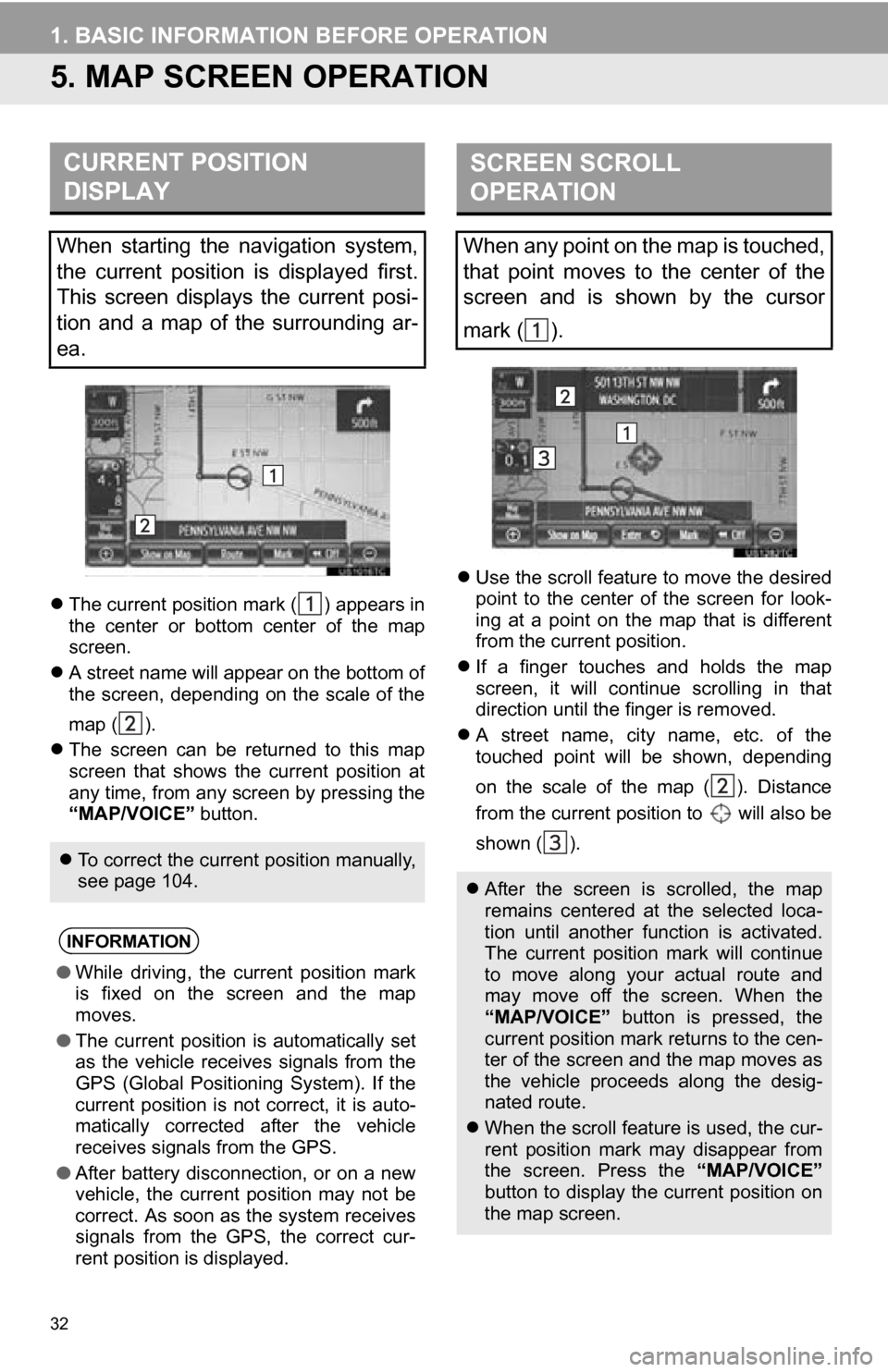
The current position mark ( ) appears in
the center or bottom center of the map
screen.
A street name will appear on the bottom of
the screen, depending on the scale of the
map ( ).
The screen can be returned to this map
screen that shows the current position at
any time, from any screen by pressing the
“MAP/VOICE” button.
Use the scroll feature to move the desired
point to the center of the screen for look-
ing at a point on the map that is different
from the current position.
If a finger touches and holds the map
screen, it will continue scrolling in that
direction until the finger is removed.
A street name, city name, etc. of the
touched point will be shown, depending
on the scale of the map ( ). Distance
from the current position to will also be
shown ( ).
CURRENT POSITION
DISPLAY
When starting the navigation system,
the current position is displayed first.
This screen displays the current posi-
tion and a map of the surrounding ar-
ea.
To correct the current position manually,
see page 104.
INFORMATION
●While driving, the current position mark
is fixed on the screen and the map
moves.
● The current position is automatically set
as the vehicle receives signals from the
GPS (Global Positioning System). If the
current position is not correct, it is auto-
matically corrected after the vehicle
receives signals from the GPS.
● After battery disconnection, or on a new
vehicle, the current position may not be
correct. As soon as the system receives
signals from the GPS, the correct cur-
rent position is displayed.
SCREEN SCROLL
OPERATION
When any point on the map is touched,
that point moves to the center of the
screen and is shown by the cursor
mark ( ).
After the screen is scrolled, the map
remains centered at the selected loca-
tion until another function is activated.
The current position mark will continue
to move along your actual route and
may move off the screen. When the
“MAP/VOICE” button is pressed, the
current position mark returns to the cen-
ter of the screen and the map moves as
the vehicle proceeds along the desig-
nated route.
When the scroll feature is used, the cur-
rent position mark may disappear from
the screen. Press the “MAP/VOICE”
button to display the current position on
the map screen.
Page 50 of 328
50
1. DESTINATION SEARCH............... 52
SELECTING THE SEARCH AREA ........ 52
DESTINATION SEARCH BY HOME...... 53
DESTINATION SEARCH BY PRESET DESTINATIONS .................................. 53
DESTINATION SEARCH BY “Address” ............................................. 54
DESTINATION SEARCH BY “Point of Interest” ................................. 56
DESTINATION SEARCH BY “Previous Destinations”........................ 61
DESTINATION SEARCH BY “Address Book” .................................... 61
DESTINATION SEARCH BY “Emergency” ........................................ 62
DESTINATION SEARCH BY “Intersection & Freeway”...................... 62
DESTINATION SEARCH BY “Map” ................................................... 64
DESTINATION SEARCH BY “Coordinates” ....................................... 65
DELETING SET DESTINATIONS .......... 65
2. STARTING ROUTE GUIDANCE ....... ....................... .... 66
1DESTINATION SEARCH
NAVIGATION SYSTEM
3
Page 51 of 328
3
51
1
2
3
4
5
6
7
8
9
1. ROUTE GUIDANCE SCREEN ....... 69
2. TYPICAL VOICE GUIDANCE PROMPTS.................................... 72
3. DISTANCE AND TIME TO DESTINATION ............................. 75
4. SETTING AND DELETING DESTINATIONS........................... 76
ADDING DESTINATIONS ..................... 76
REORDERING DESTINATIONS ........... 76
DELETING DESTINATIONS ................. 77
5. SETTING ROUTE .......................... 78
DETOUR SETTING ............................... 78
ROUTE OVERVIEW.............................. 79
ROUTE PREFERENCE ........................ 80
PAUSING AND RESUMING
GUIDANCE ......................................... 81
SHOW ON MAP .................................... 82
ROUTE TRACE ..................................... 85
1. NAVIGATION SETTINGS ............. 86
SETTING UP THE “Home” .................... 86
SETTING UP THE “Preset Destinations” ................... 88
SETTING UP THE “Address Book” ....... 91
SETTING UP THE “Areas to Avoid” ...... 95
DELETING PREVIOUS DESTINATIONS .................................. 99
1. DETAILED NAVIGATION SETTINGS ................................. 100
SCREENS FOR NAVIGATION
SETTINGS ........................................ 100
2. VEHICLE SETTINGS .................. 107
MAINTENANCE ................................... 107
1. LIMITATIONS OF THE NAVIGATION
SYSTEM .......... ....................... ... 111
2ROUTE GUIDANCE3ADDRESS BOOK
4SETUP
5GPS (GLOBAL POSITIONING
SYSTEM)
NAVIGATION SYSTEM
Page 53 of 328
53
1. DESTINATION SEARCH
3
NAVIGATION SYSTEM
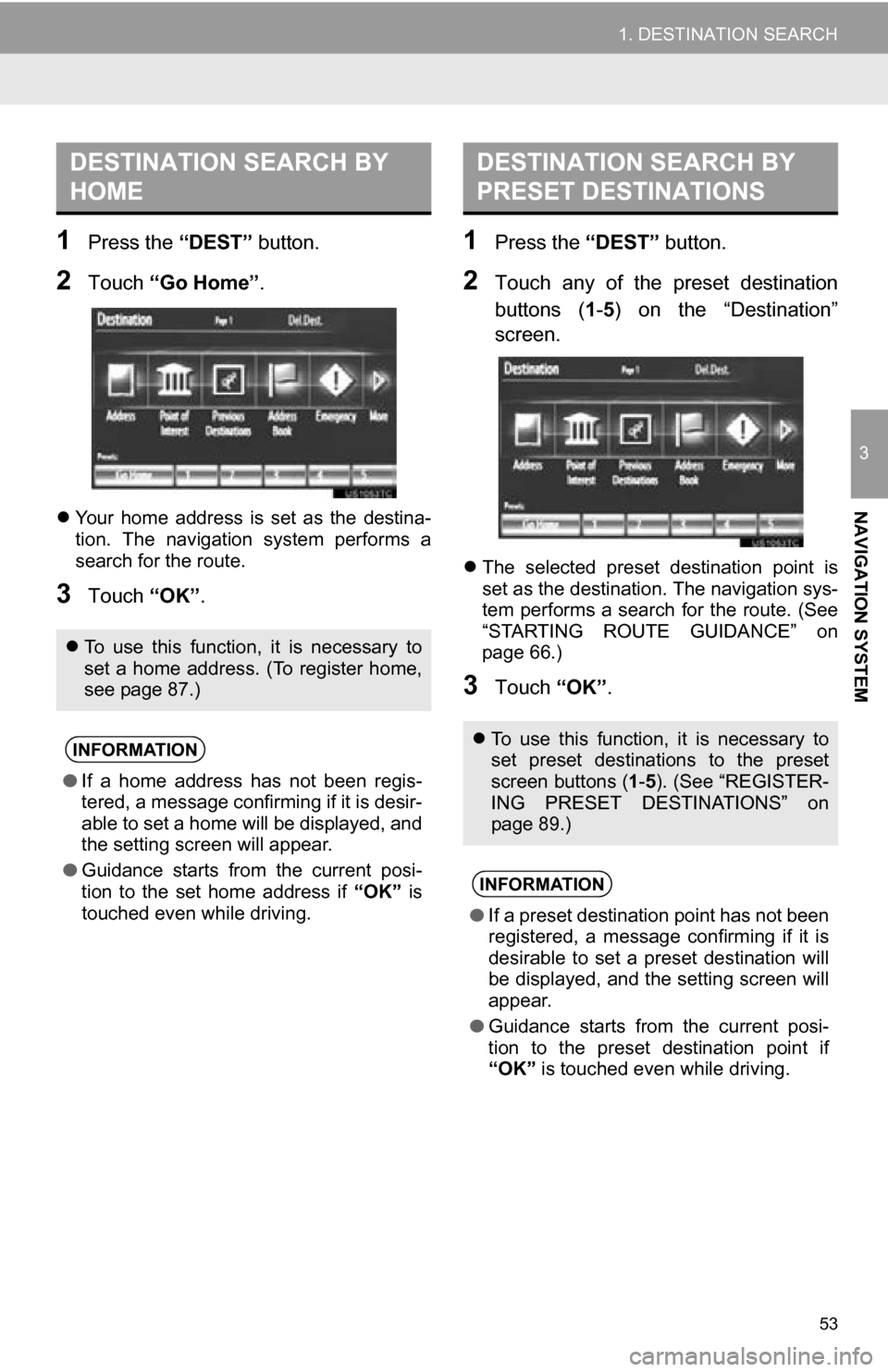
1Press the “DEST” button.
2Touch “Go Home” .
Your home address is set as the destina-
tion. The navigation system performs a
search for the route.
3Touch “OK”.
1Press the “DEST” button.
2Touch any of the preset destination
buttons (1-5 ) on the “Destination”
screen.
The selected preset destination point is
set as the destination. The navigation sys-
tem performs a search for the route. (See
“STARTING ROUTE GUIDANCE” on
page 66.)
3Touch “OK”.
DESTINATION SEARCH BY
HOME
To use this function, it is necessary to
set a home address. (To register home,
see page 87.)
INFORMATION
● If a home address has not been regis-
tered, a message confirming if it is desir-
able to set a home will be displayed, and
the setting screen will appear.
● Guidance starts from the current posi-
tion to the set home address if “OK” is
touched even while driving.
DESTINATION SEARCH BY
PRESET DESTINATIONS
To use this function, it is necessary to
set preset destinations to the preset
screen buttons ( 1-5 ). (See “REGISTER-
ING PRESET DESTINATIONS” on
page 89.)
INFORMATION
● If a preset destination point has not been
registered, a message confirming if it is
desirable to set a preset destination will
be displayed, and the setting screen will
appear.
● Guidance starts from the current posi-
tion to the preset destination point if
“OK” is touched even while driving.
Page 55 of 328
55
1. DESTINATION SEARCH
3
NAVIGATION SYSTEM
When the desired street name is selected,
the “Confirm Destination” screen may be
displayed. If “Go” is touched on the “Con-
firm Destination” screen, the navigation
system performs a search for the route.
(See “STARTING ROUTE GUIDANCE” on
page 66.)
8Input a house number.
If the same address exists in more than
one city, the current screen changes to the
address list screen.
■SEARCHING FROM THE LAST 5
CITIES
1Touch “Last 5 Cities” .
2Touch the screen button of the desired
city name from the displayed list.
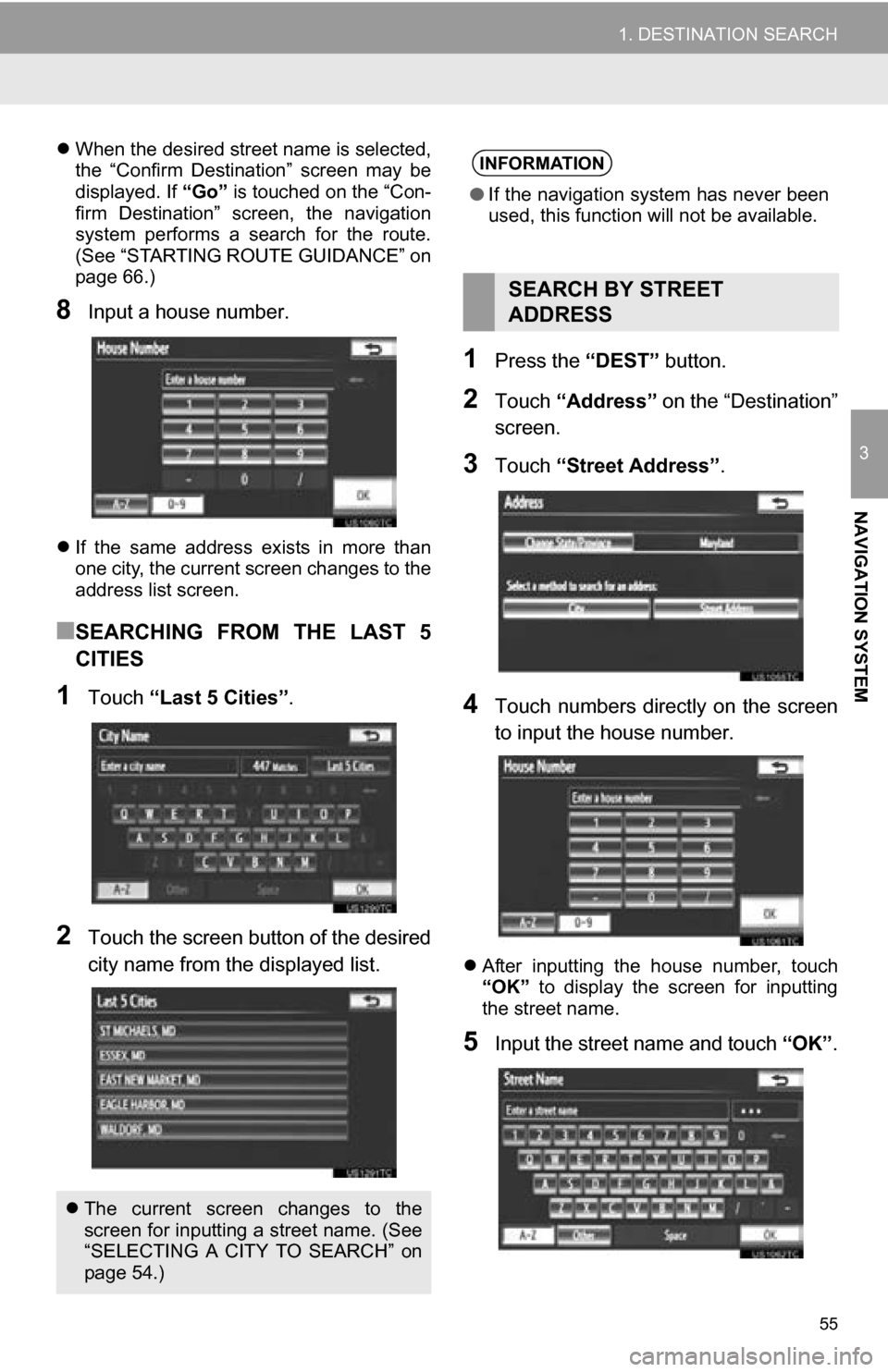
1Press the “DEST” button.
2Touch “Address” on the “Destination”
screen.
3Touch “Street Address”.
4Touch numbers directly on the screen
to input the house number.
After inputting the house number, touch
“OK” to display the screen for inputting
the street name.
5Input the street name and touch “OK”.
The current screen changes to the
screen for inputting a street name. (See
“SELECTING A CITY TO SEARCH” on
page 54.)
INFORMATION
● If the navigation system has never been
used, this function will not be available.
SEARCH BY STREET
ADDRESS
Page 56 of 328
56
1. DESTINATION SEARCH
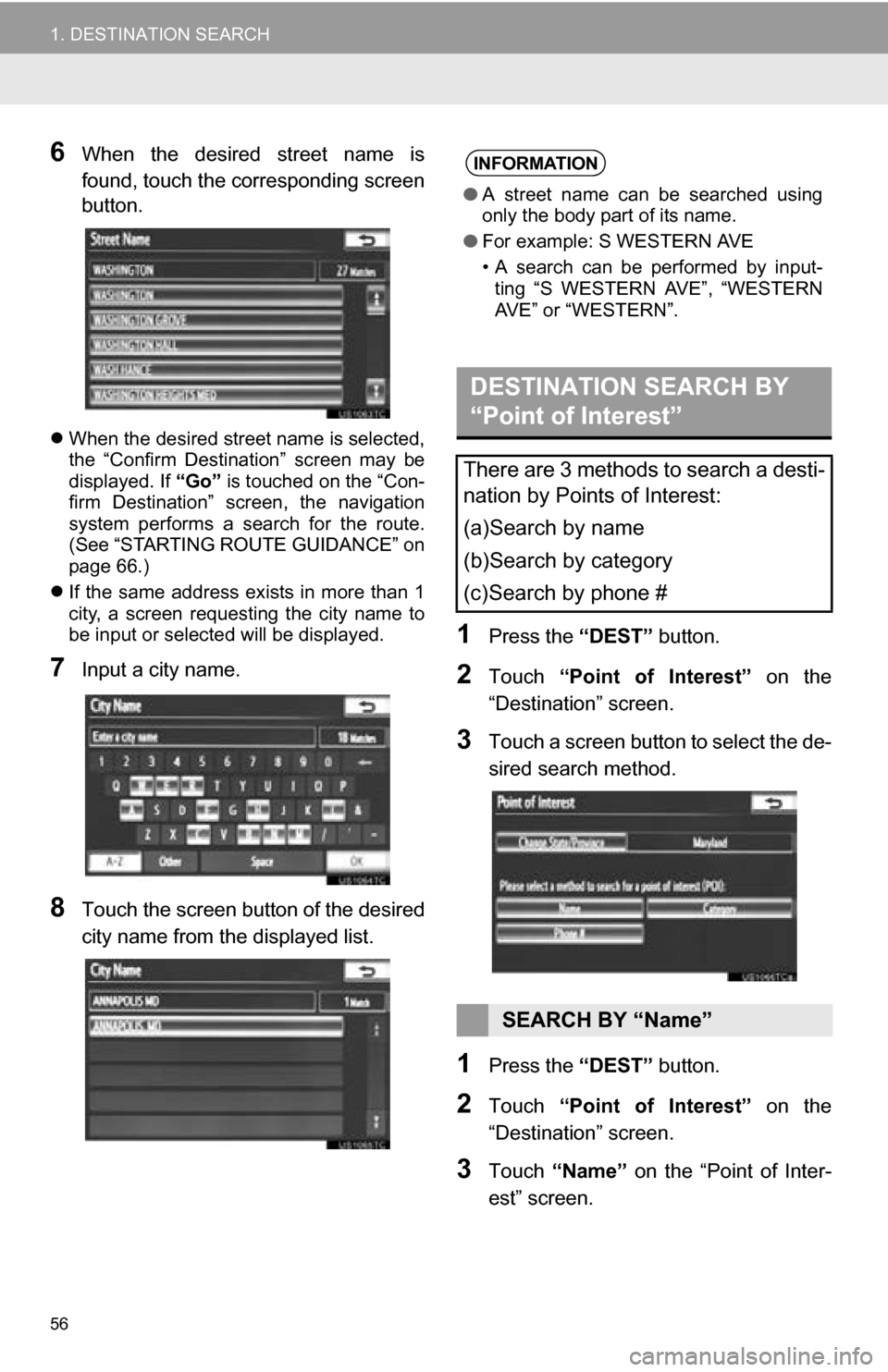
6When the desired street name is
found, touch the corresponding screen
button.
When the desired street name is selected,
the “Confirm Destination” screen may be
displayed. If “Go” is touched on the “Con-
firm Destination” screen, the navigation
system performs a search for the route.
(See “STARTING ROUTE GUIDANCE” on
page 66.)
If the same address exists in more than 1
city, a screen requesting the city name to
be input or selected will be displayed.
7Input a city name.
8Touch the screen button of the desired
city name from the displayed list.
1Press the “DEST” button.
2Touch “Point of Interest” on the
“Destination” screen.
3Touch a screen button to select the de-
sired search method.
1Press the “DEST” button.
2Touch “Point of Interest” on the
“Destination” screen.
3Touch “Name” on the “Point of Inter-
est” screen.
INFORMATION
● A street name can be searched using
only the body part of its name.
● For example: S WESTERN AVE
• A search can be performed by input-
ting “S WESTERN AVE”, “WESTERN
AVE” or “WESTERN”.
DESTINATION SEARCH BY
“Point of Interest”
There are 3 methods to search a desti-
nation by Points of Interest:
(a)Search by name
(b)Search by category
(c)Search by phone #
SEARCH BY “Name”
Page 57 of 328
57
1. DESTINATION SEARCH
3
NAVIGATION SYSTEM
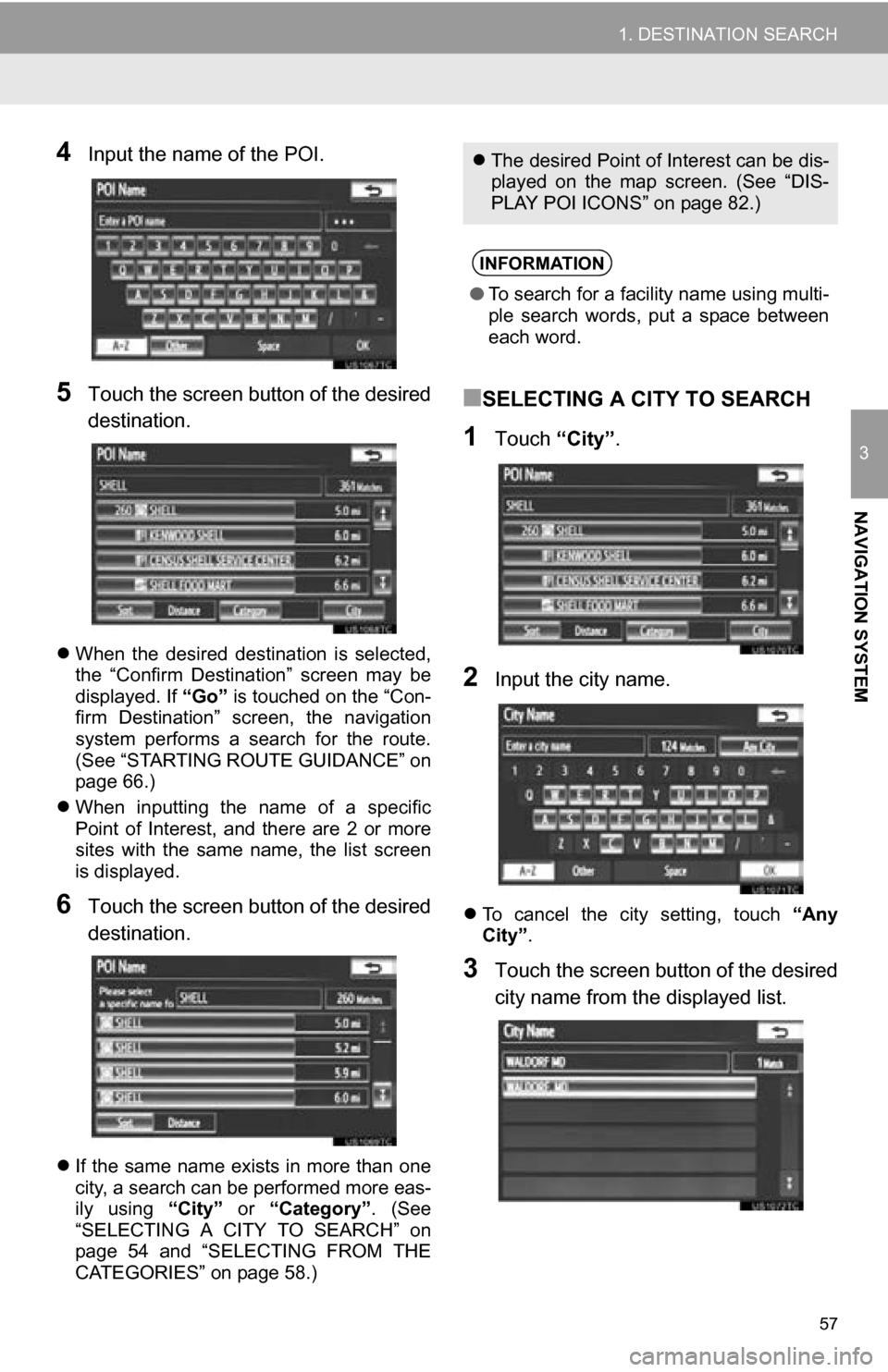
4Input the name of the POI.
5Touch the screen button of the desired
destination.
When the desired destination is selected,
the “Confirm Destination” screen may be
displayed. If “Go” is touched on the “Con-
firm Destination” screen, the navigation
system performs a search for the route.
(See “STARTING ROUTE GUIDANCE” on
page 66.)
When inputting the name of a specific
Point of Interest, and there are 2 or more
sites with the same name, the list screen
is displayed.
6Touch the screen button of the desired
destination.
If the same name exists in more than one
city, a search can be performed more eas-
ily using “City” or “Category” . (See
“SELECTING A CITY TO SEARCH” on
page 54 and “SELECTING FROM THE
CATEGORIES” on page 58.)
■SELECTING A CITY TO SEARCH
1Touch “City”.
2Input the city name.
To cancel the city setting, touch “Any
City” .
3Touch the screen button of the desired
city name from the displayed list.
The desired Point of Interest can be dis-
played on the map screen. (See “DIS-
PLAY POI ICONS” on page 82.)
INFORMATION
●To search for a facility name using multi-
ple search words, put a space between
each word.
Page 59 of 328
59
1. DESTINATION SEARCH
3
NAVIGATION SYSTEM
■SETTING THE SEARCH POINT
FROM NEAR HERE
1Touch “Near Here” .
The search point is set at the current posi-
tion, and the “POI Category” screen will be
displayed. (See page 60.)
■SETTING THE SEARCH POINT
FROM ALONG MY ROUTE
1Touch “Along My Route” .
The search point is set and the “POI Cate-
gory” screen will be displayed. (See page
60.)
■SETTING THE SEARCH POINT
FROM NEAR CITY CENTER
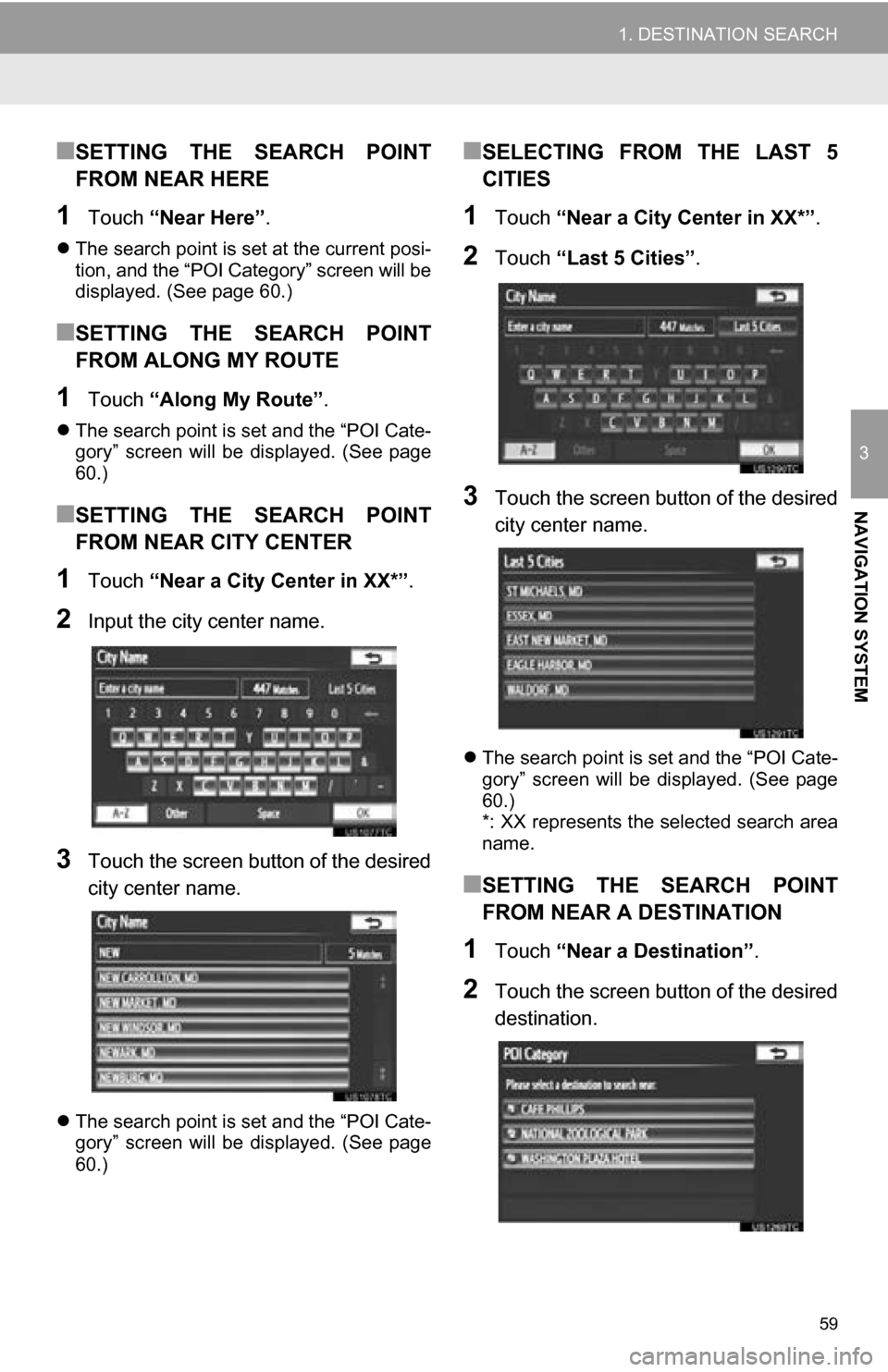
1Touch “Near a City Center in XX*” .
2Input the city center name.
3Touch the screen button of the desired
city center name.
The search point is set and the “POI Cate-
gory” screen will be displayed. (See page
60.)
■SELECTING FROM THE LAST 5
CITIES
1Touch “Near a City Center in XX*” .
2Touch “Last 5 Cities” .
3Touch the screen button of the desired
city center name.
The search point is set and the “POI Cate-
gory” screen will be displayed. (See page
60.)
*: XX represents the selected search area
name.
■SETTING THE SEARCH POINT
FROM NEAR A DESTINATION
1Touch “Near a Destination” .
2Touch the screen button of the desired
destination.
Page 61 of 328
61
1. DESTINATION SEARCH
3
NAVIGATION SYSTEM
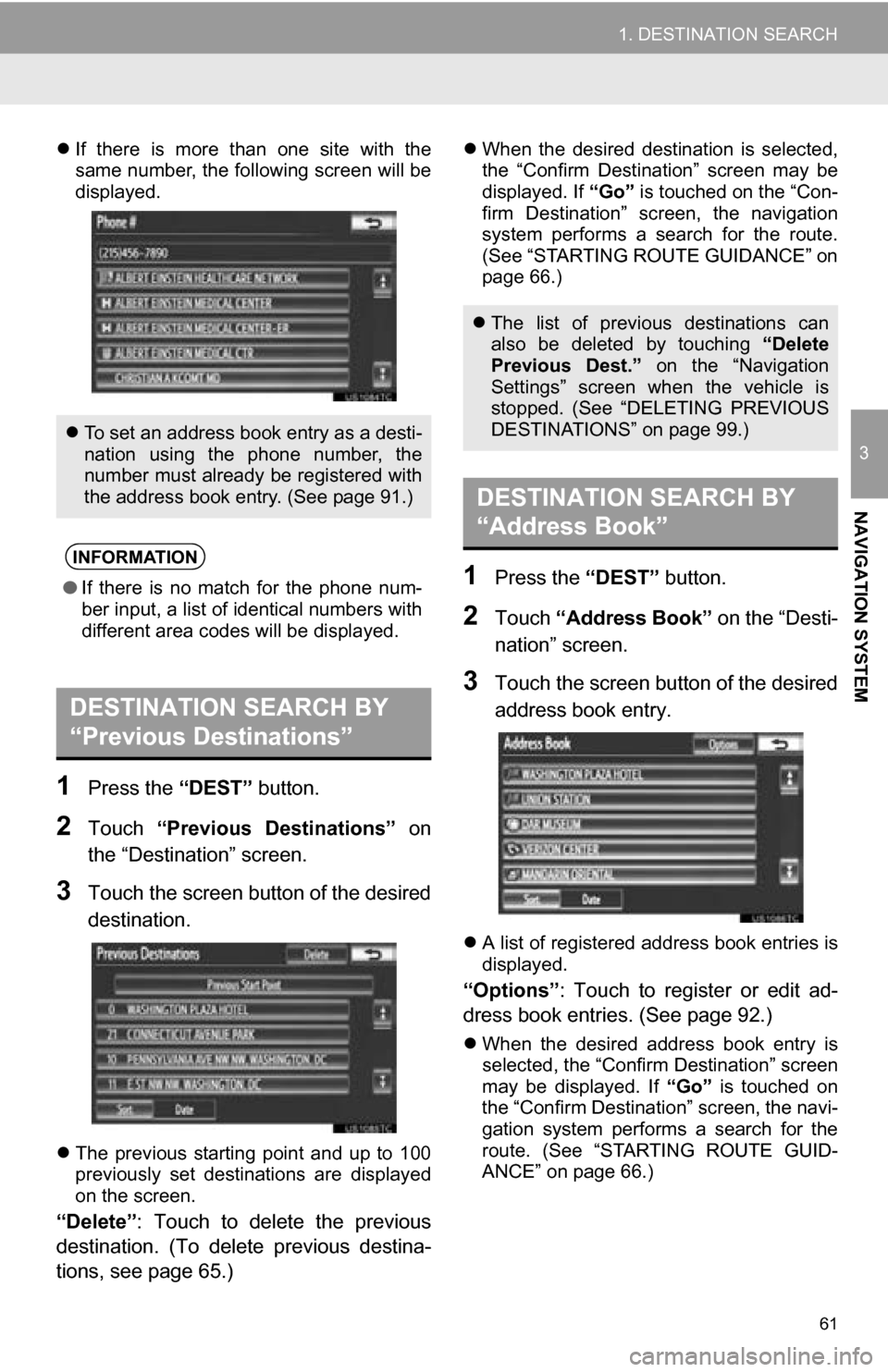
If there is more than one site with the
same number, the following screen will be
displayed.
1Press the “DEST” button.
2Touch “Previous Destinations” on
the “Destination” screen.
3Touch the screen button of the desired
destination.
The previous starting point and up to 100
previously set destinations are displayed
on the screen.
“Delete” : Touch to delete the previous
destination. (To delete previous destina-
tions, see page 65.)
When the desired destination is selected,
the “Confirm Destination” screen may be
displayed. If “Go” is touched on the “Con-
firm Destination” screen, the navigation
system performs a search for the route.
(See “STARTING ROUTE GUIDANCE” on
page 66.)
1Press the “DEST” button.
2Touch “Address Book” on the “Desti-
nation” screen.
3Touch the screen button of the desired
address book entry.
A list of registered address book entries is
displayed.
“Options” : Touch to register or edit ad-
dress book entries. (See page 92.)
When the desired address book entry is
selected, the “Confirm Destination” screen
may be displayed. If “Go” is touched on
the “Confirm Destination” screen, the navi-
gation system performs a search for the
route. (See “STARTING ROUTE GUID-
ANCE” on page 66.)
To set an address book entry as a desti-
nation using the phone number, the
number must already be registered with
the address book entry. (See page 91.)
INFORMATION
● If there is no match for the phone num-
ber input, a list of identical numbers with
different area codes will be displayed.
DESTINATION SEARCH BY
“Previous Destinations”
The list of previous destinations can
also be deleted by touching “Delete
Previous Dest.” on the “Navigation
Settings” screen when the vehicle is
stopped. (See “DELETING PREVIOUS
DESTINATIONS” on page 99.)
DESTINATION SEARCH BY
“Address Book”