navigation system TOYOTA SEQUOIA 2013 2.G Navigation Manual
[x] Cancel search | Manufacturer: TOYOTA, Model Year: 2013, Model line: SEQUOIA, Model: TOYOTA SEQUOIA 2013 2.GPages: 328, PDF Size: 8.3 MB
Page 77 of 328
77
2. ROUTE GUIDANCE
3
NAVIGATION SYSTEM
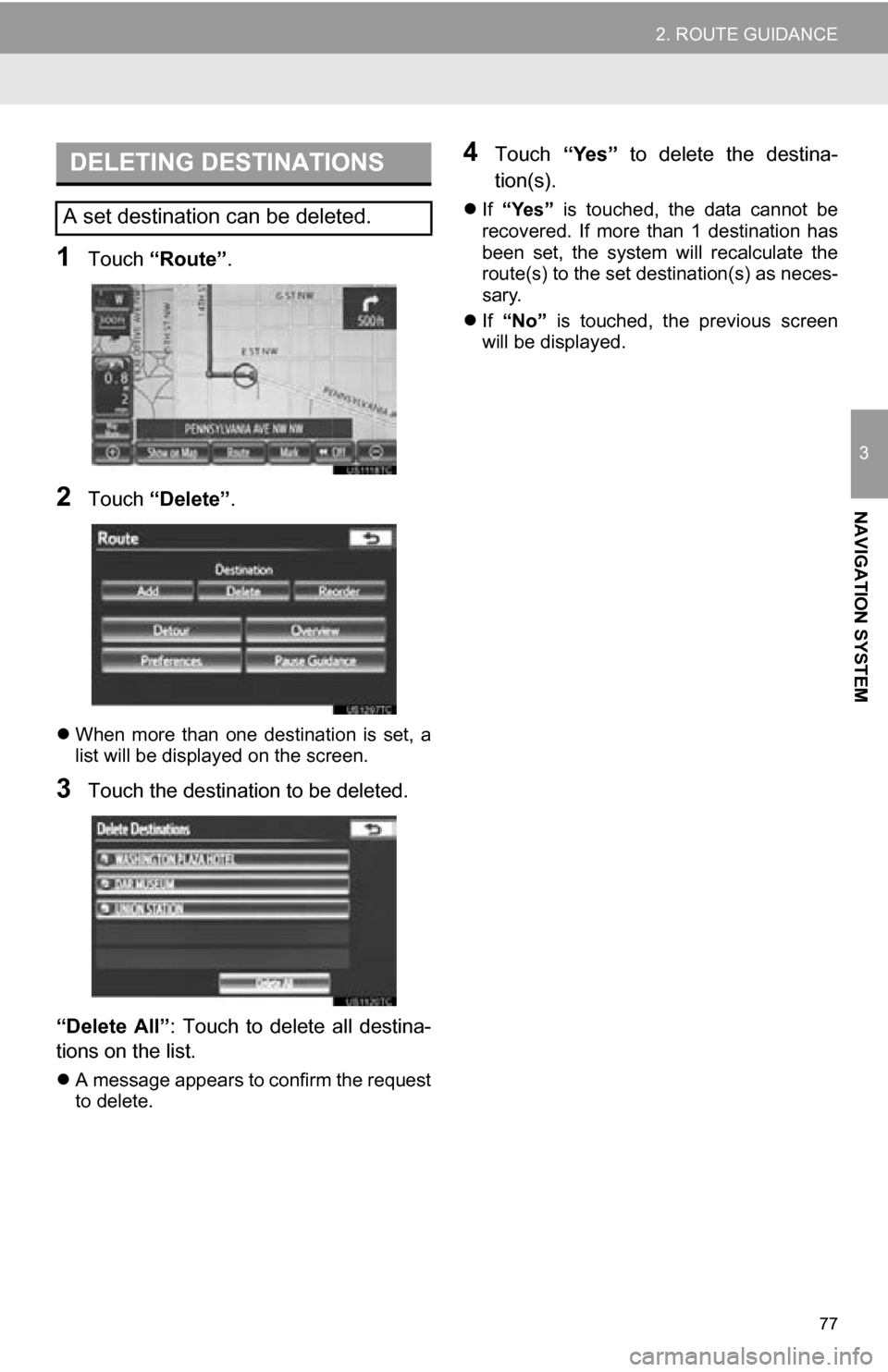
1Touch “Route” .
2Touch “Delete” .
When more than one destination is set, a
list will be displayed on the screen.
3Touch the destination to be deleted.
“Delete All”: Touch to delete all destina-
tions on the list.
A message appears to confirm the request
to delete.
4Touch “Yes” to delete the destina-
tion(s).
If “Yes” is touched, the data cannot be
recovered. If more than 1 destination has
been set, the system will recalculate the
route(s) to the set destination(s) as neces-
sary.
If “No” is touched, the previous screen
will be displayed.
DELETING DESTINATIONS
A set destination can be deleted.
Page 79 of 328
79
2. ROUTE GUIDANCE
3
NAVIGATION SYSTEM
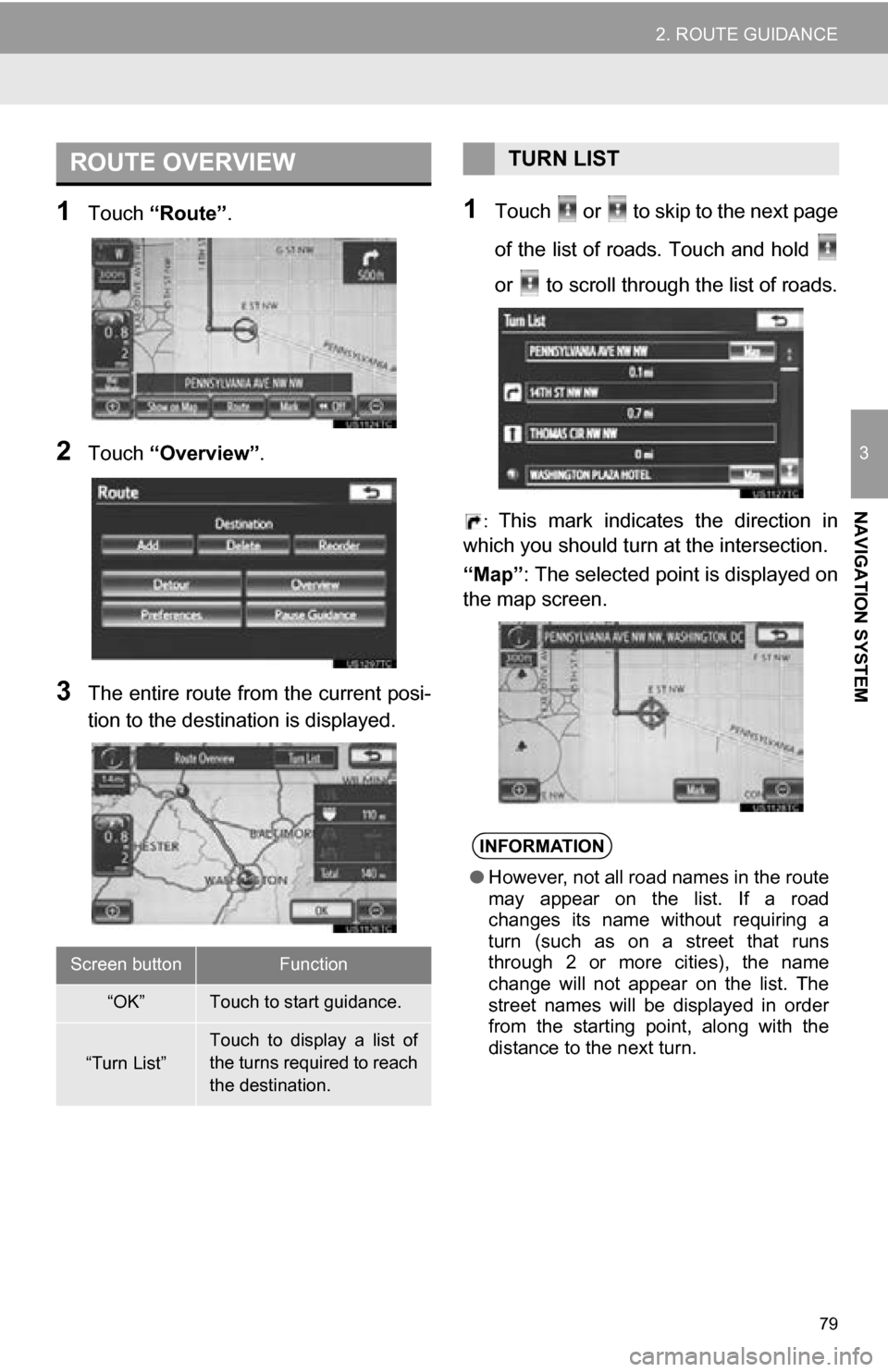
1Touch “Route” .
2Touch “Overview” .
3The entire route from the current posi-
tion to the destination is displayed.
1Touch or to skip to the next page
of the list of roads. Touch and hold
or to scroll through the list of roads.
: This mark indicates the direction in
which you should turn at the intersection.
“Map”: The selected point is displayed on
the map screen.
ROUTE OVERVIEW
Screen buttonFunction
“OK”Touch to start guidance.
“Turn List”
Touch to display a list of
the turns required to reach
the destination.
TURN LIST
INFORMATION
● However, not all road names in the route
may appear on the list. If a road
changes its name without requiring a
turn (such as on a street that runs
through 2 or more cities), the name
change will not appear on the list. The
street names will be displayed in order
from the starting point, along with the
distance to the next turn.
Page 81 of 328
81
2. ROUTE GUIDANCE
3
NAVIGATION SYSTEM
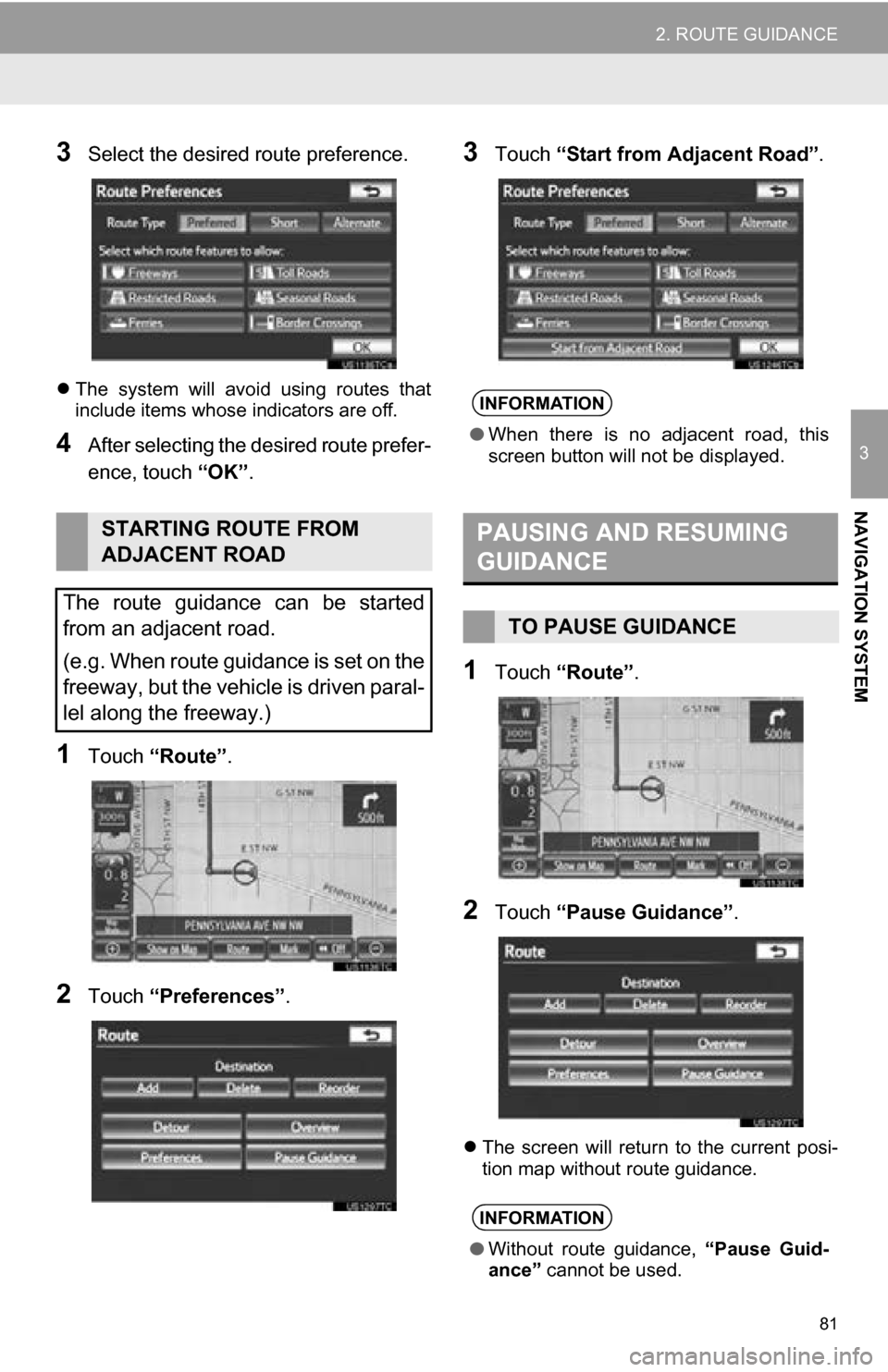
3Select the desired route preference.
The system will avoid using routes that
include items whose indicators are off.
4After selecting the desired route prefer-
ence, touch “OK”.
1Touch “Route” .
2Touch “Preferences” .
3Touch “Start from Adjacent Road” .
1Touch “Route” .
2Touch “Pause Guidance” .
The screen will return to the current posi-
tion map without route guidance.
STARTING ROUTE FROM
ADJACENT ROAD
The route guidance can be started
from an adjacent road.
(e.g. When route guidance is set on the
freeway, but the vehicle is driven paral-
lel along the freeway.)
INFORMATION
● When there is no adjacent road, this
screen button will not be displayed.
PAUSING AND RESUMING
GUIDANCE
TO PAUSE GUIDANCE
INFORMATION
●Without route guidance, “Pause Guid-
ance” cannot be used.
Page 83 of 328
83
2. ROUTE GUIDANCE
3
NAVIGATION SYSTEM
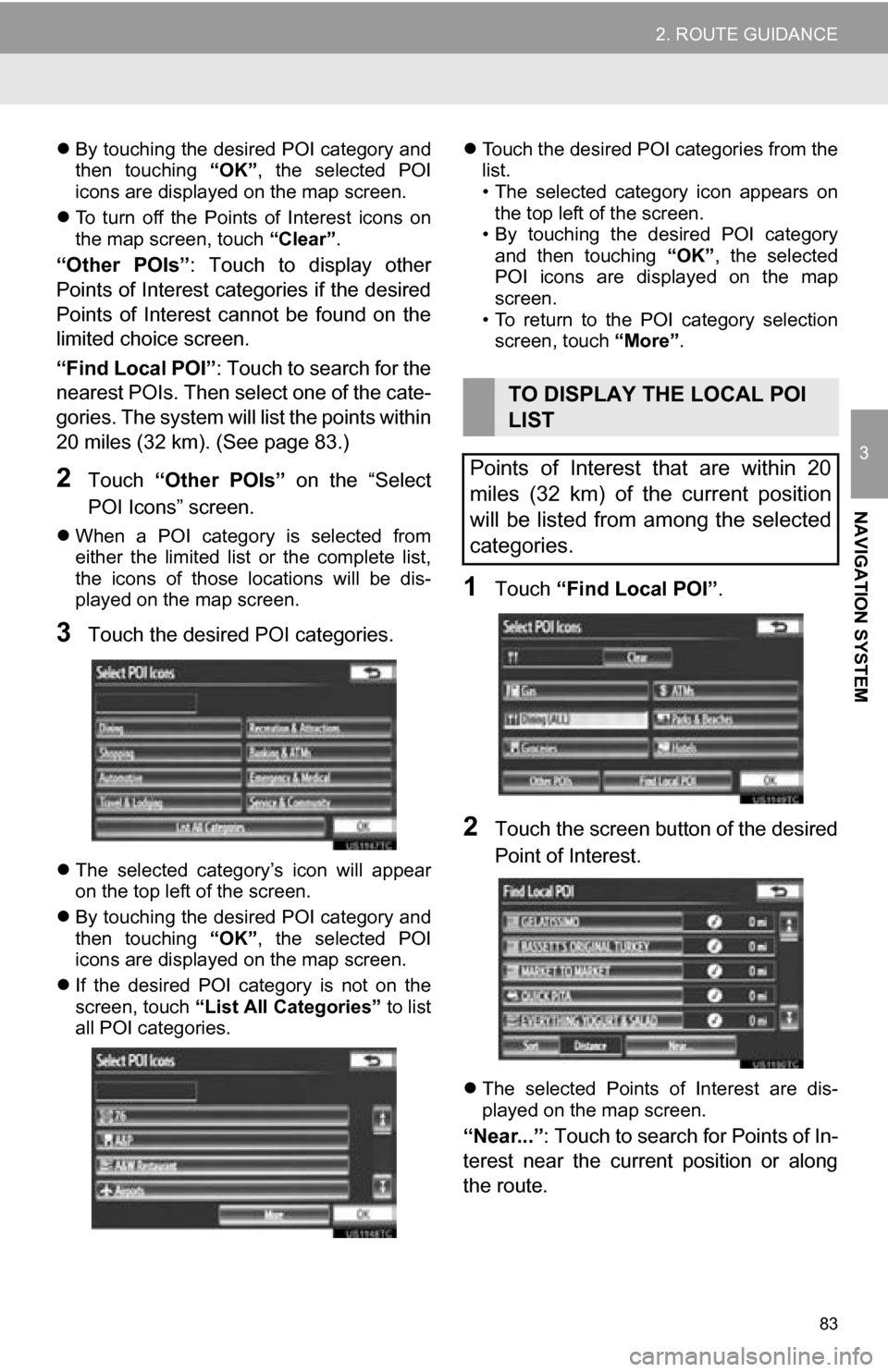
By touching the desired POI category and
then touching “OK”, the selected POI
icons are displayed on the map screen.
To turn off the Points of Interest icons on
the map screen, touch “Clear”.
“Other POIs”: Touch to display other
Points of Interest categories if the desired
Points of Interest cannot be found on the
limited choice screen.
“Find Local POI” : Touch to search for the
nearest POIs. Then select one of the cate-
gories. The system will list the points within
20 miles (32 km). (See page 83.)
2Touch “Other POIs” on the “Select
POI Icons” screen.
When a POI category is selected from
either the limited list or the complete list,
the icons of those locations will be dis-
played on the map screen.
3Touch the desired POI categories.
The selected category’s icon will appear
on the top left of the screen.
By touching the desired POI category and
then touching “OK”, the selected POI
icons are displayed on the map screen.
If the desired POI category is not on the
screen, touch “List All Categories” to list
all POI categories.
Touch the desired POI categories from the
list.
• The selected category icon appears on
the top left of the screen.
• By touching the desired POI category
and then touching “OK”, the selected
POI icons are displayed on the map
screen.
• To return to the POI category selection screen, touch “More”.
1Touch “Find Local POI” .
2Touch the screen button of the desired
Point of Interest.
The selected Points of Interest are dis-
played on the map screen.
“Near...” : Touch to search for Points of In-
terest near the current position or along
the route.
TO DISPLAY THE LOCAL POI
LIST
Points of Interest that are within 20
miles (32 km) of the current position
will be listed from among the selected
categories.
Page 85 of 328
85
2. ROUTE GUIDANCE
3
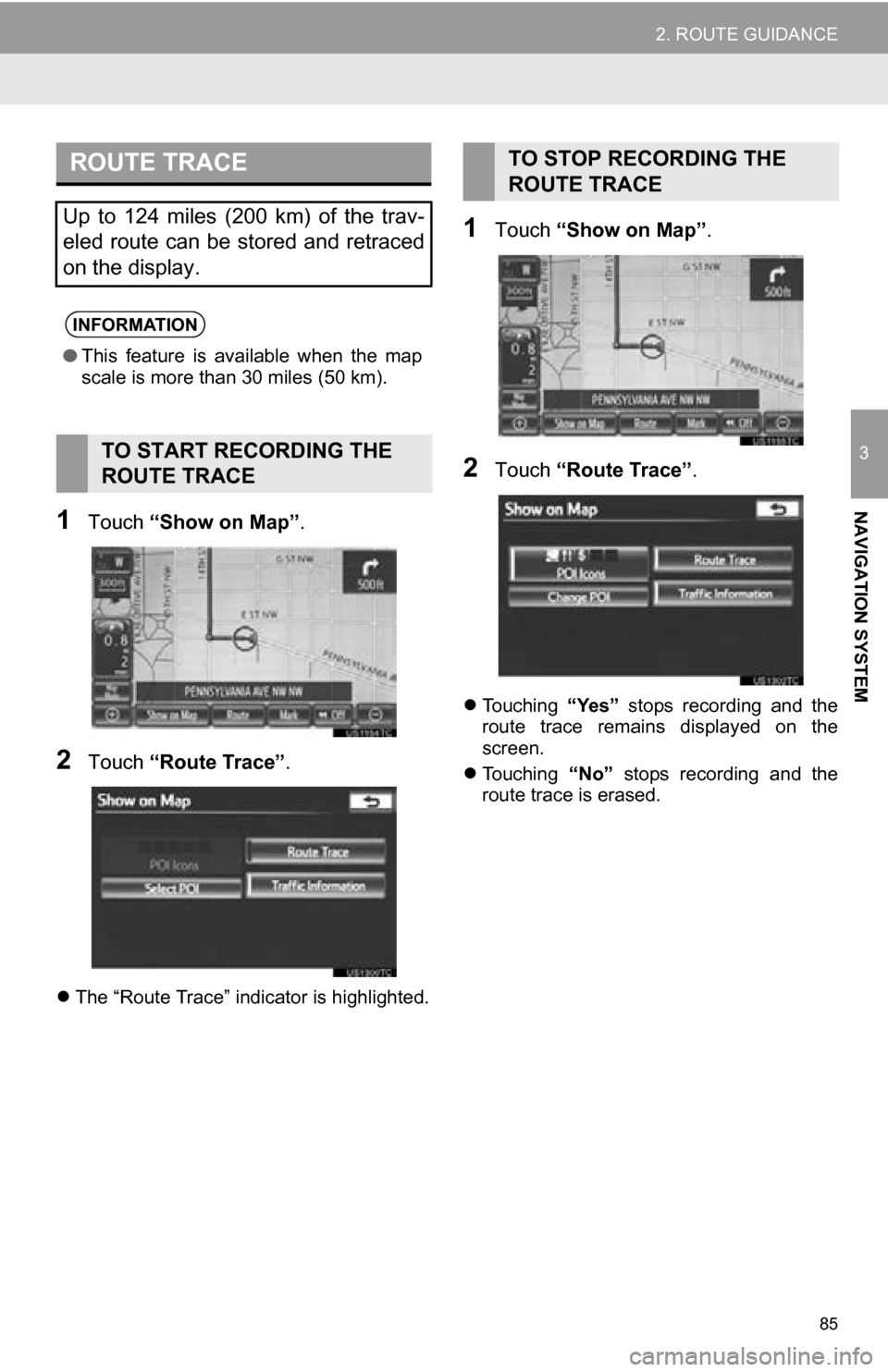
NAVIGATION SYSTEM1Touch “Show on Map” .
2Touch “Route Trace” .
The “Route Trace” indicator is highlighted.
1Touch “Show on Map” .
2Touch “Route Trace” .
Touching “Yes” stops recording and the
route trace remains displayed on the
screen.
Touching “No” stops recording and the
route trace is erased.
ROUTE TRACE
Up to 124 miles (200 km) of the trav-
eled route can be stored and retraced
on the display.
INFORMATION
● This feature is available when the map
scale is more than 30 miles (50 km).
TO START RECORDING THE
ROUTE TRACE
TO STOP RECORDING THE
ROUTE TRACE
Page 86 of 328
86
3. ADDRESS BOOK
1. NAVIGATION SETTINGS
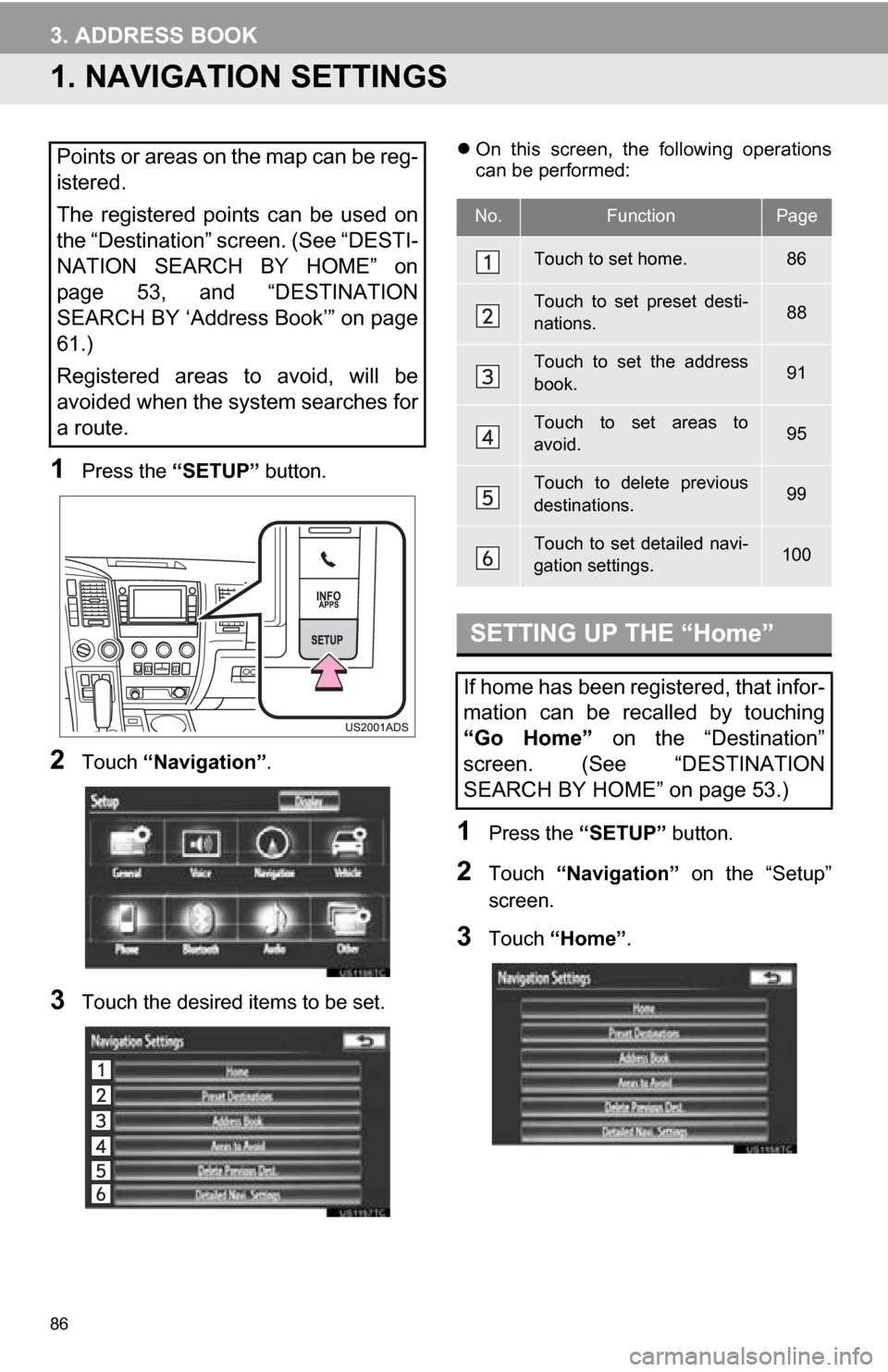
1Press the “SETUP” button.
2Touch “Navigation” .
3Touch the desired items to be set.
On this screen, the following operations
can be performed:
1Press the “SETUP” button.
2Touch “Navigation” on the “Setup”
screen.
3Touch “Home” .
Points or areas on the map can be reg-
istered.
The registered points can be used on
the “Destination” screen. (See “DESTI-
NATION SEARCH BY HOME” on
page 53, and “DESTINATION
SEARCH BY ‘Address Book’” on page
61.)
Registered areas to avoid, will be
avoided when the system searches for
a route.
No.FunctionPage
Touch to set home.86
Touch to set preset desti-
nations.88
Touch to set the address
book.91
Touch to set areas to
avoid.95
Touch to delete previous
destinations.99
Touch to set detailed navi-
gation settings.100
SETTING UP THE “Home”
If home has been registered, that infor-
mation can be recalled by touching
“Go Home” on the “Destination”
screen. (See “DESTINATION
SEARCH BY HOME” on page 53.)
Page 87 of 328
87
3. ADDRESS BOOK
3
NAVIGATION SYSTEM
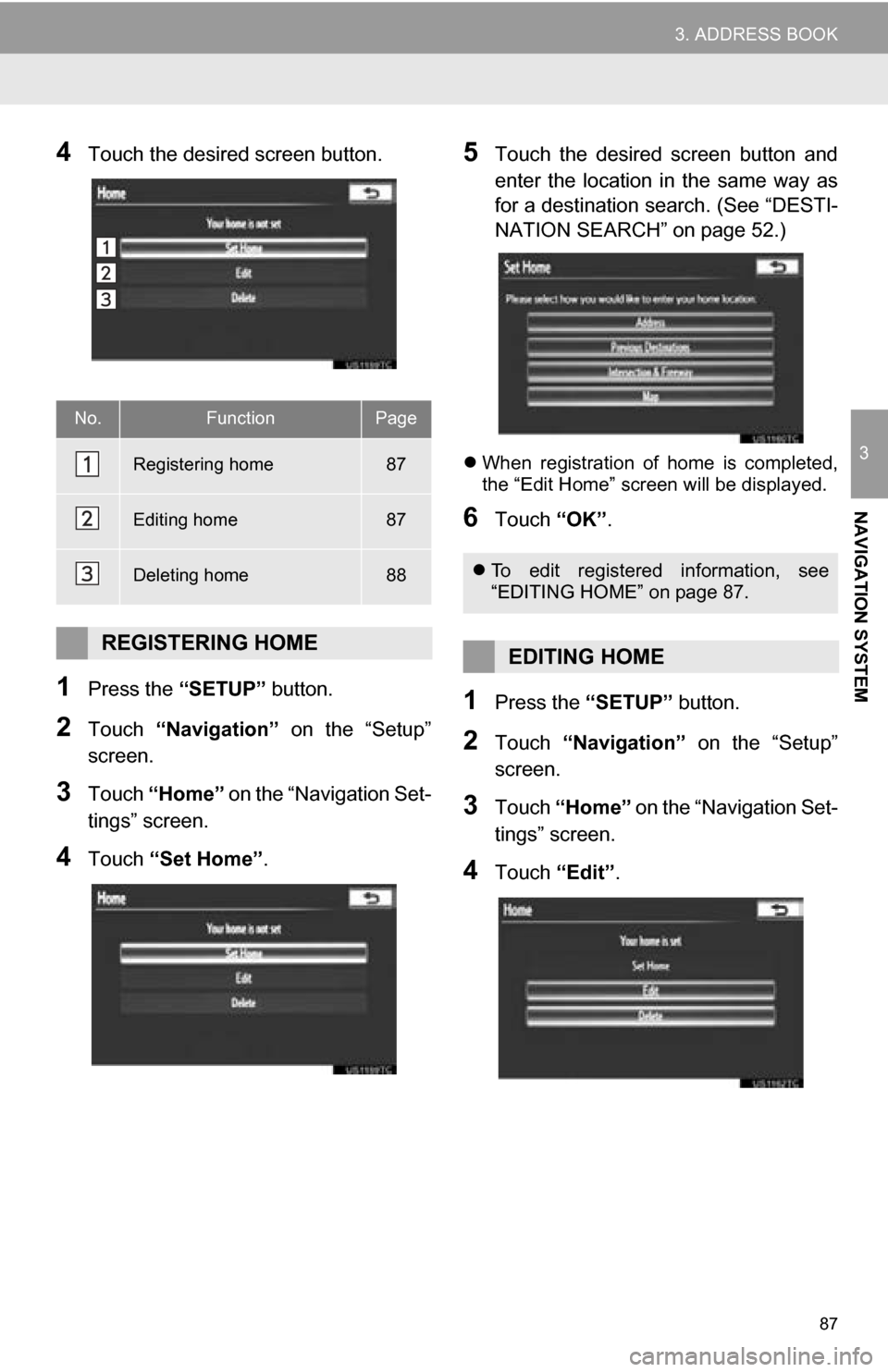
4Touch the desired screen button.
1Press the “SETUP” button.
2Touch “Navigation” on the “Setup”
screen.
3Touch “Home” on the “Navigation Set-
tings” screen.
4Touch “Set Home” .
5Touch the desired screen button and
enter the location in the same way as
for a destination search. (See “DESTI-
NATION SEARCH” on page 52.)
When registration of home is completed,
the “Edit Home” screen will be displayed.
6Touch “OK”.
1Press the “SETUP” button.
2Touch “Navigation” on the “Setup”
screen.
3Touch “Home” on the “Navigation Set-
tings” screen.
4Touch “Edit”.
No.FunctionPage
Registering home87
Editing home87
Deleting home88
REGISTERING HOME
To edit registered information, see
“EDITING HOME” on page 87.
EDITING HOME
Page 89 of 328
89
3. ADDRESS BOOK
3
NAVIGATION SYSTEM
1Press the “SETUP” button.
2Touch “Navigation” on the “Setup”
screen.
3Touch “Preset Destinations” on the
“Navigation Settings” screen.
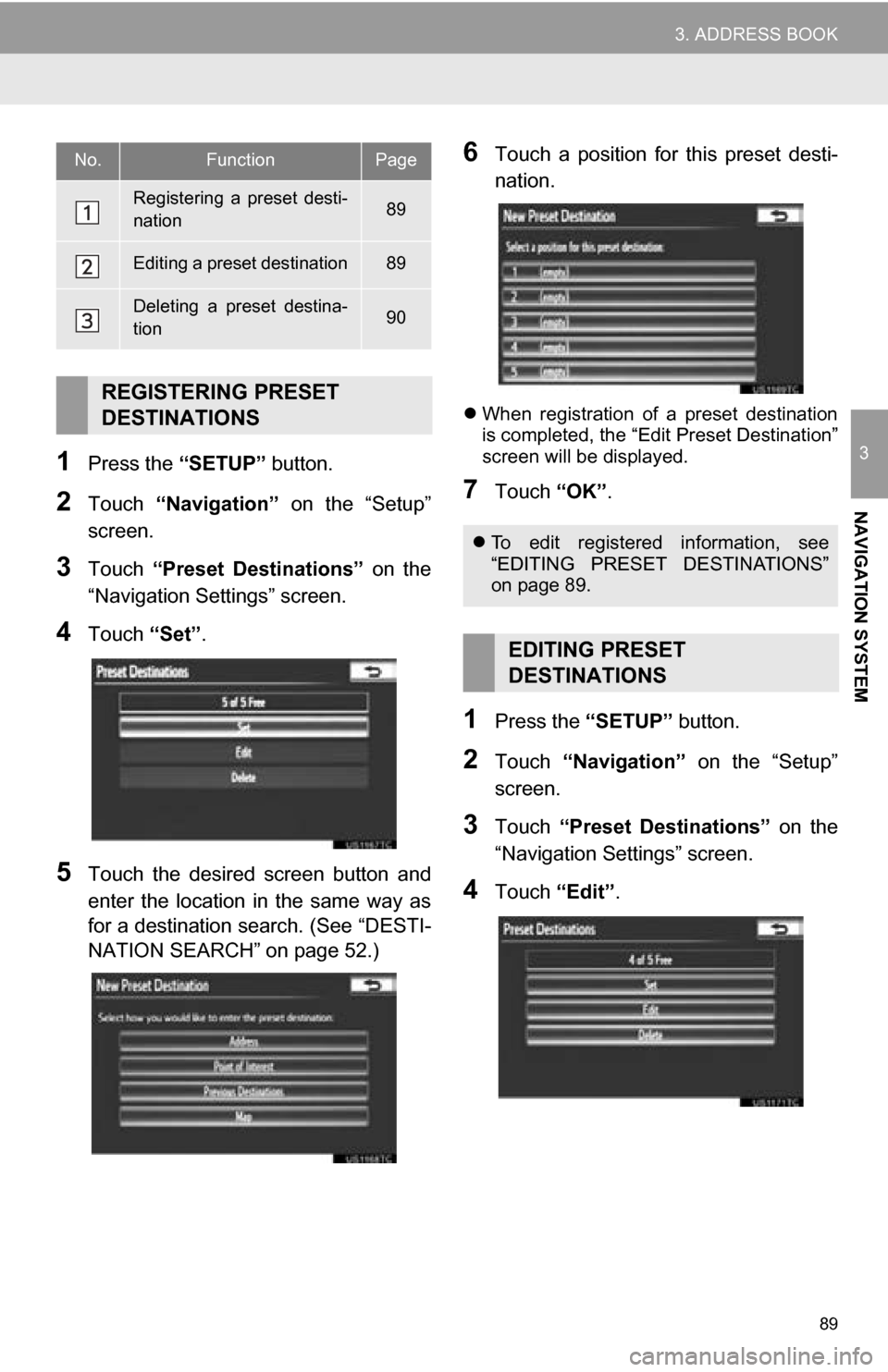
4Touch “Set”.
5Touch the desired screen button and
enter the location in the same way as
for a destination search. (See “DESTI-
NATION SEARCH” on page 52.)
6Touch a position for this preset desti-
nation.
When registration of a preset destination
is completed, the “Edit Preset Destination”
screen will be displayed.
7Touch “OK”.
1Press the “SETUP” button.
2Touch “Navigation” on the “Setup”
screen.
3Touch “Preset Destinations” on the
“Navigation Settings” screen.
4Touch “Edit”.
No.FunctionPage
Registering a preset desti-
nation89
Editing a preset destination89
Deleting a preset destina-
tion90
REGISTERING PRESET
DESTINATIONS
To edit registered information, see
“EDITING PRESET DESTINATIONS”
on page 89.
EDITING PRESET
DESTINATIONS
Page 91 of 328
91
3. ADDRESS BOOK
3
NAVIGATION SYSTEM
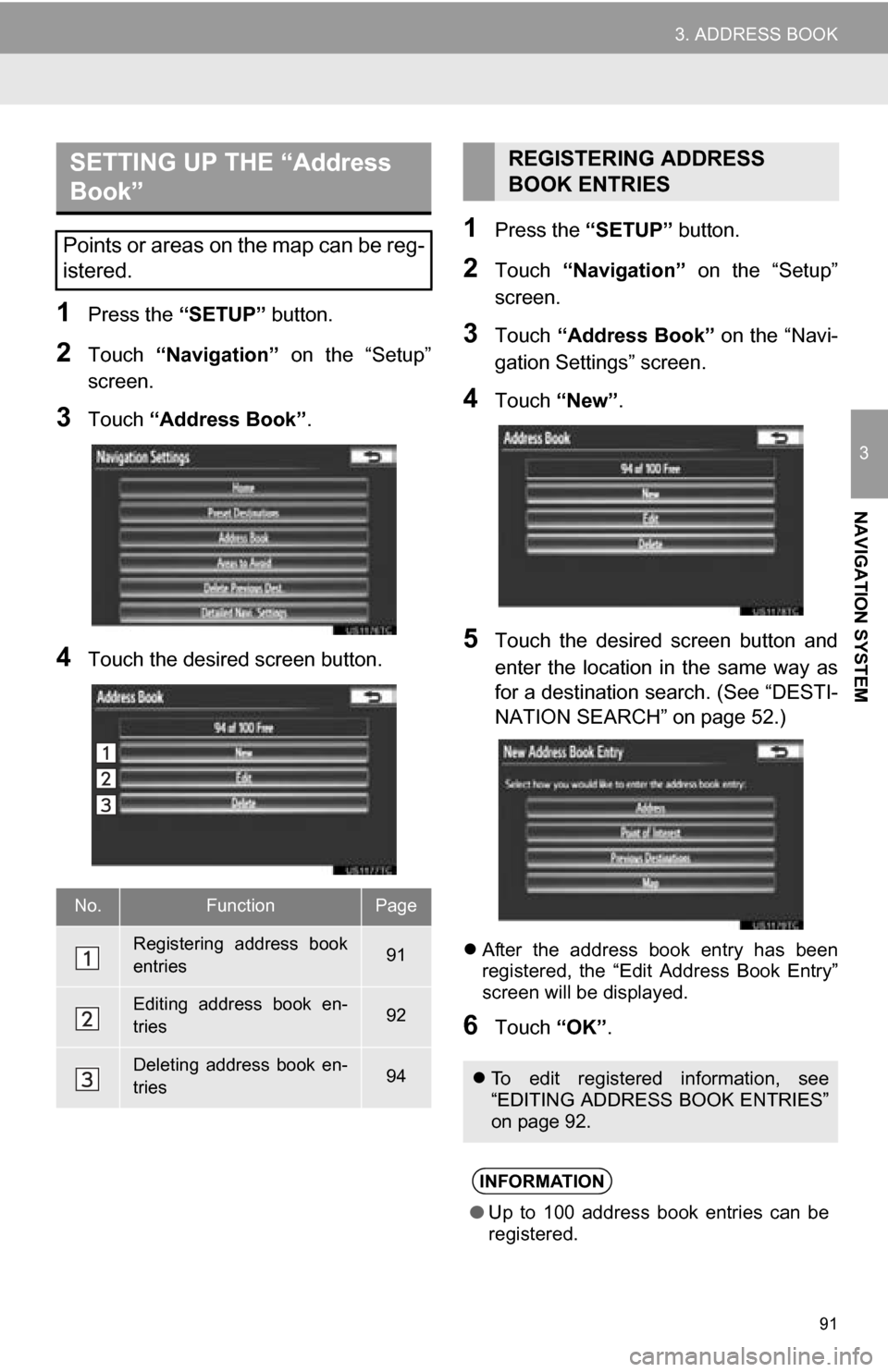
1Press the “SETUP” button.
2Touch “Navigation” on the “Setup”
screen.
3Touch “Address Book” .
4Touch the desired screen button.
1Press the “SETUP” button.
2Touch “Navigation” on the “Setup”
screen.
3Touch “Address Book” on the “Navi-
gation Settings” screen.
4Touch “New”.
5Touch the desired screen button and
enter the location in the same way as
for a destination search. (See “DESTI-
NATION SEARCH” on page 52.)
After the address book entry has been
registered, the “Edit Address Book Entry”
screen will be displayed.
6Touch “OK”.
SETTING UP THE “Address
Book”
Points or areas on the map can be reg-
istered.
No.FunctionPage
Registering address book
entries91
Editing address book en-
tries92
Deleting address book en-
tries94
REGISTERING ADDRESS
BOOK ENTRIES
To edit registered information, see
“EDITING ADDRESS BOOK ENTRIES”
on page 92.
INFORMATION
●Up to 100 address book entries can be
registered.
Page 93 of 328
93
3. ADDRESS BOOK
3
NAVIGATION SYSTEM
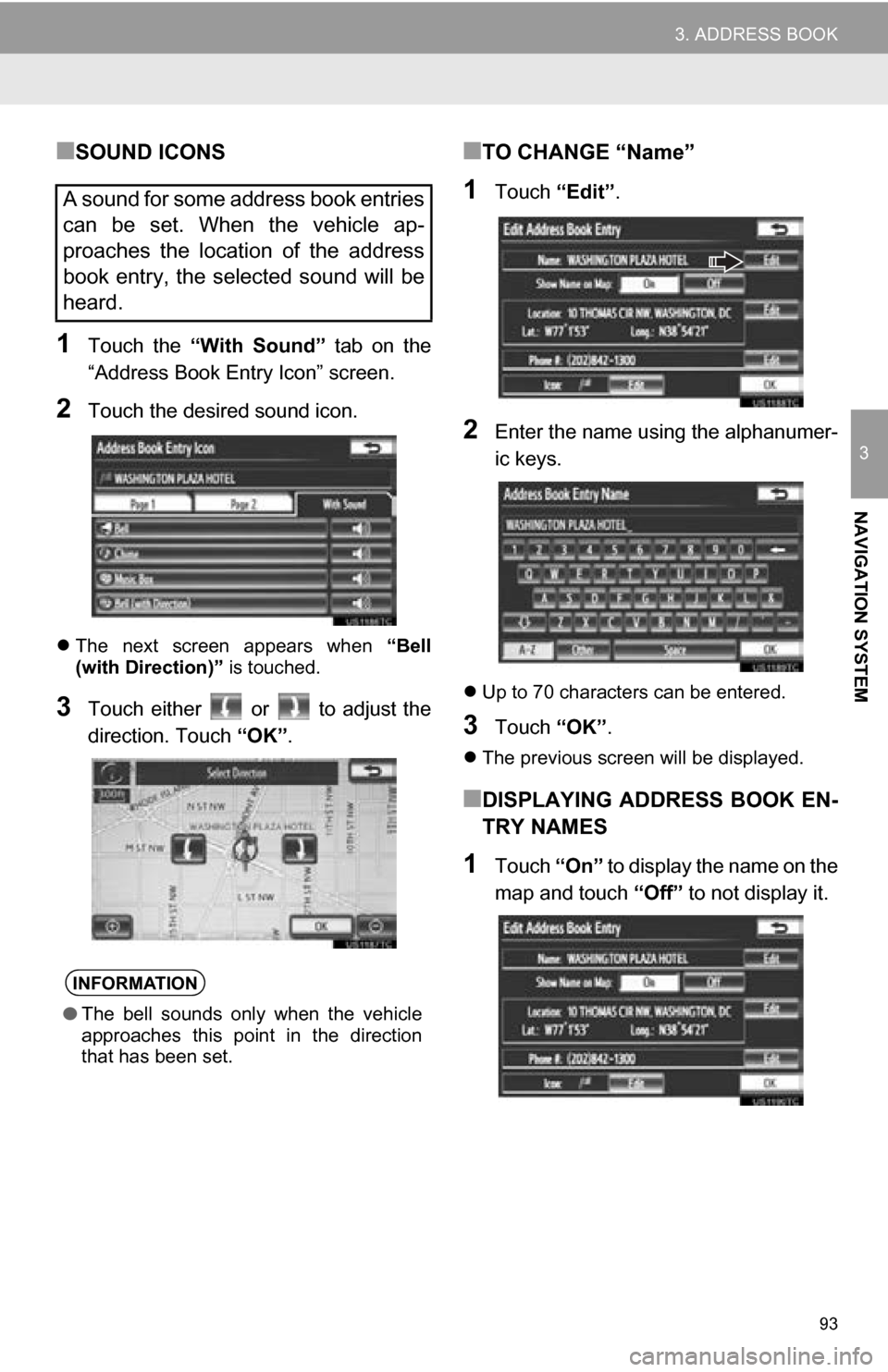
■SOUND ICONS
1Touch the “With Sound” tab on the
“Address Book Entry Icon” screen.
2Touch the desired sound icon.
The next screen appears when “Bell
(with Direction)” is touched.
3Touch either or to adjust the
direction. Touch “OK”.
■TO CHANGE “Name”
1Touch “Edit”.
2Enter the name using the alphanumer-
ic keys.
Up to 70 characters can be entered.
3Touch “OK”.
The previous screen will be displayed.
■DISPLAYING ADDRESS BOOK EN-
TRY NAMES
1Touch “On” to display the name on the
map and touch “Off” to not display it.
A sound for some address book entries
can be set. When the vehicle ap-
proaches the location of the address
book entry, the selected sound will be
heard.
INFORMATION
●The bell sounds only when the vehicle
approaches this point in the direction
that has been set.