navigation system TOYOTA SEQUOIA 2013 2.G Navigation Manual
[x] Cancel search | Manufacturer: TOYOTA, Model Year: 2013, Model line: SEQUOIA, Model: TOYOTA SEQUOIA 2013 2.GPages: 328, PDF Size: 8.3 MB
Page 112 of 328
112
5. GPS (GLOBAL POSITIONING SYSTEM)
Inappropriate route guidance may occur in
the following cases:
• When turning at an intersection off the
designated route guidance.
• If you set more than one destination but
skip any of them, auto reroute will dis-
play a route returning to the destination
on the previous route.
• When turning at an intersection for which there is no route guidance.
• When passing through an intersection
for which there is no route guidance.
• During auto reroute, the route guidance may not be available for the next turn to
the right or left.
• During high speed driving, it may take a long time for auto reroute to operate. In
auto reroute, a detour route may be
shown.
• After auto reroute, the route may not be
changed.
• If an unnecessary U-turn is shown or announced.
• If a location has multiple names and the system announces one or more of them.
• When a route cannot be searched.
• If the route to your destination includes gravel, unpaved roads or alleys, the
route guidance may not be shown.
• Your destination point might be shown on the opposite side of the street.
• When a portion of the route has regula-
tions prohibiting the entry of the vehicle
that vary by time or season or other rea-
sons.
• The road and map data stored in the navigation system may not be complete
or may not be the latest version. After replacing a tire, implement the
operation described in the “TIRE
CHANGE CALIBRATION”. (See page
105.)
INFORMATION
●This navigation system uses tire turning
data and is designed to work with fac-
tory-specified tires for the vehicle.
Installing tires that are larger or smaller
than the originally equipped diameter
may cause inaccurate display of the cur-
rent position. The tire pressure also
affects the diameter of the tires, so make
sure that the tire pressure of all 4 tires is
correct.
Page 114 of 328
114
1. PHONE OPERATION
1. QUICK REFERENCE
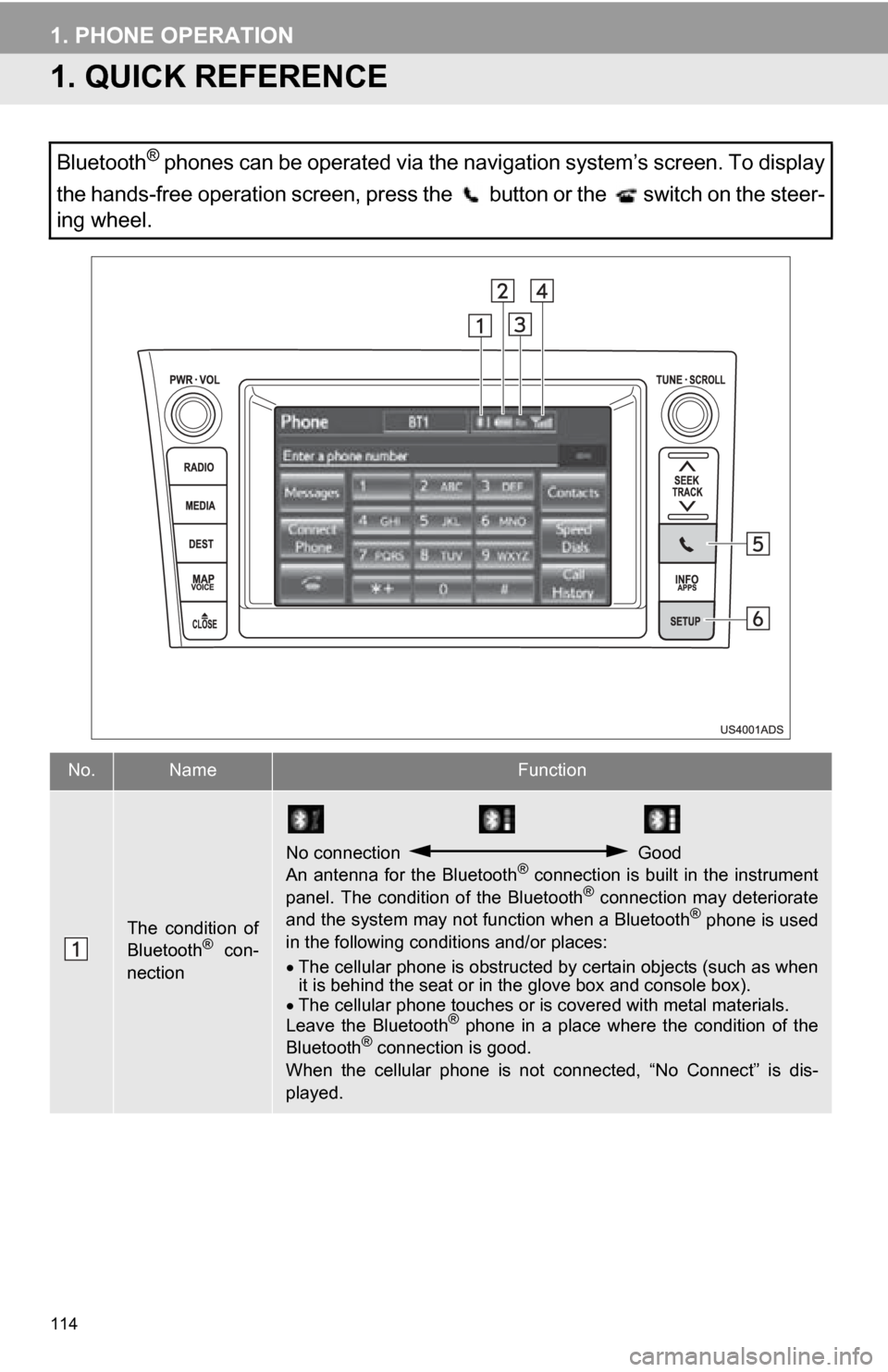
Bluetooth® phones can be operated via the navigation system’s screen. To display
the hands-free operation screen, press the button or the switch on the steer-
ing wheel.
No.NameFunction
The condition of
Bluetooth® con-
nection
No connection Good
An antenna for the Bluetooth® connection is built in the instrument
panel. The condition of the Bluetooth® connection may deteriorate
and the system may not function when a Bluetooth® phone is used
in the following conditions and/or places:
The cellular phone is obstructed by certain objects (such as when
it is behind the seat or in the glove box and console box).
The cellular phone touches or is covered with metal materials.
Leave the Bluetooth
® phone in a place where the condition of the
Bluetooth® connection is good.
When the cellular phone is not connected, “No Connect” is dis-
played.
Page 128 of 328
128
1. PHONE OPERATION
3Touch or press the switch
on the steering wheel.
1Press the button or the switch
on the steering wheel to display the
“Phone” screen.
2Press the switch on the steering
wheel to display the “Call History”
screen.
3Press the switch on the steering
wheel to select the latest history item.
4Touch or press the switch
on the steering wheel to call the latest
history item.
When making a call by phonebook, the
name (if registered) is displayed.
When making a call to the same number
continuously, only the most recent call is
listed in call history.
When a phone number registered in the
phonebook is received, the name and the
number are displayed.
Number-withheld calls are also memo-
rized in the system.
International phone calls may not be made
depending on the type of cellular phone
you have.
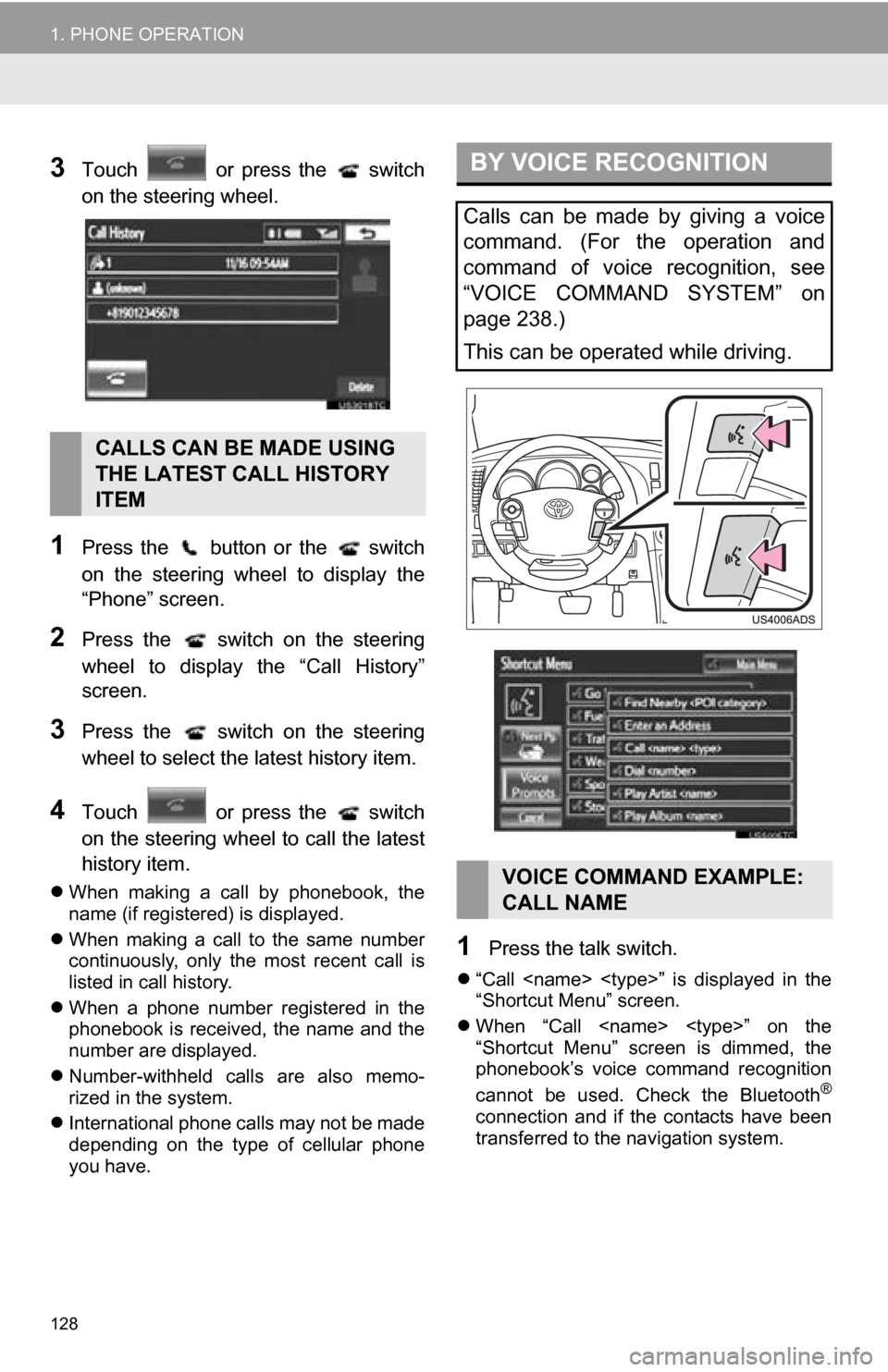
1Press the talk switch.
“Call
“Shortcut Menu” screen.
When “Call
“Shortcut Menu” screen is dimmed, the
phonebook’s voice command recognition
cannot be used. Check the Bluetooth
®
connection and if the contacts have been
transferred to t he navigation system.
CALLS CAN BE MADE USING
THE LATEST CALL HISTORY
ITEM
BY VOICE RECOGNITION
Calls can be made by giving a voice
command. (For the operation and
command of voice recognition, see
“VOICE COMMAND SYSTEM” on
page 238.)
This can be operated while driving.
VOICE COMMAND EXAMPLE:
CALL NAME
Page 130 of 328
130
1. PHONE OPERATION
■INTERNATIONAL CALL
1Go to the “Main Menu” screen by
pressing the talk switch on the steering
wheel and saying “Main menu” or
touch the “Main Menu” screen button.
2Say “Use a phone” .
3Say “International call” .
Up to 24 digits can be recognized when
using the international call function. The
number can also be divided into multiple
groups and recognized.
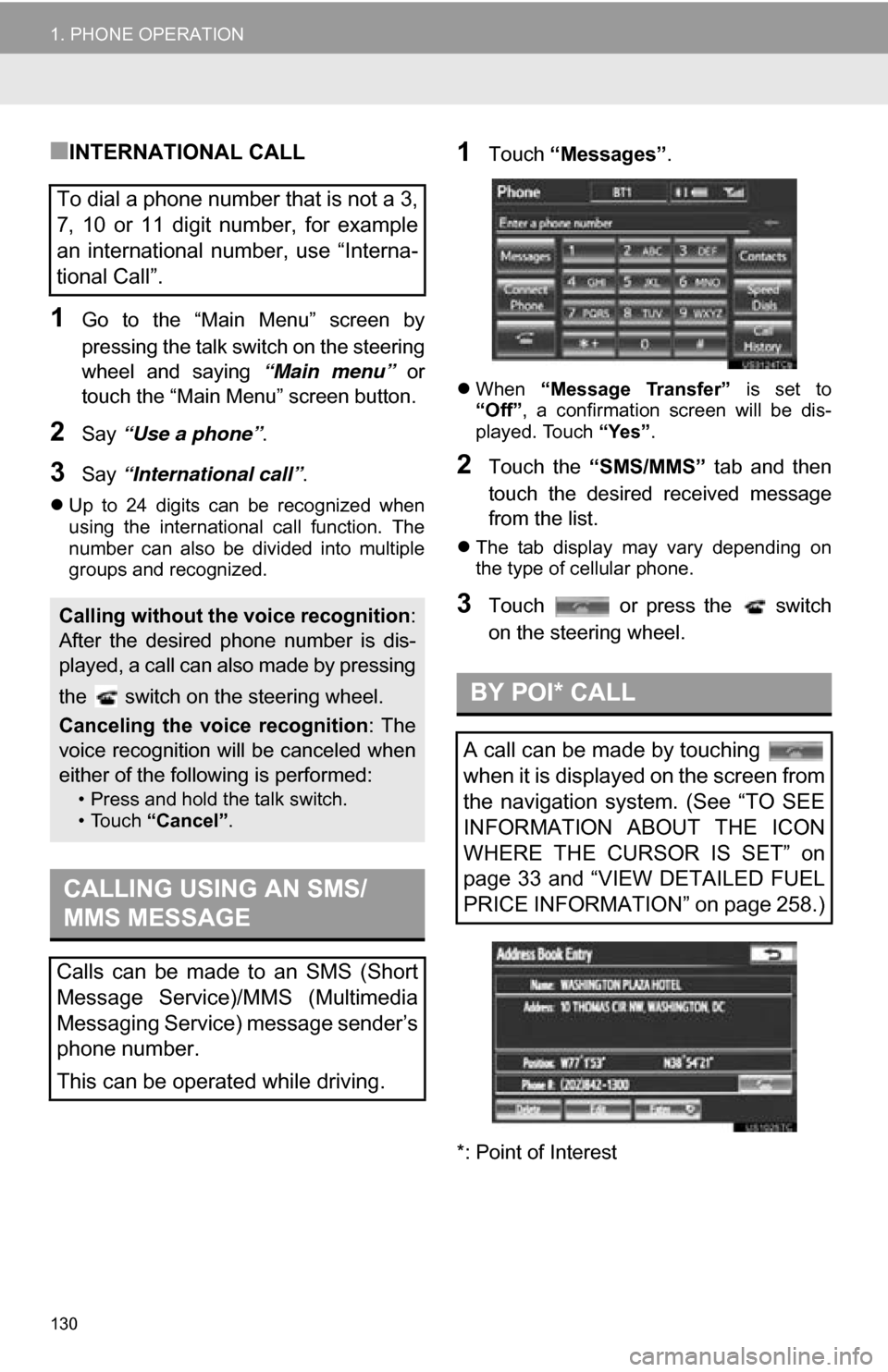
1Touch “Messages” .
When “Message Transfer” is set to
“Off” , a confirmation screen will be dis-
played. Touch “Yes”.
2Touch the “SMS/MMS” tab and then
touch the desired received message
from the list.
The tab display may vary depending on
the type of cellular phone.
3Touch or press the switch
on the steering wheel.
*: Point of Interest
To dial a phone number that is not a 3,
7, 10 or 11 digit number, for example
an international number, use “Interna-
tional Call”.
Calling without the voice recognition :
After the desired phone number is dis-
played, a call can also made by pressing
the switch on the steering wheel.
Canceling the voice recognition : The
voice recognition will be canceled when
either of the following is performed:
• Press and hold the talk switch.
• Touch “Cancel”.
CALLING USING AN SMS/
MMS MESSAGE
Calls can be made to an SMS (Short
Message Service)/MMS (Multimedia
Messaging Service) message sender’s
phone number.
This can be operated while driving.
BY POI* CALL
A call can be made by touching
when it is displayed on the screen from
the navigation system. (See “TO SEE
INFORMATION ABOUT THE ICON
WHERE THE CURSOR IS SET” on
page 33 and “VIEW DETAILED FUEL
PRICE INFORMATION” on page 258.)
Page 133 of 328
133
1. PHONE OPERATION
4
PHONE
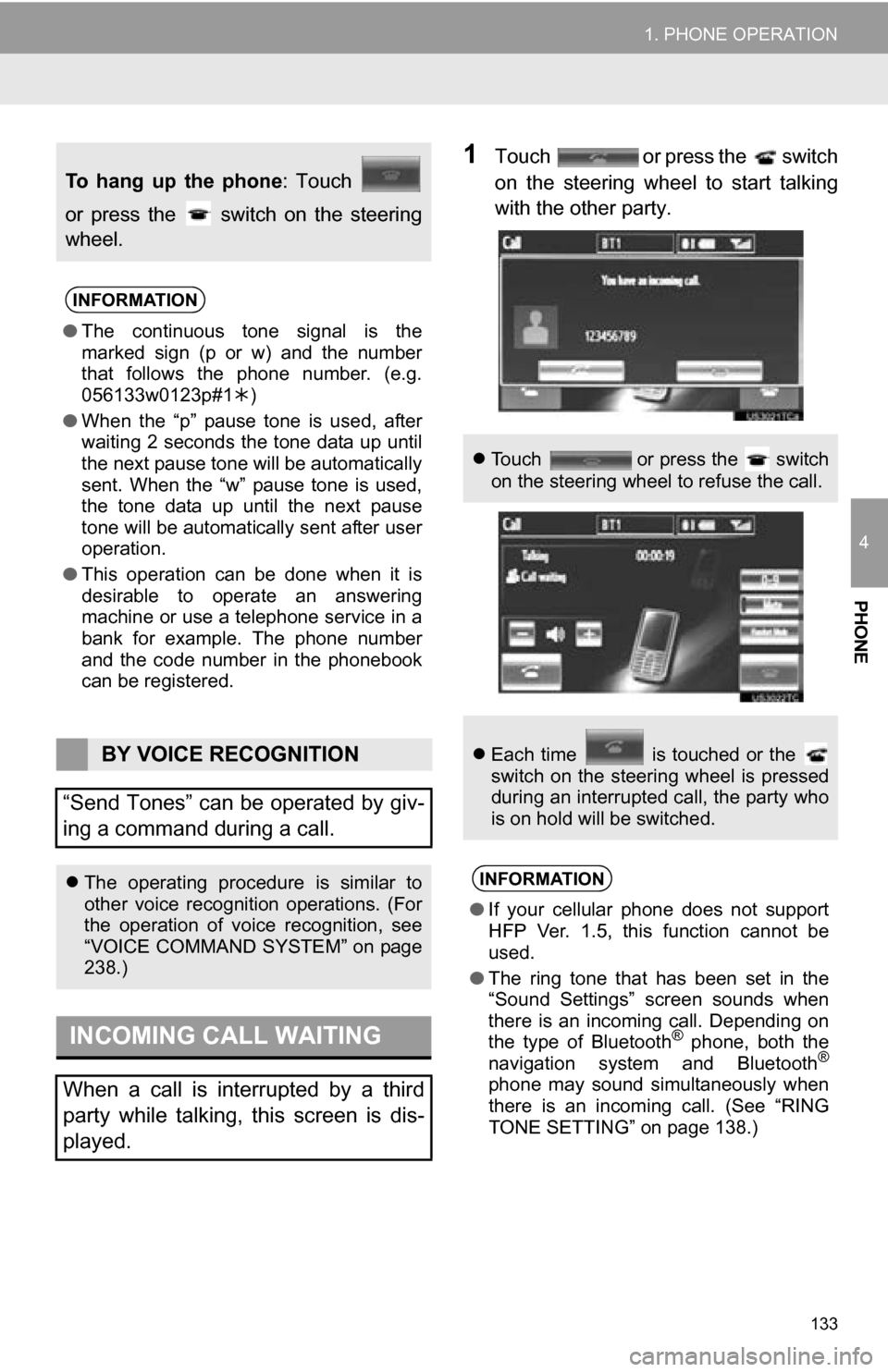
1Touch or press the switch
on the steering wheel to start talking
with the other party.
To hang up the phone: Touch
or press the switch on the steering
wheel.
INFORMATION
● The continuous tone signal is the
marked sign (p or w) and the number
that follows the phone number. (e.g.
056133w0123p#1 )
● When the “p” pause tone is used, after
waiting 2 seconds the tone data up until
the next pause tone will be automatically
sent. When the “w” pause tone is used,
the tone data up until the next pause
tone will be automatically sent after user
operation.
● This operation can be done when it is
desirable to operate an answering
machine or use a telephone service in a
bank for example. The phone number
and the code number in the phonebook
can be registered.
BY VOICE RECOGNITION
“Send Tones” can be operated by giv-
ing a command during a call.
The operating procedure is similar to
other voice recognition operations. (For
the operation of voice recognition, see
“VOICE COMMAND SYSTEM” on page
238.)
INCOMING CALL WAITING
When a call is interrupted by a third
party while talking, this screen is dis-
played.
Touch or press the switch
on the steering wheel to refuse the call.
Each time is touched or the
switch on the steering wheel is pressed
during an interrupted call, the party who
is on hold will be switched.
INFORMATION
●If your cellular phone does not support
HFP Ver. 1.5, this function cannot be
used.
● The ring tone that has been set in the
“Sound Settings” screen sounds when
there is an incoming call. Depending on
the type of Bluetooth
® phone, both the
navigation system and Bluetooth®
phone may sound simultaneously when
there is an incoming call. (See “RING
TONE SETTING” on page 138.)
Page 134 of 328
134
1. PHONE OPERATION
7. Bluetooth® PHONE MESSAGE FUNCTION
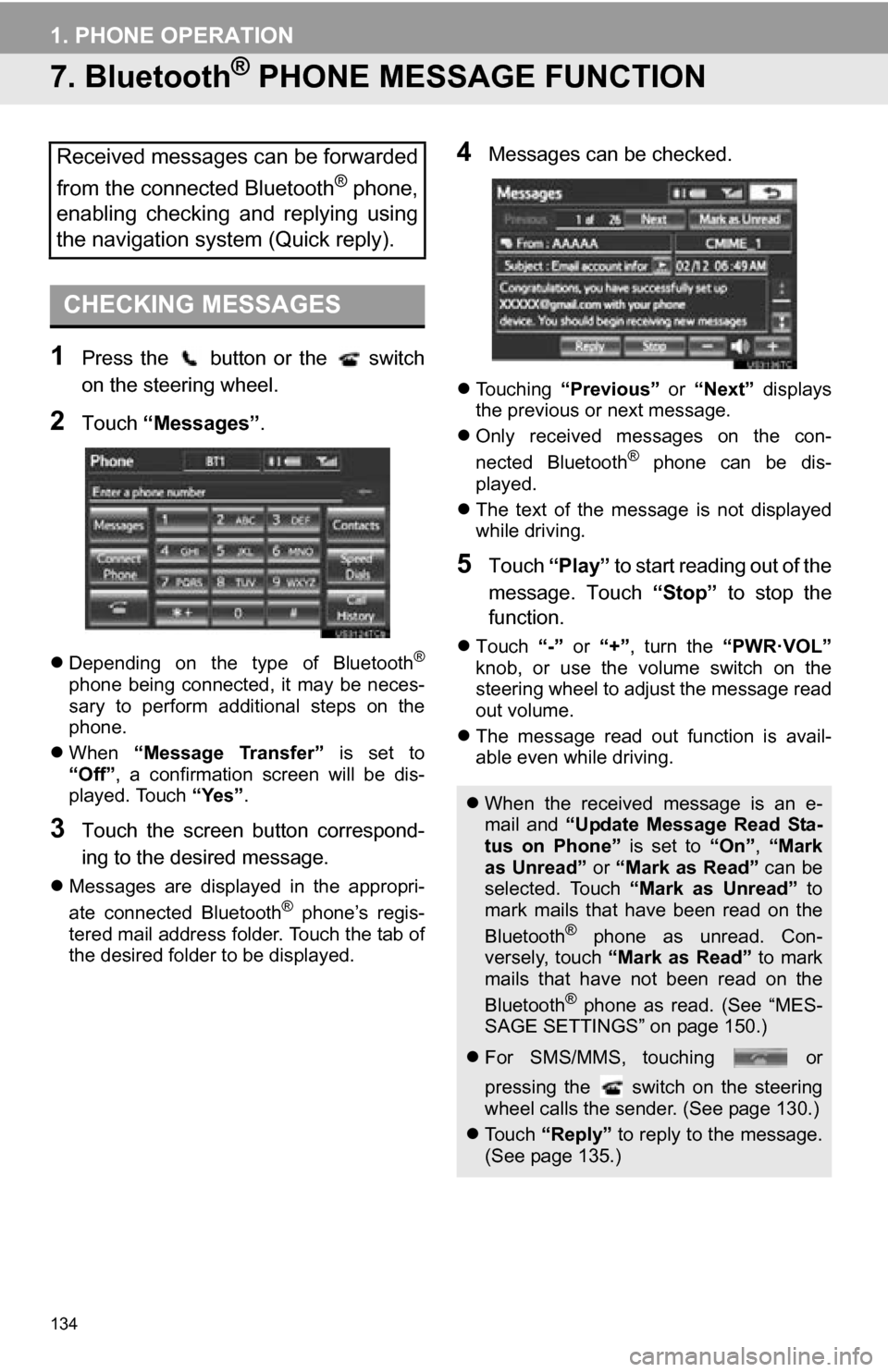
1Press the button or the switch
on the steering wheel.
2Touch “Messages” .
Depending on the type of Bluetooth®
phone being connected, it may be neces-
sary to perform additional steps on the
phone.
When “Message Transfer” is set to
“Off”, a confirmation screen will be dis-
played. Touch “Yes”.
3Touch the screen button correspond-
ing to the desired message.
Messages are displayed in the appropri-
ate connected Bluetooth® phone’s regis-
tered mail address folder. Touch the tab of
the desired folder to be displayed.
4Messages can be checked.
Touching “Previous” or “Next” displays
the previous or next message.
Only received messages on the con-
nected Bluetooth
® phone can be dis-
played.
The text of the message is not displayed
while driving.
5Touch “Play” to start reading out of the
message. Touch “Stop” to stop the
function.
Touch “-” or “+”, turn the “PWR·VOL”
knob, or use the volume switch on the
steering wheel to adjust the message read
out volume.
The message read out function is avail-
able even while driving.
Received messages can be forwarded
from the connected Bluetooth
® phone,
enabling checking and replying using
the navigation system (Quick reply).
CHECKING MESSAGES
When the received message is an e-
mail and “Update Message Read Sta-
tus on Phone” is set to “On”, “Mark
as Unread” or “Mark as Read” can be
selected. Touch “Mark as Unread” to
mark mails that have been read on the
Bluetooth
® phone as unread. Con-
versely, touch “Mark as Read” to mark
mails that have not been read on the
Bluetooth
® phone as read. (See “MES-
SAGE SETTINGS” on page 150.)
For SMS/MMS, touching or
pressing the switch on the steering
wheel calls the sender. (See page 130.)
Touch “Reply” to reply to the message.
(See page 135.)
Page 143 of 328
143
2. SETUP
4
PHONE
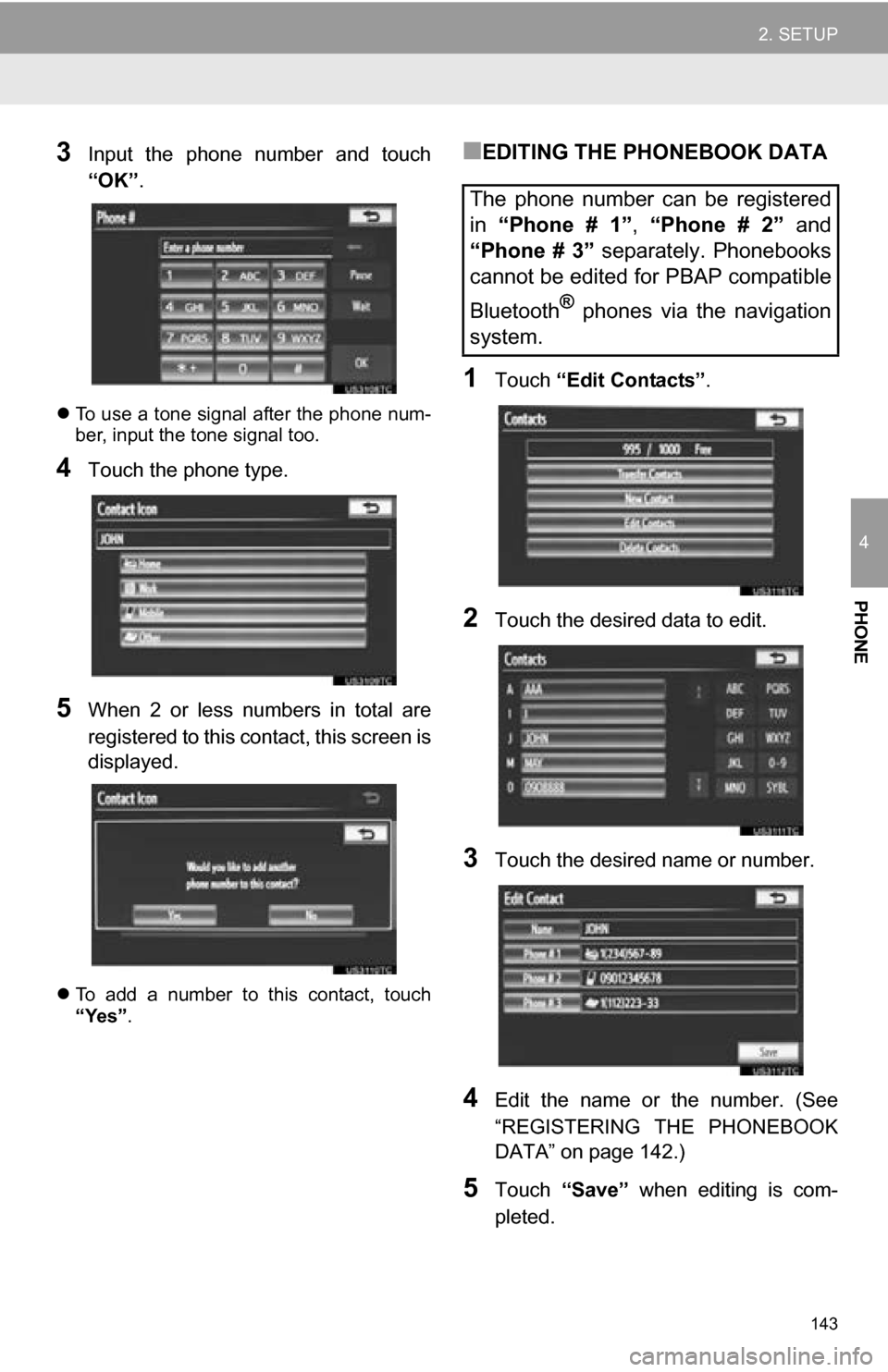
3Input the phone number and touch
“OK”.
To use a tone signal after the phone num-
ber, input the tone signal too.
4Touch the phone type.
5When 2 or less numbers in total are
registered to this contact, this screen is
displayed.
To add a number to this contact, touch
“Yes”.
■EDITING THE PHONEBOOK DATA
1Touch “Edit Contacts” .
2Touch the desired data to edit.
3Touch the desired name or number.
4Edit the name or the number. (See
“REGISTERING THE PHONEBOOK
DATA” on page 142.)
5Touch “Save” when editing is com-
pleted.
The phone number can be registered
in “Phone # 1” , “Phone # 2” and
“Phone # 3” separately. Phonebooks
cannot be edited for PBAP compatible
Bluetooth
® phones via the navigation
system.
Page 187 of 328
187
1. AUDIO/VIDEO SYSTEM OPERATION
5
AUDIO/VIDEO SYSTEM
6. RADIO OPERATION (INTERNET RADIO BROADCAST)
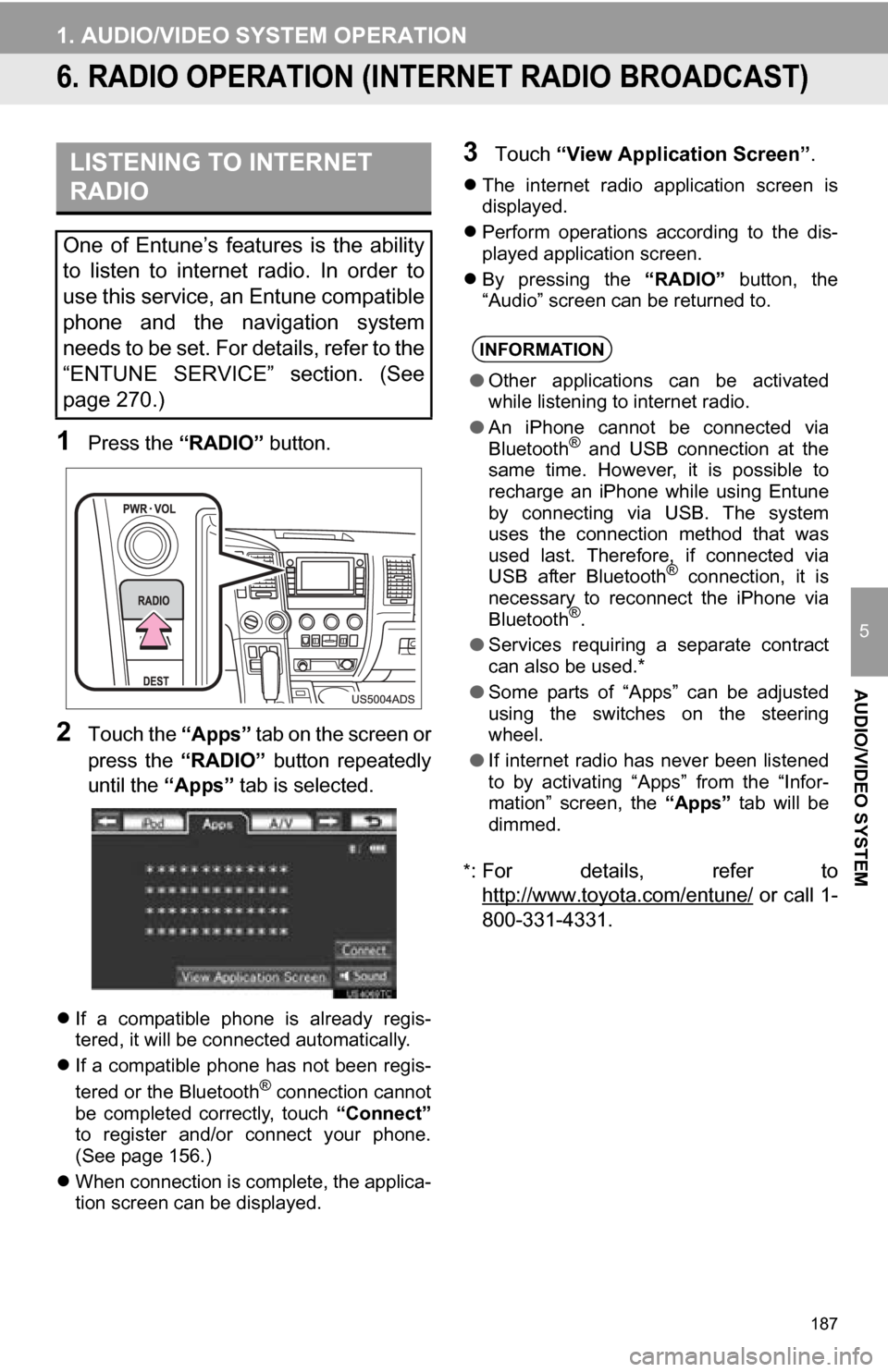
1Press the “RADIO” button.
2Touch the “Apps” tab on the screen or
press the “RADIO” button repeatedly
until the “Apps” tab is selected.
If a compatible phone is already regis-
tered, it will be connected automatically.
If a compatible phone has not been regis-
tered or the Bluetooth
® connection cannot
be completed correctly, touch “Connect”
to register and/or connect your phone.
(See page 156.)
When connection is complete, the applica-
tion screen can be displayed.
3Touch “View Application Screen” .
The internet radio application screen is
displayed.
Perform operations according to the dis-
played application screen.
By pressing the “RADIO” button, the
“Audio” screen can be returned to.
*
: For details, refer to http://www.toyota.com/entune/
or call 1-
800-331-4331.
LISTENING TO INTERNET
RADIO
One of Entune’s features is the ability
to listen to internet radio. In order to
use this service, an Entune compatible
phone and the navigation system
needs to be set. For details, refer to the
“ENTUNE SERVICE” section. (See
page 270.)
INFORMATION
● Other applications can be activated
while listening to internet radio.
● An iPhone cannot be connected via
Bluetooth
® and USB connection at the
same time. However, it is possible to
recharge an iPhone while using Entune
by connecting via USB. The system
uses the connection method that was
used last. Therefore, if connected via
USB after Bluetooth
® connection, it is
necessary to reconnect the iPhone via
Bluetooth
®.
● Services requiring a separate contract
can also be used.*
● Some parts of “Apps” can be adjusted
using the switches on the steering
wheel.
● If internet radio has never been listened
to by activating “Apps” from the “Infor-
mation” screen, the “Apps” tab will be
dimmed.
Page 216 of 328
216
1. AUDIO/VIDEO SYSTEM OPERATION
The portable player will be automatically
connected under the following conditions:
• The engine switch is in either the “ACC”
or “ON” position.
• When “Bluetooth* Power” is switched
from off to on.
• When the portable player is discon-
nected for some reason.
CAUTION
● This equipment complies with IC
radiation exposure limits set forth for
uncontrolled environment and meets
RSS-102 of the IC radio frequency (RF)
Exposure rules. This equipment has
very low levels of RF energy that it
deemed to comply without maximum
permissive exposure evaluation (MPE).
But it is desirable that it should be
installed and operated with at least 20
cm and more between the radiator and
person’s body (excluding extremities:
hands, wrists, feet and ankles).
Cet équipement se conforme aux limites
d’exposition aux radiations établies par
Industrie Canada pour un
environnement non contrôlé ainsi qu’aux
directives d’exposition aux fréquences
radioélectriques (RF) émises par
Industrie Canada dans la norme
CNR-102. Cet équipement émet un
niveau d’énergie RF faible à un point tel
qu’il se conforme sans devoir effectuer
d’évaluation d’exposition maximum
admissible (MPE). Lorsque l’équipement
est utilisé, il est toutefois souhaitable de
laisser au moins 20 cm entre l’antenne
et le corps (à l’exception des
extrémités : mains, poignets, pieds et
chevilles).
● Co-location: This transmitter must not be
co-located or operated in conjunction
with any other antenna or transmitter.
Co-implantation: cet émetteur ne doit
pas être co-implanté ou actionné en
même temps qu’aucune autre antenne
ou émetteur.
CONNECTING A Bluetooth®
AUDIO PLAYER
To use the Bluetooth® audio system, it
is necessary to register a portable
player with the system. Once the porta-
ble player has been registered, it is
possible to listen to the music.
Once the portable player has been reg-
istered, it is possible to listen to music
through the navigation system. (See
“REGISTERING A Bluetooth
® DE-
VICE” on page 157.)
INFORMATION
● For operating the portable player, see
the instruction manual that comes with
it.
WHEN “Bluetooth * Power” IS
ON
Page 238 of 328
238
1. VOICE COMMAND SYSTEM OPERATION
1. VOICE COMMAND SYSTEM
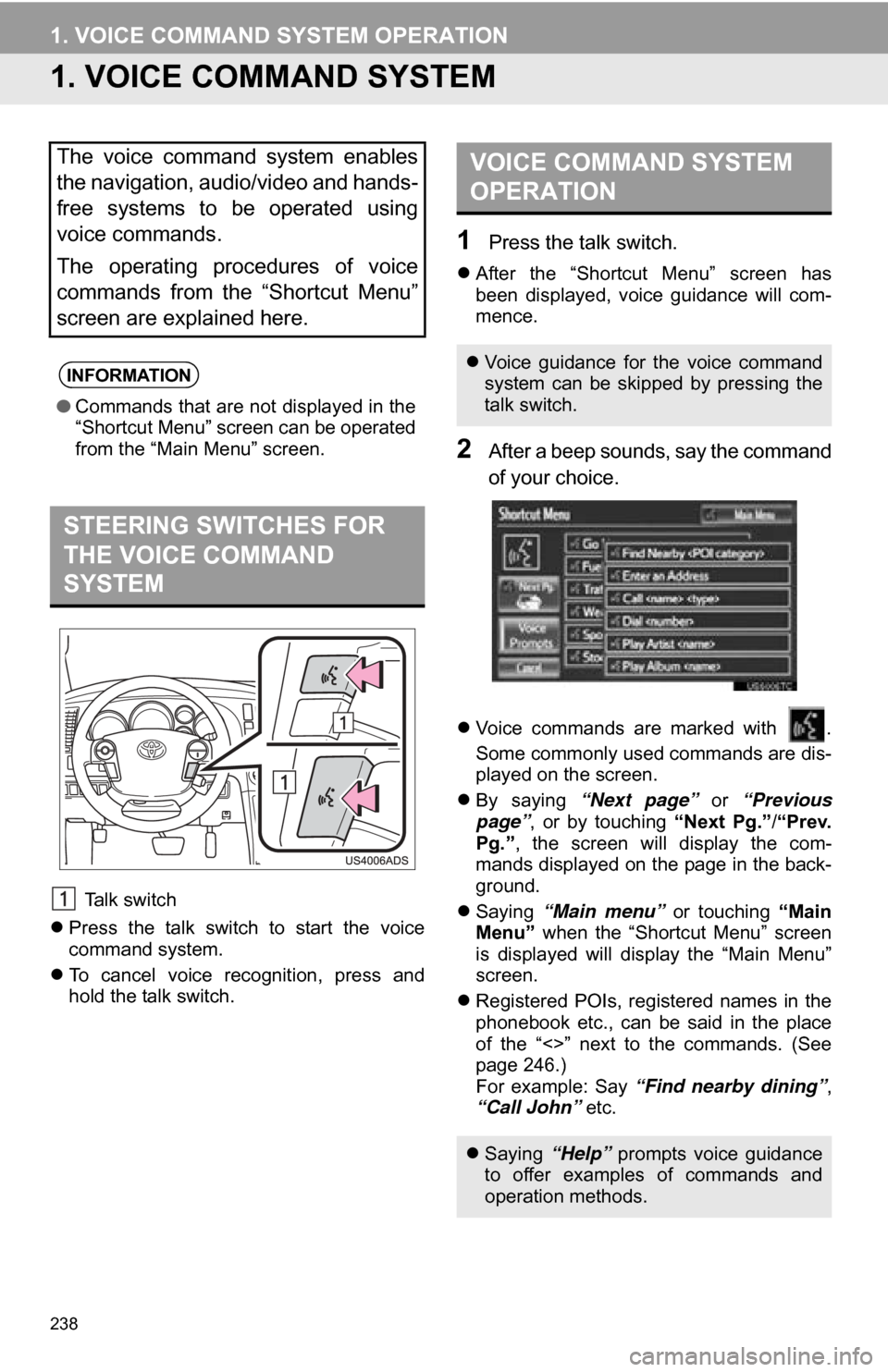
Talk switch
Press the talk switch to start the voice
command system.
To cancel voice recognition, press and
hold the talk switch.
1Press the talk switch.
After the “Shortcut Menu” screen has
been displayed, voice guidance will com-
mence.
2After a beep sounds, say the command
of your choice.
Voice commands are marked with .
Some commonly used commands are dis-
played on the screen.
By saying “Next page” or “Previous
page” , or by touching “Next Pg.”/“Prev.
Pg.” , the screen will display the com-
mands displayed on the page in the back-
ground.
Saying “Main menu” or touching “Main
Menu” when the “Shortcut Menu” screen
is displayed will display the “Main Menu”
screen.
Registered POIs, registered names in the
phonebook etc., can be said in the place
of the “<>” next to the commands. (See
page 246.)
For example: Say “Find nearby dining” ,
“Call John” etc.
The voice command system enables
the navigation, audio/video and hands-
free systems to be operated using
voice commands.
The operating procedures of voice
commands from the “Shortcut Menu”
screen are explained here.
INFORMATION
●Commands that are not displayed in the
“Shortcut Menu” screen can be operated
from the “Main Menu” screen.
STEERING SWITCHES FOR
THE VOICE COMMAND
SYSTEM
VOICE COMMAND SYSTEM
OPERATION
Voice guidance for the voice command
system can be skipped by pressing the
talk switch.
Saying “Help” prompts voice guidance
to offer examples of commands and
operation methods.