phone TOYOTA SIENNA 2019 Accessories, Audio & Navigation (in English)
[x] Cancel search | Manufacturer: TOYOTA, Model Year: 2019, Model line: SIENNA, Model: TOYOTA SIENNA 2019Pages: 441, PDF Size: 9.89 MB
Page 50 of 441
50
2. CONNECTIVITY SETTINGS
SIENNA_Navi+MM_OM08027U_(U)
18.05.08 11:51
1Display the Bluetooth® settings
screen. ( P.49)
2Select “Registered Device” .
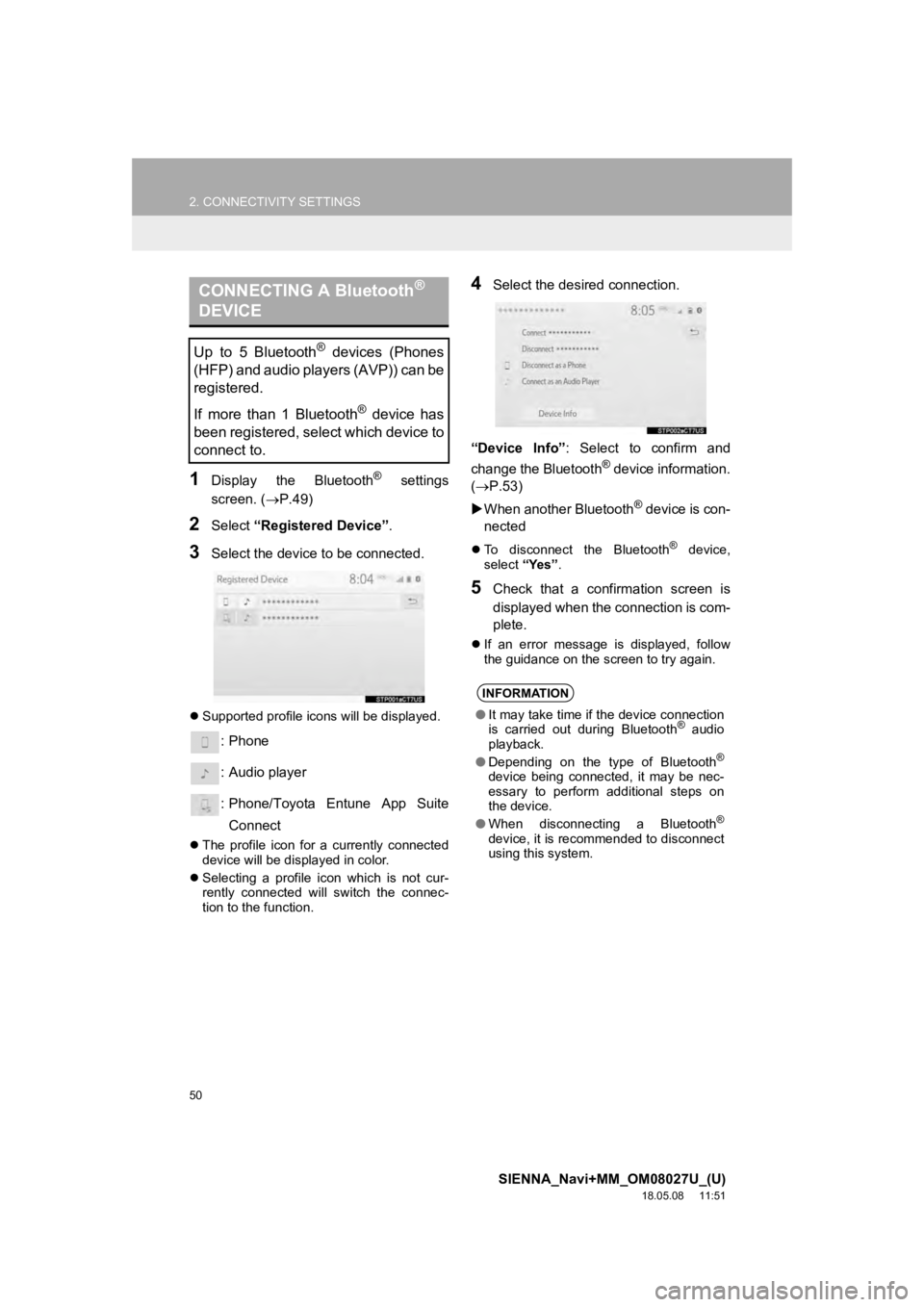
3Select the device to be connected.
Supported profile icons will be displayed.
: Phone
: Audio player
: Phone/Toyota Entune App Suite
Connect
The profile icon for a currently connected
device will be displayed in color.
Selecting a profile icon which is not cur-
rently connected will switch the connec-
tion to the function.
4Select the desired connection.
“Device Info” : Select to confirm and
change the Bluetooth
® device information.
(P.53)
When another Bluetooth
® device is con-
nected
To disconnect the Bluetooth® device,
select “Yes”.
5Check that a confirmation screen is
displayed when the connection is com-
plete.
If an error message is displayed, follow
the guidance on the screen to try again.
CONNECTING A Bluetooth®
DEVICE
Up to 5 Bluetooth® devices (Phones
(HFP) and audio players (AVP)) can be
registered.
If more than 1 Bluetooth
® device has
been registered, select which device to
connect to.
INFORMATION
● It may take time if the device connection
is carried out during Bluetooth® audio
playback.
● Depending on the type of Bluetooth
®
device being connected, it may be nec-
essary to perform additional steps on
the device.
● When disconnecting a Bluetooth
®
device, it is recommended to disconnect
using this system.
Page 51 of 441

51
2. CONNECTIVITY SETTINGS
SIENNA_Navi+MM_OM08027U_(U)
18.05.08 11:51
BASIC FUNCTION
2
■CONNECTING A Bluetooth® DE-
VICE IN A DIFFERENT WAY
From the phone top screen
P.294
From the Bluetooth
® audio control
screen
P.118
From the phone settings screen
P.311
■AUTO CONNECTION MODE
Vehicles without a smart key system
When the engine switch is turned to the
“ACC” or “ON” position, the system
searches for a nearby registered device.
The system will connect with the regis-
tered device that was last connected, if it
is nearby. When automatic connection pri-
ority is set to on and there is more than
one registered Bluetooth
® phone avail-
able, the system will automatically con-
nect to the Bluetooth
® phone with the
highest priority. ( P.56)
Vehicles with a smart key system
When the engine switch is turned to
ACCESSORY or IGNITION ON mode, the
system searches for a nearby registered
device.
The system will connect with the regis-
tered device that was last connected, if it
is nearby. When automatic connection pri-
ority is set to on and there is more than
one registered Bluetooth
® phone avail-
able, the system will automatically con-
nect to the Bluetooth
® phone with the
highest priority. ( P.56)
To turn auto connection mode on, set
“Bluetooth Power” to on. (P.55)
Leave the Bluetooth
® device in a loca-
tion where the connection can be es-
tablished.
Page 52 of 441

52
2. CONNECTIVITY SETTINGS
SIENNA_Navi+MM_OM08027U_(U)
18.05.08 11:51
■CONNECTING MANUALLY
1Press the “MENU” button.
2Select “Setup” .
3Select “Bluetooth” .
4Follow the steps in “CONNECTING A
Bluetooth
® DEVICE” from “STEP 2”.
(P.50)
■RECONNECTING THE Bluetooth®
PHONE
1Display the Bluetooth® settings
screen. ( P.49)
2Select “Add New Device” .
When another Bluetooth
® device is con-
nected
To disconnect the Bluetooth® device,
select “Yes”.
When 5 Bluetooth® devices have al-
ready been registered
A registered device needs to be replaced.
Select “Yes”, and select the device to be
replaced.
3Follow the steps in “REGISTERING A
Bluetooth
® PHONE FOR THE FIRST
TIME” from “STEP 5”. ( P.43)
When the auto connection has failed or
“Bluetooth Power” is turned off, it is
necessary to connect the Bluetooth
®
device manually.
If a Bluetooth
® phone is disconnected
due to poor reception from the
Bluetooth
® network when the engine
switch is in the following, the system
automatically reconnects the
Bluetooth
® phone.
Vehicles without a smart key system
The engine switch is in the “ACC” or
“ON” position.
Vehicles with a smart key system
The engine switch is in ACCESSORY
or IGNITION ON mode.
REGISTERING A Bluetooth®
DEVICE
Up to 5 Bluetooth® devices can be reg-
istered.
Bluetooth
® compatible phones (HFP)
and audio players (AVP) can be regis-
tered simultaneously.
This operation cannot be performed
while driving.
Page 53 of 441
53
2. CONNECTIVITY SETTINGS
SIENNA_Navi+MM_OM08027U_(U)
18.05.08 11:51
BASIC FUNCTION
21Display the Bluetooth® settings
screen. ( P.49)
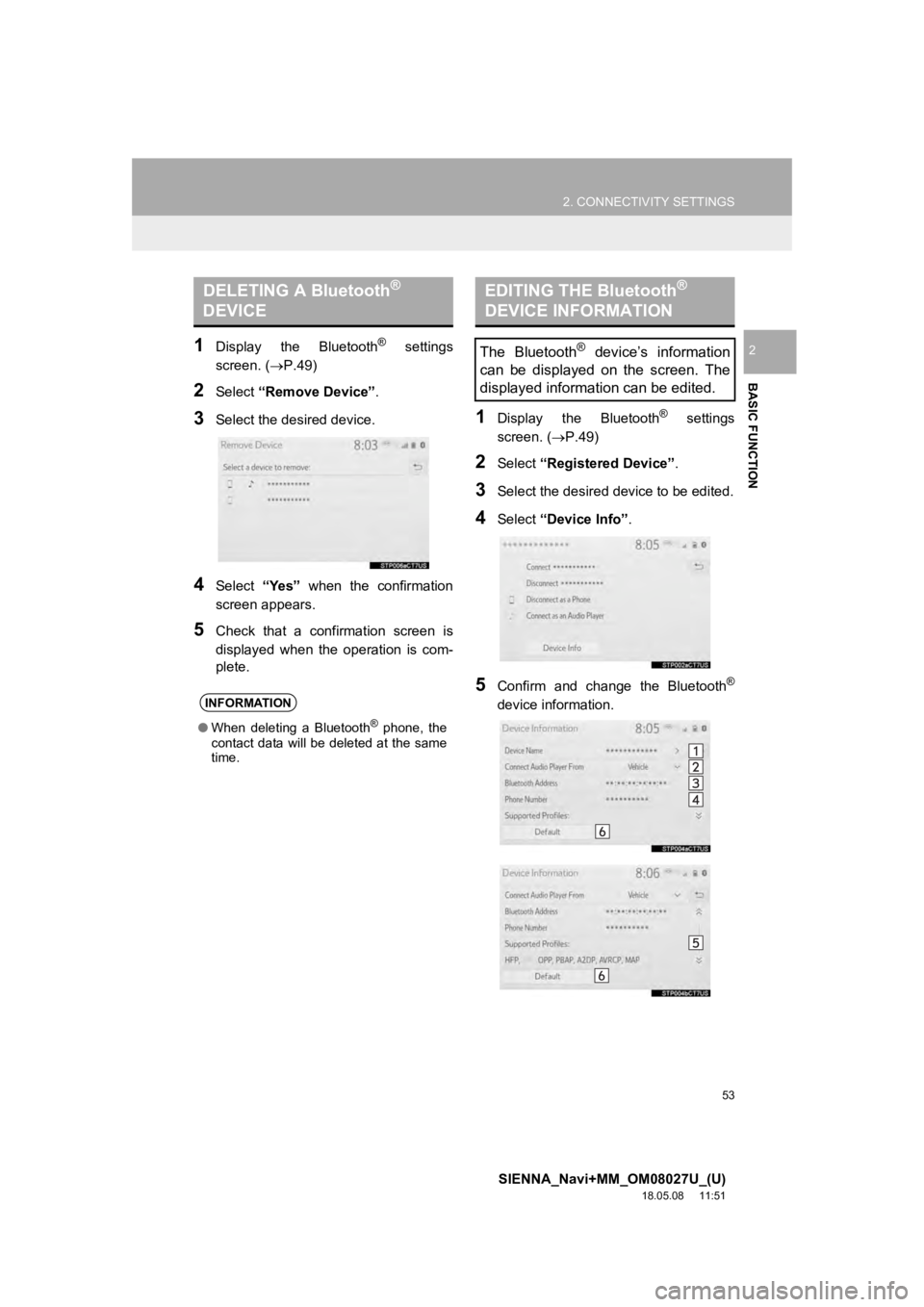
2Select “Remove Device” .
3Select the desired device.
4Select “Yes” when the confirmation
screen appears.
5Check that a confirmation screen is
displayed when the operation is com-
plete.
1Display the Bluetooth® settings
screen. ( P.49)
2Select “Registered Device” .
3Select the desired device to be edited.
4Select “Device Info” .
5Confirm and change the Bluetooth®
device information.
DELETING A Bluetooth®
DEVICE
INFORMATION
● When deleting a Bluetooth® phone, the
contact data will be deleted at the same
time.
EDITING THE Bluetooth®
DEVICE INFORMATION
The Bluetooth® device’s information
can be displayed on the screen. The
displayed information can be edited.
Page 54 of 441
54
2. CONNECTIVITY SETTINGS
SIENNA_Navi+MM_OM08027U_(U)
18.05.08 11:51
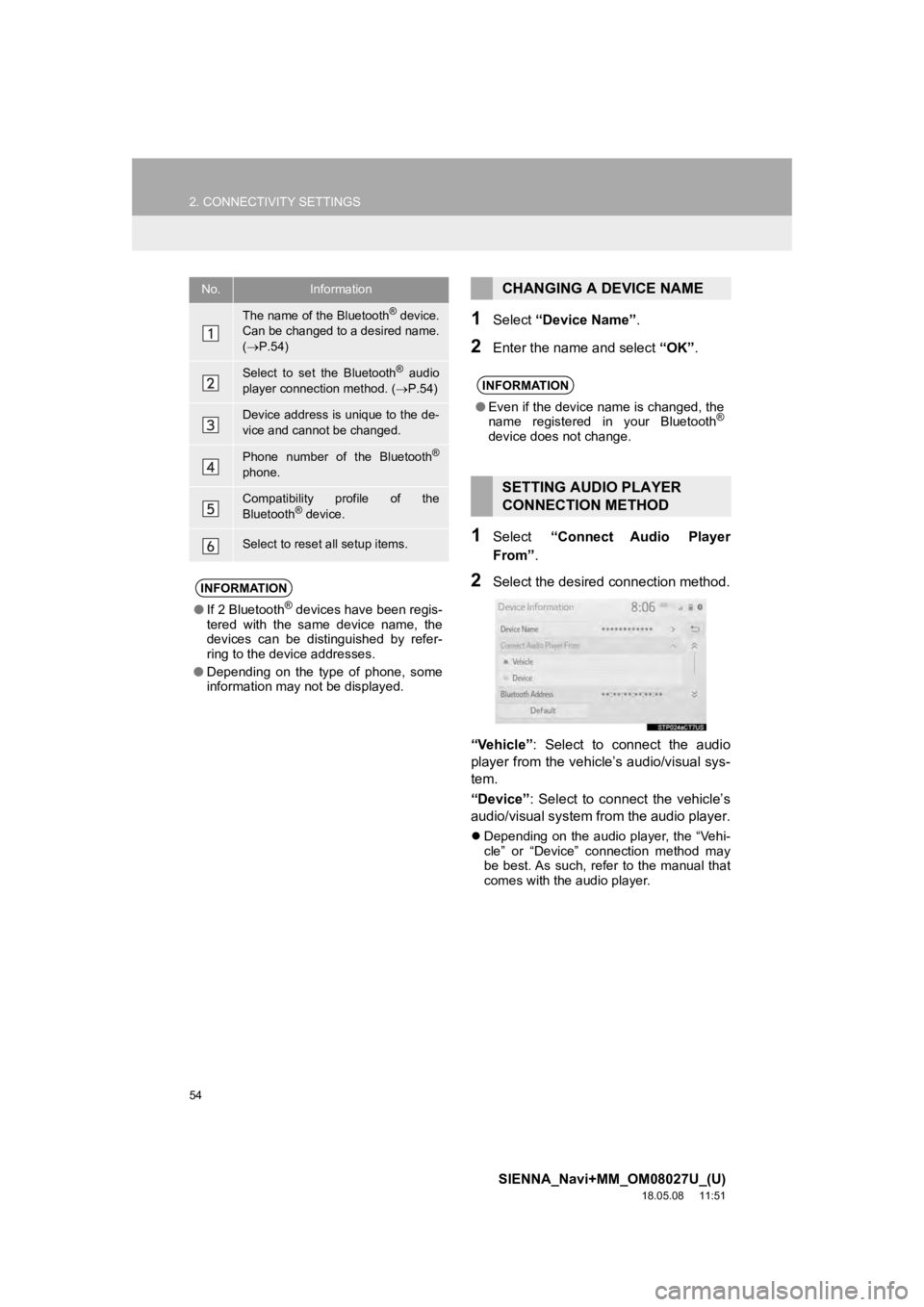
1Select “Device Name” .
2Enter the name and select “OK”.
1Select “Connect Audio Player
From” .
2Select the desired connection method.
“Vehicle” : Select to connect the audio
player from the vehicle’s audio/visual sys-
tem.
“Device” : Select to connect the vehicle’s
audio/visual system from the audio player.
Depending on the audio player, the “Vehi-
cle” or “Device” connection method may
be best. As such, refer to the manual that
comes with the audio player.
No.Information
The name of the Bluetooth® device.
Can be changed to a desired name.
( P.54)
Select to set the Bluetooth® audio
player connection method. ( P.54)
Device address is unique to the de-
vice and cannot be changed.
Phone number of the Bluetooth®
phone.
Compatibility profile of the
Bluetooth® device.
Select to reset all setup items.
INFORMATION
● If 2 Bluetooth® devices have been regis-
tered with the same device name, the
devices can be distinguished by refer-
ring to the device addresses.
● Depending on the type of phone, some
information may not be displayed.
CHANGING A DEVICE NAME
INFORMATION
●Even if the device name is changed, the
name registered in your Bluetooth®
device does not change.
SETTING AUDIO PLAYER
CONNECTION METHOD
Page 56 of 441
56
2. CONNECTIVITY SETTINGS
SIENNA_Navi+MM_OM08027U_(U)
18.05.08 11:51
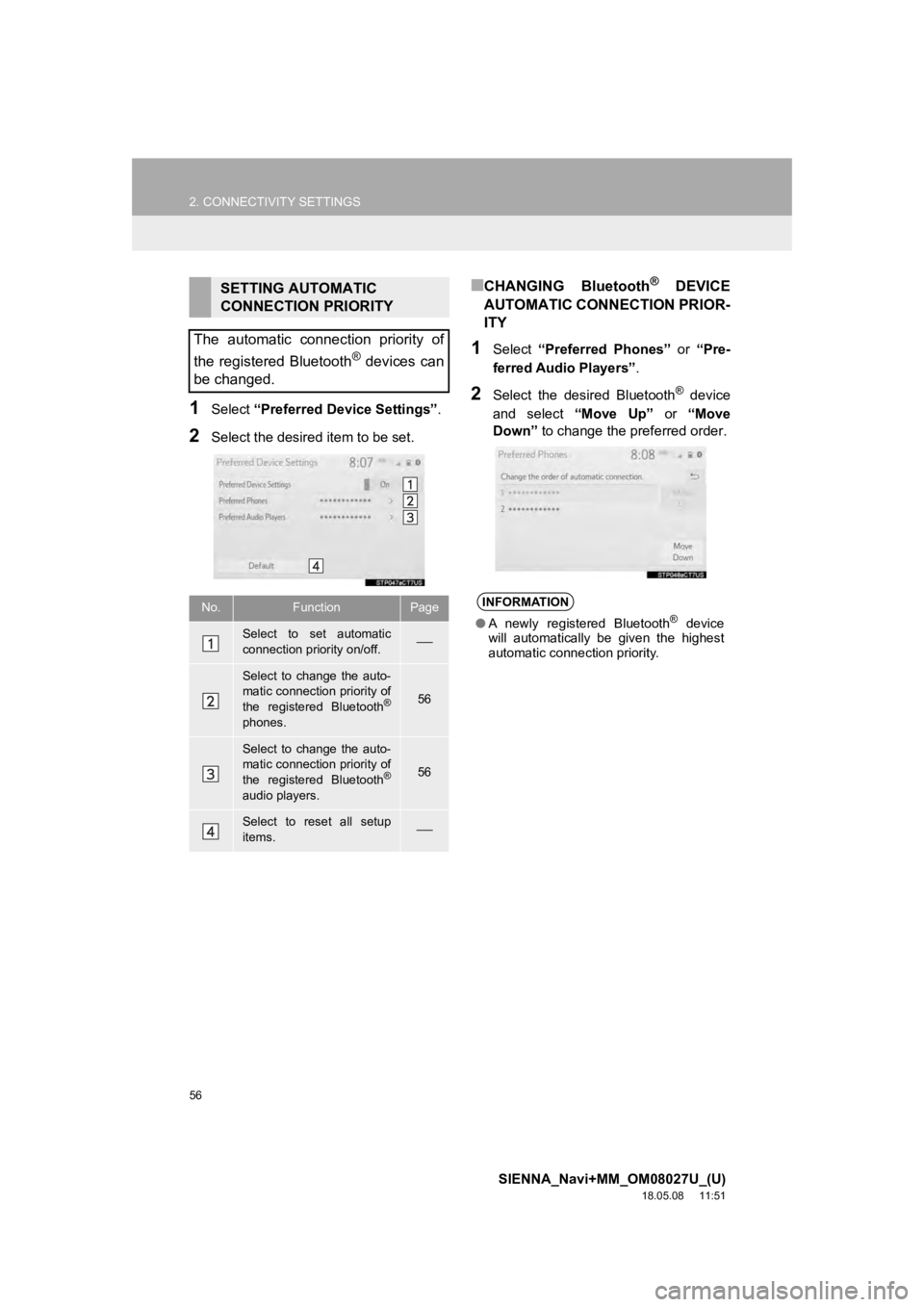
1Select “Preferred Device Settings” .
2Select the desired item to be set.
■CHANGING Bluetooth® DEVICE
AUTOMATIC CONNECTION PRIOR-
ITY
1Select “Preferred Phones” or “Pre-
ferred Audio Players”.
2Select the desired Bluetooth® device
and select “Move Up” or “Move
Down” to change the preferred order.
SETTING AUTOMATIC
CONNECTION PRIORITY
The automatic connection priority of
the registered Bluetooth
® devices can
be changed.
No.FunctionPage
Select to set automatic
connection priority on/off.
Select to change the auto-
matic connection priority of
the registered Bluetooth
®
phones.
56
Select to change the auto-
matic connection priority of
the registered Bluetooth
®
audio players.
56
Select to reset all setup
items.
INFORMATION
● A newly registered Bluetooth® device
will automatically be given the highest
automatic connection priority.
Page 57 of 441
57
2. CONNECTIVITY SETTINGS
SIENNA_Navi+MM_OM08027U_(U)
18.05.08 11:51
BASIC FUNCTION
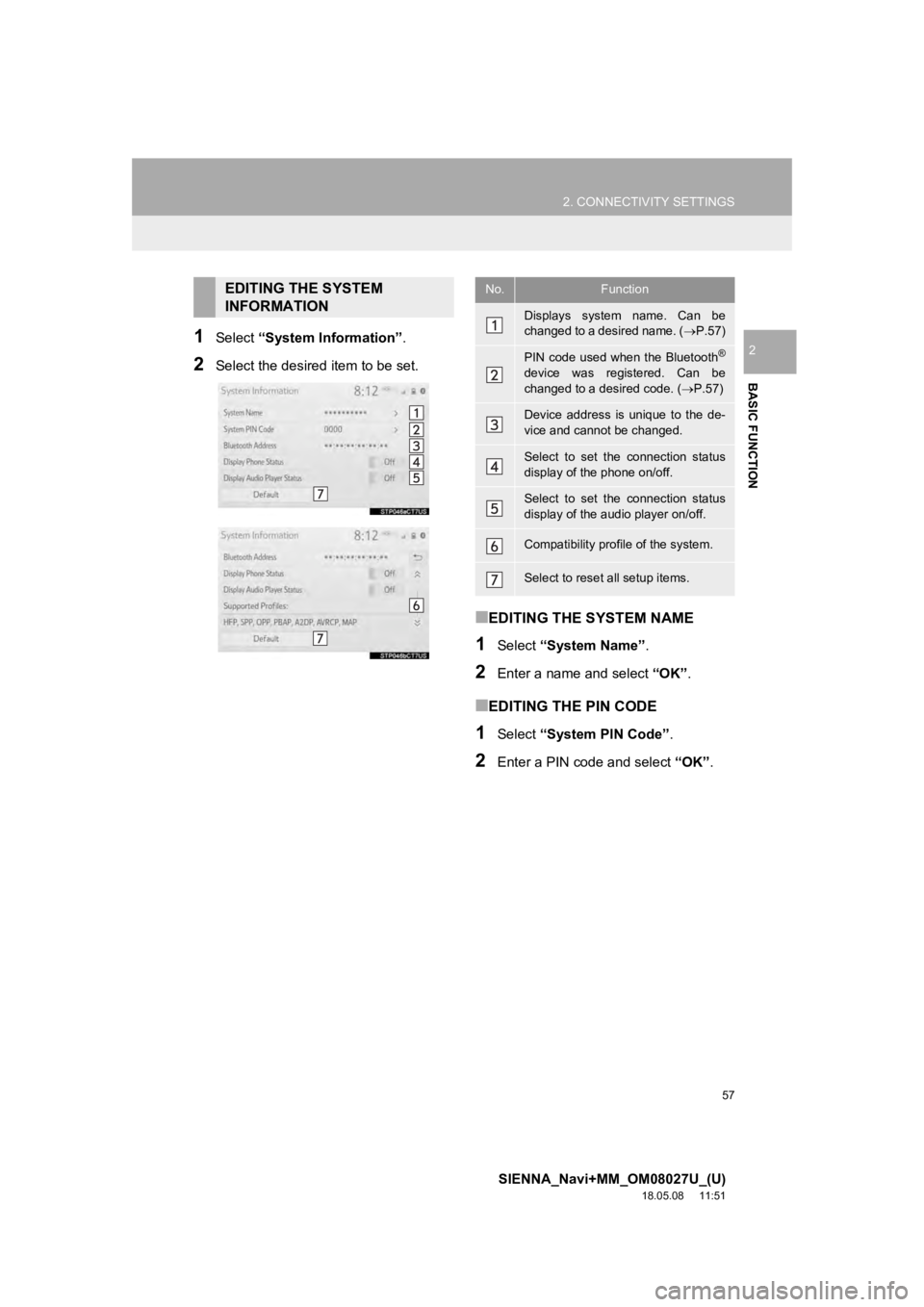
21Select “System Information” .
2Select the desired item to be set.
■EDITING THE SYSTEM NAME
1Select “System Name” .
2Enter a name and select “OK”.
■EDITING THE PIN CODE
1Select “System PIN Code” .
2Enter a PIN code and select “OK”.
EDITING THE SYSTEM
INFORMATIONNo.Function
Displays system name. Can be
changed to a desired name. ( P.57)
PIN code used when the Bluetooth®
device was registered. Can be
changed to a desired code. ( P.57)
Device address is unique to the de-
vice and cannot be changed.
Select to set the connection status
display of the phone on/off.
Select to set the connection status
display of the audio player on/off.
Compatibility profile of the system.
Select to reset all setup items.
Page 62 of 441
62
2. CONNECTIVITY SETTINGS
SIENNA_Navi+MM_OM08027U_(U)
18.05.08 11:51
4. Apple CarPlay*
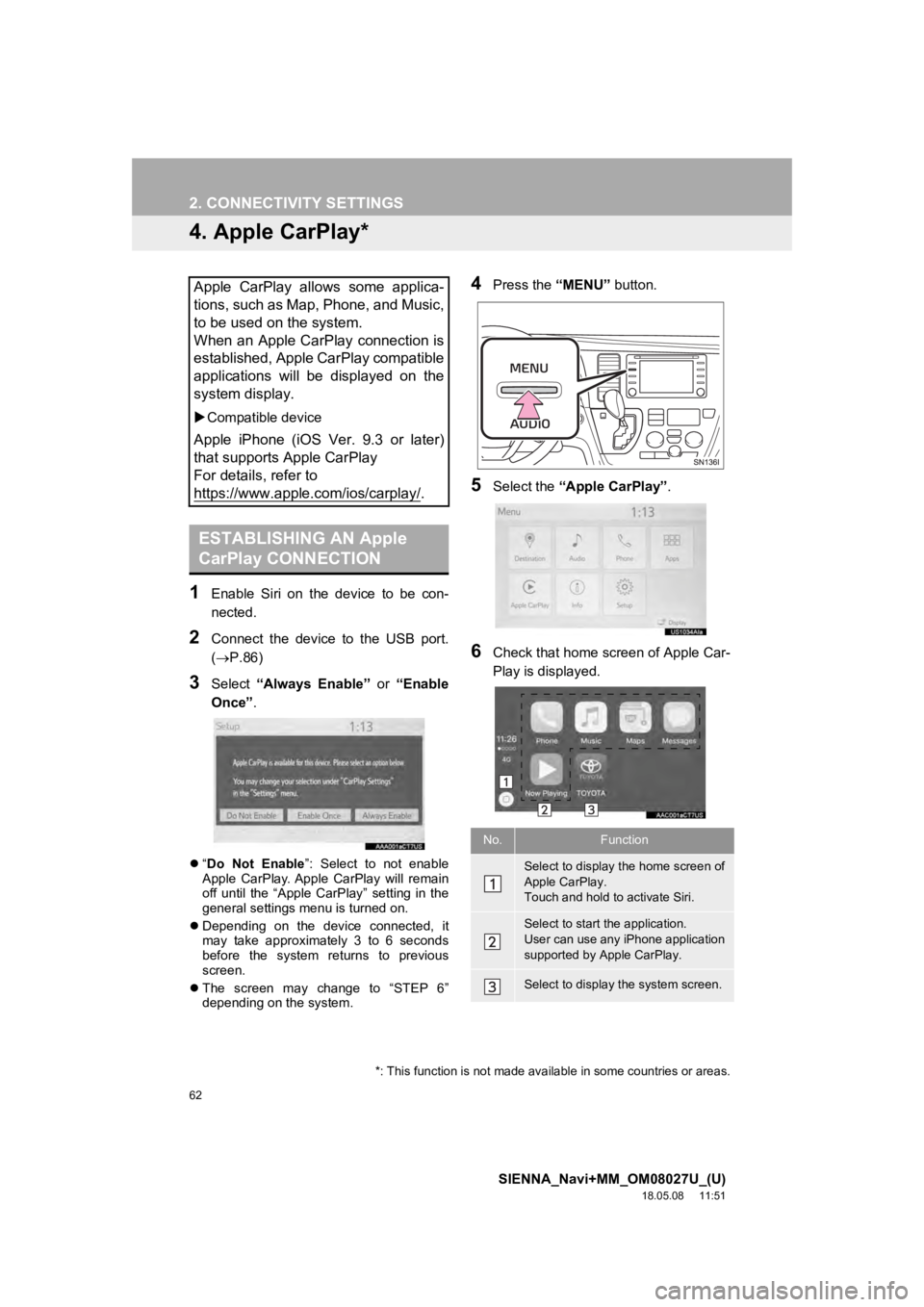
1Enable Siri on the device to be con-
nected.
2Connect the device to the USB port.
(P.86)
3Select “Always Enable” or “Enable
Once” .
“Do Not Enable ”: Select to not enable
Apple CarPlay. Apple CarPlay will remain
off until the “Apple CarPlay” setting in the
general settings menu is turned on.
Depending on the device connected, it
may take approximately 3 to 6 seconds
before the system returns to previous
screen.
The screen may change to “STEP 6”
depending on the system.
4Press the “MENU” button.
5Select the “Apple CarPlay” .
6Check that home screen of Apple Car-
Play is displayed.
Apple CarPlay allows some applica-
tions, such as Map, Phone, and Music,
to be used on the system.
When an Apple CarPlay connection is
established, Apple CarPlay compatible
applications will be displayed on the
system display.
Compatible device
Apple iPhone (iOS Ver. 9.3 or later)
that supports Apple CarPlay
For details, refer to
https://www.apple.com/ios/carplay/
.
ESTABLISHING AN Apple
CarPlay CONNECTION
*: This function is not made avai lable in some countries or areas.
No.Function
Select to display the home screen of
Apple CarPlay.
Touch and hold to activate Siri.
Select to start the application.
User can use any iPhone application
supported by Apple CarPlay.
Select to display the system screen.
Page 63 of 441
63
2. CONNECTIVITY SETTINGS
SIENNA_Navi+MM_OM08027U_(U)
18.05.08 11:51
BASIC FUNCTION
2
Use of the Apple CarPlay logo means that
a vehicle user interface meets Apple per-
formance standards. Apple is not respon-
sible for the operation of this vehicle or its
compliance with safety and regulatory
standards. Please note that the use of this
product with iPhone or iPod may affect
wireless performance.
Apple, iPad, iPhone, iPod, and iPod touch
are trademarks of Apple Inc., registered in
the U.S. and other countries. Apple Car-
Play is a trademark of Apple Inc.
WA R N I N G
● Do not connect iPhone or operate the
controls while driving.
NOTICE
●Do not leave your iPhone in the vehicle.
In particular, high temperatures inside
the vehicle may damage the iPhone.
● Do not push down on or apply unneces-
sary pressure to the iPhone while it is
connected as this may damage the
iPhone or its terminal.
● Do not insert foreign objects into the port
as this may damage the iPhone or its
terminal.
INFORMATION
●When an Apple CarPlay connection is
established, the function of some sys-
tem buttons will change.
● When an Apple CarPlay connection is
established, some system functions,
such as the following, will be replaced by
similar Apple CarPlay functions or will
become unavailable:
• iPod (Audio Playback)
• Hands-free Phone
• USB audio/USB video
• Bluetooth
® audio
• Bluetooth® phone
• Toyota Entune App Suite Connect
● The guidance volume can be changed
on the voice settings screen. ( P.71)
● To disable Apple CarPlay while a device
is connected, set “Apple CarPlay” on
the general settings screen to off.
( P. 6 5 )
INFORMATION
●Apple CarPlay is an application devel-
oped by Apple Inc. Its functions and ser-
vices may be terminated or changed
without notice depending on the con-
nected device’s operation system, hard-
ware and software, or due to changes in
Apple CarPlay specifications.
● If the vehicle’s navigation system is
being used for route guidance and a
route is set using the Apple CarPlay
Maps app, route guidance will be per-
formed through Apple CarPlay.
If the Apple CarPlay Maps app is being
used for route guidance and a route is
set using the vehicle’s navigation sys-
tem, route guidance will be performed
by the vehicle’s navigation system.
Page 64 of 441
64
2. CONNECTIVITY SETTINGS
SIENNA_Navi+MM_OM08027U_(U)
18.05.08 11:51
TROUBLE SHOOTING
If you are experiencing difficulties with Apple CarPlay, check the following table.
SymptomSolution
An Apple CarPlay connection
cannot be established.
Check if the device supports Apple CarPlay.
Check if Apple CarPlay is enabled on the connected device.
For details, refer to https://www.apple.com/ios/carplay/
.
Check if “Apple CarPlay” on the general settings screen is
set to on. ( P.65)
When the iPhone is connected using a USB hub, etc., an
Apple CarPlay connection may not be established. Connect
the lightning cable to USB the port directly.
Check if the Lightning cable bei ng used is certified by Apple
Inc., and if it is securely connected to the device and USB
port.
After checking all of the above, t ry to establish an Apple Car-
Play connection. ( P.62)
When an Apple CarPlay connec-
tion is established and a video is
being played, the video is not dis-
played, but audio is output
through the system.
As the system is not designed to play video through Apple
CarPlay, this is not a malfunction.
Although an Apple CarPlay con-
nection is established, audio is
not output through the system.The system may muted or the volume may be low. Increase
the system volume.
The Apple CarPlay screen has
artifacts and/or audio from Apple
CarPlay has noise.
Check if the Lightning cable being used to connect the de-
vice to the system is damaged.
To check if the Lightning cable is damaged internally, con-
nect the device to another system, such as a PC, and check
if the device is recognized by the connected system. (The
device should begin char ging when connected.)
After checking all of the above, t ry to establish an Apple Car-
Play connection. ( P.62)
The map display of the Apple
CarPlay Maps app cannot be en-
larged or contracted with pinch
multi-touch gestures.As the Apple CarPlay Maps app is not compatible with pinch
multi-touch gestures, this is not a malfunction.