audio TOYOTA SIENNA 2019 Accessories, Audio & Navigation (in English)
[x] Cancel search | Manufacturer: TOYOTA, Model Year: 2019, Model line: SIENNA, Model: TOYOTA SIENNA 2019Pages: 441, PDF Size: 9.89 MB
Page 1 of 441
1
SIENNA_Navi+MM_OM08027U_(U)
18.05.08 11:51
1QUICK GUIDE11
2BASIC FUNCTION29
3AUDIO/VISUAL SYSTEM79
4VOICE COMMAND SYSTEM205
5INFORMATION219
6PERIPHERAL MONITORING SYSTEM227
7PHONE291
8NAVIGATION SYSTEM331
9Toyota Entune393
APPENDIX/INDEX411
About the following equipment, see the “OWNER’S MANUAL”.
Fuel consumption
Intuitive parking assist
Vehicle customization settings
Page 2 of 441

2
SIENNA_Navi+MM_OM08027U_(U)
18.05.08 11:51
Introduction
This manual explains the operation of this system. Please read this manual
carefully to ensure proper use. Keep this manual in your vehicle at all times.
The screens shown in this manual may differ from the actual scr een of the sys-
tem depending on availability of functions, Toyota Entune subsc ription status,
and map data available at the time this manual was produced.
The screens in this manual will also differ if the screen theme settings have
been changed. (Theme setting: P.65)
Please be aware that the content of this manual may be different from this sys-
tem in some cases, such as when the system’s software is updated.
The Navigation System is one of the most technologically advanc ed vehicle ac-
cessories ever developed. The system receives satellite signals from the Global
Positioning System (GPS) operated by the U.S. Department of Def ense. Using
these signals and other vehicle sensors, the system indicates your present po-
sition and assists in locating a desired destination.
The navigation system is designed to select efficient routes from your present
starting location to your destination. The system is also desig ned to direct you
to a destination that is unfamiliar to you in an efficient manner. The system uses
AISIN AW maps. The calculated routes may not be the shortest no r the least
traffic congested. Your own personal local knowledge or “short cut” may at
times be faster than the calculated routes.
The navigation system’s database includes Point of Interest cat egories to allow
you to easily select destinations such as restaurants and hotel s. If a destination
is not in the database, you can enter the street address or a major intersection
close to it and the system will guide you there.
The system will provide both a visual map and audio instruction s. The audio in-
structions will announce the distance remaining and the directi on to turn in when
approaching an intersection. These voice instructions will help you keep your
eyes on the road and are timed to provide enough time to allow you to maneu-
ver, change lanes or slow down.
NAVIGATION AND MULTIMEDI A SYSTEM OWNER’S MANUAL
NAVIGATION SYSTEM (ENTUNE PREMIUM AUDIO)
Page 6 of 441
6
SIENNA_Navi+MM_OM08027U_(U)
18.05.08 11:51
To use this system in the safest possible
manner, follow all the safety tips shown
below.
Do not use any feature of this system to
the extent it becomes a distraction and
prevents safe drivin g. The first priority
while driving should always be the safe op-
eration of the vehicle. While driving, be
sure to observe all traffic regulations.
Prior to the actual use of this system, learn
how to use it and become thoroughly famil-
iar with it. Read the entire manual to make
sure you understand the system. Do not
allow other people to use this system until
they have read and understood the in-
structions in this manual.
For your safety, some functions may be-
come inoperable when driving. Unavail-
able screen buttons are dimmed. To use this system in
the safest possible
manner, follow all the safety tips shown
below.
This system is inten ded to assist in reach-
ing the destination and, if used properly,
can do so. The driver is solely responsible
for the safe operation of your vehicle and
the safety of your passengers.
Do not use any featu re of this system to
the extent it becomes a distraction and
prevents safe driving. The first priority
while driving should always be the safe op-
eration of the vehicle. While driving, be
sure to observe all traffic regulations.
Prior to the actual use of this system, learn
how to use it and become thoroughly famil-
iar with it. Read the entire manual to make
sure you understand the system. Do not
allow other people to use this system until
they have read and understood the in-
structions in this manual.
For your safety, some functions may be-
come inoperable when driving. Unavail-
able screen buttons are dimmed.
SAFETY INSTRUCTION
(ENTUNE AUDIO/ENTUNE
AUDIO PLUS)
WA R N I N G
● For safety, the driver should not operate
the system while he/she is driving. Insuf-
ficient attention to the road and traffic
may cause an accident.
SAFETY INSTRUCTION
(ENTUNE PREMIUM AUDIO)
Page 8 of 441

TABLE OF CONTENTS
8
SIENNA_Navi+MM_OM08027U_(U)
18.05.08 11:51
1. BASIC FUNCTION........................... 12
BUTTONS OVERVIEW ......................... 12
“Menu” SCREEN.................................... 15
HOME SCREEN .................................... 17
2. QUICK REFERENCE....................... 21
“Setup” SCREEN ................................... 21
3. NAVIGATION OPERATION ............ 23
REGISTERING HOME .......................... 23
REGISTERING FAVORITE DESTINATIONS .................................. 24
OPERATION FLOW: ROUTE GUIDANCE ............................ 25
SETTING HOME AS THE DESTINATION .................................... 26
4. FUNCTION INDEX ..... ...................... 27
FUNCTION INDEX ................................ 27
1. BASIC INFORMATION BEFORE
OPERATION .................................. 30
INITIAL SCREEN ................................... 30
TOUCH SCREEN GESTURES ............. 32
TOUCH SCREEN OPERATION ............ 33
HOME SCREEN OPERATION .............. 35
ENTERING LETTERS AND NUMBERS/
LIST SCREEN OPERATION............... 36
SCREEN ADJUSTMENT ....................... 40
LINKING MULTI-INFORMATION DISPLAY AND THE SYSTEM............. 42
2. CONNECTIVITY SETTINGS ........... 43
REGISTERING/CONNECTING A Bluetooth® DEVICE ............................. 43
SETTING Bluetooth® DETAILS ............. 49
Wi-Fi® Hotspot ....................................... 58
Apple CarPlay ........................................ 62
3. OTHER SETTINGS ......................... 65
GENERAL SETTINGS ........................... 65
VOICE SETTINGS ................................. 71
VEHICLE SETTINGS ............................. 72
1. BASIC OPERATION ....................... 82
QUICK REFERENCE ............................. 82
SOME BASICS....................................... 84
2. RADIO OPERATION ....................... 91
AM/FM/SiriusXM (SXM) RADIO ............. 91
INTERNET RADIO ............................... 103
3. MEDIA OPERATION ..................... 104
CD ........................................................ 104
USB MEMORY ..................................... 107
iPod/iPhone .......................................... 110
Bluetooth
® AUDIO................................ 114
AUX ...................................................... 119
4. AUDIO/VISUAL REMOTE CONTROLS ................................. 122
STEERING SWITCHES ....................... 122
5. SETUP ........................................... 125
AUDIO SETTINGS ............................... 125
6. TIPS FOR O PERATING THE
AUDIO/VISUAL SYSTEM ............ 128
OPERATING INFORMATION .............. 128
1QUICK GUIDE
2BASIC FUNCTION
3AUDIO/VISUAL SYSTEM
Page 9 of 441
9
SIENNA_Navi+MM_OM08027U_(U)
18.05.08 11:51
1
2
3
4
5
6
7
8
9
7. REAR SEAT ENTERTAINMENT SYSTEM OPERATION ................ 139
REAR SEAT ENTERTAINMENT
SYSTEM FEATURES ....................... 139
PLAYING A Blu-ray Disc™ (BD) AND DVD DISCS....................................... 151
PLAYING AN AUDIO CD AND MP3/WMA/AAC DISCS..................... 166
PLAYING AN SD CARD ...................... 171
USING THE DLNA MODE ................... 183
USING THE Miracast™ MODE ........... 190
USING THE HDMI MODE ................... 192
COPYRIGHTS AND TRADEMARKS ................................. 194
1. VOICE COMMAND SYSTEM OPERATION ................................ 206
VOICE COMMAND SYSTEM .............. 206
NATURAL LANGUAGE
UNDERSTANDING ........................... 210
COMMAND LIST ................................. 211
2. MOBILE ASSISTANT OPERATION ................................ 217
MOBILE ASSISTANT .......................... 217
1. USEFUL INFORMATION............... 220
INFORMATION SCREEN ................... 220
RECEIVING WEATHER
INFORMATION ................................. 221
DATA SERVICES SETTINGS ............. 224
1. REAR VIEW MONITOR SYSTEM ....... ............................ ... 228
REAR VIEW MONITOR SYSTEM ....... 228
REAR VIEW MONITOR SYSTEM
PRECAUTIONS ................................ 231
THINGS YOU SHOULD KNOW .......... 236
2. TOYOTA PARKING ASSIST MONITOR .................................... 237
TOYOTA PARKING ASSIST
MONITOR ......................................... 237
ESTIMATED COURSE LINE DISPLAY MODE ............................... 242
PARKING ASSIST GUIDE LINE DISPLAY MODE ............................... 245
DISTANCE GUIDE LINE DISPLAY MODE ................................................ 247
TOYOTA PARKING ASSIST MONITOR PRECAUTIONS............... 248
THINGS YOU SHOULD KNOW .......... 253
3. PANORAMIC VIEW MONITOR .... 255
PANORAMIC VIEW MONITOR ........... 255
CHECKING AROUND THE VEHICLE ........................................... 260
CHECKING THE FRONT AND AROUND THE VEHICLE .................. 261
CHECKING THE SIDES OF THE VEHICLE ........................................... 264
CHECKING THE REAR AND AROUND THE VEHICLE .................. 267
DISPLAY WHEN THE OUTSIDE REAR VIEW MIRRORS ARE
RETRACTED .................................... 274
MAGNIFYING FUNCTION ................... 275
CUSTOMIZING THE PANORAMIC VIEW MONITOR ............................... 276
PANORAMIC VIEW MONITOR PRECAUTIONS ................................ 277
THINGS YOU SHOULD KNOW .......... 288
4VOICE COMMAND SYSTEM
5INFORMATION
6PERIPHERAL MONITORING
SYSTEM
Page 12 of 441
12
SIENNA_Navi+MM_OM08027U_(U)
18.05.08 11:51
1. BASIC FUNCTION
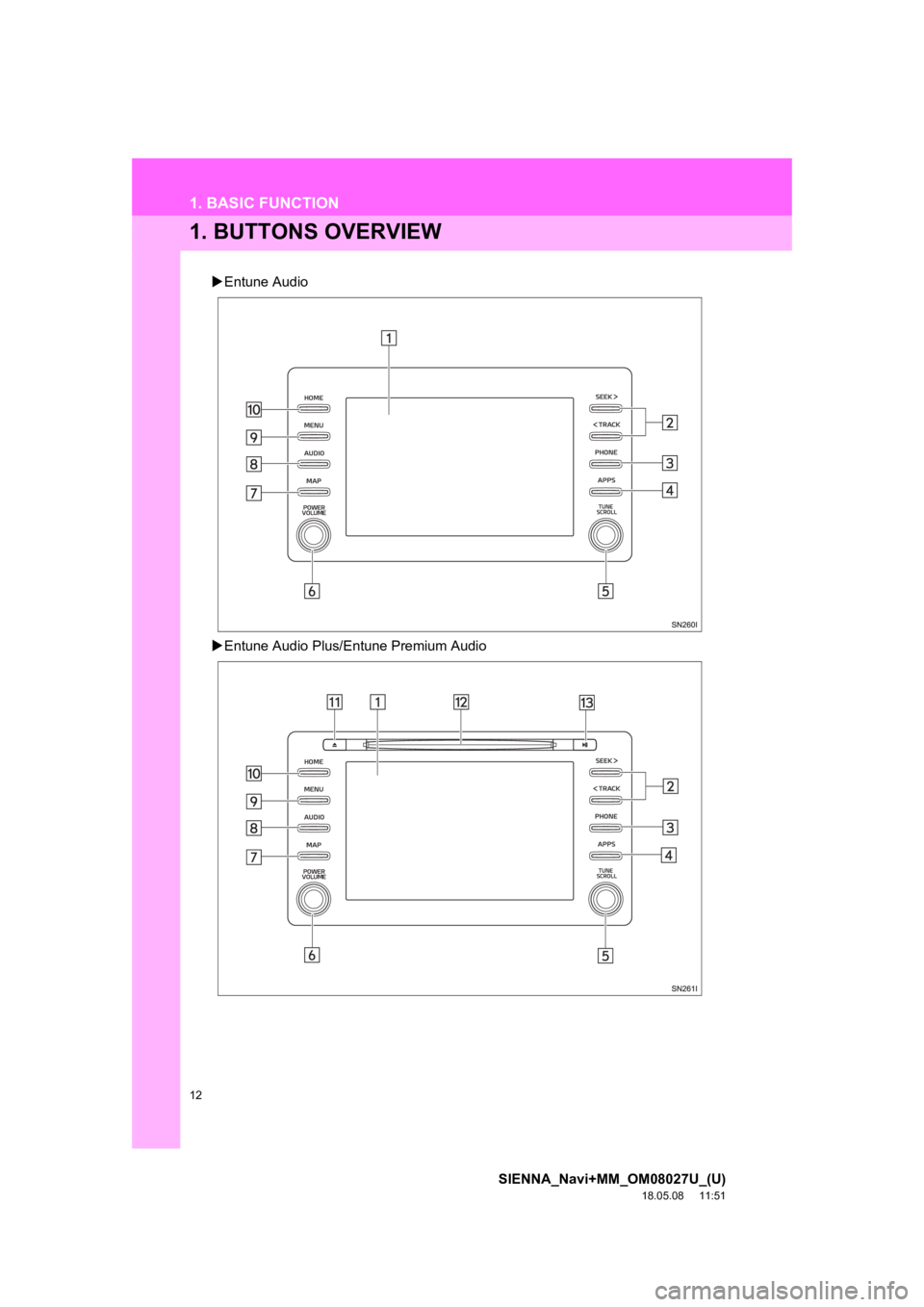
1. BUTTONS OVERVIEW
Entune Audio
Entune Audio Plus/E ntune Premium Audio
Page 13 of 441
13
1. BASIC FUNCTION
SIENNA_Navi+MM_OM08027U_(U)
18.05.08 11:51
QUICK GUIDE
1No.FunctionPage
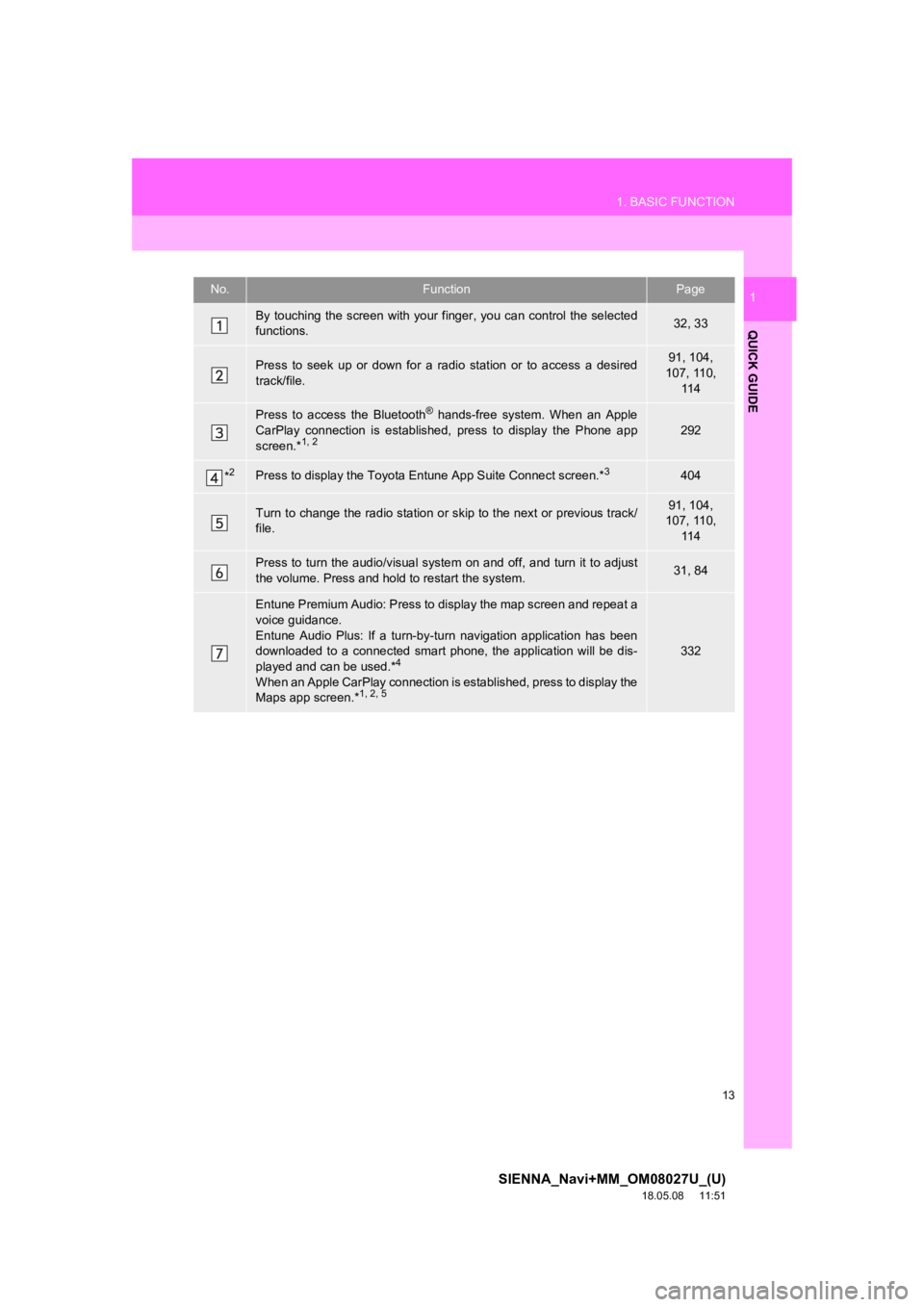
By touching the screen with your finger, you can control the selected
functions.32, 33
Press to seek up or down for a radio station or to access a des ired
track/file.91, 104,
107, 110,
11 4
Press to access the Bluetooth® hands-free system. When an Apple
CarPlay connection is established, press to display the Phone a pp
screen.*
1, 2292
*2Press to display the Toyota Entune App Suite Connect screen.*3404
Turn to change the radio station or skip to the next or previous track/
file.91, 104,
107, 110,
11 4
Press to turn the audio/visual system on and off, and turn it t o adjust
the volume. Press and hold to restart the system.31, 84
Entune Premium Audio: Press to display the map screen and repea t a
voice guidance.
Entune Audio Plus: If a turn-by -turn navigation application has been
downloaded to a connected smart phone, the application will be dis-
played and can be used.*
4
When an Apple CarPlay connection is established, press to display the
Maps app screen.*1, 2, 5
332
Page 14 of 441
14
1. BASIC FUNCTION
SIENNA_Navi+MM_OM08027U_(U)
18.05.08 11:51
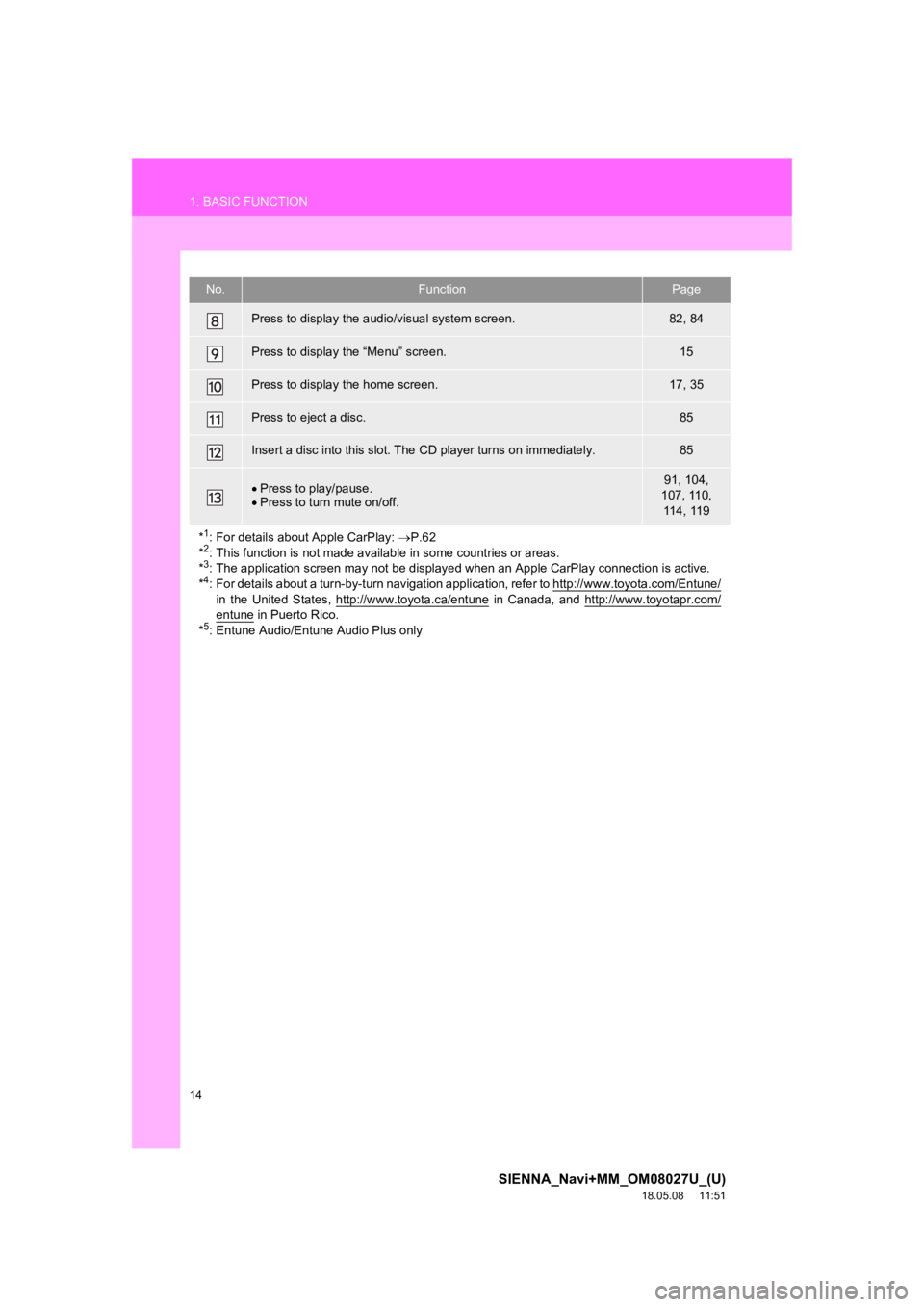
Press to display the audio/visual system screen.82, 84
Press to display the “Menu” screen.15
Press to display the home screen.17, 35
Press to eject a disc.85
Insert a disc into this slot. The CD player turns on immediatel y.85
Press to play/pause.
Press to turn mute on/off.91, 104,
107, 110, 114, 119
*
1: For details about Apple CarPlay: P.62
*2: This function is not made avail able in some countries or areas.
*3: The application screen may not be displayed when an Apple CarP lay connection is active.
*4: For details about a turn-by-turn navigation application, refer to http://www.toyota.com/Entune/
in the United States, http://www.toyota.ca/entune in Canada, and http://www.toyotapr.com/entune in Puerto Rico.
*5: Entune Audio/Entune Audio Plus only
No.FunctionPage
Page 15 of 441
15
1. BASIC FUNCTION
SIENNA_Navi+MM_OM08027U_(U)
18.05.08 11:51
QUICK GUIDE
1
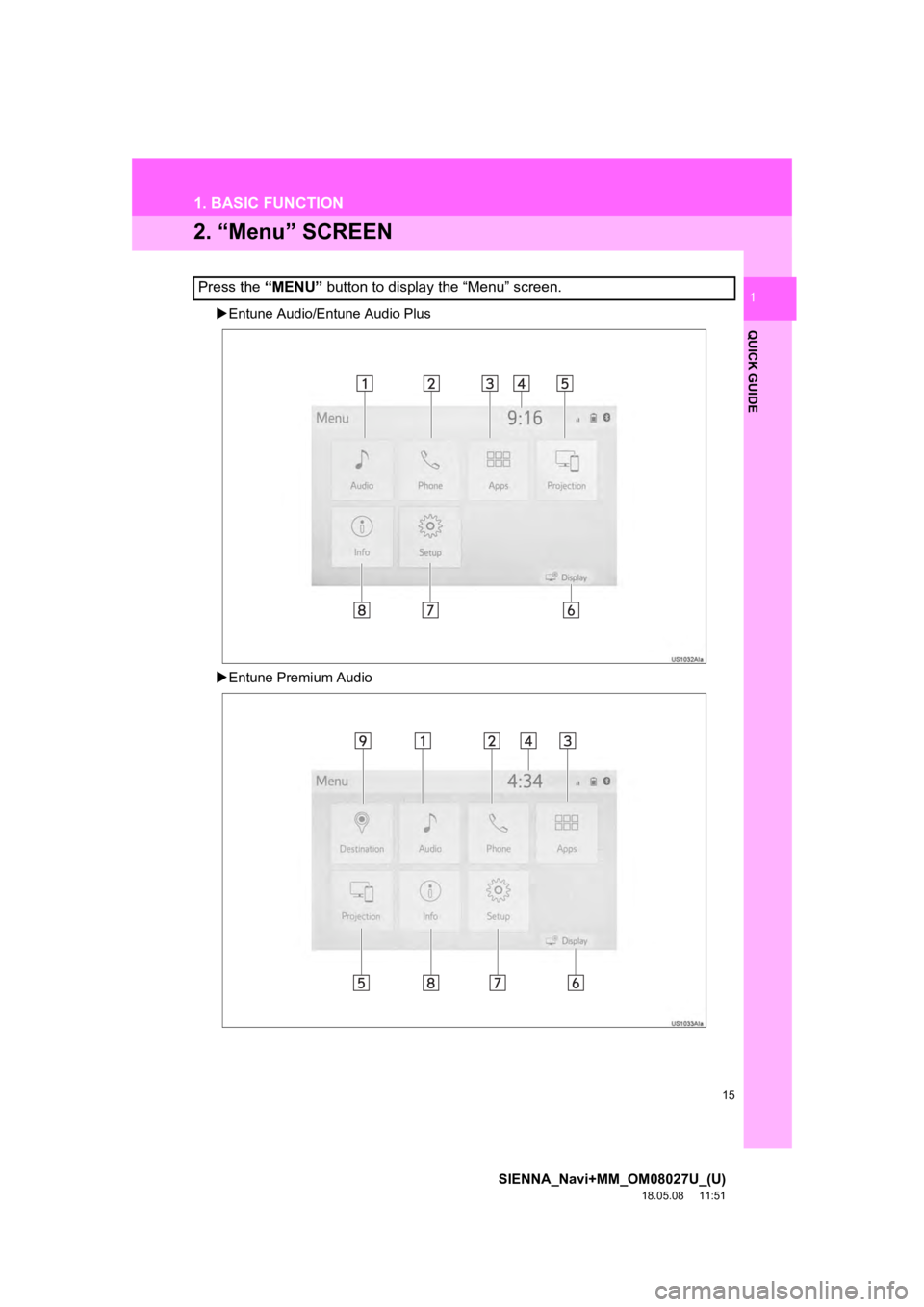
2. “Menu” SCREEN
Entune Audio/Entune Audio Plus
Entune Premium Audio
Press the “MENU” button to display the “Menu” screen.
Page 16 of 441
16
1. BASIC FUNCTION
SIENNA_Navi+MM_OM08027U_(U)
18.05.08 11:51
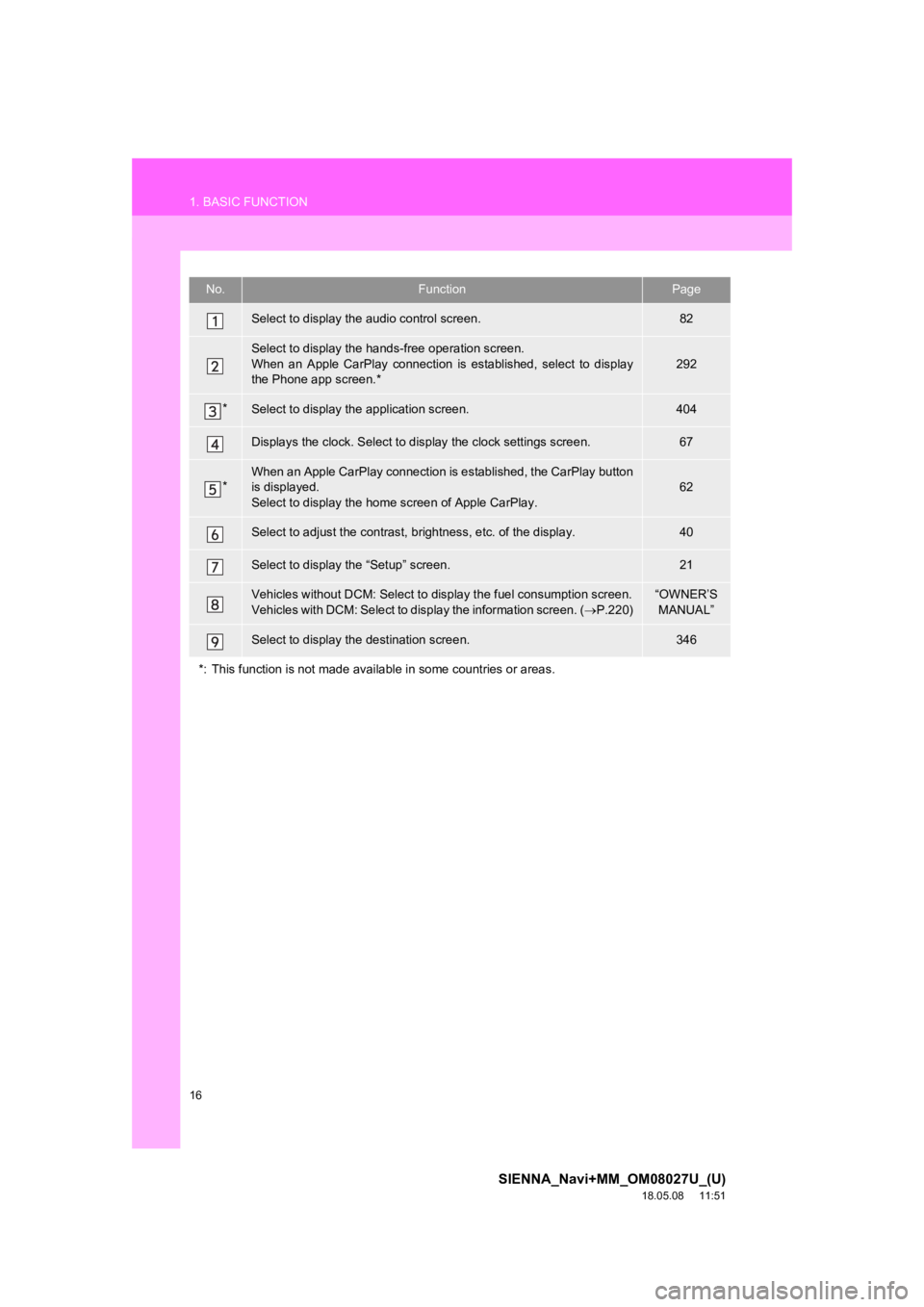
No.FunctionPage
Select to display the audio control screen.82
Select to display the hands-free operation screen.
When an Apple CarPlay connection is established, select to display
the Phone app screen.*
292
*Select to display the application screen.404
Displays the clock. Select to d isplay the clock settings screen .67
*When an Apple CarPlay connection is established, the CarPlay button
is displayed.
Select to display the home screen of Apple CarPlay.62
Select to adjust the contrast, b rightness, etc. of the display.40
Select to display the “Setup” screen.21
Vehicles without DCM: Select to di splay the fuel consumption screen.
Vehicles with DCM: Select to display the information screen. ( P.220)“OWNER’S
MANUAL”
Select to display the destination screen.346
*: This function is not made available in some countries or area s.