charging TOYOTA SIENNA 2019 Accessories, Audio & Navigation (in English)
[x] Cancel search | Manufacturer: TOYOTA, Model Year: 2019, Model line: SIENNA, Model: TOYOTA SIENNA 2019Pages: 441, PDF Size: 9.89 MB
Page 20 of 441
20
1. BASIC FUNCTION
SIENNA_Navi+MM_OM08027U_(U)
18.05.08 11:51
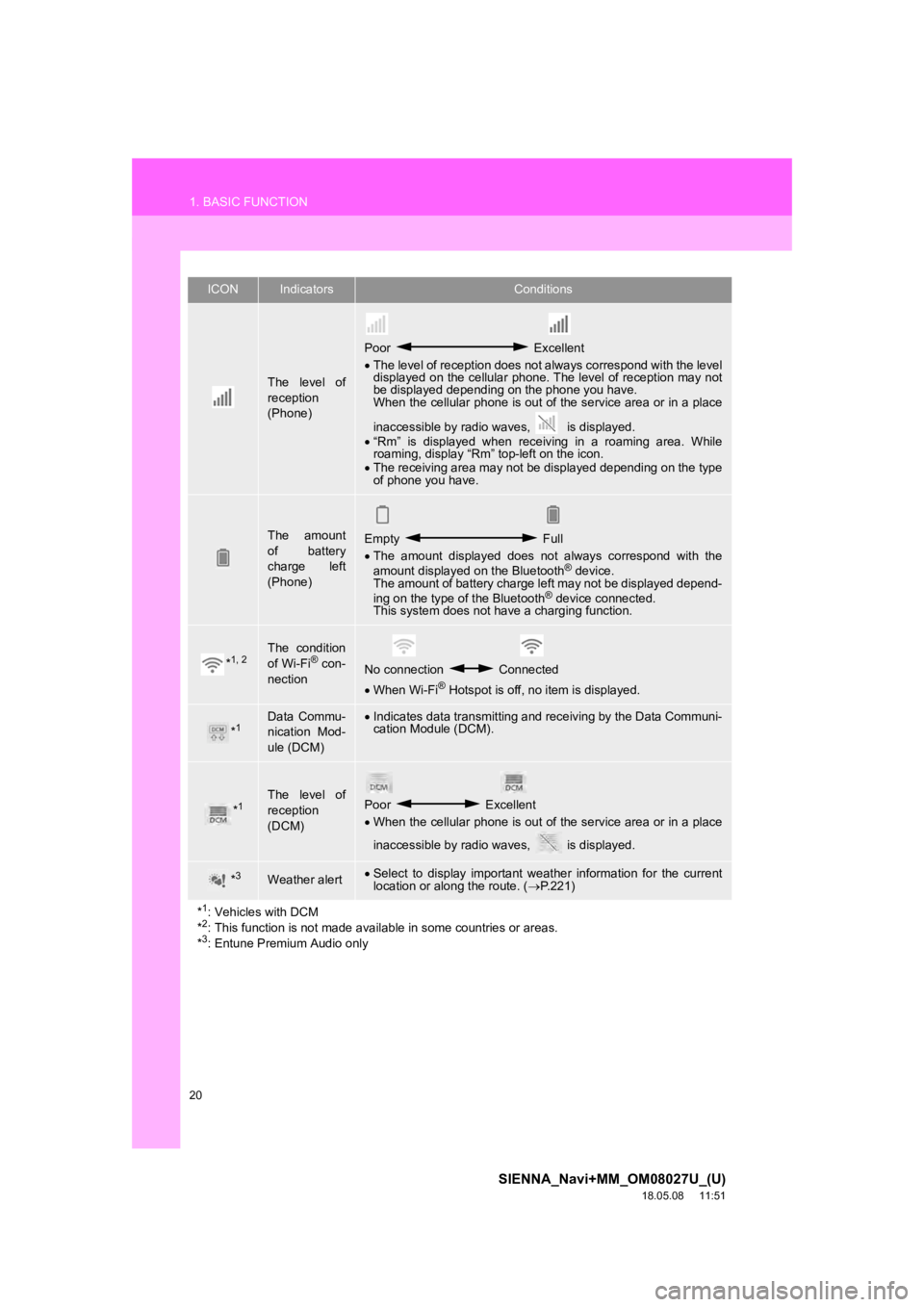
The level of
reception
(Phone)
Poor Excellent
The level of reception does not always correspond with the leve l
displayed on the cellular phone. The level of reception may not
be displayed depending on the phone you have.
When the cellular phone is out of the service area or in a plac e
inaccessible by radio waves, is displayed.
“Rm” is displayed when receiving in a roaming area. While
roaming, display “Rm” top-left on the icon.
The receiving area may not be displayed depending on the type
of phone you have.
The amount
of battery
charge left
(Phone)Empty Full
The amount displayed does not always correspond with the
amount displayed on the Bluetooth
® device.
The amount of battery charge left may not be displayed depend-
ing on the type of the Bluetooth
® device connected.
This system does not have a charging function.
*1, 2The condition
of Wi-Fi® con-
nectionNo connection Connected
When Wi-Fi® Hotspot is off, no item is displayed.
*1Data Commu-
nication Mod-
ule (DCM)Indicates data transmitting and receiving by the Data Communi-
cation Module (DCM).
*1The level of
reception
(DCM)Poor Excellent
When the cellular phone is out of the service area or in a plac e
inaccessible by radio waves, is displayed.
*3Weather alert Select to display important weather information for the current
location or along the route. ( P.221)
*
1: Vehicles with DCM
*2: This function is not made avai lable in some countries or areas.
*3: Entune Premium Audio only
ICONIndicatorsConditions
Page 113 of 441

113
3. MEDIA OPERATION
SIENNA_Navi+MM_OM08027U_(U)
18.05.08 11:51
AUDIO/VISUAL SYSTEM
3
INFORMATION
●When an iPod/iPhone is connected using a genuine iPod/iPhone cable, the iPod/iPhone
starts charging its battery.
● Depending on the iPod/iPhone, the video sound may not be able t o be heard.
● Depending on the iPod/iPhone and the songs in the iPod/iPhone, a cover art may be dis-
played. This function can be changed to on/off. ( P.125) It may take time to display the
cover art, and the iPod/iPhone may not be operated while the co ver art display is in pro-
cess.
● When an iPod/iPhone is connected and the audio source is change d to iPod/iPhone
mode, the iPod/iPhone will resume playing from the same point i t was last used.
● Depending on the iPod/iPhone that is connected to the system, c ertain functions may not
be available.
● Files/tracks selected by operating a connected iPod/iPhone may not be recognized or
displayed properly.
● The system may not function properly if a conversion adapter is used to connect a
device.
Page 408 of 441
408
SIENNA_Navi+MM_OM08027U_(U)
18.05.08 11:51
3. SETUP
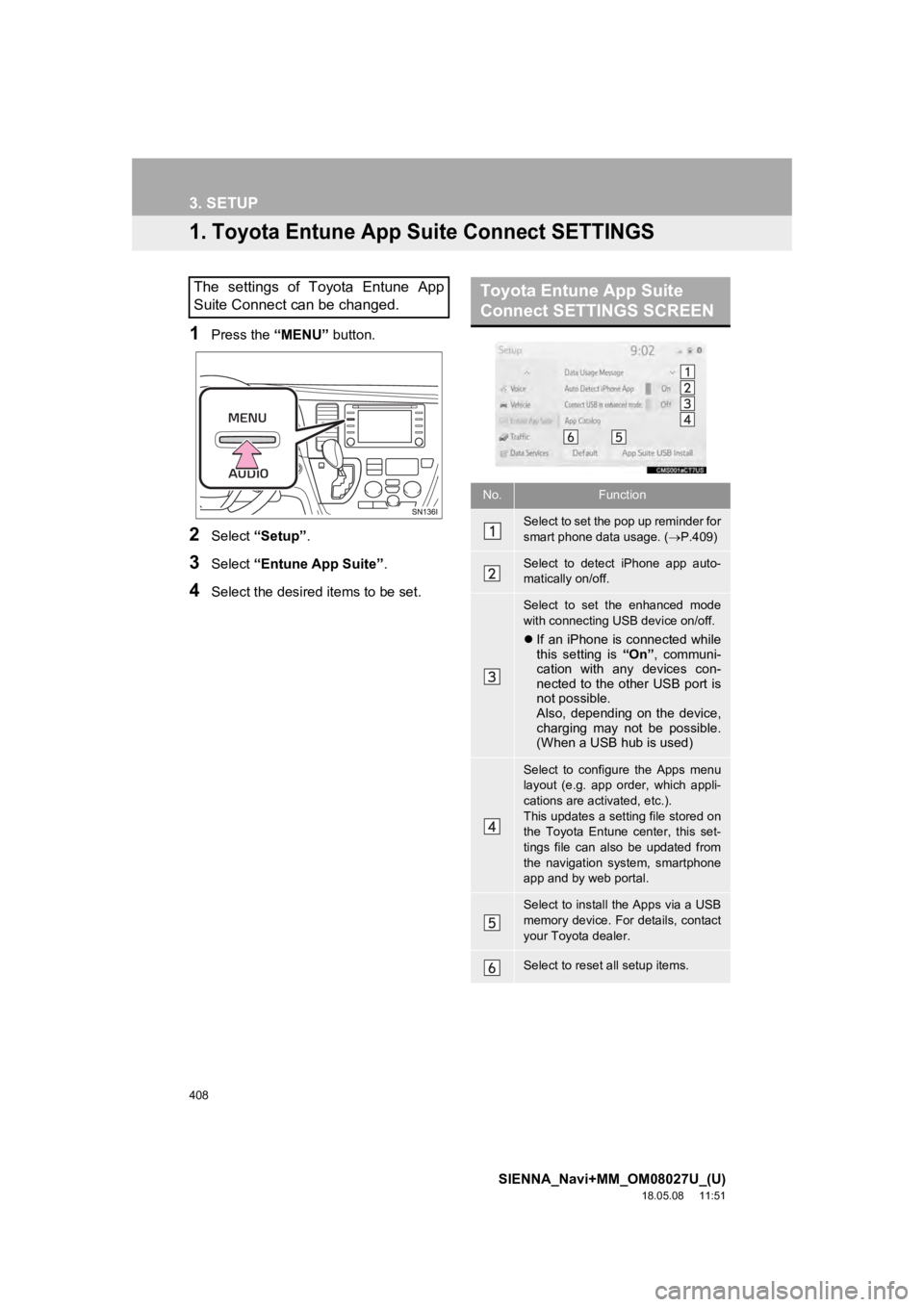
1. Toyota Entune App Suite Connect SETTINGS
1Press the “MENU” button.
2Select “Setup” .
3Select “Entune App Suite” .
4Select the desired items to be set.
The settings of Toyota Entune App
Suite Connect can be changed.Toyota Entune App Suite
Connect SETTINGS SCREEN
No.Function
Select to set the pop up reminder for
smart phone data usage. ( P.409)
Select to detect iPhone app auto-
matically on/off.
Select to set the enhanced mode
with connecting USB device on/off.
If an iPhone is connected while
this setting is “On”, communi-
cation with any devices con-
nected to the other USB port is
not possible.
Also, depending on the device,
charging may not be possible.
(When a USB hub is used)
Select to configure the Apps menu
layout (e.g. app order, which appli-
cations are activated, etc.).
This updates a setting file stored on
the Toyota Entune center, this set-
tings file can also be updated from
the navigation system, smartphone
app and by web portal.
Select to install the Apps via a USB
memory device. For details, contact
your Toyota dealer.
Select to reset all setup items.