display TOYOTA SUPRA 2021 Owners Manual (in English)
[x] Cancel search | Manufacturer: TOYOTA, Model Year: 2021, Model line: SUPRA, Model: TOYOTA SUPRA 2021Pages: 360, PDF Size: 10.41 MB
Page 2 of 360
2
Supra Owner's Manual_U (from Jul. '20 Prod.)TABLE OF CONTENTS
1-1. NOTES
Information .............................. 4
2-1. QUICK REFERENCE Entering ................................. 16
Set-up and use ...................... 22
In transit ................................ 26
3-1. CONTROLS Cockpit .................................. 36
Operating state of the vehicle ............................................ 40
Toyota Supra Command ....... 43
General settings .................... 57
Personal settings .................. 61
Connections .......................... 66
Opening and closing ............. 74
Seats, mirrors, and steering wheel................................... 93
Transporting children safely ......................................... 106
Driving ................................ 112
Displays ............................. 130
Lights ................................. 150
Safety ................................. 157
Driving stability control systems ......................................... 193
Driver assistance systems . 198
Driving comfort ................... 225
Climate control ................... 226
Interior equipment .............. 235
Storage compartments ....... 244
Cargo area ......................... 2464-1. DRIVING TIPS
Things to remember when driv-ing .................................... 252
Saving fuel ......................... 257
5-1. MOBILITY Refueling ............................ 262
Wheels and tires ................ 264
Engine compartment .......... 290
Operating materials............ 293
Maintenance ...................... 301
Replacing components ...... 303
Breakdown assistance ....... 313
Care ................................... 322
6-1. REFERENCE Technical data .................... 330
Certification ........................ 333
Alphabetical Index.............. 344
1NOTES
2QUICK REFERENCE
3CONTROLS
4DRIVING TIPS
5MOBILITY
6REFERENCE
Index
Page 4 of 360
41-1. NOTES
Supra Owner's Manual_U (from Jul. '20 Prod.)
1-1.NOTES
The fastest way to find informa-
tion on a particular topic is by
using the index.
Your Toyota dealer will be glad
to answer questions at any time.Action steps to be carried out
are presented as a numbered
list. The steps must be carried
out in the defined order.
1
First action step.
2 Second action step.
This symbol on a vehicle
component indicates that further
information on the component is
available in the Owner's Manual.
This Owner's Manual describes
all models and all standard,
country-specific and optional
equipment that is offered in the
model series. Therefore, this
Owner's Manual also describes
and illustrates features and
Infor mation
Using this Owner's Man-
ual
Orientation
Additional sources of
information
Your Toyota dealer
Symbols and displays
Symbols in the Owner's
Manual
SymbolMeaning
Precautions that must
be followed in order to avoid the possibility of
injury to yourself and to others as well as seri- ous damage to the vehicle.
Measures that can be taken to help protect the environment.
"..."
Texts in vehicle used to select Customize func- tions.
›...‹
Verbal instructions to
use with the voice acti- vation system.
››...‹‹
Responses generated
by the voice activation system.
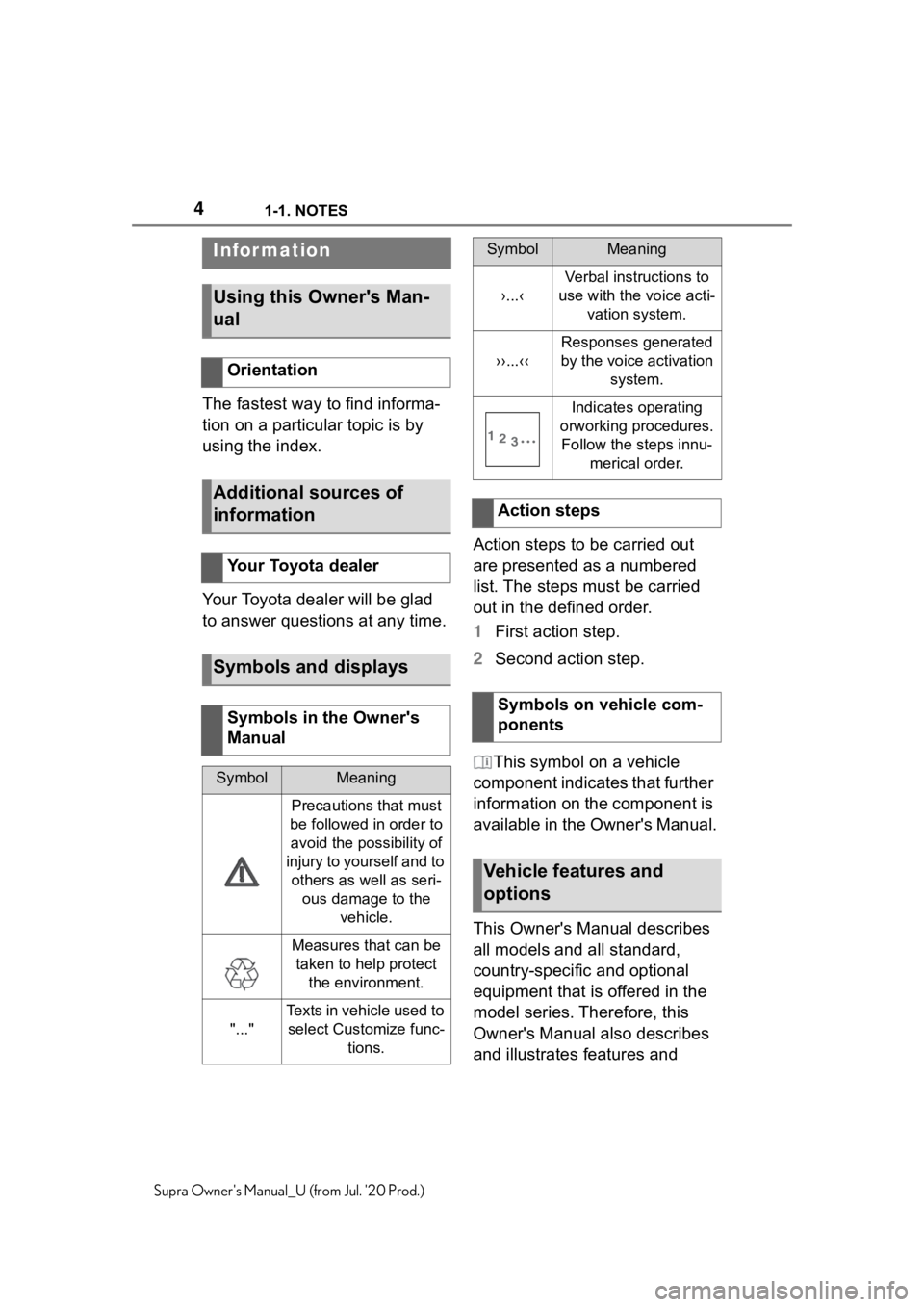
Indicates operating
orworking procedures. Follow the steps innu- merical order.
Action steps
Symbols on vehicle com-
ponents
Vehicle features and
options
SymbolMeaning
Page 10 of 360

101-1. NOTES
Supra Owner's Manual_U (from Jul. '20 Prod.)
cle, it can be deleted at any
time.
This data is only transmitted to
third parties upon personal
request as part of the use of
online services. The transmis-
sion depends on the selected
settings for the use of the ser-
vices.
Depending on the vehicle equip-
ment, mobile devices connected
to the vehicle, for instance
smartphones, can be controlled
via the vehicle control elements.
The sound and picture from the
mobile device can be played
back and displayed through the
multimedia system. Certain
information is transferred to the
mobile device at the same time.
Depending on the type of incor-
poration, this includes, for
instance position data and other
general vehicle information. This
optimizes the way in which
selected apps, for instance navi-
gation or music playback, work.
There is no further interaction
between the mobile device and
the vehicle, such as active
access to vehicle data.
How the data will be processed
further is determined by the pro-
vider of the particular app being
used. The extent of the possible settings depends on the respec-
tive app and the operating sys-
tem of the mobile device.
If the vehicle has a wireless net-
work connection, this enables
data to be exchanged between
the vehicle and other systems.
The wireless network connec-
tion is realized via an in-vehicle
transmitter and receiver unit or
via personal mobile devices
brought into the vehicle, for
instance smartphones. This
wireless network connection
enables 'online functions' to be
used. These include online ser-
vices and apps supplied by the
vehicle manufacturer or by other
providers.
Where online services from the
vehicle manufacturer are con-
cerned, the corresponding func-
tions are described in the
appropriate place, for instance
the Owner's Manual or manu-
facturer's website. The relevant
legal information pertaining to
data protection is provided there
too. Personal data may be used
to perform online services. Data
is exchanged over a secure con-
Incorporation of mobile
devices
Services
General information
Services from the vehicle
manufacturer
Page 20 of 360
202-1. QUICK REFERENCE
Supra Owner's Manual_U (from Jul. '20 Prod.)
With the doors closed, touch the
indentation (lock sensor) on the
door handle with a finger for
approximately 1 second.
Close the trunk lid manually.1
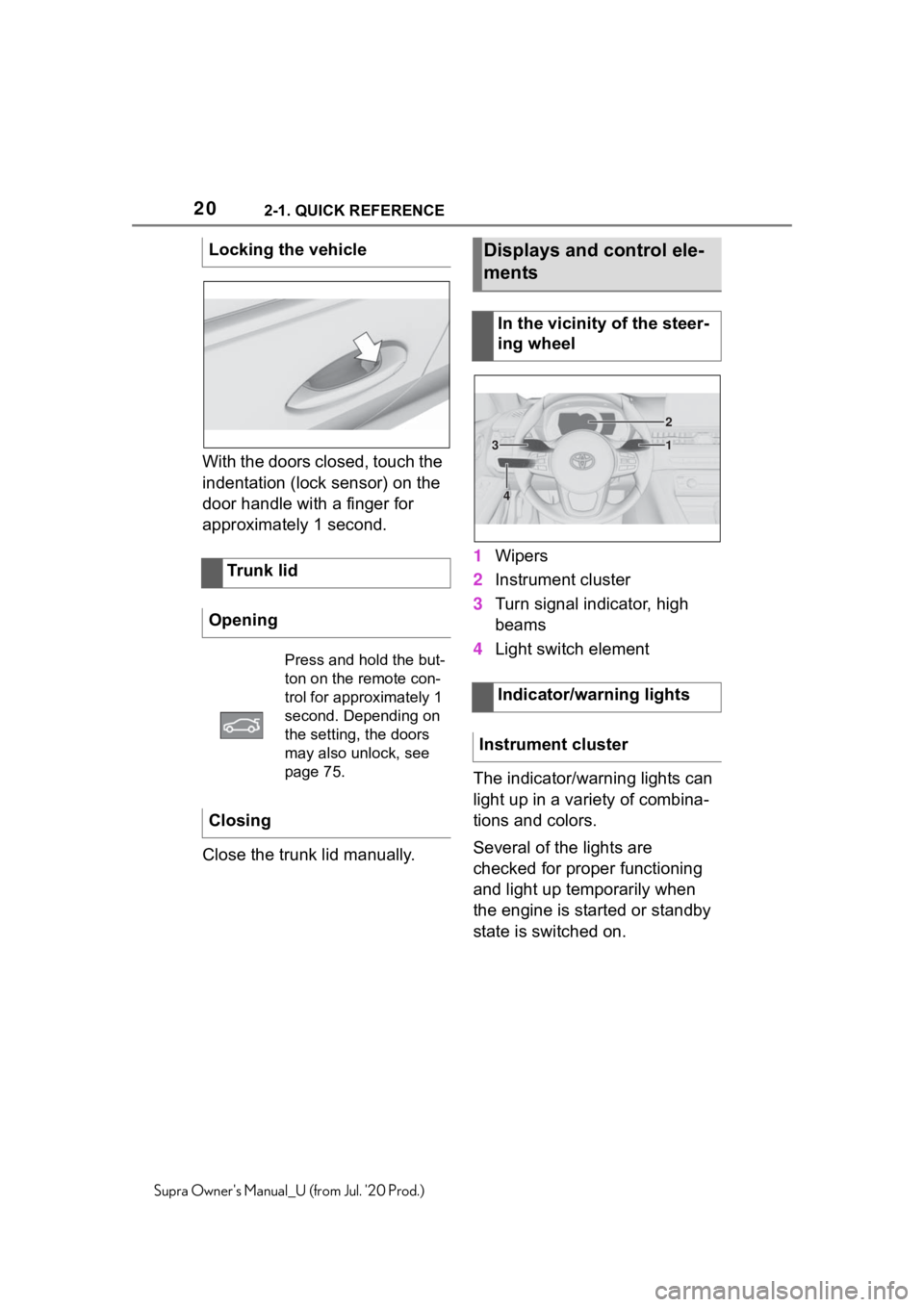
Wipers
2 Instrument cluster
3 Turn signal indicator, high
beams
4 Light switch element
The indicator/warning lights can
light up in a variety of combina-
tions and colors.
Several of the lights are
checked for proper functioning
and light up temporarily when
the engine is started or standby
state is switched on.
Locking the vehicle
Trunk lid
Opening
Press and hold the but-
ton on the remote con-
trol for approximately 1
second. Depending on
the setting, the doors
may also unlock, see
page 75.
Closing
Displays and control ele-
ments
In the vicinity of the steer-
ing wheel
Indicator/warning lights
Instrument cluster
1
2
3
4
Page 22 of 360
222-1. QUICK REFERENCE
Supra Owner's Manual_U (from Jul. '20 Prod.)
■Activating the voice activa-
tion system
1 Press the button on the
steering wheel.
2 Wait for the signal.
3 Say the command.
If no other commands are possi-
ble, operate the function via Toy-
ota Supra Command.
■Terminating the voice acti-
vation system 1
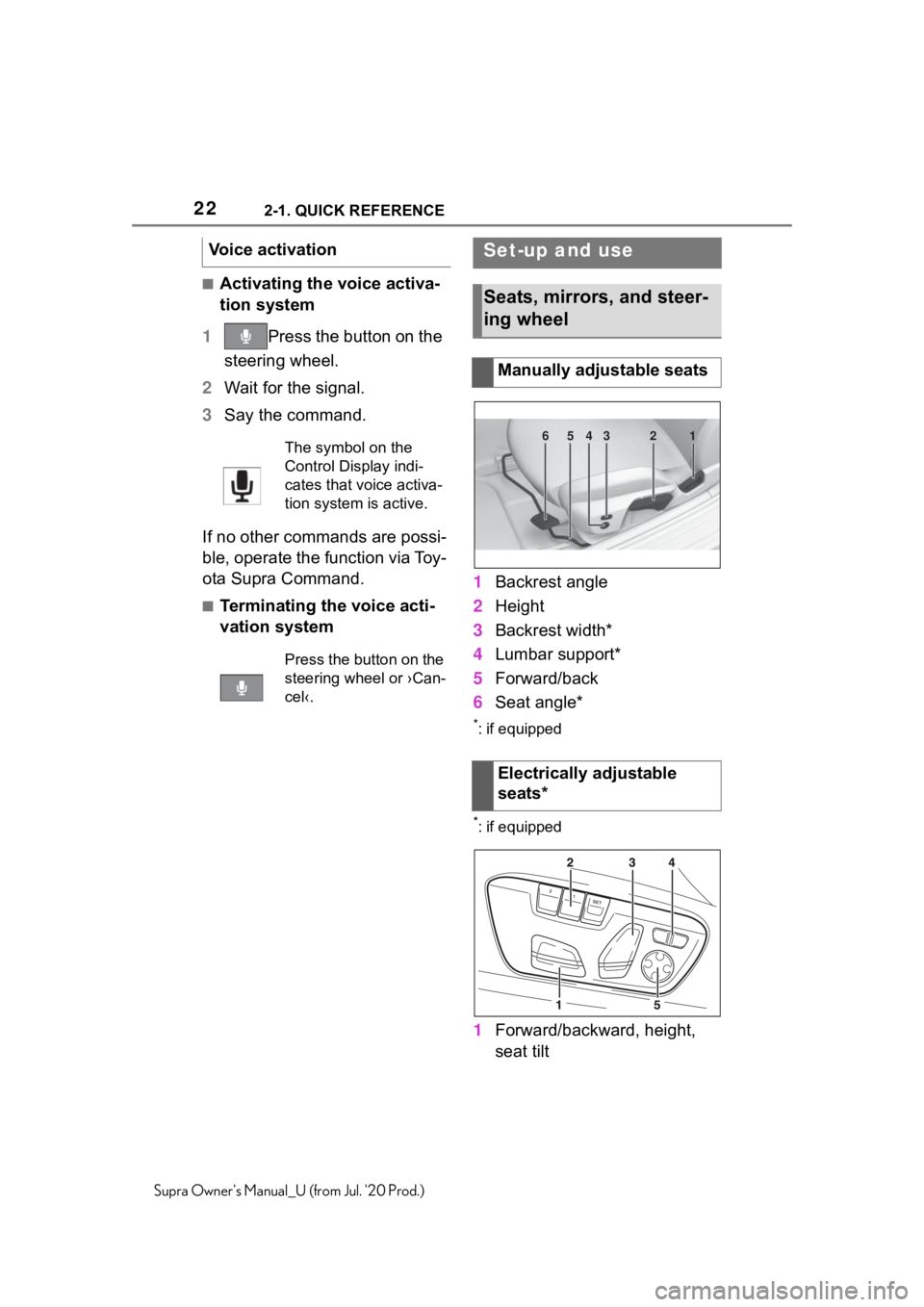
Backrest angle
2 Height
3 Backrest width*
4 Lumbar support*
5 Forward/back
6 Seat angle*
*: if equipped
*: if equipped
1Forward/backward, height,
seat tilt
Voice activation
The symbol on the
Control Display indi-
cates that voice activa-
tion system is active.
Press the button on the
steering wheel or ›Can-
cel‹.
Set-up and use
Seats, mirrors, and steer-
ing wheel
Manually adjustable seats
Electrically adjustable
seats*
654321
Page 24 of 360
242-1. QUICK REFERENCE
Supra Owner's Manual_U (from Jul. '20 Prod.)
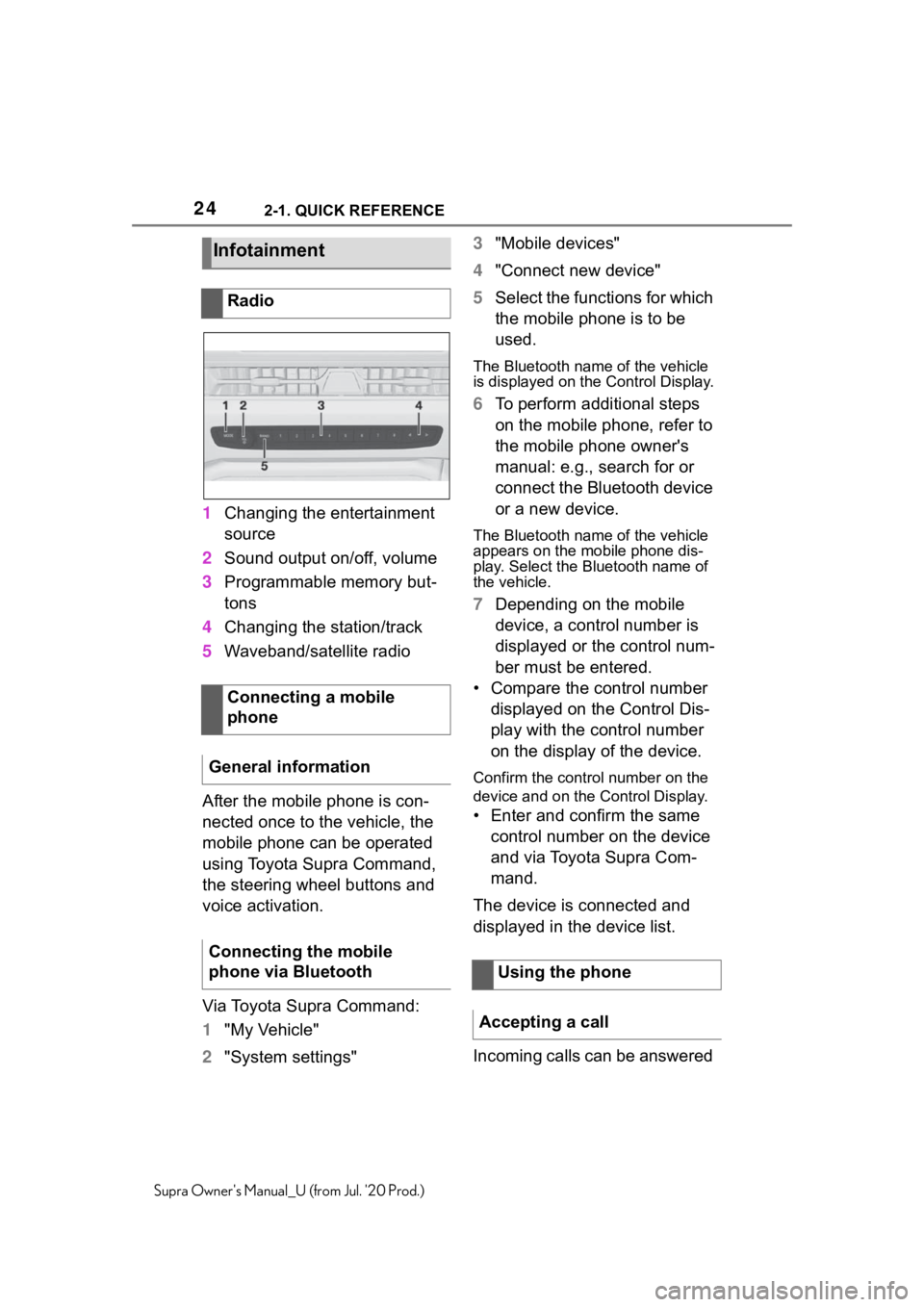
1Changing the entertainment
source
2 Sound output on/off, volume
3 Programmable memory but-
tons
4 Changing the station/track
5 Waveband/satellite radio
After the mobile phone is con-
nected once to the vehicle, the
mobile phone can be operated
using Toyota Supra Command,
the steering wheel buttons and
voice activation.
Via Toyota Supra Command:
1 "My Vehicle"
2 "System settings" 3
"Mobile devices"
4 "Connect new device"
5 Select the functions for which
the mobile phone is to be
used.
The Bluetooth name of the vehicle
is displayed on t he Control Display.
6To perform additional steps
on the mobile phone, refer to
the mobile phone owner's
manual: e.g., search for or
connect the Bluetooth device
or a new device.
The Bluetooth name of the vehicle
appears on the mobile phone dis-
play. Select the Bluetooth name of
the vehicle.
7Depending on the mobile
device, a control number is
displayed or the control num-
ber must be entered.
• Compare the control number displayed on the Control Dis-
play with the control number
on the display of the device.
Confirm the contro l number on the
device and on the Control Display.
• Enter and confirm the same
control number on the device
and via Toyota Supra Com-
mand.
The device is connected and
displayed in the device list.
Incoming calls can be answered
Infotainment
Radio
Connecting a mobile
phone
General information
Connecting the mobile
phone via Bluetooth
Using the phone
Accepting a call
Page 25 of 360
252-1. QUICK REFERENCE
2
QUICK REFERENCE
Supra Owner's Manual_U (from Jul. '20 Prod.)
in several ways.
• Via Toyota Supra Command:
"Accept"
• Press the button on the steering wheel.
• Via the selection list in the instrument cluster:
Use the thumbwheel on the steer-
ing wheel to select: "Accept"
Via Toyota Supra Command:
1 "Communication"
2 "Dial number"
3 Enter the numbers.
4 Select the symbol. The
connection is established via
the mobile phone to which
this function has been
assigned.
Establish the connection via the
additional phone:
1 Press the button.
2 "Call via"
*: if equipped
CarPlay allows certain func-
tions of a compatible Apple
iPhone to be used via Siri voice
operation and Toyota Supra Command.
• Compatible iPhone.
iPhone 5 or later
with iOS 7.1 or
later.
• Corresponding mobile wire-
less contract.
• Bluetooth, Wi-Fi, and Siri voice operation are switched
on on the iPhone.
Via Toyota Supra Command:
1 "My Vehicle"
2 "System settings"
3 "Mobile devices"
4 "Settings"
5 Select the following setting:
• "Bluetooth®"
• Corresponding mobile wire- less contract.
Pair iPhone via Bluetooth with
the vehicle.
Select CarPlay as the function: "Apple CarPlay"
The iPhone is connected to the
vehicle and displayed in the
device list.
Dialing a number
Apple CarPlay prepara-
tion*
Concept
Functional requirements
Switching on Bluetooth and
CarPlay
Pairing iPhone with CarPlay
Page 31 of 360
312-1. QUICK REFERENCE
2
QUICK REFERENCE
Supra Owner's Manual_U (from Jul. '20 Prod.)
gasoline should be sulfur-free or
very low in sulfur content.
Fuels that are marked on the
gas pump as containing metal
must not be used. P.293
The tire inflation pressure speci-
fications can be found in the tire
inflation pressure table in the
printed Owner's Manual.
With Tire Pressure Monitor
TPM:
The corrected tire inflation pres-
sures are applied automatically.
Make sure that the correct tire
settings have been made.
With tires that cannot be found
in the tire pressure values on
the Control Display, reset the
Tire Pressure Monitor TPM.
Regularly check the tire inflation
pressure and correct it as
needed:
• At least twice a month.
• Before embarking on an extended trip. The friction during hard braking
may produce brake dust and
make the rims dirty. Brake dust
can be removed by cleaning the
rims. Toyota recommends using
vehicle care and cleaning prod-
ucts from Toyota.
Depending on the previous dis-
plays, the status display
appears when the engine is run-
ning or after the vehicle has
been driven for at least 30 min-
utes.
Via Toyota Supra Command:
1
"My Vehicle"
2 "Vehicle status"
3 "Engine oil level"
Different messages appear on
the Control Display depending
on the engine oil level. Pay
attention to these messages.
Safely park the vehicle and
Wheels and tires
Tire inflation pressure speci-
fications
After correcting the tire infla-
tion pressure
Checking the tire inflation
pressureCleaning the wheels
Electronic oil measure-
ment
Functional requirements
Displaying the engine oil
level
Adding engine oil
General information
Page 32 of 360
322-1. QUICK REFERENCE
Supra Owner's Manual_U (from Jul. '20 Prod.)
switch off drive-ready state
before adding engine oil.
Only add engine oil when the
message is displayed in the
instrument cluster.
Observe the quantity to be
added in the message.
Take care not to add too much
engine oil.
Observe recommended engine
oil types, see page 297.
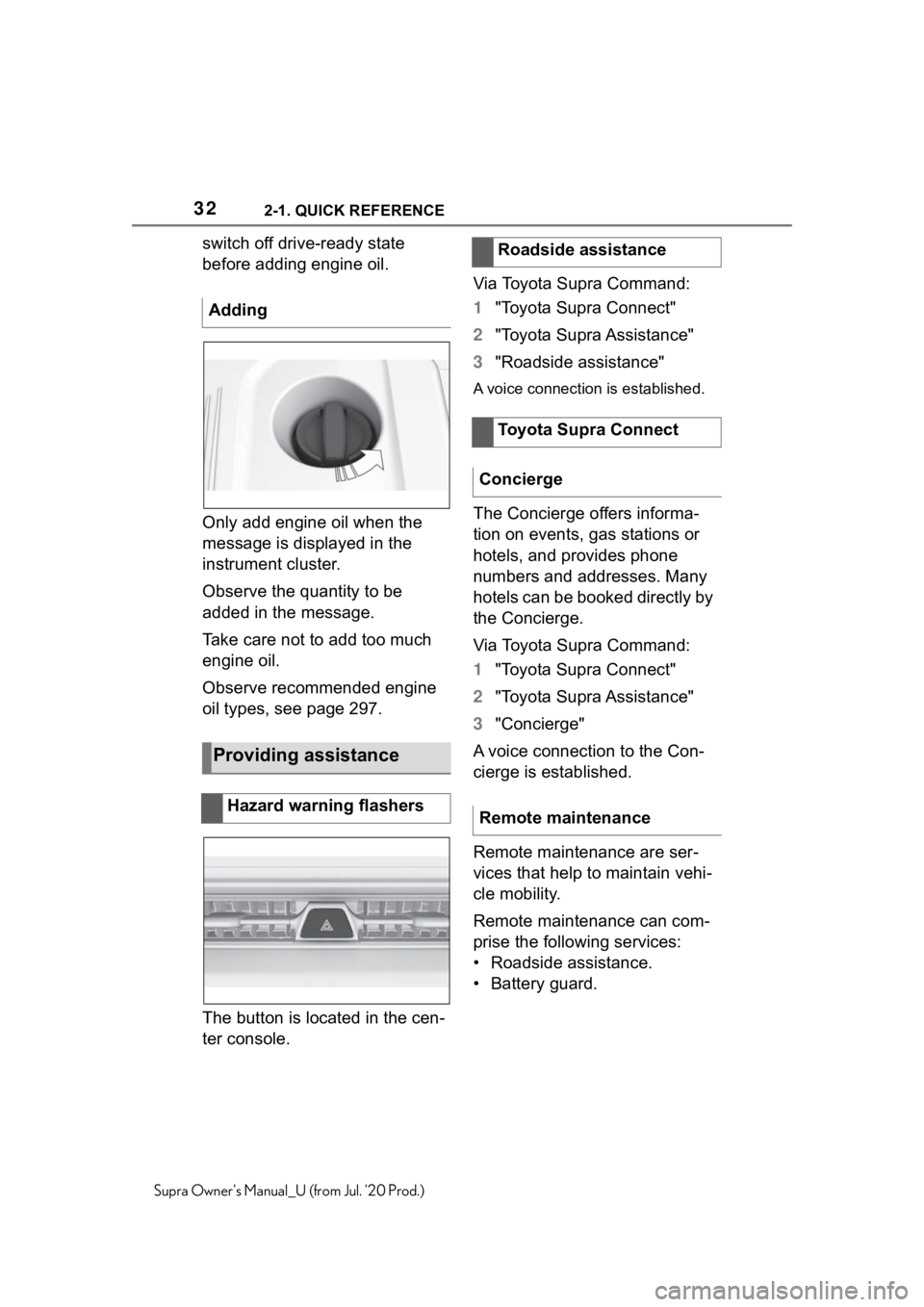
The button is located in the cen-
ter console.Via Toyota Supra Command:
1
"Toyota Supra Connect"
2 "Toyota Supra Assistance"
3 "Roadside assistance"
A voice connection is established.
The Concierge offers informa-
tion on events, gas stations or
hotels, and provides phone
numbers and addresses. Many
hotels can be booked directly by
the Concierge.
Via Toyota Supra Command:
1"Toyota Supra Connect"
2 "Toyota Supra Assistance"
3 "Concierge"
A voice connection to the Con-
cierge is established.
Remote maintenance are ser-
vices that help to maintain vehi-
cle mobility.
Remote maintenance can com-
prise the following services:
• Roadside assistance.
• Battery guard.
Adding
Providing assistance
Hazard warning flashers
Roadside assistance
Toyota Supra Connect
Concierge
Remote maintenance
Page 35 of 360
35
3
3
CONTROLS
Supra Owner's Manual_U (from Jul. '20 Prod.)
CONTROLS
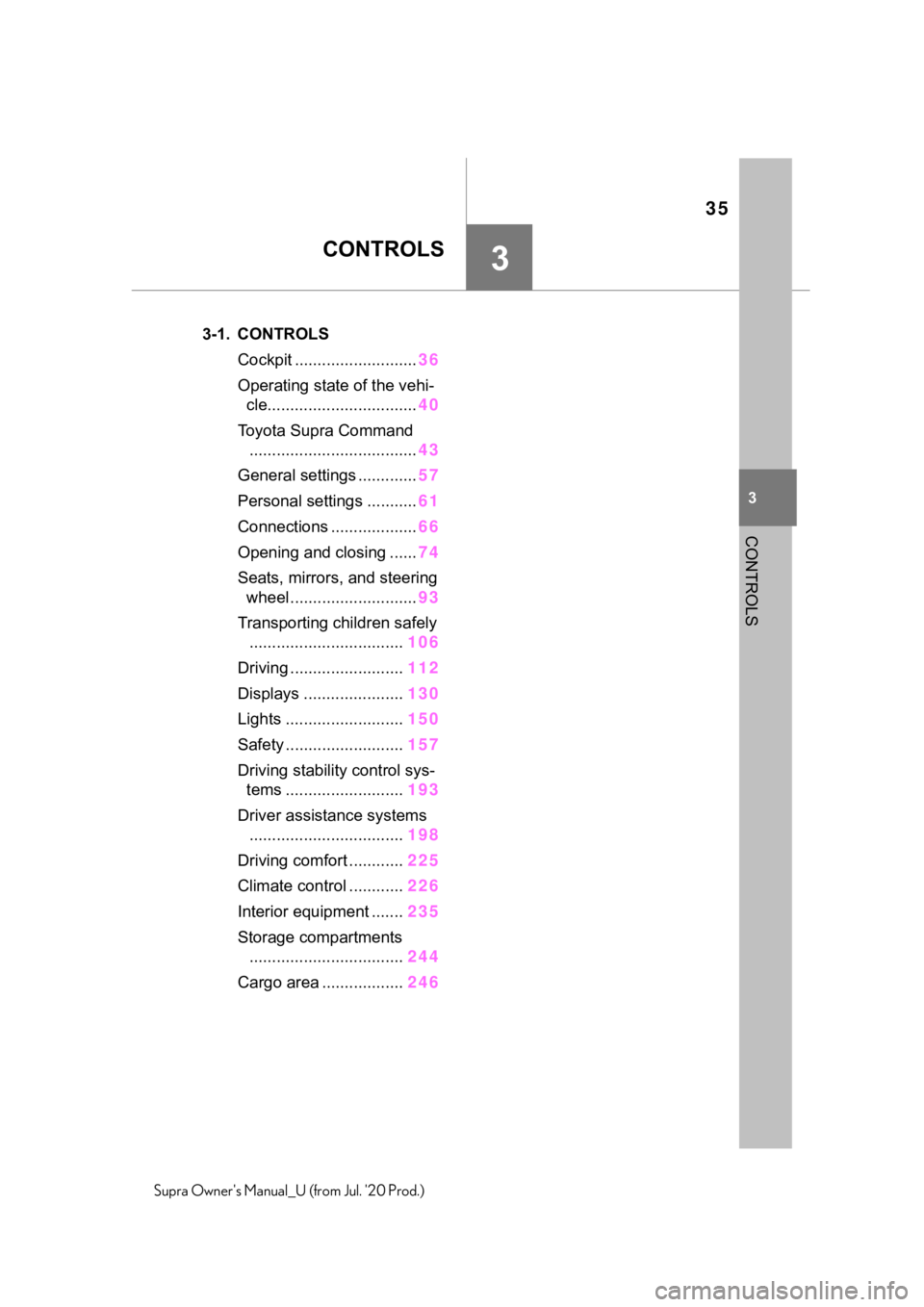
.3-1. CONTROLSCockpit ........................... 36
Operating state of the vehi- cle................................. 40
Toyota Supra Command ..................................... 43
General settings ............. 57
Personal settings ........... 61
Connections ................... 66
Opening and closing ...... 74
Seats, mirrors, and steering wheel ............................ 93
Transporting children safely .................................. 106
Driving ......................... 112
Displays ...................... 130
Lights .......................... 150
Safety .......................... 157
Driving stabilit y control sys-
tems .......................... 193
Driver assistance systems .................................. 198
Driving comfort ............ 225
Climate control ............ 226
Interior equipment ....... 235
Storage compartments .................................. 244
Cargo area .................. 246