mirror controls TOYOTA SUPRA 2021 Owners Manual (in English)
[x] Cancel search | Manufacturer: TOYOTA, Model Year: 2021, Model line: SUPRA, Model: TOYOTA SUPRA 2021Pages: 360, PDF Size: 10.41 MB
Page 2 of 360
2
Supra Owner's Manual_U (from Jul. '20 Prod.)TABLE OF CONTENTS
1-1. NOTES
Information .............................. 4
2-1. QUICK REFERENCE Entering ................................. 16
Set-up and use ...................... 22
In transit ................................ 26
3-1. CONTROLS Cockpit .................................. 36
Operating state of the vehicle ............................................ 40
Toyota Supra Command ....... 43
General settings .................... 57
Personal settings .................. 61
Connections .......................... 66
Opening and closing ............. 74
Seats, mirrors, and steering wheel................................... 93
Transporting children safely ......................................... 106
Driving ................................ 112
Displays ............................. 130
Lights ................................. 150
Safety ................................. 157
Driving stability control systems ......................................... 193
Driver assistance systems . 198
Driving comfort ................... 225
Climate control ................... 226
Interior equipment .............. 235
Storage compartments ....... 244
Cargo area ......................... 2464-1. DRIVING TIPS
Things to remember when driv-ing .................................... 252
Saving fuel ......................... 257
5-1. MOBILITY Refueling ............................ 262
Wheels and tires ................ 264
Engine compartment .......... 290
Operating materials............ 293
Maintenance ...................... 301
Replacing components ...... 303
Breakdown assistance ....... 313
Care ................................... 322
6-1. REFERENCE Technical data .................... 330
Certification ........................ 333
Alphabetical Index.............. 344
1NOTES
2QUICK REFERENCE
3CONTROLS
4DRIVING TIPS
5MOBILITY
6REFERENCE
Index
Page 35 of 360
35
3
3
CONTROLS
Supra Owner's Manual_U (from Jul. '20 Prod.)
CONTROLS
.3-1. CONTROLSCockpit ........................... 36
Operating state of the vehi- cle................................. 40
Toyota Supra Command ..................................... 43
General settings ............. 57
Personal settings ........... 61
Connections ................... 66
Opening and closing ...... 74
Seats, mirrors, and steering wheel ............................ 93
Transporting children safely .................................. 106
Driving ......................... 112
Displays ...................... 130
Lights .......................... 150
Safety .......................... 157
Driving stabilit y control sys-
tems .......................... 193
Driver assistance systems .................................. 198
Driving comfort ............ 225
Climate control ............ 226
Interior equipment ....... 235
Storage compartments .................................. 244
Cargo area .................. 246
Page 36 of 360
363-1. CONTROLS
Supra Owner's Manual_U (from Jul. '20 Prod.)
3-1.CONTROLS
This chapter describes all standard, country-specific and optional
features offered with the series . It also describes features and func-
tions that are not necessarily available in your vehicle, e.g., due to
the selected options or country versions. This also applies to
safety-related functions and systems. When using these functions
and systems, the applicable laws and regulations must be observ ed.
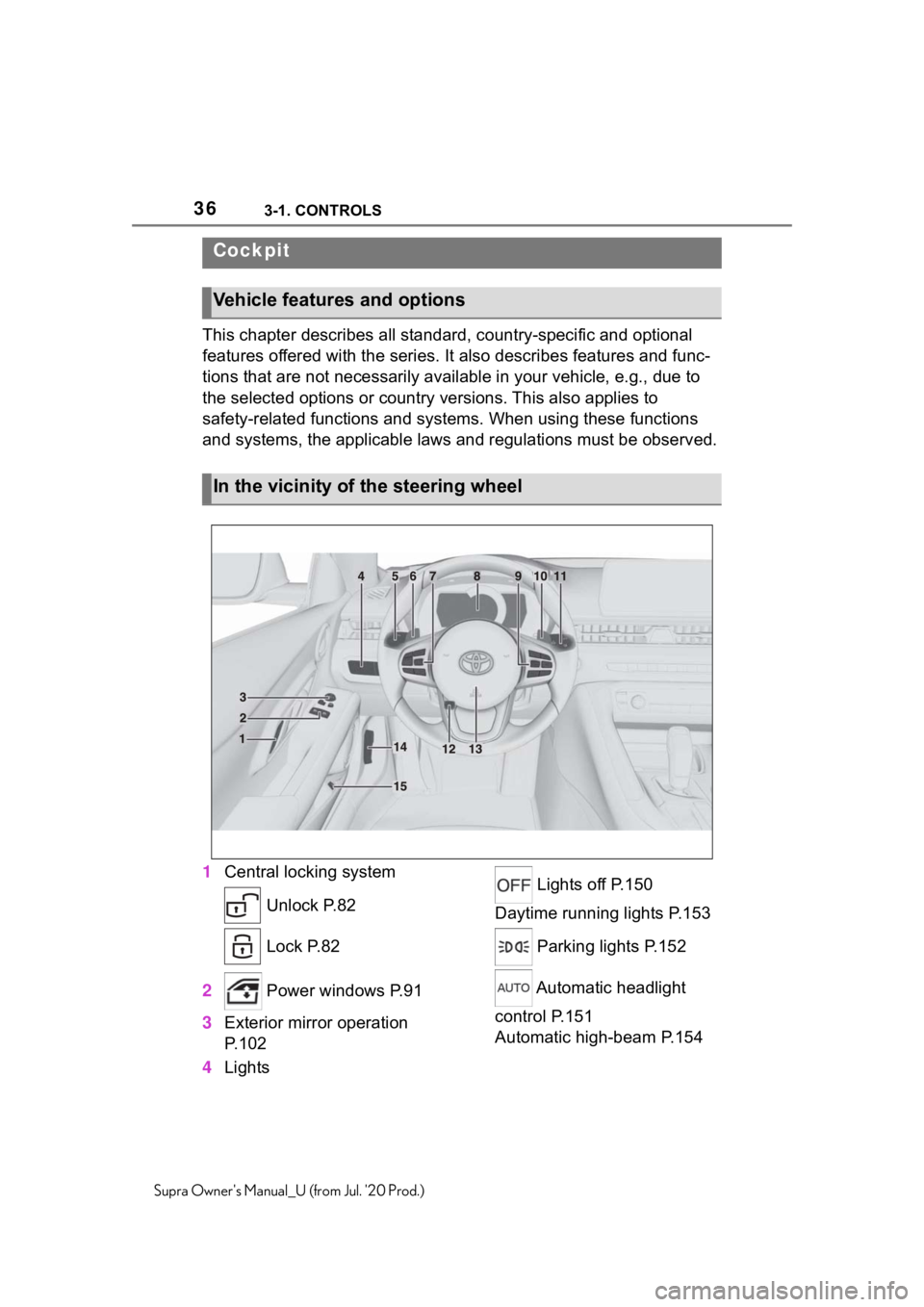
1 Central locking system
Unlock P.82
Lock P.82
2 Power windows P.91
3 Exterior mirror operation
P.102
4 Lights Lights off P.150
Daytime running lights P.153
Parking lights P.152
Automatic headlight
control P.151
Automatic high-beam P.154
Cockpit
Vehicle features and options
In the vicinity of the steering wheel
Page 55 of 360
553-1. CONTROLS
3
CONTROLS
Supra Owner's Manual_U (from Jul. '20 Prod.)
Commands from other menus
can also be spoken.
You may select list entries such
as phone list entries via voice
activation. Read these list
entries out loud exactly as they
are shown in the respective list.
The following is displayed in the
top area of the Control Display:
• Some possible commands for the current menu.
• Some possible commands from other menus.
• Status of the voice recogni- tion.
• Encrypted connection is not available.
• To have the available spoken instructions read out loud:
›Voice commands‹.
• To have information on the operating principle of the
voice activation system read
out loud: ›General information
on voice control‹.
• To have help for the current menu read out loud: ›Help‹.
Do not use the voice activation system to initiate an Emergency
Request. In stressful situations,
the voice and vocal pitch can
change. This can unnecessarily
delay the establishment of a
phone connection.
Instead, use the SOS button,
refer to page 316, close to the
interior mirror.
You can set the system to use
standard dialog or a short ver-
sion.
The short version of the voice
dialog plays back short mes-
sages in abbreviated form.
Via Toyota Supra Command:
1
"My Vehicle"
2 "System settings"
3 "Language"
4 "Speech mode:"
5 Select the desired setting.
It is possible to answer during
inquiries of the voice activation
system. The function can be
deactivated if inquiries are often
undesirably interrupted, for
instance due to background
noise or talking.
Via Toyota Supra Command:
Displaying possible com-
mands
Help on the voice activation
system
Information for Emergency
Requests
Adjusting
Setting the voice dialog
Speaking during voice out-
put
Page 63 of 360
633-1. CONTROLS
3
CONTROLS
Supra Owner's Manual_U (from Jul. '20 Prod.)
is currently in use.
There is an additional guest pro-
file available that is not assigned
to any vehicle key. It can be
used to apply settings in the
vehicle without changing the
personal driver profiles.
For the system to be able to
identify the driver profile associ-
ated to a particular driver, the
detected remote control must be
clearly allocated to the driver.
This is the case when:
• The driver is only carrying his or her own remote control.
• The driver unlocks the vehi- cle.
• The driver gets into the vehi- cle through the driver's door.
After switching on the Control
Display, the name of the active
driver profile is displayed.
Select driver profile, refer to
page 63.
As soon as the engine is started
or any key is pressed, the last
selected display is shown on the
Control Display.
To exit the welcome screen via
Toyota Supra Command: "OK" The settings for the following
systems and functions are
stored in the active driver profile.
The scope of storable settings
depends on country and equip-
ment.
• Unlocking and locking.
•Lights.
• Climate control.
• Radio.
• Instrument cluster.
• Programmable memory but-
tons.
• Volumes, tone.
• Control Display.
•TV.
• Parking Sensors.
• Rearview camera.
• Head-up Display.
• Sport mode switch.
• Seat position, exterior mirror position.
Both the positions saved via the
seat memory and th e last position
set are saved.
• Toyota Supra Safety.
Regardless of the remote con-
trol in use, a different driver pro-
file may be activated. This
allows you to call up personal
vehicle settings, even if you did
not unlock the vehicle with your
own remote control.
Functional requirements
Active driver profile
Adjusting
Profile management
Selecting a driver profile
Page 66 of 360
663-1. CONTROLS
Supra Owner's Manual_U (from Jul. '20 Prod.)
This chapter describes all stan-
dard, country-specific and
optional features offered with
the series. It also describes fea-
tures that are not necessarily
available in your vehicle, for
instance, due to the selected
options or country versions. This
also applies to safety-related
functions and systems. When
using these functions and sys-
tems, the applicable laws and
regulations must be observed.
Various connection types are
available for using mobile
devices in the vehicle. The con-
nection type to select depends
on the mobile device and the
desired function.
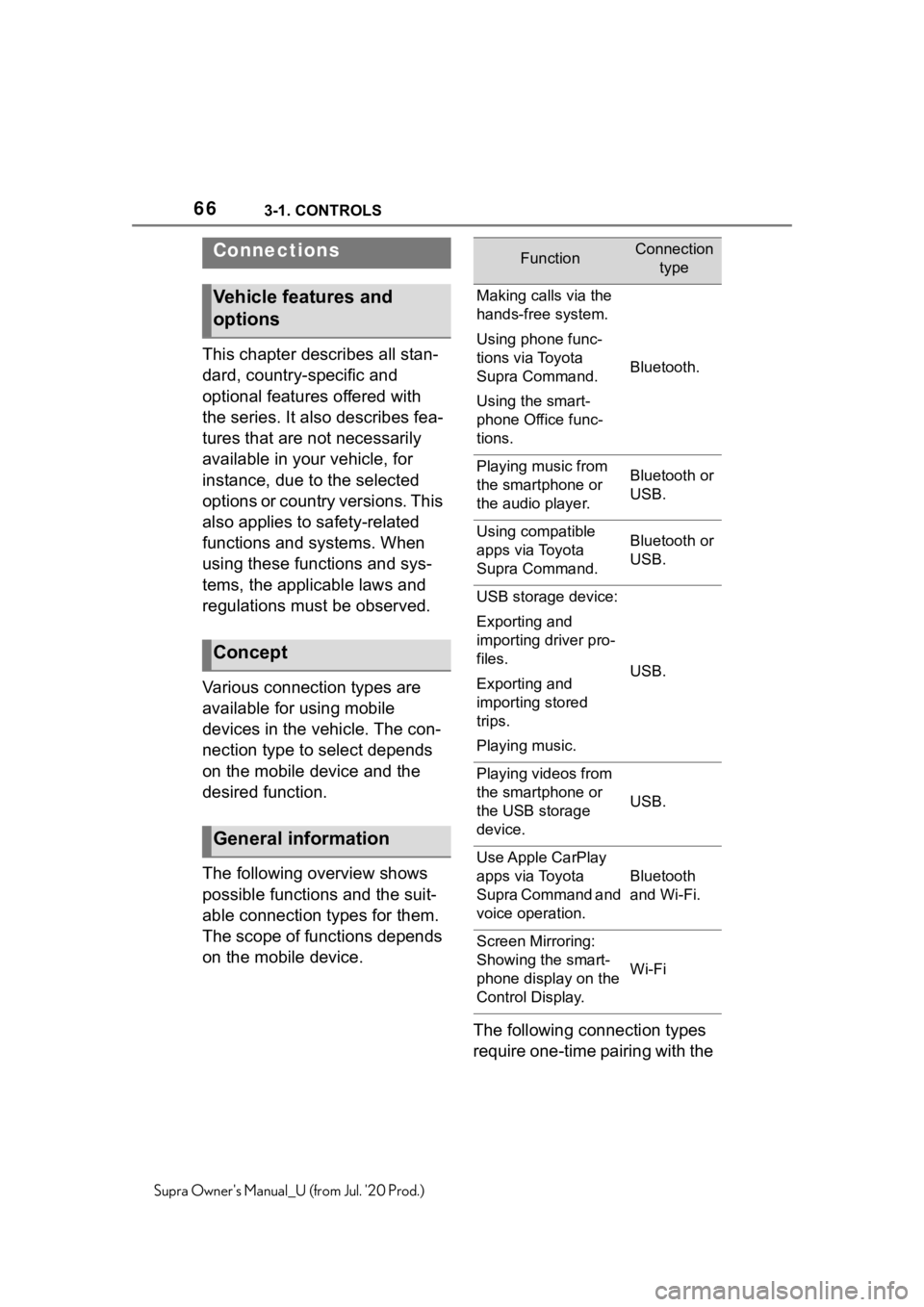
The following overview shows
possible functions and the suit-
able connection types for them.
The scope of functions depends
on the mobile device.The following connection types
require one-time pairing with the
Connections
Vehicle features and
options
Concept
General information
FunctionConnection type
Making calls via the
hands-free system.
Using phone func-
tions via Toyota
Supra Command.
Using the smart-
phone Office func-
tions.
Bluetooth.
Playing music from
the smartphone or
the audio player.Bluetooth or
USB.
Using compatible
apps via Toyota
Supra Command.Bluetooth or
USB.
USB storage device:
Exporting and
importing driver pro-
files.
Exporting and
importing stored
trips.
Playing music.
USB.
Playing videos from
the smartphone or
the USB storage
device.
USB.
Use Apple CarPlay
apps via Toyota
Supra Command and
voice operation.
Bluetooth
and Wi-Fi.
Screen Mirroring:
Showing the smart-
phone display on the
Control Display.
Wi-Fi
Page 67 of 360
673-1. CONTROLS
3
CONTROLS
Supra Owner's Manual_U (from Jul. '20 Prod.)
vehicle:
• Bluetooth.
• Apple CarPlay.
• Screen Mirroring.
Paired devices are automatically
recognized later on and con-
nected to the vehicle.
• Compatible device with Blue-tooth interface.
• The remote control is in the vehicle.
• The device is ready for opera- tion.
• Bluetooth is switched on in the vehicle, refer to page 67,
and on the device.
• Bluetooth presetting, such as visibility, may be required on
the device; refer to the
owner's manual of the device. Via Toyota Supra Command:
1
"My Vehicle"
2 "System settings"
3 "Mobile devices"
4 "Settings"
5 "Bluetooth®"
To use all supported functions of
a mobile phone, the following
functions must be activated prior
to pairing the mobile phone with
the vehicle.
Via Toyota Supra Command:
1 "My Vehicle"
2 "System settings"
3 "Mobile devices"
4 "Settings"
5 Select desired setting:
•"Office"
Activate function t o transmit short
messages, e-mails, calendars,
tasks, notes, and reminders to the
vehicle. Costs can be incurred by
transmitting all data to the vehicle.
• "Contact images"
Activate function to show the con-
tact pictures.
6 Move the Controller to the
left.
Safety information
WA R N I N G
Operating the integrated informa-
tion systems and communication
devices while driving can distract
from traffic. It is possible to lose
control of the vehicle. There is a
risk of an accident. Only use the
systems or devices when the traf-
fic situation allows. As warranted,
stop and use the systems and
devices while the vehicle is sta-
tionary.
Bluetooth connection
Functional requirements
Switching on Bluetooth
Activating/deactivating
telephone functions
Page 68 of 360
683-1. CONTROLS
Supra Owner's Manual_U (from Jul. '20 Prod.)
Via Toyota Supra Command:
1"My Vehicle"
2 "System settings"
3 "Mobile devices"
4 "Connect new device"
5 Select functions:
• "Telephone"
• "Bluetooth® audio"
• "Apps"
• "Apple CarPlay"
• "Screen Mirroring"
The Bluetooth name of the vehicle
is displayed on the Control Display.
6 On the mobile device, search
for Bluetooth devices in the
vicinity.
The Bluetooth name of the vehicle
appears on the mobile device dis-
play.
Select the Bluetooth name of the
vehicle.
7Depending on the mobile
device, a control number is
displayed or the control num-
ber must be entered.
• Compare the control number displayed on the Control Dis-
play with the control number
on the display of the device.
Confirm the control number on the
device and on the Control Display.
• Enter and confirm the same control number on the device
and via Toyota Supra Com-
mand.
The device is con nected and dis-
played in the device list, refer to
page 72.
All requirements are met and all
required steps were completed
in the specified order. Despite
that, the mobile device does not
function as expected.
In this case, the following expla-
nations can help:
Why could the mobile phone not
be paired or connected?
• There are too many Bluetooth
devices connected to the
mobile phone or vehicle.
In the vehicle, delete Bluetooth
connections with other devices.
Delete all known Bluetooth connec-
tions from the de vice list on the
mobile phone and start a new
device search.
• The mobile phone is in
power-save mode or has only
a limited remaining battery
life.
Charge mobile phone.
Why does the mobile phone no
longer react?
• The applications on the mobile phone do not function
anymore.
Switch the mobile phone off and on
again.
• Too high or too low ambient temperature for mobile phone
operation.
Pairing the mobile device
with the vehicle
Frequently asked ques-
tions
Page 71 of 360
713-1. CONTROLS
3
CONTROLS
Supra Owner's Manual_U (from Jul. '20 Prod.)iPhone 5 or later
with iOS 7.1 or
later.
• Corresponding mobile wire-
less contract.
• Bluetooth, Wi-Fi, and Siri voice operation are activated
on the iPhone.
• Booking the Toyota Supra Connect service: Apple Car-
Play preparation.
Via Toyota Supra Command:
1 "My Vehicle"
2 "System settings"
3 "Mobile devices"
4 "Settings"
5 Select the following settings:
• "Bluetooth®"
• "Apple CarPlay"
Pair the iPhone with the vehicle
via Bluetooth, refer to page 67.
Select CarPlay as the function:
"Apple CarPlay"
The iPhone is connected to the
vehicle and displayed in the
device list, refer to page 72.
For more information, refer to
the NAVIGATION SYSTEM
OWNER'S MANUAL. All requirements are met and all
required steps were completed
in the specified order. Despite
that, the mobile device does not
function as expected.
In this case, the following expla-
nations can help:
The iPhone has already been
paired with Apple CarPlay.
When a new connection is
established, CarPlay can no lon-
ger be selected.
• Delete the iPhone concerned
from the device list.
• On the iPhone, delete the vehicle concerned from the
list of stored vehicles under
Bluetooth and under Wi-Fi.
• Pair the iPhone as a new device.
If the steps listed have been car-
ried out and the required func-
tion is still not available: contact
the Toyota dealer.
Screen Mirroring enables mirror-
ing (outputting) of the smart-
phone display on the Control
Display.
Switching on Bluetooth
and CarPlay
Pairing iPhone with Car-
Play
Operation
Frequently asked ques-
tions
Screen Mirroring
General information
Page 72 of 360
723-1. CONTROLS
Supra Owner's Manual_U (from Jul. '20 Prod.)
• Compatible smartphone with Screen Mirroring interface.
• Screen Mirroring is switched on on the smartphone.
• Wi-Fi is switched on in the vehicle.
Via Toyota Supra Command:
1 "My Vehicle"
2 "System settings"
3 "Mobile devices"
4 "Settings"
5 "Vehicle Wi-Fi®"
Via Toyota Supra Command:
1 "My Vehicle"
2 "System settings"
3 "Mobile devices"
4 "Connect new device"
5 "Screen Mirroring"
The Wi-Fi name of the vehicle is
displayed on the Control Display.
6Search for Wi-Fi devices in
the surroundings of the
smartphone.
The Wi-Fi name of the vehicle
appears on the device display.
Select the Wi-Fi name of the vehi-
cle.
7 Confirm the connection via
Toyota Supra Command. The device is connected and
displayed in the device list, refer
to page 72.
• After one-time pairing, the
devices are automatically rec-
ognized and reconnected
when standby state is
switched on.
• The data stored on the SIM card or in the mobile phone
are transferred to the vehicle
after recognition.
• For some devices, certain set- tings are necessary, for
instance authorization; see
the owner's manual of the
device.
All devices paired with or con-
nected to the vehicle are dis-
played in the device list.
Via Toyota Supra Command:
1 "My Vehicle"
2 "System settings"
3 "Mobile devices"
A symbol indicates, for which
function a device is used.
Functional requirements
Activating Wi-Fi
Pairing a smartphone with
Screen Mirroring
Managing mobile devices
General information
Displaying the device list
SymbolFunction
"Telephone"
"Additional telephone"