change wheel TOYOTA SUPRA 2023 Owners Manual
[x] Cancel search | Manufacturer: TOYOTA, Model Year: 2023, Model line: SUPRA, Model: TOYOTA SUPRA 2023Pages: 372, PDF Size: 6.32 MB
Page 8 of 372

81-1. NOTES
assistance during driving, for
instance driver assistance sys-
tems. Furthermore, control units
facilitate comfort or infotainment
functions.
Information about stored or
exchanged data can be
requested from the manufac-
turer of the vehicle, in a sepa-
rate booklet, for example.
Each vehicle is marked with a
unique vehicle identification
number. Depending on the
country, the vehicle owner can
be identified with the vehicle
identification number, license
plate and corresponding authori-
ties. In addition, there are other
options to track data collected in
the vehicle to the driver or vehi-
cle owner, e.g. via the Toyota
Supra Connect account that is
used.
Control units process data to
operate the vehicle.
For example, this includes:
• Status messages for the vehi-cle and its Customize compo-
nents, e.g., wheel rotational
speed, wheel speed, deceler-
ation, transverse acceleration,
engaged safety belt indicator.
• Ambient conditions, e.g., tem- perature, rain sensor signals.
The processed data is only pro-
cessed in the vehicle itself and
generally volatile. The data is
not stored beyond the operating
period.
Electronic components, e.g.
control units and ignition keys,
contain components for storing
technical information. Informa-
tion about the vehicle condition,
component usage, mainte-
nance requirements or faults
can be stored temporarily or
permanently.
This information generally
records the state of a compo-
nent, a module, a system, or the
environment, for instance:
• Operating states of system components, e.g., fill levels,
tire inflation pressure, battery
status.
• Malfunctions and faults in important system compo-
nents, for instance lights and
brakes.
• Responses by the vehicle to special situations such as air-
bag deployment or engage-
ment of the driving stability
control systems.
• Information on vehicle-dam- aging events.
The data is required to perform
the control unit functions. Fur-
thermore, it also serves to rec-
ognize and correct malfunctions,
and helps the vehicle manufac-
Personal reference
Operating data in the vehi-
cle
Page 61 of 372
613-1. CONTROLS
3
CONTROLS
It is possible to answer during
inquiries of the voice activation
system. The function can be
deactivated if inquiries are often
undesirably interrupted, for
instance due to background
noise or talking.
Via Toyota Supra Command:
1"My Vehicle"
2 "System settings"
3 "Language"
4 "Speaking during voice out-
put"
Online speech processing pro-
vides a dictation function, a nat-
ural method of entering
destinations and improves the
quality of voice recognition. To
use the functions, data is trans-
mitted to a service provider via
an encrypted connection and
stored locally there.
Via Toyota Supra Command:
1 "My Vehicle"
2 "System settings"
3 "Language"
4 "Server speech recognition"
Turn the volume button during
the spoken instructions until the desired volume is set.
• The volume remains constant
even if the volume of other
audio sources is changed.
• Certain noises can be detected and may lead to
problems. Keep the doors and
windows closed.
• Noises from the front passen- ger or the rear seat bench can
impair the system. Avoid mak-
ing other noise in the vehicle
while speaking.
• Major language dialects can cause problems with the voice
recognition feature. Speak
loud and clear.
A smartphone connected to the
vehicle can be used via voice
activation.
Activate voice command
response on the smartphone for
this purpose.
1 Press and hold the but-
ton on the steering wheel for
approx. 3 seconds.
Voice command response is acti-
vated on the smartphone.
2Release the button.
If activation is successful, a confir-
mation appears on the Control Dis-
play.
Speaking during voice out-
put
Online speech processing
Adjusting the volume
System limits
Using a smartphone via
voice activation
Page 95 of 372
953-1. CONTROLS
3
CONTROLS
3"Doors/Key"
4 "Turn off after door opening"
Opening the front doors establishes
the idle state, refer to page 45.
The alarm system issues a
visual and acoustic signal when
someone attempts to open the
locked vehicle incorrectly.
When the vehicle is locked, the
vehicle alarm system reacts to
the following changes:
• Opening a door, the hood or
the trunk lid.
• Movements in the car's inte- rior.
• Changes in the vehicle tilt, e. g., during attempts at stealing
a wheel or when towing the
vehicle.
• Disconnected battery voltage.
• Improper use of the socket for OBD Onboard Diagnosis.
• Locking the vehicle while a device is connected to the
socket for the OBD Onboard-
Diagnosis. For socket for the
OBD Onboard Diagnosis,
refer to page 309.
The alarm system signals the
following changes visually and
acoustically:
• Acoustic alarm: Depending on local regulations, the acoustic
alarm may be suppressed.
• Visual alarm: By flashing of the hazard warning system
and headlights, where
required.
Do not modify the system to
ensure function of the alarm
system.
When you unlock and lock the
vehicle, either with the remote
control or with Comfort entry, the
alarm system is switched off and
on at the same time.
The alarm system is triggered
when a door is opened if the
door was unlocked using the
integrated key in the door lock.
Switching off the alarm, refer to
page 97.
The trunk lid can be opened
even when the alarm system is
switched on.
After the trunk lid is closed, it is
locked and monitored again pro-
vided the doors are locked. The
hazard warning system flashes
Alarm system
Concept
General information
Switching on/off
Opening the doors with
the alarm system switched
on
Opening the trunk lid with
the alarm system switched
on
Page 122 of 372
1223-1. CONTROLS
automatic air conditioning is
switched on.
The steering wheel is turned.
Change from selector lever
position D to N or R.
Change from selector lever
position P to N, D, or R.
Vehicle battery is heavily dis-
charged.
Start of an oil level measure-
ment.
Depending on the vehicle equip-
ment and country-specific ver-
sion, the vehicle features a
variety of sensors for assessing
the traffic situation. The Auto
Start/Stop function uses this
information to adapt to various
traffic situations in a proactive
manner.
For instance, this applies to the
following situations:
If a situation is detected in
which the stopping time is
expected to be very short, the
engine is not switched off
automatically. A message
appears on the Control Dis-
play, depending on the situa-
tion.
If a situation is detected in
which the vehicle needs to
drive off immediately, the
engine is started automati- cally.
The function may be restricted if
the navigation data is invalid,
outdated or not available, for
example.
The engine is not automatically
switched off.
The engine is started during an
automatic engine stop.
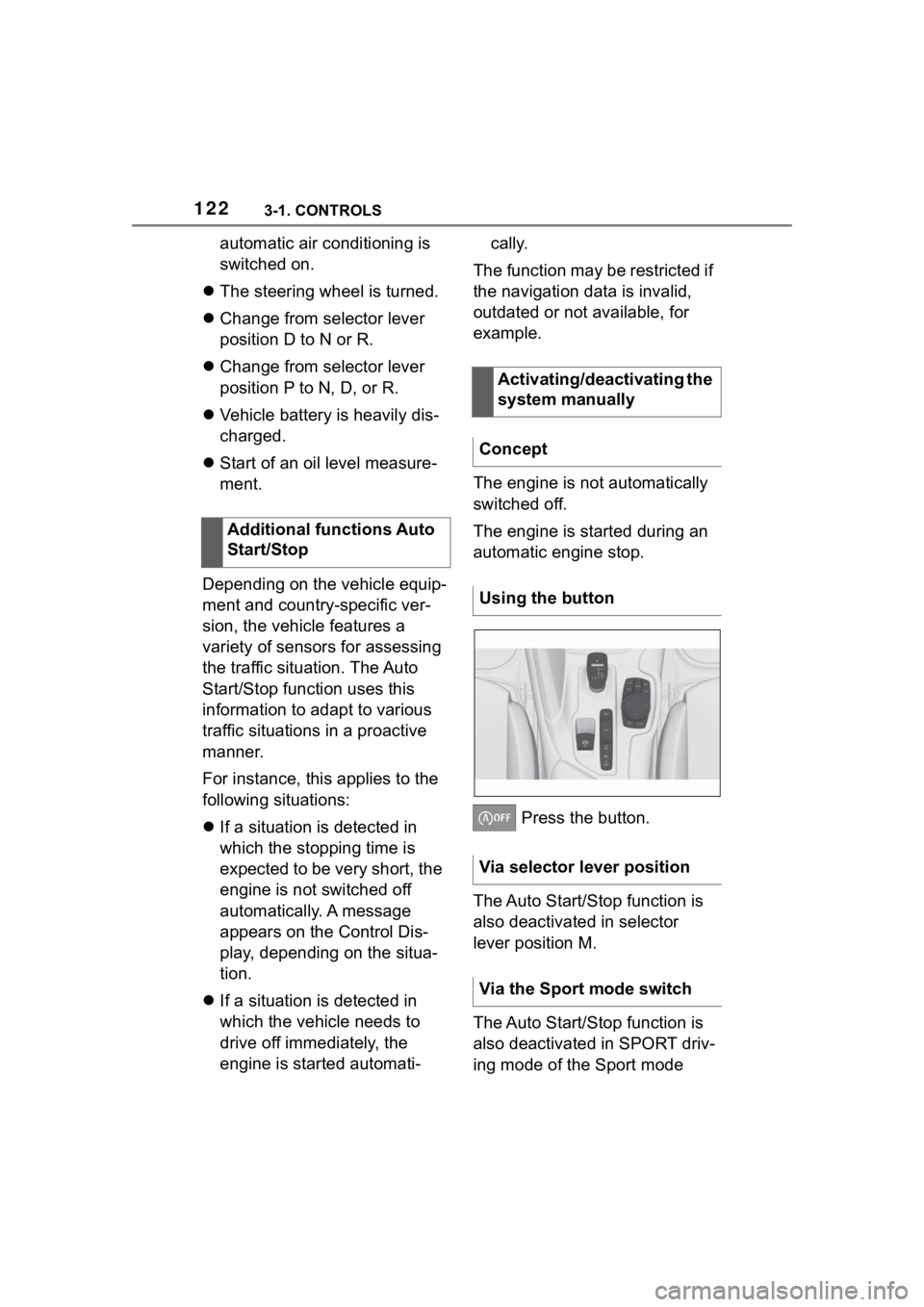
Press the button.
The Auto Start/Stop function is
also deactivated in selector
lever position M.
The Auto Start/Stop function is
also deactivated in SPORT driv-
ing mode of the Sport mode
Additional functions Auto
Start/Stop
Activating/deactivating the
system manually
Concept
Using the button
Via selector lever position
Via the Sport mode switch
Page 149 of 372
1493-1. CONTROLS
3
CONTROLS
Items displayed may differ
depending on the specifications
of the vehicle.
The lists can be displayed and
operated using the buttons on
the steering wheel.
The Onboard Computer dis-
plays different vehicle data in
the instrument cluster, such as average values.
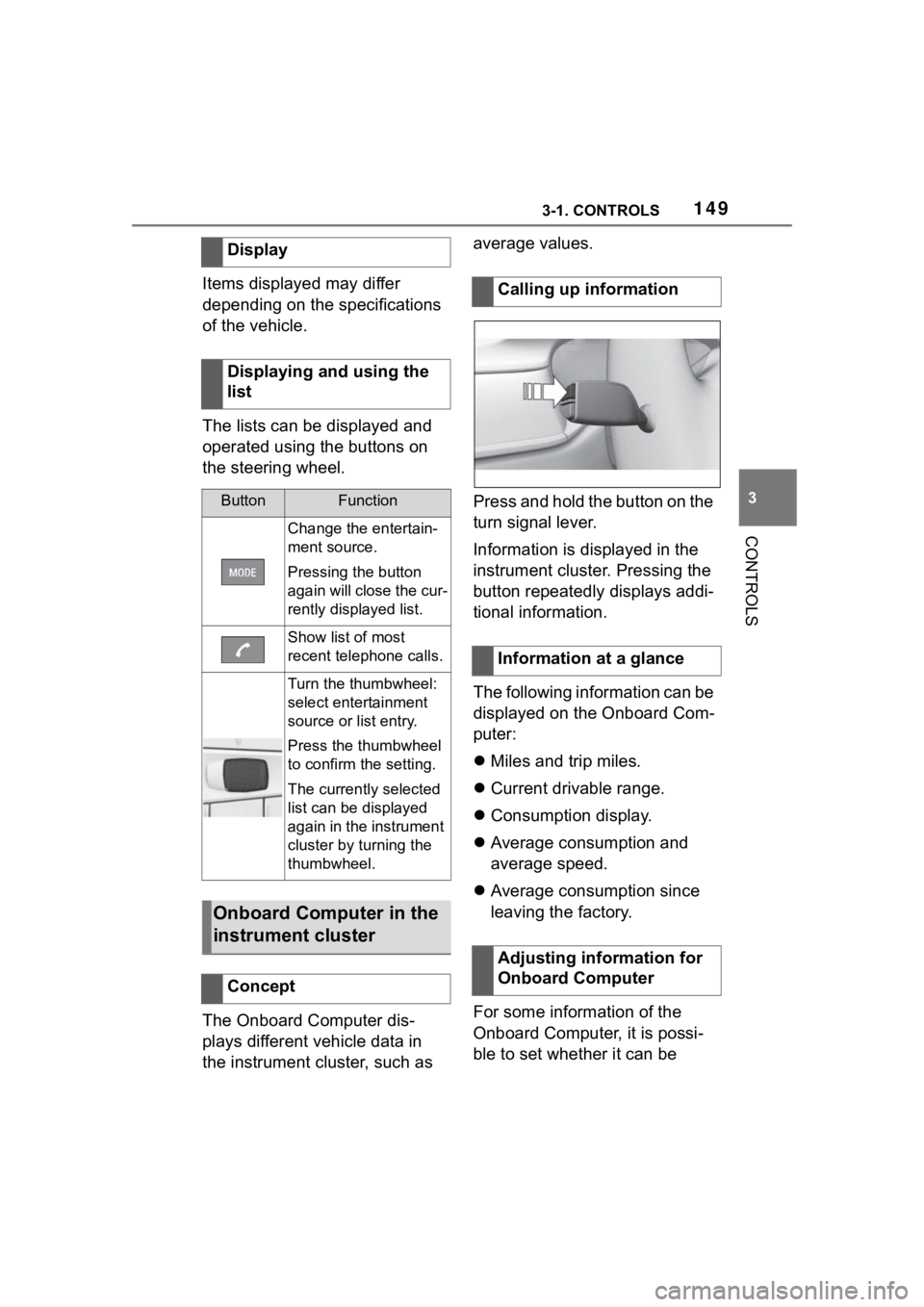
Press and hold the button on the
turn signal lever.
Information is displayed in the
instrument cluster. Pressing the
button repeatedly displays addi-
tional information.
The following information can be
displayed on the Onboard Com-
puter:
Miles and trip miles.
Current drivable range.
Consumption display.
Average consumption and
average speed.
Average consumption since
leaving the factory.
For some information of the
Onboard Computer, it is possi-
ble to set whether it can be
Display
Displaying and using the
list
ButtonFunction
Change the entertain-
ment source.
Pressing the button
again will close the cur-
rently displayed list.
Show list of most
recent telephone calls.
Turn the thumbwheel:
select entertainment
source or list entry.
Press the thumbwheel
to confirm the setting.
The currently selected
list can be displayed
again in the instrument
cluster by turning the
thumbwheel.
Onboard Computer in the
instrument cluster
Concept
Calling up information
Information at a glance
Adjusting information for
Onboard Computer
Page 192 of 372
1923-1. CONTROLS
these situations.
Radar sensors monitor the area
behind and next to the vehicle
when traveling faster than a
minimum speed.
The minimum speed is coun-
try-specific and is displayed in
the menu for the Toyota Supra
Safety systems.
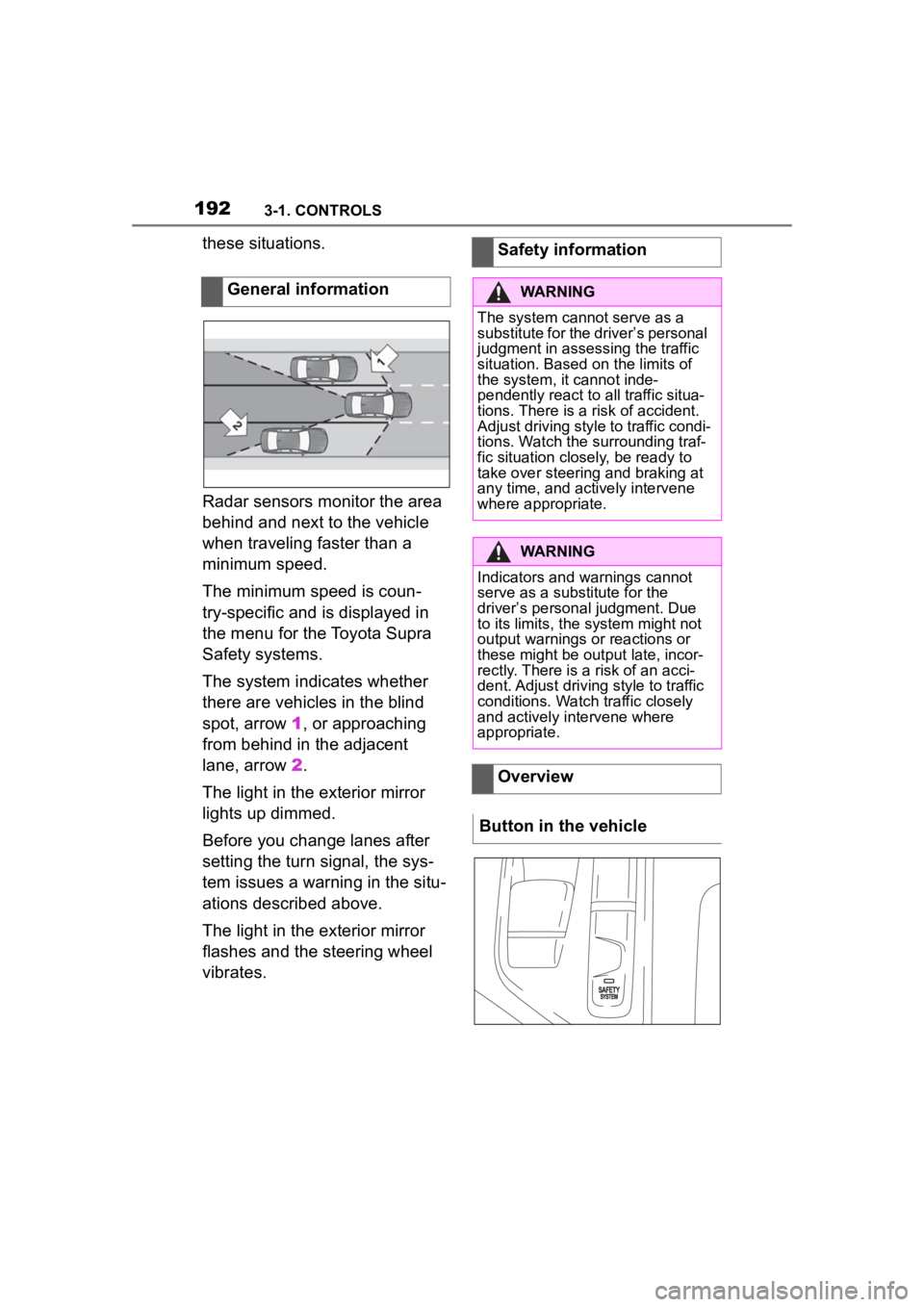
The system indicates whether
there are vehicles in the blind
spot, arrow 1, or approaching
from behind in the adjacent
lane, arrow 2.
The light in the exterior mirror
lights up dimmed.
Before you change lanes after
setting the turn signal, the sys-
tem issues a warning in the situ-
ations described above.
The light in the exterior mirror
flashes and the steering wheel
vibrates. General informationSafety information
WARNING
The system cannot serve as a
substitute for the driver’s personal
judgment in assessing the traffic
situation. Based on the limits of
the system, it cannot inde-
pendently react to all traffic situa-
tions. There is a risk of accident.
Adjust driving style to traffic condi-
tions. Watch the surrounding traf-
fic situation closely, be ready to
take over steering and braking at
any time, and actively intervene
where appropriate.
WARNING
Indicators and warnings cannot
serve as a substitute for the
driver
Page 203 of 372
2033-1. CONTROLS
3
CONTROLS
TRACTION is displayed in the
instrument cluster.
In certain situations, the VSC is
activated automatically:
If Dynamic radar cruise con-
trol with full-speed range is
activated.
On a braking intervention by
the Toyota Supra Safety sys-
tems.
The vehicle has a flat tire.
*: if equipped
The active differential step-
lessly locks the rear axle
depending on the driving condi-
tions. This provides optimal
power transfer in all driving con-
ditions by helping prevent wheel
spin at either rear wheel.
The driver is responsible adapt-
ing his or her driving style to the
situation. This chapter describes all stan-
dard, country-specific and
optional features offered with
the series. It also describes fea-
tures and functions that are not
necessarily available in your
vehicle, e.g., due to the selected
options or country versions. This
also applies to safety-related
functions and systems. When
using these functions and sys-
tems, the applicable laws and
regulations must be observed.
Speed Limit Info shows the cur-
rent valid maximum speed in the
instrument cluster and the
Head-up Display.
The camera in the area of the
interior mirror detects traffic
signs at the edge of the road as
well as variable overhead sign
posts.
Traffic signs with extra symbols
Indicator/warning lights
The indicator
light lights
up: Traction mode is acti-
vated.
Automatic program
change
Active differential*
Driver assistance sys-
tems
Vehicle features and
options
Speed Limit Info
Speed Limit Info
Concept
General information
Page 205 of 372
2053-1. CONTROLS
3
CONTROLS
Via Toyota Supra Command:
1"My vehicle"
2 "System settings"
3 "Displays"
4 "Instrument panel"
5 Select desired setting:
"Warn when speeding": acti-
vating/deactivating the flash-
ing of the Speed Limit Info
display in the instrument clus-
ter and Head-up Display
when the currently valid
speed limit is exceeded.
"Excess speed display": the
speed limit that is detected by
the Speed Limit Info is dis-
played with a marking in the
speedometer in the instru-
ment cluster.
Additional information:
• Cameras, refer to page 42.
The system may not be fully
functional and may provide
incorrect information in the fol-
lowing situations:
When signs are fully or par-
tially concealed by objects,
stickers or paint.
When driving very close to the
vehicle in front of you.
If the speed limits or road data
stored in the navigation sys-
tem are incorrect.
If the speed limits vary with
the time of day and the day of
the week.
In areas not covered by the
navigation system.
When roads differ from the
navigation, such as due to
changes in road routing.
In case of electronic traffic
signs.
When passing buses or trucks
with traffic signs applied to
them.
If the traffic signs are
non-conforming.
When signs that are valid for
a parallel road are detected.
In the presence of coun-
try-specific signs and road
configurations.
*: if equipped
Using this system, a desired
speed can be adjusted using the
buttons on the steering wheel.
The system maintains the
desired speed. The system
accelerates and brakes auto-
Settings
System limits
System limits of the sensors
Functional limitations
Cruise control*
Concept
Page 206 of 372
2063-1. CONTROLS
matically as needed.
The system can be activated
starting at 20 mph/30 km/h.
Depending on the vehicle set-
tings, the characteristics of the
Cruise Control may change.General information
Safety information
WARNING
The system cannot serve as a
substitute for the driver’s personal
judgment in assessing the traffic
situation. Based on the limits of
the system, it cannot inde-
pendently react to all traffic situa-
tions. There is a
risk of accident.
Adjust driving style to traffic condi-
tions. Watch the surrounding traf-
fic situation closely, be ready to
take over steering and braking at
any time, and actively intervene
where appropriate.
WARNING
The use of the system can lead to
an increased risk of accidents in
the following situations, for
instance:
●On winding roads.
●In heavy traffic.
●On slippery roads, in fog, snow,
or wet conditions, or on a loose
road surface.
There is a risk of accidents or risk
of damage to property. Only use
the system if driving at constant
speed is possible.
WARNING
The desired speed can be incor-
rectly adjusted or called up by
mistake. There is a risk of an acci-
dent. Adjust the desired speed to
the traffic conditions. Watch traf-
fic closely and actively intervene
where appropriate.
WARNING
When towing with Cruise Control
switched on, individual functions
may not work correctly. There is a
risk of accident. Switch off all
Cruise Control before towing.
Overview
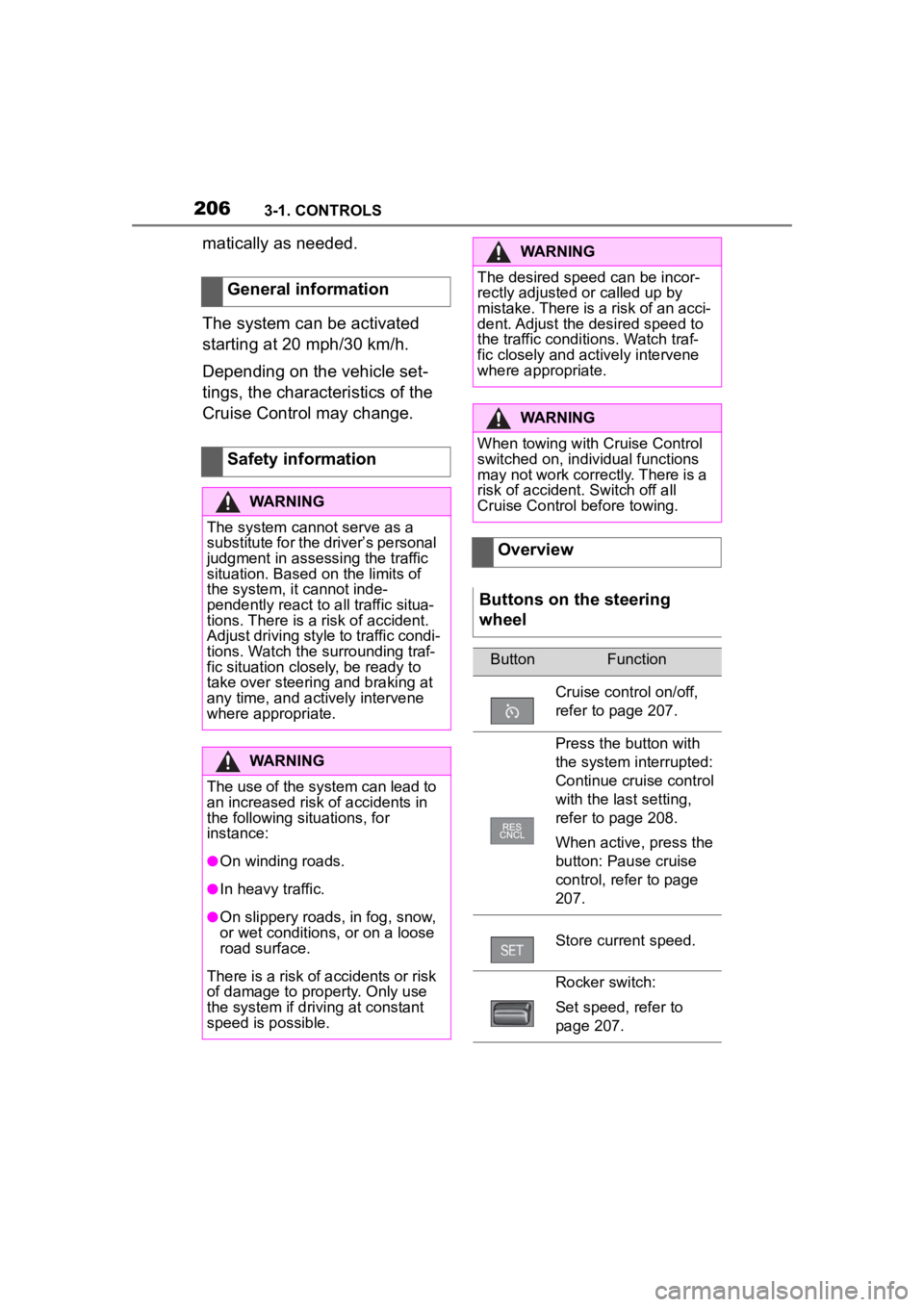
Buttons on the steering
wheel
ButtonFunction
Cruise control on/off,
refer to page 207.
Press the button with
the system interrupted:
Continue cruise control
with the last setting,
refer to page 208.
When active, press the
button: Pause cruise
control, refer to page
207.
Store current speed.
Rocker switch:
Set speed, refer to
page 207.
Page 209 of 372
2093-1. CONTROLS
3
CONTROLSWith the proper equipment, the
value of the selected speed is
briefly displayed digitally.
Some system information can
also be displayed in the
Head-up Display.
The desired speed is also main-
tained downhill.
The speed may not be main-
tained on uphill grades if the
engine power is insufficient.
*: if equipped
Using this system, a desired
speed and a distance to a vehi-
cle ahead can be adjusted using
the buttons on the steering
wheel.
The system maintains the
desired speed on clear roads.
For this purpose, the vehicle
accelerates or brakes automati-
cally.
If a vehicle is driving ahead of
you, the system adjusts the
speed of your vehicle so that the
set distance to the vehicle
ahead is maintained. The speed
is adjusted as far as the given
situation allows.
Depending on the vehicle set-
tings, the characteristics of the
Cruise Control may change.
The distance can be adjusted in
several steps. For safety rea-
sons, it depends on the respec-
tive speed.
If the vehicle ahead of you
brakes to a halt, and then pro-
ceeds to drive again within a
brief period, the system is able
Displays in the instrument
cluster
Indicator light
Indicator light green:
system is active.
Gray indicator light: the
system has been inter-
rupted.
No indicator light: sys-
tem is switched off.
Status display
Displays in the Head-up
Display
The symbol is displayed
when the set desired
speed is reached.
System limits
Dynamic radar cruise
control with full-speed
range*
Concept
General information