buttons TOYOTA TACOMA 2012 Owners Manual (in English)
[x] Cancel search | Manufacturer: TOYOTA, Model Year: 2012, Model line: TACOMA, Model: TOYOTA TACOMA 2012Pages: 628, PDF Size: 12.11 MB
Page 37 of 628
37
1-2. Opening, closing and locking the doors
1
Before driving
■
Wireless remote control depletion
The standard battery life is 1 to 2 years. (The battery becomes depleted
even if the key is not used.) If the wireless remote control function does not
operate, the battery may be depleted. Replace the battery when necessary.
(P. 472)
■ If the wireless remote control does not operate
Locking and unlocking the doors: Use the key. ( P. 39)
■ Security feature
If a door is not opened within approximately 30 seconds after the vehicle is
unlocked, the security feature automatically locks the vehicle again.
■ Conditions affecting operation
The wireless remote control function may not operate normally in the follow-
ing situations.
●Near a TV tower, radio station, electr ic power plant, airport or other facil-
ity that generates strong radio waves
● When carrying a portable radio, cell ular phone or other wireless commu-
nication device
● When multiple wireless keys are in the vicinity
● When the wireless key has come into contact with, or is covered by a
metallic object
● When a wireless key (that emits radio waves) is being used nearby
● When the wireless key has been left near an electrical appliance such as
a personal computer
■ When riding in an aircraft
When bringing a wireless remote control onto an aircraft, make sure you do
not press any buttons on the wireless remote control while inside the aircraft
cabin. If you are carrying a wireless remote control in your bag etc, ensure
that the buttons are not likely to be pressed accidentally. Pressing a button
may cause the wireless remote control to emit radio waves that could inter-
fere with the operation of the aircraft.
■ Customization that can be co nfigured at Toyota dealer
Settings (e.g. wireless remote control system) can be changed.
(Customizable features P. 583)
Page 42 of 628
42 1-2. Opening, closing and locking the doors
CAUTION
■To prevent an accident
Observe the following precautions while driving the vehicle.
Failing to do so may result in a door opening and an occupant falling out,
resulting in death or serious injury.
●Always use a seat belt.
● Always lock all doors.
● Ensure that all doors are properly closed.
● Do not pull the inside handle of the doors while driving.
The doors may be opened and the passengers are thrown out of the vehi-
cle and it may result in serious injury or death.
Be especially careful for the front doors, as the doors may be opened even
if the inside lock buttons are in locked position.
● Set the rear door child protector locks when children are seated in the rear
seat.
Page 112 of 628
112
1-7. Safety information
Installing child restraints
Follow the child restraint system manufacturer’s instructions. Firmly
secure child restraints to the seat s using the LATCH anchors or a
seat belt. Attach the top tether stra p when installing a child restraint.
The lap/shoulder belt can be used if your child restraint system is
not compatible with the LATCH (Low er Anchors and Tethers for Chil-
dren) system.
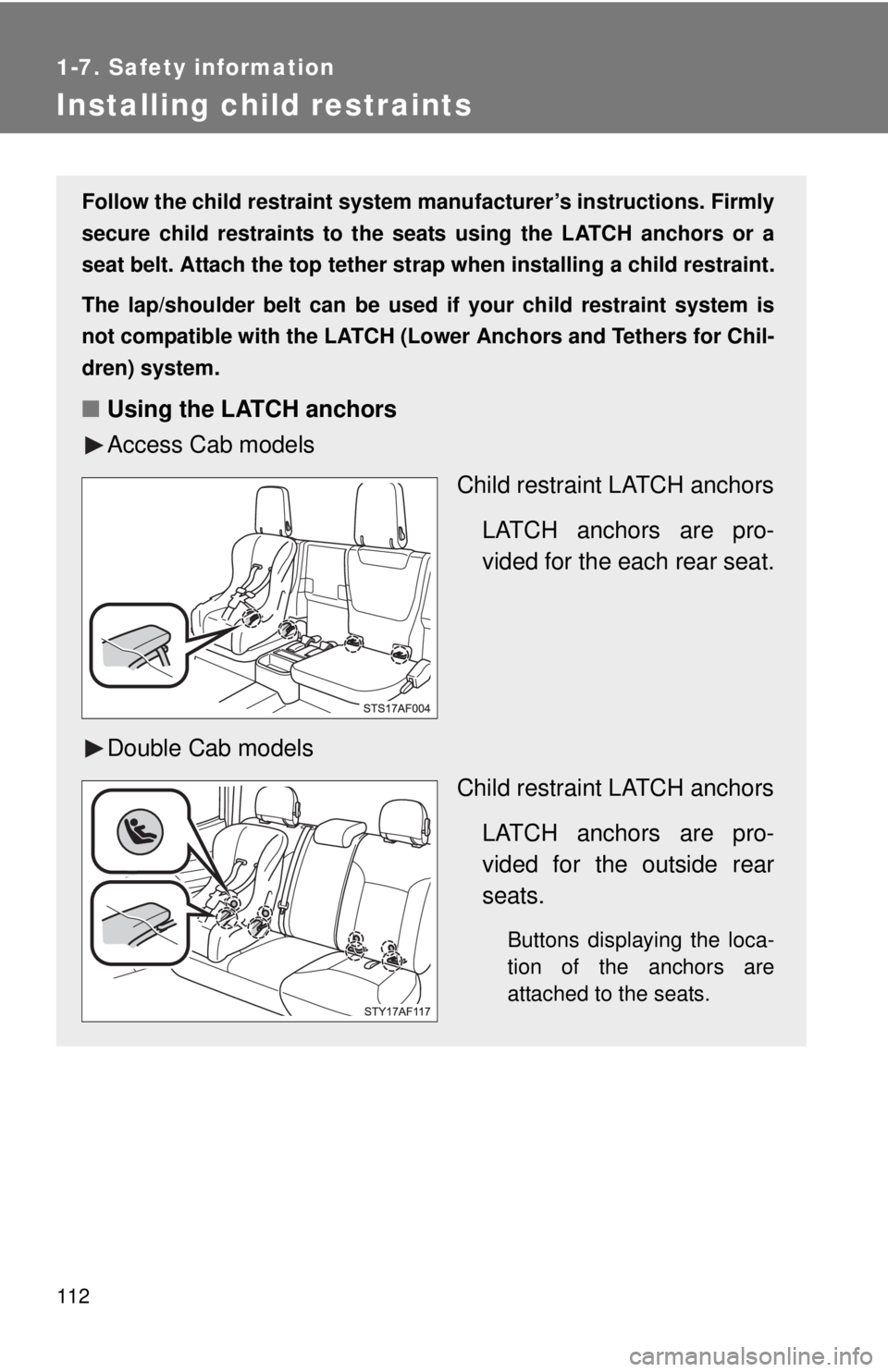
■ Using the LATCH anchors
Access Cab models
Child restraint LATCH anchors
LATCH anchors are pro-
vided for the each rear seat.
Double Cab models Child restraint LATCH anchors
LATCH anchors are pro-
vided for the outside rear
seats.
Buttons displaying the loca-
tion of the anchors are
attached to the seats.
Page 179 of 628
179
2-4. Using other
driving systems
2
When driving
■The rear view monitor system can be operated when
The shift lever is in R and engine switch is ON.
■ Switching the screen on/off mode
The rear view monitor display on the inside rear view mirror can be turned
on/off.
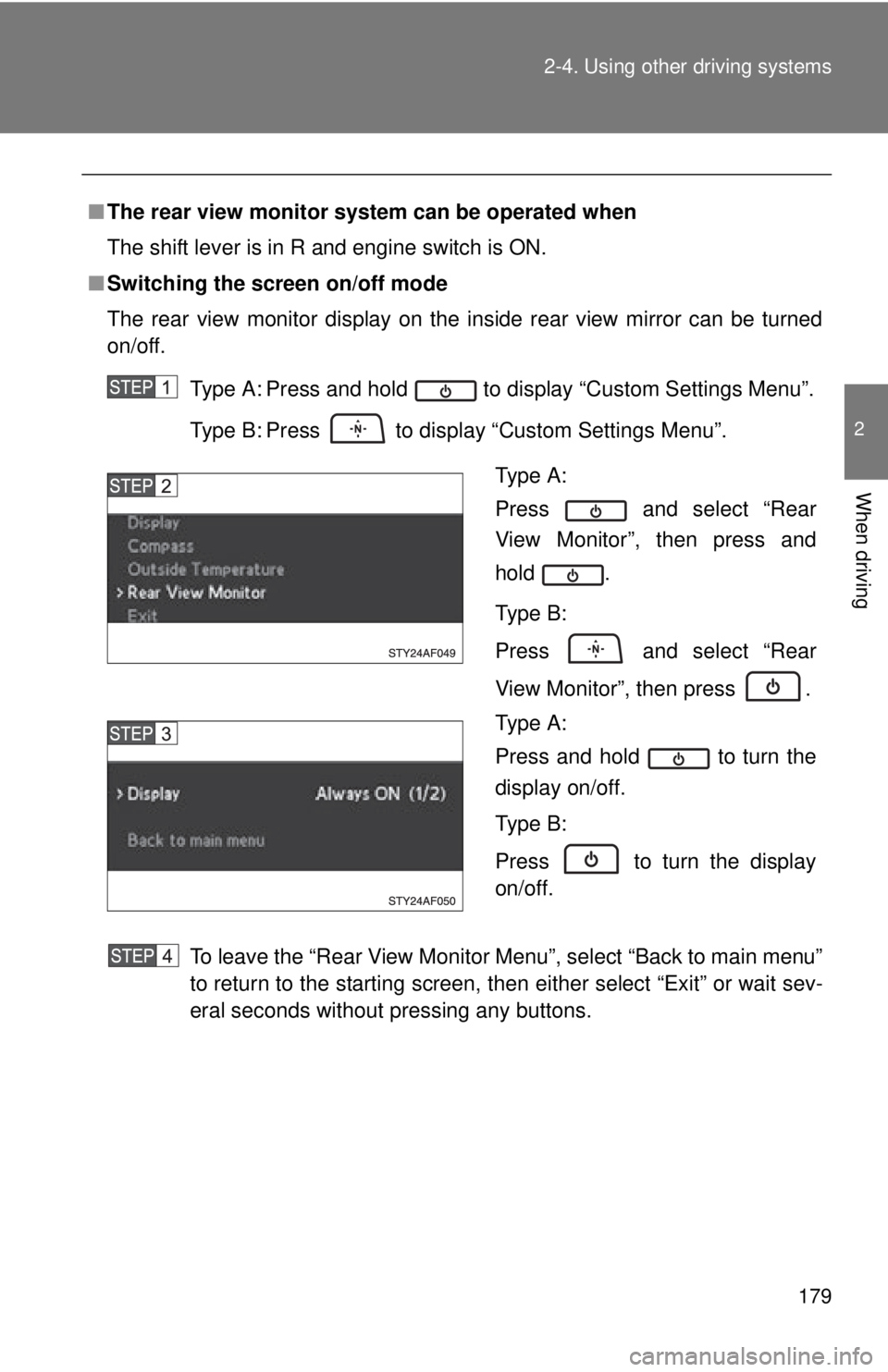
Type A: Press and hold to display “Custom Settings Menu”.
Type B: Press to display “Custom Settings Menu”.
To leave the “Rear View Monitor Menu”, select “Back to main menu”
to return to the starting screen, then either select “Exit” or wait sev-
eral seconds without pressing any buttons.
Type A:
Press and select “Rear
View Monitor”, then press and
hold .
Type B:
Press and select “Rear
View Monitor”, then press .
Type A:
Press and hold to turn the
display on/off.
Type B:
Press to turn the display
on/off.
Page 260 of 628
260
3-2. Using the audio system
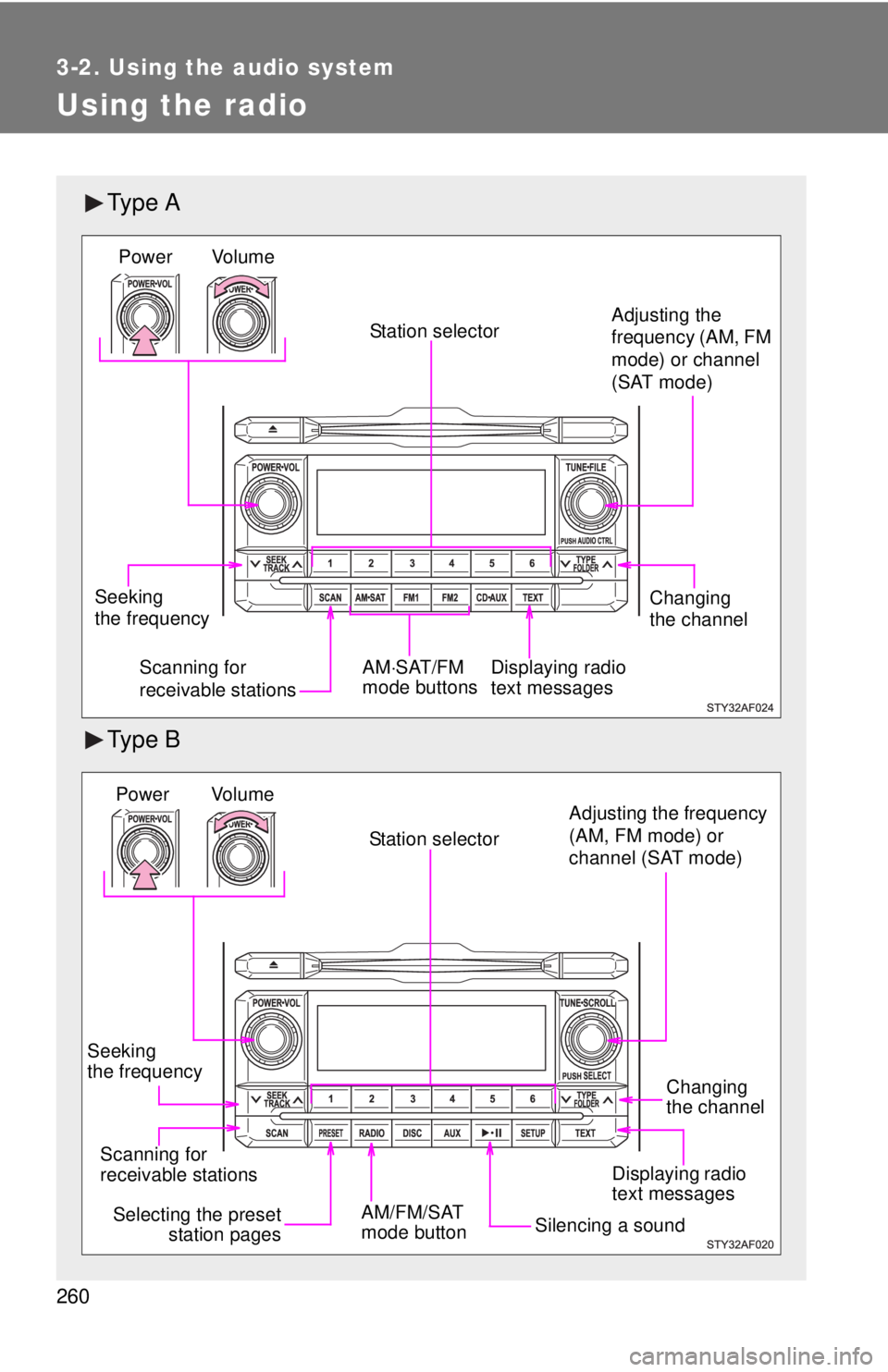
Using the radio
Ty p e A
Ty p e B
Vol u m e
Scanning for
receivable stations Station selector
Seeking
the frequency Adjusting the
frequency (AM, FM
mode) or channel
(SAT mode)
AM SAT/FM
mode buttonsPower
Displaying radio
text messages Changing
the channel
AM/FM/SAT
mode buttonStation selector
Displaying radio
text messages
Scanning for
receivable stations Vo lu m e
Power
Silencing a sound
Selecting the preset
station pages
Seeking
the frequency Adjusting the frequency
(AM, FM mode) or
channel (SAT mode)
Changing
the channel
Page 267 of 628
267
3-2. Using the audio system
3
Interior and exterior features
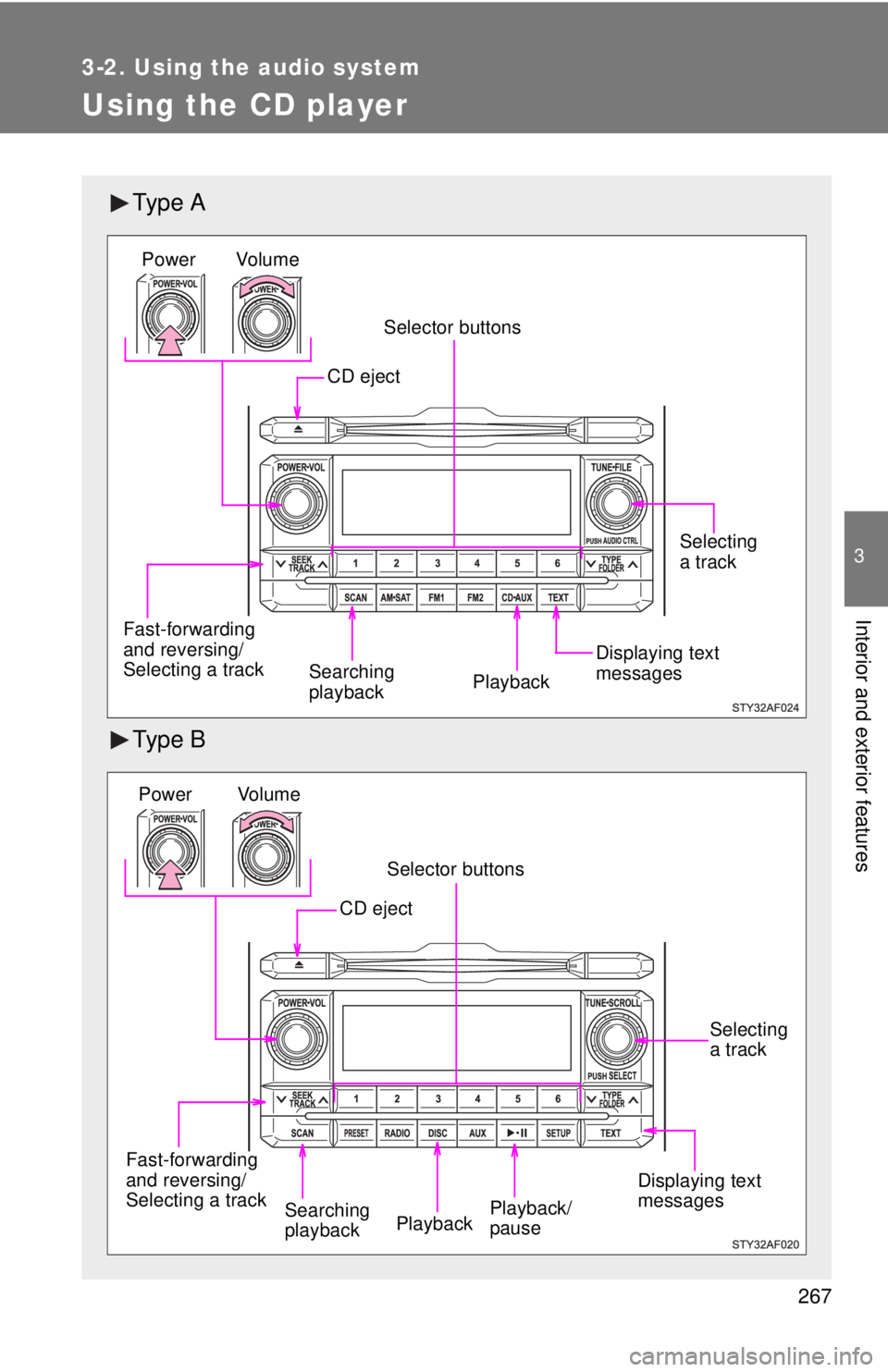
Using the CD player
Ty p e A
Ty p e B
Selector buttonsPlayback
CD eject
Fast-forwarding
and reversing/
Selecting a track
Searching
playback
Vo lu m e
Power
Selecting
a track
Displaying text
messages
Fast-forwarding
and reversing/
Selecting a track
Playback Selecting
a track
Selector buttons
Vo l u m e
Power
CD eject
Displaying text
messages
Playback/
pauseSearching
playback
Page 273 of 628
273
3-2. Using the audio system
3
Interior and exterior features
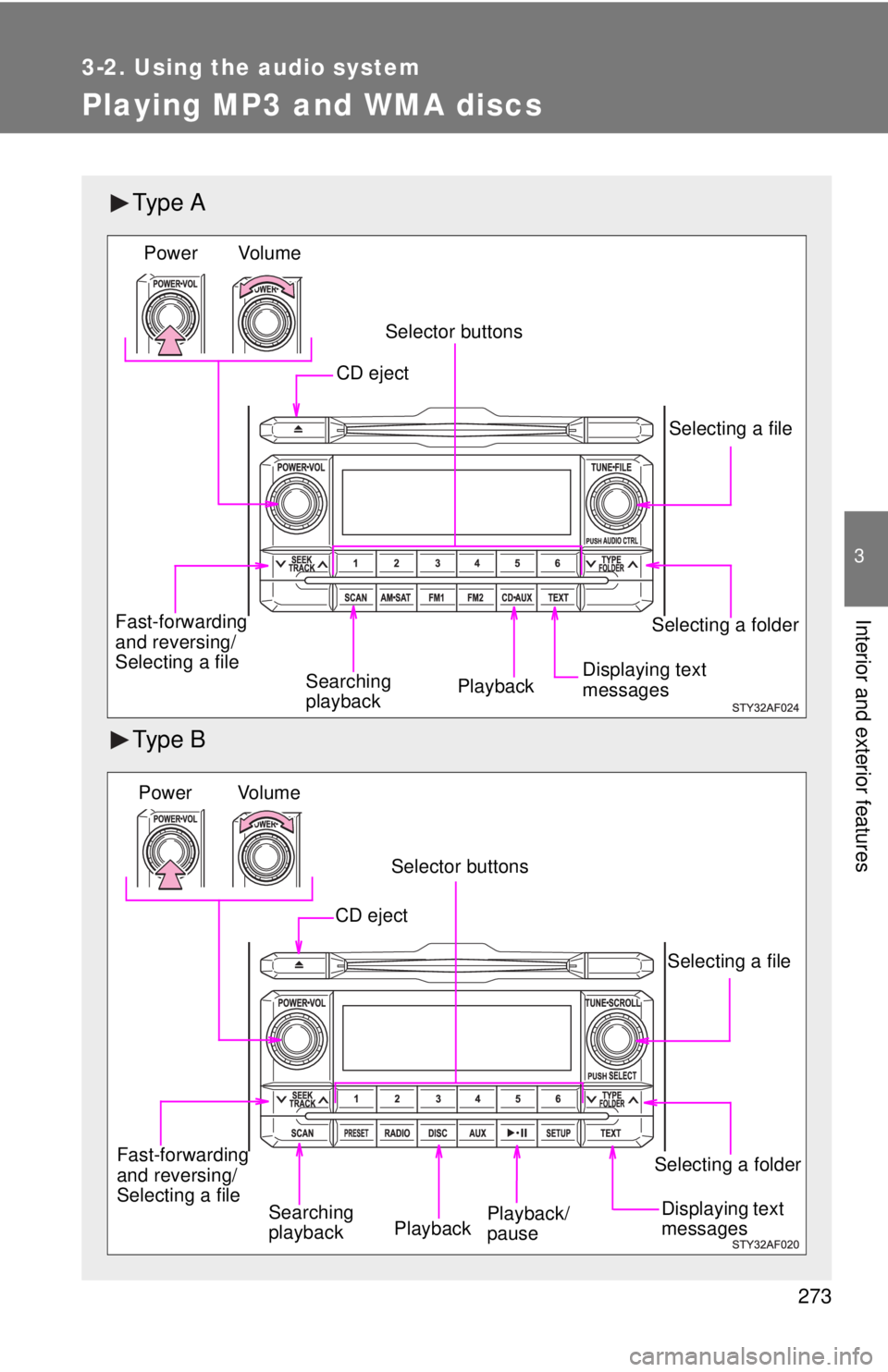
Playing MP3 and WMA discs
Ty p e A
Ty p e B
Selecting a folder
Vol u m e
Power
PlaybackSearching
playback
Selecting a file
Displaying text
messages
CD eject
Selector buttons
Fast-forwarding
and reversing/
Selecting a file
Fast-forwarding
and reversing/
Selecting a file
PlaybackSelecting a file
Selector buttons
Vo l u m e
Power
CD eject
Displaying text
messagesPlayback/
pauseSearching
playback
Selecting a folder
Page 281 of 628
281
3-2. Using the audio system
3
Interior and exterior features
■
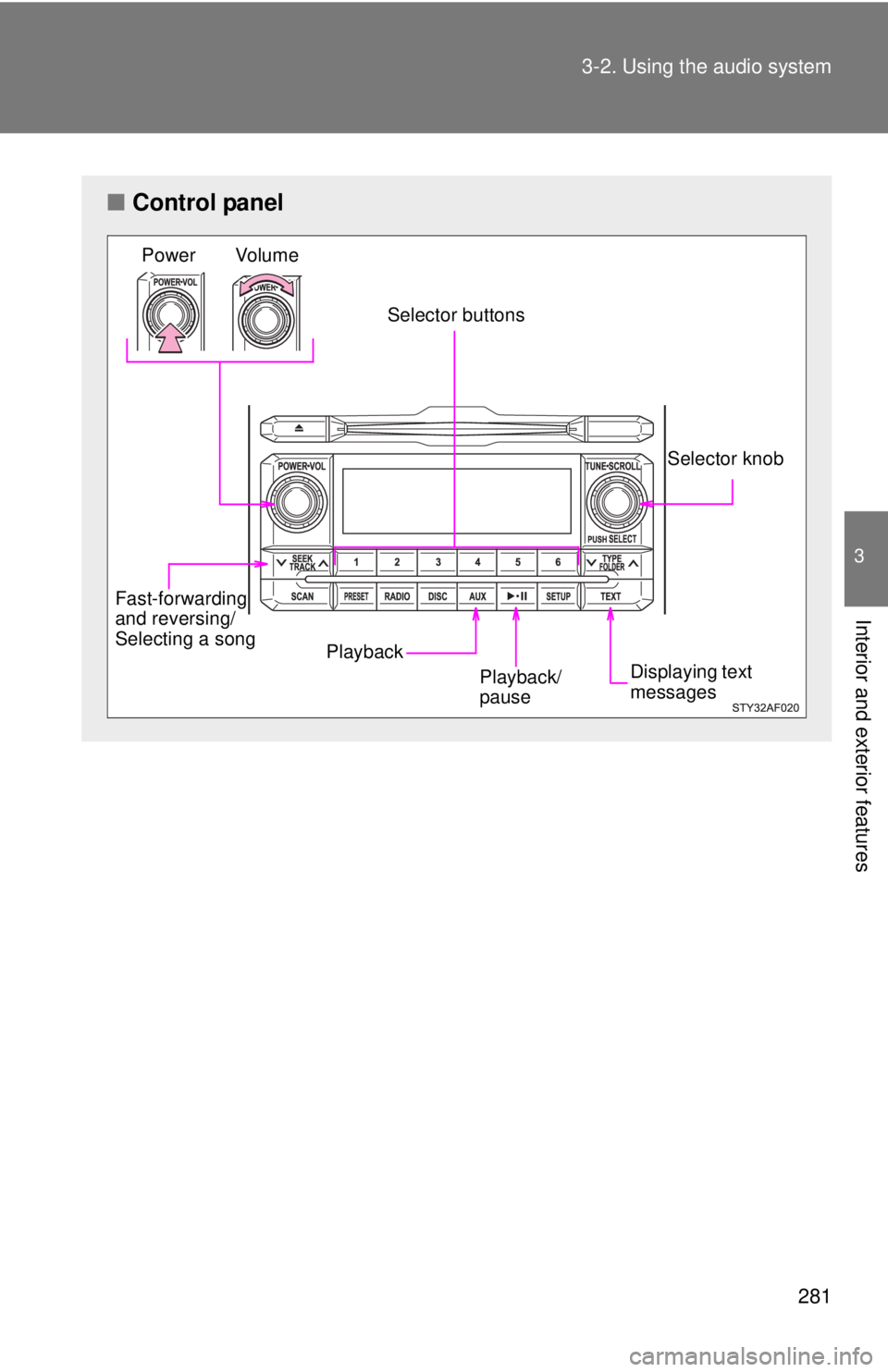
Control panel
Fast-forwarding
and reversing/
Selecting a song
Playback Selector knob
Selector buttons
Vo lu m e
Power
Displaying text
messages
Playback/
pause
Page 289 of 628
289
3-2. Using the audio system
3
Interior and exterior features
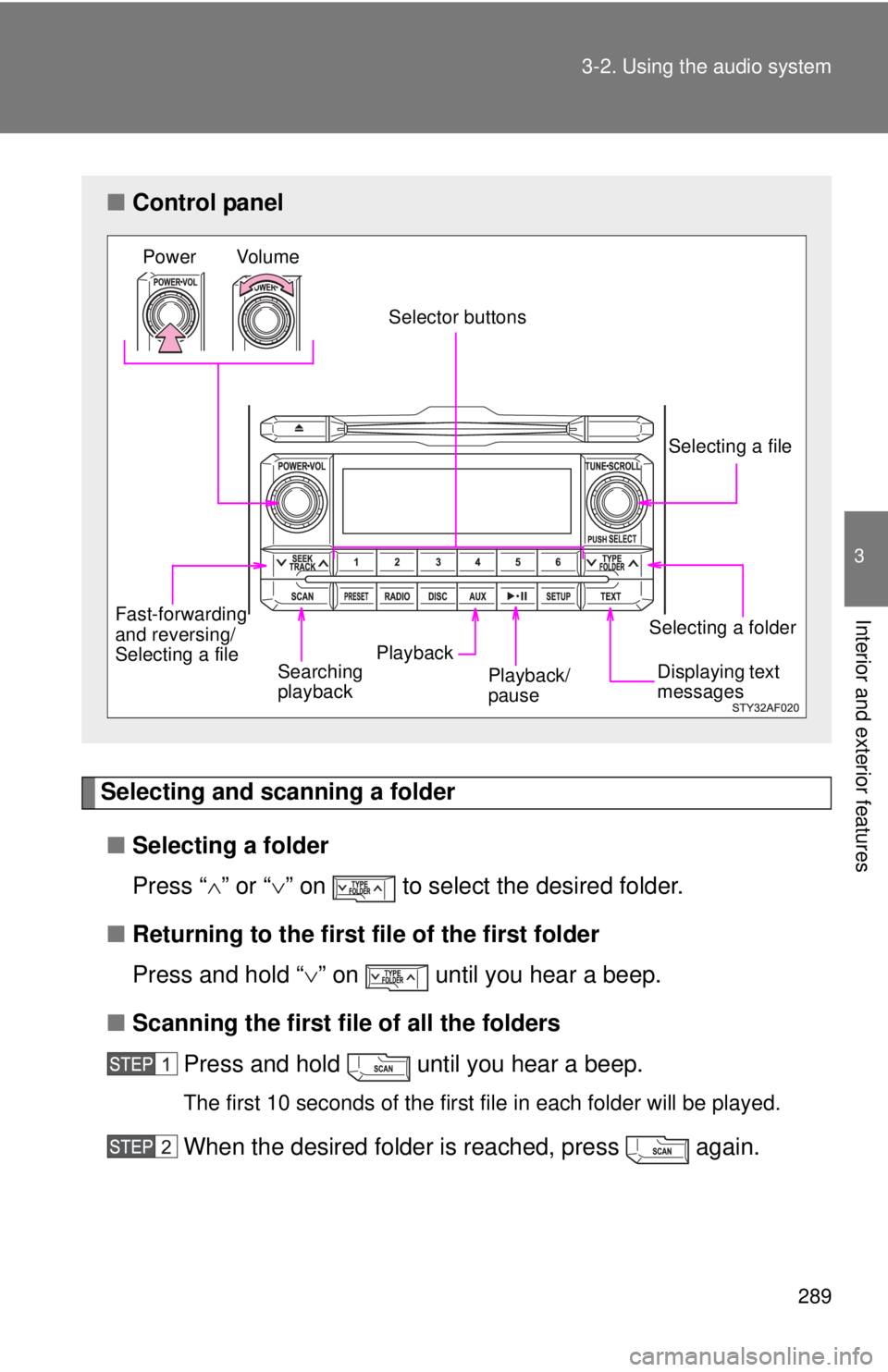
Selecting and scanning a folder
■ Selecting a folder
Press “ ” or “ ” on to select the desired folder.
■ Returning to the first file of the first folder
Press and hold “ ” on until you hear a beep.
■ Scanning the first file of all the folders
Press and hold until you hear a beep.
The first 10 seconds of the first file in each folder will be played.
When the desired folder is reached, press again.
■Control panel
Fast-forwarding
and reversing/
Selecting a file Playback Selecting a file
Selector buttons
Vo lu m e
Power
Displaying text
messages
Playback/
pauseSearching
playback
Selecting a folder
Page 295 of 628
295
3-2. Using the audio system
3
Interior and exterior features
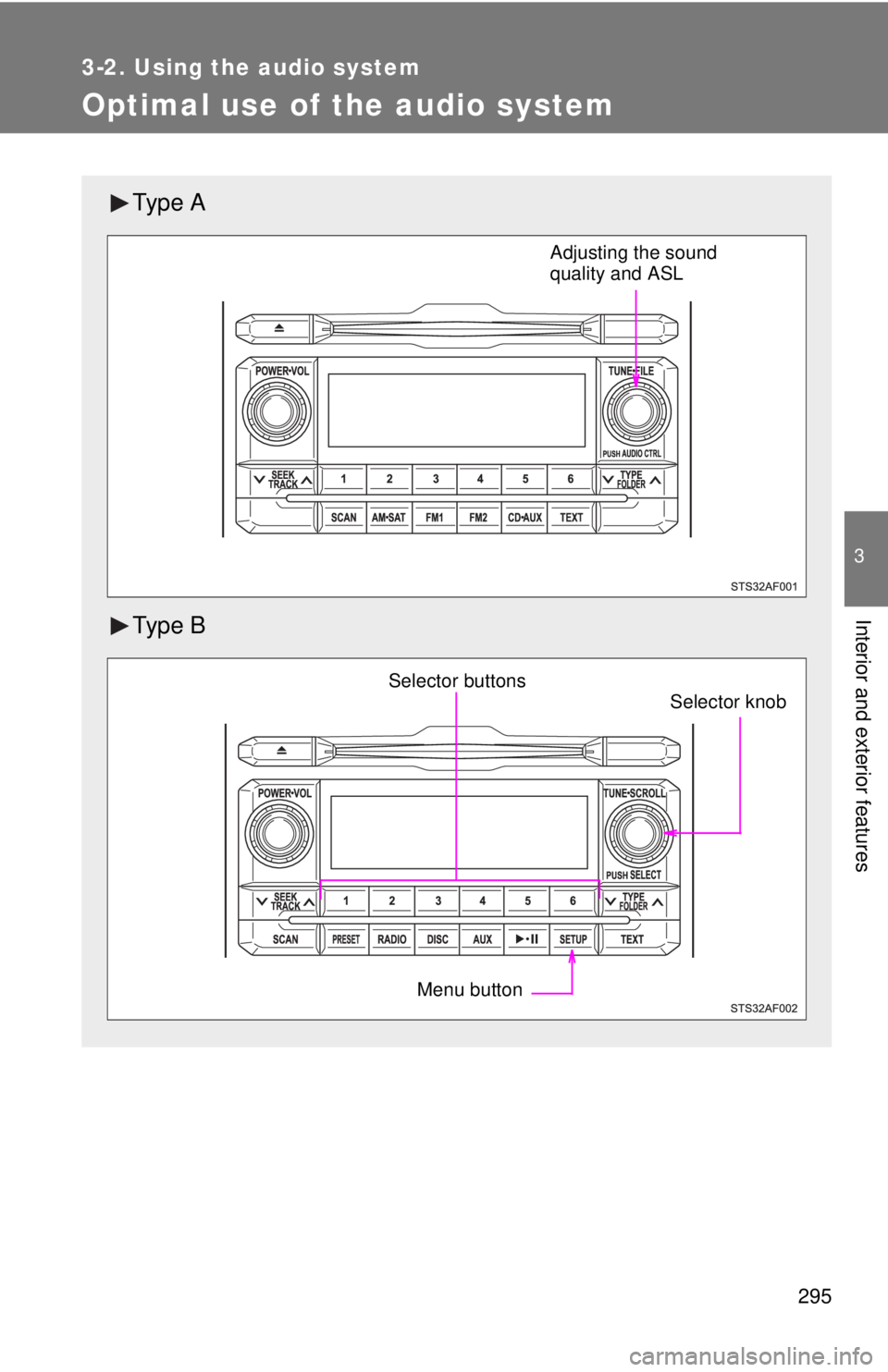
Optimal use of the audio system
Ty p e A
Ty p e B
Adjusting the sound
quality and ASL
Menu button
Selector buttonsSelector knob