audio TOYOTA TACOMA 2019 Owners Manual (in English)
[x] Cancel search | Manufacturer: TOYOTA, Model Year: 2019, Model line: TACOMA, Model: TOYOTA TACOMA 2019Pages: 700, PDF Size: 12.83 MB
Page 4 of 700

TABLE OF CONTENTS4
5-1. Basic OperationsAudio system types ........... 336
Audio system..................... 338
Steering wheel audio switches .......................... 340
USB Port/AUX Port ........... 341
Basic audio operations ...... 343
5-2. Setup Setup menu ....................... 345
General settings ................ 346
Audio settings.................... 348
Display settings ................. 349
Voice settings .................... 350
5-3. Using the multimedia system Selecting the audio source ............................. 351
List screen operation ......... 352
Optimal use of the multimedia system .......... 354
5-4. Using the radio Radio operation ................. 355
5-5. Playing an audio CD and MP3/WMA/AAC discs
CD player operation .......... 357
5-6. Using an external device Listening to an iPod........... 362
Listening to a USB memory device................ 366
Using the AUX port ........... 370 5-7. Connecting Bluetooth
®
Preparations to use
wireless
communication ................ 371
Registering a Bluetooth
®
audio player
for the first time................ 377
Registering a Bluetooth
®
phone for the first time .... 378
Registering a Bluetooth
®
device .............................. 379
Connecting a Bluetooth
®
device .............................. 381
Displaying a Bluetooth
®
device details................... 383
Detailed Bluetooth
®
system settings................ 384
5-8. Bluetooth
® audio
Listening to Bluetooth®
audio................................ 385
5-9. Bluetooth
® phone
Using a Bluetooth®
phone .............................. 386
Making a call...................... 388
Receiving a call ................. 391
Speaking on the phone...... 392
Bluetooth
® phone
message function ............ 395
Using the steering wheel switches ................ 399
Bluetooth
® phone
settings ............................ 400
Contact/Call History Settings ........................... 402
What to do if... (Troubleshooting) ............ 411
5-10. Bluetooth
®
Bluetooth®......................... 415
5-11. Using the voice command system
Voice command system .... 420
5Multimedia
Page 6 of 700
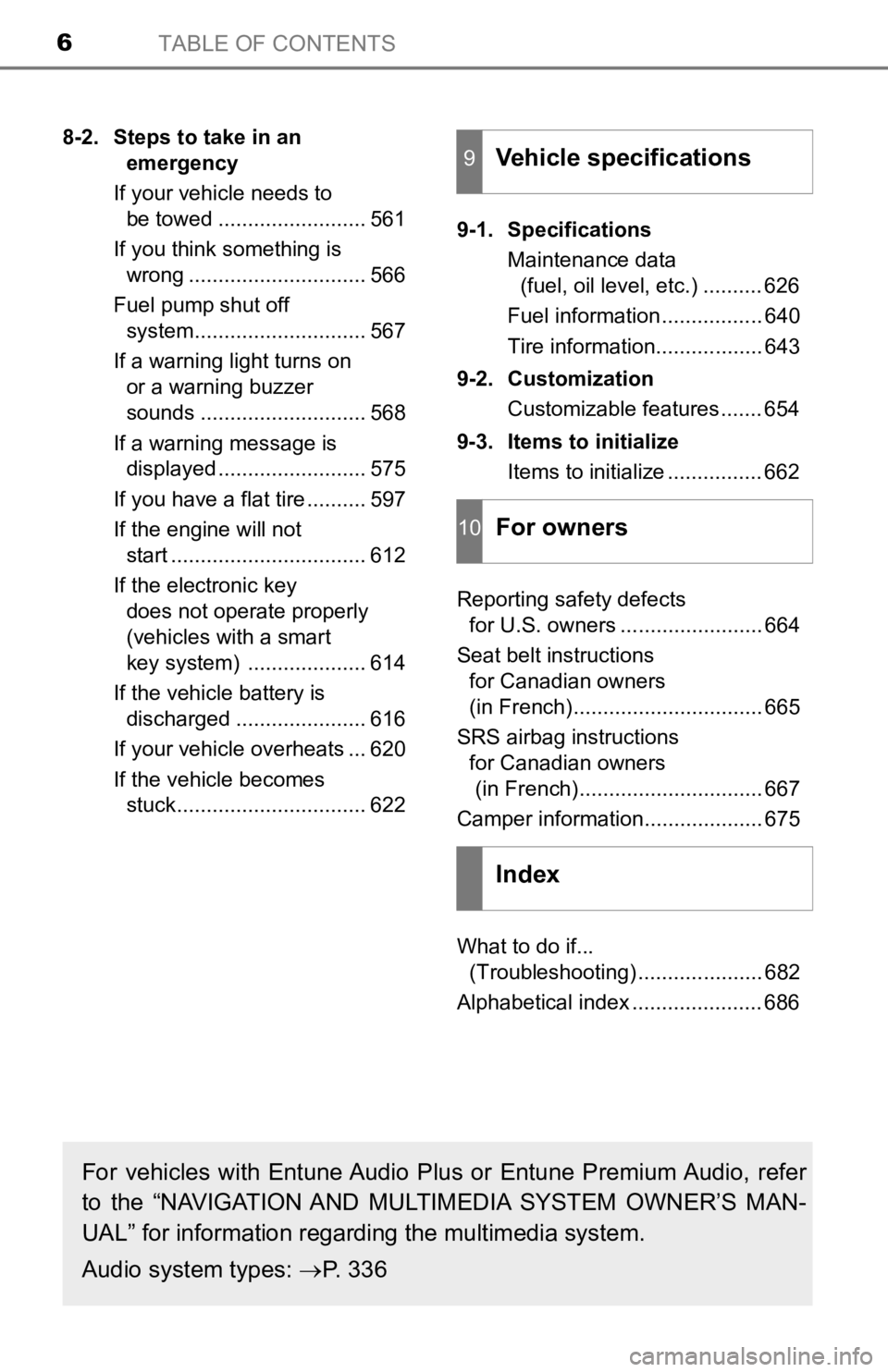
TABLE OF CONTENTS6
8-2. Steps to take in an emergency
If your vehicle needs to be towed ......................... 561
If you think something is wrong .............................. 566
Fuel pump shut off system............................. 567
If a warning light turns on or a warning buzzer
sounds ............................ 568
If a warning message is displayed ......................... 575
If you have a flat tire .......... 597
If the engine will not start ................................. 612
If the electronic key does not operate properly
(vehicles with a smart
key system) .................... 614
If the vehicle battery is discharged ...................... 616
If your vehicle overheats ... 620
If the vehicle becomes stuck................................ 622 9-1. Specifications
Maintenance data (fuel, oil level, etc.) .......... 626
Fuel information ................. 640
Tire information.................. 643
9-2. Customization Customizable features ....... 654
9-3. Items to initialize Items to initialize ................ 662
Reporting safety defects for U.S. owners ........................ 664
Seat belt instructions for Canadian owners
(in French)................................ 665
SRS airbag instructions for Canadian owners
(in French)............................... 667
Camper information.................... 675
What to do if... (Troubleshooting) ..................... 682
Alphabetical index ...................... 6869Vehicle specifications
10For owners
Index
For vehicles with Entune Audio Pl us or Entune Premium Audio, refer
to the “NAVIGATION AND MULTIMEDIA SYSTEM OWNER’S MAN-
UAL” for information regarding the multimedia system.
Audio system types: P. 336
Page 17 of 700
17Pictorial index
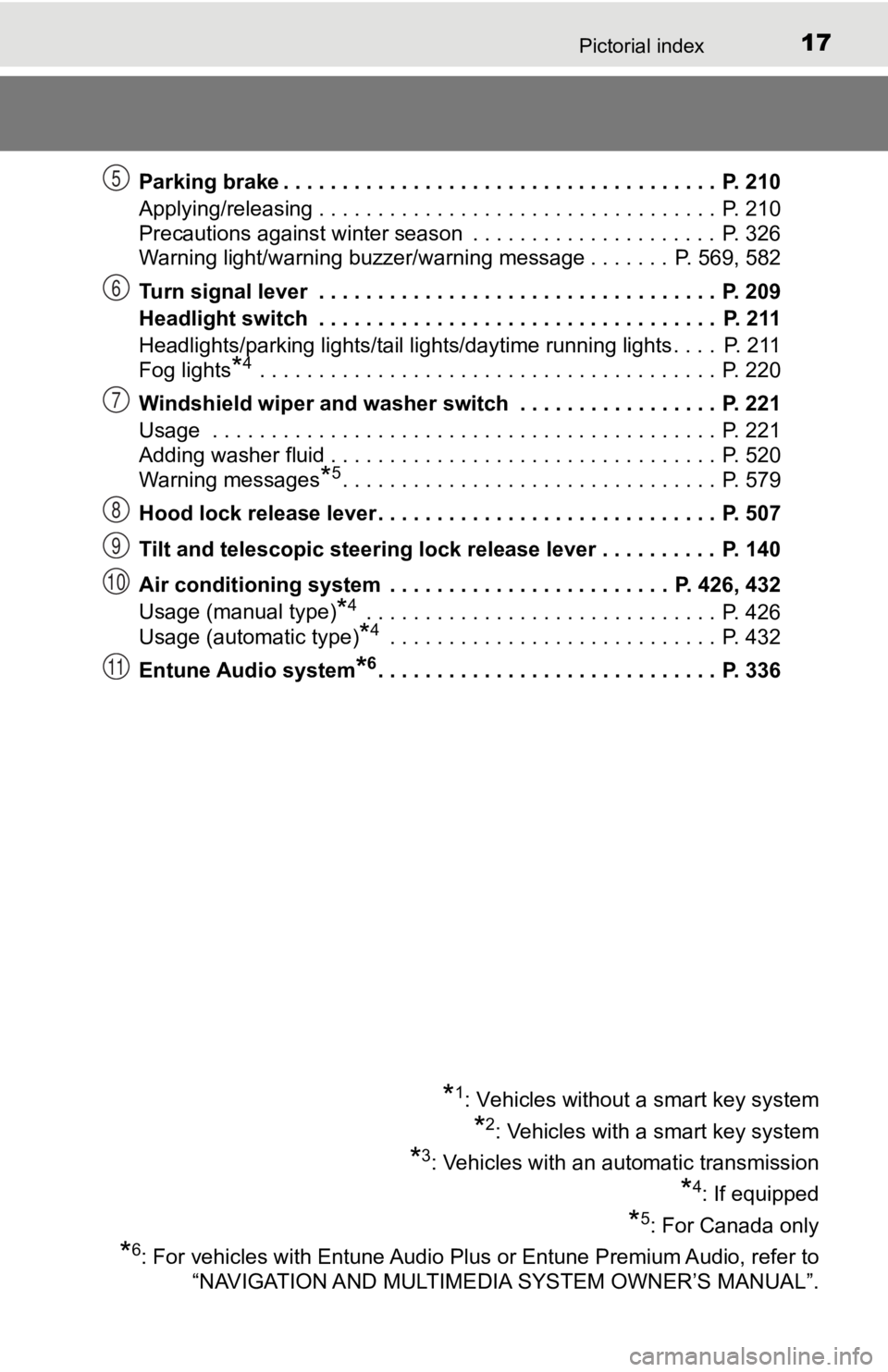
Parking brake . . . . . . . . . . . . . . . . . . . . . . . . . . . . . . . . . . . . . P. 210
Applying/releasing . . . . . . . . . . . . . . . . . . . . . . . . . . . . . . . . . . P. 210
Precautions against winter season . . . . . . . . . . . . . . . . . . . . . P. 326
Warning light/warning buzzer/warning message . . . . . . . P. 569, 582
Turn signal lever . . . . . . . . . . . . . . . . . . . . . . . . . . . . . . . . . . P. 209
Headlight switch . . . . . . . . . . . . . . . . . . . . . . . . . . . . . . . . . . P. 211
Headlights/parking lights/tail lights/daytime running lights . . . . P. 211
Fog lights
*4 . . . . . . . . . . . . . . . . . . . . . . . . . . . . . . . . . . . . . . . P. 220
Windshield wiper and washer switch . . . . . . . . . . . . . . . . . P. 221
Usage . . . . . . . . . . . . . . . . . . . . . . . . . . . . . . . . . . . . . . . . . . . P. 221
Adding washer fluid . . . . . . . . . . . . . . . . . . . . . . . . . . . . . . . . . P. 520
Warning messages
*5. . . . . . . . . . . . . . . . . . . . . . . . . . . . . . . . P. 579
Hood lock release lever. . . . . . . . . . . . . . . . . . . . . . . . . . . . . P. 507
Tilt and telescopic steering lock release lever . . . . . . . . . . P. 140
Air conditioning system . . . . . . . . . . . . . . . . . . . . . . . . P. 426, 432
Usage (manual type)
*4 . . . . . . . . . . . . . . . . . . . . . . . . . . . . . . P. 426
Usage (automatic type)
*4 . . . . . . . . . . . . . . . . . . . . . . . . . . . . P. 432
Entune Audio system
*6. . . . . . . . . . . . . . . . . . . . . . . . . . . . . P. 33 6
*1: Vehicles without a smart key system
*2: Vehicles with a smart key system
*3: Vehicles with an automatic transmission
*4: If equipped
*5: For Canada only
*6: For vehicles with Entune Audio Plus or Entune Premium Audio, refer to
“NAVIGATION AND MULTIMEDIA SYSTEM OWNER’S MANUAL”.
5
6
7
8
9
10
11
Page 19 of 700
19Pictorial index
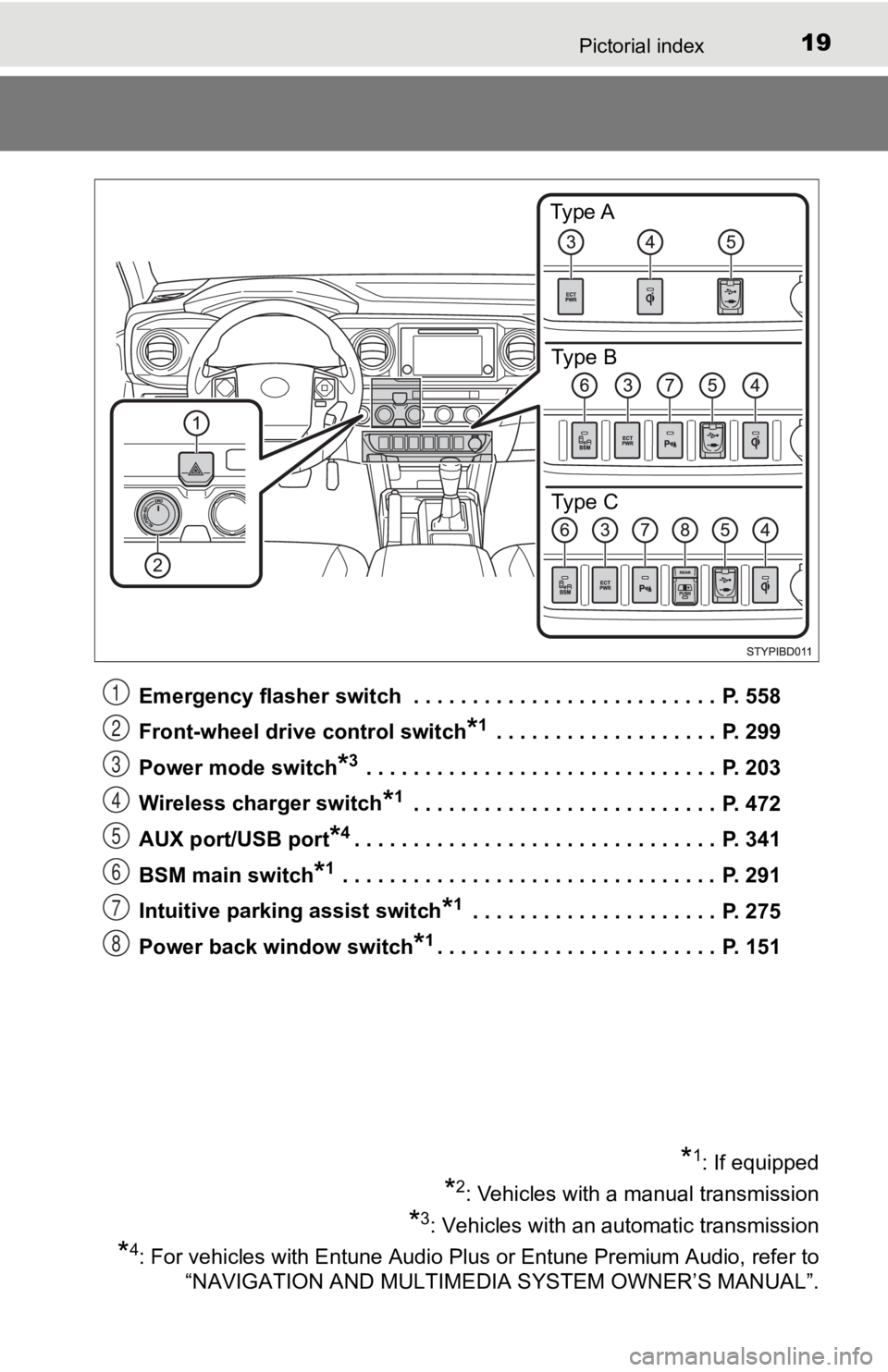
Emergency flasher switch . . . . . . . . . . . . . . . . . . . . . . . . . . P. 558
Front-wheel drive control switch
*1 . . . . . . . . . . . . . . . . . . . P. 299
Power mode switch
*3 . . . . . . . . . . . . . . . . . . . . . . . . . . . . . . P. 203
Wireless charger switch
*1 . . . . . . . . . . . . . . . . . . . . . . . . . . P. 472
AUX port/USB port
*4. . . . . . . . . . . . . . . . . . . . . . . . . . . . . . . P. 341
BSM main switch
*1 . . . . . . . . . . . . . . . . . . . . . . . . . . . . . . . . P. 291
Intuitive parking assist switch
*1 . . . . . . . . . . . . . . . . . . . . . P. 275
Power back window switch
*1. . . . . . . . . . . . . . . . . . . . . . . . P. 151
Type A
Type B
Type C
*1: If equipped
*2: Vehicles with a manual transmission
*3: Vehicles with an automatic transmission
*4: For vehicles with Entune Audio Plus or Entune Premium Audio, refer to
“NAVIGATION AND MULTIMEDIA SYSTEM OWNER’S MANUAL”.
1
2
3
4
5
6
7
8
Page 20 of 700
20Pictorial index
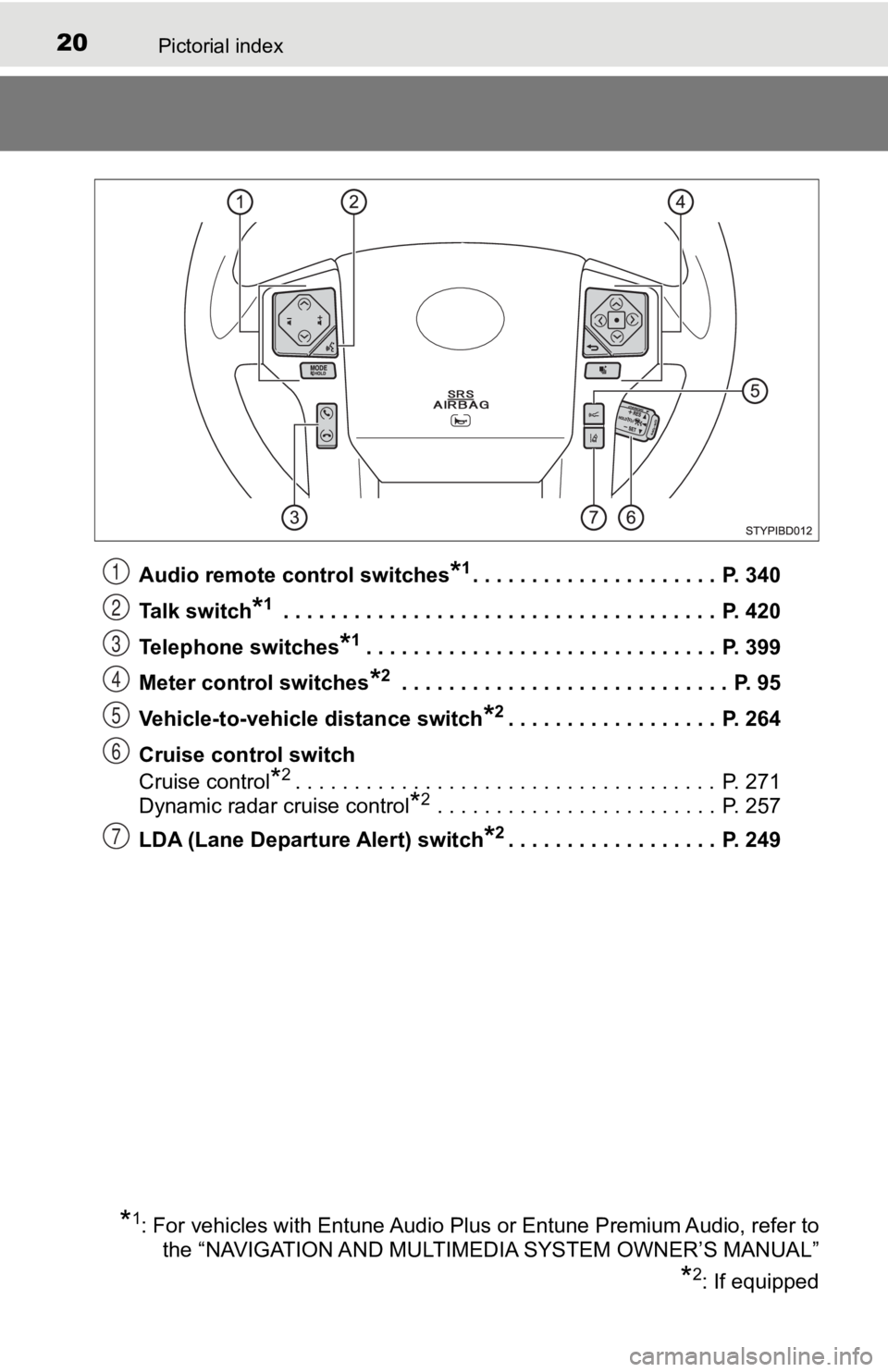
Audio remote control switches*1. . . . . . . . . . . . . . . . . . . . . P. 340
Talk switch
*1 . . . . . . . . . . . . . . . . . . . . . . . . . . . . . . . . . . . . . P. 420
Telephone switches
*1. . . . . . . . . . . . . . . . . . . . . . . . . . . . . . P. 399
Meter control switches
*2 . . . . . . . . . . . . . . . . . . . . . . . . . . . . P. 95
Vehicle-to-vehicle distance switch
*2. . . . . . . . . . . . . . . . . . P. 264
Cruise control switch
Cruise control
*2. . . . . . . . . . . . . . . . . . . . . . . . . . . . . . . . . . . . P. 271
Dynamic radar cruise control
*2 . . . . . . . . . . . . . . . . . . . . . . . . P. 257
LDA (Lane Departure Alert) switch
*2. . . . . . . . . . . . . . . . . . P. 249
*1: For vehicles with Entune Audio Plus or Entune Premium Audio, refer to
the “NAVIGATION AND MULTIMEDIA SYSTEM OWNER’S MANUAL”
*2: If equipped
1
2
3
4
5
6
7
Page 94 of 700
942. Instrument cluster
Multi-infor mation display
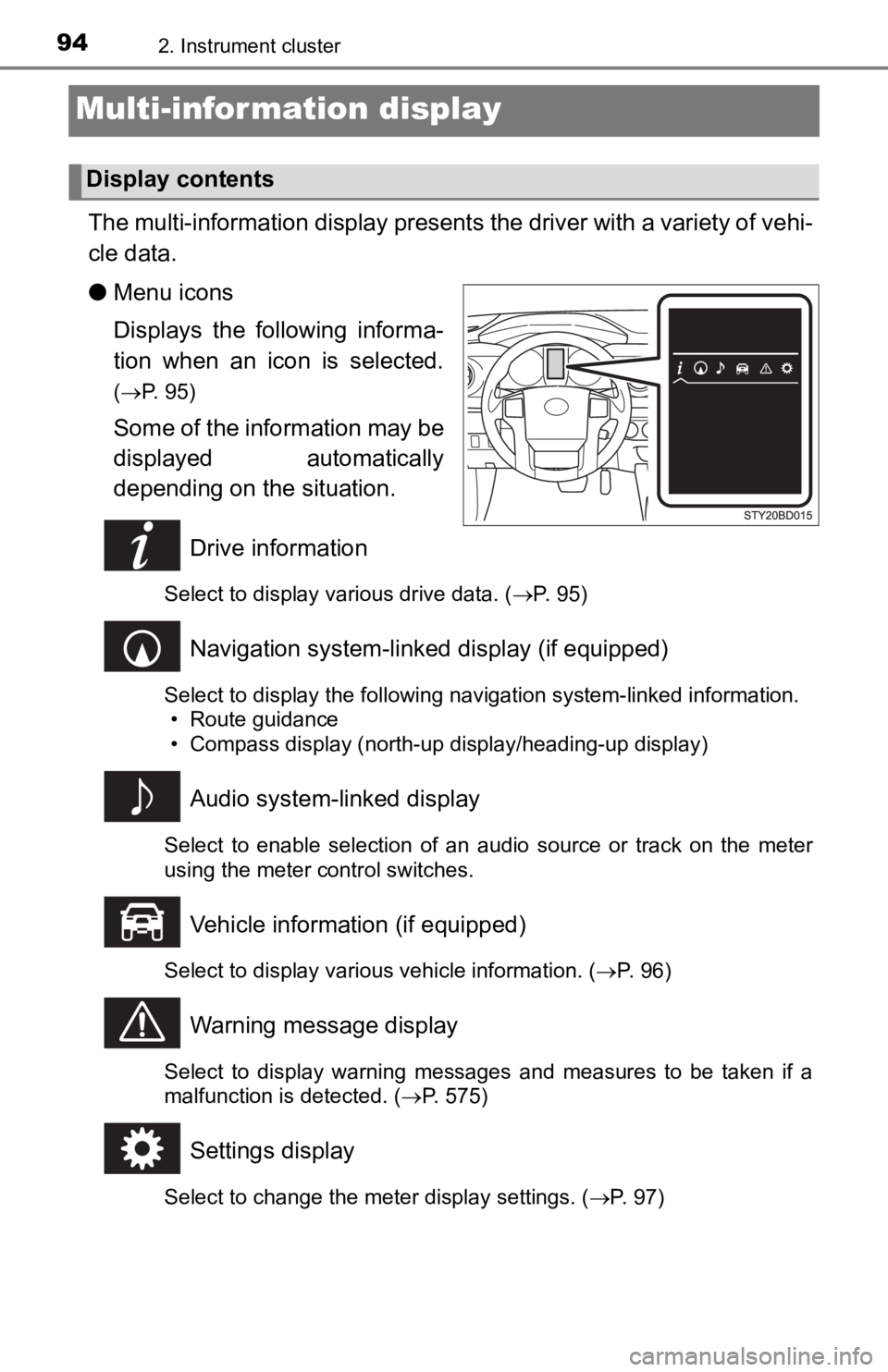
The multi-information display presents the driver with a variety of vehi-
cle data.
● Menu icons
Displays the following informa-
tion when an icon is selected.
(P. 95)
Some of the information may be
displayed automatically
depending on the situation.
Drive information
Select to display various drive data. ( P. 95)
Navigation system-linked display (if equipped)
Select to display the following navigation system-linked information.
• Route guidance
• Compass display (north-up display/heading-up display)
Audio system-linked display
Select to enable selection of an audio source or track on the m eter
using the meter control switches.
Vehicle information (if equipped)
Select to display various vehicle information. ( P. 96)
Warning message display
Select to display warning messages and measures to be taken if a
malfunction is detected. ( P. 575)
Settings display
Select to change the meter display settings. ( P. 97)
Display contents
Page 101 of 700
1012. Instrument cluster
2
Instrument cluster
Fuel consumption information
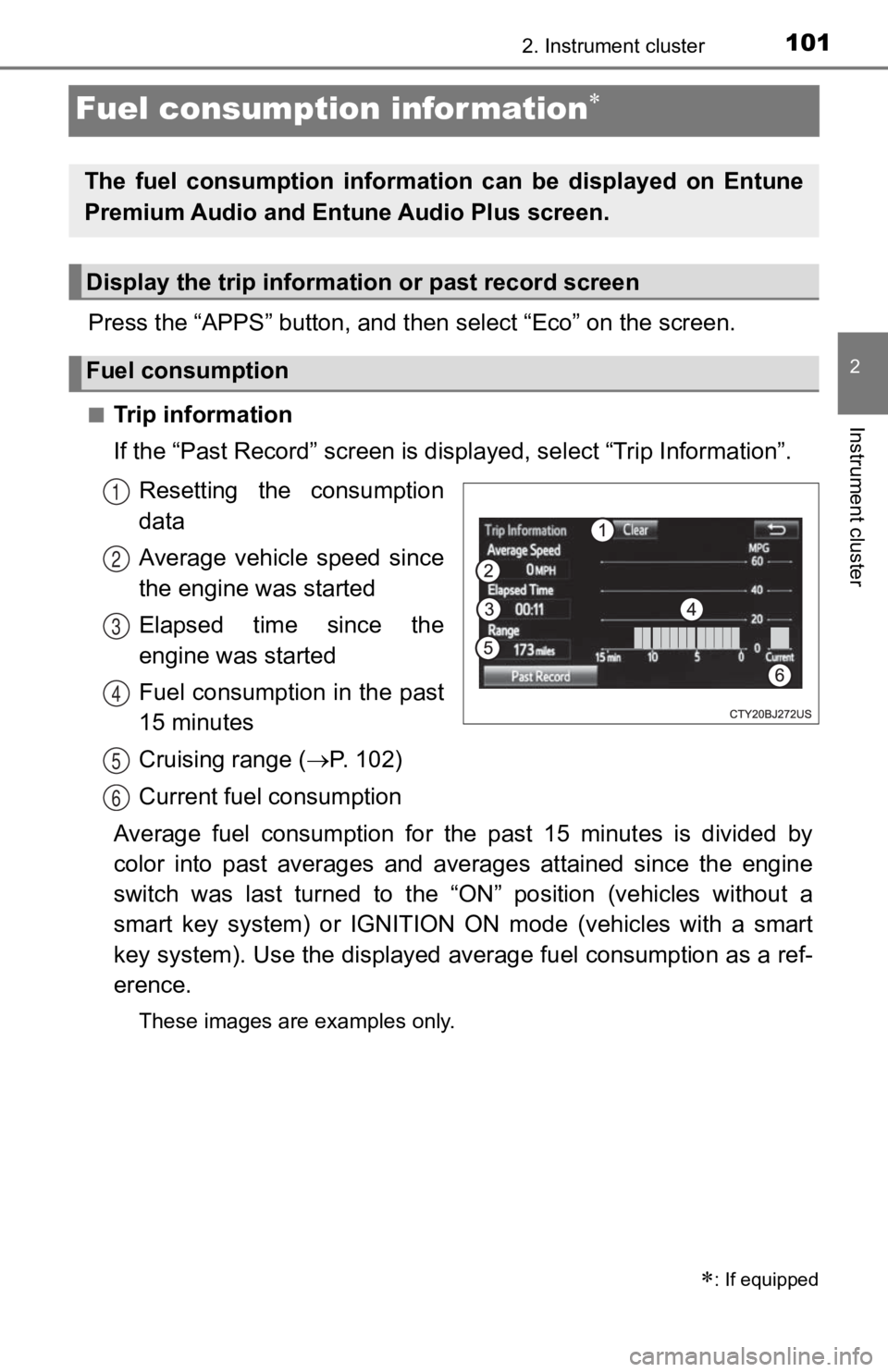
Press the “APPS” button, and then select “Eco” on the screen.
■Trip information
If the “Past Record” screen is displayed, select “Trip Informat ion”.
Resetting the consumption
data
Average vehicle speed since
the engine was started
Elapsed time since the
engine was started
Fuel consumption in the past
15 minutes
Cruising range ( P. 102)
Current fuel consumption
Average fuel consumption for the past 15 minutes is divided by
color into past averages and averages attained since the engine
switch was last turned to the “ON” position (vehicles without a
smart key system) or IGNITION ON mode (vehicles with a smart
key system). Use the displayed a verage fuel consumption as a ref-
erence.
These images are examples only.
: If equipped
The fuel consumption information can be displayed on Entune
Premium Audio and Ent une Audio Plus screen.
Display the trip information or past record screen
Fuel consumption
1
2
3
4
5
6
Page 110 of 700
1103-1. Key information
NOTICE
■To prevent key damage
● Do not drop the keys, subject them to strong shocks or bend them.
● Do not expose the keys to high temperatures for long periods of time.
● Do not get the keys wet or wash them in an ultrasonic washer, e tc.
● Do not attach metallic or magnetic materials to the keys or place the keys
close to such materials.
● Do not disassemble the keys.
● Do not attach a sticker or anything else to the surface of the electronic key.
● Do not place the keys near objects that produce magnetic fields, such as
TVs, audio systems and induction cookers, or medical electrical equip-
ment, such as low-frequency therapy equipment.
■ Carrying the electronic key on your person (type D)
Carry the electronic key 10 cm (3.9 in.) or more away from electric appli-
ances that are turned on. Radio waves emitted from electric app liances
within 10 cm (3.9 in.) of the electronic key may interfere with the key, caus-
ing the key to not function properly.
■ In case of a smart entry & start system malfunction or other key-related
problems (type D)
Take your vehicle with all the electronic keys provided with your vehicle to
your Toyota dealer.
■ When an electronic key is lost (type D)
If the electronic key remains lost, the risk of vehicle theft i ncreases signifi-
cantly. Visit your Toyota dealer immediately with all remaining electronic
keys that was provided with your vehicle.
Page 116 of 700
1163-2. Opening, closing and locking the doors
■Setting and canceling the functions
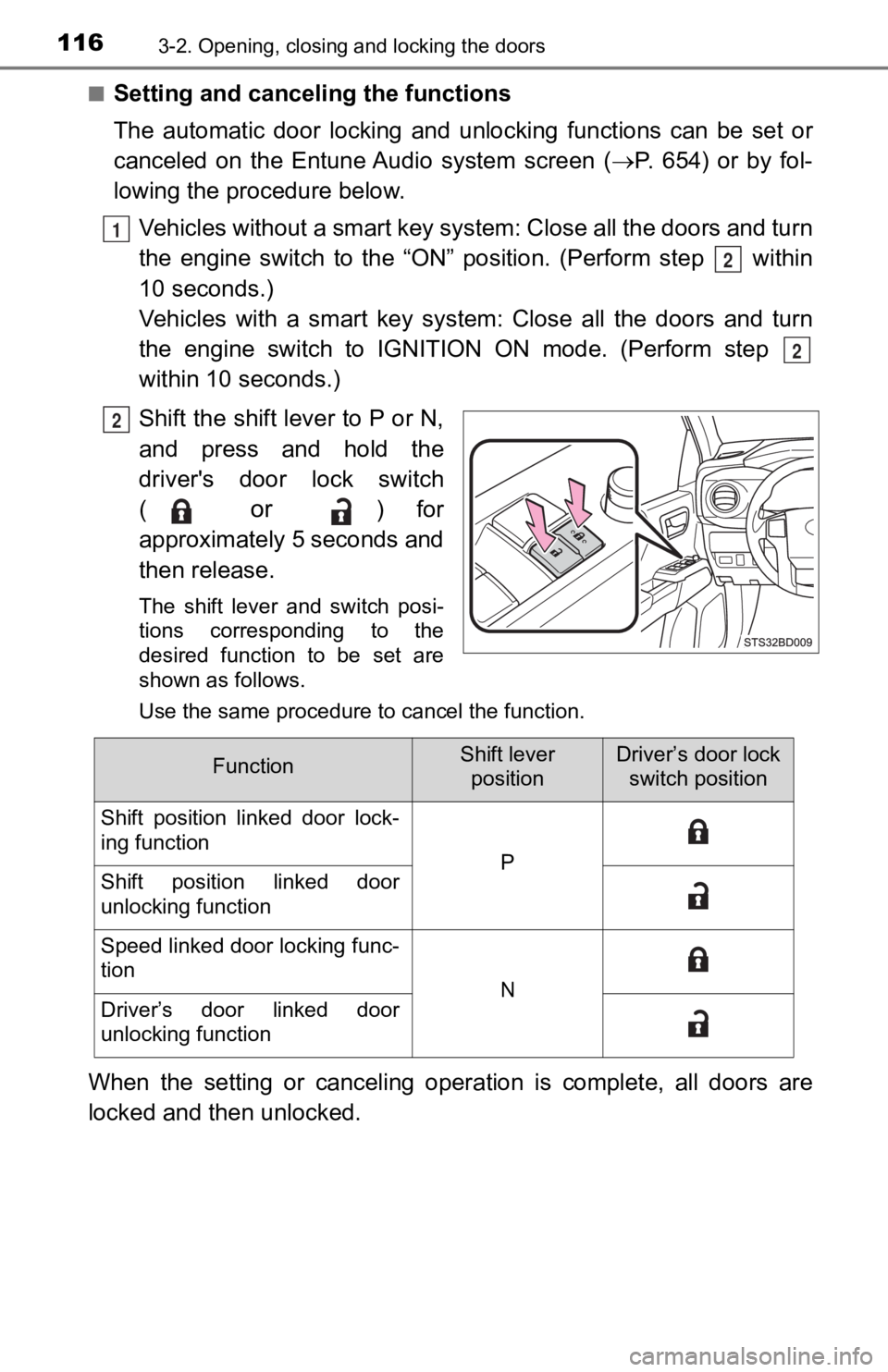
The automatic door locking and unlocking functions can be set o r
canceled on the Entune Audio system screen ( P. 654) or by fol-
lowing the procedure below.
Vehicles without a smart key system: Close all the doors and tu rn
the engine switch to the “ON” po sition. (Perform step within
10 seconds.)
Vehicles with a smart key system : Close all the doors and turn
the engine switch to IGNITION ON mode. (Perform step
within 10 seconds.)
Shift the shift lever to P or N,
and press and hold the
driver's door lock switch
(
or ) for
approximately 5 seconds and
then release.
The shift lever and switch posi-
tions corresponding to the
desired function to be set are
shown as follows.
Use the same procedure to cancel the function.
When the setting or canceling oper ation is complete, all doors are
locked and then unlocked.
1
2
2
2
FunctionShift lever positionDriver’s door lock switch position
Shift position linked door lock-
ing function
PShift position linked door
unlocking function
Speed linked door locking func-
tion
NDriver’s door linked door
unlocking function
Page 126 of 700

1263-2. Opening, closing and locking the doors
■Conditions affecting operation
The smart key system uses weak radio waves. In the following si tuations, the
communication between the electronic key and the vehicle may be affected,
preventing the smart key system, wireless remote control and en gine immobi-
lizer system from operating properly. (Ways of coping: P. 614)
● When the electronic key battery is depleted
● Near a TV tower, electric power plant, gas station, radio stati on, large dis-
play, airport or other facility that generates strong radio wav es or electrical
noise
● When carrying a portable radio, cellular phone, cordless phone or other
wireless communication device
● When the electronic key is in contact with, or is covered by th e following
metallic objects
• Cards to which aluminum foil is attached
• Cigarette boxes that have aluminum foil inside
• Metallic wallets or bags
• Coins
• Hand warmers made of metal
• Media such as CDs and DVDs
● When multiple electronic keys are in the vicinity
● When other wireless keys (that emit radio waves) are being used nearby
● When carrying the electronic key together with the following devices that
emit radio waves
• Another vehicle’s electronic key or a wireless key that emits radio waves
• Personal computers or personal digital assistants (PDAs)
• Digital audio players
• Portable game systems
● If window tint with a metallic content or metallic objects are attached to the
back window
● When the electronic key is placed near a battery charger or ele ctronic
devices