phone TOYOTA TUNDRA 2018 Owners Manual (in English)
[x] Cancel search | Manufacturer: TOYOTA, Model Year: 2018, Model line: TUNDRA, Model: TOYOTA TUNDRA 2018Pages: 672, PDF Size: 14.09 MB
Page 4 of 672

TABLE OF CONTENTS4
5-1. Basic OperationsMultimedia system types ... 322
Entune Audio..................... 324
Steering wheel audio switches .......................... 327
USB Port/AUX Port ........... 328
5-2. Setup Setup menu ....................... 329
General settings ................ 330
Audio settings.................... 332
Display settings ................. 333
Voice settings .................... 334
5-3. Using the audio system Basic audio operations ...... 335
Selecting the audio source ............................. 336
List screen operation ......... 337
Sound settings .................. 339
5-4. Using the radio Radio operation ................. 340
5-5. Playing an audio CD and MP3/WMA/AAC discs
CD player operation .......... 342 5-6. Using an external device
Listening to an iPod ........... 347
Listening to a USB memory device ................ 351
Using the AUX port ............ 355
5-7. Connecting Bluetooth
®
Preparations to use wireless
communication ................ 356
Registering a Bluetooth
®
audio player
for the first time................ 361
Registering a Bluetooth
®
phone for the first time .... 362
Registering a Bluetooth
®
device .............................. 363
Connecting a Bluetooth
®
device .............................. 365
Displaying a Bluetooth
®
device details................... 367
Detailed Bluetooth
®
system settings................ 368
5-8. Bluetooth
® audio
Listening to Bluetooth®
audio................................ 369
5Multimedia
Page 5 of 672
5
1
9 8
7 5 4
3
2
10
6
5-9. Bluetooth® phone
Using a Bluetooth®
phone .............................. 370
Making a call ..................... 372
Receiving a call ................. 375
Speaking on the phone ..... 376
Bluetooth
® phone
message function ............ 379
Using the steering wheel switches ................ 383
Bluetooth
® phone
settings............................ 384
Contact/Call History Settings ........................... 386
What to do if... (Troubleshooting) ............ 395
5-10. Using the voice command system
Voice command system .... 399
5-11. Bluetooth
®
Bluetooth®......................... 403
5-12. Antenna Antenna ............................. 408
6-1. Using the air conditioning system
Manual air conditioning system............................. 412
Automatic air conditioning system............................. 419
Seat heaters/ seat ventilators ................ 426 6-2. Using the interior lights
Interior lights list................. 429• Personal/interior lights
main switch ................... 430
• Personal/interior lights .............................. 430
• Cargo lamp main switch ............................ 431
6-3. Using the storage features List of storage features ...... 432• Glove box ...................... 434
• Console box (front separated type seat) ..... 435
• Card holder ................... 436
• Map holder (front bench type seat)............ 438
• Pen holder ..................... 439
• Tissue pocket ................ 440
• Overhead console ......... 441
• Cup holders ................... 442
• Bottle holders ................ 444
• Auxiliary boxes (front bench type seat)............ 445
• Storage box ................... 447
Luggage compartment features ........................... 449
6-4. Using the other interior features Other interior features........ 450• Sun visors ..................... 450
• Vanity mirrors ................ 450
• Clock ............................. 451
• Power outlets ................ 452
• Armrest.......................... 454
• Assist grips .................... 455
Garage door opener .......... 456
Compass ........................... 465
6Interior features
Page 11 of 672
11
The SRS airbag and seat belt pretensioner devices in your Toyota contain
explosive chemicals. If the vehicle is scrapped with the airbag s and seat belt
pretensioners left as they are, this may cause an accident such as fire. Be
sure to have the systems of the SRS airbag and seat belt preten sioner
removed and disposed of by a qualified service shop or by your Toyota dealer
before you scrap your vehicle.
Special handling may apply,
See www.dtsc.ca.gov/hazardouswaste/perchlorate.
Your vehicle has components that may contain perchlorate. These compo-
nents may include airbag, seat belt pretensioners, and wireless remote con-
trol batteries.
Scrapping of your Toyota
Perchlorate Material
WARNING
■ General precautions while driving
Driving under the influence: Never drive your vehicle when unde r the influ-
ence of alcohol or drugs that have impaired your ability to operate your vehi-
cle. Alcohol and certain drugs delay reaction time, impair judg ment and
reduce coordination, which could lead to an accident that could result in
death or serious injury.
Defensive driving: Always drive defensively. Anticipate mistake s that other
drivers or pedestrians might make and be ready to avoid acciden ts.
Driver distraction: Always give your full attention to driving. Anything that
distracts the driver, such as adjusting controls, talking on a cellular phone or
reading can result in a collision with resulting death or serio us injury to you,
your occupants or others.
■ General precaution regar ding children’s safety
Never leave children unattended in the vehicle, and never allow children to
have or use the key.
Children may be able to start the vehicle or shift the vehicle into neutral.
There is also a danger that children may injure themselves by p laying with
the windows, the moon roof, or other features of the vehicle. In addition,
heat build-up or extremely cold temperatures inside the vehicle can be fatal
to children.
Page 21 of 672
21Pictorial index
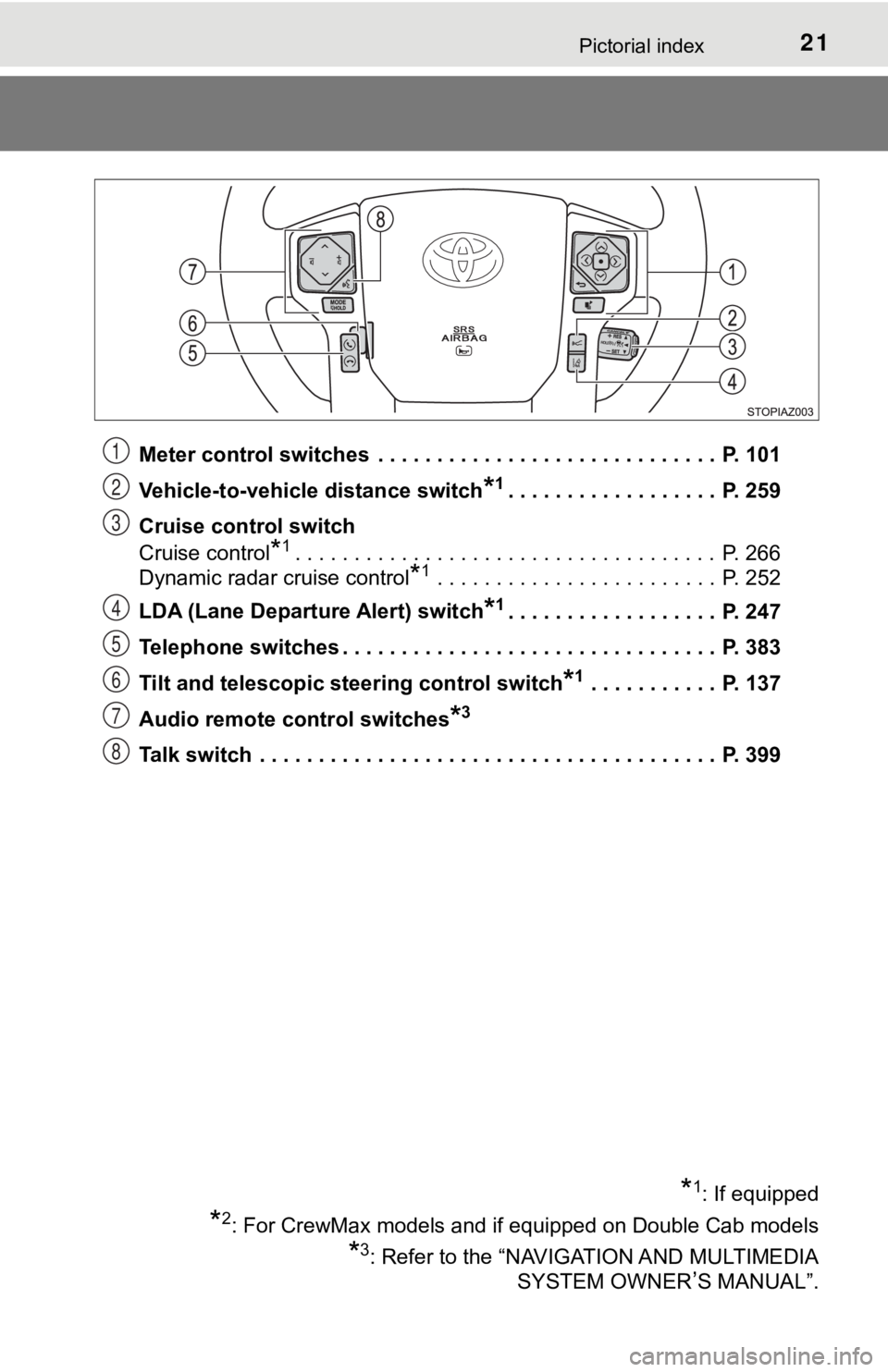
Meter control switches . . . . . . . . . . . . . . . . . . . . . . . . . . . . . P. 101
Vehicle-to-vehicle distance switch
*1. . . . . . . . . . . . . . . . . . P. 259
Cruise control switch
Cruise control
*1. . . . . . . . . . . . . . . . . . . . . . . . . . . . . . . . . . . . P. 266
Dynamic radar cruise control
*1 . . . . . . . . . . . . . . . . . . . . . . . . P. 252
LDA (Lane Departure Alert) switch
*1. . . . . . . . . . . . . . . . . . P. 247
Telephone switches . . . . . . . . . . . . . . . . . . . . . . . . . . . . . . . . P. 383
Tilt and telescopic steering control switch
*1 . . . . . . . . . . . P. 137
Audio remote control switches
*3
Talk switch . . . . . . . . . . . . . . . . . . . . . . . . . . . . . . . . . . . . . . . P. 399
*1: If equipped
*2: For CrewMax models and if equipped on Double Cab models
*3: Refer to the “NAVIGATION AND MULTIMEDIA SYSTEM OWNER
’S MANUAL”.
1
2
3
4
5
6
7
8
Page 104 of 672

1042. Instrument cluster
●Meter setting
• Language
Select to change the language on the display.
•Units
Select to change the unit of measure for fuel consumption and t empera-
ture.
• Switch settings
You can register 1 screen as the top screen. To register, press and hold
while the desired screen is displayed.
There are also screens that cannot be setup as the Top Screen.
• Drive information 1 and 2
Select to select up to 2 items that will be displayed on a Driv e informa-
tion screen, up to 2 Drive information screens can be set.
• Pop-up display
Select to set the following pop-up displays, which may appear i n some
situations, on/off. • Route guidance display of the navigation system-linked system (if
equipped)
• Incoming call display of the hands-free phone system
• Instrument panel brightness adjustment display
• Accent color
Select to change the accent colors on the screen, such as the m enu
icon color.
• Default settings
Registered or changed meter settings will be deleted or returne d to their
default setting.
*1: If equipped
*2: For vehicles sold in the U.S.A.
Page 111 of 672
1113-1. Key information
3
Operation of each component
■If you lose your keys
New genuine key can be made by your Toyota dealer using the other key and
the key number stamped on your key number plate.
Keep the plate in a safe place such as your wallet, not in the vehicle.
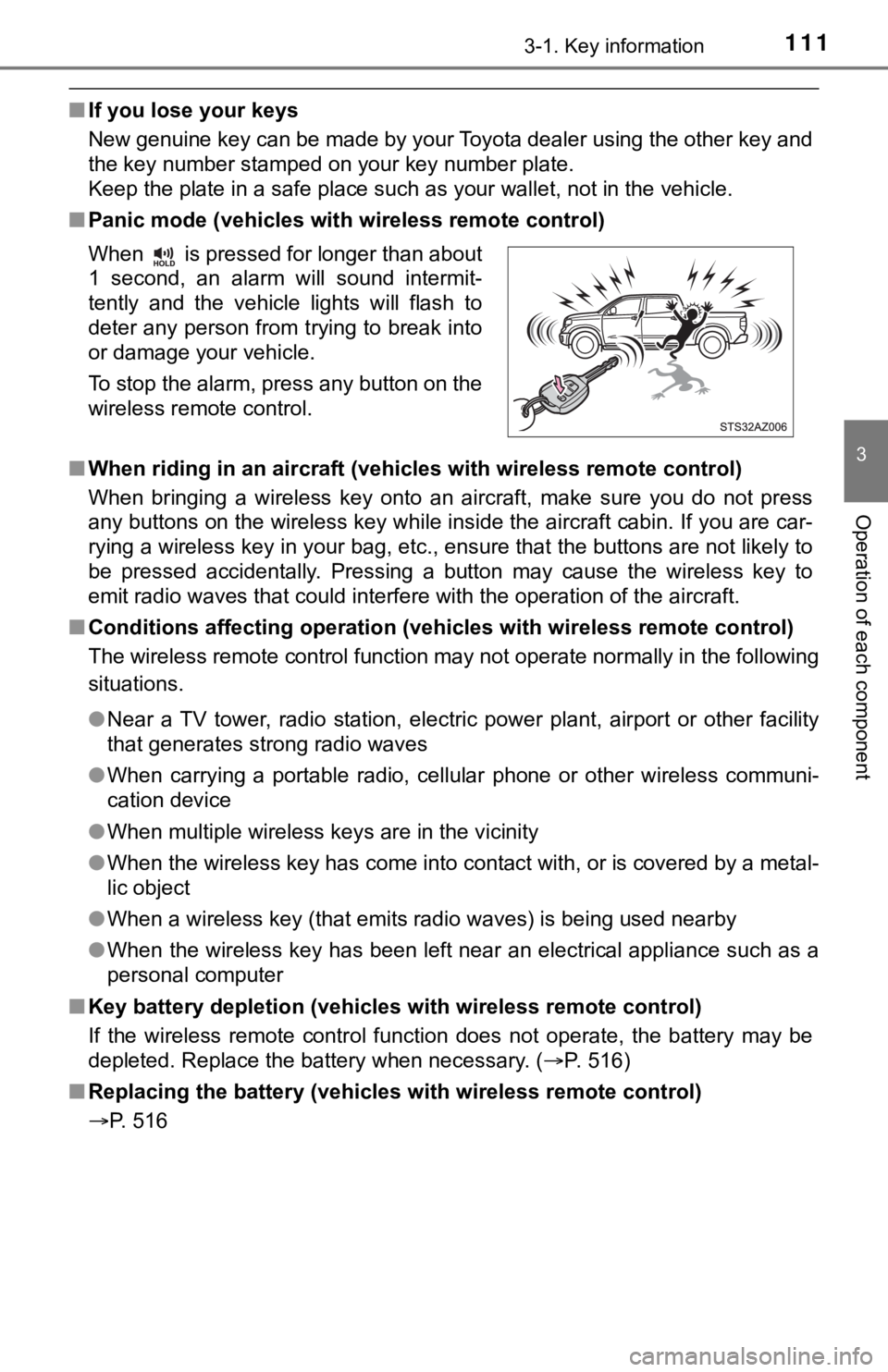
■ Panic mode (vehicles with wireless remote control)
■ When riding in an aircraft (vehic les with wireless remote control)
When bringing a wireless key onto an aircraft, make sure you do not press
any buttons on the wireless key while inside the aircraft cabin . If you are car-
rying a wireless key in your bag, etc., ensure that the buttons are not likely to
be pressed accidentally. Pressing a button may cause the wirele ss key to
emit radio waves that could interfere with the operation of the aircraft.
■ Conditions affecting operation (vehicles with wireless remote c ontrol)
The wireless remote control function may not operate normally i n the following
situations.
● Near a TV tower, radio station, electric power plant, airport o r other facility
that generates strong radio waves
● When carrying a portable radio, cellular phone or other wireles s communi-
cation device
● When multiple wireless keys are in the vicinity
● When the wireless key has come into contact with, or is covered by a metal-
lic object
● When a wireless key (that emits radio waves) is being used near by
● When the wireless key has been left near an electrical applianc e such as a
personal computer
■ Key battery depletion (vehicles with wireless remote control)
If the wireless remote control function does not operate, the b attery may be
depleted. Replace the battery when necessary. ( P. 516)
■ Replacing the battery (vehicles with wireless remote control)
P. 516 When is pressed for longer than about
1 second, an alarm will sound intermit-
tently and the vehicle lights will flash to
deter any person from trying to break into
or damage your vehicle.
To stop the alarm, press any button on the
wireless remote control.
Page 321 of 672

321
5Multimedia
5-6. Using an external deviceListening to an iPod .......... 347
Listening to a USB memory device................ 351
Using the AUX port ........... 355
5-7. Connecting Bluetooth
®
Preparations to use wireless
communication ................ 356
Registering a Bluetooth
®
audio player
for the first time ............... 361
Registering a Bluetooth
®
phone for the first time ... 362
Registering a Bluetooth
®
device.............................. 363
Connecting a Bluetooth
®
device.............................. 365
Displaying a Bluetooth
®
device details .................. 367
Detailed Bluetooth
®
system settings ............... 368
5-8. Bluetooth
® audio
Listening to Bluetooth®
audio ............................... 369 5-9. Bluetooth
® phone
Using a Bluetooth®
phone .............................. 370
Making a call ..................... 372
Receiving a call ................. 375
Speaking on the phone ..... 376
Bluetooth
® phone
message function ............ 379
Using the steering wheel switches .......................... 383
Bluetooth
® phone
settings ........................... 384
Contact/Call History Settings ........................... 386
What to do if... (Troubleshooting) ............ 395
5-10. Using the voice command system
Voice command system .... 399
5-11. Bluetooth
®
Bluetooth®......................... 403
5-12. Antenna Antenna............................. 408
Page 324 of 672
3245-1. Basic Operations
Entune Audio
button
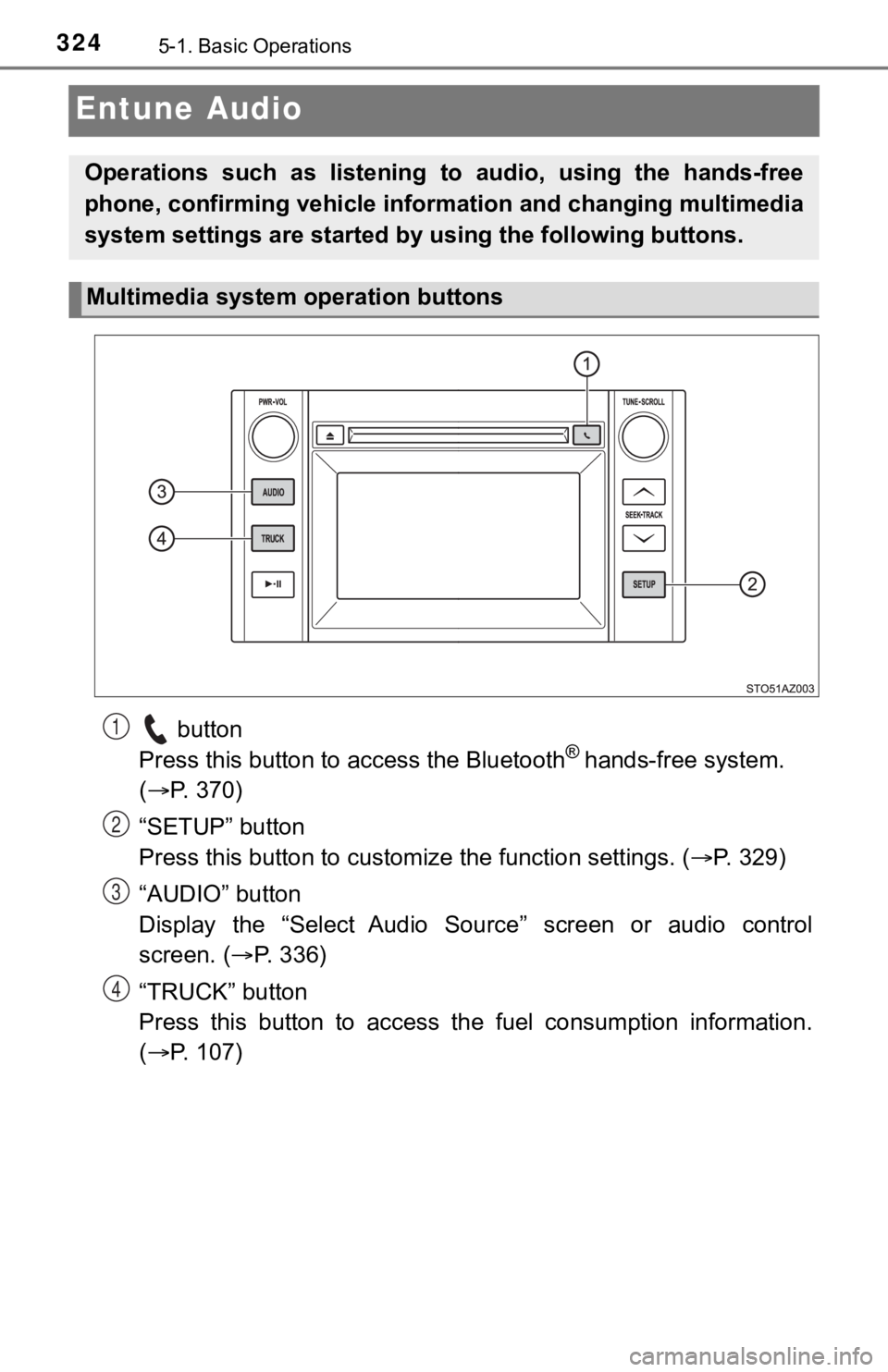
Press this button to a ccess the Bluetooth® hands-free system.
( P. 370)
“SETUP” button
Press this button to customi ze the function settings. (P. 329)
“AUDIO” button
Display the “Select Audio Source” screen or audio control
screen. ( P. 3 3 6 )
“TRUCK” button
Press this button to access the fuel consumption information.
( P. 107)
Operations such as listening to audio, using the hands-free
phone, confirming vehicle inform ation and changing multimedia
system settings are started by using the following buttons.
Multimedia system operation buttons
1
2
3
4
Page 325 of 672
3255-1. Basic Operations
5
Multimedia
By touching the screen with your finger, you can control the Audio
system, hands-free system, etc.
■Drag*
Touch the screen with your finger and move the screen to the
desired position.
● Scrolling the lists
● Using scroll bar in lists
■Flick*
Touch the screen with your finger and then quickly move the
screen.
●Scrolling the main screen page
● Returning to the menu screen from the sub-menu screen (screen
one level below)
*: The above operations may not be performed on all screens.
■When using the touch screen
●If the screen is cold, the display may be dark, or the system may seem to be
operating slightly slower than normal.
● The screen may seem dark and hard to see when viewed through su n-
glasses. Change your angle of viewing, adjust the display on th e “Display
Settings” screen ( P. 333) or remove your sunglasses.
■ Using cellular phones
Interference may be heard through the multimedia system's speakers if a cel-
lular phone is being used inside or close to the vehicle while the multimedia
system is operating.
Operating the touch screen
Page 329 of 672
3295-2. Setup
5
Multimedia
Setup menu
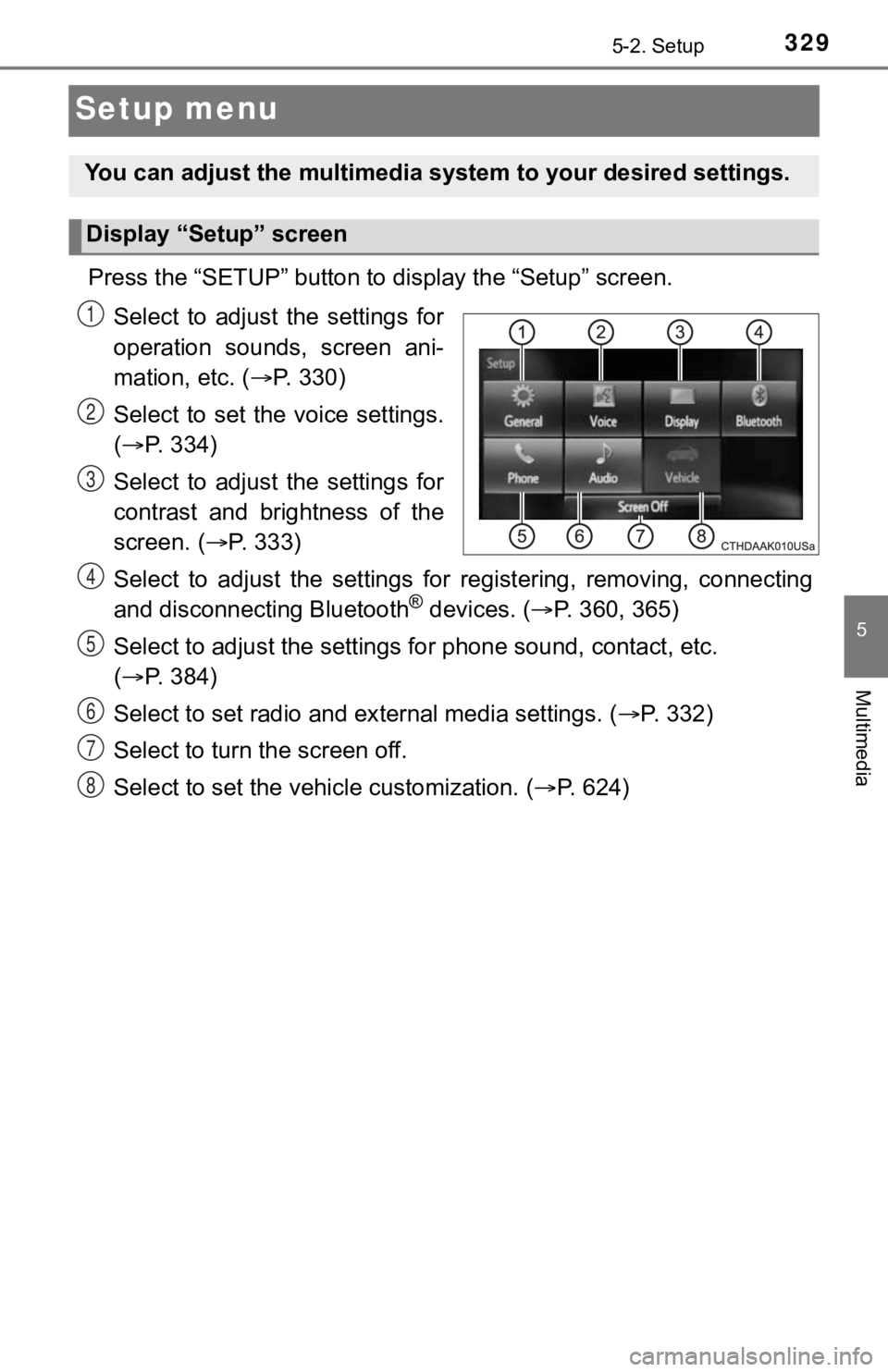
Press the “SETUP” button to display the “Setup” screen.
Select to adjust the settings for
operation sounds, screen ani-
mation, etc. ( P. 330)
Select to set the voice settings.
( P. 334)
Select to adjust the settings for
contrast and brightness of the
screen. ( P. 3 3 3 )
Select to adjust the settings for registering, removing, connec ting
and disconnecting Bluetooth
® devices. ( P. 360, 365)
Select to adjust the settings f or phone sound, contact, etc.
( P. 384)
Select to set radio and ex ternal media settings. (P. 332)
Select to turn the screen off.
Select to set the veh icle customization. (P. 6 2 4 )
You can adjust the multimedia system to your desired settings.
Display “Setup” screen
1
2
3
4
5
6
7
8