audio TOYOTA VENZA 2016 User Guide
[x] Cancel search | Manufacturer: TOYOTA, Model Year: 2016, Model line: VENZA, Model: TOYOTA VENZA 2016Pages: 688, PDF Size: 18.51 MB
Page 240 of 688
2402-4. Using other driving systems
VENZA_OM_OM73030U_(U) Setting up intuitive parking assi st (vehicles with an Entune
Premium Audio with Navigation)
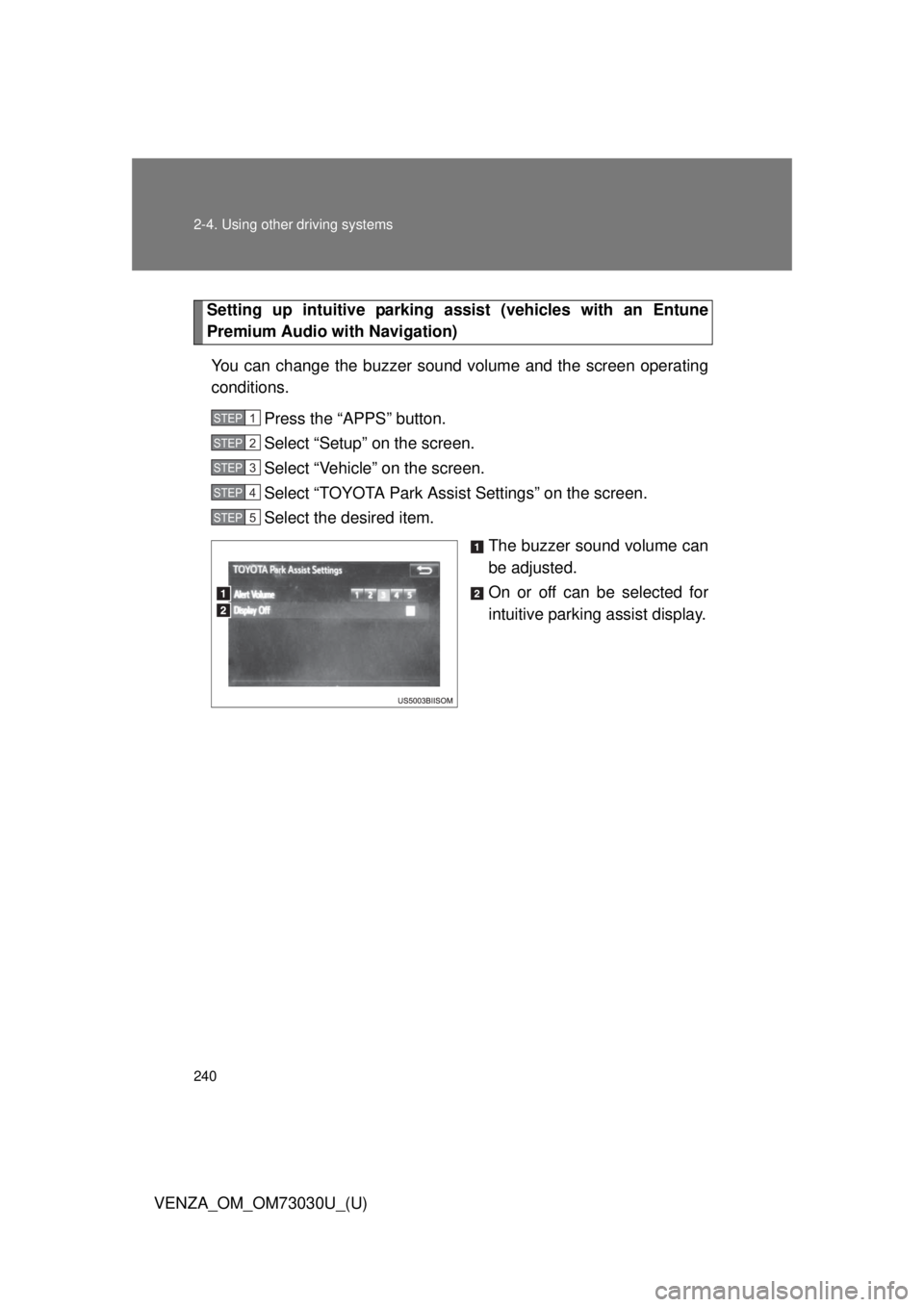
You can change the buzzer sound volume and the screen operating
conditions.
Press the “APPS” button.
Select “Setup” on the screen.
Select “Vehicle” on the screen.
Select “TOYOTA Park Assist Settings” on the screen.
Select the desired item.
The buzzer sound volume can
be adjusted.
On or off can be selected for
intuitive parking assist display.STEP 1
STEP 2
STEP 3
STEP 4
STEP 5
Page 304 of 688
304
VENZA_OM_OM73030U_(U) 3-1. Using the air conditioning
system and defogger
Automatic air conditioning
system ........................... 306
Rear window defogger ..... 316
3-2. Using the audio system
(Entune Audio)
Audio system types .......... 318
Audio system ................... 320
Steering wheel audio
switches ......................... 323
USB Port/AUX Port .......... 325
Basic Audio
Operations ..................... 326
Setup menu...................... 329
General settings ............... 330
Audio settings .................. 332
Display settings ................ 333
Voice settings................... 335 Selecting the audio
source ............................ 336
List screen operation........ 337
Optimal use of the audio
system ........................... 339
Radio operation................ 340
CD player operation ......... 343
Listening to an iPod ......... 350
Listening to a
USB memory device ...... 356
Using the AUX port .......... 362
Preparations to use
wireless
communication ............... 363
Registering a Bluetooth ®
audio player for
the first time ................... 366
Registering a Bluetooth ®
phone for
the first time ................... 367
Registering a Bluetooth ®
device ............................ 368
Connecting a Bluetooth ®
device ............................ 370
Page 305 of 688
Interior features
3
305
VENZA_OM_OM73030U_(U) Displaying a Bluetooth ®
device details ................. 373
Detailed Bluetooth ®
system settings .............. 375
Listening to Bluetooth ®
Audio.............................. 377
Using a Bluetooth ®
Phone ............................ 379
Making a call .................... 382
Receiving a call ................ 386
Speaking on the phone .... 387
Bluetooth ®
phone
message function........... 391
Using the steering wheel
switches ......................... 396
Bluetooth ®
phone
settings .......................... 397
Contact/Call History
Settings .......................... 399
What to do if...
(Troubleshooting)........... 411
Bluetooth ®
........................ 419
Voice command
system ........................... 426 3-3. Using the interior lights
Interior lights list ............... 430
• Personal/interior light
main switch .................... 431
• Personal/interior lights
and luggage
compartment light .......... 432
3-4. Using the storage features
List of storage features .... 434
• Glove box....................... 435
• Console boxes ............... 436
• Overhead console .......... 438
• Cup holders ................... 439
• Bottle holders ................. 441
• Auxiliary boxes ............... 442
3-5. Other interior features
Sun visors ........................ 445
Vanity mirror..................... 446
Power outlets ................... 447
Seat heaters..................... 449
Armrest ............................ 451
Assist grips
(folding type) .................. 452
Floor mats ........................ 453
Luggage compartment
features .......................... 455
Garage door opener......... 457
Compass .......................... 464
Page 318 of 688
318
VENZA_OM_OM73030U_(U) 3-2. Using the audio system (Entune Audio)
Audio system types
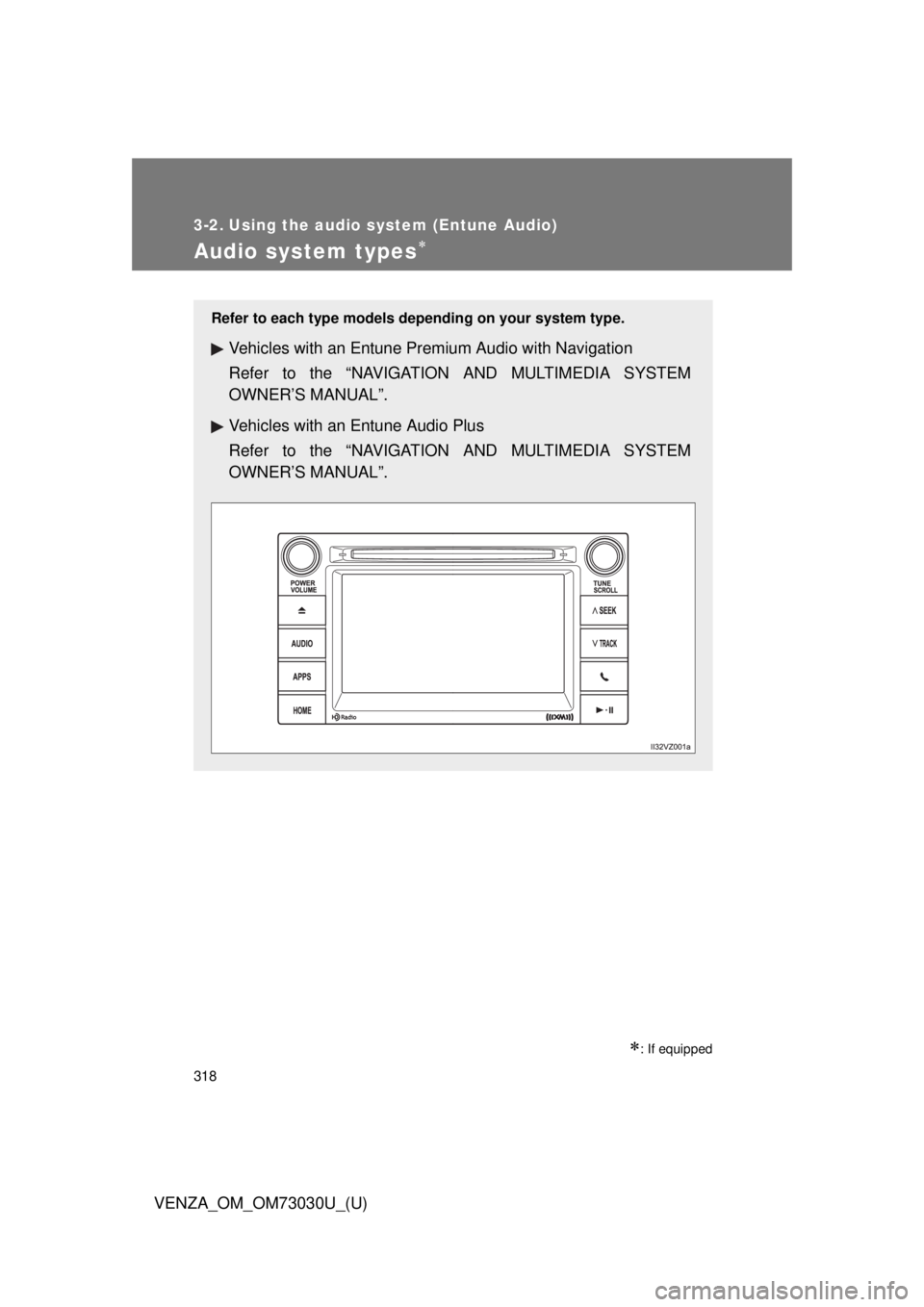
: If equippedRefer to each type models depending on your system type.
Vehicles with an Entune Premium Audio with Navigation
Refer to the “NAVIGATION AND MULTIMEDIA SYSTEM
OWNER’S MANUAL”.
Vehicles with an Entune Audio Plus
Refer to the “NAVIGATION AND MULTIMEDIA SYSTEM
OWNER’S MANUAL”.
Page 319 of 688
3193-2. Using the audio system (Entune Audio)
VENZA_OM_OM73030U_(U) 3
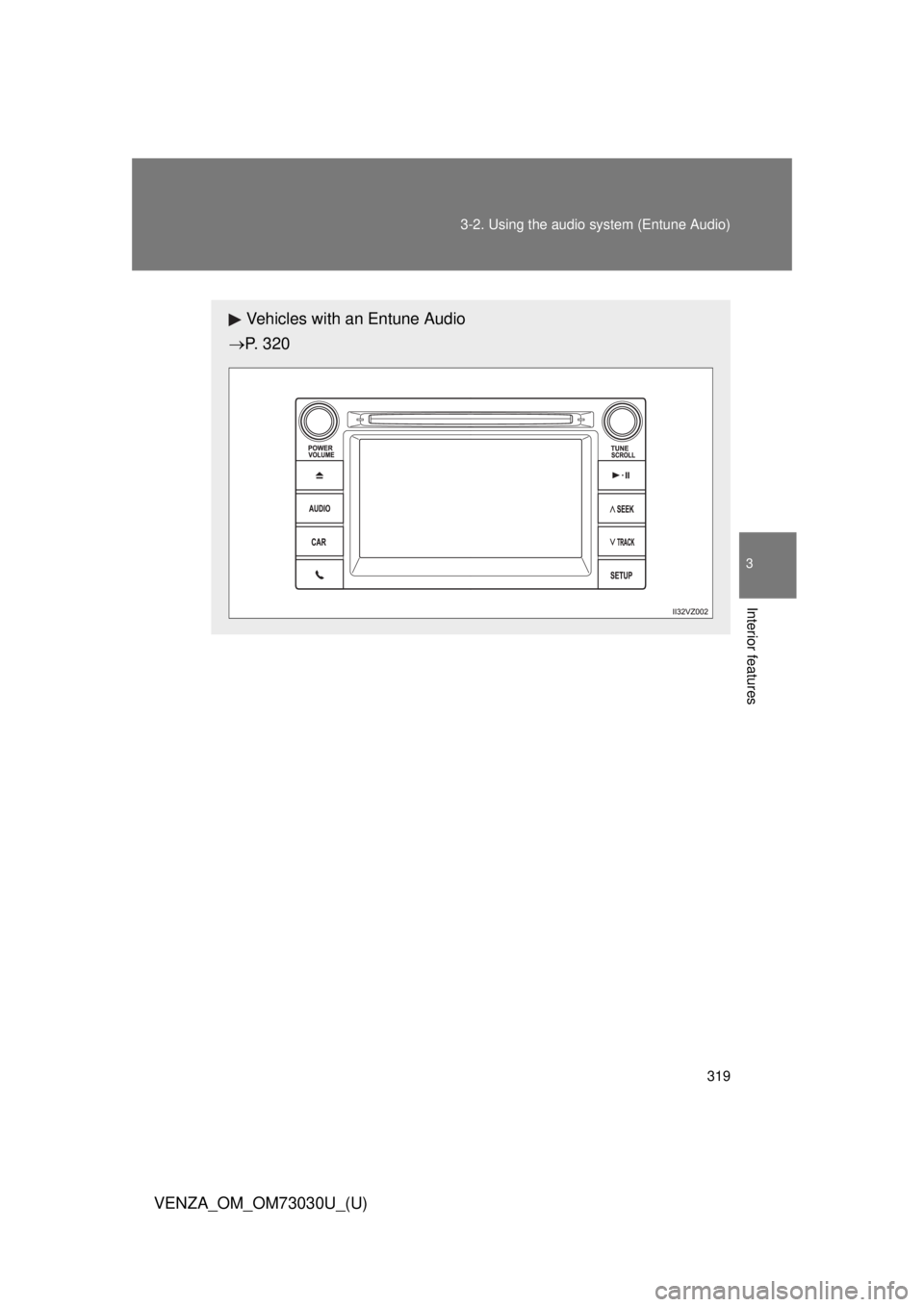
Interior features Vehicles with an Entune Audio
P. 320
Page 320 of 688
3203-2. Using the audio system (Entune Audio)
VENZA_OM_OM73030U_(U)Audio system
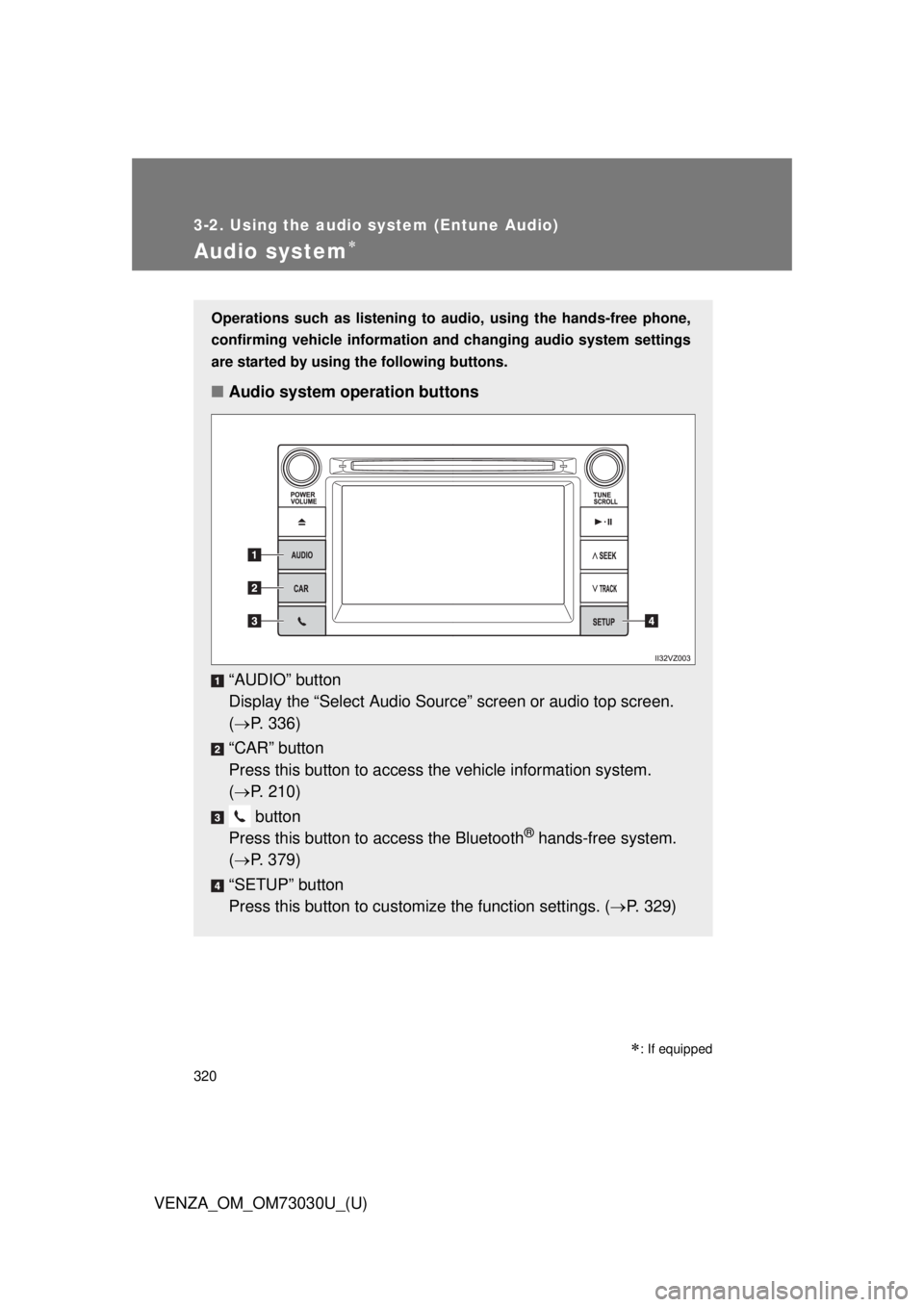
: If equippedOperations such as listening to audio, using the hands-free phone,
confirming vehicle information and changing audio system settings
are started by using the following buttons.
■ Audio system operation buttons
“AUDIO” button
Display the “Select A udio Source” screen or audio top screen.
( P. 336)
“CAR” button
Press this button to access the vehicle information system.
( P. 210)
button
Press this button to access the Bluetooth ®
hands-free system.
( P. 379)
“SETUP” button
Press this button to customize the function settings. ( P. 329)
Page 321 of 688
3213-2. Using the audio system (Entune Audio)
VENZA_OM_OM73030U_(U) 3
Interior features Operating the touch screen
By touching the screen with your finger, you can control the audio
system, etc.
■ Touch
Quickly touch and release once.
● Changing and selecting various settings
■ Drag
* Touch the screen with your finger, and move the screen to the
desired position.
● Scrolling the lists
■ Flick
* Touch the screen with your finger and quickly move the screen by
flicking your finger.
● Moving the list screen (list screen limit)
* : The above operations may not be performed on all screens.
■ When using the touch screen
● If the screen is cold, the display may be dark, or the system may seem to
be operating slightly slower than normal.
● The screen may seem dark and hard to see when viewed through sun-
glasses. Change your angle of viewing, adjust the display on the “Display
Settings” screen ( P. 333) or remove your sunglasses.
Page 322 of 688

3223-2. Using the audio system (Entune Audio)
VENZA_OM_OM73030U_(U) NOTICE■ To avoid damaging the touch screen
● To prevent damaging the screen, lightly touch the screen buttons with your
finger.
● Do not use objects other than your finger to touch the screen.
● Wipe off fingerprints using a glass cleaning cloth. Do not use chemical
cleaners to clean the screen, as they may damage the touch screen.
Page 323 of 688
3233-2. Using the audio system (Entune Audio)
VENZA_OM_OM73030U_(U) 3
Interior features
Steering wheel audio switches
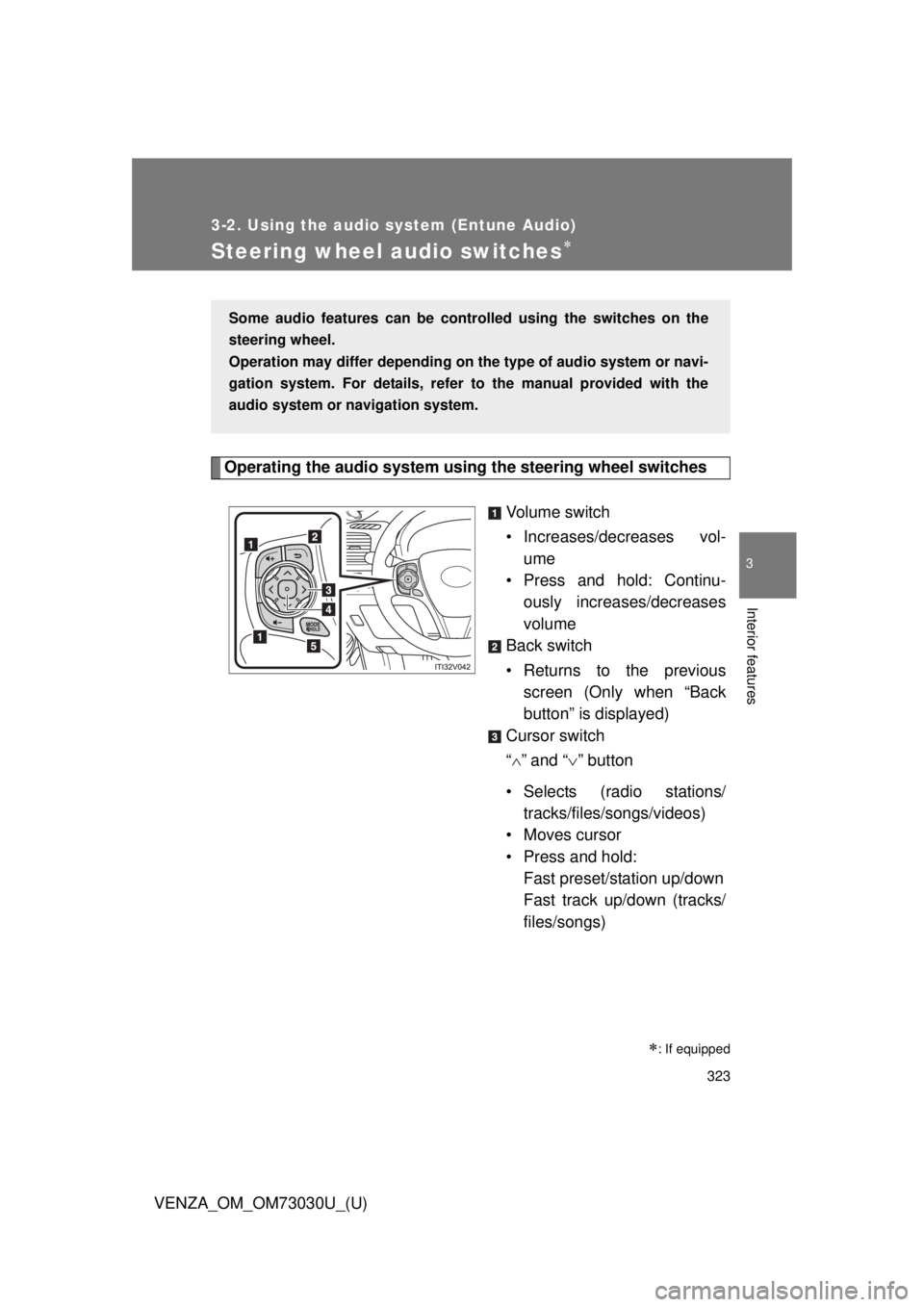
Operating the audio system using the steering wheel switches
Volume switch
• Increases/dec reases vol-
ume
• Press and hold: Continu-
ously increases/decreases
volume
Back switch
• Returns to the previous
screen (Only when “Back
button” is displayed)
Cursor switch
“ ” and “ ” button
• Selects (radio stations/
tracks/files/songs/videos)
• Moves cursor
• Press and hold:
Fast preset/station up/down
Fast track up/down (tracks/
files/songs)
: If equippedSome audio features can be contro lled using the switches on the
steering wheel.
Operation may differ depending on th e type of audio system or navi-
gation system. For details, refer to the manual provided with the
audio system or navigation system.
Page 324 of 688
3243-2. Using the audio system (Entune Audio)
VENZA_OM_OM73030U_(U) “ ” and “ ” button
• Tab change
• Press and hold:
Seek up/down (radio sta-
tions)
Fast up/down (tracks/files/
videos)
Enter switch
• Displays the audio screen
(Except when audio screen
is displayed)
• Displays the preset/list
screen (When audio screen
is displayed)
• Selects items (When audio
list screen is displayed)
“MODE/HOLD” switch
• Changes audio source
• Press and hold this switch
to mute or pause the current
operation
To cancel the mute or
pause, press and hold.
CAUTION■ To reduce the risk of an accident
Exercise care when operating the audio switches on the steering wheel.